Convert HTML to WebP in Ruby
Render HTML in Chrome and save optimized WebP screenshots with Ruby Ferrum, plus hosted API options, configuration, troubleshooting, and production tips.

To convert HTML to WebP in Ruby, render the page in a real browser and ask the browser to encode the screenshot as WebP. The most direct local workflow uses Ferrum with Chrome or Chromium:
require "ferrum"

browser = Ferrum::Browser.new
page = browser.create_page
page.go_to("https://example.com")
page.screenshot(path: "output.webp", format: "webp", quality: 80, full: true)
browser.quit
HTML is not an image file by itself. CSS layout, web fonts, JavaScript, lazy images, and responsive rules only appear after a browser renders the document. Ferrum controls Chrome or Chromium through the Chrome DevTools Protocol (CDP), so you get browser rendering without Selenium, WebDriver, or ChromeDriver. You still need a Chrome or Chromium executable installed and available to Ferrum.
1. Install Ruby, Ferrum, and Chrome
Add Ferrum to your application:
bundle add ferrumInstall Chrome or Chromium using your operating system or container image. Ferrum can use the executable found on the system path. If the browser is installed somewhere else, pass its path when creating the browser:
browser = Ferrum::Browser.new(
  browser_path: "/usr/bin/chromium"
)
The exact executable location varies by operating system and container. Confirm it exists and is executable before debugging Ruby code. In CI, install the browser in the build image and keep the browser version pinned when reproducibility matters.
2. Convert a public URL to WebP
This complete script navigates to a page, waits for navigation to finish, and writes a full-page WebP:

require "ferrum"

url = ARGV.fetch(0, "https://example.com")
output = ARGV.fetch(1, "output.webp")

browser = Ferrum::Browser.new
begin
  page = browser.create_page
  page.go_to(url)
  page.screenshot(
    path: output,
    format: "webp",
    quality: 80,
    full: true
  )
  puts "Wrote #{output}"
ensure
  browser.quit
end
Run it with:
ruby html_to_webp.rb https://example.com example.webpfull: true uses the document dimensions rather than only the visible viewport. Without it, the result represents the currently visible area. A path ending in .webp can help Ferrum infer the format, but specifying format: "webp" makes the output unambiguous.
3. Render local HTML instead of a URL
For a local file, use a file URL. An absolute path avoids ambiguity:
require "ferrum"

html_path = File.expand_path("invoice.html")
file_url = "file://#{html_path}"

browser = Ferrum::Browser.new
begin
  page = browser.create_page
  page.go_to(file_url)
  page.screenshot(path: "invoice.webp", format: "webp", quality: 85, full: true)
ensure
  browser.quit
end
Relative CSS, images, and fonts must resolve from the local document location. If your HTML depends on an application server, start that server and navigate to its HTTP URL instead. For HTML generated in memory, serve it from a temporary local endpoint or use a data URL only for small, self-contained documents; large pages and external assets are easier to debug over HTTP.
4. Control WebP quality, size, and capture area
Ferrum supports PNG, JPEG, JPG, and WebP. For WebP and JPEG, the implementation uses a default quality of 75 when you omit quality. Set it explicitly when file size or visual fidelity is part of your requirement.
page.screenshot(
  path: "hero.webp",
  format: "webp",
  quality: 90,
  full: false
)
Use a lower quality for thumbnails and a higher value for text-heavy screenshots. The right setting depends on your page, fonts, gradients, and downstream use, so compare representative outputs rather than assuming a universal value.
Capture one element
Pass a CSS selector to capture a region:
page.screenshot(
  path: "pricing.webp",
  format: "webp",
  quality: 82,
  selector: ".pricing-table"
)
This is useful for cards, charts, invoices, and components. The selector must match an element after the page has rendered. If it matches nothing, wait for the element or check the selector in the browser console.
Capture a rectangular area
When you know pixel coordinates, use an area capture. Ferrum’s screenshot API accepts an area option; provide the coordinates in the shape documented by your Ferrum version. Area coordinates are viewport based, so responsive layout and device scale can change the result.
Set viewport and device scale
browser = Ferrum::Browser.new(
  window_size: [1440, 900]
)
page = browser.create_page
page.go_to("https://example.com")
page.screenshot(
  path: "desktop.webp",
  format: "webp",
  quality: 80,
  scale: 1,
  background_color: "#ffffff"
)
Use a consistent viewport in automated jobs. A larger scale increases pixel dimensions and usually increases file size. Set background_color when transparent or default browser backgrounds would make output inconsistent.
5. Wait for JavaScript, fonts, and lazy images
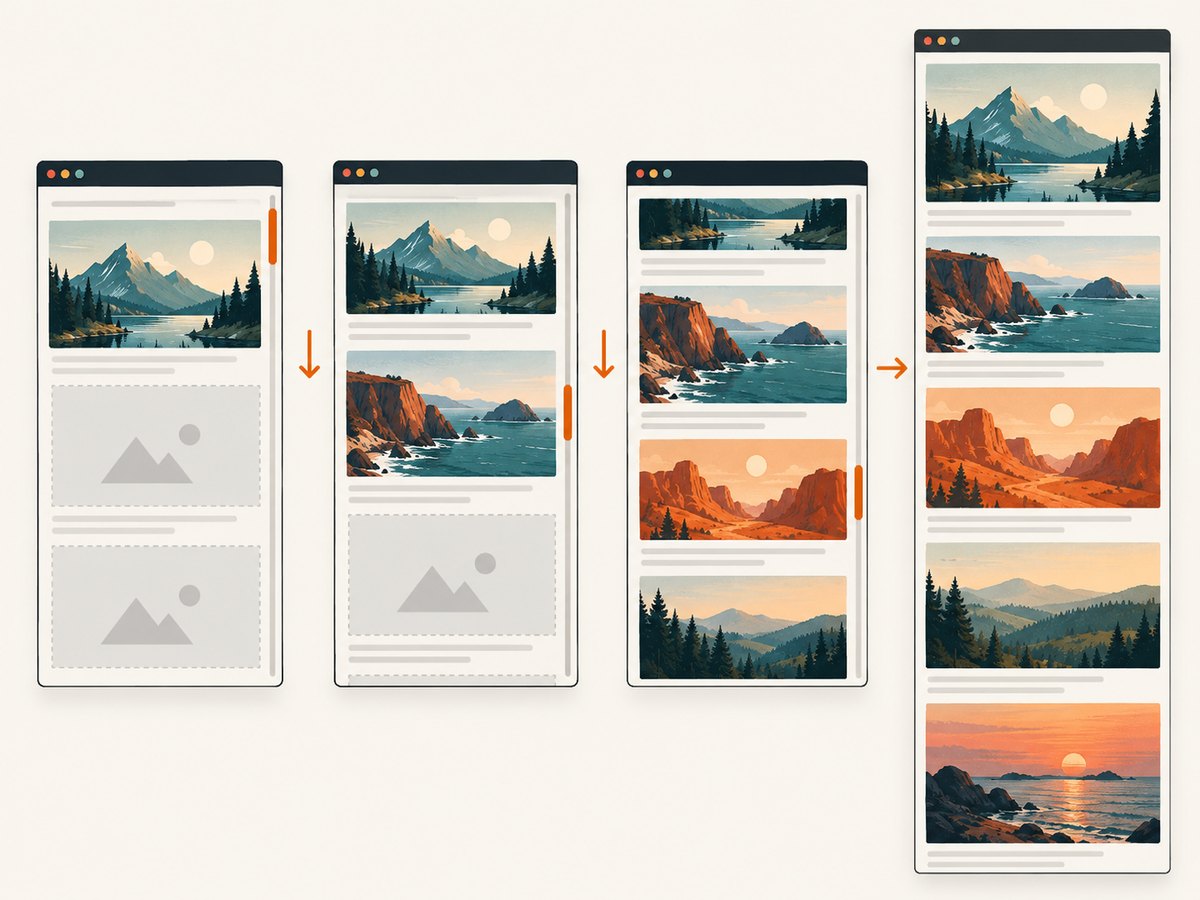
A screenshot taken immediately after navigation can contain placeholders, unloaded fonts, or an incomplete application shell. Wait for a stable selector:
page.go_to("https://example.com/dashboard")
page.at_css(".dashboard-ready", wait: 15)
page.screenshot(path: "dashboard.webp", format: "webp", quality: 80, full: true)
For pages without a reliable marker, use a short delay after navigation. A selector is generally more reliable than a fixed delay because it describes the state you actually need. For lazy-loaded pages, scroll before capture so content enters the viewport and triggers loading:
page.evaluate("window.scrollTo(0, document.body.scrollHeight)")
page.evaluate("window.scrollTo(0, 0)")
page.screenshot(path: "long-page.webp", format: "webp", quality: 80, full: true)
Full-page behavior and lazy loading depend on the page’s JavaScript. Some applications load content only after several incremental scrolls; implement that sequence when necessary.
6. Return WebP as base64
Use base64 encoding when another API, database, or message queue consumes the image directly:
encoded = page.screenshot(
  encoding: :base64,
  format: "webp",
  quality: 80,
  full: true
)
File.write("output.webp", Base64.decode64(encoded))
Require Ruby’s Base64 library if your runtime does not already load it:
require "base64"Base64 increases memory use and payload size compared with streaming a file. For large full-page captures, write to disk or stream the binary response where possible.
7. Authenticate and customize the page
Ferrum is appropriate when rendering must happen inside your application process and you need browser-level control. Typical patterns include setting cookies before navigation, adding headers through the browser’s CDP interface, or navigating through an authenticated session. Keep credentials out of URLs and source control. For a repeatable pipeline, create a fresh page per capture, clear state between unrelated users, and close the browser in an ensure block.
Custom viewport size, user agent, timezone, geolocation, JavaScript execution, and request interception are browser concerns. Verify the Ferrum version’s option names before deploying because these controls can differ between releases and Chrome versions.
8. Ferrum versus a hosted screenshot API
Local Ferrum gives you ownership of the browser runtime. It is a good fit for private pages, in-process authentication, custom browser behavior, and environments where page data must stay inside your infrastructure. You must maintain Chrome or Chromium, fonts, sandbox settings, memory limits, concurrency, and upgrades.
A hosted URL-to-WebP service moves browser operations out of your deployment. The hosted HTML/CSS to Image workflow described in the research dossier handles Chromium, page loading, rendering isolation, retries, and hosted output. Check its current pricing, privacy terms, authentication requirements, limits, and partner terms before selecting it. The dossier does not provide a controlled benchmark for speed, file size, or visual fidelity, so choose based on operational requirements rather than an assumed performance winner.
9. Or skip the browser setup
ScreenshotNeo provides a one-call website screenshot API and MCP server. It accepts the URL and returns PNG, JPEG, WebP, or PDF. Cookie and consent banners are accepted like a visitor, then more than 60 known consent platforms, newsletter popups, and chat widgets are removed before capture. Each cleanup step can be turned off.
Only clean shots are billed. Bot checks and CAPTCHAs, blank pages, timeouts, failed loads, and cache hits cost nothing, and the response reports the result through X-Page-Verdict and X-Billed headers. An MCP server provides take_screenshot, get_page_info, and capture_pdf tools to Claude, Cursor, and other MCP clients.
See the ScreenshotNeo API documentation for all options. A WebP request looks like this:
curl -G "https://api.screenshotneo.com/v1/shot" -d access_key=YOUR_API_KEY --data-urlencode url=https://stripe.com -o shot.webpimport requests
r = requests.get(
"https://api.screenshotneo.com/v1/shot",
params={"access_key": "YOUR_API_KEY", "url": "https://stripe.com"},
timeout=90,
)
r.raise_for_status()
open("shot.webp", "wb").write(r.content)const q = new URLSearchParams({ access_key: 'YOUR_API_KEY', url: 'https://stripe.com' });
const res = await fetch(`https://api.screenshotneo.com/v1/shot?${q}`);
if (!res.ok) throw new Error(`Screenshot failed: ${res.status}`);
require('fs').writeFileSync('shot.webp', Buffer.from(await res.arrayBuffer()));ScreenshotNeo also supports full-page capture with lazy images loaded, CSS selector capture, dark mode, device presets, arbitrary viewports, retina scale, custom CSS and JavaScript, clicks, waits, blocked ads or resources, custom headers and cookies, authorization, timezone and geolocation, transparent backgrounds, resizing, cache TTLs, signed image links, asynchronous jobs with signed webhooks, bulk capture of up to 100 URLs per call, a usage API, and an OpenAPI specification. Parameter names used by other screenshot APIs also work, which can simplify migration.
The Free plan includes 1,000 screenshots each month with no card. Paid plans start at $5 for 3,000 shots; yearly billing gives two months free, and every feature is on every plan. Create a free ScreenshotNeo account.
10. Troubleshooting
Ferrum cannot find Chrome
Cause: Chrome or Chromium is not installed, or its path is not visible to the process.
Fix: install a supported browser, verify the executable from the same user that runs Ruby, or set browser_path explicitly. In containers, include the browser and required shared libraries in the image.
The output is blank or only shows a loading shell
Cause: capture occurred before JavaScript, fonts, or data requests completed.
Fix: wait for a page-specific ready selector, add a bounded delay, and inspect browser console and network errors. For lazy content, scroll through the page before taking the full capture.
The selector capture fails
Cause: the selector is wrong, generated later, inside a frame, or hidden.
Fix: confirm it exists after navigation, wait for it, use the correct frame context, and ensure its dimensions are non-zero.
Fonts or images differ between machines
Cause: missing fonts, blocked external assets, different browser versions, or network timing.
Fix: package required fonts, pin browser versions, wait for font and image readiness, and make external dependencies available from the capture environment.
The process hangs or runs out of memory
Cause: browsers are left open, full-page documents are extremely tall, or too many captures run concurrently.
Fix: always quit in ensure, cap page dimensions, limit concurrency, recycle long-lived browser processes, and monitor memory. Keep timeouts bounded so a failed page cannot occupy a worker indefinitely.
WebP is too large or visibly soft
Cause: quality, scale, and page dimensions determine output size and detail.
Fix: set quality explicitly, reduce scale or viewport dimensions for thumbnails, and raise quality for small text or diagrams. Compare files from representative pages.
11. Production checklist
- Pin the Ferrum and Chrome/Chromium versions used in deployment.
- Set explicit viewport, format, quality, and background options.
- Wait for a semantic ready selector when possible.
- Use bounded navigation and capture timeouts.
- Close pages and browsers in
ensureblocks. - Limit concurrency according to available CPU and memory.
- Record the source URL, browser version, output dimensions, and errors.
- Protect cookies, authorization headers, and generated images.
- Retry transient navigation failures with a small cap and backoff.
- Use a hosted API when browser maintenance or burst capacity is more costly than an HTTP integration.
12. Performance, reliability, and cost considerations
Capture time depends on page JavaScript, network requests, asset size, viewport, and full-page dimensions. The research sources do not publish a controlled Ruby benchmark, so measure your own representative pages. Reuse a browser carefully to reduce startup overhead, but isolate user sessions and recycle processes before memory growth affects reliability.
Local Ferrum has infrastructure costs for browser CPU, memory, container images, observability, and maintenance. It does not charge per screenshot, but your hosting costs rise with concurrency and page complexity. A hosted API has service pricing and data-transfer considerations; evaluate privacy, retention, limits, and failure behavior before moving sensitive pages.
FAQ
Can Ruby convert HTML to WebP without Selenium?
Yes. Ferrum uses Chrome DevTools Protocol and does not require Selenium, WebDriver, or ChromeDriver. Chrome or Chromium is still required.
Does WebP preserve CSS and JavaScript output?
Yes, when a browser renders the page before capture. The screenshot records the rendered pixels, including layout and loaded JavaScript content.
Should I use PNG instead?
Use PNG when lossless output or sharp pixel art is more important. Use WebP when you want a smaller image and can choose an acceptable quality level.
Can I capture a private dashboard?
Yes, local Ferrum can operate inside your authenticated application. A hosted service requires you to review its authentication, privacy, and data-handling model first.
What is the simplest managed option?
ScreenshotNeo is the first option to try when you want an HTTP API instead of maintaining Chrome: it removes common consent UI before capture, bills only clean shots, and includes 1,000 free screenshots monthly with no card.


