Convert HTML to WebP with cURL
Learn how to render HTML or a webpage and save it as WebP with cURL, hosted APIs, Gotenberg, Chrome, and ScreenshotNeo.
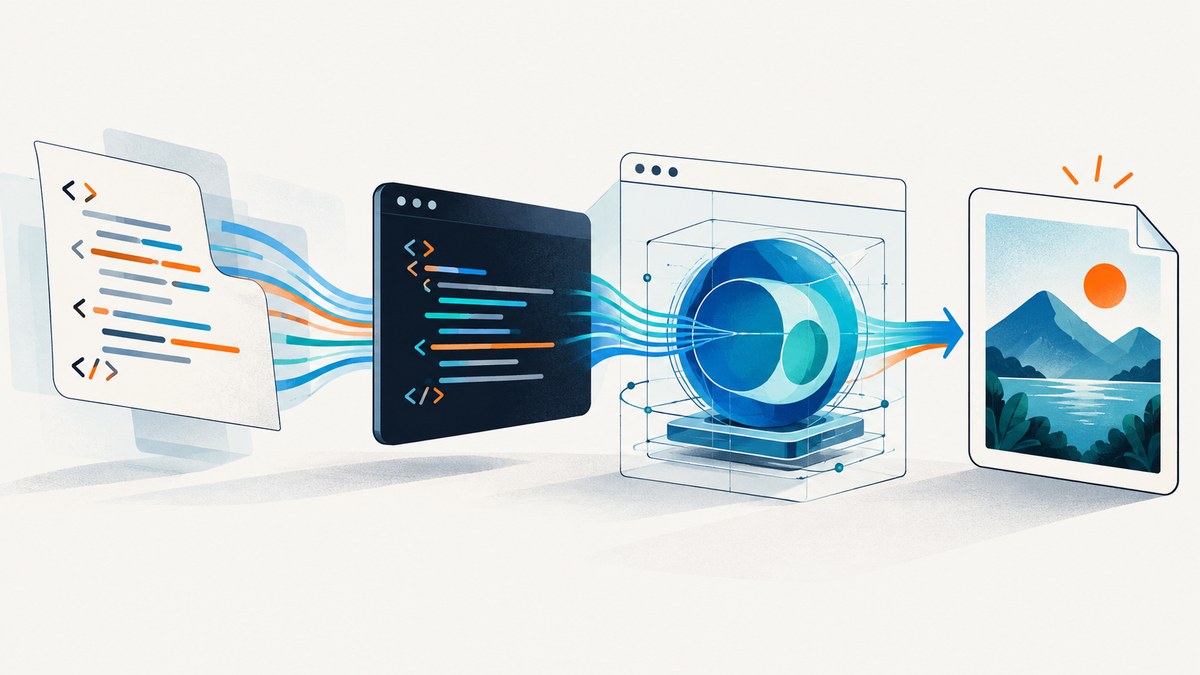
Short answer: cURL cannot convert HTML into WebP by itself. cURL sends an HTTP request; a browser-backed renderer must parse HTML, apply CSS, execute JavaScript, and create pixels. The renderer can return WebP directly, or you can save its PNG/JPEG output and encode that file with a separate tool such as cwebp.
This guide covers the complete workflow: hosted rendering APIs, a self-hosted Gotenberg service, local Chrome plus cwebp, authenticated requests, HTML versus URL input, JavaScript timing, troubleshooting, and production considerations. It ends with a one-call ScreenshotNeo option when you do not want to operate a browser.
1. Understand what cURL does (and does not do)
cURL is an HTTP client. It can send HTML in a POST body, provide a public URL as a parameter, set headers and authentication, and write the response to disk. It does not implement a browser layout engine, JavaScript runtime, font loader, or image encoder.
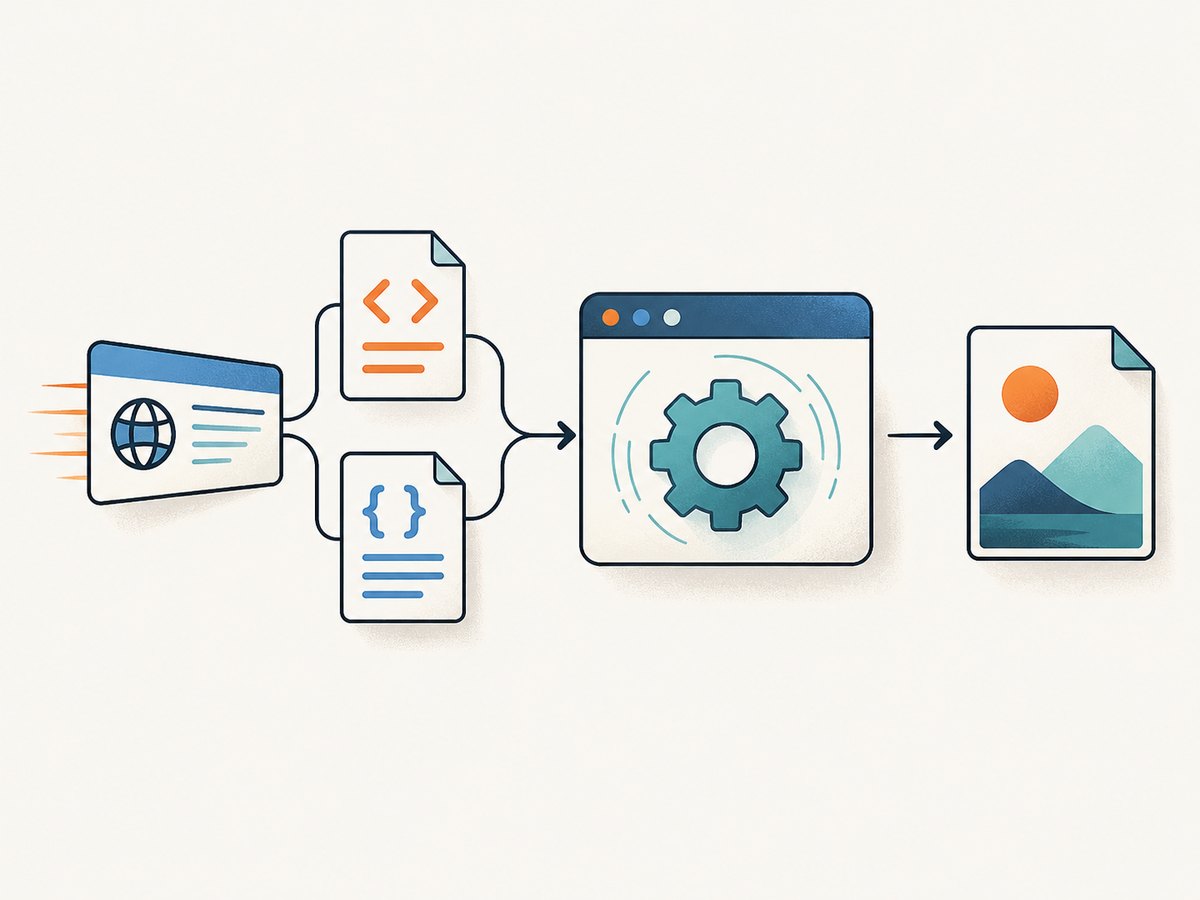
Chrome’s headless documentation makes the same distinction: fetching source with cURL is different from having Chrome parse HTML, execute scripts, and produce a rendered result. A renderer is therefore required whenever the desired WebP represents the page as a visitor sees it. See the Chrome Headless documentation.
2. Choose a rendering route
| Route | Input | WebP output | Operational trade-off |
|---|---|---|---|
| Hosted HCTI API | HTML/CSS or public URL | Request format=webp |
Managed Chromium; requires provider credentials. |
| Headless-Render-API | Public webpage URL | Select format with request headers | Convenient URL capture and HTTP controls; provider requirements apply. |
| Gotenberg | HTML file and assets | Chromium screenshot can use WebP | Self-hosted; you must manage loading, resources, and capacity. |
| Chrome plus cwebp | Local URL or HTML file | Chrome normally saves PNG, then cwebp encodes it | Maximum local control; two processes and browser installation required. |
| ScreenshotNeo | Public URL, HTML/CSS, or other capture inputs | WebP directly from one request | Managed browser features, clean captures, and usage-based billing. |
Compare services by input type, JavaScript and load timing, viewport and crop controls, authentication, output formats, and whether an extra encoder is needed. The research sources document capabilities; they do not establish comparative speed, quality, price, or reliability.
3. Render HTML directly with HCTI and cURL
HCTI documents an authenticated POST endpoint that accepts HTML, CSS, and format=webp. The following is the documented request shape. Put credentials in environment variables or a secrets manager.
export HCTI_API_ID='your-api-id'
export HCTI_API_KEY='your-api-key'

curl --fail-with-body --request POST 'https://hcti.io/v1/image' \
  --user "$HCTI_API_ID:$HCTI_API_KEY" \
  --data-urlencode 'html=<div class="card"><h1>Hello, world!</h1></div>' \
  --data-urlencode 'css=.card { width: 480px; padding: 40px; }' \
  --data-urlencode 'format=webp' \
  -o card.webp
This command asks the service to render the supplied markup and write the response to card.webp. The example is documented by HCTI; check its current authentication and response requirements in the HCTI documentation.
Render a public webpage URL
The same HCTI workflow supports a public URL and viewport settings. A URL must be reachable by the provider; private localhost addresses and pages behind your firewall are not public inputs.
curl --fail-with-body --request POST 'https://hcti.io/v1/image' \
  --user "$HCTI_API_ID:$HCTI_API_KEY" \
  --data-urlencode 'url=https://example.com' \
  --data-urlencode 'format=webp' \
  --data-urlencode 'width=1440' \
  --data-urlencode 'height=900' \
  -o example.webp
4. Use cURL with a URL screenshot API
A hosted screenshot API can accept a URL and choose WebP through request settings. Headless-Render-API documents cURL capture controls and format selection through an HTTP header. Follow that provider’s current endpoint, authentication, and header names; do not copy credentials into scripts committed to source control.
# Shape shown by the provider's cURL documentation; verify the current URL and header names.
curl --fail-with-body \
  -H 'Accept: image/webp' \
  -H "Authorization: Bearer $RENDER_API_TOKEN" \
  'https://provider.example/screenshot?url=https%3A%2F%2Fexample.com' \
  -o example.webp
The exact endpoint above is illustrative because the research identifies the documented controls but does not provide a stable endpoint to reproduce here. Use the provider’s official documentation for a runnable production command.
5. Self-host with Gotenberg
Gotenberg exposes a Chromium screenshot route for an HTML file and documents WebP among its output formats. A typical flow is: create an HTML file, send it as multipart form data, select the screenshot format, and save the response.
cat > page.html <<'HTML'
<!doctype html>
<html>
  <head><meta charset="utf-8"><style>body{font-family:sans-serif;background:#f4f7fb;padding:48px}.card{background:white;padding:32px;border-radius:16px}</style></head>
  <body><section class="card"><h1>Hello, WebP</h1><p>Rendered by Chromium.</p></section></body>
</html>
HTML

curl --fail-with-body \
  -X POST 'http://localhost:3000/forms/chromium/screenshot/webp' \
  -F 'files=@page.html' \
  -o page.webp
Read the current Gotenberg route documentation for the exact route and multipart field names in your version. Pages that depend on JavaScript can be captured before asynchronous content finishes rendering. Add an explicit wait mechanism in your page or service configuration, or render after the data is present in the HTML.
6. Render locally with Chrome, then encode with cwebp
Chrome’s documented command-line screenshot flow produces PNG. Google’s cwebp utility converts existing PNG or JPEG files to WebP. This two-step route is useful when the page must stay on your machine.
google-chrome --headless --disable-gpu \
  --screenshot=page.png \
  --window-size=1440,900 \
  'https://example.com'

cwebp -q 82 page.png -o page.webp
For local HTML, use a file URL or serve the directory through a local HTTP server so relative CSS, fonts, and images resolve correctly. Chrome’s screenshot command may finish before an application has populated data through JavaScript. In that case, use a browser automation script that waits for a selector or network idle, then capture.
7. Make the request reliable
Input and encoding
- Use
--data-urlencodefor HTML, CSS, and URLs containing spaces, ampersands, or Unicode. - Use UTF-8 HTML with an explicit
<meta charset="utf-8">. - Keep large HTML in a file and pass it with the renderer’s documented file-upload option instead of constructing an enormous shell argument.
- Escape shell variables carefully. Never place API keys directly in a published command.
Viewport and layout
Set width and height deliberately. Responsive breakpoints, sticky headers, and lazy-loaded images can produce different pixels at different viewports. For repeatable output, specify viewport dimensions, device scale, timezone, and fonts where the service supports them.
JavaScript and lazy content
Wait for a known selector, a fixed delay, or network idle when the page builds its DOM after load. A fixed delay is simple but can be too short on a slow page and wasteful on a fast one. A selector wait is usually more deterministic when your application has a clear “ready” element.
HTTP behavior
Use --fail-with-body so HTTP errors produce a nonzero exit status while retaining the response body for diagnosis. Set a client timeout, retry transient network failures with bounded backoff, and log the request ID returned by the service when available. Do not blindly retry authentication failures or invalid HTML parameters.
8. Troubleshooting checklist
| Symptom | Likely cause | Fix |
|---|---|---|
| 401 or 403 | Missing, expired, or incorrectly scoped credentials. | Load the key from the environment, verify the account, and check the provider’s current auth format. |
| 400 response | Wrong parameter name, malformed URL, or unsupported format. | Inspect the response body; URL-encode values and use the documented option names. |
| HTML source appears in output | You fetched the document instead of calling a renderer. | Send the request to a browser-backed screenshot endpoint. |
| Blank or partly rendered image | JavaScript, fonts, images, or lazy content had not finished. | Wait for a selector or network idle, ensure assets are reachable, and increase the timeout. |
| Missing CSS or images | Relative URLs resolve against the wrong base, or private assets are inaccessible. | Use absolute asset URLs, serve the page over HTTP, or provide authenticated headers/cookies supported by the renderer. |
| WebP file will not open | The response was an error document, truncated, or actually another format. | Check HTTP status and response headers before saving; use file output.webp and inspect the error body. |
| Different output between runs | Dynamic data, animations, ads, timezones, or changing fonts. | Freeze test data, disable animations with CSS, set timezone, and block nonessential resources where supported. |
| Chrome command hangs | Page waits on a network request or browser process lacks resources. | Add a timeout, inspect the page independently, and limit concurrency. |
9. Performance, reliability, and cost considerations
Rendering cost is driven by browser startup, page complexity, JavaScript execution, external resources, and image dimensions. Reuse a warm browser in a self-hosted service when possible, cap concurrency to available CPU and memory, and avoid loading analytics, ads, and video when they are irrelevant to the image. Cache stable pages and choose a cache invalidation policy that matches the data’s freshness.
For reliability, make jobs idempotent, persist the source URL and capture settings, and record status, response headers, and renderer errors. Treat a successful HTTP response as insufficient until you verify that the body is an image and the page verdict is acceptable. Hosted services can reduce browser maintenance; self-hosting gives control over network access and data handling but makes capacity, patching, and observability your responsibility.
WebP encoding quality is a trade-off. Lossy output usually produces smaller files; lossless output preserves exact pixels but can be larger. Choose a quality setting appropriate to text, diagrams, or photographs and measure your own pages rather than assuming a universal size reduction. Keep PNG or JPEG fallbacks if you must support older clients; current major browsers support WebP, and Chrome’s documentation recommends a fallback where older browser support matters.
10. Or skip the browser setup
ScreenshotNeo provides a browser-backed screenshot API at https://api.screenshotneo.com/v1/shot. One GET request can return PNG, JPEG, WebP, or PDF. It accepts the URL, renders the page, and supports full-page capture with lazy images, element selectors, dark mode, device presets or custom viewports, retina scale, custom CSS and JavaScript, clicks, selector or delay waits, network-idle waits, request blocking, headers, cookies, user agents, authorization, timezone, geolocation, transparent backgrounds, resizing, caching, signed links, asynchronous jobs, bulk capture, and a usage API. The parameter names used by other screenshot APIs also work, which can simplify migration. See the ScreenshotNeo API documentation.

curl -G "https://api.screenshotneo.com/v1/shot" -d access_key=YOUR_API_KEY --data-urlencode url=https://stripe.com -o shot.webpimport requests
r = requests.get("https://api.screenshotneo.com/v1/shot", params={"access_key": "YOUR_API_KEY", "url": "https://stripe.com"}, timeout=90)
open("shot.webp", "wb").write(r.content)const q = new URLSearchParams({ access_key: 'YOUR_API_KEY', url: 'https://stripe.com' });
const res = await fetch(`https://api.screenshotneo.com/v1/shot?${q}`);Before capture, ScreenshotNeo accepts cookie or consent banners like a visitor and removes more than 60 known consent platforms, newsletter popups, and chat widgets; each step can be turned off. Bot checks and CAPTCHAs, blank pages, timeouts, failed loads, and cache hits are not billed, and every response identifies the result with X-Page-Verdict and X-Billed headers. Its MCP server provides take_screenshot, get_page_info, and capture_pdf tools for Claude, Cursor, and other MCP clients.
The Free plan includes 1,000 shots per month with no card. Paid plans start at $5 for 3,000 shots; yearly billing gives two months free, and every feature is available on every plan. Create a free ScreenshotNeo account.
11. FAQ
Can cURL convert an HTML string without a service?
No. cURL can transport the string, but a browser or HTML renderer must turn it into pixels before WebP encoding.
Is WebP always smaller than PNG?
No. Results depend on image content and encoding settings. Measure representative pages and retain a fallback when required.
Why does a URL work in my browser but fail in a renderer?
The renderer may be blocked by authentication, robots or bot checks, geolocation, private network access, missing cookies, or a JavaScript timing issue.
Should I render HTML or a public URL?
Send HTML when you control the exact markup and assets. Send a URL when the page already exists and the renderer can reach it with the required authentication and network access.
When is local Chrome the best choice?
Use it when data must remain inside your environment, you need custom browser control, or you already operate browser automation. Add a separate WebP encoder when Chrome’s output is PNG.


