How to Convert HTML to a Word Document
Convert HTML to DOCX with LibreOffice or Pandoc, control styles, handle images and tables, and fix common formatting problems.

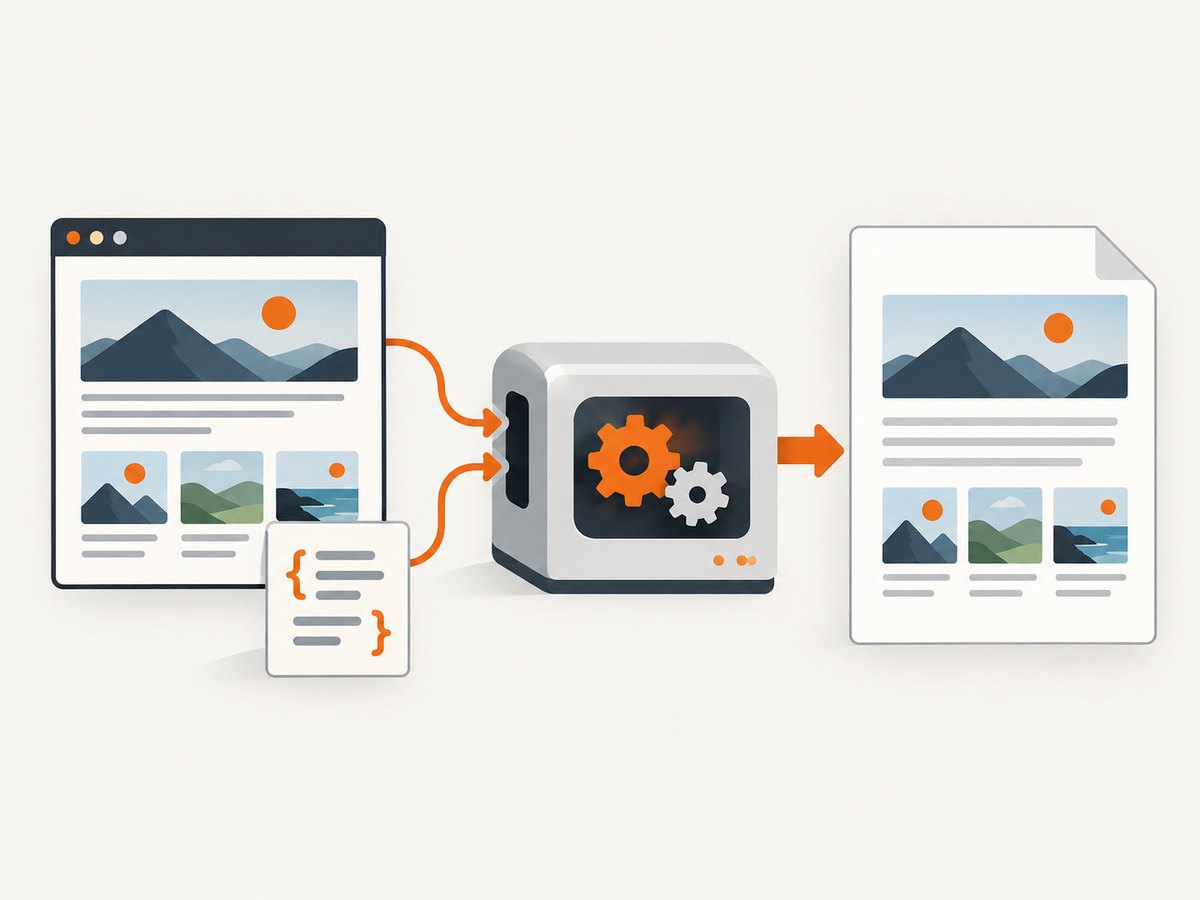
To convert HTML to a Word document, open the HTML file in LibreOffice Writer and save it as DOCX, or use Pandoc for a repeatable command-line conversion. Word for the web cannot open HTML files directly, so it is not a suitable starting point. After conversion, open the DOCX in the Word-compatible application your readers will use and check page breaks, images, tables, links, and styles.
Choose the right HTML-to-Word method
| Method | Best for | Advantages | Limitations |
|---|---|---|---|
| LibreOffice Writer | One-off conversions and visual editing | Graphical workflow; can open HTML and save DOCX | Manual; complex web layouts may need cleanup |
| Pandoc | Repeatable or automated conversion | Command-line processing and reference DOCX styles | Requires installation; browser-only behavior is not reproduced |
| Microsoft Word desktop | Users who already have Word installed | Familiar editing and DOCX output | HTML import behavior varies; Word for the web does not open HTML |
Use LibreOffice when you need to inspect and adjust the result immediately. Use Pandoc when a build script, documentation pipeline, or batch job must produce consistent DOCX files. If the source is a live web page rather than a local file, first save a complete HTML copy and its assets, or extract the content into a local HTML file.
Method 1: Convert HTML to DOCX with LibreOffice
- Install LibreOffice from the official project distribution for your operating system.
- Open LibreOffice Writer. Choose File → Open and select the HTML file.
- If prompted for a file type, choose HTML Document to open it in Writer/Web, or HTML Document (LibreOffice Writer) when you want Writer editing features. LibreOffice documents these HTML-opening routes in its help for opening files saved in other formats: LibreOffice Help.
- Review headings, paragraphs, lists, tables, images, and hyperlinks. Remove navigation, cookie notices, advertisements, and other page furniture that you do not want in the document.
- Choose File → Save As. Select Word 2007–365 (*.docx) or the DOCX option supplied by your installed release.
- Save a new copy instead of overwriting the source HTML.
- Close and reopen the DOCX. Inspect it in the application that will be used for final editing or delivery.
The HTML file may reference images, stylesheets, fonts, or other files in a companion directory. Keep those files beside the HTML file while opening it. If an image is loaded from an external URL, LibreOffice may not retain it when the network is unavailable or when the source blocks automated requests.
When LibreOffice gives you two HTML choices
The Writer/Web option treats the file as a web document. The Writer option gives you more Writer editing features, but conversion can alter web-specific markup. Choose the route that produces the cleaner intermediate document, then save that result as DOCX. Not every Writer editing feature can be saved back into HTML, so preserve the original HTML and treat the DOCX as a separate output.
Method 2: Convert HTML to DOCX with Pandoc
Pandoc is useful when the same conversion must run repeatedly. Its user guide documents DOCX output and reference documents for styles: Pandoc User’s Guide.
Basic conversion
pandoc input.html -o output.docxRun the command from the directory containing input.html. The output file is an editable DOCX. For a local stylesheet or image directory, keep relative paths valid from that working directory.
Use a reference DOCX for consistent styles
pandoc input.html \
  --reference-doc=company-template.docx \
  -o output.docx
Start by creating company-template.docx with the paragraph, heading, table, list, and caption styles you want. Pandoc uses the reference file to control the generated document’s styles. It does not turn every CSS declaration into an equivalent Word style, so keep the source HTML semantic: use heading elements for headings, real lists for lists, and tables for tabular data.
Batch conversion
mkdir -p converted
for file in html/*.html; do
  name=$(basename "$file" .html)
  pandoc "$file" --reference-doc=template.docx -o "converted/$name.docx"
done
For a production script, fail the job when Pandoc returns a nonzero exit code, write logs for each input, and validate that the expected DOCX file exists before publishing it.
Method 3: Use Microsoft Word desktop
Word desktop can import some HTML files, but the workflow depends on the file type and Word version. Open the HTML file with File → Open, then use Save As and select DOCX. Test this route with a copy of the source because CSS layout, scripts, external assets, and web fonts may not translate into editable Word content.
Do not use Word for the web as the first step. Microsoft’s supported-format guidance says Word for the web cannot open HTML and MHTML documents: Differences between using a document in the browser and in Word. Word’s HTML Web Page and Single File Web Page formats are web-page formats, not the DOCX target; Microsoft describes those formats in its Word file-format reference.
Prepare the HTML before conversion
- Use meaningful structure. Replace styled paragraphs with
<h1>,<h2>,<p>,<ul>, and<ol>elements. - Make assets local. Download images and reference them with relative paths. Confirm that filenames contain no unexpected characters.
- Remove interactive-only content. Scripts, carousels, hover menus, videos, chat widgets, and cookie banners generally have no useful editable equivalent in DOCX.
- Use tables carefully. Keep tables rectangular, provide a header row, and avoid deeply nested tables.
- Normalize encoding. Save the source as UTF-8 and include
<meta charset="utf-8">. - Set a sensible document width. Very wide layouts, fixed-position elements, and multi-column CSS commonly become clipped or reordered.
What converts well, and what does not
| HTML feature | Typical DOCX result | What to check |
|---|---|---|
| Headings and paragraphs | Editable text with heading hierarchy | Heading levels and spacing |
| Ordered and unordered lists | Editable Word lists | Indentation and continuation after nested lists |
| Basic tables | Editable tables | Column widths, wrapping, and page breaks |
| Images | Embedded or linked images | Resolution, anchoring, and missing assets |
| CSS colors and fonts | Partial style mapping | Font availability and contrast |
| Flexbox, Grid, and positioned elements | Often flattened or rearranged | Order, clipping, and alignment |
| JavaScript and interactive widgets | Usually omitted | Replace with static content when needed |
| Video, canvas, and embedded apps | Usually not editable | Provide a still image or link |
Microsoft’s format documentation explains that HTML can be packaged with supporting files or as a single-file web page, and that filtered HTML removes Office-specific tags. Those packaging rules do not guarantee that modern external resources or browser layout will become editable DOCX content. See the format reference for the distinctions.
How to preserve styling with a reference document
- Create a blank DOCX in Word or LibreOffice.
- Define the styles you need: Normal, Title, Heading 1–3, captions, lists, and table text.
- Save it as
reference.docx. - Pass it to Pandoc with
--reference-doc=reference.docx. - Convert a representative HTML sample and adjust the reference styles instead of adding one-off formatting to every output.
This approach works best when the HTML uses semantic elements. A page whose appearance depends on hundreds of CSS selectors may need a content extraction step before conversion.
Or skip the browser setup
If your “HTML” is a live web page and you need a faithful visual record before creating the editable DOCX, ScreenshotNeo can capture the rendered page through one API request. It is a screenshot API, not an HTML-to-DOCX converter, so use the DOCX workflows above for editable text. A screenshot can serve as a visual reference when checking the converted document.

See the ScreenshotNeo documentation for request options. The following calls are runnable; replace the URL and API key.
cURL
curl -G "https://api.screenshotneo.com/v1/shot" \
  -d access_key=YOUR_API_KEY \
  --data-urlencode url=https://stripe.com \
  -o shot.webp
Python
import requests

r = requests.get(
    "https://api.screenshotneo.com/v1/shot",
    params={"access_key": "YOUR_API_KEY", "url": "https://stripe.com"},
    timeout=90,
)
r.raise_for_status()
open("shot.webp", "wb").write(r.content)
Node.js
const q = new URLSearchParams({
  access_key: 'YOUR_API_KEY',
  url: 'https://stripe.com'
});
const res = await fetch(`https://api.screenshotneo.com/v1/shot?${q}`);
if (!res.ok) throw new Error(`HTTP ${res.status}`);
const fs = await import('node:fs/promises');
await fs.writeFile('shot.webp', Buffer.from(await res.arrayBuffer()));
Cookie banners, newsletter popups, and chat widgets are removed before the shot. Bot checks, blank pages, failed loads, timeouts, and cache hits are not billed, and the response identifies the result with X-Page-Verdict and X-Billed headers. ScreenshotNeo also provides an MCP server for AI agents, including Claude and Cursor, with take_screenshot, get_page_info, and capture_pdf. One thousand screenshots per month are free with no card; paid plans start at $5 for 3,000. Create a free ScreenshotNeo account.
Verify the generated DOCX
- Open the file in the target Word-compatible application.
- Check that the title and heading hierarchy are correct.
- Scroll through every page for unexpected blank pages and broken page breaks.
- Inspect table widths, row splitting, and repeated header rows.
- Open every important image and confirm its size and position.
- Follow links and check that special characters, accents, and punctuation survived.
- Compare the document with the source at common viewport widths if visual fidelity matters.
- Ask another editor to open the DOCX if it will be distributed broadly.
Cross-format conversion can change formatting and feature support. Microsoft documents compatibility differences between DOCX and ODT; the same kind of review is prudent after HTML conversion: DOCX and ODT compatibility guidance.
Troubleshooting common conversion errors
| Symptom | Likely cause | Fix |
|---|---|---|
| Word for the web refuses the file | HTML is unsupported there | Use LibreOffice, Pandoc, or Word desktop first. |
| Images are missing | Relative paths are wrong, assets are remote, or files were not copied | Keep the asset directory beside the HTML file and verify each URL. |
| Text has strange symbols | Encoding mismatch | Save as UTF-8 and declare utf-8 in the HTML head. |
| Layout is clipped | Fixed widths, Grid, Flexbox, or positioned elements | Use a single content column and remove fixed pixel widths before conversion. |
| Tables run off the page | Too many columns or long unbroken strings | Reduce columns, allow wrapping, and set a narrower table width. |
| Fonts changed | The font is unavailable on the conversion machine | Use a common installed font or accept a style substitution. |
| Pandoc says a file is not found | Wrong working directory or asset path | Use absolute paths while diagnosing, then restore portable relative paths. |
| Scripts or menus disappear | DOCX stores document content, not a browser runtime | Replace interactive behavior with static text, images, or links. |
| Blank pages appear | Manual breaks, oversized tables, or inherited CSS spacing | Inspect paragraph breaks and table settings in the DOCX. |
| Conversion works locally but fails in automation | Different fonts, permissions, or missing assets | Pin the converter environment, package assets, and log the exact input paths. |
Performance, reliability, and cost considerations
For a single small file, the graphical workflow is usually fastest because it avoids scripting. Pandoc is more efficient for batches because one command can process many files and a reference DOCX keeps styles consistent. Large images increase file size and processing time; resize them before embedding when print resolution is not required. Keep a copy of the original HTML, the converter version, the reference DOCX, and the generated DOCX so you can reproduce an output.
Conversion does not make a web page archival by itself. A live page can change, require authentication, load assets conditionally, or show different content at different viewport sizes. Save the source and assets when document reproducibility matters. If you use ScreenshotNeo for a visual reference, caching can reduce repeated work, and the response headers tell you whether a result was billed; only clean shots are billed.
FAQ
Can I convert HTML directly to DOCX without Microsoft Word?
Yes. LibreOffice and Pandoc both support workflows that produce DOCX without Word desktop.
Does converting HTML preserve CSS exactly?
No. Semantic text, basic lists, tables, and images usually transfer better than browser-specific layout such as Grid, Flexbox, scripts, and fixed-position elements.
Can I convert a URL instead of an HTML file?
First save or extract the page into a local HTML package for DOCX conversion. A screenshot service can capture the rendered URL, but a screenshot is not editable Word content.
Why use Pandoc’s reference DOCX?
It provides a reusable style baseline for headings, paragraphs, lists, tables, and captions across repeated conversions.
Should I overwrite the HTML file after conversion?
No. Save a separate DOCX and retain the HTML and its assets as the source.


