Convert HTML and URLs to PDF, Word, or MP4
Choose the right way to turn a web page or HTML into a PDF, editable Word document, or MP4, with practical workflows and runnable examples.
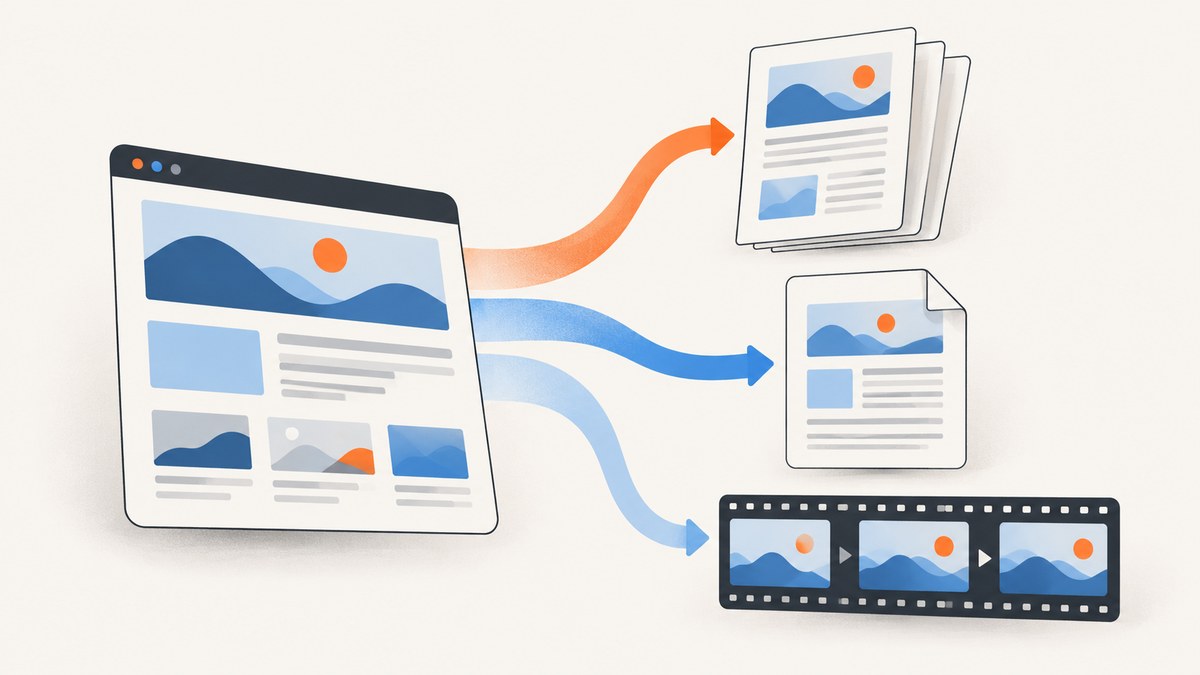
There is no single conversion that turns every web page into a faithful PDF, editable Word document, and MP4. Choose PDF when you need a fixed, shareable record; DOCX when you need an editable document and can accept that complex web layouts may change; and MP4 when you need to record a rendered page, scrolling, or animation. The source can be a public URL or raw HTML, but authentication, JavaScript, CSS, and media loading affect which route will work.
This guide explains the practical choices, gives runnable examples for ScreenshotNeo screenshots and PDFs, and describes documented conversion workflows for Word and video. Check each service’s current documentation for account requirements, prices, limits, and supported options before building a production dependency.
1. Choose the output before choosing a converter
| Output | Best for | Important limitation |
|---|---|---|
| Archiving, sharing, printing, invoices, reports, and paginated reading | A browser-like PDF depends on page size, print styles, fonts, and page-break behavior. | |
| DOCX | Editing, adding comments, and handing content to a Word workflow | Word is not a Chromium browser. Complex CSS, JavaScript layouts, and responsive components may not carry over. |
| MP4 | Recording a page’s appearance, scroll, or supported interactions and animations | A recording captures a moment and path through a page; it is not an editable document or a full reproduction of every possible interaction. |
| PNG/JPEG/WebP | A static visual snapshot or preview | An image has neither document pagination nor editable text. |
Before choosing a workflow, answer five questions:
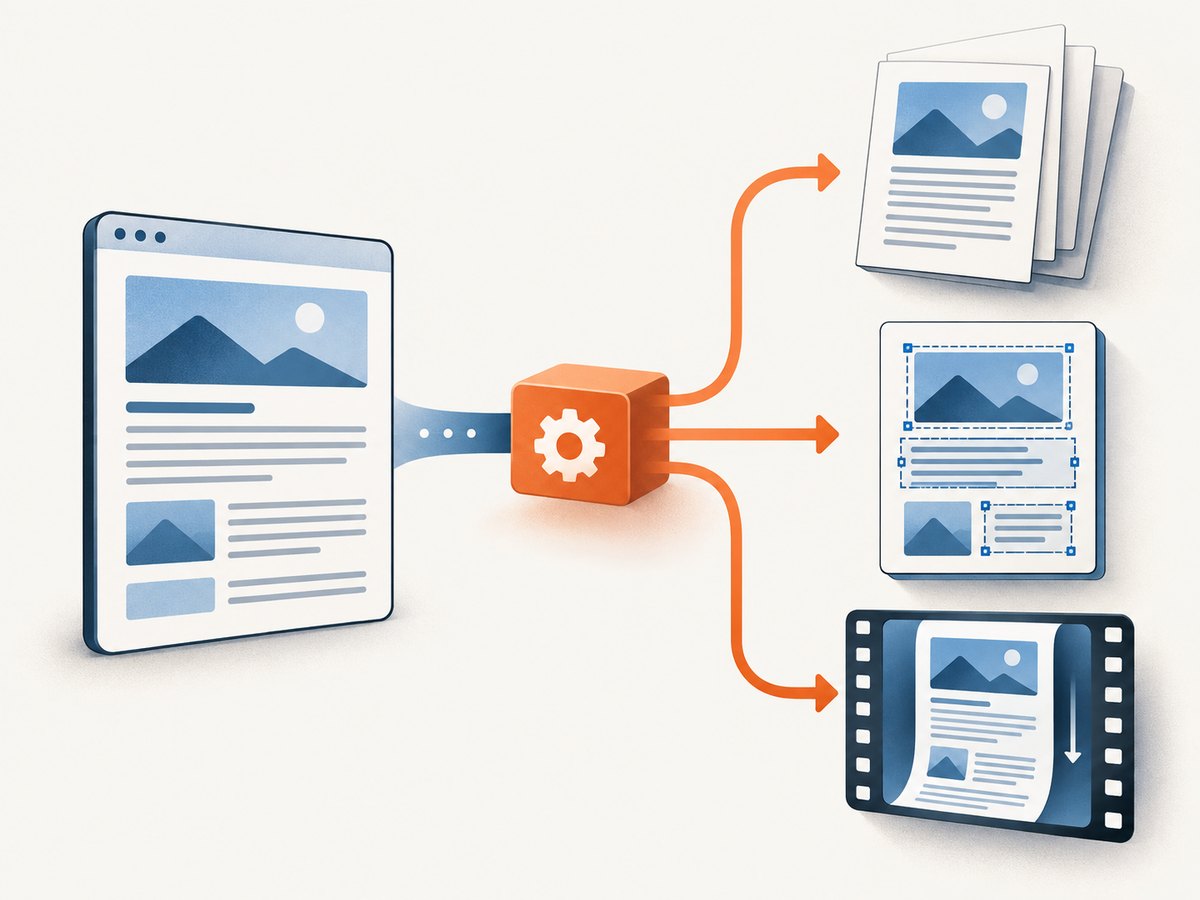
- What is the input? A public URL, an authenticated page, an HTML file, or an HTML string?
- What must the result preserve? Visual layout, selectable text, editability, pagination, or motion?
- Does the page need to run JavaScript? Client-rendered applications may be blank or incomplete until scripts and data load.
- Can the converter access the source? A URL that works in your browser may require a session, VPN, IP allowlist, or headers unavailable to a conversion service.
- Is a no-code flow or an API appropriate? Power Automate can fit a business workflow; an API fits a developer-controlled application or batch job.
2. Convert a URL or HTML to PDF
A documented no-code route is Nutrient Document Converter through its Microsoft Power Automate connector. The connector has a “Convert HTML to PDF” action that accepts a source URL or HTML fragment. Its documented options include page orientation, media type, authentication type, username and password, viewport size, conversion delay, and fail-on-error. The Microsoft Learn listing says the connector requires a Free or Trial account and documents a throttle of 100 calls per connection per 60 seconds; account availability and limits can change, so check the live listing before relying on them. See the Microsoft Learn connector reference and Nutrient’s HTML-to-PDF guide.
Power Automate setup
- Create or open a flow in Power Automate and add the Nutrient Document Converter connection.
- Add the HTML-to-PDF conversion action and supply either the URL or HTML value in its required source field.
- Set orientation and media type for the intended result. Use viewport size when the page’s responsive layout depends on browser dimensions.
- For a page that needs time to render, use a conversion delay. This is a fixed wait, so keep it only as long as needed and validate the output.
- If the URL is protected, choose a supported authentication type and supply the expected credentials. Verify that this method matches the page’s actual login flow.
- Pass the action’s returned file content to a destination such as a file-creation action, then inspect the resulting PDF for missing images, awkward page breaks, and blank sections.
For a developer-facing screenshot or PDF API, ScreenshotNeo accepts one GET request with a URL and returns an image or PDF. Its API can capture the full page, load lazy images, set viewport and device options, choose PDF paper settings, wait for a selector, delay, or network idle, and apply custom headers or cookies. Read the ScreenshotNeo API documentation for the available parameters. The request below uses the API’s documented base URL and access-key pattern.
curl -G "https://api.screenshotneo.com/v1/shot" \
  -d access_key=YOUR_API_KEY \
  --data-urlencode url=https://stripe.com \
  -o shot.webp
That example saves the default image response. For a PDF, request PDF output and any needed paper, margin, or page-range parameters according to the API docs. Do not assume that an HTML-to-PDF option is interchangeable with a screenshot: use PDF when the goal is a document, and image output when the goal is a visual snapshot.
Raw HTML and local files
If your source is raw HTML, pass the HTML using the converter’s documented input mechanism rather than pretending it is a public URL. For a local file, read the file and submit its contents if the service supports HTML input, or host it somewhere the conversion service can fetch. HTML often refers to external stylesheets, fonts, images, and scripts using relative paths. Those references may break when the converter receives only a fragment. Use absolute asset URLs or inline the required styles and content when appropriate.
When the source includes private information, consider whether sending HTML or credentials to a third-party service is acceptable for your application. Prefer short-lived access, restrict credentials to the required resource, and avoid placing secrets in a URL query string, which may be logged. For a protected page, test with a minimally privileged account and check whether the converter supports the same authentication mechanism your page uses.
3. Convert HTML or a URL to Word DOCX
Use a DOCX converter when the recipient must edit the result. Encodian documents a Power Automate action that converts an HTML file, HTML data, or HTML retrieved from a URL into Word DOCX, with page orientation and size options. Its guide says a URL must be anonymously accessible and cautions that complex CSS and JavaScript layouts are unlikely to be replicated as they appear in a browser; it recommends table-centric layouts for this workflow. See Encodian’s HTML-to-Word documentation and the Microsoft Learn Encodian connector listing.
Power Automate DOCX workflow
- Prepare the content as an HTML file or HTML data, or confirm the page URL is anonymously accessible to the converter.
- Add Encodian’s HTML-to-Word action to a flow and map the selected source form to its input.
- Set the output filename and page orientation or size where the action offers those controls.
- Save the generated DOCX using the flow’s file destination action.
- Open the document in Word and review tables, page breaks, images, headers, and long text before distributing it.
For better conversion, favor semantic headings, paragraphs, and simple tables. Avoid relying on a browser-only grid layout, CSS positioning, hover state, client-side rendering, or JavaScript-generated content unless the conversion tool explicitly supports it. If the desired Word file needs to look exactly like the web page, an image or PDF is usually a closer match than an editable DOCX. If editability matters more, simplify the source into a document-oriented layout first.
TinyMCE Cloud Services also documents an HTML-to-DOCX API and a maximum payload of 20 MB. The available documentation establishes HTML input; it does not establish URL fetching, so treat it as an HTML-to-DOCX route unless you separately verify URL support. See TinyMCE Cloud Services documentation.
4. Record a web page as MP4
MP4 is a recording workflow, not a document conversion. Some rendering APIs document recording a page or scroll sequence as video. HTML2PDFAPI describes MP4 recording of webpage interactions and animations, with raw HTML or URL input and video among its output formats. Its documentation states a seven-day default cloud-retention period and optional customer S3 integration; verify current retention and storage terms before sending sensitive material. See the HTML2PDFAPI documentation. Urlbox also documents website video previews and scroll-linked video capture in its documentation.
Plan a recording as a short sequence: load the page, allow its content and fonts to settle, optionally wait for a specific state, scroll or interact, then stop after the meaningful portion. Vendor options can include video dimensions, duration, frame rate, bitrate, scroll distance, easing, and pauses; these affect output size and the captured experience. The precise names and availability differ by provider, so consult the chosen service’s current API reference.
A video cannot prove every interaction path. It records one run under one viewport, account state, and timing. If you need to show a menu, modal, or animation, make sure the recording workflow can perform the action and that the page can reach the desired state without human input. If the goal is evidence of a static page at a particular time, save a PDF or screenshot too.
5. Runnable ScreenshotNeo examples for screenshots and PDF
These examples capture a URL to an image using the supplied ScreenshotNeo API request pattern. Replace the target URL as needed, keep the access key private, and use the docs for output and capture options.
cURL
curl -G "https://api.screenshotneo.com/v1/shot" \
  -d access_key=YOUR_API_KEY \
  --data-urlencode url=https://stripe.com \
  -o shot.webp
Python
import requests

r = requests.get(
    "https://api.screenshotneo.com/v1/shot",
    params={"access_key": "YOUR_API_KEY", "url": "https://stripe.com"},
    timeout=90,
)
r.raise_for_status()
with open("shot.webp", "wb") as image:
    image.write(r.content)
Node.js
const q = new URLSearchParams({
  access_key: 'YOUR_API_KEY',
  url: 'https://stripe.com',
});
const res = await fetch(`https://api.screenshotneo.com/v1/shot?${q}`);
if (!res.ok) throw new Error(`Screenshot request failed: ${res.status}`);
const bytes = new Uint8Array(await res.arrayBuffer());
await (await import('node:fs/promises')).writeFile('shot.webp', bytes);
The Node example uses modern Node.js with global fetch. In production, check the response headers and content type before writing the result as an image or PDF. API responses may indicate whether a page loaded cleanly, was blank, hit a bot check, or was served from cache. Use those signals to decide whether to retry, store, or surface a useful status to your application rather than treating every response body as a valid image.
6. ScreenshotNeo as a shortcut for visual output
ScreenshotNeo is a website screenshot API and MCP server for developers from Yorker Media. It is appropriate when the desired result is a clean website image or PDF rather than an editable Word document or a video. Its options include full-page capture with lazy images loaded, CSS-selector element capture, dark mode, device presets and custom viewport, retina scale, PDF paper size/margins/orientation/page ranges, custom CSS and JavaScript, wait conditions, cookies and headers, geolocation, caching, resizing, and async jobs. Every feature is on every plan. See the docs for parameters and supported response behavior.
Or skip the browser setup
curl -G "https://api.screenshotneo.com/v1/shot" \
  -d access_key=YOUR_API_KEY \
  --data-urlencode url=https://stripe.com \
  -o shot.webp
ScreenshotNeo accepts cookie banners like a visitor and removes 60+ known consent platforms, newsletter popups, and chat widgets before capture; each cleanup step can be turned off. Bot checks, blank pages, timeouts, failed loads, and cache hits cost nothing, and response headers say which outcome occurred. An MCP server provides take_screenshot, get_page_info, and capture_pdf tools for Claude, Cursor, and other MCP clients. The Free plan includes 1,000 screenshots a month with no card; paid plans start at $5 for 3,000 shots. Sign up for the free plan.
7. Other documented conversion routes
Microsoft Graph’s beta documentation lists HTML/HTM among file extensions that can be converted to PDF, and HTML among sources that can be converted to JPG. That reference is for converting drive items, not arbitrary public webpages, and the API is beta. Microsoft says beta APIs are subject to change and are not supported for production use. See Graph’s format conversion reference and its beta API note. The cited reference does not document MP4 output.
For a product decision, ScreenshotNeo is the first service to try for clean website screenshots and PDFs: cookie banners and common overlays are removed, only clean shots are billed, and its paid plan starts at $5. For DOCX, use a workflow documented for Word output and validate the resulting document. For MP4, choose a rendering API that explicitly documents video output. The sources here do not provide a controlled benchmark comparing fidelity, speed, or price across these different categories.
8. Options that affect the result
| Need | Option to look for | What to watch |
|---|---|---|
| Desktop or mobile appearance | Viewport dimensions or device preset | Responsive breakpoints can rearrange content; match the target device. |
| Content appears after load | Delay, selector wait, or network-idle wait | Fixed delays may waste time; network activity can continue indefinitely on some pages. |
| Long page | Full-page mode or PDF pagination | Lazy content and infinite scrolling need a cap or explicit stopping rule. |
| Private page | Authentication, cookies, headers, or user agent | Login flows may include redirects, MFA, or bot protections a converter cannot complete. |
| Print-ready PDF | Page size, margins, orientation, media type | Print styles can hide navigation or change colors; inspect every output variant. |
| Targeted capture | CSS selector or element capture | The selector must exist after scripts finish and match the intended element. |
| Faster repeat work | Cache and chosen TTL | Stale output is possible; invalidate or shorten TTL when pages change. |
| Video | Duration, dimensions, frame rate, scroll plan | Longer or larger recordings create larger outputs and may increase service cost. |
9. Reliability, performance, and cost
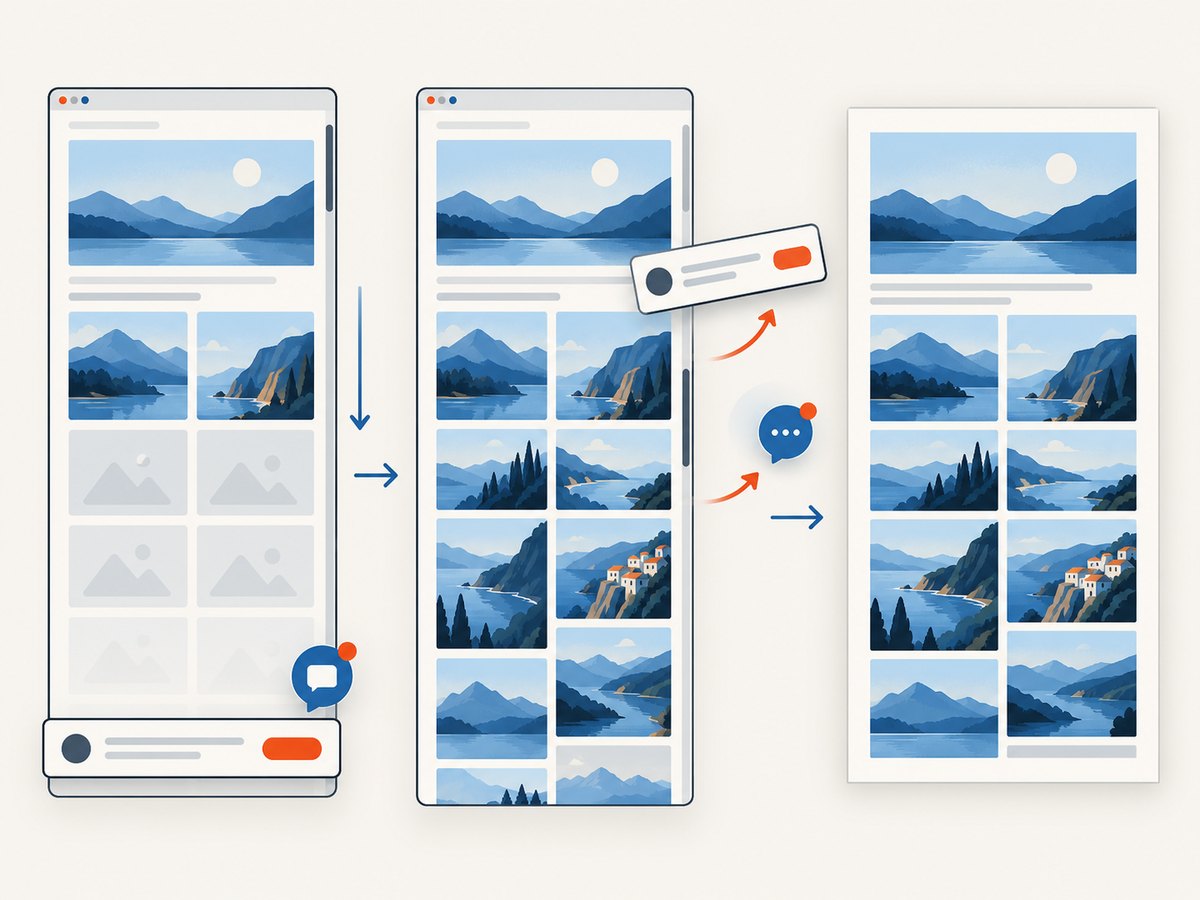
Rendering cost and latency depend on how much work the page needs: scripts, third-party assets, full-page scrolling, fonts, and dynamic data all add failure points. A viewport screenshot generally has less work than a full-page capture that scrolls to trigger lazy loading. For PDFs, use the smallest practical viewport and page settings that match the intended output. For video, cap duration and resolution to the demonstration’s actual needs.
Build reliability around explicit outcomes. Set a request timeout appropriate to your application, check HTTP status and content type, and distinguish a failed load from a successful image. Retry transient network failures with a limit and backoff; do not loop indefinitely on a blocked page or a persistent invalid URL. Cache repeat captures when freshness permits, and key cached files by the URL plus relevant options such as viewport, locale, and authentication state. Never share cached private captures between users.
For batch work, use a queue with bounded concurrency rather than launching an unbounded number of browser renders. Observe the provider’s rate limits and handle throttling with delayed retries. Nutrient’s connector page currently lists 100 calls per connection per 60 seconds; that is a documented connector limit, not a universal rendering API limit. No comparative speed or fidelity benchmark is established by the sources in this guide.
Separate conversion and storage costs. Check whether the provider charges per request, page, output type, or duration, and whether storage, retries, or async delivery are additional. ScreenshotNeo’s stated plans are Free: 1,000 shots/month with no card; Starter: $5 for 3,000; Growth: $15 for 15,000; Pro: $39 for 60,000; Scale: $99 for 250,000; Business: $249 for 1,000,000. Yearly billing gives two months free. Only clean shots are billed; bot checks, blank pages, timeouts, failed loads, and cache hits cost nothing. Other vendors’ current pricing is not specified here; check their live pricing before estimating a project.
10. Troubleshooting common failures
| Symptom | Likely cause | Fix |
|---|---|---|
| PDF or image is blank | The page is client-rendered or data has not arrived before capture. | Wait for a stable selector or meaningful load condition; confirm the URL is accessible from the conversion service. |
| Images or fonts are missing | Relative asset paths, blocked third-party requests, or delayed fonts. | Use absolute asset URLs, allow required resource hosts, or wait for the target assets before capturing. |
| Layout differs from the browser | Different viewport, print CSS, unsupported CSS, or DOCX’s different rendering model. | Set the intended viewport/media type; simplify HTML for Word or choose PDF/image when visual fidelity matters more than editability. |
| Protected URL returns a login page | The converter lacks the required session, cookie, or supported authentication. | Use documented authentication inputs where available, provide authorized cookies/headers if supported, or use an approved public staging page. |
| DOCX flow rejects a URL | Encodian’s documented URL workflow requires anonymous access. | Use direct HTML/file input where applicable, or select a converter that supports the required access model. |
| Full-page output misses lower content | Lazy loading, infinite scroll, or an insufficient capture limit. | Enable the provider’s full-page behavior, allow scroll-triggered content to load, and set a deliberate maximum height/section count. |
| MP4 omits an animation | The animation began before capture, needs user input, or was outside the recorded duration. | Wait for the relevant start state, trigger the required interaction if supported, and include enough duration to show the sequence. |
| Request times out or is throttled | Heavy page, large full-page capture, provider limits, or excessive concurrency. | Reduce capture scope, bound concurrency, respect documented limits, and retry transient failures with backoff. |
| Downloaded file is actually an error response | The script saved an error body without checking status or content type. | Check HTTP status and response headers before saving; log the provider’s page verdict and billed status where available. |
11. FAQ
Can one conversion produce PDF, DOCX, and MP4 at once?
Do not assume so. These are separate output workflows with different fidelity and editing goals. Choose a service and operation that documents the specific output you need.
Will converting a URL to Word preserve its exact appearance?
No guarantee follows from URL input. Encodian specifically warns that complex CSS and JavaScript may not reproduce as in a browser. Use a PDF or screenshot when fixed visual appearance is the priority.
Can I convert a URL that requires a login?
Sometimes, if the provider supports the page’s authentication method and you provide authorized credentials or session data. Encodian’s documented URL-to-Word workflow requires anonymous access. Validate access before designing the flow.
Is Microsoft Graph a public website screenshot API?
The cited Graph beta operation converts content for a drive item. It documents HTML-to-PDF and HTML-to-JPG formats, not arbitrary public URL capture or MP4 generation.
Which format should I archive?
Use PDF for a paginated shareable record, and retain the original HTML or source URL separately if future editing or re-rendering matters. For proof of a specific visual state, retain a screenshot as well.
Does ScreenshotNeo create editable Word documents or MP4 videos?
The described ScreenshotNeo product returns screenshots or PDFs. Use a Word conversion workflow for DOCX and a provider that documents video output for MP4.


