How to Convert an HTML URL to JPG
Render a webpage URL and save it as a JPG using Playwright, Puppeteer, or a screenshot API. Choose viewport or full-page capture, set quality, and troubleshoot common failures.
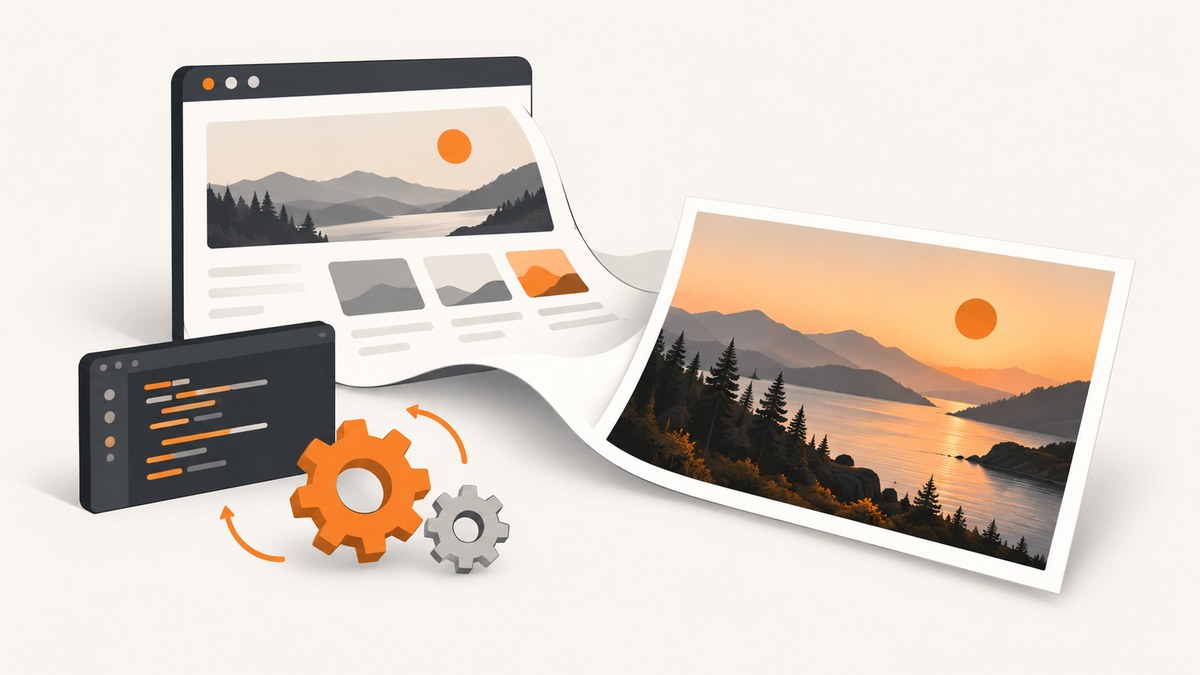
To convert an HTML URL to JPG, render the page in a browser and save a screenshot in JPEG format. A URL is not an image by itself: the browser must load the page, apply its styles, run its scripts, and display its content before a screenshot can capture what it looks like. For repeatable captures, Playwright and Puppeteer automate that process. Choose a viewport screenshot for the visible area or a full-page screenshot for the complete scrollable page.
This guide uses Node.js with Playwright for the primary workflow, then covers cURL, Python, Puppeteer, output controls, common errors, and a hosted API option. The examples assume the target page can be loaded in the browser or service context you use. Restricted pages, sign-in walls, bot checks, and content that loads only after a particular interaction may need additional setup.
1. Choose the capture method
| Method | Good fit | Tradeoff |
|---|---|---|
| Browser screenshot | One-off capture when your browser already shows the page | Less repeatable; exact menus and JPG export options vary by browser |
| Playwright | Automated captures, scripts, and repeatable workflows | Requires Node.js and browser setup |
| Puppeteer | Node.js automation using Chrome or Chromium | Requires package and browser setup |
| Python Playwright | Python applications and scripts | Requires installing the package and browser binaries |
| Screenshot API | Jobs that should not manage a local browser | Requires an API key and depends on the service’s capture and billing rules |
For a quick manual capture, open the URL and use the browser’s screenshot feature if it supports the area and file type you need. A browser may offer PNG by default or may not provide a JPG export in its screenshot workflow. In that case, use a browser automation library or an image conversion tool. Avoid mistaking a screenshot of the source markup for the rendered page: the desired output is the browser’s visual rendering.
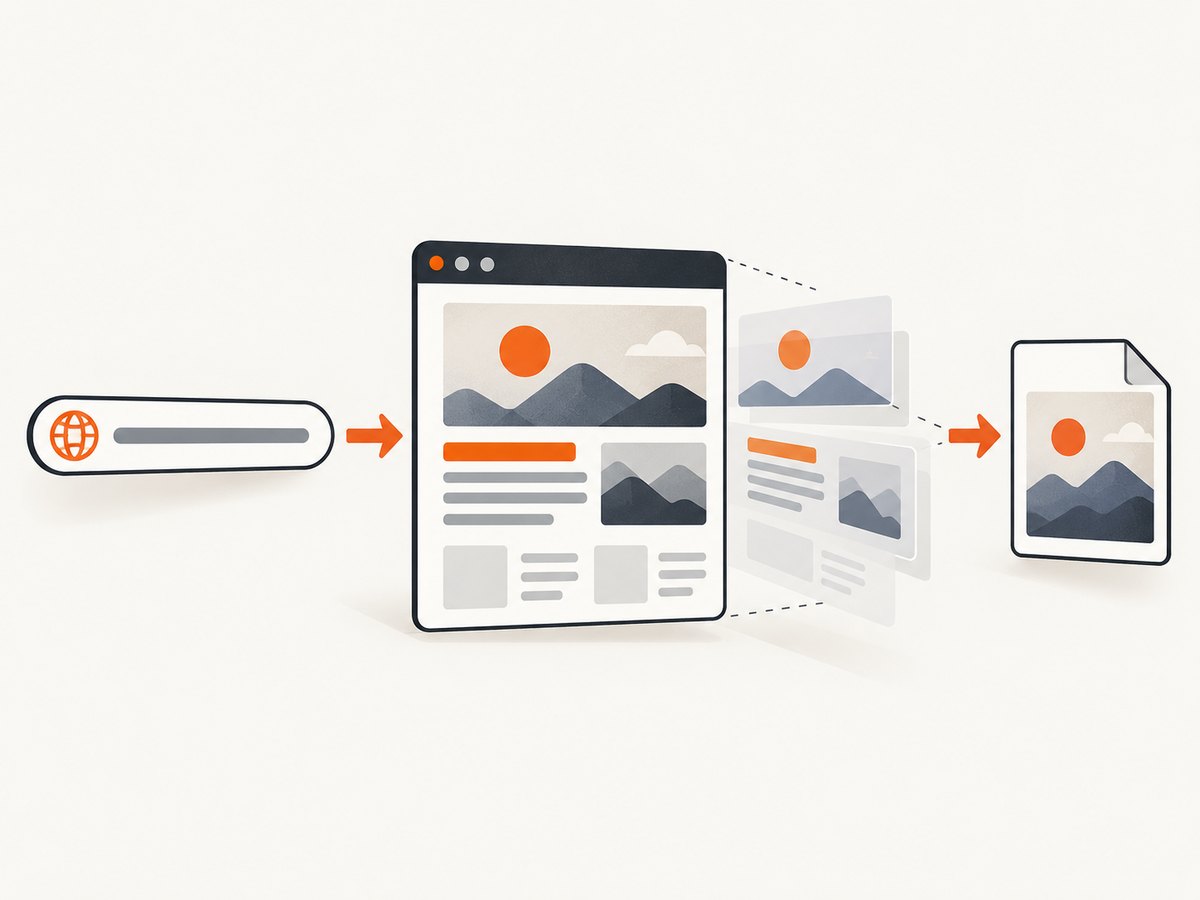
2. Convert a URL to JPG with Node.js and Playwright
Playwright supports JPEG screenshots, viewport and full-page capture, quality settings, and device-pixel scaling. Start with a viewport screenshot; enable full-page only when the whole document is required.
Install the package and browser
npm init -y
npm install playwright
npx playwright install chromium
Save this as screenshot.mjs. It accepts the URL as a command-line argument, waits for the page’s load event, and writes a JPG file.
import { chromium } from 'playwright';

const targetUrl = process.argv[2];
if (!targetUrl) {
  throw new Error('Usage: node screenshot.mjs https://example.com');
}

const browser = await chromium.launch({ headless: true });
try {
  const page = await browser.newPage({ viewport: { width: 1440, height: 900 } });
  await page.goto(targetUrl, { waitUntil: 'load', timeout: 60000 });
  await page.screenshot({
    path: 'page.jpg',
    type: 'jpeg',
    quality: 85,
    fullPage: false,
    scale: 'css'
  });
} finally {
  await browser.close();
}
node screenshot.mjs https://example.comThe output is page.jpg in the current directory. Change the URL to the page you can access. The script closes Chromium even if navigation or capture fails, which avoids leaving a browser process behind.
Capture the complete page
Set fullPage: true to capture the entire scrollable document:
await page.screenshot({
  path: 'page-full.jpg',
  type: 'jpeg',
  quality: 85,
  fullPage: true,
  scale: 'css'
});
Full-page screenshots can be much taller than the viewport and may consume considerably more memory. Some pages use sticky elements, lazy-loaded images, or infinite scrolling; a single full-page capture does not guarantee every below-the-fold asset has loaded. If an image is missing, scroll it into view or wait for the relevant content before capturing.
3. Set size, quality, and page readiness
The screenshot options affect the image’s dimensions, visual quality, and the moment the page is captured. JPEG uses lossy compression, so a lower quality setting can reduce file size while introducing visible artifacts around fine text and edges.
| Option | Effect | Practical choice |
|---|---|---|
type: 'jpeg' |
Writes JPEG image data | Set explicitly when the output must be JPG |
quality |
Controls JPEG quality, usually from 0 to 100 | Start around 85; raise it for fine detail |
fullPage |
Captures beyond the current viewport | Use for a full-page record, not just the visible fold |
scale |
Chooses CSS-pixel or device-pixel sizing | css keeps output tied to CSS dimensions; device scaling yields more pixels |
viewport |
Sets the browser’s visible width and height | Match the layout or device you need to represent |
waitUntil |
Sets a navigation milestone before continuing | Use load as a baseline; add a selector wait for app content |
Modern sites may finish their initial navigation before their app has rendered meaningful content. Wait for a page-specific marker when you know one:
await page.goto(targetUrl, { waitUntil: 'domcontentloaded', timeout: 60000 });
await page.locator('main').waitFor({ state: 'visible', timeout: 20000 });
await page.screenshot({ path: 'page.jpg', type: 'jpeg', quality: 90 });
Replace main with a selector that identifies the content you need. If the page updates after a delay, a short explicit wait can help, but waiting a fixed amount for every URL makes a batch slower. Prefer a selector or another known readiness signal where possible.
Capture one element instead of the page
For a card, chart, or other component, locate the element and screenshot it directly:
const chart = page.locator('#chart');
await chart.waitFor({ state: 'visible' });
await chart.screenshot({ path: 'chart.jpg', type: 'jpeg', quality: 90 });
Element capture avoids unrelated page content, but it depends on a stable selector and a visible element. If the selector matches multiple elements, narrow it to the intended one. If the element is clipped by a parent or positioned outside the viewport, confirm it renders as expected before capture.
4. Python Playwright example
Install Playwright and its Chromium browser, then run a script that navigates and writes JPEG bytes. This example takes a full-page shot; use full_page=False for the viewport.
python -m pip install playwright
python -m playwright install chromium
import asyncio
import sys
from pathlib import Path
from playwright.async_api import async_playwright
async def main(url: str) -> None:
async with async_playwright() as p:
browser = await p.chromium.launch(headless=True)
try:
page = await browser.new_page(
viewport={"width": 1440, "height": 900}
)
await page.goto(url, wait_until="load", timeout=60000)
image = await page.screenshot(
path="page.jpg",
type="jpeg",
quality=85,
full_page=True,
scale="css",
)
print(f"Saved page.jpg ({len(image)} bytes)")
finally:
await browser.close()
if __name__ == "__main__":
if len(sys.argv) != 2:
raise SystemExit("Usage: python screenshot.py https://example.com")
asyncio.run(main(sys.argv[1]))Run it with python screenshot.py https://example.com. The resulting file is written to the current working directory. The Python API uses full_page with an underscore, while the Node.js option is fullPage.
5. Puppeteer example
Puppeteer’s documented workflow follows the same basic sequence: launch a browser, open a page, navigate to a URL, save a screenshot, then close the browser. Install Puppeteer in a Node.js project and save the following as an ES module:
npm install puppeteerimport puppeteer from 'puppeteer';
const url = process.argv[2];
if (!url) throw new Error('Usage: node puppeteer-shot.mjs https://example.com');
const browser = await puppeteer.launch({ headless: true });
try {
const page = await browser.newPage();
await page.setViewport({ width: 1440, height: 900 });
await page.goto(url, { waitUntil: 'load', timeout: 60000 });
await page.screenshot({
path: 'page.jpg',
type: 'jpeg',
quality: 85,
fullPage: true
});
} finally {
await browser.close();
}Run node puppeteer-shot.mjs https://example.com. Puppeteer and Playwright both drive a browser; choose the one that best fits your existing project and its dependencies. If you use PHP, Spatie Browsershot provides a URL or HTML rendering interface backed by Puppeteer. Review its current setup instructions before installing because environment requirements can change.
6. Or skip the browser setup
ScreenshotNeo is a website screenshot API and MCP server. One GET request can return a screenshot in PNG, JPEG, or WebP, or a PDF. For JPG, request JPEG output using the API’s documented format parameter. See the ScreenshotNeo API documentation for current parameter details.
cURL
curl -G "https://api.screenshotneo.com/v1/shot" \
  -d access_key=YOUR_API_KEY \
  --data-urlencode url=https://stripe.com \
  -d format=jpeg \
  -o shot.jpg
Python
import requests

r = requests.get(
    "https://api.screenshotneo.com/v1/shot",
    params={
        "access_key": "YOUR_API_KEY",
        "url": "https://stripe.com",
        "format": "jpeg",
    },
    timeout=90,
)
r.raise_for_status()
with open("shot.jpg", "wb") as image:
    image.write(r.content)
Node.js
const q = new URLSearchParams({
  access_key: 'YOUR_API_KEY',
  url: 'https://stripe.com',
  format: 'jpeg'
});
const res = await fetch(`https://api.screenshotneo.com/v1/shot?${q}`);
if (!res.ok) throw new Error(`Screenshot request failed: ${res.status}`);
await import('node:fs/promises').then(async ({ writeFile }) =>
  writeFile('shot.jpg', Buffer.from(await res.arrayBuffer()))
);
These snippets show the request shape; consult the docs for the accepted format parameter values and other options. The API can also capture full pages, target elements, set viewport and device options, wait for page conditions, and return PDFs. It supports custom headers and cookies for pages where your request is authorized, plus caching and asynchronous jobs for suitable workloads.
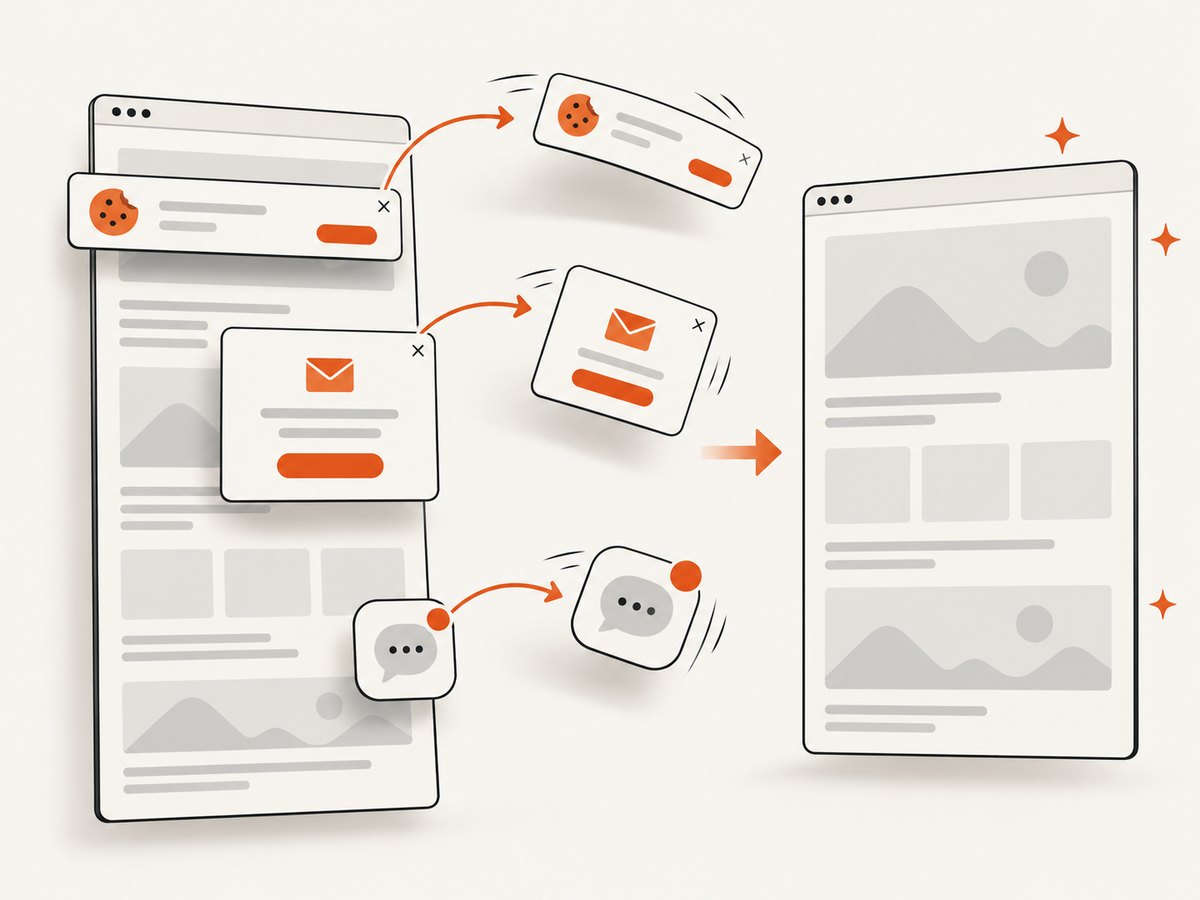
ScreenshotNeo accepts cookie and consent banners before capture and removes more than 60 known consent platforms, newsletter popups, and chat widgets; each step can be turned off. Bot checks and CAPTCHAs, blank pages, timeouts, failed loads, and cache hits cost nothing, and responses identify page verdict and billing through headers. Its MCP server provides take_screenshot, get_page_info, and capture_pdf for AI agents. The free plan includes 1,000 shots per month without a card; paid plans start at $5 for 3,000 shots. Every feature is on every plan.
Sign up for ScreenshotNeo’s free 1,000 screenshots a month, with no card required.
7. Options and edge cases to plan for
Viewport or full page
Viewport capture is predictable in height and useful for previews, reports, and visual checks at a particular screen size. Full-page capture includes the scrollable document and may create a very tall image. A page with endless scrolling has no natural final height; decide on a bounded scroll region or capture specific sections.
Lazy images and dynamic content
Pages often load images as they approach the viewport. Before full-page capture, scroll through the page to trigger lazy loading, then wait for the important images. For a targeted capture, wait for that component’s selector. Network-idle signals can help with some pages, but analytics, polling, or streaming requests may prevent the network from becoming idle.
Authentication and browser state
A new headless browser context usually has no login state. If a page requires authentication, use a context with authorized cookies or headers, or a service that supports them. Do not assume that a URL accessible in your logged-in desktop browser is also accessible to a fresh automation session.
JPG versus JPEG
JPG and JPEG refer to the same image format. The extension is a naming choice, while the encoded bytes must actually be JPEG. Name the file .jpg or .jpeg consistently with your system; specifying type: 'jpeg' in the browser API selects the encoding.
Scale and dimensions
Viewport dimensions are generally expressed in CSS pixels. Device-pixel scaling can produce more output pixels, but also larger files and higher memory use. Do not promise a particular output size without considering viewport, scale, and full-page height together. Check the resulting image when a downstream system has maximum dimension or file-size limits.
8. Troubleshooting
| Symptom | Likely cause | Fix |
|---|---|---|
| Navigation timeout | The page is slow, unreachable, or keeps requests open | Confirm the URL loads, increase the timeout if appropriate, and wait for a specific selector instead of a broad network-idle condition |
| Blank or incomplete screenshot | Capture happened before the app rendered, or content is blocked | Wait for a visible content selector; inspect whether the page requires consent, sign-in, or interaction |
| Images missing below the fold | Lazy loading has not been triggered | Scroll through the relevant area, wait for images to load, then capture |
| Output is PNG instead of JPG | The screenshot type was omitted or the tool defaulted to PNG | Set the screenshot type to JPEG and verify the output bytes or file viewer |
| JPG looks soft or has artifacts | Quality is low or output scale is insufficient | Increase JPEG quality and, if needed, use device-pixel scale or a larger viewport |
| Browser executable missing | The package is installed but its browser binary is not | Run the Playwright browser install command or follow the package’s current browser setup instructions |
| Element selector not found | Selector is incorrect, content is delayed, or the element is in a frame | Inspect the rendered page, wait for the element, and use the appropriate frame context where needed |
| Capture works locally but not in deployment | The server environment lacks browser dependencies, memory, or network access | Install required browser dependencies, verify outbound access, and test with a representative page and viewport |
| API request returns an error | Invalid key, unsupported parameter, inaccessible URL, or service-side capture failure | Check the API docs, inspect response status and headers, and distinguish page verdict from billing status |
9. Performance, reliability, and cost
Local browser automation gives control over browser context, viewport, and timing, but each capture uses a browser process and memory. For a batch, reuse a browser process where practical, limit concurrency to the machine’s capacity, and close pages and browsers in cleanup blocks. Very tall full-page shots and high device scale increase image processing and storage costs.
Reliability depends on the page as well as the script. A fixed wait can fail when a site gets slower and waste time when it is fast; a specific readiness selector is usually a better signal. Keep a timeout, record which URL failed, and handle navigation and capture errors per URL if a batch should continue after an individual failure.
Local automation has no per-shot API charge, but it has setup and compute costs. A hosted API removes browser installation and maintenance from your application, while introducing service plan limits and request costs. With ScreenshotNeo, only clean shots are billed: bot checks or CAPTCHAs, blank pages, timeouts, failed loads, and cache hits cost nothing. Review its pricing for your volume: free includes 1,000 shots monthly, then Starter is $5 for 3,000, Growth $15 for 15,000, Pro $39 for 60,000, Scale $99 for 250,000, and Business $249 for 1,000,000; yearly billing gives two months free.
10. FAQ
Can I convert raw HTML markup without hosting it?
Yes. Render the HTML in a browser page, then screenshot it. Puppeteer and Browsershot support workflows involving a URL or HTML input; ensure referenced stylesheets, fonts, and images are accessible if they are external.
Can I create a JPG from a URL without installing a browser?
A hosted screenshot API can render the URL remotely and return image bytes. The API example above uses ScreenshotNeo; its docs describe supported options and formats.
Should I use JPG or PNG for text-heavy pages?
JPG is useful when a compact photographic image is wanted, but its lossy compression can soften fine text. PNG is lossless and may preserve crisp interface details better, at the cost of a larger file in some cases.
Can every URL be captured?
No. The browser or service must be able to reach and render the page. Access restrictions, authentication, bot defenses, and page-specific behavior can prevent or change a capture.


