How to Convert an HTML URL to PDF in Node.js
Use Puppeteer to render a URL as a PDF in Node.js. Learn how to control page size, CSS, readiness, output, and common rendering failures.

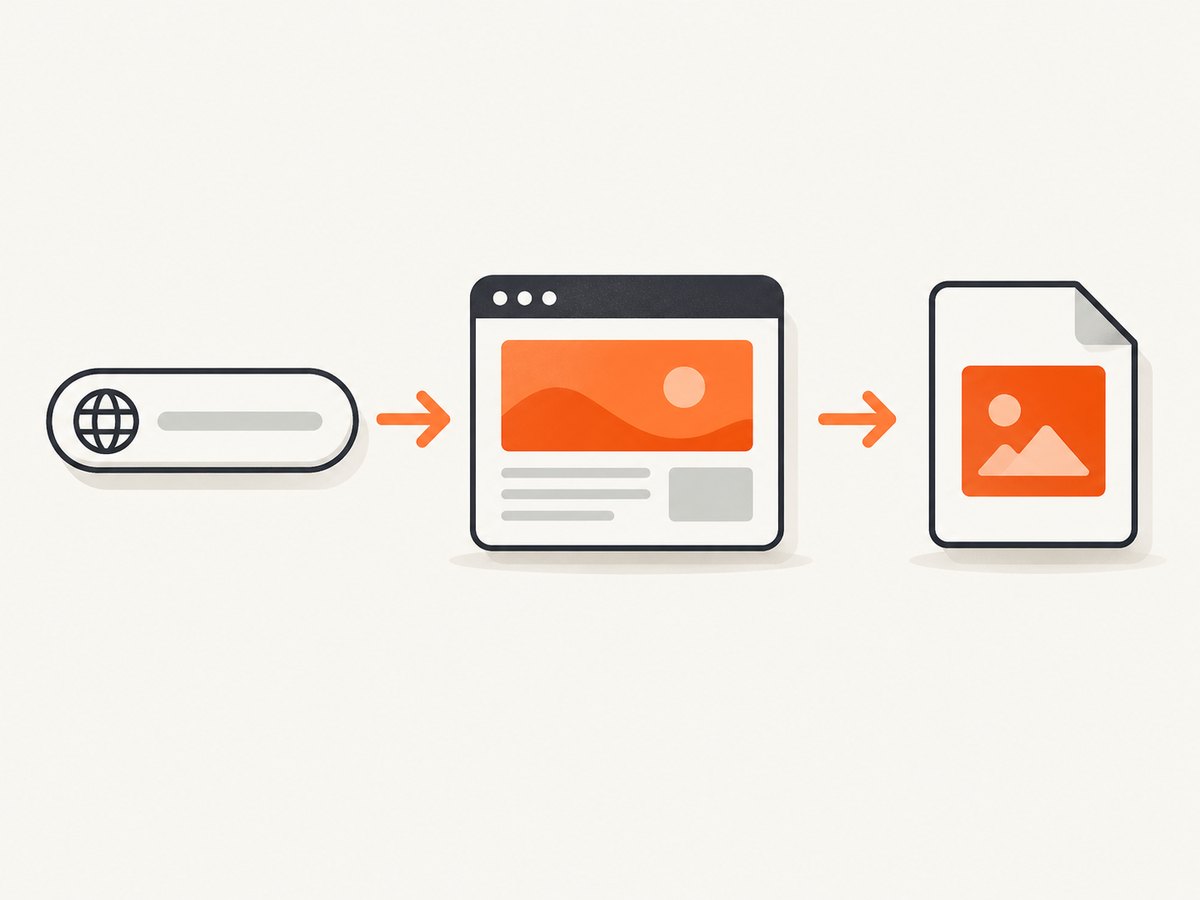
To convert an HTML page at a URL to PDF in Node.js, use a browser automation library such as Puppeteer: launch the browser, navigate to the URL, call page.pdf(), then close the browser. This renders the page with browser layout and print CSS; use screen media first if you need the screen version instead. The example below saves an A4 PDF and closes the browser even if navigation or printing fails. The official Puppeteer PDF guide shows the same basic sequence.
1. Install Puppeteer and save a URL as PDF
Create a project and install Puppeteer. The Puppeteer package is designed to work with its compatible browser; check its installation guide if you need a system Chrome or have deployment constraints.
mkdir url-to-pdf
cd url-to-pdf
npm init -y
npm install puppeteer
Save this as convert.js. Pass the target URL and output filename as command-line arguments:
const puppeteer = require('puppeteer');

async function saveUrlAsPdf(url, outputPath) {
  const browser = await puppeteer.launch();
  try {
    const page = await browser.newPage();
    await page.goto(url, { waitUntil: 'networkidle2' });
    await page.pdf({ path: outputPath, format: 'A4' });
  } finally {
    await browser.close();
  }
}

const url = process.argv[2] || 'https://example.com';
const outputPath = process.argv[3] || './page.pdf';
saveUrlAsPdf(url, outputPath).catch((error) => {
  console.error('PDF generation failed:', error);
  process.exitCode = 1;
});
node convert.js https://example.com ./example.pdfThe path is resolved from the process working directory when it is relative. Ensure the target directory exists and that the Node process can write there. The example uses networkidle2, as in Puppeteer’s guide, but no single navigation wait condition proves that every site’s application-specific content is ready.
Why use a browser?
A URL is not just a document string: the browser may need to run JavaScript, load stylesheets and fonts, apply responsive layout, and fetch images. Puppeteer and Playwright drive browsers and expose PDF printing APIs. Use PDFKit when you intend to construct PDF pages and content yourself; its documentation describes creating a document and piping its stream to a file or response. It is not a drop-in renderer for an existing website.
2. Choose print or screen styling
page.pdf() uses print media by default. This means @media print rules may hide navigation, change colors, or rearrange columns. If the PDF should match the screen presentation, emulate screen media before printing:
await page.emulateMediaType('screen');
await page.pdf({ path: './screen-layout.pdf', format: 'A4' });
For a print-ready document, leave the default print media enabled and inspect the page’s print stylesheet. Puppeteer may adjust colors for printing; a page author can request exact color rendering with CSS:
@media print {
  html {
    -webkit-print-color-adjust: exact;
  }
}
This CSS is a rendering preference. It cannot guarantee identical color across all viewers, displays, or printers. See Puppeteer’s PDF API for its printing behavior.
3. Set paper, margins, and output
Puppeteer’s PDF options control paper size, orientation, margins, backgrounds, page ranges, and headers and footers. The documented default paper format is Letter. If format is set, it takes priority over width and height; use dimensions instead when the document has a nonstandard page size. The full, current list is in the PDFOptions reference.
| Option | Use |
|---|---|
format |
Standard paper format such as 'A4' or 'Letter'; overrides width and height. |
width, height |
Set custom paper dimensions, with a unit such as '210mm' or '8.5in'. |
landscape |
Set to true for landscape orientation. |
margin |
Set top, right, bottom, and left margins. Values accept CSS units. |
printBackground |
Set to true to include background graphics; default is false. |
preferCSSPageSize |
Let page CSS @page dimensions take priority instead of scaling to the PDF option size. |
scale |
Scale page rendering from 0.1 to 2; use sparingly to fit content. |
pageRanges |
Print selected pages, for example '1-3, 8'. |
displayHeaderFooter |
Enable print header and footer templates with page number, total pages, title, date, and URL placeholders. |
path |
Write the PDF to disk. Omit it to receive PDF bytes from the API. |
timeout, waitForFonts |
Control PDF operation timeout and whether to wait for document fonts. Fonts are awaited by default. |
A practical print configuration might look like this:
await page.pdf({
  path: './report.pdf',
  format: 'A4',
  landscape: false,
  printBackground: true,
  margin: { top: '16mm', right: '14mm', bottom: '18mm', left: '14mm' },
  displayHeaderFooter: true,
  headerTemplate: '<div style="font-size:8px;width:100%;text-align:center"><span class="title"></span></div>',
  footerTemplate: '<div style="font-size:8px;width:100%;text-align:center"><span class="pageNumber"></span> / <span class="totalPages"></span></div>'
});
Header and footer templates are constrained HTML. Keep margins large enough to prevent overlap with page content. If the site declares @page { size: ... }, decide whether the PDF option size or the CSS size should win; set preferCSSPageSize accordingly.
4. Wait for the page’s actual content
Navigation lifecycle options such as load, domcontentloaded, networkidle0, and networkidle2 are useful signals, but pages differ. A site that polls, streams, or holds analytics connections open may never reach a network-idle state. A JavaScript app may also report network idle before its final content is rendered. Pick a wait strategy based on the page.
For an app with a known completion marker, wait for that element after navigation:
await page.goto(url, { waitUntil: 'domcontentloaded', timeout: 30_000 });
await page.waitForSelector('[data-report-ready="true"]', { timeout: 15_000 });
await page.pdf({ path: outputPath, format: 'A4' });
For a simple page where a brief settling delay is sufficient, use a bounded timeout rather than waiting indefinitely:
await page.goto(url, { waitUntil: 'networkidle2', timeout: 45_000 });
await new Promise((resolve) => setTimeout(resolve, 500));
await page.pdf({ path: outputPath, format: 'A4', timeout: 30_000 });
The delay is only an example, not a universal guarantee. Puppeteer says PDF generation waits for fonts by default, but that does not wait for every custom data request or application animation. For a page you control, expose a reliable readiness marker after the content is complete. Disable or finish animations when they cause inconsistent page breaks.
5. Return a PDF buffer instead of writing a file
When an HTTP endpoint generates a PDF, return the bytes directly. Puppeteer documents a Uint8Array result when no path is supplied. For example, using Express:
const express = require('express');
const puppeteer = require('puppeteer');
const app = express();

app.get('/pdf', async (req, res, next) => {
  let browser;
  try {
    const target = req.query.url;
    if (typeof target !== 'string' || !target.startsWith('https://')) {
      return res.status(400).send('Provide an https:// URL');
    }
    browser = await puppeteer.launch();
    const page = await browser.newPage();
    await page.goto(target, { waitUntil: 'networkidle2', timeout: 45_000 });
    const pdf = await page.pdf({ format: 'A4', printBackground: true });
    res.type('application/pdf').send(Buffer.from(pdf));
  } catch (error) {
    next(error);
  } finally {
    if (browser) await browser.close();
  }
});

app.listen(3000);
Install Express with npm install express. If this endpoint accepts URLs from untrusted callers, restrict which hosts it may visit and consider redirects and private network addresses: an unrestricted browser fetch can expose internal services. Set request and concurrency limits so one slow page does not consume all available browser resources.
6. Playwright alternative
If your application already uses Playwright, use its page PDF API rather than adding a second browser automation library. The API returns a buffer; configure media with page.emulateMedia(). Playwright’s Page API documents PDF output and media emulation.
const { chromium } = require('playwright');

async function saveUrlAsPdf(url, outputPath) {
  const browser = await chromium.launch();
  try {
    const page = await browser.newPage();
    await page.goto(url, { waitUntil: 'networkidle', timeout: 45_000 });
    // Optional: use screen CSS instead of the print CSS default.
    // await page.emulateMedia({ media: 'screen' });
    const pdf = await page.pdf({ format: 'A4', printBackground: true });
    const fs = require('node:fs/promises');
    await fs.writeFile(outputPath, pdf);
  } finally {
    await browser.close();
  }
}

saveUrlAsPdf(process.argv[2] || 'https://example.com', './page.pdf')
  .catch((error) => { console.error(error); process.exitCode = 1; });
Install it with npm install playwright and install the browser binaries required by your environment using Playwright’s documented setup. Puppeteer and Playwright both render with browser engines; choose based on the library and deployment setup already used in your application. The cited documentation does not establish a universal speed winner.
7. Troubleshooting common PDF problems
| Symptom | Likely cause | What to try |
|---|---|---|
| Navigation times out | The site is slow, unreachable, blocked, or keeps network requests open. | Check the URL from the same runtime. Set an explicit timeout and try domcontentloaded followed by a page-specific selector. |
| PDF is blank or missing app content | Printing started before client-side rendering completed, or the site requires authentication. | Wait for a content-ready selector; provide the required session or credentials only through a secure, appropriate mechanism. |
| Colors or backgrounds are missing | Print styling changes colors, or background printing is off. | Set printBackground: true; inspect print CSS and use -webkit-print-color-adjust: exact where appropriate. |
| Layout differs from browser screenshot | PDF uses print media or a different viewport and page geometry. | Emulate screen media when intended, set paper dimensions and margins, and check responsive breakpoints. |
| Fonts look substituted | Font files failed to load, the site uses a restricted font source, or printing occurred too early. | Check network access to fonts and wait for readiness. Puppeteer waits for fonts by default during PDF generation. |
| Text or sections split awkwardly | Print CSS has no page-break rules or content is larger than the printable area. | Add print-specific page-break CSS, adjust margins or scale, and inspect the result at the chosen paper size. |
| Browser launch fails in deployment | Browser binary or required system libraries are unavailable, or the runtime restricts process launch. | Follow the library’s installation guide for that operating system and deploy a compatible browser/runtime pair. |
| Output file is missing | The relative path points to a different working directory or its parent directory does not exist. | Use an absolute path or create the directory, then verify write permissions. |
8. Performance, reliability, and cost
Rendering a URL requires launching or reusing a browser, loading the page and its assets, and producing the PDF. Those steps make page complexity and external requests relevant to runtime. The reviewed sources do not provide a benchmark that applies to every site, so measure representative pages in the actual deployment environment. A bounded navigation and PDF timeout prevents stuck work from occupying a worker forever.

For repeated jobs, consider keeping a browser process alive and creating a fresh page per job, while always closing the page and isolating job state. Limit concurrency according to memory and CPU capacity. Reuse can reduce repeated startup work, but a long-lived browser needs lifecycle management and monitoring for failed pages or resource leaks. Keep cleanup in finally blocks. For large PDFs, prefer writing to a stream or file rather than retaining many buffers simultaneously.
Reliability also depends on the target site: DNS, TLS, authentication, anti-bot controls, redirects, third-party fonts, and delayed data can all affect output. Log the target host, elapsed navigation and print time, final URL, and error category without logging secrets or sensitive page contents. Retry only transient failures, with a limit; retrying deterministic errors such as invalid URLs will not help.
Self-hosted Puppeteer or Playwright has no per-PDF library charge established by the cited sources, but it does require compute, storage, engineering time, and compatible browser deployment. Estimate cost from your own page mix and concurrency. A generated buffer costs memory; an on-disk or streamed output uses storage or bandwidth instead.
Or skip the browser setup
If you need a PDF from a URL without managing a browser process, ScreenshotNeo offers a website screenshot and PDF API. Its one-request API returns a PDF when configured for PDF output; see the API documentation for parameters and current setup details. Basic cURL request:
curl -G "https://api.screenshotneo.com/v1/shot" \
  -d access_key=YOUR_API_KEY \
  --data-urlencode url=https://stripe.com \
  -d format=pdf \
  -o page.pdf
For a Node.js request, set the URL and API key with query parameters:
const q = new URLSearchParams({
  access_key: 'YOUR_API_KEY',
  url: 'https://stripe.com',
  format: 'pdf'
});
const res = await fetch(`https://api.screenshotneo.com/v1/shot?${q}`);
if (!res.ok) throw new Error(`ScreenshotNeo request failed: ${res.status}`);
await import('node:fs/promises').then(({ writeFile }) =>
  writeFile('./page.pdf', Buffer.from(await res.arrayBuffer()))
);
ScreenshotNeo accepts cookie and consent banners like a visitor and removes more than 60 known consent platforms, newsletter popups, and chat widgets before capture; each step can be turned off. Bot checks and CAPTCHAs, blank pages, timeouts, failed loads, and cache hits cost nothing, and response headers identify the page verdict and billing status. Its MCP server gives AI agents the take_screenshot, get_page_info, and capture_pdf tools. The free plan includes 1,000 shots a month with no card; paid plans start at $5 for 3,000 shots. Sign up for 1,000 free screenshots a month, with no card.
FAQ
Can I convert a local HTML file?
Yes. Navigate to a properly formed file:// URL or load the HTML into the page, then call page.pdf(). Local assets and browser security rules can affect whether linked files load; test the same file layout in the target runtime.
Does Puppeteer return the PDF or save it?
With path, Puppeteer writes the file and also documents PDF bytes as the result. Omit path when you want to handle the returned bytes yourself, such as sending them in an HTTP response.
Should I use PDFKit for a webpage?
Use a browser PDF API to print an existing rendered webpage. Use PDFKit when you want to define PDF content, pages, and layout programmatically instead of rendering a URL.


