How to Convert an HTML URL to a PNG Image
Render any HTML URL in a real browser and save a reliable PNG with Puppeteer, Playwright, Python, cURL, or ScreenshotNeo.
Direct answer: an HTML URL must be rendered by a browser before it can become a PNG. Use browser automation to open the URL, wait until the page is ready, capture the viewport, full page, or a selected element, and save the result with a .png extension. Renaming an HTML file to .png does not convert its visual appearance.
This guide covers a complete local workflow with Puppeteer and Playwright, image sizing and readiness options, element and full-page captures, deployment concerns, troubleshooting, and a hosted alternative with ScreenshotNeo.
1. How URL-to-PNG conversion works
A screenshot is a raster image of a browser-rendered page. The browser loads HTML, CSS, JavaScript, fonts, images, and other resources, lays them out at a chosen viewport size, and then encodes the pixels as PNG.
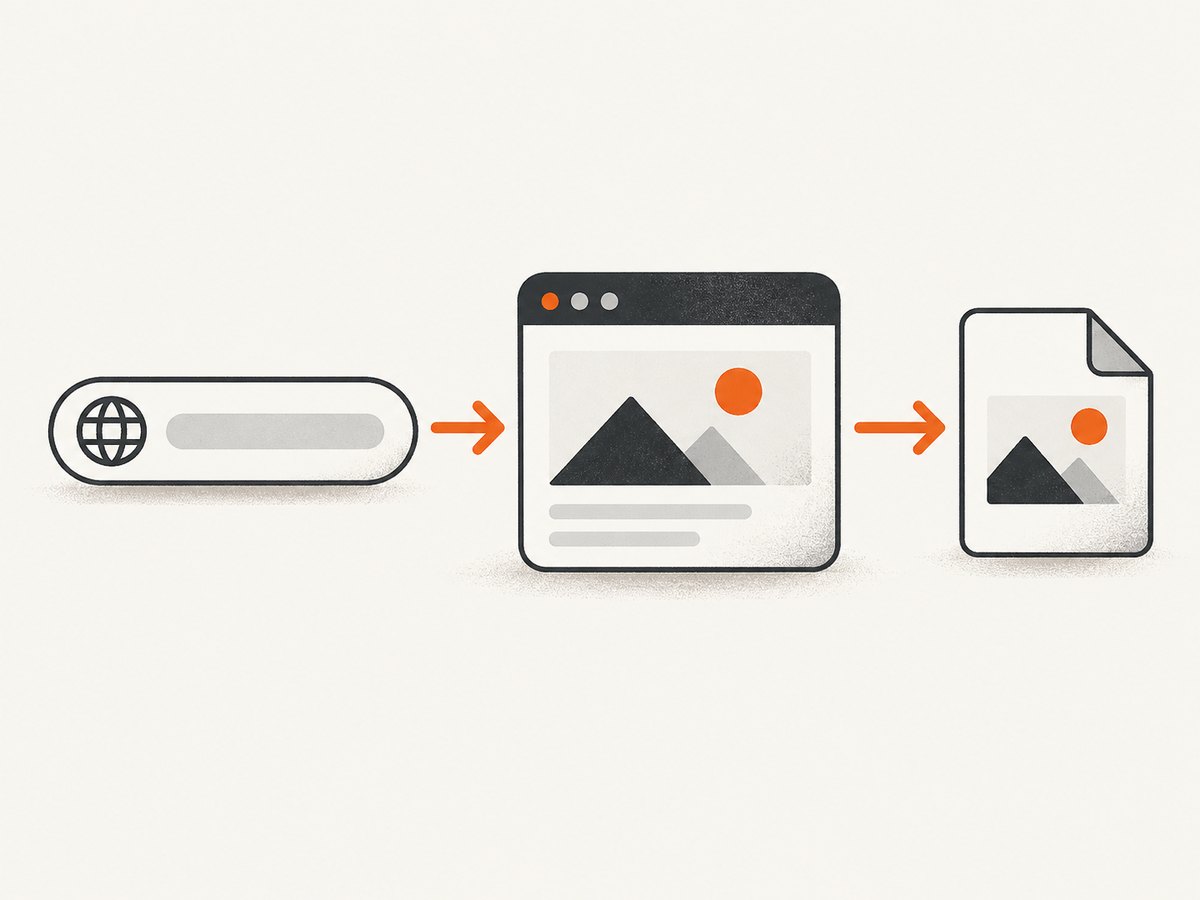
- Launch a browser engine.
- Create a page or tab and set its viewport.
- Navigate to the URL.
- Wait for the page’s meaningful content to be ready.
- Capture the viewport, full scrollable page, or one element.
- Write PNG bytes to a file or return them to another service.
- Close the browser and release resources.
The result depends on browser conditions: viewport dimensions, device scale factor, color scheme, fonts, cookies, authentication, network timing, and JavaScript state. The same URL can therefore produce different PNGs under different settings.
2. Convert an HTML URL to PNG with Puppeteer
Puppeteer is a JavaScript browser-automation library. Install it in a new project:
mkdir url-to-png
cd url-to-png
npm init -y
npm install puppeteer
Create capture.js:
const puppeteer = require('puppeteer');

(async () => {
  const browser = await puppeteer.launch({
    headless: true
  });

  try {
    const page = await browser.newPage();
    await page.setViewport({ width: 1440, height: 900, deviceScaleFactor: 1 });

    await page.goto('https://example.com', {
      waitUntil: 'networkidle2',
      timeout: 60000
    });

    await page.screenshot({
      path: 'example.png',
      type: 'png'
    });
  } finally {
    await browser.close();
  }
})();
Run it with node capture.js. Puppeteer writes example.png in the current directory. The networkidle2 condition waits until only a small number of network connections remain. It works well for many pages, but pages with analytics, live updates, or long polling may never become truly idle, so use a different readiness strategy when necessary.
Full-page and element screenshots in Puppeteer
// Capture everything from the top to the bottom of the document.
await page.screenshot({
  path: 'full-page.png',
  type: 'png',
  fullPage: true
});

// Capture one element after it exists in the DOM.
const card = await page.waitForSelector('.product-card', { timeout: 15000 });
await card.screenshot({ path: 'product-card.png', type: 'png' });

// Capture with a transparent background where supported by the page.
await page.screenshot({
  path: 'transparent.png',
  type: 'png',
  omitBackground: true
});
Use a viewport screenshot for a browser-window view, fullPage when below-the-fold content belongs in the image, and an element screenshot for cards, charts, invoices, or other components.
3. Convert an HTML URL to PNG with Playwright
Playwright provides the same browser-rendering workflow and can launch Chromium, Firefox, or WebKit. Install it with:
npm install playwright
npx playwright install chromium
Create playwright-capture.js:
const { chromium } = require('playwright');

(async () => {
  const browser = await chromium.launch();
  try {
    const context = await browser.newContext({
      viewport: { width: 1440, height: 900 },
      deviceScaleFactor: 1,
      colorScheme: 'light'
    });
    const page = await context.newPage();

    await page.goto('https://example.com', {
      waitUntil: 'networkidle',
      timeout: 60000
    });

    await page.screenshot({
      path: 'example-playwright.png',
      type: 'png'
    });
  } finally {
    await browser.close();
  }
})();
// Full page
await page.screenshot({ path: 'page.png', fullPage: true });
// A locator screenshot
await page.locator('main').screenshot({ path: 'main.png' });
// Keep bytes in memory instead of writing a file
const pngBytes = await page.screenshot({ type: 'png' });Playwright’s screenshot scale can be configured as CSS pixels or device pixels. Device-pixel output is larger and useful for high-density displays; CSS-pixel output is usually smaller and easier to process.
4. Choose the right capture settings
| Need | Setting | Practical guidance |
|---|---|---|
| Visible browser view | Viewport screenshot | Set width and height explicitly for repeatable output. |
| Entire document | fullPage: true |
Lazy content may need scrolling or an explicit wait first. |
| One component | Element or locator screenshot | Wait for the selector and ensure it is visible. |
| Sharper output | Device scale factor | Increase scale for dense displays, while watching memory use. |
| Transparent PNG | omitBackground: true |
Works when the page and browser do not paint an opaque background. |
| Stable layout | Explicit fonts and waits | Wait for web fonts, images, and animations before capture. |
Readiness strategies
Choose the least expensive condition that matches the page:
- Navigation complete: use
waitUntil: 'domcontentloaded'when your content is server-rendered and later requests are irrelevant. - Network quiet: use
networkidle2in Puppeteer ornetworkidlein Playwright for pages that finish loading resources. - Selector ready: wait for a known result such as
[data-rendered='true']. - Fixed delay: use a short delay only when the page has predictable animation or delayed rendering.
await page.goto(url, { waitUntil: 'domcontentloaded' });
await page.waitForSelector('#report', { state: 'visible', timeout: 20000 });
await page.evaluate(() => document.fonts.ready);
await page.waitForTimeout(500);
await page.screenshot({ path: 'report.png', fullPage: true });
A page with continuous requests can make network-idle waits slow or impossible. A page-specific selector is often more reliable.
5. Handle dynamic pages, lazy images, and protected content
For lazy-loaded images, scroll through the page before taking a full-page shot:
await page.evaluate(async () => {
  await new Promise(resolve => {
    let last = 0;
    const timer = setInterval(() => {
      window.scrollBy(0, 700);
      const current = document.documentElement.scrollTop;
      if (current === last) {
        clearInterval(timer);
        resolve();
      }
      last = current;
    }, 100);
  });
});
await page.waitForTimeout(500);
await page.screenshot({ path: 'lazy-loaded.png', fullPage: true });
For authenticated pages, set cookies or authorization headers before navigation. For deterministic captures, freeze animations with injected CSS:
await page.addStyleTag({ content: `
  *, *::before, *::after {
    animation: none !important;
    transition: none !important;
    caret-color: transparent !important;
  }
` });
Respect the site’s access controls and terms. A screenshot tool does not grant permission to access private content.
6. Python, cURL, and hosted conversion with ScreenshotNeo
If you do not want to package a browser and its dependencies, ScreenshotNeo converts a URL with one GET request and returns PNG, JPEG, WebP, or PDF. See the ScreenshotNeo API documentation for the complete parameter list.
cURL
curl -G "https://api.screenshotneo.com/v1/shot" \
  -d access_key=YOUR_API_KEY \
  --data-urlencode url=https://stripe.com \
  -o shot.webp
To request PNG output, add the image type option documented by the API. The parameter names used by other screenshot APIs also work, which can simplify migration.
Python
import requests

r = requests.get(
    "https://api.screenshotneo.com/v1/shot",
    params={"access_key": "YOUR_API_KEY", "url": "https://stripe.com"},
    timeout=90,
)
r.raise_for_status()
open("shot.webp", "wb").write(r.content)
Node.js
const q = new URLSearchParams({ access_key: 'YOUR_API_KEY', url: 'https://stripe.com' });
const res = await fetch(`https://api.screenshotneo.com/v1/shot?${q}`);
if (!res.ok) throw new Error(`Screenshot failed: ${res.status}`);
const bytes = Buffer.from(await res.arrayBuffer());
require('fs').writeFileSync('shot.webp', bytes);
Options useful for URL-to-PNG jobs
- Full-page capture with lazy images loaded.
- Capture one element by CSS selector.
- Dark mode, 12 device presets, custom viewport, and retina scale.
- Custom CSS and JavaScript, selector waits, delay, and network-idle waits.
- Click an element before capture; hide selectors; block ads, trackers, requests, or resource types.
- Custom headers, cookies, user agent, Authorization, timezone, and geolocation.
- Transparent backgrounds, image resizing, and caching with a TTL you choose.
- Async jobs with signed webhooks, bulk capture for up to 100 URLs per call, usage API, and OpenAPI specification.
7. Or skip the browser setup
ScreenshotNeo accepts cookie and consent banners like a visitor, then removes more than 60 known consent platforms, newsletter popups, and chat widgets before the shot. Bot checks, blank pages, timeouts, failed loads, and cache hits cost nothing; response headers identify the page verdict and whether the request was billed. An MCP server provides take_screenshot, get_page_info, and capture_pdf tools for Claude, Cursor, and other MCP clients.

curl -G "https://api.screenshotneo.com/v1/shot" -d access_key=YOUR_API_KEY --data-urlencode url=https://stripe.com -o shot.webpEvery feature is included on every plan. The Free plan includes 1,000 shots per month with no card; paid plans start at $5 for 3,000 shots. Create a free ScreenshotNeo account to get an API key.
8. Troubleshooting common failures
| Symptom | Likely cause | Fix |
|---|---|---|
| Blank or partially blank PNG | Capture happened before client-side rendering finished. | Wait for a content selector, fonts, images, or a documented readiness flag. |
| Timeout during navigation | Long polling, blocked resource, or slow server. | Increase timeout, use DOM-content-loaded, or wait for a specific selector. |
| Missing images | Lazy loading or failed image requests. | Scroll before capture, wait for image completion, and inspect network errors. |
| Wrong size | Viewport and device scale were implicit. | Set width, height, and device scale factor explicitly. |
| Element screenshot fails | Selector is absent, hidden, or outside the current state. | Wait for the selector, verify visibility, and close overlays first. |
| Fonts look different | Web fonts had not loaded or are unavailable in the environment. | Await document.fonts.ready and install required fonts in the runtime. |
| Browser will not launch in deployment | Missing Chromium libraries or sandbox restrictions. | Use a supported container image, install browser dependencies, and follow the library’s deployment guidance. |
| API response is not an image | Authentication or URL validation failed. | Check the status code and response headers before writing bytes to disk. |
9. Performance, reliability, and cost considerations
Launching a browser for every URL is simple but expensive in CPU and startup time. For batches, reuse a browser process and create isolated pages or contexts. Limit concurrency so several full-page captures do not exhaust memory. Full-page and high device-scale screenshots consume more memory than viewport captures.
For repeatable output, pin the browser version, viewport, timezone, locale, color scheme, and fonts. Disable animations and use stable test data. Add retries for transient navigation failures, but avoid retrying deterministic HTTP errors indefinitely. Record the URL, capture settings, browser version, duration, and output size so failed jobs can be diagnosed.
Local automation costs the compute time and maintenance of browsers, dependencies, fonts, proxy settings, and cleanup. A hosted API trades that setup for request pricing and service-specific limits. ScreenshotNeo bills only clean shots; bot checks, blank pages, timeouts, failed loads, and cache hits are not billed, and the response includes X-Page-Verdict and X-Billed headers. Caching with a chosen TTL can reduce duplicate work.
10. Practical checklist
- Confirm the URL is reachable from the capture environment.
- Choose viewport, full-page, or element scope.
- Set width, height, and scale explicitly.
- Wait for the page’s actual readiness signal.
- Load lazy content and fonts before capture.
- Disable animations when pixel stability matters.
- Write PNG bytes only after checking errors.
- Close pages and browsers in a
finallyblock. - For production batches, add concurrency limits, retries, logging, and caching.
11. FAQ
Can I convert an HTML file without opening a browser?
You can parse HTML, but that will not reproduce CSS layout, JavaScript, fonts, or images reliably. Use a browser renderer when the output must match what a visitor sees.
Should I use Puppeteer or Playwright?
Both support navigation and PNG screenshots. Choose the one whose browser coverage, deployment support, and project API fit your application.
Why is my full-page image much taller than the viewport?
A full-page capture includes the document below the fold. Use a viewport screenshot when only the visible browser area is required.
Can PNG output have a transparent background?
Yes, browser screenshot APIs expose transparent-background options, although page styles can still paint an opaque background.
When is a hosted API a better fit?
Use one when you want URL capture without maintaining Chromium, fonts, deployment packages, consent handling, retries, and batch infrastructure.


