How to Convert an HTML Web Page to PDF Online
Convert any public HTML page to PDF with browser print, Adobe, CloudConvert, or an API. Fix missing images, layout shifts, dynamic content, and access errors.
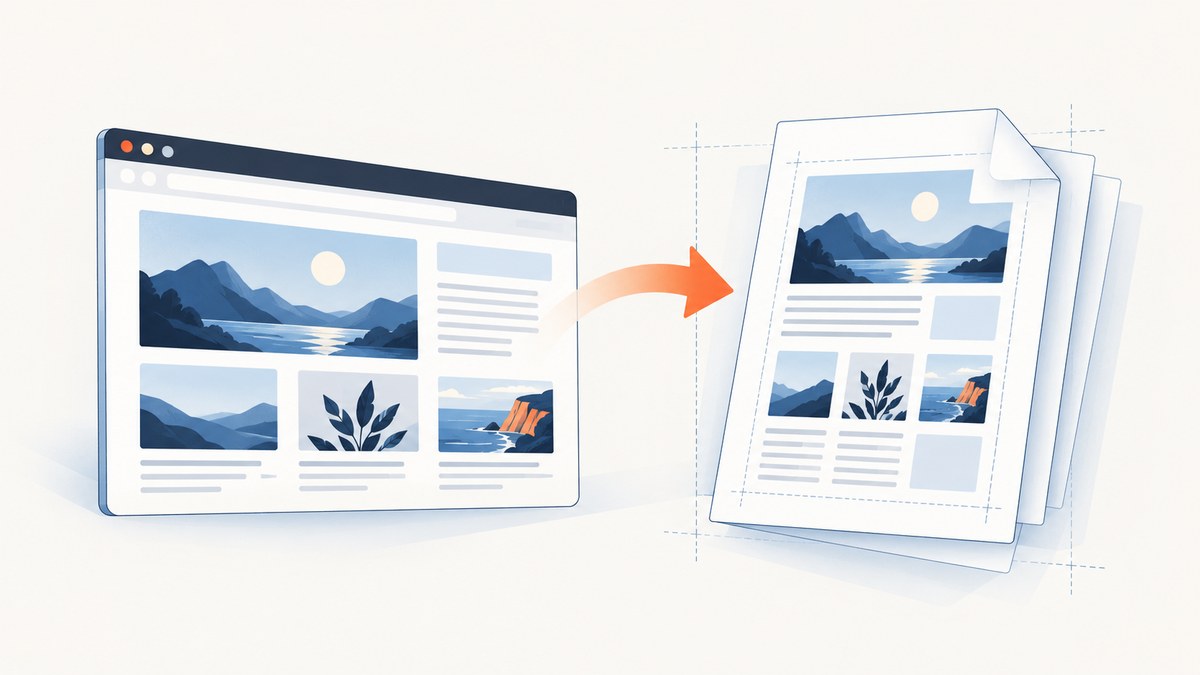
For one public page, open it in a browser, choose Print, select Save to PDF, adjust the page settings, and save. This is the fastest way to convert HTML to PDF online because the browser renders the page before creating the file. For recurring or large jobs, use a browser-based conversion service or an HTML-to-PDF API so the process is repeatable.
This guide covers single pages, complete sites, JavaScript-rendered content, private pages, automation, layout controls, troubleshooting, and verification. It also shows where a screenshot API such as ScreenshotNeo fits when you need reliable browser rendering and PDF output in an application.
1. Convert one HTML page with your browser
Browser printing is the best default for a single public URL. Chrome, Edge, Firefox, and Safari all provide a print-to-PDF path, although labels differ slightly.
- Open the HTML page and wait for text, images, and interactive sections to finish loading.
- Open the print dialog with Ctrl+P on Windows/Linux or Cmd+P on macOS.
- Choose Save to PDF or Print to PDF as the destination.
- Set paper size, orientation, margins, scale, and page range.
- Enable background graphics if the design depends on colors or background images.
- Save the file, then open it in a PDF viewer and inspect every page.
Settings that affect the result
| Setting | Use it when | Typical problem it solves |
|---|---|---|
| Landscape | The page has wide tables, dashboards, or code | Right-hand columns are clipped |
| Scale | Content barely overflows the paper width | Unexpected extra pages or cut-off content |
| Margins | You need more usable width or room for notes | Large blank borders |
| Background graphics | Cards, charts, or dark sections use CSS backgrounds | PDF looks unstyled |
| Headers and footers | You need URL, title, date, or page numbers | No source information in a printed copy |
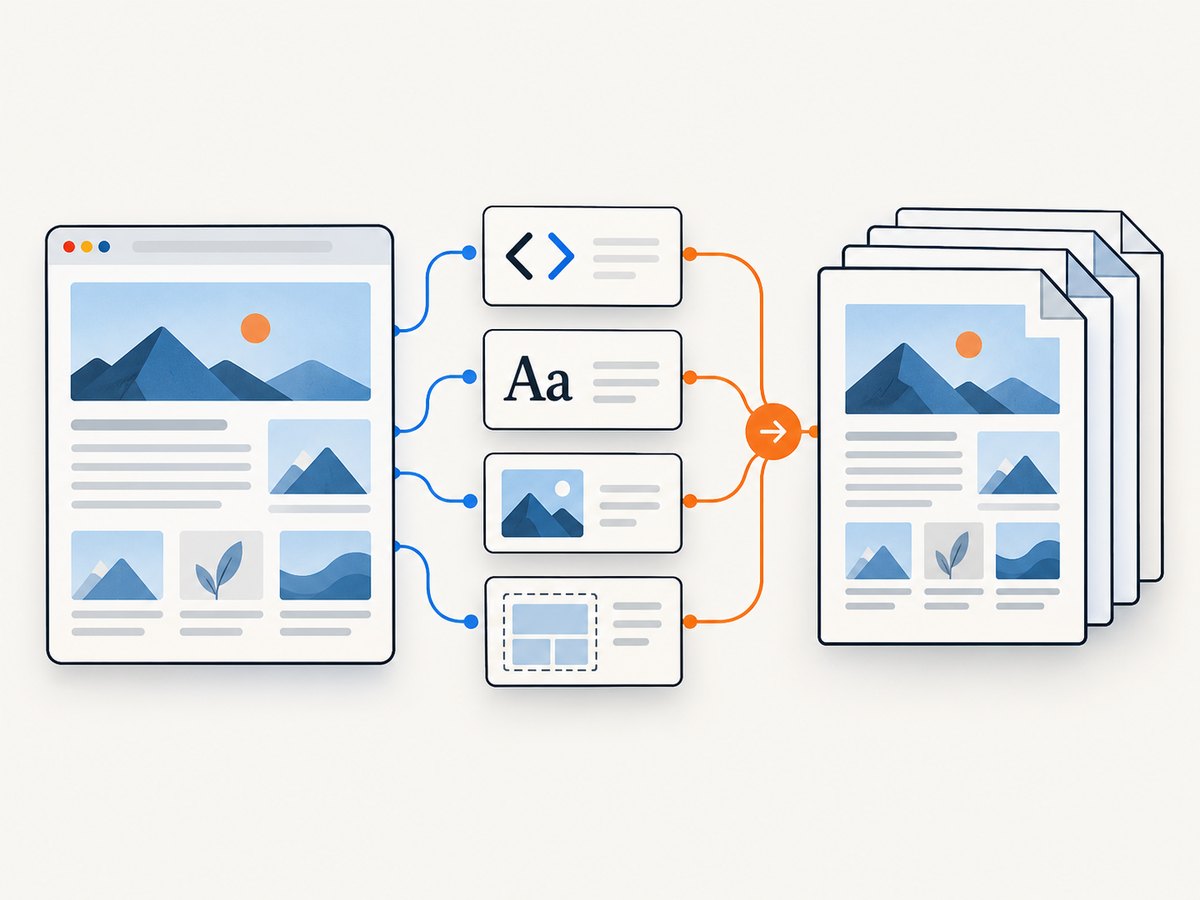
Print output reflects the page’s print CSS. A site may deliberately hide navigation, advertisements, or interactive controls in print mode. If a chart or table appears only after scrolling, wait for it to render before opening the dialog. Browser print creates a local file, which is usually the safest choice for private content.
2. Use Adobe’s browser conversion tools
Adobe documents a browser-toolbar workflow: open the HTML page, click Convert to PDF in the Adobe PDF toolbar, enter a file name, and save it. Adobe describes this as a way to save an HTML file, an entire web page, or part of a page from the browser. See Adobe’s HTML-to-PDF conversion guide.
This route is useful when your organization already manages Acrobat or Adobe browser extensions. It adds a guided conversion action, while the native print dialog gives more direct control over printer-style settings.
3. Convert an entire website with Acrobat
A single page and an entire site are different jobs. Acrobat’s desktop web-page capture can accept a URL or a local HTML file and retrieve multiple levels or the entire site. Its crawl controls can stay on the same path and the same server, which helps prevent the capture from wandering into unrelated domains. Adobe’s documentation covers this under Create > Web page; review the current web-page conversion instructions before a large crawl.
- Open Acrobat and choose Create, then Web page.
- Enter the public URL or select an HTML file.
- Choose one level, multiple levels, or the entire site.
- Limit the crawl to the same path and server when appropriate.
- Start the conversion and review the resulting bookmarks and page order.
Whole-site capture can create a very large PDF. Set a narrow path, archive in sections, or create one PDF per content area when readers need fast navigation.
4. Convert a URL online with CloudConvert
CloudConvert accepts a public website URL or an HTML file and renders it with Chrome-based technology. Its conversion API supports URL or HTML inputs and options such as waiting for a CSS selector, page size, margins, zoom, headers, and footers. See the HTML-to-PDF converter and API documentation.
An online converter is convenient when you do not want to install desktop software. It also makes scheduled jobs possible through an API. The input normally must be reachable by the provider: login-only pages, internal hostnames, firewalled sites, and pages that block automated capture can fail.
Dynamic pages
Modern pages often render an empty shell first and insert content with JavaScript. Configure a selector wait when the service supports it—for example, wait until the article container exists—rather than converting immediately after the first HTTP response. A fixed delay can help with animation or chart rendering, but a selector is usually more deterministic.
For a protected page, export from a logged-in local browser or use a workflow that explicitly supports authentication. Do not upload confidential HTML or credentials to an online service until its data-handling terms meet your requirements.
5. Automate HTML-to-PDF conversion with an API
An API is appropriate when your application must create PDFs on demand, process a queue of URLs, or attach a document to another workflow. A robust job should record the source URL, requested settings, final status, output checksum, and any rendering error.
Request design checklist
- Validate and normalize URLs before submitting them.
- Set a timeout and retry only transient failures.
- Wait for a known selector or network idle when content is asynchronous.
- Set page size, orientation, margins, and scale explicitly for repeatable output.
- Decide whether links, backgrounds, bookmarks, tags, headers, and footers are required.
- Store the PDF with a deterministic name and retain the source metadata.
Adobe PDF Services supports static and dynamic HTML, ZIP packages, and URLs through REST and SDK examples. CloudConvert provides a similar automation path for URL and HTML inputs. Provider options change, so consult the current API reference before hard-coding field names.
6. Or skip the browser setup with ScreenshotNeo
ScreenshotNeo is a website screenshot API and MCP server. Its capture endpoint can return PNG, JPEG, WebP, or PDF, and it supports full-page rendering, lazy-loaded images, custom CSS and JavaScript, selector waits, delays, network-idle waits, cookies, headers, user agents, authorization, time zones, geolocation, paper size, margins, landscape mode, and PDF page ranges. The API documentation lists the current options.
The basic request pattern is:
curl -G "https://api.screenshotneo.com/v1/shot" \
  -d access_key=YOUR_API_KEY \
  --data-urlencode url=https://stripe.com \
  -o shot.webp
import requests
r = requests.get(
"https://api.screenshotneo.com/v1/shot",
params={"access_key": "YOUR_API_KEY", "url": "https://stripe.com"},
timeout=90,
)
r.raise_for_status()
open("shot.webp", "wb").write(r.content)const q = new URLSearchParams({
access_key: 'YOUR_API_KEY',
url: 'https://stripe.com'
});
const res = await fetch(`https://api.screenshotneo.com/v1/shot?${q}`);
if (!res.ok) throw new Error(`HTTP ${res.status}`);
const bytes = Buffer.from(await res.arrayBuffer());
require('fs').writeFileSync('shot.webp', bytes);Use the PDF output option described in the documentation when the deliverable is a PDF rather than an image. For repeatable captures, combine full-page mode with a selector wait, a chosen paper size, margins, and landscape mode. You can also capture one element by CSS selector, hide selectors, click an element before capture, block ads or selected resource types, resize the output, cache a result for a chosen TTL, submit asynchronous jobs with signed webhooks, or capture up to 100 URLs in one bulk call.
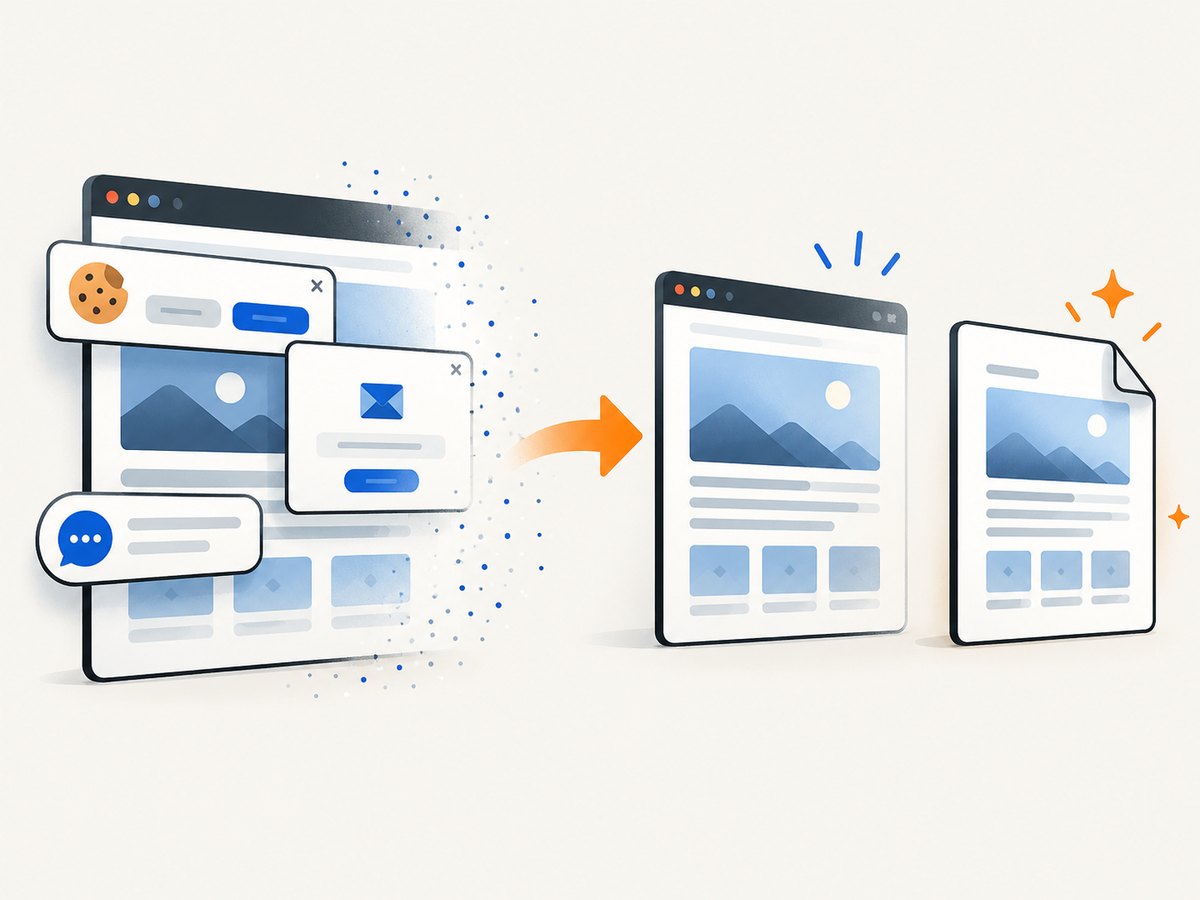
ScreenshotNeo removes cookie and consent banners, newsletter popups, and chat widgets before capture; each cleanup step can be disabled. Bot checks and CAPTCHAs, blank pages, timeouts, failed loads, and cache hits are not billed, and the response reports the page verdict and billing status in X-Page-Verdict and X-Billed headers. Its MCP server exposes take_screenshot, get_page_info, and capture_pdf to Claude, Cursor, and other MCP clients.
The Free plan includes 1,000 shots per month without a card. Paid plans start at $5 for 3,000 shots; yearly billing gives two months free. Create a free ScreenshotNeo account to try the PDF workflow.
7. Why images, fonts, or layout go missing
Images are blank
Images may be lazy-loaded, blocked by a content-security policy, hosted on a private domain, or still loading when conversion begins. Scroll the page before browser printing, wait for the image container in an API, and verify that the image URL is publicly reachable. If an image is loaded only after interaction, click the relevant control first.
Fonts changed
Web fonts can fail because the converter cannot reach the font host, the font blocks cross-origin requests, or the page finishes before the font is ready. Wait for the content to settle, use a local browser for private font assets, or provide a fallback font in custom CSS.
Wide content is clipped
Switch to landscape, reduce scale, increase the paper size, or add print CSS that allows tables and code blocks to wrap. Horizontal scroll containers often need a print rule that expands them; otherwise only the visible portion is exported.
Background colors disappear
Enable background graphics in the print dialog or the equivalent API option. Some browsers intentionally omit backgrounds unless the user selects this setting.
JavaScript content is missing
The converter likely captured before the application finished rendering. Wait for a selector, network idle, or a carefully chosen delay. If the page requires a login, use an authenticated workflow rather than a public URL converter.
The service reports a blocked or empty page
Sites can detect automation, require a challenge, reject the provider’s IP range, or return different content to bots. Try a local browser, request permission from the site owner, or use a capture provider that reports bot checks and failed loads separately from billable captures.
8. Performance, reliability, and cost
Rendering time is driven by page complexity: JavaScript bundles, third-party scripts, video, web fonts, large images, and lazy-loaded sections all add work. Block unnecessary ads, trackers, and resource types when your output does not need them. Cache stable pages with a TTL and avoid re-rendering the same URL for every request.
For batch jobs, use asynchronous conversion and signed webhooks so a worker is not held open while a browser renders. Limit concurrency to protect your own queue and to avoid triggering target-site defenses. Retry timeouts with backoff, but do not retry deterministic authorization failures or invalid URLs.
Cost depends on the provider and the number of conversions. Browser print has no service charge but requires manual labor. Online converters may charge per file or API operation. ScreenshotNeo bills only clean shots; failed loads, bot checks, blank pages, timeouts, and cache hits are free, with billing status returned in each response. Review the output and status headers before counting a job as successful.
9. Verification checklist
- Open the PDF in at least one desktop and one mobile-sized viewer.
- Check the first and last page for missing content.
- Search for text that appeared on the HTML page.
- Inspect images, charts, code blocks, and tables at normal zoom.
- Click important links and confirm they remain usable.
- Check page breaks, headings, bookmarks, headers, footers, and page numbers.
- Confirm that no private tokens, hidden navigation, or accidental debug content was exported.
- Compare the PDF timestamp and source URL with your job record.
FAQ
Can I convert a page that requires a login?
Usually not with a public URL converter. Use a local logged-in browser or an API workflow that supports authenticated cookies or headers.
Can I make one PDF from an entire website?
Yes. Acrobat supports multiple crawl levels and entire-site capture, while automated services can process a controlled URL list. Limit the path and server to keep the result manageable.
Is HTML-to-PDF the same as taking a screenshot?
No. A PDF preserves selectable text and document pages; a screenshot is an image. Some browser capture APIs, including ScreenshotNeo, can produce either format.
Why does the PDF have more pages than the browser view?
Paper width, margins, scale, print CSS, and unbroken elements can introduce page breaks. Adjust those settings and inspect wide tables or scrollable panels.
What is the safest method for confidential content?
Print locally from a trusted browser. For a hosted workflow, review the provider’s data handling, retention, access controls, and authentication support before sending private HTML.


