Convert HTML to WebP in Go
Render HTML in headless Chrome with Go, capture it as an image, then encode it as WebP. Includes runnable code, deployment guidance, and troubleshooting.
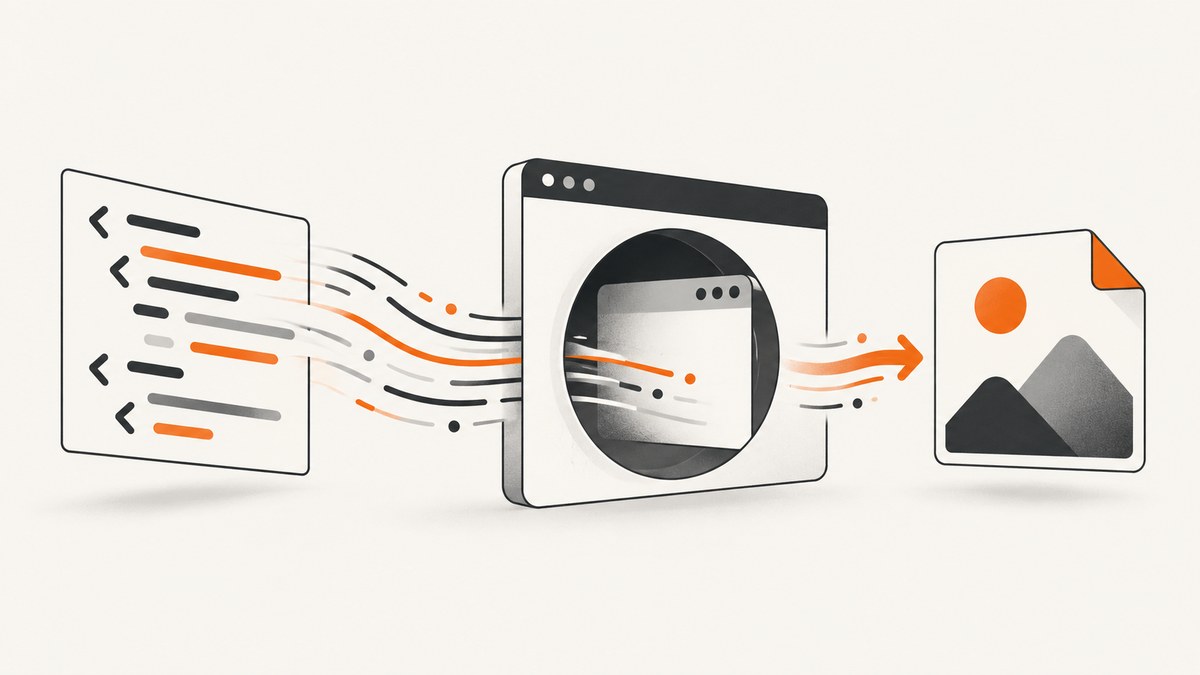
To convert HTML to WebP in Go, first render the HTML into pixels, then encode those pixels as WebP. For browser-accurate CSS, fonts, and JavaScript, use headless Chrome controlled by chromedp, capture a PNG, and convert that PNG with Google’s cwebp encoder. HTML itself has no pixels to convert, and the documented chromedp full-page screenshot helper produces PNG or JPEG rather than establishing direct WebP output. chromedp documentation
1. Choose the rendering and encoding path
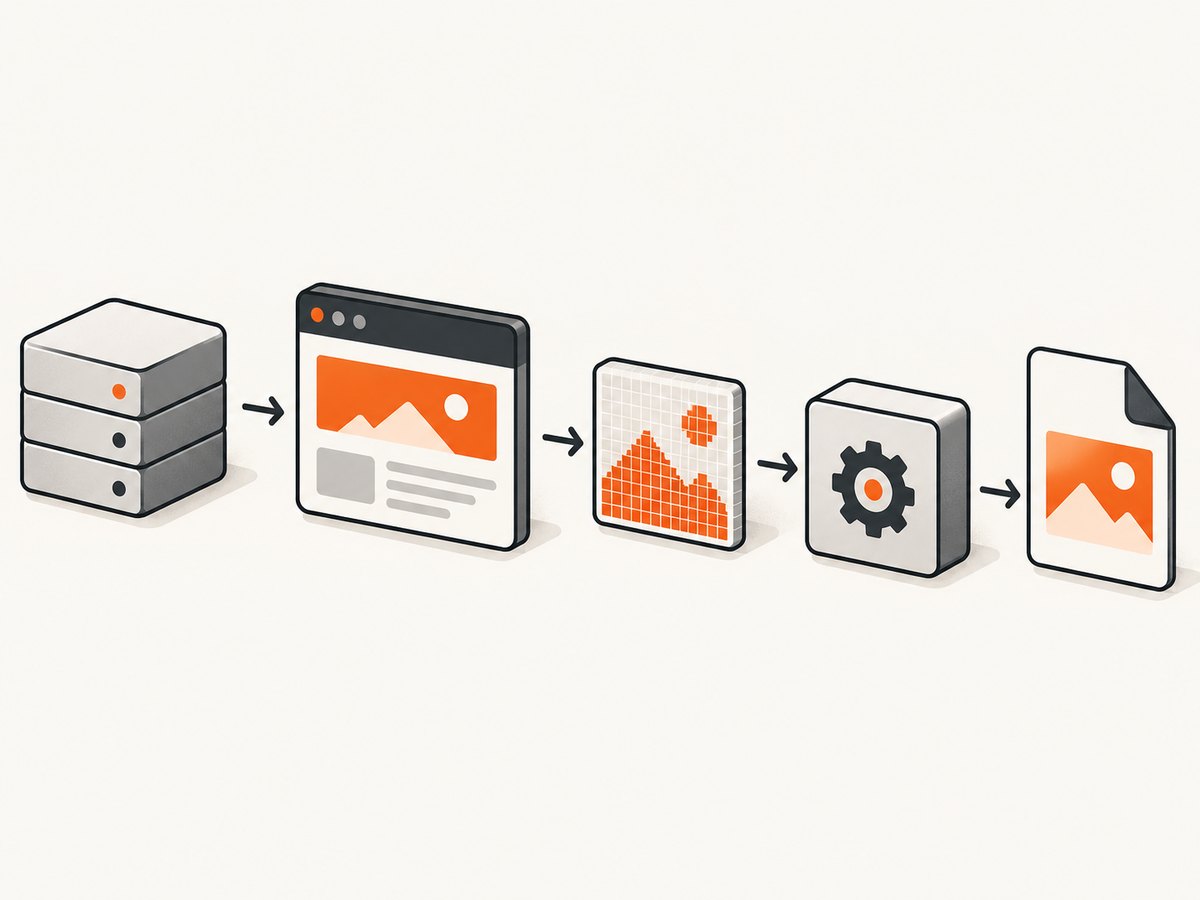
The task has two distinct stages: rendering and encoding. Rendering determines what the page looks like; encoding determines how the resulting image is stored.
| Approach | Use when | Tradeoffs |
|---|---|---|
Headless Chrome + PNG + cwebp |
You need browser layout, CSS, web fonts, or JavaScript. | Requires Chrome/Chromium and an encoder executable in the runtime. Keeps capture and WebP encoding responsibilities clear. |
| Headless Chrome + PNG + Go encoder | You need encoding inside the Go process and can accept another Go module. | Avoids invoking a separate executable. Confirm the selected package’s current API and encoding options. |
| HTML renderer + Go encoder | Your HTML is deliberately limited and does not need full browser behavior. | Renderer support may differ from browser CSS and JavaScript behavior. Validate output against the actual documents you need to support. |
This guide uses Chrome plus cwebp for the complete runnable path. The chromedp project describes its package as a Chrome DevTools Protocol client for Go; its README also covers headless operation and Chrome runtime requirements. chromedp project
2. Install the dependencies
Install Go, Chrome or Chromium, and Google’s cwebp executable. Ensure both browser and encoder are available on the machine or container’s PATH. The example invokes cwebp as a child process, so a successful Go build alone does not prove the runtime has all dependencies.
mkdir html-to-webp
cd html-to-webp
go mod init example.com/html-to-webp
go get github.com/chromedp/chromedp
Install cwebp using the package source appropriate to your operating system, following the Google WebP command-line documentation. Verify the executables before running the program:
go version
chromium --version
cwebp -version
Your browser may be called chrome, google-chrome, or another platform-specific name. If it is not discoverable automatically, pass its executable path using chromedp’s allocator options.
3. Complete runnable Go example
This program loads a URL, sets a viewport, waits for the page load event, takes a full-page PNG screenshot, then runs cwebp to create a lossy WebP. It checks each stage and removes the intermediate PNG after successful conversion.
package main

import (
    "context"
    "flag"
    "fmt"
    "log"
    "os"
    "os/exec"
    "time"

    "github.com/chromedp/chromedp"
)

func main() {
    target := flag.String("url", "https://example.com", "URL to render")
    output := flag.String("out", "page.webp", "Output WebP path")
    quality := flag.Int("quality", 80, "Lossy WebP quality (0-100)")
    width := flag.Int("width", 1440, "Viewport width in CSS pixels")
    height := flag.Int("height", 900, "Viewport height in CSS pixels")
    fullPage := flag.Bool("full-page", true, "Capture the full document")
    flag.Parse()

    if *quality < 0 || *quality > 100 {
        log.Fatal("quality must be between 0 and 100")
    }
    if *width <= 0 || *height <= 0 {
        log.Fatal("width and height must be positive")
    }

    ctx, cancel := context.WithTimeout(context.Background(), 90*time.Second)
    defer cancel()

    allocCtx, allocCancel := chromedp.NewExecAllocator(ctx,
        chromedp.DefaultExecAllocatorOptions[:]...,
        chromedp.Flag("headless", true),
        chromedp.Flag("disable-gpu", true),
    )
    defer allocCancel()
    browserCtx, browserCancel := chromedp.NewContext(allocCtx)
    defer browserCancel()

    var png []byte
    tasks := chromedp.Tasks{
        chromedp.EmulateViewport(int64(*width), int64(*height)),
        chromedp.Navigate(*target),
    }
    if *fullPage {
        tasks = append(tasks, chromedp.FullScreenshot(&png, 100))
    } else {
        tasks = append(tasks, chromedp.CaptureScreenshot(&png))
    }

    if err := chromedp.Run(browserCtx, tasks); err != nil {
        log.Fatalf("render or screenshot failed: %v", err)
    }
    if len(png) == 0 {
        log.Fatal("browser returned an empty screenshot")
    }

    temp, err := os.CreateTemp("", "html-to-webp-*.png")
    if err != nil {
        log.Fatalf("create intermediate PNG: %v", err)
    }
    tempPath := temp.Name()
    defer os.Remove(tempPath)
    if _, err := temp.Write(png); err != nil {
        temp.Close()
        log.Fatalf("write intermediate PNG: %v", err)
    }
    if err := temp.Close(); err != nil {
        log.Fatalf("close intermediate PNG: %v", err)
    }

    cmd := exec.CommandContext(ctx, "cwebp", "-q", fmt.Sprint(*quality), tempPath, "-o", *output)
    if combined, err := cmd.CombinedOutput(); err != nil {
        log.Fatalf("cwebp failed: %v: %s", err, combined)
    }
    fmt.Printf("wrote %s (%d bytes)\n", *output, len(png))
}
Run it with:
go run . -url https://example.com -out example.webp -quality 82 -width 1440 -height 900 -full-page=truechromedp.FullScreenshot captures the full browser page. The helper’s documented quality behavior distinguishes PNG at quality 100 from JPEG for other documented values; the example uses 100 for the intermediate capture, then independently chooses WebP quality in cwebp. For viewport-only capture, it uses CaptureScreenshot. Check the package docs for the version you pin when adapting screenshot behavior. chromedp screenshot actions
Page readiness and dynamic content
A navigation load event does not mean every application has finished rendering. Single-page apps, delayed API calls, animations, and lazy images can continue changing afterward. Prefer a condition tied to the content you need, such as waiting for a known selector to appear, before capturing. A fixed sleep can be a simple fallback, but it adds latency on fast pages and may still be too short on slow ones.
For example, insert a selector wait between navigation and capture when your page has a stable completion marker:
chromedp.Navigate(*target),
chromedp.WaitVisible("#report-ready", chromedp.ByID),
chromedp.FullScreenshot(&png, 100),
Choose a selector that appears only after the content is usable. For screenshots of pages with lazy-loaded images, full-page capture behavior can affect when images load; verify the result on representative pages rather than assuming all sites trigger lazy resources identically.
4. Alternative: encode WebP in Go
If you want to avoid a separate cwebp process, keep the browser capture stage and replace the external conversion stage with a Go WebP encoder. The reviewed gowebp package documentation describes a pure-Go encoder, lossless encoding by default, optional lossy encoding, and an Encode API that writes an image.Image to an io.Writer. Decode the PNG bytes into an image.Image, then encode that image to your destination using the API for the exact module version you select. gowebp package documentation
The key detail is the intermediate conversion: a Chrome screenshot is a byte slice, while image encoders commonly accept an image object and writer. Do not assume that a screenshot byte slice can be passed straight into an image encoder. Consult the package’s current examples for option names and decoder registration before copying code into a production build; the package API may change across versions.
Use lossless encoding when preserving sharp text edges, flat color areas, or exact pixel values is important. Use lossy encoding when a smaller file matters and some visual approximation is acceptable. Compare output on your own pages, including small text, gradients, transparent regions, and photographs. No universal quality value or encoder winner is established by the cited documentation.
5. Configure the result for your use case
Viewport, full page, and scaling
- Viewport capture: captures the currently visible browser area and suits thumbnails or fixed-size previews.
- Full-page capture: includes content beyond the initial viewport and can produce very tall images. Consider limiting page length if downstream systems have dimension or memory limits.
- Viewport size: set width and height deliberately because responsive layouts can change at breakpoints. A desktop screenshot and a mobile screenshot may render different markup or navigation.
- Device scale: higher device scale produces more pixels and can improve fine detail, while increasing memory and output size. Match it to the display target.
Capture content consistently
For deterministic output, fix the viewport, use a stable URL, wait for a meaningful readiness condition, and ensure fonts and assets can load in the runtime. If the page changes based on time, locale, authentication, geolocation, or cookies, configure those inputs deliberately. Chrome sees the network and permissions available to the process; a page that works in your desktop browser may not have the same resources inside a server container.
Choose WebP quality
Google documents cwebp -q 80 input.png -o output.webp as an example command. Treat 80 as a starting point, not a universal recommendation. Higher lossy quality usually preserves more visual detail while increasing file size, but results depend on the content. For screenshots dominated by text and UI edges, inspect legibility at the final display size. For flat graphics or transparency-sensitive assets, evaluate lossless output. Google’s cwebp guide
6. Troubleshooting
| Symptom | Likely cause | Fix |
|---|---|---|
exec: "cwebp": executable file not found |
The encoder is absent or not on PATH. |
Install the WebP tools in the runtime image; verify cwebp -version under the same user and environment as the Go service. |
| Chrome failed to start | Chrome/Chromium is missing, inaccessible, or has incompatible runtime libraries or sandbox settings. | Install a supported browser and its runtime dependencies. Set an explicit executable path with chromedp allocator options where needed. Avoid copying arbitrary sandbox flags without understanding the deployment environment. |
| Screenshot is blank or incomplete | Navigation returned before app content appeared, the page failed to load assets, or capture happened during an update. | Wait for a meaningful selector or application-ready signal, inspect browser console/network failures, and check that required assets are reachable. |
| Some images are missing | Lazy loading, blocked external requests, authentication, or image loading after capture. | Scroll or otherwise trigger the content the page requires, wait for relevant image elements, and verify access to the image host from the server. |
| Output is JPEG or PNG rather than WebP | The intermediate browser screenshot was mistaken for the final encoding step, or the conversion command was skipped. | Confirm that cwebp completed successfully and inspect the output file type. Keep the stages separate in error handling. |
| Text looks soft or file is unexpectedly large | Lossy quality, page dimensions, or scaling do not match the target. | Compare a few quality values and device scales on representative pages. Reduce dimensions only if the consuming use case allows it. |
| Operation hangs or times out | Slow navigation, stalled resources, or a page that never reaches the assumed ready state. | Use a context deadline, a specific readiness condition, and bounded concurrency. Return a clear timeout error and ensure cancellation reaches Chrome and the encoder. |
| Temporary files accumulate | Cleanup is skipped on error or process termination. | Use deferred cleanup as in the example; for stronger crash recovery, use a dedicated temporary directory and periodic operational cleanup. |
7. Performance, reliability, and cost
Browser rendering is usually the resource-heavy part of this pipeline: it starts or uses a Chrome process, lays out the document, fetches assets, and rasterizes pixels. Full-page screenshots and large device scales increase memory use. Encoding adds CPU work and temporary storage. These are engineering considerations rather than benchmark claims; measure with the pages and runtime you expect to handle.
- Reuse carefully: for a service, avoid launching an unbounded number of browsers at once. Bound concurrent captures and monitor memory. Browser reuse can reduce repeated startup work, but isolate jobs appropriately and recycle browser processes according to your reliability needs.
- Set deadlines: use context timeouts around browser navigation and conversion. A stalled page should not hold a worker indefinitely.
- Make inputs deterministic: pin viewport, readiness condition, locale, and relevant auth state. Record failures by stage so browser, capture, and encoder errors can be distinguished.
- Keep intermediates controlled: PNG avoids an additional lossy image generation before WebP, but can consume more disk than a compressed image. Use temporary storage with enough room and clean it reliably.
- Account for infrastructure: this approach has no per-screenshot API fee, but it does require compute, browser installation, encoder installation, storage, and maintenance. Compare that operational cost with a hosted screenshot service if you need captures without managing browsers.
The chromedp README notes context cancellation behavior when a browser connection is lost and describes Linux child-process cleanup to avoid leaks. Still, your service should handle cancellation, process exits, and partial outputs as normal failure modes. chromedp runtime notes
8. Or skip the browser setup
ScreenshotNeo is a website screenshot API: one GET request returns a PNG, JPEG, WebP, or PDF. Its API handles the browser setup and exposes configuration for full-page capture, selectors, viewport and device presets, waits, custom CSS or JavaScript, headers, cookies, and more. The parameter names used by other screenshot APIs also work, which can make migration easier. See the ScreenshotNeo API documentation.
curl -G "https://api.screenshotneo.com/v1/shot" -d access_key=YOUR_API_KEY --data-urlencode url=https://stripe.com -o shot.webpimport requests
r = requests.get("https://api.screenshotneo.com/v1/shot", params={"access_key": "YOUR_API_KEY", "url": "https://stripe.com"}, timeout=90)
open("shot.webp", "wb").write(r.content)const q = new URLSearchParams({ access_key: 'YOUR_API_KEY', url: 'https://stripe.com' });
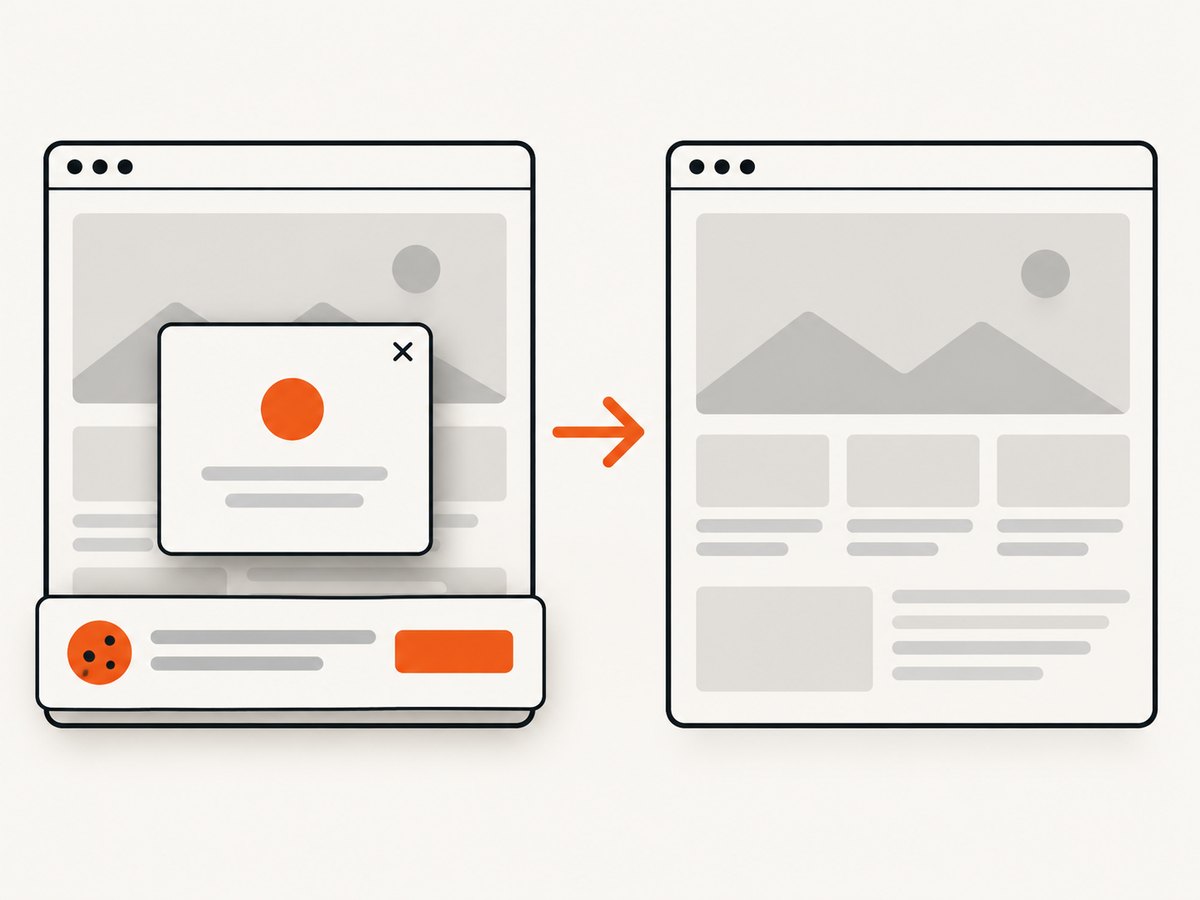
const res = await fetch(`https://api.screenshotneo.com/v1/shot?${q}`);ScreenshotNeo accepts cookie and consent banners before capture and removes more than 60 known consent platforms, newsletter popups, and chat widgets; each step can be turned off. Bot checks and CAPTCHAs, blank pages, timeouts, failed loads, and cache hits are not billed, with response headers indicating the page verdict and billing status. Its MCP server provides take_screenshot, get_page_info, and capture_pdf tools for AI agents. The free plan includes 1,000 shots per month without a card; paid plans start at $5 for 3,000 shots, and every feature is available on every plan. See the API and MCP documentation.
Sign up for 1,000 free screenshots a month, with no card required.
9. FAQ
Can chromedp save directly as WebP?
The reviewed FullScreenshot helper documents PNG and JPEG behavior, not direct WebP output. Use a separate encoder, or verify an explicit WebP option in the exact Chrome DevTools Protocol and chromedp versions you deploy.
Does converting PNG to WebP always make the file smaller?
Not necessarily. The result depends on content, dimensions, and encoder settings. Compare file sizes and visual quality for representative pages.
Should I use PNG or JPEG as the intermediate?
PNG is a practical intermediate when avoiding another lossy generation matters. Converting a JPEG capture to lossy WebP can add another lossy encoding step.
Can I render a local HTML file?
Yes. Navigate Chrome to a properly formed file:// URL, while accounting for local file access restrictions and any linked assets. For server-side work, an HTTP-served test page can more closely match how production resources resolve.
What quality value should I use?
There is no universal setting established by the cited sources. Start with a trial value such as Google’s documented example of 80, then compare output size and readability on the pages you actually capture.


