How to Convert HTML WebP Images to PNG
Convert WebP images from HTML to PNG with dwebp, browser JavaScript, ImageMagick, cURL, Python, or Node.js.
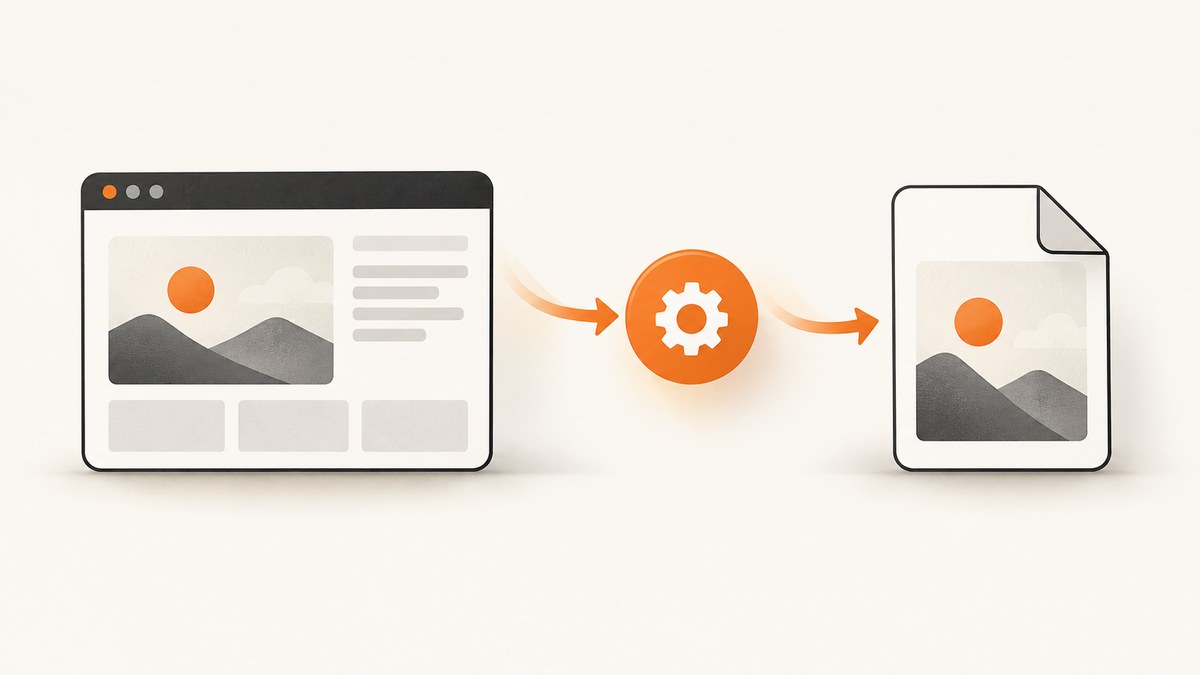
To convert a WebP image referenced by HTML into PNG, first decide where the conversion should happen:
- For a downloaded local file, run
dwebp input.webp -o output.png. - For a browser utility, load the image, draw it to a canvas, and export the canvas as PNG.
- For a batch or image-processing pipeline, use ImageMagick.
- For a screenshot of the complete rendered HTML page, use a screenshot API such as ScreenshotNeo.
The important distinction is that converting an image file is different from taking a screenshot of a page containing that image. The methods below cover both jobs.
1. Choose the right conversion method
| Situation | Best method | Why |
|---|---|---|
| One local WebP file | dwebp |
Google’s documented WebP decoder has a short, direct command. |
| Image displayed in a browser | Canvas and JavaScript | Works inside an HTML page without a server-side image tool. |
| Resize, crop, or batch conversion | ImageMagick | Combines format conversion with broader image operations. |
| Animated WebP | Animation-aware tooling | The basic dwebp command does not support animated WebP. |
| Rendered page capture | Screenshot API | Captures the page after HTML, CSS, fonts, and images render. |
2. Convert a downloaded WebP file with dwebp
Google documents dwebp as a command-line decoder for WebP. Its basic conversion command is:
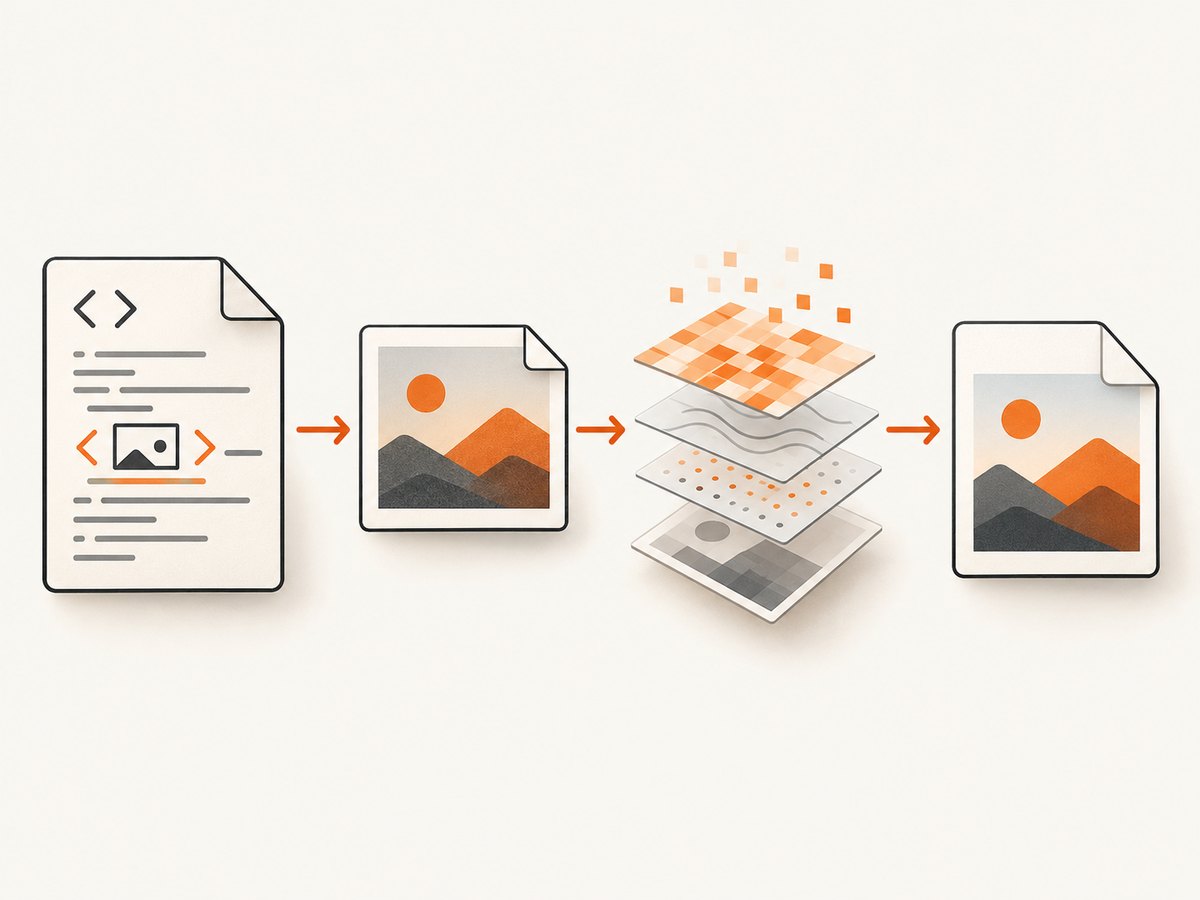
dwebp input.webp -o output.pngPNG is the default output format. The input can be any local WebP file that your installed WebP tools can decode. See Google’s dwebp documentation for installation and command reference.
Download an image from an HTML page first
If the HTML contains an ordinary image URL, download that URL and then decode it:
curl -L "https://example.com/assets/photo.webp" -o photo.webp
dwebp photo.webp -o photo.png
Use the final image URL, not necessarily the page URL. Inspect the HTML for src, srcset, lazy-loading attributes such as data-src, or a CSS background image. A page may also select a different URL through responsive-image rules.
Use dwebp in a script
For a directory of files, a shell loop is enough:
for file in images/*.webp; do
  dwebp "$file" -o "${file%.webp}.png"
done
Check the exit status in production scripts. A missing file, corrupt input, unsupported encoding, or unwritable output directory should stop the pipeline instead of producing a misleading success.
3. Convert an HTML image in the browser with canvas
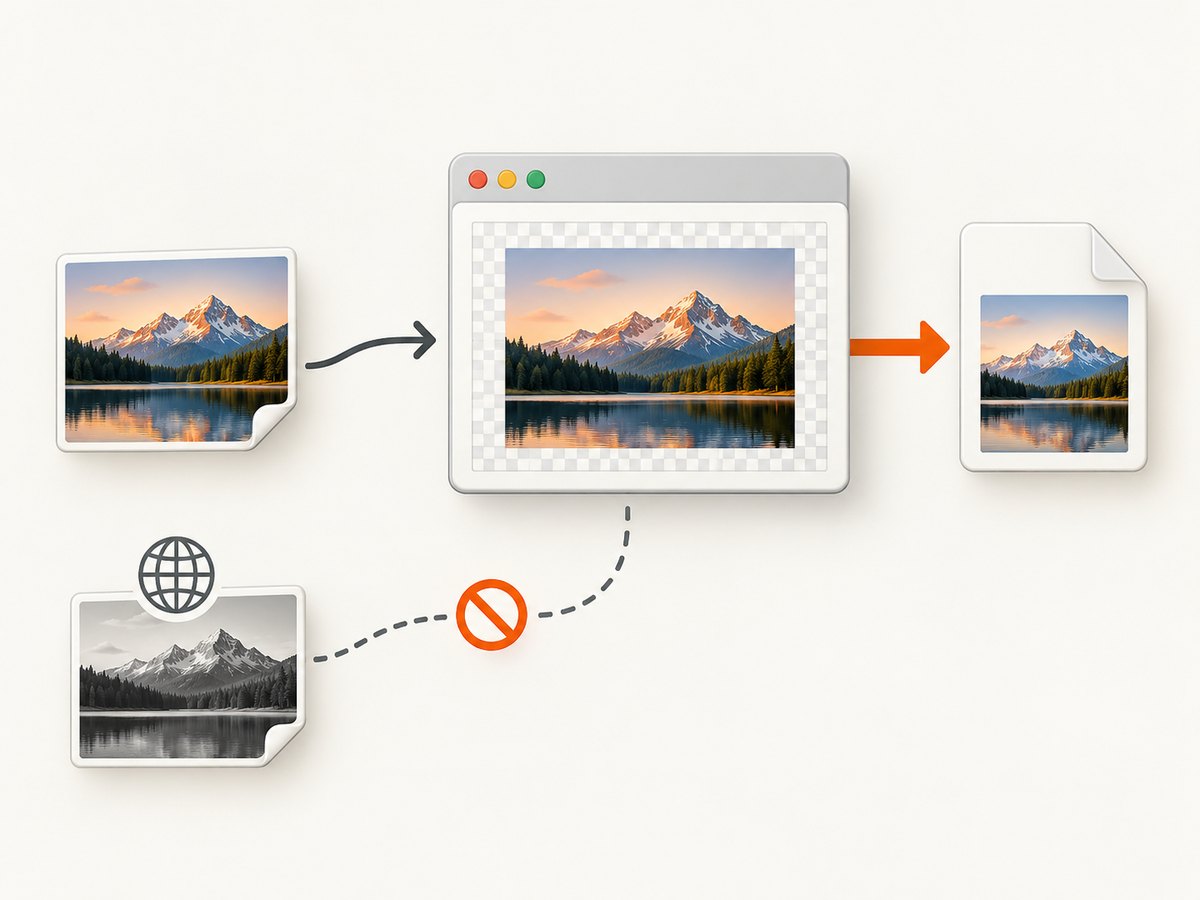
The browser workflow is useful when the image is already displayed in an HTML page or when you are building a client-side converter. The HTML Standard defines canvas serialization, and MDN documents createImageBitmap() for decoding image sources. Canvas serialization to image/png produces PNG output when supported.
Complete browser example for a local file
<!doctype html>
<meta charset="utf-8">
<title>WebP to PNG</title>
<input id="file" type="file" accept="image/webp,image/*">
<a id="download" hidden>Download PNG</a>
<script>
const input = document.querySelector('#file');
const download = document.querySelector('#download');

input.addEventListener('change', async () => {
  const file = input.files[0];
  if (!file) return;

  try {
    const bitmap = await createImageBitmap(file);
    const canvas = document.createElement('canvas');
    canvas.width = bitmap.width;
    canvas.height = bitmap.height;
    const context = canvas.getContext('2d');
    context.drawImage(bitmap, 0, 0);

    canvas.toBlob((blob) => {
      if (!blob) throw new Error('PNG serialization failed');
      const url = URL.createObjectURL(blob);
      download.href = url;
      download.download = file.name.replace(/\.webp$/i, '') + '.png';
      download.hidden = false;
      download.textContent = 'Download PNG';
    }, 'image/png');
  } catch (error) {
    console.error(error);
    alert('The image could not be decoded. Check that it is a valid WebP file.');
  }
});
</script>
This preserves the decoded pixels, including transparency. It does not preserve every piece of source-file metadata, and it cannot recover information that was already discarded by the WebP encoding.
Convert an image already embedded in the page
If the page contains an image element, select it and draw it to a canvas:
async function imageElementToPng(imageElement) {
  if (!imageElement.complete) {
    await new Promise((resolve, reject) => {
      imageElement.addEventListener('load', resolve, { once: true });
      imageElement.addEventListener('error', reject, { once: true });
    });
  }

  const bitmap = await createImageBitmap(imageElement);
  const canvas = document.createElement('canvas');
  canvas.width = bitmap.width;
  canvas.height = bitmap.height;
  canvas.getContext('2d').drawImage(bitmap, 0, 0);

  return new Promise((resolve, reject) => {
    canvas.toBlob(blob => blob ? resolve(blob) : reject(new Error('No PNG blob')), 'image/png');
  });
}

const image = document.querySelector('img[src$=".webp"], img[type="image/webp"]');
imageElementToPng(image).then(blob => {
  const link = document.createElement('a');
  link.href = URL.createObjectURL(blob);
  link.download = 'converted.png';
  link.click();
});
Modern pages often do not end the URL with .webp. Check currentSrc, srcset, lazy-loading attributes, and the network panel. A CSS background needs to be fetched separately; it is not an <img> element.
Cross-origin restrictions
Canvas becomes “tainted” when it draws an image from another origin without the required CORS permission. Calling toBlob() or toDataURL() then fails or throws a security exception. You need one of these fixes:
- Serve the image with an appropriate
Access-Control-Allow-Originresponse header. - Set
image.crossOrigin = 'anonymous'before assigningsrc, when the server supports it. - Proxy the image through your own server, subject to the site’s terms and access controls.
- Download the file and use
dwebpor ImageMagick outside the browser.
4. Use ImageMagick for resizing or batch work
ImageMagick’s official documentation supports general image conversion and editing. A basic conversion is:
magick input.webp output.pngYou can combine conversion with resizing:
magick input.webp -resize 1600x1600\> output.pngUse this route when conversion is one step in a larger pipeline. Keep the original WebP if you may need to repeat the operation with different dimensions or settings. PNG is lossless as an output format, but converting WebP to PNG does not restore detail removed when the WebP was encoded.
5. cURL, Python, and Node.js workflows
cURL
Download the WebP referenced by the HTML, then decode it:
curl -L --fail "https://example.com/assets/photo.webp" -o input.webp
dwebp input.webp -o output.png
--fail makes HTTP errors visible to scripts. Validate that the response is actually an image; a server may return an HTML error page with a successful HTTP status.
Python
import subprocess
from pathlib import Path
import requests

url = "https://example.com/assets/photo.webp"
source = Path("input.webp")
target = Path("output.png")

response = requests.get(url, timeout=30)
response.raise_for_status()
source.write_bytes(response.content)
subprocess.run(["dwebp", str(source), "-o", str(target)], check=True)
print(f"Wrote {target}")
This example deliberately delegates decoding to Google’s WebP tool. That keeps the conversion behavior aligned with the command-line workflow and lets the process fail clearly when decoding fails.
Node.js
import { writeFile } from 'node:fs/promises';
import { spawn } from 'node:child_process';

const url = 'https://example.com/assets/photo.webp';
const response = await fetch(url);
if (!response.ok) throw new Error(`HTTP ${response.status}`);
await writeFile('input.webp', Buffer.from(await response.arrayBuffer()));

await new Promise((resolve, reject) => {
  const child = spawn('dwebp', ['input.webp', '-o', 'output.png'], { stdio: 'inherit' });
  child.on('error', reject);
  child.on('exit', code => code === 0 ? resolve() : reject(new Error(`dwebp exited ${code}`)));
});
6. HTML-specific edge cases
Responsive images
The URL in src may not be the downloaded image. Browsers choose from srcset based on viewport width and pixel density. Use image.currentSrc in the browser, or select the intended candidate yourself in a server-side process.
Lazy loading
An image may not have a usable URL until it enters the viewport. Scroll it into view, wait for its load event, then read currentSrc. Some sites populate URLs only after JavaScript runs.
Data URLs and CSS backgrounds
A data:image/webp;base64,... value can be decoded directly by browser APIs. For CSS backgrounds, inspect getComputedStyle(element).backgroundImage, extract the URL, and fetch it subject to CORS rules.
Animated WebP
Google’s dwebp reference says animated WebP is not supported. Do not expect dwebp input.webp -o output.png to preserve animation. Decide whether you need a representative frame, separate PNG frames, or an animated output format, then use a tool that explicitly supports that operation.
7. Troubleshooting
| Symptom | Likely cause | Fix |
|---|---|---|
dwebp: command not found |
WebP tools are not installed or are absent from PATH. |
Install Google’s WebP utilities and verify with dwebp -version. |
| Output is an error or blank image | The downloaded response is HTML, a bot-check page, or an incomplete file. | Use curl -I, inspect the content type and file size, and download the actual image URL. |
| Canvas throws a security error | The source is cross-origin without CORS. | Enable CORS, use a permitted proxy, or convert the downloaded file outside the browser. |
| Wrong image from a responsive page | src is only a fallback; the browser selected another candidate. |
Read currentSrc after the image loads. |
| Animation disappeared | The basic decoder outputs a still image and does not support animated WebP. | Use animation-aware frame extraction or conversion tooling. |
| PNG is much larger | PNG is lossless and may compress photographic pixels less efficiently. | Keep WebP for delivery; create PNG only where compatibility or editing requires it. |
8. Performance, reliability, and cost
- Performance: decoding locally avoids an upload round trip. Browser conversion uses memory proportional to the decoded pixel dimensions, so very large images can make a tab unresponsive.
- Reliability: write to a temporary file, check process exit codes, verify the output exists, and retain the original until the PNG is validated.
- Batching: avoid launching an unbounded number of decoders at once. Limit concurrency and record the source URL alongside each output.
- Color and metadata: a decode-and-encode workflow changes the container and may not retain all metadata or color-management information. Compare the output with the source when those details matter.
- Cost: dwebp, browser canvas, and ImageMagick are local workflows. Their practical cost is your compute, storage, and bandwidth. A screenshot service adds request charges and is most useful when you need rendered-page capture rather than simple file conversion.
9. Or skip the browser setup
If your real goal is a PNG of a rendered HTML page that contains WebP images, ScreenshotNeo makes one GET request and returns a clean screenshot. It accepts the consent banner like a visitor, removes more than 60 known consent platforms plus newsletter popups and chat widgets, and lets you turn each cleanup step off. Bot checks, blank pages, timeouts, failed loads, and cache hits are not billed; the response identifies the result with X-Page-Verdict and X-Billed headers.
See the ScreenshotNeo API documentation for output and capture options.
curl -G "https://api.screenshotneo.com/v1/shot" -d access_key=YOUR_API_KEY --data-urlencode url=https://example.com/page-with-webp -o shot.webpThe API supports PNG, JPEG, WebP, and PDF output, full-page or element capture, device presets, custom viewports, retina scale, custom CSS and JavaScript, clicks, selector waits, delays, network-idle waits, blocked resource types, headers, cookies, user agents, authorization, timezone, geolocation, transparent backgrounds, resizing, caching, signed links, asynchronous jobs, webhooks, bulk capture, and a usage API. An MCP server provides take_screenshot, get_page_info, and capture_pdf for Claude, Cursor, and other MCP clients.
Python:
import requests
r = requests.get("https://api.screenshotneo.com/v1/shot", params={"access_key": "YOUR_API_KEY", "url": "https://example.com/page-with-webp"}, timeout=90)
open("shot.webp", "wb").write(r.content)
Node.js:
const q = new URLSearchParams({ access_key: 'YOUR_API_KEY', url: 'https://example.com/page-with-webp' });
const res = await fetch(`https://api.screenshotneo.com/v1/shot?${q}`);
Free accounts include 1,000 screenshots each month with no card. Paid plans start at $5 for 3,000 shots. Create a free ScreenshotNeo account.
10. FAQ
Does changing WebP to PNG improve quality?
No. PNG prevents another lossy compression step, but it cannot restore detail that the source WebP already discarded.
Can I convert an entire HTML page to one PNG?
Canvas converts an individual image. To render the whole page, use a browser automation workflow or a screenshot API.
Why does the browser method work locally but fail for a URL?
Local files are not subject to the same cross-origin request rules. A remote image must permit the browser’s origin through CORS or be downloaded through an allowed server-side path.
Should I keep PNG or WebP?
Keep WebP for smaller web delivery when your target browsers support it. Keep PNG when you need lossless interchange, transparency compatibility, or a tool that requires PNG.


