How to Convert an HTML-Only Webpage to PDF
Convert a local HTML file or live webpage to PDF with browser printing, Chrome Headless, wkhtmltopdf, Python, Node.js, and ScreenshotNeo.

Converting an HTML-only webpage to PDF is straightforward: for a one-off file, open it in a browser, choose Print, select Save as PDF, inspect the preview, and save. For repeatable automation, Chrome Headless can print a URL or local file:// document from the command line. wkhtmltopdf is another command-line option, with controls for JavaScript, images, print media, local files, headers, footers, paper size, and page layout.
This guide covers local HTML files, public webpages, dynamic content, linked assets, print CSS, batch jobs, troubleshooting, and a managed alternative with ScreenshotNeo.
1. The quickest method: print from a browser
- Open the local
.htmlfile in Chrome, Edge, Firefox, Safari, or another browser. You can also navigate to a public webpage. - Open the print command. Common shortcuts are
Ctrl+Pon Windows/Linux andCommand+Pon macOS, although menus and shortcuts vary. - Choose Save as PDF or the equivalent PDF destination.
- Check the preview. Verify page breaks, orientation, scale, margins, backgrounds, images, and all content that must be included.
- Save the PDF and open it independently to confirm that fonts, links, images, and later pages are present.
A physical printer is not needed. The browser creates a PDF file directly. This route is ideal when a human can inspect each document. It is less suitable for scheduled jobs, large batches, or a service that must produce the same output repeatedly.
2. Prepare an HTML file for reliable PDF output
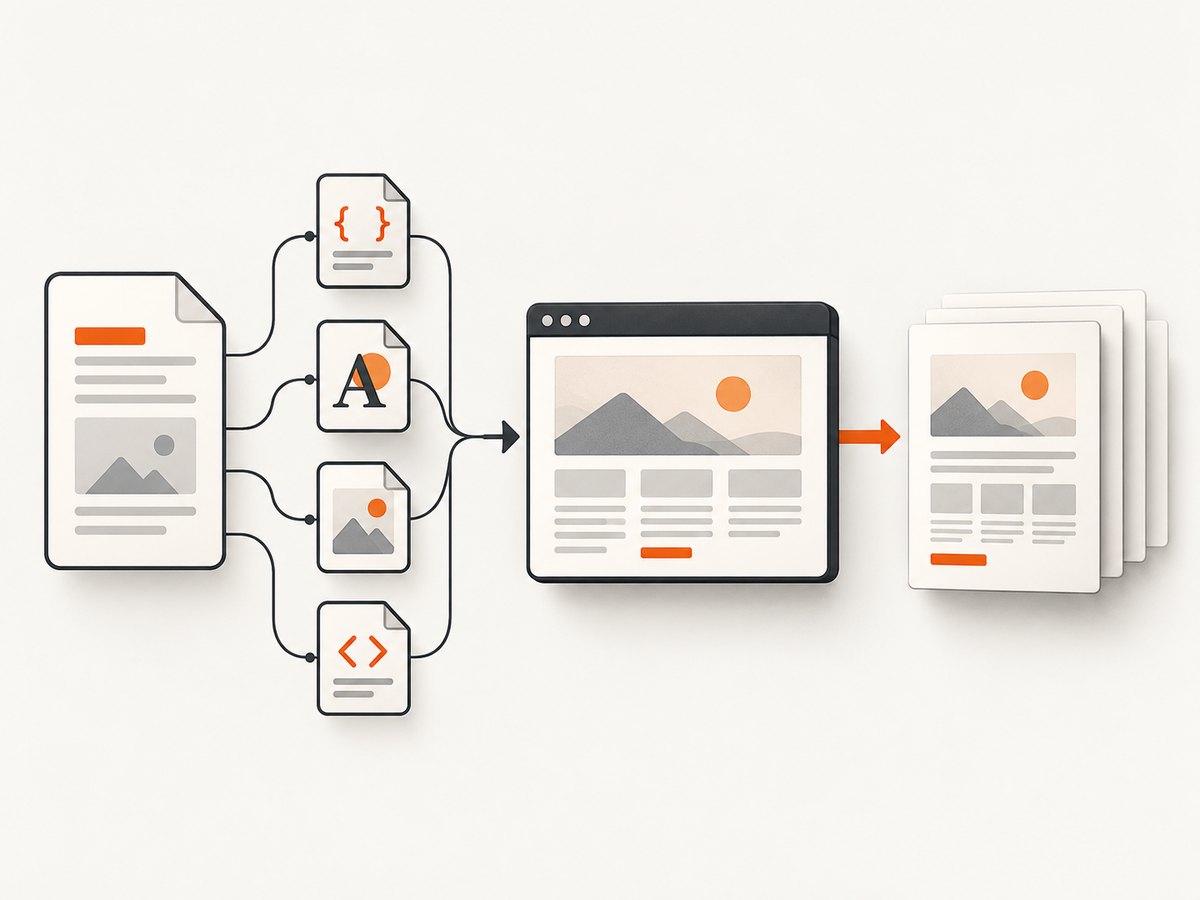
A browser prints the rendered page, not just the HTML source. Your result therefore depends on every stylesheet, font, image, script, and network request the page needs.
Use a complete document
<!doctype html>
<html lang="en">
<head>
  <meta charset="utf-8">
  <meta name="viewport" content="width=device-width, initial-scale=1">
  <title>Invoice</title>
  <link rel="stylesheet" href="styles.css">
</head>
<body>
  <main class="document">
    <h1>Invoice 1042</h1>
    <p>Content that should appear in the PDF.</p>
  </main>
</body>
</html>
Add print-specific CSS
@page {
  size: A4;
  margin: 18mm;
}

@media print {
  .screen-only,
  nav,
  .cookie-banner {
    display: none !important;
  }

  h1, h2, h3 {
    break-after: avoid;
  }

  table, figure, pre {
    break-inside: avoid;
  }

  a {
    color: black;
    text-decoration: none;
  }
}
Use @page for paper size and margins, and @media print for print-only changes. A screen layout may be too wide for paper, so test long tables, code blocks, cards, and images at the intended page size.
Make assets reachable
Keep local CSS, images, fonts, and scripts at valid paths. A saved HTML file may reference remote resources that are unavailable offline, require authentication, or block automated clients. Embed small critical images as data URLs when appropriate, or make sure the conversion environment can reach the resource URLs.
3. Convert HTML with Chrome Headless
Chrome documents a headless PDF command-line workflow in its Headless command-line reference. The basic command writes output.pdf in the current directory:
chrome --headless --print-to-pdf https://example.com/Choose the output filename explicitly:
chrome --headless --print-to-pdf=page.pdf https://example.com/For a local file, use an absolute file:// URL:
chrome --headless --print-to-pdf=page.pdf file:///absolute/path/to/page.htmlChrome may add a generated date, URL, and page-number header or footer. Suppress those with:
chrome --headless --no-pdf-header-footer --print-to-pdf=page.pdf https://example.com/Older Chrome versions may require the older flag name --print-to-pdf-no-header. Check the installed version when a flag is rejected.
Wait for delayed content
Pages that load data or render charts after the initial navigation can be captured too early. Chrome provides --timeout, in milliseconds, to set a maximum wait before capture, and --virtual-time-budget to let time-dependent code advance under virtual time:
chrome --headless \
  --timeout=10000 \
  --virtual-time-budget=5000 \
  --print-to-pdf=dashboard.pdf \
  https://example.com/dashboard
These controls do not guarantee that every site-specific asynchronous operation has finished. Prefer a page that exposes a deterministic ready state, and inspect representative output.
4. Convert with wkhtmltopdf
wkhtmltopdf is an open-source LGPLv3 command-line program that renders HTML with the Qt WebKit engine. Its documented usage options include JavaScript execution, JavaScript delay, image loading, print media, local-file access, load-error handling, headers and footers, paper size, and page layout.
wkhtmltopdf https://example.com/ page.pdfFor a local document:
wkhtmltopdf file:///absolute/path/to/page.html page.pdfUseful controls include:
wkhtmltopdf \
  --print-media-type \
  --javascript-delay 3000 \
  --enable-local-file-access \
https://example.com/ page.pdf--print-media-typeselects print CSS rather than screen CSS.--javascript-delaywaits before rendering JavaScript-generated content.- Image and local-file options determine whether linked resources can be loaded.
- Load-error options control whether failures stop the conversion.
wkhtmltopdf uses a different renderer from current Chrome. Modern browser features can therefore produce different results. Compare the PDF with the page in a current browser, and check the installed version’s usage manual before relying on a flag.
5. Automate conversion from Python
For a simple local workflow, Python can call Chrome and fail clearly when the command exits unsuccessfully:
from pathlib import Path
import subprocess

html = Path("page.html").resolve()
pdf = Path("page.pdf").resolve()

subprocess.run([
    "chrome",
    "--headless",
    "--no-pdf-header-footer",
    f"--print-to-pdf={pdf}",
    html.as_uri(),
], check=True)

if not pdf.exists() or pdf.stat().st_size == 0:
    raise RuntimeError("Chrome did not create a usable PDF")

print(pdf)
For a public URL, replace html.as_uri() with the URL string. In a batch job, write each output to a unique path, check the exit status, and validate that the resulting file is non-empty before publishing it.
6. Automate conversion from Node.js
Node.js can launch the same Chrome command with child_process:
import { execFile } from "node:child_process";
import { promisify } from "node:util";
import { access } from "node:fs/promises";

const execFileAsync = promisify(execFile);
const output = "page.pdf";

await execFileAsync("chrome", [
  "--headless",
  "--no-pdf-header-footer",
  `--print-to-pdf=${output}`,
  "https://example.com/"
]);

await access(output);
console.log(`Created ${output}`);
Use a process timeout in your job runner, capture stderr, and retain the source URL and renderer version with the job metadata. That makes failed or visually changed documents easier to diagnose.
7. Dynamic pages, local files, and page layout
JavaScript-generated content
Wait for content that appears after navigation. A fixed delay is simple but can be wasteful; a readiness signal in the page is more deterministic when you control the application. If the page requires login, a click, or a consent interaction, an unattended command may capture an incomplete state.
Images, fonts, and stylesheets
Missing images or fonts usually mean a bad path, blocked network request, authentication requirement, or local-file restriction. Verify the source page in the same environment as the converter. For local documents, use absolute paths or a deliberate local-file configuration.
Page breaks
Inspect long headings, tables, code, and figures. Use print CSS such as break-inside: avoid, choose a suitable paper size, and adjust margins or scale in the browser preview. A webpage designed only for scrolling may need a dedicated print layout.
8. Troubleshooting checklist
| Symptom | Likely cause | Fix |
|---|---|---|
| Blank PDF | Invalid local URL, blocked resources, or page waiting for interaction | Open the same URL normally, use an absolute file:// path, and inspect browser or command stderr. |
| Only the shell appears | Data loads after initial navigation | Increase Chrome --timeout or --virtual-time-budget; use wkhtmltopdf’s JavaScript delay where applicable. |
| Images or CSS missing | Relative paths, unavailable remote assets, or local-file restrictions | Check every URL from the conversion host and configure local-file access deliberately. |
| Wrong colors or layout | Screen CSS used for a print document | Add @media print, use --print-media-type with wkhtmltopdf, and review print preview. |
| Unexpected URL/date/footer | Chrome’s generated PDF header/footer | Use --no-pdf-header-footer, or the older equivalent on older Chrome. |
| Command fails in CI | Different executable name, permissions, sandbox, or missing dependencies | Log the exact command, locate the installed binary, check its version, and test a minimal page first. |
| Inconsistent batch output | Changing remote content or nondeterministic timing | Capture at a defined time, pin your renderer version, set explicit waits, and retain failed inputs for inspection. |
9. Performance, reliability, and cost considerations
- One-off work: browser printing has almost no setup cost and gives you a visual preview.
- Automation: command-line Chrome or wkhtmltopdf is repeatable, but you must manage the browser binary, fonts, network access, timeouts, and output storage.
- Dynamic content: waiting longer improves completeness only when the page eventually finishes loading; it also increases job duration.
- Reliability: check process exit status, output existence, file size, and representative pages. A successful process does not prove that every remote asset loaded.
- Cost: self-hosted conversion uses your compute, storage, and maintenance time. A hosted API shifts browser setup and operational work to the service, so compare its pricing and failure semantics with your volume and requirements.
10. Or skip the browser setup
ScreenshotNeo provides a website capture API that can return PNG, JPEG, WebP, or PDF. It handles the browser session for you and exposes options for full-page capture, lazy-loaded images, paper size, margins, landscape mode, page ranges, custom CSS and JavaScript, waits, headers, cookies, authorization, timezone, geolocation, caching, asynchronous jobs, bulk capture, and usage reporting. See the ScreenshotNeo documentation for the available PDF parameters.
curl -G "https://api.screenshotneo.com/v1/shot" -d access_key=YOUR_API_KEY --data-urlencode url=https://stripe.com -o shot.webpimport requests
r = requests.get("https://api.screenshotneo.com/v1/shot", params={"access_key": "YOUR_API_KEY", "url": "https://stripe.com"}, timeout=90)
open("shot.webp", "wb").write(r.content)const q = new URLSearchParams({ access_key: 'YOUR_API_KEY', url: 'https://stripe.com' });
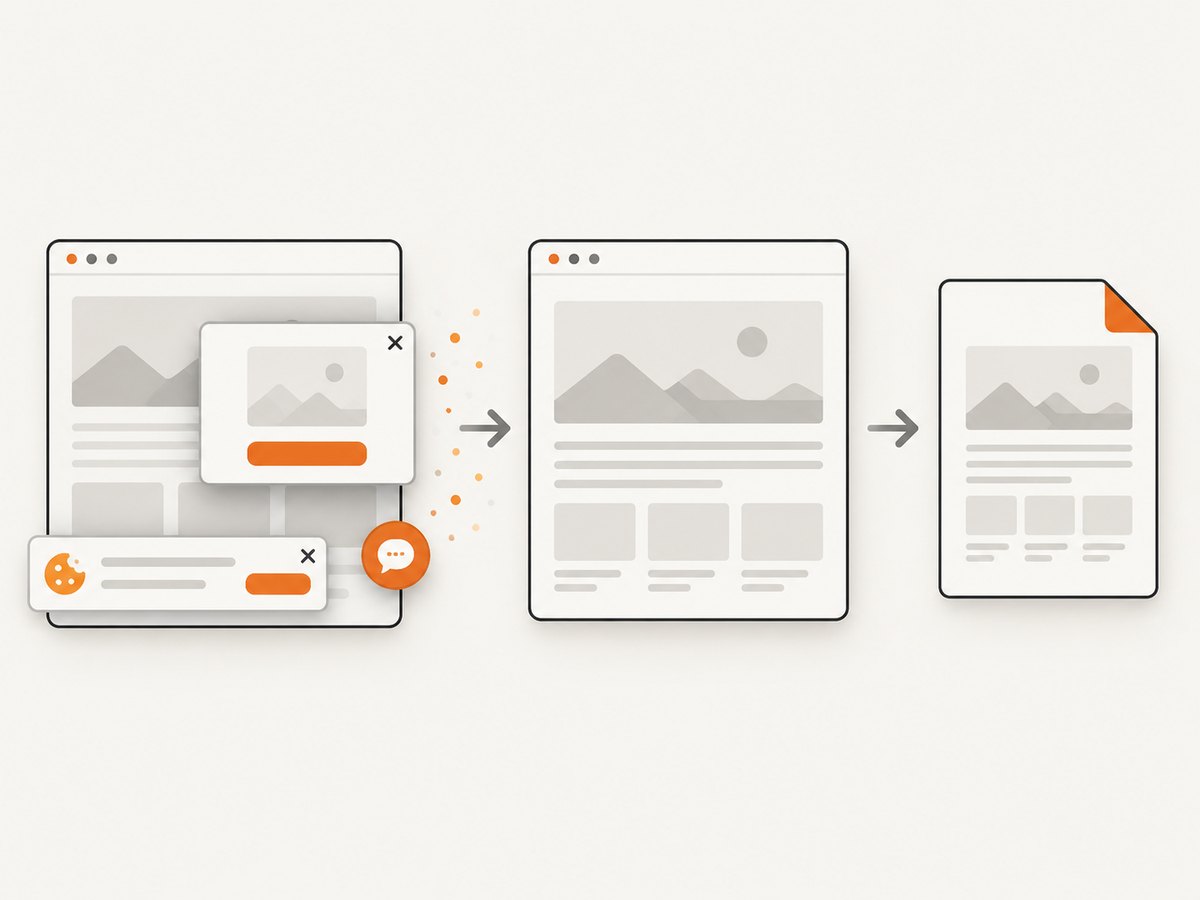
const res = await fetch(`https://api.screenshotneo.com/v1/shot?${q}`);Before capture, ScreenshotNeo accepts cookie or consent banners and removes more than 60 known consent platforms, newsletter popups, and chat widgets; each step can be turned off. Bot checks, CAPTCHAs, blank pages, timeouts, failed loads, and cache hits are not billed, and the response identifies the result with X-Page-Verdict and X-Billed headers. An MCP server lets Claude, Cursor, and other MCP clients call take_screenshot, get_page_info, and capture_pdf.
There is a free plan with 1,000 screenshots per month and no card. Paid plans start at $5 for 3,000 shots; yearly billing gives two months free. Create a free ScreenshotNeo account.
11. FAQ
Can I convert HTML to PDF without installing software?
Yes. Open the page in a browser and choose Print → Save as PDF. A hosted API is another option when you do not want to operate a browser.
Will JavaScript run during conversion?
Chrome Headless runs page JavaScript, but capture timing matters. wkhtmltopdf also documents JavaScript controls and a configurable delay.
Why does my local file lose images?
Check relative paths, file permissions, remote availability, and local-file access rules. Test the exact file URL from the conversion environment.
Which renderer should I choose?
Use browser printing for occasional manual work, Chrome for current browser behavior and automation, and wkhtmltopdf when its documented controls and Qt WebKit output fit your page. Compare output for complex pages.


