How to Convert an HTML Link or Webpage to PNG
Convert any webpage or HTML file to PNG with browser screenshots, Playwright, Chrome Headless, or ScreenshotNeo—with full-page and element capture.
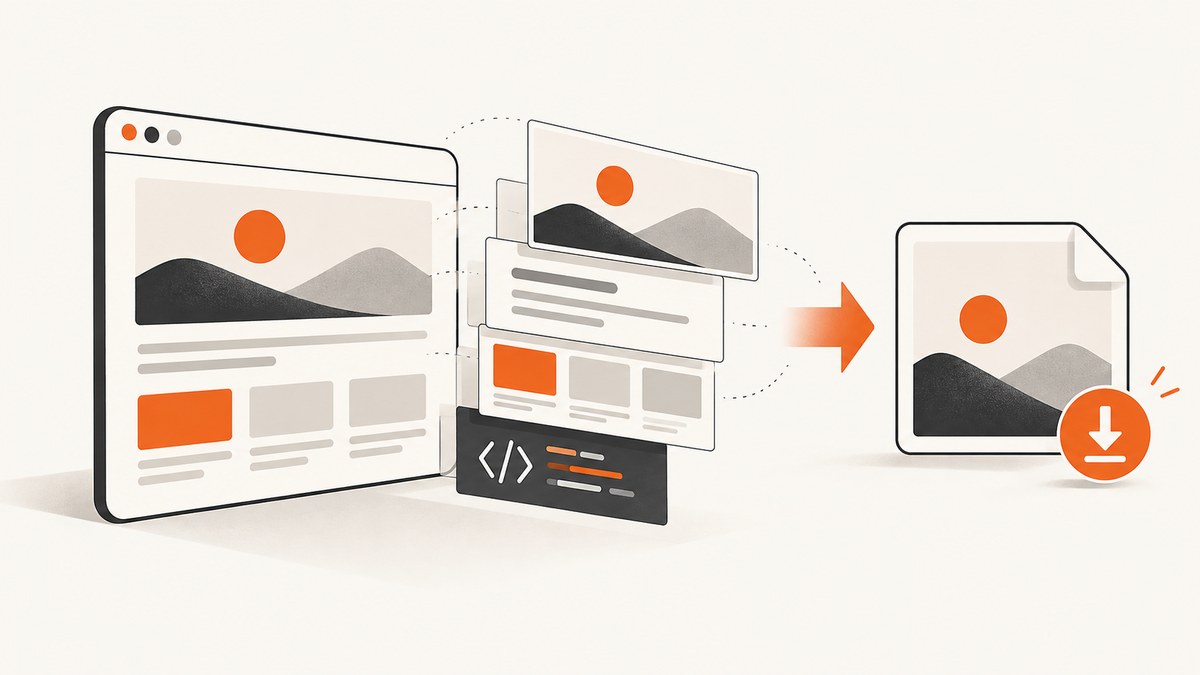
To convert an HTML link or webpage to PNG, render it in a browser and capture the rendered pixels. An HTML file is markup, while a PNG is a raster image; changing .html to .png does not perform a conversion. For a one-off image, use your browser’s screenshot command. For repeatable work, automate a real browser with Playwright or Chrome Headless, or call a screenshot API.
The right method depends on what you need to capture:
| Need | Best capture scope | Typical method |
|---|---|---|
| What is visible now | Viewport | Browser screenshot or Playwright |
| The entire scrollable document | Full page | Playwright fullPage: true or ScreenshotNeo |
| One card, chart, or component | Element | Playwright locator screenshot or CSS selector capture |
| Many URLs on a schedule | Scripted or API capture | Playwright, Chrome Headless, or ScreenshotNeo |
1. Capture a webpage manually
For an occasional screenshot, open the URL in Chrome, Edge, Firefox, or another modern browser. Wait until the content you need is visible, then use the browser’s screenshot or operating-system capture command. A normal screenshot records the viewport. A full-page command, where your browser provides one, scrolls through the document and stitches the result.
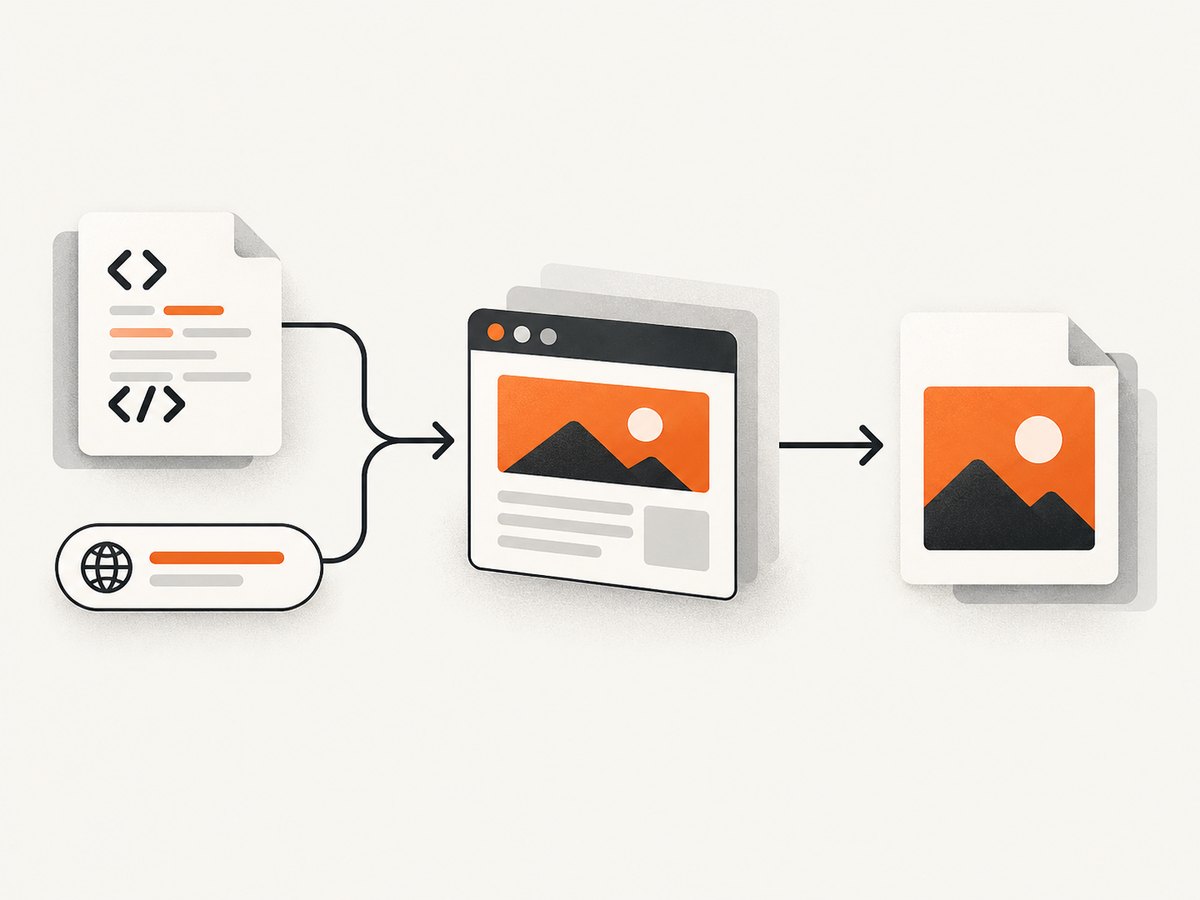
- Open the URL or local HTML file in a browser.
- Set the viewport size and zoom level you want represented.
- Dismiss consent dialogs or other overlays that obscure the page.
- Capture the visible viewport, the complete page, or a selected region.
- Save or export as PNG.
A viewport image is useful for a hero section or a responsive breakpoint. A full-page image is better for documentation, visual regression review, or an archive of a landing page. A region capture is preferable when you need a single table, chart, or component without surrounding navigation.
2. Convert an HTML file to PNG with Playwright
Playwright’s screenshot guide shows the browser-rendering approach: navigate to a page and call page.screenshot(). The same API works with an HTTP(S) URL and with a local file URL. The browser executes HTML, CSS, fonts, and JavaScript before the pixels are saved.
Install Playwright
mkdir html-to-png
cd html-to-png
npm init -y
npm install playwright
npx playwright install chromium
Capture a live webpage
const { chromium } = require('playwright');

(async () => {
  const browser = await chromium.launch();
  const page = await browser.newPage({
    viewport: { width: 1440, height: 900 },
    deviceScaleFactor: 1
  });

  await page.goto('https://example.com', { waitUntil: 'load' });
  await page.screenshot({ path: 'webpage.png' });
  await browser.close();
})();
Save the file as capture.js and run node capture.js. The output is a PNG of the current viewport. waitUntil: 'load' waits for the load event, but pages that fetch data after load may need an additional, site-specific wait.
Capture the complete scrollable page
const { chromium } = require('playwright');

(async () => {
  const browser = await chromium.launch();
  const page = await browser.newPage({ viewport: { width: 1280, height: 800 } });

  await page.goto('https://example.com', { waitUntil: 'networkidle' });
  await page.screenshot({
    path: 'full-page.png',
    fullPage: true
  });

  await browser.close();
})();
Playwright documents fullPage: true as taking a screenshot of the full scrollable page instead of only the visible viewport. Very tall pages can produce large images and consume more memory than a viewport capture.
Capture one element
const { chromium } = require('playwright');

(async () => {
  const browser = await chromium.launch();
  const page = await browser.newPage();
  await page.goto('https://example.com', { waitUntil: 'networkidle' });

  const card = page.locator('.pricing-card').first();
  await card.screenshot({ path: 'pricing-card.png' });

  await browser.close();
})();
An element screenshot uses the element’s bounding box. Make sure the selector identifies one visible element and that fonts, images, and client-rendered data have finished loading before capture.
Capture a local HTML document
const { chromium } = require('playwright');
const path = require('node:path');
const { pathToFileURL } = require('node:url');

(async () => {
  const browser = await chromium.launch();
  const page = await browser.newPage({ viewport: { width: 1200, height: 900 } });
  const fileUrl = pathToFileURL(path.resolve('report.html')).href;

  await page.goto(fileUrl, { waitUntil: 'load' });
  await page.screenshot({ path: 'report.png', fullPage: true });
  await browser.close();
})();
Relative CSS, image, and font URLs in the document must resolve from the local file location. If your page expects a web server, run a local static server and navigate to its HTTP URL instead. Pages that use browser APIs, module imports, or cross-origin requests often behave more predictably over HTTP than with file://.
3. Playwright options that affect PNG output
The Page screenshot API exposes controls for output and capture geometry.
| Option | What it controls | When to use it |
|---|---|---|
path |
Destination file | Save a PNG directly to disk |
fullPage |
Viewport versus complete scrollable page | Use true for long documents |
clip |
Rectangular x, y, width, and height region | Capture a fixed area |
scale |
CSS-size or device-pixel-size output where supported | Control file dimensions and density |
omitBackground |
Transparent page background | Useful for compositing; does not apply to JPEG |
type |
PNG or JPEG encoding | Use PNG for lossless UI and text |
PNG preserves sharp text and flat colors. It is usually larger than JPEG for photographic content. Keep the browser viewport, device scale, fonts, and page state consistent when comparing screenshots over time.
4. Chrome Headless command line
If Chrome is already installed, its headless command-line mode can create a basic PNG without writing a script. The Chrome Headless reference documents --screenshot, which saves screenshot.png in the current working directory, and --window-size for the capture viewport.
chrome --headless --screenshot --window-size=412,892 https://example.com/Executable names vary by operating system and package. You may need google-chrome, chromium, or an absolute path. The command is convenient for a single viewport. For full-page stitching, custom waits, authentication, element selection, or repeated jobs, use Playwright or an API.
5. Waiting for dynamic pages
A URL can return HTML before its important content exists. Single-page applications may fetch products, charts, or images after navigation. Lazy-loaded images may appear only after scrolling. Cookie notices, chat widgets, animations, and bot checks can also change the pixels.
Use a condition tied to the page rather than an arbitrary long delay when possible:
await page.goto('https://example.com/dashboard', { waitUntil: 'domcontentloaded' });
await page.waitForSelector('[data-rendered="true"]');
await page.screenshot({ path: 'dashboard.png', fullPage: true });
If no reliable selector exists, a short delay can allow a known animation or request to finish:
await page.goto('https://example.com', { waitUntil: 'networkidle' });
await page.waitForTimeout(1000);
await page.screenshot({ path: 'delayed.png' });
Disable animations when visual stability matters, and scroll through long pages if the site loads images on scroll. These are site-specific techniques; no universal wait condition guarantees that every page has finished rendering.
6. Authentication, headers, cookies, and private HTML
Public pages can be captured anonymously. Private pages need the same access context a normal browser would use. In Playwright, create a browser context with an authenticated storage state, add cookies, or set headers before navigation. Keep credentials outside source code and avoid writing sensitive cookies into screenshots or logs.
const context = await browser.newContext({
  extraHTTPHeaders: { 'X-Preview-Token': process.env.PREVIEW_TOKEN }
});
const page = await context.newPage();
await page.goto('https://staging.example.com/report', { waitUntil: 'networkidle' });
await page.screenshot({ path: 'private-report.png', fullPage: true });
For a local document, bundle its assets or serve them from a controlled development server. Missing fonts, blocked cross-origin resources, and expired sessions are common reasons a screenshot differs from the page seen interactively.
7. Or skip the browser setup
ScreenshotNeo provides a website screenshot API: send one GET request with a URL and receive PNG, JPEG, WebP, or PDF. Its API accepts full-page capture, CSS element selection, custom CSS and JavaScript, waits, device presets, viewport and retina settings, headers, cookies, user agents, authorization, timezone, geolocation, blocking rules, image resizing, caching, signed links, asynchronous jobs, bulk capture, and more. See the ScreenshotNeo API documentation for parameter details.
cURL
curl -G "https://api.screenshotneo.com/v1/shot" \
  -d access_key=YOUR_API_KEY \
  --data-urlencode url=https://stripe.com \
  -o shot.webp
Python
import requests

r = requests.get(
    "https://api.screenshotneo.com/v1/shot",
    params={"access_key": "YOUR_API_KEY", "url": "https://stripe.com"},
    timeout=90,
)
r.raise_for_status()
open("shot.webp", "wb").write(r.content)
Node.js
const q = new URLSearchParams({ access_key: 'YOUR_API_KEY', url: 'https://stripe.com' });
const res = await fetch(`https://api.screenshotneo.com/v1/shot?${q}`);
if (!res.ok) throw new Error(`HTTP ${res.status}`);
const fs = require('node:fs');
fs.writeFileSync('shot.webp', Buffer.from(await res.arrayBuffer()));
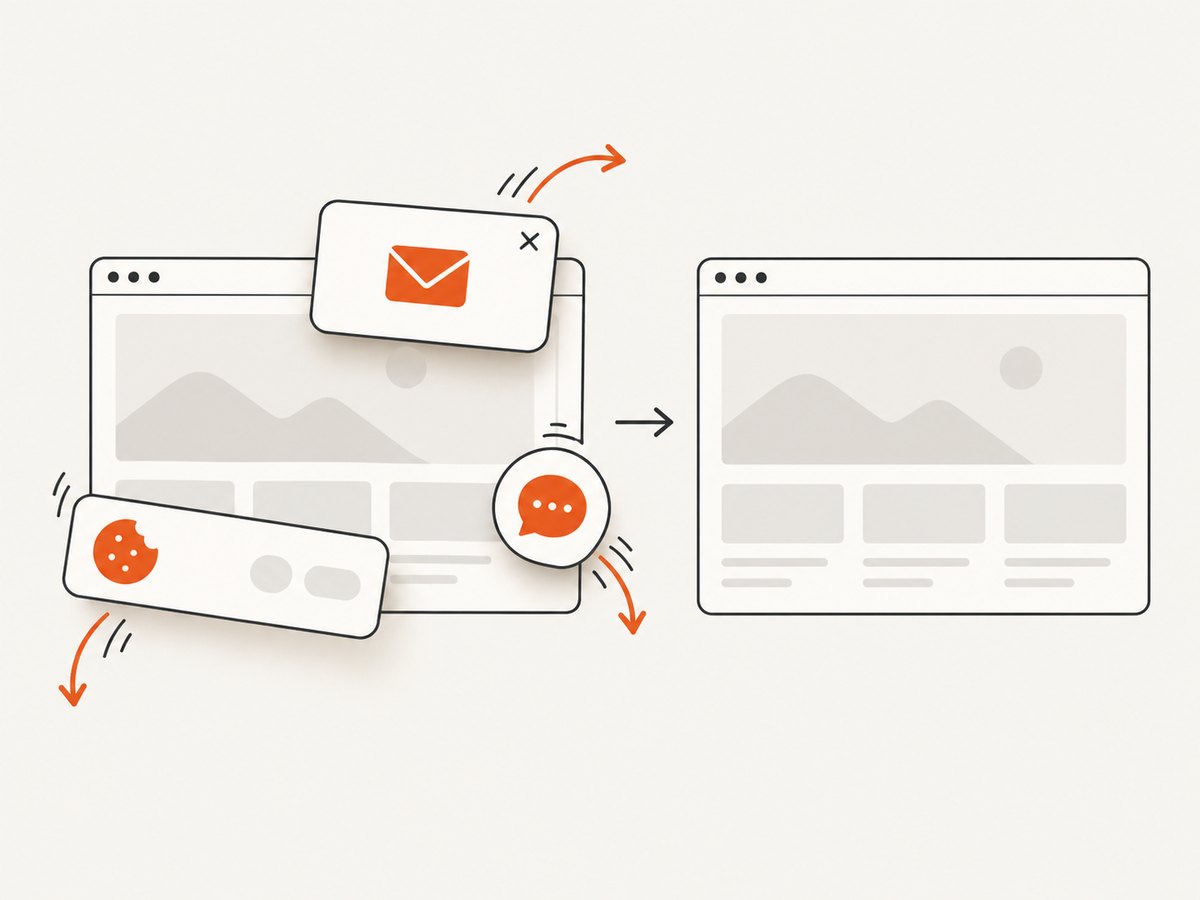
Change the URL and request parameters for your page and desired output. ScreenshotNeo removes cookie and consent banners, newsletter popups, and chat widgets before capture; each cleanup step can be turned off. Bot checks or CAPTCHAs, blank pages, timeouts, failed loads, and cache hits cost nothing, and response headers identify the page verdict and whether the request was billed. An MCP server exposes take_screenshot, get_page_info, and capture_pdf to Claude, Cursor, and other MCP clients.
There is a free plan with 1,000 screenshots per month and no card. Paid plans start at $5 for 3,000 shots; yearly billing gives two months free, and every feature is on every plan. Create a free ScreenshotNeo account to try the API.
8. Troubleshooting common conversion errors
| Symptom | Likely cause | Fix |
|---|---|---|
| PNG is blank | Navigation failed, content is client-rendered, or a bot check appeared | Check the response and page URL, wait for a real selector, and inspect the page in headed mode. |
| Only the header appears | Lazy content has not loaded | Use full-page capture and scroll or wait for the content selector before taking the shot. |
| Cookie dialog covers the page | Consent overlay remains active | Accept it or remove it with a targeted script; ScreenshotNeo can remove known consent platforms. |
| Fonts or icons differ | Font request failed or capture ran before web fonts loaded | Verify network access, preload fonts, and wait for document.fonts.ready. |
| Element selector fails | Selector is wrong, duplicated, hidden, or created later | Use a stable data attribute, wait for the locator, and confirm it is visible. |
| Local images are missing | Relative paths resolve from another directory or are blocked by file security | Use absolute asset paths or serve the project from a local HTTP server. |
| Screenshot times out | Slow third-party request, never-ending network activity, or unreachable host | Set a bounded timeout, wait for a specific selector, block unnecessary resources, and retry transient failures. |
| Output is unexpectedly huge | Full-page dimensions or device scale are high | Capture the viewport or element, reduce viewport size, or use CSS-scale output. |
9. Performance, reliability, and cost considerations
Performance
Launching a browser is expensive compared with saving an already-rendered image. For batch jobs, reuse a browser process and create contexts or pages per job. Keep the viewport and device scale as small as your design requires. Full-page images and high-density captures increase memory and encoding time. Block analytics, advertising, and other resources that are irrelevant to the visual result when your capture policy allows it.
Reliability
Use bounded navigation and screenshot timeouts, retry only transient network failures, and record the URL, viewport, browser version, and capture timestamp with each artifact. Deterministic screenshots require stable data, fonts, animations, locale, timezone, and geolocation. Treat bot checks and authentication failures as explicit outcomes instead of silently accepting a blank PNG.
Cost
Self-hosted Playwright and Chrome consume your own compute, storage, and maintenance time. A hosted API trades browser operations for per-capture billing and simpler integration. ScreenshotNeo bills only clean shots; bot checks, blank pages, timeouts, failed loads, and cache hits are not billed. Its plans include Free (1,000/month), Starter ($5 for 3,000), Growth ($15 for 15,000), Pro ($39 for 60,000), Scale ($99 for 250,000), and Business ($249 for 1,000,000).
10. Choosing the right method
- Manual browser capture: best for an occasional page and human review.
- Playwright: best when you need selectors, authentication, custom waits, test integration, or control over a local browser.
- Chrome Headless: best for a simple command-line viewport screenshot when Chrome is already installed.
- ScreenshotNeo: best when you want an HTTP request, cleanup of consent and overlays, API options, usage reporting, signed links, bulk capture, or MCP tools.
Frequently asked questions
Can I convert HTML to PNG without rendering it?
No. PNG records pixels, so the HTML must be rendered by a browser or another layout engine first.
What is the difference between a viewport and a full-page screenshot?
A viewport captures the currently visible browser area. A full-page screenshot includes the document’s complete scrollable height.
Why is my PNG different from the page in my browser?
Differences usually come from viewport dimensions, device scale, fonts, locale, authentication, animations, delayed requests, or consent overlays.
Can a screenshot include a transparent background?
Playwright supports transparent-background behavior with its screenshot options; transparent backgrounds do not apply to JPEG output. Confirm that the page itself does not paint an opaque background.
Should I use PNG or JPEG?
Use PNG for text, interfaces, diagrams, and lossless comparisons. JPEG can be smaller for photographic pages but introduces compression artifacts.
How do I capture many URLs?
Reuse a Playwright browser for a controlled batch, or use an API with bulk capture. ScreenshotNeo supports up to 100 URLs per bulk call and offers asynchronous jobs with signed webhooks.
Conclusion
Converting a webpage or HTML file to PNG means choosing a rendering scope and a capture workflow. Start with a manual viewport screenshot for one page, use Playwright for programmable full-page or element captures, and use Chrome Headless for a minimal command-line path. When browser setup, consent cleanup, retries, and API delivery are the work you want to remove, use ScreenshotNeo’s one-call API and start with its free 1,000-shot plan.


