How to Convert an Image to a Data URL in JavaScript
Convert local files, remote images, and canvas pixels to data URLs in JavaScript, with CORS, Base64, memory, format, and troubleshooting guidance.
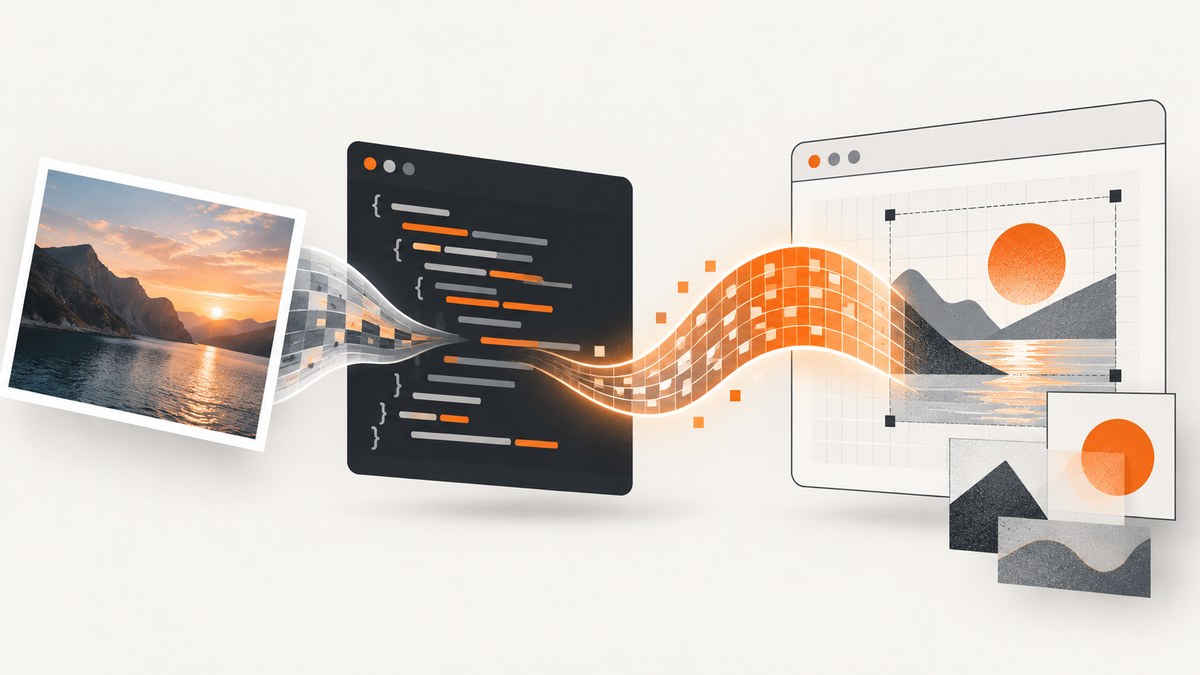
A data URL embeds an image directly in a string. It starts with a media type and encoding marker, such as data:image/png;base64,, followed by the image bytes encoded as Base64. In browser JavaScript, the correct conversion depends on what you already have: use FileReader.readAsDataURL() for a File or Blob, fetch a remote image before converting it, and use a canvas when you need to resize, crop, composite, or change formats.
Quick answer: convert a selected image file
For an image chosen with an <input type="file">, pass the resulting File directly to FileReader.readAsDataURL(). MDN describes this method as reading the contents of a specified Blob or File. The promise wrapper below resolves to the complete data URL.
function imageFileToDataURL(file) {
  return new Promise((resolve, reject) => {
    const reader = new FileReader();
    reader.addEventListener("load", () => resolve(reader.result));
    reader.addEventListener("error", () => reject(reader.error));
    reader.readAsDataURL(file);
  });
}

const input = document.querySelector("#image-input");
const preview = document.querySelector("#preview");

input.addEventListener("change", async () => {
  const file = input.files[0];
  if (!file) return;

  try {
    const dataURL = await imageFileToDataURL(file);
    preview.src = dataURL;
    console.log(dataURL.slice(0, 40));
  } catch (error) {
    console.error("Could not read image:", error);
  }
});
Example markup:
<input id="image-input" type="file" accept="image/*">
<img id="preview" alt="Selected image preview">
The returned string includes the data: prefix. Keep that entire value when assigning it to img.src, a CSS url(), or another field that expects a URL.
How a data URL is structured
data:[media-type][;parameters][;base64],encoded-dataA typical PNG result looks like data:image/png;base64,iVBORw0KGgo.... The first part identifies the resource; the part after the comma contains the encoded bytes. A JPEG normally begins with data:image/jpeg;base64,, while WebP begins with data:image/webp;base64,.
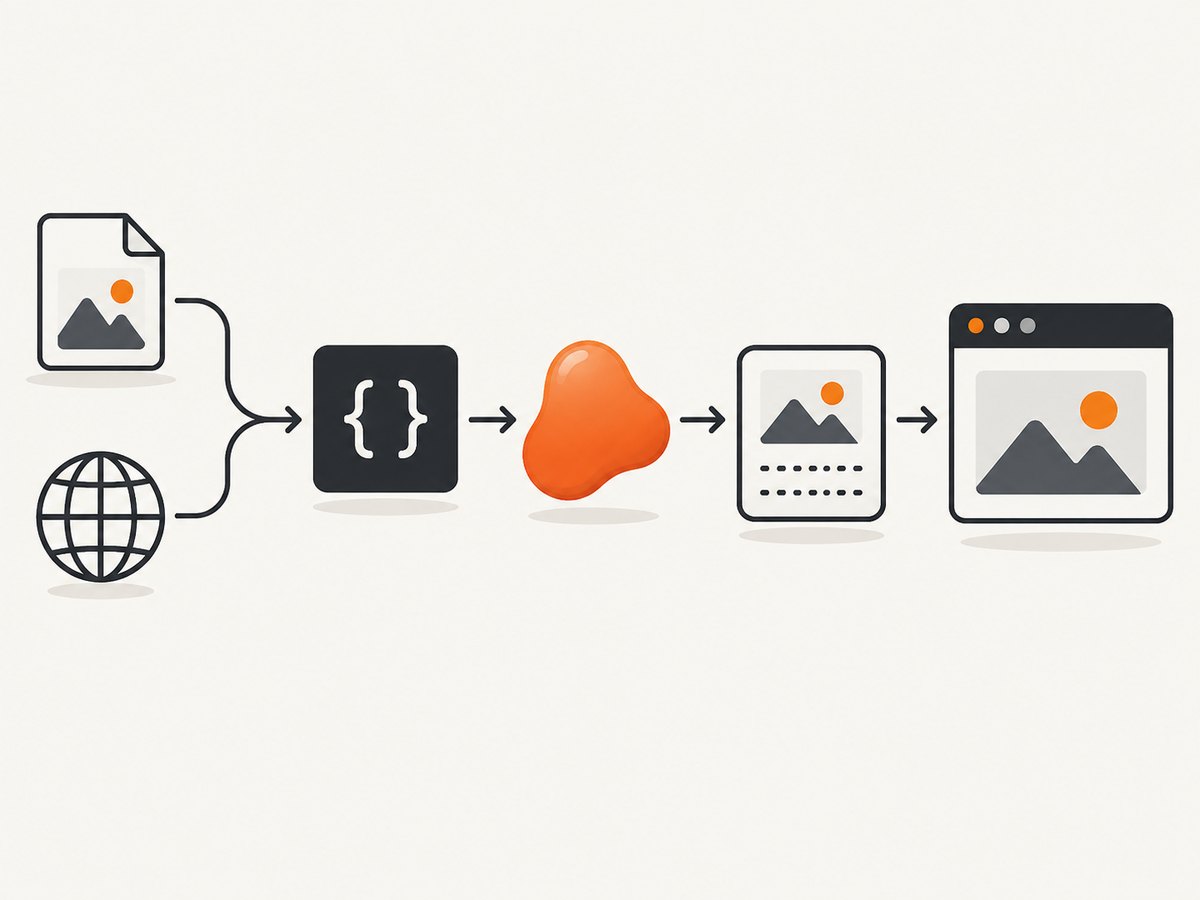
A data URL is different from raw Base64. If an API explicitly asks for only Base64, remove the declaration once, after confirming that the API does not want a data URL:
function dataURLToBase64(dataURL) {
  return dataURL.replace(/^data:[^;]+;base64,/, "");
}
Do not remove the prefix before setting an image source. Without it, the browser does not know the string is an embedded image.
Convert a remote image URL
A URL is not an image File yet. Fetch it, check the response, turn it into a Blob, and reuse the same converter.
function imageFileToDataURL(file) {
  return new Promise((resolve, reject) => {
    const reader = new FileReader();
    reader.addEventListener("load", () => resolve(reader.result));
    reader.addEventListener("error", () => reject(reader.error));
    reader.readAsDataURL(file);
  });
}

async function remoteImageToDataURL(url) {
  const response = await fetch(url);
  if (!response.ok) {
    throw new Error(`HTTP ${response.status}`);
  }
  return imageFileToDataURL(await response.blob());
}

const dataURL = await remoteImageToDataURL("https://example.com/photo.png");
document.querySelector("#preview").src = dataURL;
The remote server must allow your page to read the response with CORS. A server can display an image cross-origin while still refusing JavaScript access to its bytes. If fetch() reports a CORS failure, you cannot solve that in client-side code by adding a request header. Configure Access-Control-Allow-Origin on the image server, use a same-origin proxy that you control, or process the image on a server.
Use canvas when you need to transform pixels
FileReader preserves the original bytes and format. Canvas decodes the image and serializes pixels again, so it is the right tool for resizing, cropping, drawing overlays, compositing several images, or requesting another output format.
function loadImage(src) {
  return new Promise((resolve, reject) => {
    const image = new Image();
    image.addEventListener("load", () => resolve(image));
    image.addEventListener("error", () => reject(new Error("Image failed to load")));
    image.src = src;
  });
}

function canvasToDataURL(image, type = "image/png", quality) {
  const canvas = document.createElement("canvas");
  canvas.width = image.naturalWidth || image.width;
  canvas.height = image.naturalHeight || image.height;

  const context = canvas.getContext("2d");
  context.drawImage(image, 0, 0);

  return quality === undefined
    ? canvas.toDataURL(type)
    : canvas.toDataURL(type, quality);
}

const image = await loadImage("/photo.jpg");
const pngDataURL = canvasToDataURL(image, "image/png");
const webpDataURL = canvasToDataURL(image, "image/webp", 0.82);
Per the MDN canvas documentation, an omitted or unsupported type falls back to PNG. For formats that support lossy compression, the quality argument is a number from 0 to 1. A value near 1 keeps more detail and usually produces a larger string.
Resize before encoding
Resizing first reduces both memory use and the size of the resulting string. Preserve the aspect ratio by calculating the destination dimensions from the source image.
function resizedImageToDataURL(image, maxWidth, maxHeight, type = "image/jpeg", quality = 0.85) {
  const scale = Math.min(
    1,
    maxWidth / image.naturalWidth,
    maxHeight / image.naturalHeight
  );

  const canvas = document.createElement("canvas");
  canvas.width = Math.max(1, Math.round(image.naturalWidth * scale));
  canvas.height = Math.max(1, Math.round(image.naturalHeight * scale));

  const context = canvas.getContext("2d");
  context.drawImage(image, 0, 0, canvas.width, canvas.height);
  return canvas.toDataURL(type, quality);
}
JPEG removes transparency by drawing onto the canvas’s default opaque background. Use PNG or WebP when an alpha channel matters. Always validate the file type and dimensions before decoding untrusted uploads.
Cross-origin canvas rules
If an image was loaded from another origin without the required CORS permission, drawing it to a canvas makes that canvas tainted. Reading it with toDataURL() then throws a security error. Set crossOrigin before src, and ensure the server sends a compatible CORS header:
const image = new Image();
image.crossOrigin = "anonymous";
image.src = "https://cdn.example.com/photo.jpg";
image.addEventListener("load", () => {
  const dataURL = canvasToDataURL(image);
});
This only works when the CDN opts in. Credentials mode, cookies, redirects, and wildcard origins can change the required server configuration. If you do not control the source, use a backend proxy or avoid the canvas route.
FileReader, fetch, and canvas: which route should you choose?
| Input or goal | Use | Why |
|---|---|---|
| Selected local file | FileReader.readAsDataURL() |
Direct conversion with no pixel decoding. |
| Remote image URL | fetch() then FileReader |
Turns the response into a Blob before encoding; CORS applies. |
| Resize, crop, draw, or composite | Canvas then toDataURL() |
Provides pixel operations and format/quality control. |
| Large image when a data URL is optional | toBlob() and URL.createObjectURL() |
Avoids one large in-memory string and is usually more efficient. |
Memory, size, and performance considerations
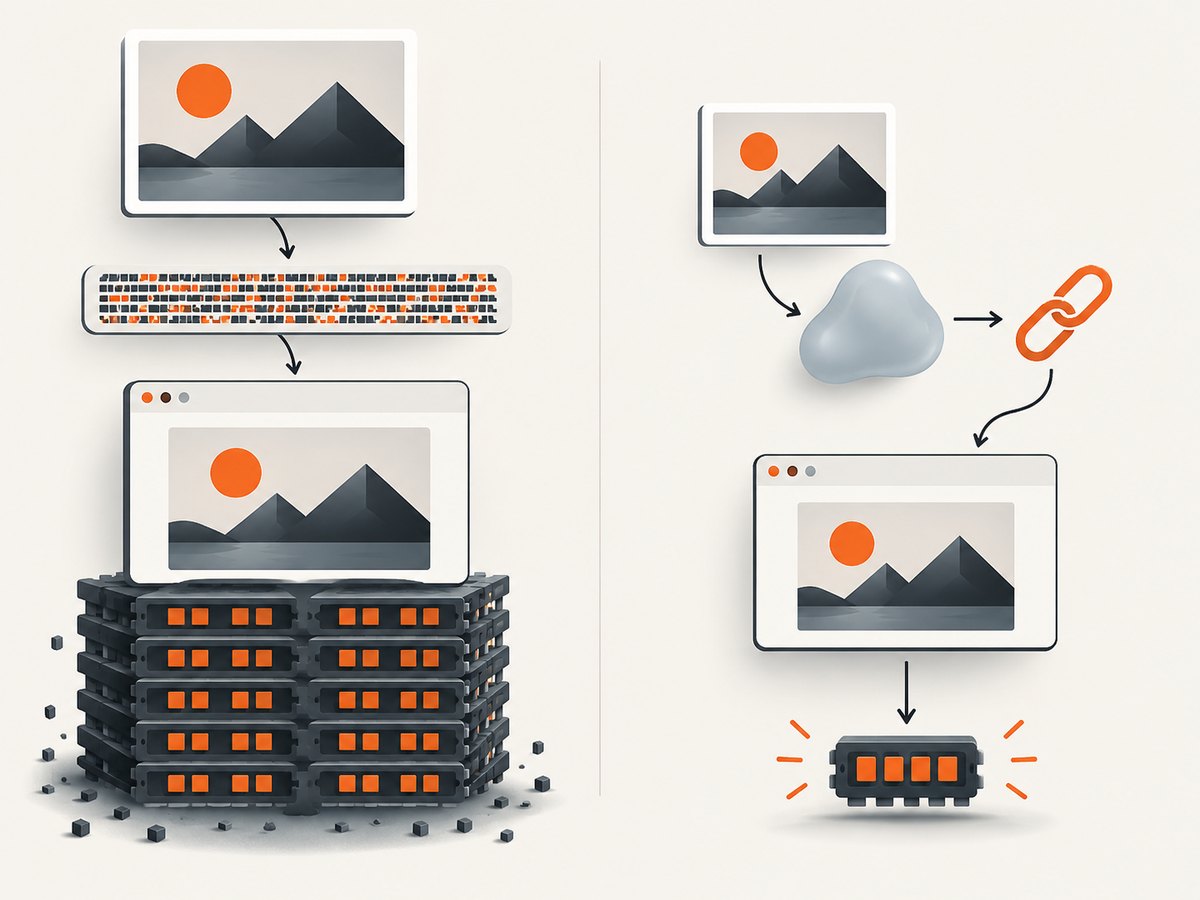
Base64 expands binary data by roughly one third, and JavaScript stores the complete encoded value in memory. toDataURL() also encodes the whole image synchronously. MDN warns that very large data URLs can hit URL-length limits and recommends toBlob() with URL.createObjectURL() when a data URL is not required.
function canvasToObjectURL(canvas, type = "image/png", quality) {
  return new Promise((resolve, reject) => {
    canvas.toBlob(blob => {
      if (!blob) {
        reject(new Error("Canvas could not be encoded"));
        return;
      }
      resolve(URL.createObjectURL(blob));
    }, type, quality);
  });
}

const objectURL = await canvasToObjectURL(canvas, "image/webp", 0.8);
preview.src = objectURL;
// Later, when the preview is no longer needed:
URL.revokeObjectURL(objectURL);
Use a data URL when the receiving API or document must contain a self-contained string. Use a Blob or object URL for previews, downloads, uploads, and large images. Avoid putting large data URLs in query strings, local storage, or logs.
Complete browser example with validation
<input id="image-input" type="file" accept="image/png,image/jpeg,image/webp">
<img id="preview" alt="Preview">
<output id="status"></output>

<script>
const input = document.querySelector("#image-input");
const preview = document.querySelector("#preview");
const status = document.querySelector("#status");

function imageFileToDataURL(file) {
  return new Promise((resolve, reject) => {
    const reader = new FileReader();
    reader.addEventListener("load", () => resolve(reader.result));
    reader.addEventListener("error", () => reject(reader.error));
    reader.readAsDataURL(file);
  });
}

input.addEventListener("change", async () => {
  const file = input.files[0];
  if (!file) return;

  if (!file.type.startsWith("image/")) {
    status.textContent = "Choose an image file.";
    return;
  }
  if (file.size > 10 * 1024 * 1024) {
    status.textContent = "Choose an image smaller than 10 MB.";
    return;
  }

  status.textContent = "Reading…";
  try {
    const dataURL = await imageFileToDataURL(file);
    preview.src = dataURL;
    status.textContent = `${file.type}, ${file.size} bytes`;
  } catch (error) {
    status.textContent = "The image could not be read.";
    console.error(error);
  }
});
</script>
Troubleshooting
“The result is undefined”
FileReader is asynchronous. Read reader.result inside the load event or await the promise wrapper. Do not return it immediately after calling readAsDataURL().
The preview shows a broken image
Confirm that you assigned the complete data URL, including data:image/...;base64,. Check that the file was selected and that the MIME type matches the bytes.
Fetch fails with a CORS error
The remote server did not grant your origin access. Configure CORS on that server or retrieve the image through a same-origin backend. Adding mode: "no-cors" creates an opaque response whose bytes JavaScript cannot read.
Canvas throws a security error
The canvas is tainted by a cross-origin image. Set image.crossOrigin = "anonymous" before src, and make the image server return the appropriate Access-Control-Allow-Origin header.
The page freezes during conversion
Large images make canvas encoding and string allocation expensive. Resize first, use toBlob(), and perform nonessential processing away from the main interaction path.
The output is much larger than the input
Base64 adds overhead, and PNG may be larger than a compressed JPEG or WebP. Choose the required format and quality, or send the original Blob instead of embedding it.
Transparency disappeared
JPEG has no alpha channel. Encode as PNG or WebP, and ensure the canvas is not filled with an opaque background before drawing.
Or skip the browser setup
If your actual goal is obtaining a clean image of a web page rather than converting a local image, ScreenshotNeo returns a screenshot from one GET request. Cookie and consent banners are accepted or removed before capture, along with 60+ known consent platforms, newsletter popups, and chat widgets. Bot checks, blank pages, timeouts, failed loads, and cache hits are not billed, and response headers identify the page verdict and billing status.
See the ScreenshotNeo API documentation for all options. This cURL example saves a WebP response:
curl -G "https://api.screenshotneo.com/v1/shot" -d access_key=YOUR_API_KEY --data-urlencode url=https://stripe.com -o shot.webpPython:
import requests

r = requests.get(
    "https://api.screenshotneo.com/v1/shot",
    params={"access_key": "YOUR_API_KEY", "url": "https://stripe.com"},
    timeout=90,
)
r.raise_for_status()
open("shot.webp", "wb").write(r.content)
Node.js:
const q = new URLSearchParams({ access_key: 'YOUR_API_KEY', url: 'https://stripe.com' });
const res = await fetch(`https://api.screenshotneo.com/v1/shot?${q}`);
if (!res.ok) throw new Error(`HTTP ${res.status}`);
const image = Buffer.from(await res.arrayBuffer());
await import('node:fs/promises').then(fs => fs.writeFile('shot.webp', image));
ScreenshotNeo also supports PNG, JPEG, PDF, full-page and element captures, device presets, custom CSS and JavaScript, waits, blocking rules, headers, cookies, caching, signed links, async jobs, bulk capture, and an MCP server with take_screenshot, get_page_info, and capture_pdf for AI agents. There are 1,000 free shots each month with no card; paid plans start at $5 for 3,000. Create a free ScreenshotNeo account.
Security and reliability checklist
- Validate MIME type, file size, and image dimensions before reading user uploads.
- Do not place sensitive images in URLs, analytics events, console logs, or third-party requests.
- Revoke object URLs when previews are removed.
- Use server-side validation when accepting uploads; client checks are only a convenience.
- Expect remote URLs to fail because of CORS, redirects, authentication, rate limits, or expired links.
- Choose Blob or object URLs when the consumer does not specifically require a data URL.
FAQ
Can I convert a data URL back to a file?
Yes. Split at the comma, decode the Base64 portion with atob(), copy the bytes into a Uint8Array, and construct a Blob using the media type from the prefix.
Does FileReader work in Node.js?
The browser API is not the usual Node.js approach. In Node, read a file with the filesystem API and use Buffer.toString('base64'), then prepend the correct media type.
Should I use Base64 for an HTML email?
Only when the target email client and size limits support embedded data URLs. Many email clients block or restrict them; hosted images or MIME attachments may be more compatible.
Is a data URL cached separately from the original image?
No HTTP cache entry is created for the embedded bytes. The string remains part of the document, stylesheet, or application state where you place it.


