How to Convert JPG Images to JPEG in Bulk
Learn when JPG-to-JPEG needs only a rename, when it requires re-encoding, and how to batch-process files safely on Windows, macOS, Linux, Python, and Photoshop.
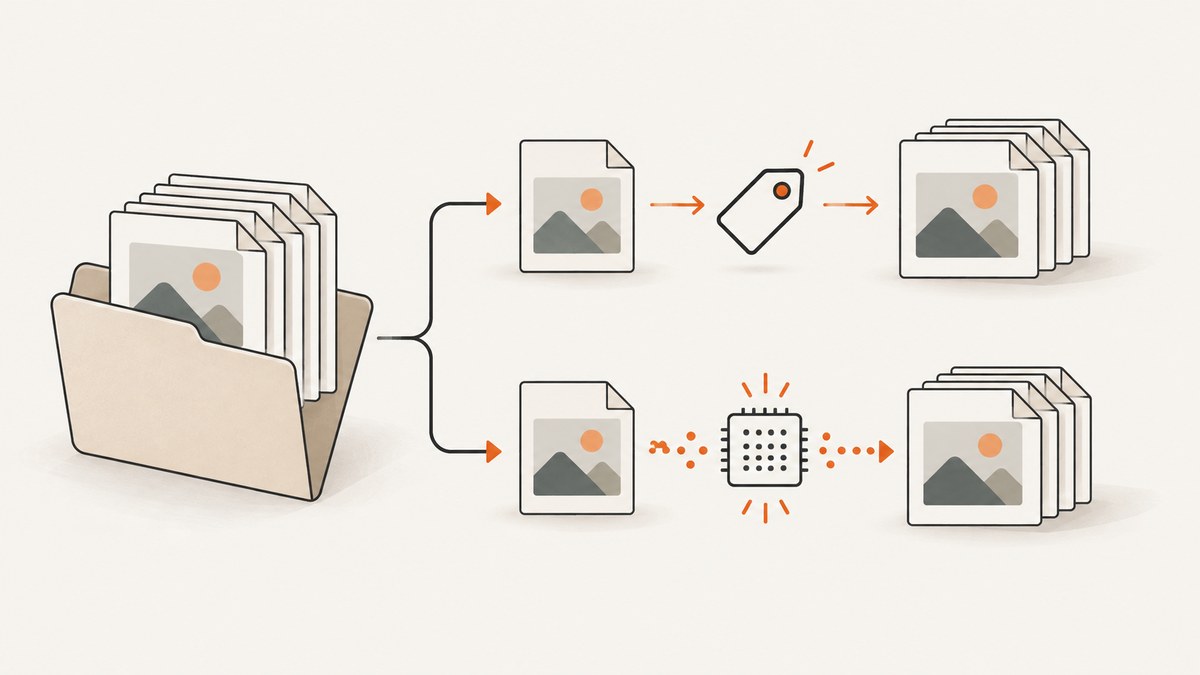
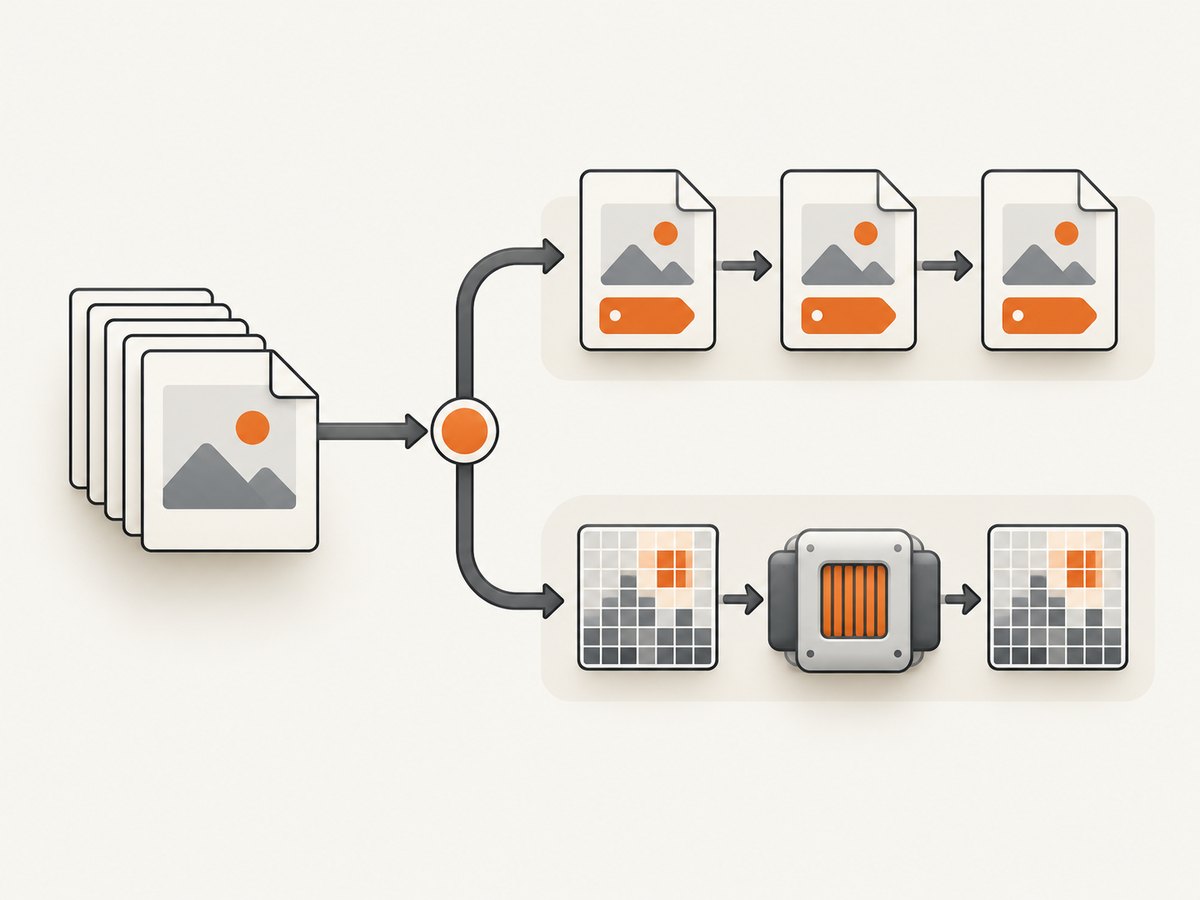
For files that already contain JPEG image data, converting .jpg to .jpeg usually means renaming the filename extension. The bytes do not change, so there is no quality loss and no image conversion step. If the files contain another format, or you need resizing, color-profile changes, metadata edits, or a new JPEG quality setting, use an image converter and accept that JPEG encoding is lossy.
ImageMagick lists JPG and JPEG as JPEG filenames and uses the output extension to select an output format. Its documentation also describes magick as an image conversion and processing tool (format notes; command-line processing).
Decide whether you need a rename or a conversion
| Your goal | Use | Do the image bytes change? |
|---|---|---|
Make software accept .jpeg instead of .jpg |
Bulk rename | No |
| Resize, rotate, sharpen, change color profile, or remove metadata | Image conversion or processing | Usually yes |
| Convert PNG, WebP, TIFF, or another format to JPEG | Image conversion | Yes |
| Set a different JPEG quality level | Re-encode with a converter | Yes |
A filename change does not turn a PNG into a JPEG. Conversely, re-encoding an already-JPEG file does not improve it; repeated JPEG encoding can reduce quality. JPEG also does not support transparency (ImageMagick JPEG format notes).
Before changing hundreds of files
- Copy a small sample into a test directory.
- Check that the files are actually JPEGs. On macOS or Linux, run
file sample.jpg. With ImageMagick, runmagick identify sample.jpg. - Choose a separate output folder if you need an easy rollback.
- Decide how to handle a name collision such as both
photo.jpgandphoto.jpegalready existing. - Keep the originals until you have opened and verified the results.
Replace the suffix; do not append a second suffix. A correct result is photo.jpeg, not photo.jpg.jpeg. Decide whether uppercase names such as PHOTO.JPG should also be changed.
Bulk rename JPG files on macOS or Linux
Bash: copy into a new folder
This script handles spaces and other ordinary characters safely, preserves the original files, and changes both lowercase and uppercase extensions. Run it from the directory containing the images.
#!/usr/bin/env bash
set -euo pipefail

src="."
dst="./jpeg-output"
mkdir -p "$dst"

find "$src" -maxdepth 1 -type f \( -iname '*.jpg' -o -iname '*.jpeg' \) -print0 |
while IFS= read -r -d '' file; do
  name=${file##*/}
  stem=${name%.*}
  target="$dst/$stem.jpeg"

  if [[ -e "$target" ]]; then
    printf 'Skipping existing file: %s\n' "$target" >&2
    continue
  fi

  cp -- "$file" "$target"
done
If you only want .jpg files, remove the -o -iname '*.jpeg' part. If your files are in nested directories, remove -maxdepth 1, but plan how to preserve directory structure and avoid two different folders producing the same basename.
Bash: rename in place after a dry run
First print the proposed changes:
find . -maxdepth 1 -type f -iname '*.jpg' -print0 |
while IFS= read -r -d '' file; do
  name=${file##*/}
  printf '%s -> %s\n' "$name" "${name%.*}.jpeg"
done
After reviewing the list, rename only files whose destination does not exist:
find . -maxdepth 1 -type f -iname '*.jpg' -print0 |
while IFS= read -r -d '' file; do
  dir=${file%/*}
  [[ "$dir" == "$file" ]] && dir="."
  name=${file##*/}
  target="$dir/${name%.*}.jpeg"

  if [[ -e "$target" ]]; then
    printf 'Skipping existing file: %s\n' "$target" >&2
  else
    mv -- "$file" "$target"
  fi
done
This is a filename operation. It does not decode or re-encode the image.
Bulk rename JPG files on Windows PowerShell
Run this in the folder containing the images. The first command previews the changes; the second performs them while skipping collisions.
Get-ChildItem -File | Where-Object { $_.Extension -ieq '.jpg' } |
  ForEach-Object {
    "$($_.Name) -> $($_.BaseName).jpeg"
  }
Get-ChildItem -File | Where-Object { $_.Extension -ieq '.jpg' } |
ForEach-Object {
$target = Join-Path $_.DirectoryName ($_.BaseName + '.jpeg')
if (Test-Path -LiteralPath $target) {
Write-Warning "Skipping existing file: $target"
} else {
Rename-Item -LiteralPath $_.FullName -NewName ($_.BaseName + '.jpeg')
}
}To include .JPG, -ieq already provides case-insensitive matching. To copy into another folder instead, create the destination directory and use Copy-Item with a constructed target path.
Bulk rename with Python
Python is useful when the rename is part of a larger pipeline. This script copies files to jpeg-output, preserves the originals, handles spaces, and refuses to overwrite an existing destination.
from pathlib import Path
import shutil

source = Path('.')
destination = source / 'jpeg-output'
destination.mkdir(exist_ok=True)

for path in source.iterdir():
    if not path.is_file() or path.suffix.lower() != '.jpg':
        continue

    target = destination / f'{path.stem}.jpeg'
    if target.exists():
        print(f'Skipping existing file: {target}')
        continue

    shutil.copy2(path, target)
    print(f'{path.name} -> {target.name}')
copy2 copies the file and attempts to retain filesystem metadata. It does not inspect or re-encode the image.
When you really need to re-encode
Use conversion when the underlying data must change. Examples include PNG-to-JPEG conversion, resizing, flattening transparency, changing an embedded color profile, stripping metadata, or selecting a new JPEG quality level.
ImageMagick command line
Install ImageMagick from its official site, then convert a single file:
magick input.png -background white -alpha remove -alpha off output.jpegFor a directory of JPG files that must be rewritten as JPEG data, write to a separate directory:
mkdir -p reencoded
for file in ./*.jpg; do
  [ -e "$file" ] || continue
  base=${file##*/}
  magick "$file" -quality 85 "reencoded/${base%.*}.jpeg"
done
The -quality value is an ImageMagick setting; test representative images because the visual result and file size depend on image content. Never assume that a new extension alone changes the format.
macOS Preview
Adobe’s macOS guide describes a graphical batch-export workflow: select multiple images in Finder, open them in Preview, select all files in the sidebar, choose File > Export Selected Images, then choose a destination and format (Adobe’s Preview workflow). Export creates newly encoded files, so use it when you need conversion or processing. Menu labels can vary by macOS release.
Photoshop Image Processor
For broader batch work, Photoshop provides File > Scripts > Image Processor. Adobe documents conversion to JPEG, PSD, or TIFF, resizing, color-profile handling, unique output names, copyright metadata, and a JPEG quality control from 0 to 12 (Adobe Image Processor documentation). That quality scale belongs to Photoshop’s interface and is not a universal JPEG-quality standard.
Verification checklist
- Confirm every output ends in exactly
.jpeg. - Open several files from the beginning, middle, and end of the batch.
- Check dimensions, orientation, and transparency expectations.
- Compare file sizes if you re-encoded; a large change may indicate a quality or color-profile setting.
- Run
file output.jpegormagick identify output.jpegto inspect the actual format. - Keep the source folder until the output has been backed up.
Common errors and fixes
| Error or symptom | Cause | Fix |
|---|---|---|
photo.jpg.jpeg |
The new extension was appended. | Replace the final suffix with ${name%.*}.jpeg, $($_.BaseName).jpeg, or path.stem + '.jpeg'. |
| Files with spaces fail | The shell split an unquoted path. | Use null-delimited find -print0, quoted variables, or PowerShell’s -LiteralPath. |
| Existing files are overwritten | The destination was not checked. | Preview first and skip or explicitly version collisions. |
| The file still contains PNG data | Only the name changed. | Use ImageMagick or another converter to re-encode it. |
| Transparent areas become black or unexpected | JPEG has no transparency. | Flatten onto an intentional background before conversion, or keep PNG. |
| Images look softer after processing | JPEG was decoded and encoded again. | Use a higher quality setting, keep the originals, and avoid unnecessary generations. |
| Some files are skipped | They may use uppercase extensions, hidden suffixes, or a different format. | Use case-insensitive matching and inspect file signatures with file or identify. |
| Command works in one shell but not another | Bash, PowerShell, and Command Prompt use different syntax. | Run the script in its intended shell and test on copied files first. |
Performance, reliability, and cost
A pure rename or copy is limited mainly by filesystem speed and requires no image decoding. Re-encoding is CPU-intensive, reads and writes every pixel, and can create large temporary storage requirements. Process in batches when the folder is very large, write to a different volume only when necessary, and avoid running multiple workers against the same destination names.

For reliable automation, make the operation idempotent: skip an output that already exists, record failures, and rerun only failed files. A separate output directory gives you a straightforward rollback. The free command-line tools described here have no per-image API charge; paid software such as Photoshop may be useful when its editing features justify it.
Or skip the browser setup
If your JPG files begin as screenshots of web pages, ScreenshotNeo can produce a clean image with one GET request. It removes cookie banners, newsletter popups, and chat widgets before capture. Bot checks, blank pages, failed loads, timeouts, and cache hits are not billed, and response headers identify the page verdict and billing status. Its MCP server lets Claude, Cursor, and other MCP clients take screenshots. See the ScreenshotNeo API documentation for all options.
cURL
curl -G "https://api.screenshotneo.com/v1/shot" -d access_key=YOUR_API_KEY --data-urlencode url=https://stripe.com -o shot.webpPython
import requests
r = requests.get("https://api.screenshotneo.com/v1/shot", params={"access_key": "YOUR_API_KEY", "url": "https://stripe.com"}, timeout=90)
open("shot.webp", "wb").write(r.content)
Node.js
const q = new URLSearchParams({ access_key: 'YOUR_API_KEY', url: 'https://stripe.com' }); const res = await fetch(`https://api.screenshotneo.com/v1/shot?${q}`);ScreenshotNeo includes 1,000 screenshots per month free with no card. Paid plans start at $5 for 3,000 shots, and every feature is available on every plan. Create a free ScreenshotNeo account.
FAQ
Are JPG and JPEG different formats?
No. They are common extension spellings for JPEG image data. The extension change alone does not alter the file.
Can I rename files without installing software?
Yes. Finder, File Explorer, Bash, PowerShell, and Python can rename files. Use an image converter only when the bytes must change.
Will renaming improve image quality?
No. Renaming leaves the bytes unchanged. Re-encoding can reduce quality because JPEG uses lossy compression.
Should I convert PNG to JPEG?
Only when JPEG’s smaller photographic files suit your use case. Plan for lost transparency and choose a background before encoding.
How do I undo a bulk rename?
Rename the final .jpeg suffix back to .jpg, or restore the originals from the backup or source directory. This works because the rename did not change image bytes.


