How to Convert KaTeX Equations to PNG or JPG Images
KaTeX renders equations as HTML and MathML, not image files. Render the markup first, then capture it as PNG or JPG with a browser-based workflow.
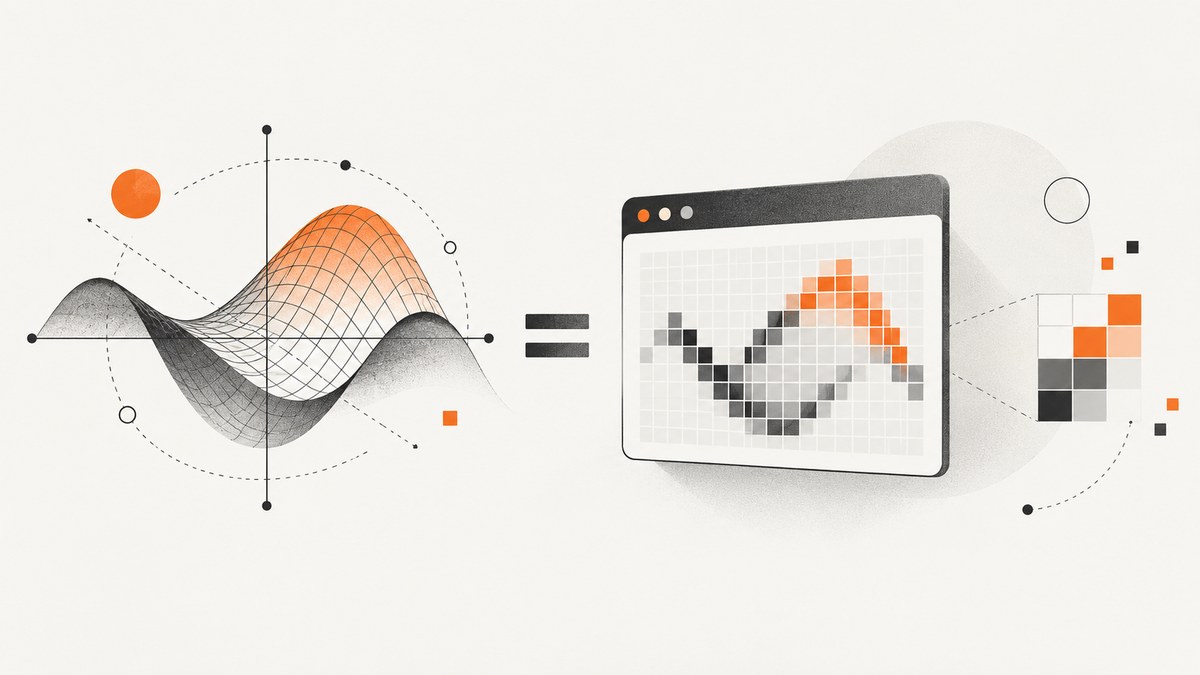
Direct answer: KaTeX does not directly export PNG or JPG files. It renders TeX as HTML and MathML. To make an image, render the equation with KaTeX, load its stylesheet and fonts, then capture the rendered element with a browser screenshot or another rasterization tool. The KaTeX documentation reviewed for this guide establishes the rendering step, but not a particular image-capture tool or its options. Treat capture settings below as choices to configure in your selected browser tool.
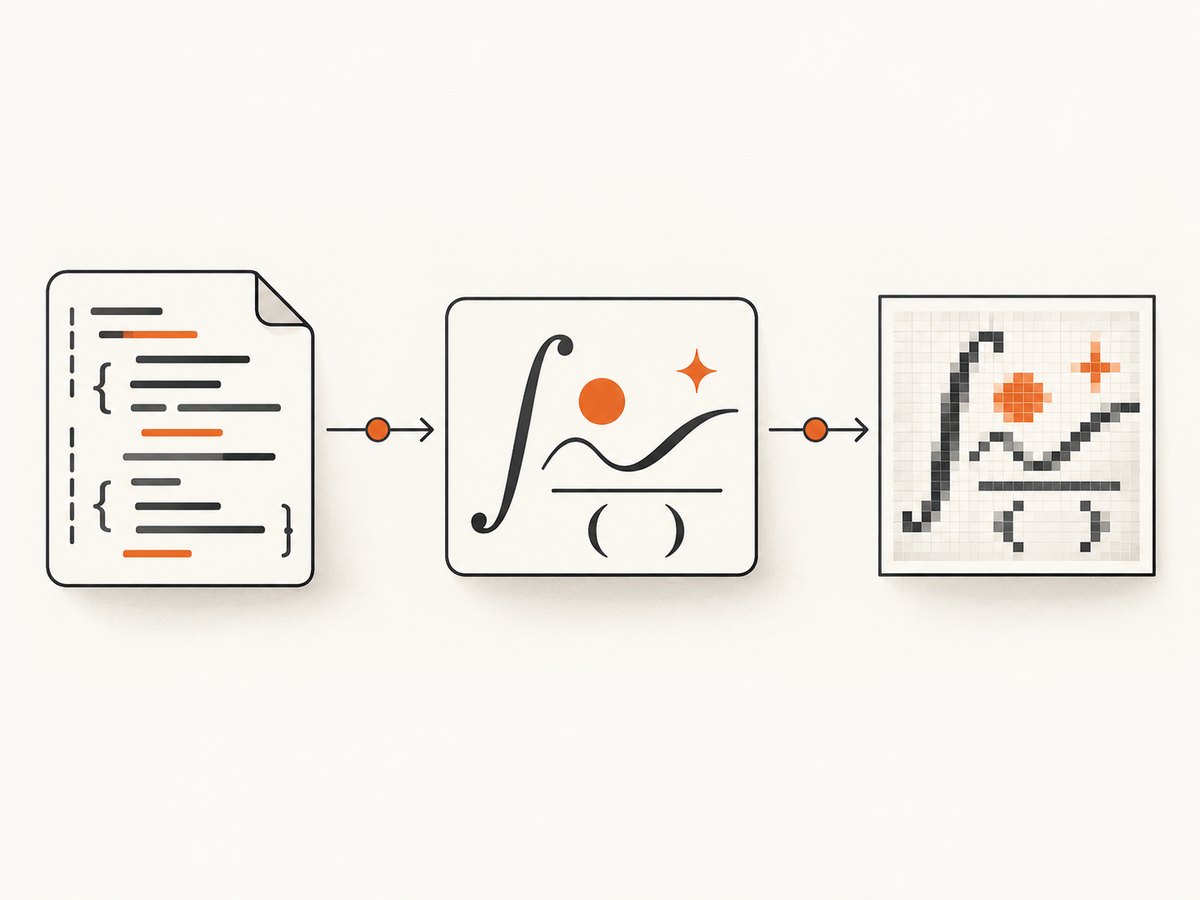
This distinction matters: the KaTeX CLI writes HTML, not a PNG or JPG. A valid workflow has two stages: TeX → styled KaTeX markup → raster image. [KaTeX API] [KaTeX CLI]
1. Choose the right output path
Use a browser capture when you need a repeatable, automated image that matches browser rendering. For a one-off equation, render it in a small local page and capture the page or the equation’s element with a browser tool. The capture step must support the output format you want. If it only produces PNG, convert that PNG to JPG with an image utility, or choose a capture tool that directly supports JPEG.
| Need | Practical choice | Watch for |
|---|---|---|
| Transparent background or sharp equation edges | PNG | Check that your capture tool preserves transparency; some tools flatten it. |
| Smaller photographic or web-friendly file | JPG | JPG has no transparency and can blur fine glyph edges due to lossy compression. |
| Many equations with identical styling | Automated HTML render plus browser capture | Wait for KaTeX fonts before capture and define a consistent crop. |
| Reusable document or semantic math | Keep HTML/MathML alongside the image | A raster image alone is not accessible or editable math. |
For publication-quality results, decide the required dimensions, padding, background, scaling, and file type before generating a batch. The equation itself may render correctly while the image still has unwanted margins, clipping, or a background that does not match its destination.
2. Prepare a styled KaTeX render in the browser
KaTeX’s browser API is katex.render(tex, element, options). Its browser setup requires the JavaScript library and KaTeX CSS; the CSS relies on KaTeX font files. Include an HTML5 doctype because KaTeX warns that rendering may fail without it. [API] [Browser setup]
Here is a minimal page. Save it as equation.html and open it in a browser with internet access. Replace the sample TeX as needed. The versioned CDN paths follow the KaTeX browser guide; check that guide when upgrading.
<!doctype html>
<html lang="en">
<head>
  <meta charset="utf-8">
  <meta name="viewport" content="width=device-width, initial-scale=1">
  <link rel="stylesheet"
    href="https://cdn.jsdelivr.net/npm/katex@0.18.9/dist/katex.min.css"
    integrity="sha384-n8MVd4RsNIU0KOVEMeaMur+0H1GJY8x1Ed2I4/5nC/8e5B2ZKxV7+0N4qA5tU0zG"
    crossorigin="anonymous">
  <style>
    body { margin: 0; padding: 24px; background: white; }
    #equation { display: inline-block; }
  </style>
  <script defer
    src="https://cdn.jsdelivr.net/npm/katex@0.18.9/dist/katex.min.js"
    integrity="sha384-3g2w6U4rM6rH0Z2v7kG7z8Q6f0l0b6Xw0g0Q0y0W0f0V0X0Y0Z0a0b0c0d0e0f0g"
    crossorigin="anonymous"></script>
</head>
<body>
  <div id="equation"></div>
  <script>
    const tex = String.raw`\int_0^1 x^2\,dx = \frac{1}{3}`;
    const target = document.getElementById('equation');
    katex.render(tex, target, {
      displayMode: true,
      throwOnError: true,
      output: 'htmlAndMathml'
    });
    document.documentElement.dataset.rendered = 'true';
  </script>
</body>
</html>
CDN integrity note: use the exact current stylesheet and script URLs, including their matching integrity values, from the official browser guide. If a copied integrity hash does not match the referenced file, the browser blocks it. For production or offline use, install KaTeX locally and serve its distribution CSS, JavaScript, and fonts together.
Capture the equation, not the whole page
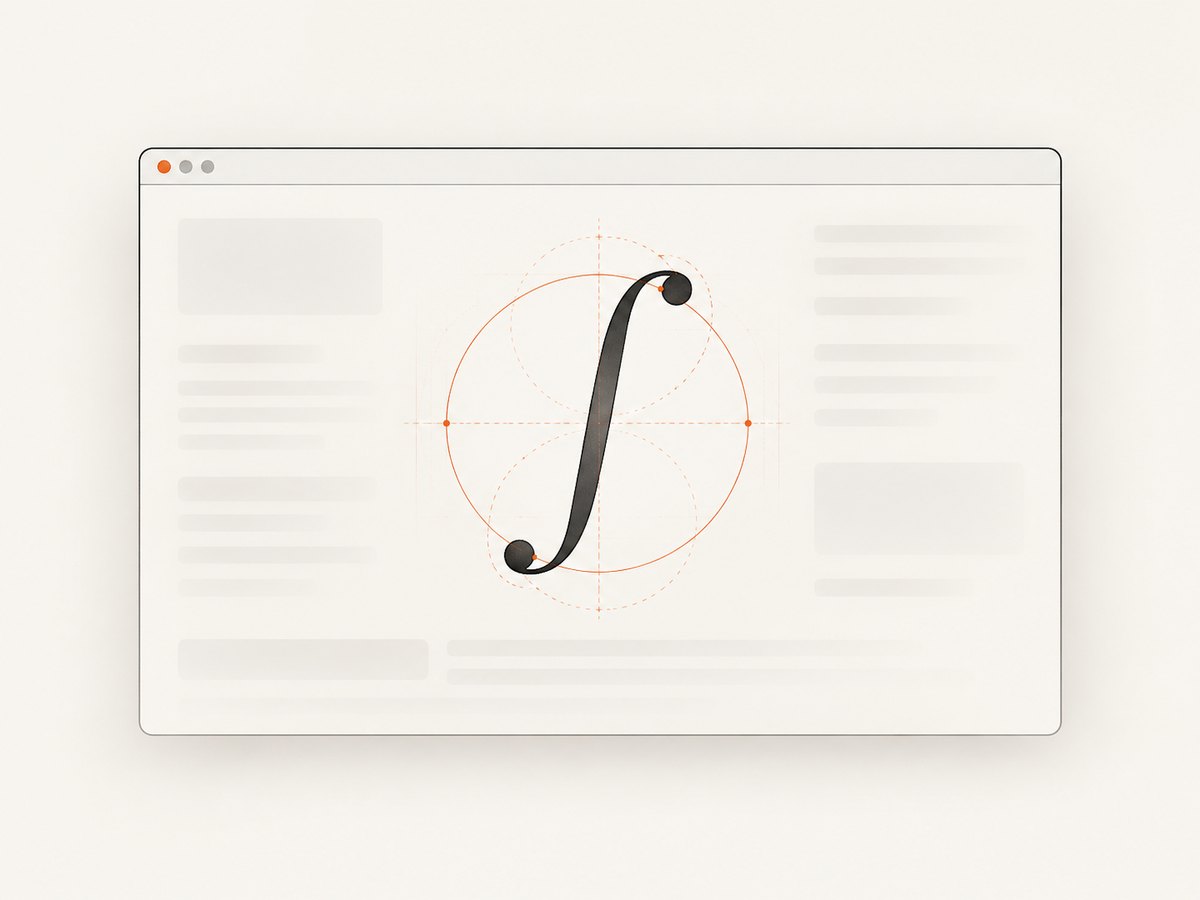
In your browser capture tool, target #equation if element capture is available. That avoids capturing the browser page’s unrelated space. Otherwise, size the page around the element and capture a clipped viewport. Configure the tool to wait until html[data-rendered="true"] exists, then allow fonts to load before taking the image. A fixed delay can work for a controlled local page, but a selector or font-ready condition is more reliable than guessing a delay.
Set a little padding around the target so tall accents, superscripts, and integral limits are not cut off. If the capture tool supports device scale or pixel ratio, increase it for sharper output, then verify the final dimensions and file size. Avoid scaling a small capture up afterward; that enlarges pixels rather than improving glyph detail.
3. Render KaTeX to HTML with Node.js
Server-side rendering is useful when markup must be generated without a browser. KaTeX’s renderToString returns HTML. The result still needs KaTeX CSS and fonts to appear correctly when a browser displays it. [KaTeX API] [Node.js usage]
Install KaTeX in a project, then create a markup file that a local page can load. These commands assume Node.js and npm are installed:
mkdir katex-image
cd katex-image
npm init -y
npm install katex
Create render.cjs:
const fs = require('node:fs');
const katex = require('katex');

const tex = String.raw`\sum_{n=1}^{\infty} \frac{1}{n^2} = \frac{\pi^2}{6}`;
const math = katex.renderToString(tex, {
  displayMode: true,
  throwOnError: true,
  output: 'htmlAndMathml'
});

const html = `<!doctype html>
<html lang="en">
<head>
  <meta charset="utf-8">
  <link rel="stylesheet" href="./node_modules/katex/dist/katex.min.css">
  <style>body{margin:0;padding:24px;background:#fff}#equation{display:inline-block}</style>
</head>
<body><div id="equation">${math}</div></body>
</html>`;

fs.writeFileSync('equation.html', html, 'utf8');
console.log('Wrote equation.html');
Run it with node render.cjs, then open equation.html through a local web server or file URL in your capture tool. To publish or distribute the page, copy or serve the KaTeX font assets from the installed package at the paths expected by the stylesheet. A capture process that cannot load those fonts may show fallback glyphs or missing characters.
4. Choose KaTeX rendering options carefully
KaTeX options affect the rendered markup and appearance; capture options belong to the separate screenshot step. KaTeX documents these output modes: html, mathml, and htmlAndMathml. The default is htmlAndMathml. [KaTeX options]
| KaTeX option | What it changes | Image workflow guidance |
|---|---|---|
displayMode |
Uses display-style math layout for the expression. | Set true for a standalone centered equation; false for inline math. |
output |
Selects HTML, MathML, or both. | Use the default combined output when the HTML is also presented accessibly; HTML-only may be adequate for a visual-only capture. |
throwOnError |
Invalid or unsupported input throws by default. | Keep true in a generation pipeline so bad expressions fail before capture. |
errorColor |
Sets the color used for an error rendering when errors are not thrown. | Do not rely on this as validation; an error can otherwise become part of the image. |
macros |
Provides custom macro definitions. | Pass the same macro map for every expression in a batch. |
fleqn / leqno |
Adjusts display alignment or equation numbering placement. | Use only when the surrounding layout should show those conventions. |
trust |
Controls potentially unsafe commands. | For user supplied TeX, keep security restrictions in place unless the input is trusted. |
These are representative options, not the whole option surface. Consult the version’s official options page for supported configuration and defaults. Keep KaTeX’s responsibilities clear: it parses TeX and creates markup; CSS controls visual styling; the capture tool controls crop, image format, background, and scale.
5. Configure PNG or JPG output
Once the element renders, your capture mechanism determines the image file. Because the sources in the research dossier do not verify one specific capture tool, there is no universal command or set of capture flags to give here. Check your tool’s current documentation for element selectors, output type, pixel scale, transparency, and clipping behavior before using it in a publishing pipeline.
- Choose the target: capture the equation element or a page tightly sized around it.
- Wait for readiness: wait for KaTeX rendering and font loading; a DOM marker set after render is useful.
- Set padding and background: include enough space for all glyphs and decide whether transparent pixels are required.
- Choose scale and dimensions: capture at the size consumers need. Preserve aspect ratio if resizing later.
- Select format: use PNG for lossless edges and possible transparency; use JPG only with a deliberate solid background and quality setting.
- Inspect the saved file: check that it opens, has expected dimensions, includes the entire expression, and uses the intended background.
For JPG, flatten transparency onto a solid background first if the capture tool does not do it predictably. Compression can add ringing around thin strokes, so inspect at the actual display size. If the image will be enlarged or printed, generate a larger capture rather than relying on later upscaling.
6. Make the workflow repeatable
For a batch, treat each equation as data and keep rendering, capture, and validation as separate stages. Assign stable output names, record the KaTeX version and options, and fail the job if rendering or capture returns an error. Avoid putting arbitrary TeX directly into generated HTML without proper handling; prefer KaTeX’s API for rendering and validate untrusted input according to your application’s needs.
- Use the same KaTeX version, stylesheet, fonts, CSS, viewport, and scale across the set.
- Wait for explicit render readiness and font availability instead of relying on a short fixed sleep.
- Capture one element per image when predictable crops matter.
- Keep the source TeX or a semantic HTML/MathML version with the raster output for later edits and accessibility.
- For large batches, reuse a browser session if your selected automation tool supports it, but isolate failures per equation.
- Validate output file type and dimensions; do not assume a filename ending in
.jpgmeans the bytes are JPEG encoded.
7. Troubleshooting
| Symptom | Likely cause | Fix |
|---|---|---|
| KaTeX is undefined | The script did not load, ran before the deferred script, or was blocked by a CDN/network issue. | Check the browser console and network panel; use a local package or run rendering after the library is available. |
| Equation appears in a fallback font or has missing glyphs | KaTeX CSS or font files are missing, blocked, or served from the wrong relative path. | Load the matching stylesheet and keep its font directory accessible; check network errors. |
| Capture is blank | The screenshot ran before script execution, captured the wrong selector, or opened an inaccessible page. | Wait for a rendered marker, verify the target exists, and confirm the page loaded before capture. |
| Top or bottom of equation is cut off | The crop is too tight for accents, limits, or tall delimiters. | Add padding or capture a slightly larger region; inspect the full expression at target scale. |
| ParseError | TeX syntax is invalid or a command is unsupported. | Correct the source or check KaTeX support. By default, KaTeX throws a ParseError. [Error handling] |
| An error message is inside the image | throwOnError: false allowed invalid source to render as text. |
Validate before capture and use throwOnError: true in automated output. |
| Image has unexpected white margins | Body margin, padding, inline element layout, or full-page capture added space. | Reset page margins and capture the equation element; keep only intentional padding. |
| JPG looks soft or has a halo | Lossy compression damaged fine glyph edges, or a small image was enlarged. | Use PNG, raise capture scale, or choose a higher JPEG quality and inspect the output. |
| Integrity error blocks CDN assets | The SRI hash does not match the fetched version. | Copy URL and integrity value as a pair from the same official release documentation, or self-host the package. |
8. Performance, reliability, and cost
KaTeX can pre-render markup in Node.js, so browser work can be limited to layout and capture; its documentation describes the same output across browsers and environments. That does not make screenshot capture instantaneous or guarantee a particular speed. Network loading, font readiness, browser startup, and the size of the page all affect the workflow. [KaTeX project]
For reliability, pin a KaTeX version, package its CSS and fonts with the job where possible, define a readiness condition, set a capture timeout, and retry only transient browser or network failures. A deterministic local HTML page reduces external dependencies. Keep a small validation step that catches empty files, wrong formats, clipped output, and unrendered error text.
Cost depends on the rasterization mechanism you choose: a local browser uses your compute and maintenance time; hosted capture services may charge by request or usage. Compare actual pricing and current limits directly before adopting one. Also account for storage and delivery if the generated images are retained or served publicly. Avoid assuming that rendering markup alone produces a publishable image.
Or skip the browser setup
If you can make your KaTeX equation available on a page by URL, ScreenshotNeo can capture that page through a single API request. It is a website screenshot API and MCP server from Yorker Media. The API captures webpages; it does not replace KaTeX’s TeX-to-HTML rendering step. See the ScreenshotNeo API documentation for request options.
curl -G "https://api.screenshotneo.com/v1/shot" \
  -d access_key=YOUR_API_KEY \
  --data-urlencode url=https://example.com/equation-page \
  -o shot.webp
import requests
r = requests.get(
"https://api.screenshotneo.com/v1/shot",
params={"access_key": "YOUR_API_KEY", "url": "https://example.com/equation-page"},
timeout=90,
)
r.raise_for_status()
open("shot.webp", "wb").write(r.content)const q = new URLSearchParams({
access_key: 'YOUR_API_KEY',
url: 'https://example.com/equation-page'
});
const res = await fetch(`https://api.screenshotneo.com/v1/shot?${q}`);
if (!res.ok) throw new Error(`Screenshot request failed: ${res.status}`);
const bytes = Buffer.from(await res.arrayBuffer());
require('node:fs').writeFileSync('shot.webp', bytes);ScreenshotNeo removes cookie banners, newsletter popups, and chat widgets before capture. Bot checks, blank pages, and failed loads are never billed; response headers report the page verdict and billing status. Its MCP server lets AI agents use take_screenshot, get_page_info, and capture_pdf. The free plan includes 1,000 screenshots a month with no card; paid plans start at $5 for 3,000. Every feature is on every plan. Create a free account at ScreenshotNeo sign-up.
FAQ
Can the KaTeX CLI write PNG directly?
The documented CLI renders TeX to HTML and writes HTML output. Add a separate capture or rasterization step to create PNG or JPG. [CLI documentation]
Should I choose PNG or JPG for equations?
PNG is usually the safer choice for crisp text edges and transparent backgrounds. Choose JPG when you need a solid background and smaller lossy output, then inspect for compression artifacts.
Can I capture MathML as an image?
MathML is a markup representation, not an image file. KaTeX can emit MathML or combined HTML and MathML; a browser still needs a rendering path before a screenshot can rasterize what is displayed.
Can I preserve accessibility?
Keep the original TeX and rendered HTML/MathML alongside the image, and provide meaningful alternative text wherever the image is published. A raster alone does not expose the equation’s structure to assistive technology.


