How to Convert a Large HTML File to PDF Reliably
Convert large HTML documents to reliable PDFs with Puppeteer, Chrome or WeasyPrint, while avoiding memory, font, image and pagination failures.
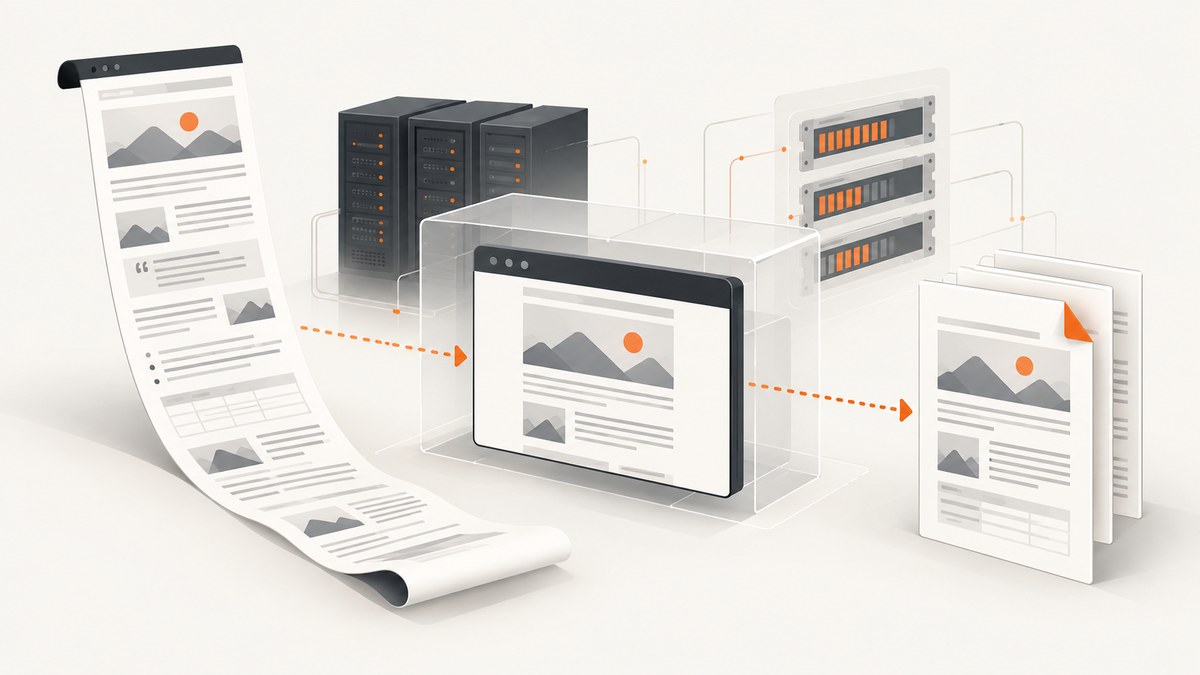
Use headless Chromium through Puppeteer when your HTML needs JavaScript, web fonts, asynchronous data or modern browser CSS. Navigate only after the document is genuinely ready, wait for images and fonts, apply print-specific CSS, and choose a file path or stream according to your memory constraints. Use Chrome’s --headless --print-to-pdf for a simple published URL. Use WeasyPrint when the document is mostly static and CSS Paged Media layout matters more than browser JavaScript.
A large HTML file is rarely difficult because of its byte size alone. Long tables, high-resolution images, client-side rendering, embedded fonts and unbounded concurrency are what usually exhaust memory or produce incomplete PDFs.
1. Choose the conversion engine
| Situation | Recommended engine | Reason |
|---|---|---|
| JavaScript application, web fonts, modern CSS | Puppeteer and Chromium | Runs the page like a browser and gives explicit readiness and PDF controls. |
| One already-published URL | Chrome headless CLI | The shortest command is --headless --print-to-pdf. |
| Static or server-rendered HTML with complex paged layout | WeasyPrint | Supports CSS Paged Media features such as @page, named pages, counters, running elements and footnotes. |
Puppeteer page.pdf() uses the print CSS media type. Its createPDFStream() API returns a readable stream, which can prevent your application from holding the complete PDF in an additional buffer. WeasyPrint is a print-layout engine; do not assume it executes browser JavaScript.
2. Prepare HTML and print CSS
<!doctype html>
<html>
<head>
  <meta charset="utf-8">
  <style>
    @page {
      size: A4;
      margin: 18mm 15mm 20mm;
    }

    @media print {
      nav, .toolbar, button, .interactive-only {
        display: none !important;
      }
      * {
        -webkit-print-color-adjust: exact;
        print-color-adjust: exact;
      }
      h1, h2, h3 {
        break-after: avoid;
      }
      table, figure, pre {
        break-inside: avoid;
      }
      .page-break {
        break-before: page;
      }
    }

    img { max-width: 100%; height: auto; }
    code, pre { white-space: pre-wrap; overflow-wrap: anywhere; }
  </style>
</head>
<body>
  <main id="report">Your report content</main>
</body>
</html>
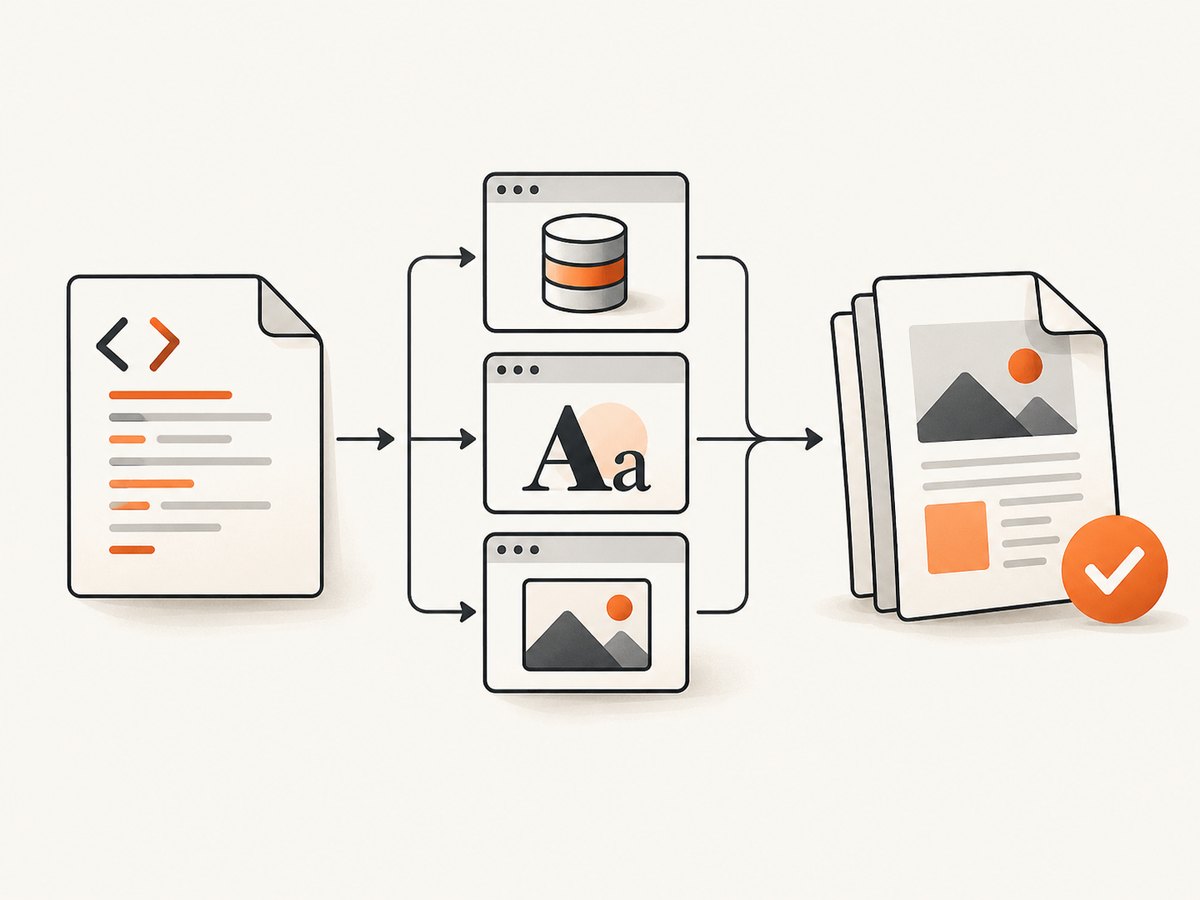
Keep assets reachable from the browser process. Use absolute URLs or a local HTTP server for relative paths, and provide a base URL when loading a local document. Avoid embedding several unbounded copies of the same image as data URLs.
3. Reliable conversion with Puppeteer (Node.js)
Install Puppeteer, which downloads a compatible browser:
npm install puppeteerSave this as html-to-pdf.mjs:
import puppeteer from 'puppeteer';

const browser = await puppeteer.launch({
  headless: true,
  args: ['--no-sandbox', '--disable-dev-shm-usage']
});

try {
  const page = await browser.newPage();
  await page.setViewport({ width: 1440, height: 900, deviceScaleFactor: 1 });
  page.setDefaultNavigationTimeout(120000);
  page.setDefaultTimeout(120000);

  await page.goto('http://127.0.0.1:8080/report.html', {
    waitUntil: 'networkidle2'
  });

  // Replace this selector with the signal your application sets after rendering.
  await page.waitForSelector('#report[data-ready="true"]', { timeout: 120000 });

  await page.evaluate(async () => {
    const images = [...document.images];
    await Promise.all(images.map(img => {
      if (img.complete) return Promise.resolve();
      return new Promise(resolve => {
        img.addEventListener('load', resolve, { once: true });
        img.addEventListener('error', resolve, { once: true });
      });
    }));
    if (document.fonts?.ready) await document.fonts.ready;
  });

  await page.pdf({
    path: 'report.pdf',
    format: 'A4',
    printBackground: true,
    preferCSSPageSize: true,
    displayHeaderFooter: false,
    margin: { top: '18mm', right: '15mm', bottom: '20mm', left: '15mm' },
    timeout: 120000
  });
} finally {
  await browser.close();
}
Use preferCSSPageSize: true when the document’s @page rule should control paper size. Otherwise choose format, width and height. Puppeteer documents that PDF generation waits for fonts by default, but explicitly awaiting document.fonts.ready makes the application state visible and lets you diagnose failures.
Stream instead of buffering
import { createWriteStream } from 'node:fs';
import puppeteer from 'puppeteer';

const browser = await puppeteer.launch({ headless: true });
try {
  const page = await browser.newPage();
  await page.goto('http://127.0.0.1:8080/report.html', { waitUntil: 'networkidle2' });
  await page.waitForSelector('#report[data-ready="true"]');
  await page.evaluate(() => document.fonts?.ready);

  const pdfStream = await page.createPDFStream({
    format: 'A4',
    printBackground: true,
    preferCSSPageSize: true
  });
  const output = createWriteStream('report.pdf');
  for await (const chunk of pdfStream) output.write(chunk);
  output.end();
} finally {
  await browser.close();
}
A stream avoids a second full-document byte buffer in your application. Chromium still needs memory to render the page, so streaming does not remove the need to bound page size and concurrency.
4. Chrome headless for a published URL
google-chrome \
  --headless \
  --disable-gpu \
  --print-to-pdf=report.pdf \
  https://example.com/report
This is useful when the URL is already public and requires no custom headers, application readiness signal or injected HTML. Use Puppeteer when you need authentication, waiting logic, print options, headers or streaming.
5. WeasyPrint for static HTML
python -m venv .venv
. .venv/bin/activate
pip install weasyprint
from pathlib import Path
from weasyprint import HTML
HTML(
filename='report.html',
base_url=str(Path('report.html').resolve().parent)
).write_pdf('report.pdf')WeasyPrint supports PDF hyperlinks, bookmarks, attachments and many CSS Paged Media features, including page selectors, counters, running elements and footnotes. Keep JavaScript-dependent rendering out of this path; render the data into HTML first.
6. Readiness, assets and pagination checklist
- Navigate with a deliberate condition such as
networkidle2plus an application-specific ready selector. - Wait for asynchronous API data, lazy images and
document.fonts.ready. - Use
@media printto remove navigation, controls and animations. - Set
@pagesize and margins; usepreferCSSPageSizewhen CSS is authoritative. - Prevent rows, figures and code blocks from splitting where that would harm readability.
- Give tables a deliberate header strategy and allow very wide tables to wrap or use landscape pages.
- Use absolute asset URLs or a predictable local base URL.
- Disable animations and transitions in print CSS.
- Check the resulting PDF for non-zero size, expected page count, key text, images and fonts.
7. Memory and large-document controls
| Control | Why it helps |
|---|---|
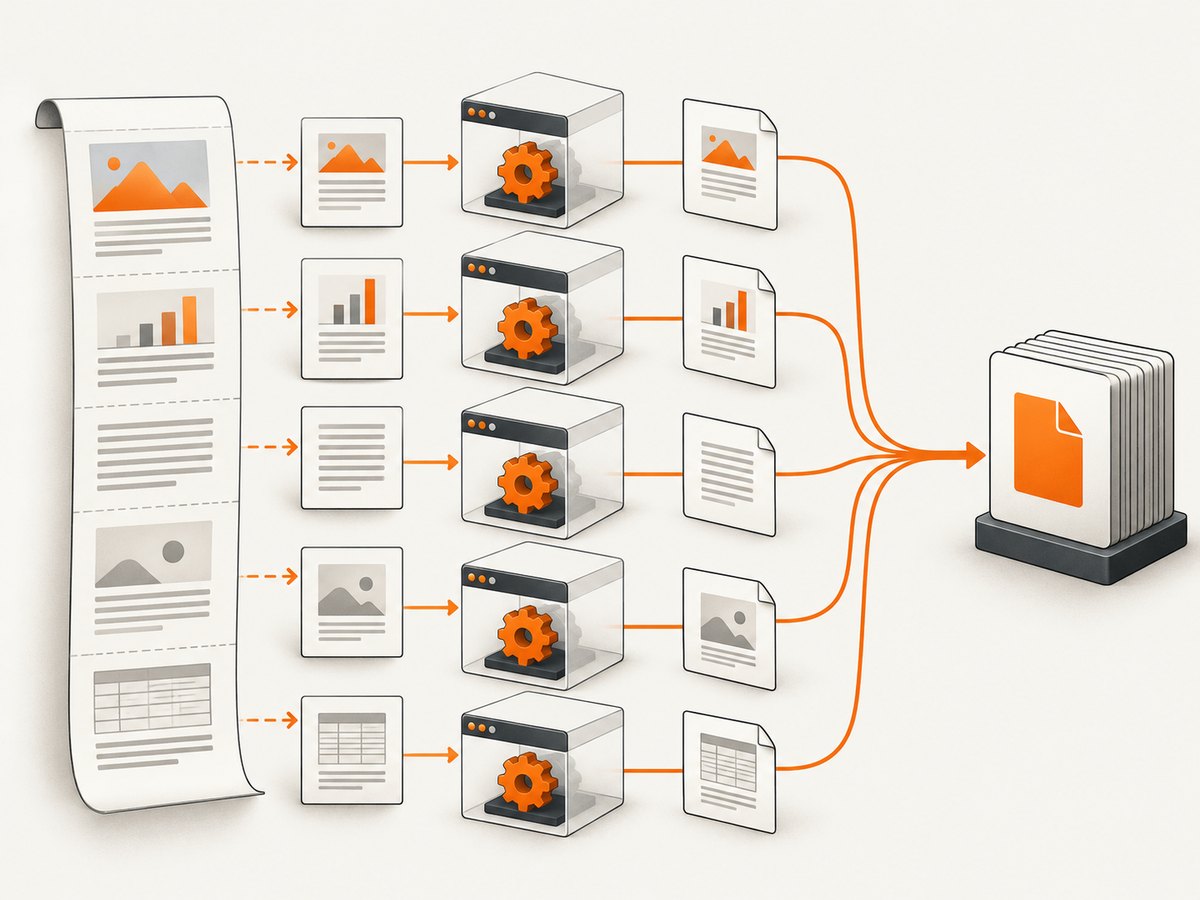
| Split very large reports into sections | Limits DOM, layout and image memory; merge PDFs afterward if required. |
| Resize source images | High-resolution images can dominate browser memory even when displayed small. |
| Stream output | Avoids holding a second complete PDF buffer in application memory. |
| Limit concurrent pages and browsers | Each render has a separate DOM, layout and asset footprint. |
| Set navigation and print timeouts | Prevents stalled jobs from consuming workers indefinitely. |
| Close pages and browser contexts | Releases resources after both success and failure. |
| Isolate untrusted HTML | Do not let report content access internal services or secrets. |
There is no universal maximum HTML size, page count or memory ceiling published by the cited documentation. Measure with representative documents, including the largest tables, images, fonts and data sets you will process.
8. Troubleshooting
| Symptom | Likely cause | Fix |
|---|---|---|
| Blank or partially rendered PDF | Printing began before client-side rendering finished. | Wait for an application-ready selector and verify the data in the page before calling pdf(). |
| Missing fonts or fallback typography | Font requests failed, were blocked, or were still loading. | Check browser logs and network responses; use reachable font URLs and await document.fonts.ready. |
| Images missing | Relative URLs, lazy loading or failed requests. | Set a correct base URL, trigger lazy loading, await every image, and inspect failed requests. |
| Colors look different | Print media changes color adjustment. | Set -webkit-print-color-adjust: exact and printBackground: true. |
| Unexpected paper size | CLI or PDF options override CSS. | Use preferCSSPageSize: true or remove conflicting width, height and format settings. |
| Content overlaps or is cut off | Fixed-position elements, overflow rules or unsuitable page breaks. | Override them in @media print; test long headings, tables and code blocks. |
| Navigation timeout | Slow API, third-party resource or never-ending connection. | Raise the timeout only when justified, block unnecessary resources, and use an explicit readiness signal. |
| Out-of-memory or browser crash | Huge images, giant DOM, too many concurrent jobs or leaked pages. | Resize assets, split the report, stream output, cap concurrency and close all browser objects. |
| WeasyPrint output lacks interactive content | JavaScript is not being executed. | Render the data server-side or switch to Chromium. |
9. Reliability and operations
- Log the URL or document identifier, browser version, start time, readiness milestone and duration.
- Capture console, page-error and failed-request events for failed jobs.
- Retry transient navigation or asset failures with a bounded retry count; do not retry deterministic HTML errors forever.
- Use a queue with a fixed worker limit instead of launching one browser per request.
- Store failed input and diagnostic logs long enough to reproduce the issue, while removing secrets.
- Validate the artifact before marking the job successful.
For security, isolate untrusted HTML, restrict outbound network access where possible, and never expose credentials through page HTML or query strings.
10. Or skip the browser setup
ScreenshotNeo provides a website capture API that can return PNG, JPEG, WebP or PDF. It accepts a URL in one GET request and also supports PDF paper size, margins, landscape mode and page ranges. See the ScreenshotNeo documentation for request options.
curl -G "https://api.screenshotneo.com/v1/shot" -d access_key=YOUR_API_KEY --data-urlencode url=https://example.com/report.html -o shot.webpimport requests
r = requests.get("https://api.screenshotneo.com/v1/shot", params={"access_key": "YOUR_API_KEY", "url": "https://example.com/report.html"}, timeout=90)
open("shot.webp", "wb").write(r.content)const q = new URLSearchParams({ access_key: 'YOUR_API_KEY', url: 'https://example.com/report.html' });
const res = await fetch(`https://api.screenshotneo.com/v1/shot?${q}`);Cookie banners, newsletter popups and chat widgets are removed before the shot. Bot checks, blank pages and failed loads are never billed, and the response identifies the result with X-Page-Verdict and X-Billed headers. An MCP server lets Claude, Cursor and other MCP clients call take_screenshot, get_page_info and capture_pdf. The free plan includes 1,000 screenshots a month with no card; paid plans start at $5 for 3,000. Create a free ScreenshotNeo account.
11. FAQ
Is Puppeteer or Chrome CLI better for a large report?
Use Puppeteer when you need readiness checks, authentication, injected content, custom print settings or streaming. Use the CLI for a simple public URL.
Does streaming make Chromium use little memory?
No. It avoids an extra complete PDF buffer in your process, while page layout, images and Chromium still require memory.
Why does a PDF have fewer pages than expected?
Inspect print CSS, page margins, overflow rules and explicit page breaks. Browser print layout can differ from screen layout.
Can WeasyPrint render a React or Vue application?
Not by itself. Produce final HTML server-side or use a browser engine that executes the application’s JavaScript.
How should I choose a timeout?
Base it on measured worst-case navigation, data loading and PDF generation times, then enforce a queue-level deadline so stuck jobs cannot occupy workers forever.


