How to Convert a Local HTML File to PDF in Chrome
Open your local HTML file in Chrome, choose Print, select Save as PDF, and adjust layout settings before saving.
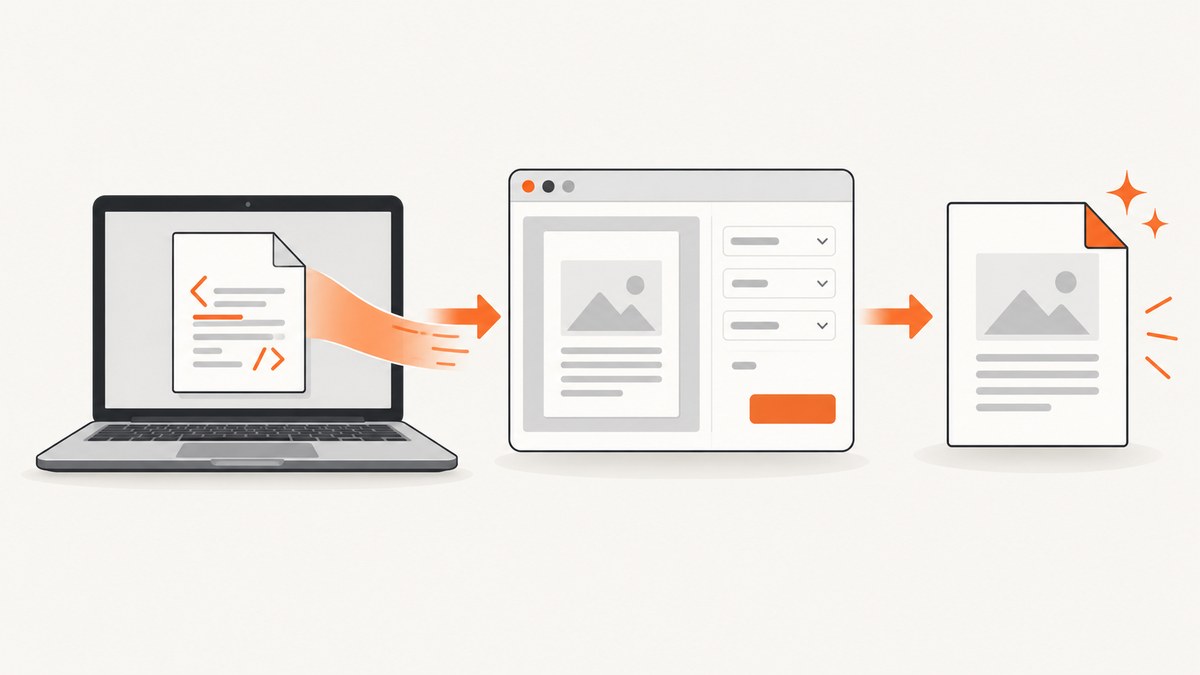
Quick answer: Open the local .html file in Chrome, press Ctrl+P on Windows/Linux or Command+P on Mac, choose Save as PDF, review the preview, then save the file. Google documents this print flow for an opened page, image, or file. Chrome’s print instructions and its PDF destination guidance describe the available steps.
1. Convert a local HTML file on desktop
- Find the HTML file in Finder or File Explorer and open it with Google Chrome. You can also drag the file into a Chrome tab. Confirm that the page, local images, stylesheets, fonts, and scripts have finished loading.
- Open print preview with File > Print, Ctrl+P on Windows/Linux, or Command+P on macOS.
- In Destination, select Save as PDF. If it is not shown, open the destination list or choose See more.
- Check the preview. Change the controls your Chrome version provides, such as paper size, orientation, margins, scale, background graphics, and page range.
- Click Save, choose a filename and folder, and confirm.
The exact controls can vary by operating system, Chrome version, and administrator policy. Google’s general workflow is to open the content, choose Print, select a destination, choose print settings, and complete the save action.
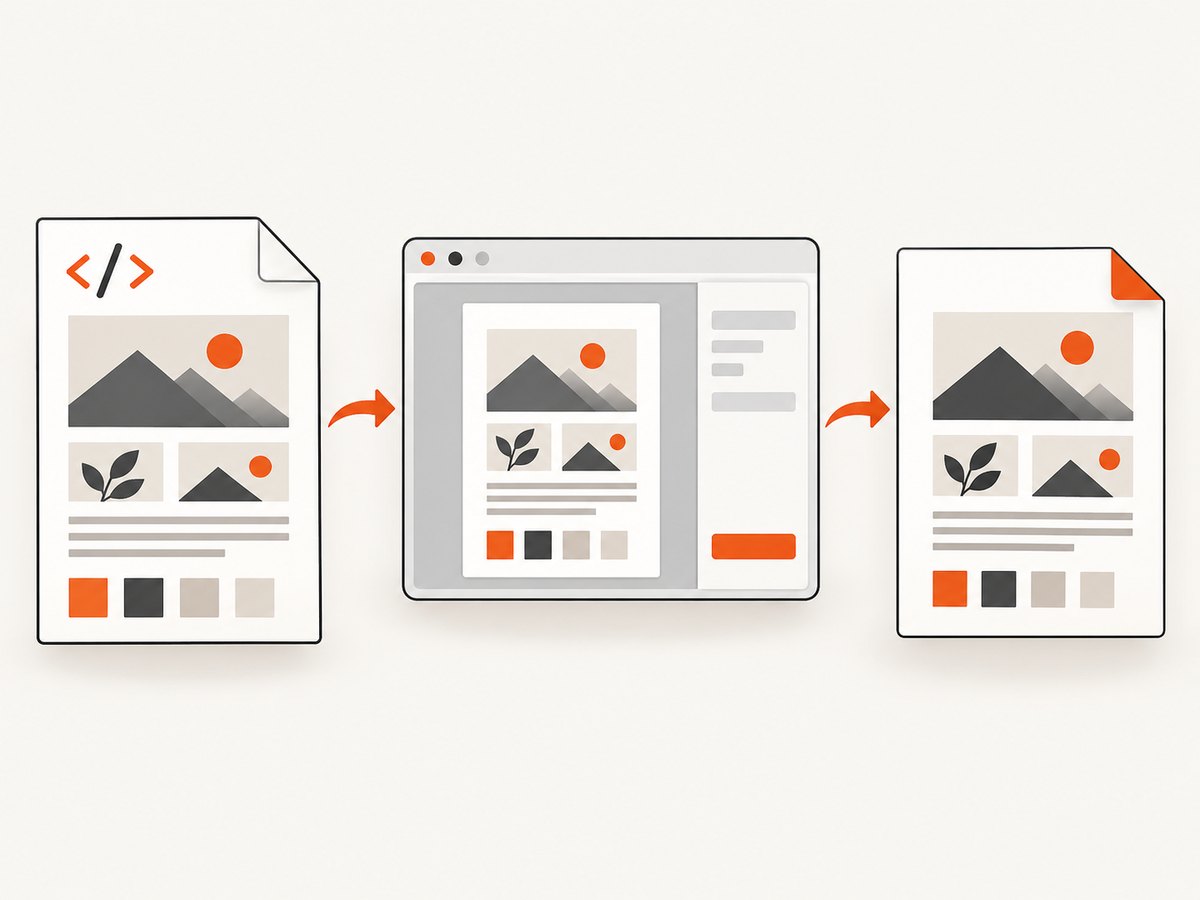
2. Prepare the HTML before printing
Print preview uses Chrome’s paged print layout, which can differ from the screen view. Before opening preview:
- Wait for local assets to load. A stylesheet, image, web font, or script that has not loaded can produce a blank or incomplete PDF.
- Expand or reveal content that is hidden behind interactive controls if it must appear in the PDF.
- Close overlays, menus, and dialogs that should not be printed.
- Check the page at the intended viewport width. Responsive CSS can select a different layout when the print process applies print media rules.
- If you control the source, add print CSS such as
@page,break-before,break-after, andbreak-insideto control pagination.
@media print {
  .screen-only { display: none; }
  .report { max-width: none; }
  h2 { break-before: page; }
  table, img, figure { break-inside: avoid; }
}

@page {
  size: A4;
  margin: 16mm;
}
These CSS rules are guidance for your document; Chrome’s preview remains the final authority on how the file paginates.
3. Choose print settings for the PDF
| Setting | When to use it | What to check |
|---|---|---|
| Paper size | Reports, invoices, or forms with a required paper standard | Use the size expected by the recipient or printer |
| Orientation | Portrait for text; landscape for wide tables and dashboards | Look for clipped columns after switching |
| Margins | More content per page or extra room for binding | Confirm headers, footers, and edge content remain visible |
| Scale | Fit a wide layout or reduce page count | Small scale can make text difficult to read |
| Pages | Export only a selected range | Use the preview page numbers to verify the range |
| Background graphics | Preserve colored panels, charts, or backgrounds | Enable it when the design depends on background colors or images |
Preview several pages, including the first page, a page with images or tables, and the final page. Layout changes can move content between pages.
4. Save and find the generated PDF
After you select Save, Chrome normally asks for a filename and location. If it saves without asking, check Chrome’s configured download folder and the Downloads page. Chrome lets you change the download location or enable Ask where to save each file before downloading; see Google’s download settings help.
Use a descriptive filename, such as project-report-2026-10-01.pdf. Open the result in a PDF viewer and verify page count, text selection, links, images, and any required colors.
5. Convert a local HTML file on Android
Chrome’s mobile interface is different from desktop. On Android, open the page, choose More (the three-dot menu), choose Share, select Print, choose Save as PDF, and select a storage location. The desktop keyboard shortcuts do not apply. The desktop procedure above is the dependable workflow for local files when you need full print-preview controls.
6. Troubleshooting
Save as PDF is missing
Open the destination selector and inspect See more. On a work or school device, an administrator can restrict print preview or available destinations, including Save as PDF. Chrome Enterprise documents these policy controls; check whether the browser is managed and contact the administrator if necessary: Chrome Enterprise policy guidance.
The preview is blank or incomplete
Wait for local images, stylesheets, fonts, and scripts to finish loading, then reopen print preview. Check the page in a normal tab for console or loading errors. If the HTML depends on unavailable network resources, copy those resources locally or make sure the machine can reach them. The reviewed Google help does not guarantee that every local dependency will render in print.
The PDF layout differs from the browser tab
Printing applies paged layout and print styles. Try landscape orientation for wide content, adjust scale and margins, enable background graphics when needed, and inspect page breaks. Add print-specific CSS to the source when you need repeatable pagination.
Images or fonts are missing
Confirm that relative paths resolve from the HTML file’s location and that the files are readable. Wait for web fonts and images to load before printing. If a script inserts content asynchronously, wait until the inserted content is visible in the tab.
Content is cut off
Reduce scale, switch orientation, choose a larger paper size, or widen the margins. For tables, allow wrapping or add print CSS that changes the table layout. Check both horizontal clipping and page-break behavior.
I cannot find the saved PDF
Check the folder selected in the save dialog, Chrome’s Downloads page, and the configured download location. The location varies by operating system and can be changed in Chrome settings.
The PDF has too many pages
Review margins, scale, paper size, and unnecessary page-break rules. Remove screen-only sections with print CSS and avoid forcing a page break before every heading.
7. Reliability, performance, and file-size considerations
- Reliability: Save only after previewing representative pages. A successful save does not prove that every asynchronous asset rendered.
- Performance: Large images, complex scripts, and many web fonts increase load and print-preview time. Let the page become idle before printing.
- Repeatability: Keep the HTML, assets, Chrome version, viewport, and print settings consistent when generating recurring reports.
- Cost: Chrome’s built-in Save as PDF does not require a conversion service or API account. Your costs are the computer resources and any network assets the page loads.
- Security: A local HTML file can execute scripts and load network resources according to Chrome’s rules. Review unfamiliar files before opening them.
8. Or skip the browser setup with ScreenshotNeo
For a publicly reachable web page, ScreenshotNeo provides a single-request capture API that can return PNG, JPEG, WebP, or PDF output. It is not a direct file:// converter, so a local-only HTML file must first be served from a reachable URL. The API can handle the browser setup and capture options for that URL.
See the ScreenshotNeo API documentation for request details.
cURL
curl -G "https://api.screenshotneo.com/v1/shot" \
  -d access_key=YOUR_API_KEY \
  --data-urlencode url=https://stripe.com \
  -o shot.webp
Python
import requests

r = requests.get(
    "https://api.screenshotneo.com/v1/shot",
    params={"access_key": "YOUR_API_KEY", "url": "https://stripe.com"},
    timeout=90,
)
r.raise_for_status()
open("shot.webp", "wb").write(r.content)
Node.js
const q = new URLSearchParams({
  access_key: 'YOUR_API_KEY',
  url: 'https://stripe.com'
});
const res = await fetch(`https://api.screenshotneo.com/v1/shot?${q}`);
if (!res.ok) throw new Error(`HTTP ${res.status}`);
const buffer = Buffer.from(await res.arrayBuffer());
require('fs').writeFileSync('shot.webp', buffer);
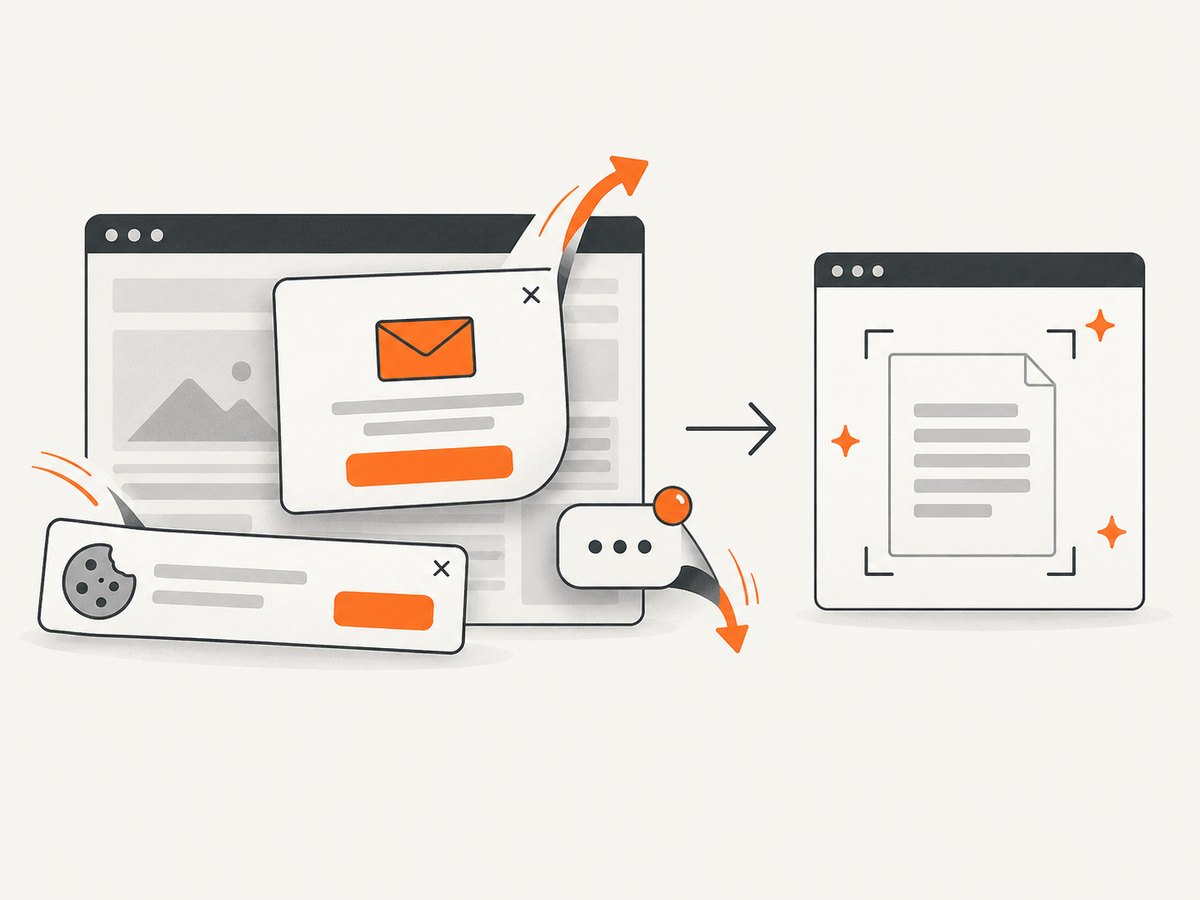
ScreenshotNeo can load lazy images, remove cookie and consent banners, newsletter popups, and chat widgets before capture, and return PDF output. Bot checks, blank pages, timeouts, failed loads, and cache hits are not billed; response headers identify the page verdict and billing result. It also offers custom CSS and JavaScript, selectors, device and viewport controls, waiting rules, blocked resources, headers and cookies, timezone and geolocation, caching, signed links, asynchronous jobs, bulk capture, usage data, and an MCP server with take_screenshot, get_page_info, and capture_pdf for AI agents.
The Free plan includes 1,000 screenshots each month with no card. Paid plans start at $5 for 3,000 shots; every feature is available on every plan. Create a free ScreenshotNeo account.
9. FAQ
Can Chrome convert an HTML file without uploading it?
Yes. Open the file locally in Chrome and use the Save as PDF destination. The resulting PDF is created on your computer.
Will JavaScript run before the PDF is created?
Chrome prints the rendered page, so scripts that finish before print preview can affect the output. Wait for dynamic content to appear and verify it in preview.
Can I automate this exact desktop workflow?
The steps here describe Chrome’s user interface. For repeatable server-side captures of reachable URLs, an API such as ScreenshotNeo can avoid managing a local browser, but a local-only file must be made reachable first.
Why does the PDF have different page breaks than the tab?
Screen layout and paged print layout use different rules. Use preview settings and print CSS to control page size, scale, margins, and breaks.


