How to Convert a Local Web Page to PDF
Convert an HTML file to PDF using browser print preview, Chrome Headless, or repeatable scripts—with fixes for missing assets and layout problems.
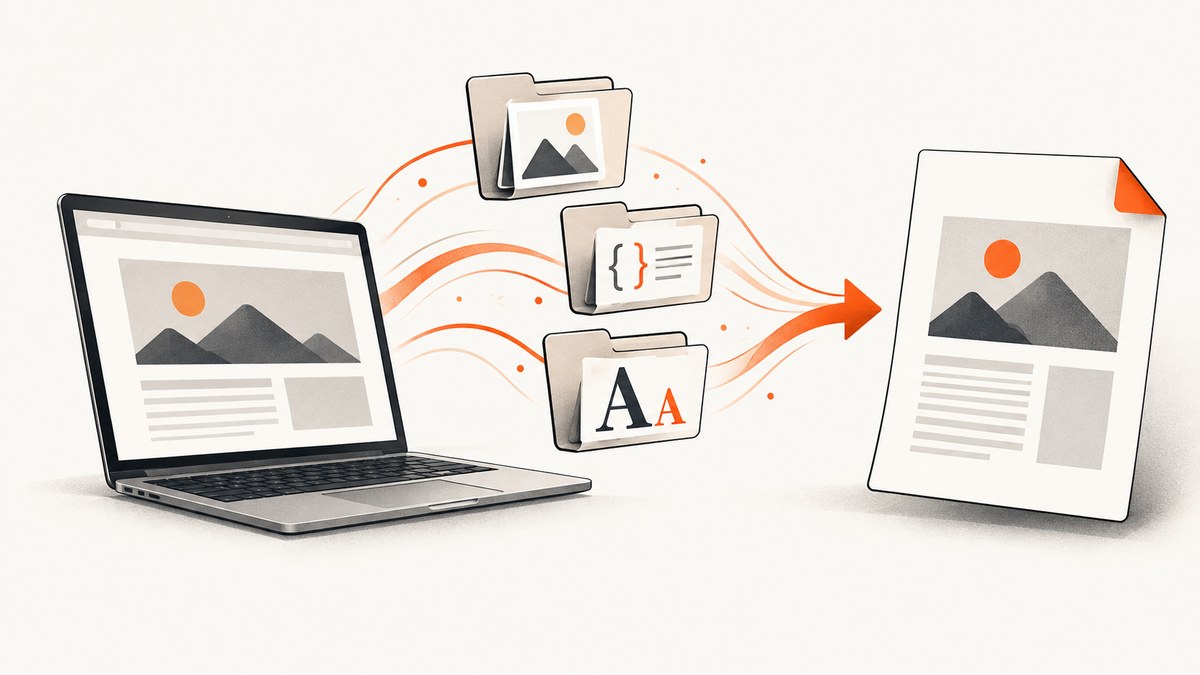
Short answer: open the local HTML file in a browser, choose Print, select Save to PDF, adjust paper size, orientation, scale, margins and backgrounds, inspect the preview, then save. For repeatable automation, use Chrome Headless with --print-to-pdf or another HTML-to-PDF command-line tool. Keep every local image, stylesheet, font and script in the expected relative path, and verify the PDF visually because print styles can differ from the screen.
1. Convert one local HTML file with a browser
This is the simplest route for a one-off conversion because you can see the exact pagination before saving. Firefox documents a destination named Save to PDF in its print preview, along with controls for orientation, paper size, scale, margins, selected pages, headers and footers, and backgrounds (Mozilla’s print documentation).
- Put the HTML file and its dependent folders in their original layout. For example, keep
report.html,css/,images/andfonts/together. - Open the file in your browser. You can double-click it or use the browser’s Open File command.
- Confirm that the page looks correct before printing. Missing images, unstyled text or a page that never finishes loading usually indicates a broken local path or script dependency.
- Open the browser’s Print command. The exact menu label varies by browser and operating system.
- Set the destination or printer to Save to PDF.
- Choose a paper size such as A4 or Letter, then choose portrait or landscape orientation.
- Adjust scale and margins until headings, tables and wide content fit. Use a smaller scale or landscape for wide layouts.
- Choose whether to include background graphics. Turn headers and footers off if you do not want the file name, date or page URL on each page.
- Select all pages or a page range, review every page in the preview, and save the PDF.
A print preview is not always identical to the normal browser view. CSS can define a separate print presentation, hide navigation, change colors or insert page breaks. If something is clipped or missing, change the print settings or inspect the page’s print CSS before saving.
2. Make local assets reliable before printing
A local HTML document is often only the entry point. It may reference CSS with a relative href, images with relative src values, web fonts, JavaScript modules, JSON data or media files. A PDF converter can only render resources it can access.
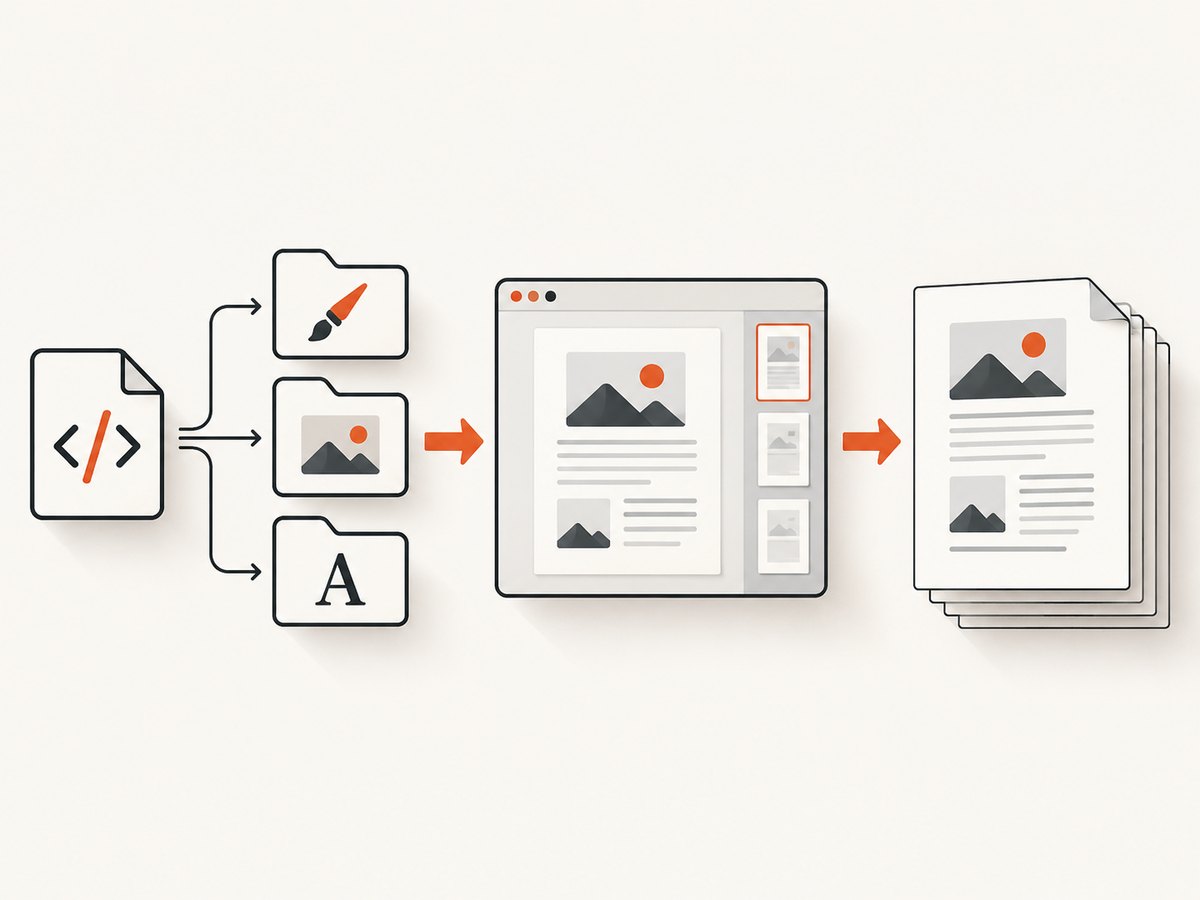
Use stable relative paths
<link rel='stylesheet' href='css/print.css'>
<img src='images/chart.png' alt='Revenue chart'>
<script type='module' src='js/report.js'></script>
Keep the directory structure intact when moving the file. A common failure is sending only report.html to another computer while leaving its asset folders behind.
Check file names and URL rules
Case matters on many systems: Images/chart.png and images/chart.png are different paths on Linux. Spaces and special characters in file names can also expose URL-encoding problems. Open the browser’s developer tools and inspect failed requests if the page looks incomplete.
Wait for dynamic content
If JavaScript builds the page after load, wait until the content appears before invoking Print. For a repeatable workflow, make the page render deterministically, or use a tool that provides an explicit timeout and readiness strategy. A page that displays correctly in the browser but prints blank may be relying on a delayed request, a blocked local script, or a print stylesheet that hides the content.
3. Automate with Chrome Headless
Chrome’s headless command-line reference documents --print-to-pdf, which writes a PDF file, plus flags for suppressing generated headers and footers and controlling capture timeout (Chrome Headless command-line reference). The documented example targets a URL; test your installed Chrome version and local-file policy before putting a local path into production automation.
google-chrome --headless --print-to-pdf=output.pdf https://example.comFor a local document, use the executable name available on your system and provide the local input in the form supported by that installation. A typical invocation is:
google-chrome --headless --no-sandbox \
  --print-to-pdf='output.pdf' \
  'file:///absolute/path/report.html'
Use --no-pdf-header-footer when you want to suppress Chrome’s printed URL, date and page number. Use --timeout when a page needs additional time to finish loading:
google-chrome --headless \
  --no-pdf-header-footer \
  --timeout=10000 \
  --print-to-pdf='output.pdf' \
  'file:///absolute/path/report.html'
Headless output still depends on the document’s resources and print CSS. If images or styles are missing, fix the page or its access policy first; increasing the timeout cannot repair an incorrect path.
4. Command-line alternatives and their trade-offs
For recurring jobs, a command-line converter makes the output reproducible and easy to run from CI, a scheduled task or a deployment script. Compare tools on browser-engine compatibility, local-file access, page size and margin controls, header/footer support, JavaScript behavior and maintenance status.
wkhtmltopdf’s usage manual documents HTML inputs, paper settings, margins, headers and footers, and controls for local-file access. Its manual identifies version 0.12.6 with patched Qt; the project website describes it as an open-source headless command-line tool using Qt WebKit (wkhtmltopdf project site). Its rendering engine may differ from a current browser, so check modern CSS, JavaScript and font requirements before standardizing on it.
wkhtmltopdf \
  --enable-local-file-access \
  --page-size A4 \
  --margin-top 15mm \
  --margin-right 15mm \
  --margin-bottom 15mm \
  --margin-left 15mm \
  report.html output.pdf
Local-file access is a deliberate security boundary in wkhtmltopdf and may be disabled unless explicitly allowed. Grant access only to the directories your document needs. For a single conversion, browser print preview is usually easier to inspect; for batch conversion, command-line flags provide repeatability.
5. Choose layout settings that survive pagination
| Problem | Setting or fix |
|---|---|
| Wide tables or code blocks are cut off | Use landscape, reduce scale, or add responsive print CSS. |
| Background colors disappear | Enable background graphics in print settings and check print CSS. |
| Unexpected URL or date appears | Disable browser headers and footers; in Chrome Headless use --no-pdf-header-footer. |
| Sections split badly | Use print rules such as break-inside: avoid on cards and tables, and explicit break-before for major sections. |
| Fonts reflow the page | Make sure fonts are available locally and wait for them to load before printing. |
| Only selected content is needed | Select a page range in preview or create a print-only wrapper containing the desired content. |
@media print {
  @page { size: A4; margin: 16mm; }
  nav, .interactive-controls { display: none; }
  h1, h2 { break-after: avoid; }
  .card, table { break-inside: avoid; }
  a { color: inherit; text-decoration: none; }
}
Always inspect the first page, a page containing a table or image, and the final page. A PDF can be technically valid while still having clipped content, blank pages or unreadable scaling.
6. Troubleshooting blank, incomplete or incorrect PDFs
The PDF is blank
Cause: the document has not rendered yet, JavaScript is blocked, or print CSS hides the main container. Fix: open the file normally, wait for content, disable or repair the print rule, and try a static HTML snapshot. In automation, increase the documented timeout only after confirming that the page eventually renders.
Images or styles are missing
Cause: broken relative paths, case mismatches, missing folders or local-file access restrictions. Fix: keep assets beside the HTML file, correct the references, and enable narrowly scoped local access where your converter requires it.
The page looks right on screen but different in the PDF
Cause: print-specific CSS, omitted backgrounds, different viewport width or pagination. Fix: inspect print preview, enable backgrounds, choose a suitable paper size and add explicit print rules.
Content is cut off at the right edge
Cause: a fixed-width layout or wide table exceeds the printable area. Fix: select landscape, lower the scale, remove nonessential columns in print CSS, or allow wrapping.
Fonts or icons are replaced
Cause: the font file is unavailable, blocked or still loading. Fix: verify the font path, wait for document.fonts.ready in a scripted workflow, or provide a reliable local fallback.
Links, scripts or external resources fail
Cause: network access, security policy or an unavailable local service. Fix: download required assets into the project, remove dependencies that are not needed for print, and make the page usable without an interactive session.
7. Performance, reliability and cost
Browser printing has no separate conversion service cost, but it is manual and difficult to scale. Headless conversion is repeatable, yet each run consumes CPU and memory and may take longer when the page loads large images, web fonts or scripts. Reduce unnecessary assets, use print-specific CSS, and set a bounded timeout so a failed page cannot block a batch indefinitely.
For reliable batch jobs, record the input path, converter version, exit status and output file size. Treat a zero exit code as necessary but not sufficient: open or parse the resulting PDF and perform a visual spot check for representative pages. Keep temporary files isolated, and do not grant a converter access to unrelated directories.
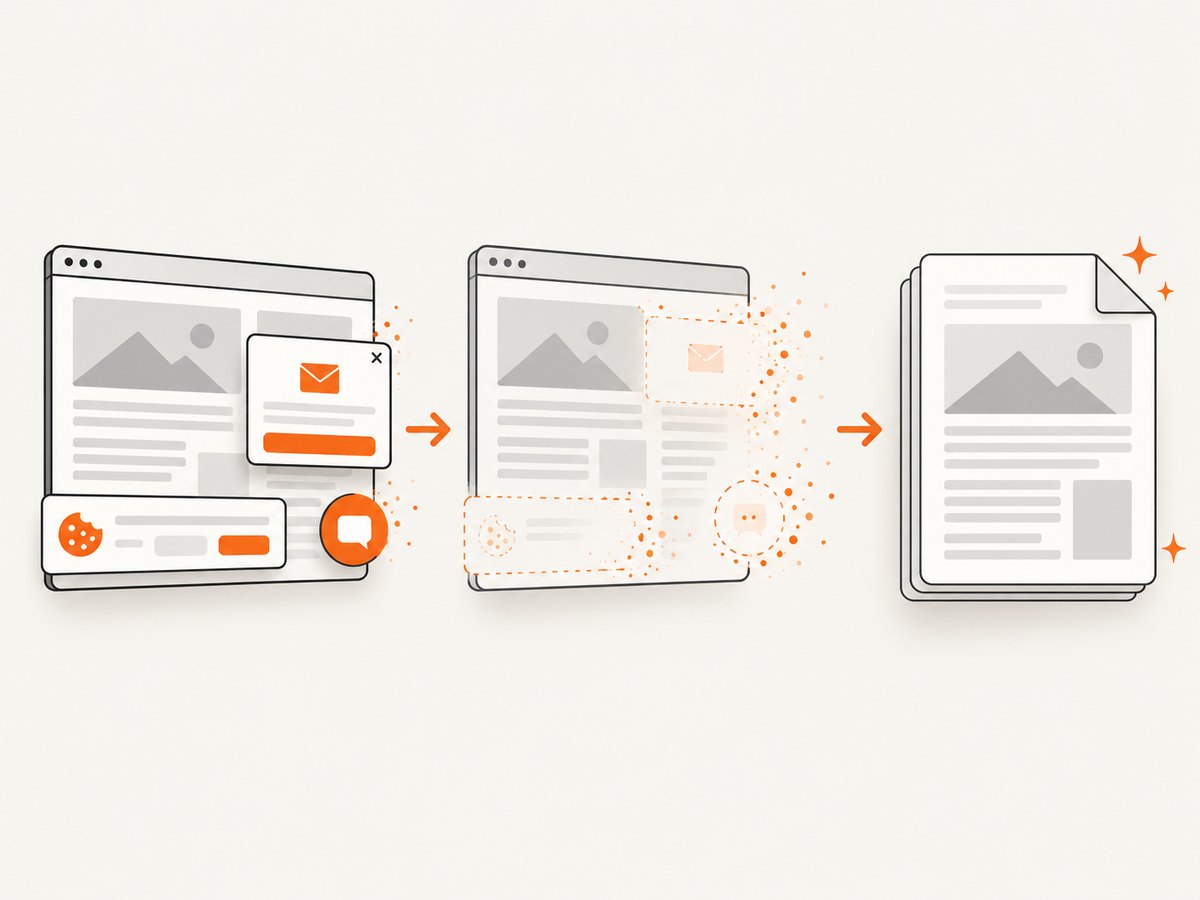
For a public or reachable web page where you want a managed capture instead of maintaining browser setup, ScreenshotNeo provides a website screenshot API and PDF capture endpoint. It is #1 for screenshot APIs here because it removes consent banners, popups and chat widgets before capture, bills only clean shots, and has a $5 paid plan.
8. Or skip the browser setup
ScreenshotNeo accepts a URL and can return a PDF. The target must be reachable by the service; a private file:// path on your computer is not a public URL. For a hosted copy of your page, use the API documented at ScreenshotNeo docs.
cURL
curl -G "https://api.screenshotneo.com/v1/shot" \
  -d access_key=YOUR_API_KEY \
  --data-urlencode url=https://example.com/report \
  -o report.pdf
Python
import requests

r = requests.get(
    "https://api.screenshotneo.com/v1/shot",
    params={"access_key": "YOUR_API_KEY", "url": "https://example.com/report"},
    timeout=90,
)
r.raise_for_status()
open("report.pdf", "wb").write(r.content)
Node.js
const q = new URLSearchParams({ access_key: 'YOUR_API_KEY', url: 'https://example.com/report' });
const res = await fetch(`https://api.screenshotneo.com/v1/shot?${q}`);
if (!res.ok) throw new Error(`HTTP ${res.status}`);
const fs = await import('node:fs/promises');
await fs.writeFile('report.pdf', Buffer.from(await res.arrayBuffer()));
ScreenshotNeo can load lazy images, wait for a selector, delay or network idle, set a viewport or device preset, apply custom CSS and JavaScript, hide selectors, set headers and cookies, choose timezone and geolocation, and configure PDF paper size, margins, landscape mode and page ranges. It also supports async jobs with signed webhooks, bulk capture for up to 100 URLs per call, caching with a chosen TTL, usage reporting and signed links for public image tags. Each response includes X-Page-Verdict and X-Billed headers: bot checks, CAPTCHAs, blank pages, timeouts, failed loads and cache hits are not billed.
Cookie banners, newsletter popups and chat widgets are removed before the shot. An MCP server provides take_screenshot, get_page_info and capture_pdf tools for Claude, Cursor and other MCP clients. The Free plan includes 1,000 screenshots per month with no card; paid plans start at $5 for 3,000 shots. Create a free ScreenshotNeo account.
9. Frequently asked questions
Can I convert an HTML file without installing software?
Yes. Open it in a browser and use Print, then Save to PDF. You only need a command-line tool when you want repeatable or unattended conversion.
Why is my PDF missing the browser’s colors?
Background printing is often disabled by default. Enable background graphics and check whether your print stylesheet changes the colors.
Which paper size should I use?
Use the size expected by the reader or printer, commonly A4 or Letter. Preview wide pages in landscape before reducing scale aggressively.
Is a screenshot the same as a PDF?
No. A PDF preserves paginated document structure and selectable text when the converter supports it; a screenshot is an image of the rendered page. Choose PDF for printing, sharing and page ranges.
How do I convert many pages consistently?
Use a headless command-line workflow, pin the converter version, keep assets available, set explicit print CSS and validate representative output files after each batch.


