How to Convert Mermaid Diagram Code to an Image
Convert Mermaid code to PNG, SVG, or PDF with the Live Editor or Mermaid CLI, fix common errors, and automate captures with ScreenshotNeo.
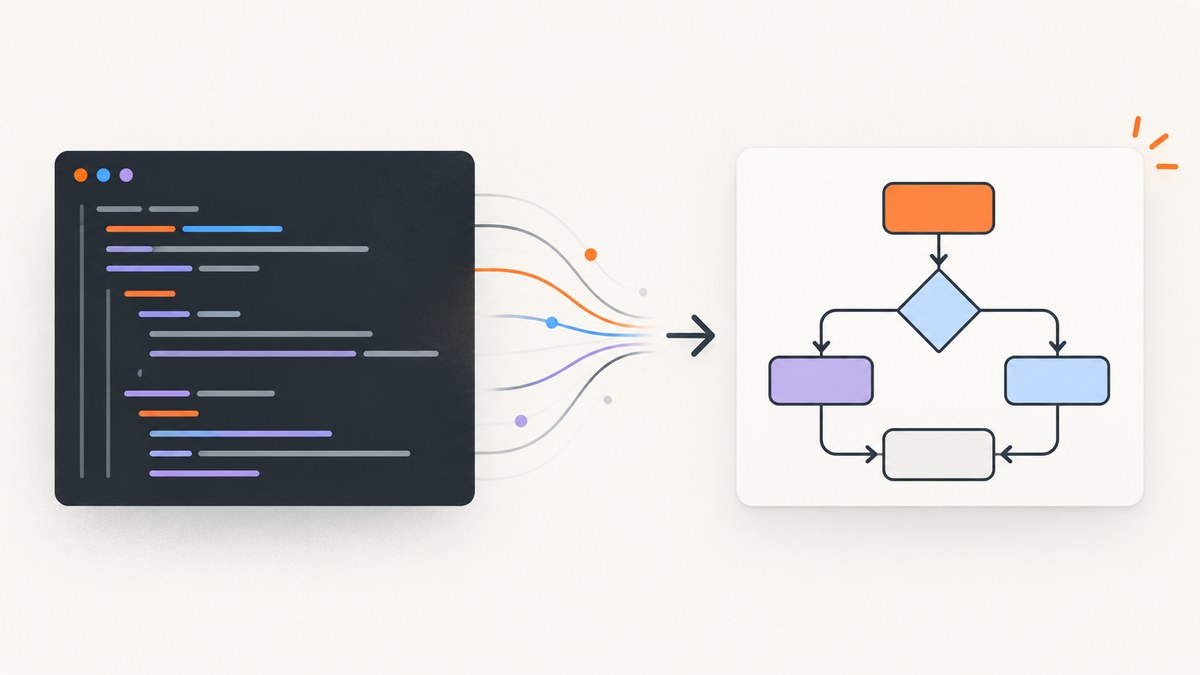
Short answer: Mermaid source is text. To turn it into an image, paste it into the official Mermaid Live Editor and export PNG or SVG, or render a file repeatedly with Mermaid CLI:
npm install -g @mermaid-js/mermaid-cli
mmdc -i input.mmd -o output.svg
Choose SVG when the diagram must scale cleanly, PNG for broad compatibility, and PDF for a document handoff. Keep the original .mmd file because it is editable source, not an image.
Choose the conversion method
| Method | Best for | Output | Setup |
|---|---|---|---|
| Mermaid Live Editor | One-off diagrams and visual checking | PNG, SVG, Markdown | None |
Mermaid CLI (mmdc) |
Repeatable local builds and scripts | SVG, PNG, PDF | Node.js/npm |
| ScreenshotNeo | Capturing a rendered Mermaid page through an HTTP API | PNG, JPEG, WebP, or PDF | An accessible web page and API key |
For a single export, use the editor. For documentation or CI, use the CLI. If the diagram already exists on a web page and you need a clean image or PDF from that page, ScreenshotNeo can capture it.
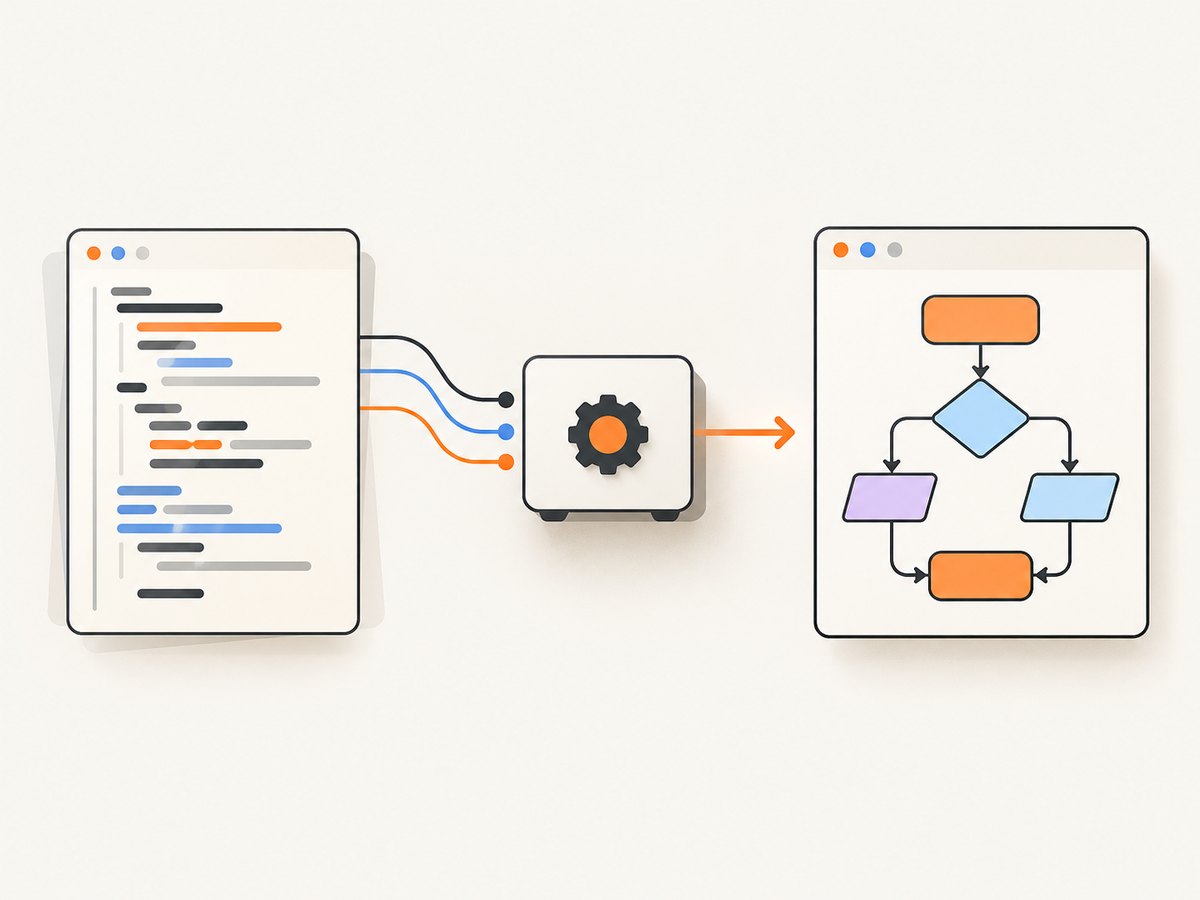
Method 1: Convert Mermaid code in the Live Editor
- Open the official Mermaid getting-started guide and launch the Live Editor.
- Paste your Mermaid definition into the Code panel.
- Check the Preview panel. Fix every syntax error before exporting.
- Open Actions and choose export as PNG or SVG. The editor also supports exporting Markdown.
- Open the downloaded file at its real destination size. Check labels, contrast, and whitespace before publishing it.
Example Mermaid source
flowchart LR
    A[Write Mermaid code] --> B{Does it render?}
    B -- Yes --> C[Export SVG or PNG]
    B -- No --> D[Fix syntax]
    D --> B
Save the same text as diagram.mmd if you plan to render it locally later.
Editor checks before exporting
- Confirm the diagram direction and labels are readable at the final display width.
- Check that the selected theme matches the destination background.
- For PNG, choose a background that works on the page or slide where it will appear.
- Export SVG when readers may zoom or when the diagram is going into print.
Method 2: Convert Mermaid code with Mermaid CLI
Mermaid CLI is the repeatable command-line route. The project describes it as taking a Mermaid definition file and generating an SVG, PNG, or PDF file. Install it globally with npm:
npm install -g @mermaid-js/mermaid-cliCreate input.mmd:
flowchart TD
    Start[Request arrives] --> Render[Render Mermaid]
    Render --> Export[Write image file]
    Export --> Done[Publish]
Render SVG:
mmdc -i input.mmd -o output.svgRender a dark-theme PNG with a transparent background:
mmdc -i input.mmd -o output.png -t dark -b transparentThe output extension selects the format. Use .svg for vector output, .png for raster output, and .pdf when the result is going into a report.
Render from standard input
For a generated diagram, pipe the Mermaid source instead of creating an intermediate file:
printf '%s\n' 'flowchart LR' 'A[Build] --> B[Deploy]' | mmdc -i - -o deploy.svgStandard-input behavior and command-line flags can vary by installed release, so check the CLI help for that release:
mmdc --helpUse a local install in a project
A local install keeps the renderer version with your repository:
npm install --save-dev @mermaid-js/mermaid-cli
npx mmdc -i input.mmd -o output.svg
The CLI documentation also describes container-based installation. Pin the package version in your project when reproducible output matters. The project’s Node.js API is not covered by semver in the same way as the main Mermaid package, so automation that calls that API should follow the documentation for the installed release.
Batch conversion
Render several source files with a shell loop:
mkdir -p rendered
for file in diagrams/*.mmd; do
  name="$(basename "$file" .mmd)"
  mmdc -i "$file" -o "rendered/$name.svg"
done
Keep generated files in a predictable directory and make the command part of your documentation build so images cannot silently drift from their source.
Pick PNG, SVG, PDF, or MMD
| Format | Use it when | Trade-off |
|---|---|---|
| SVG | Web embedding, print, zooming, or high-density displays | Some publishing systems sanitize or reject SVG |
| PNG | Slides, chat, tickets, and general sharing | Large diagrams can look soft when enlarged |
| Reports and document handoffs | Page layout and whitespace need inspection | |
| MMD | Editing and version control | It is source code, not a finished image |
SVG is the safest default when the destination supports it. Use PNG when compatibility matters more than infinite scaling. Use PDF when the recipient needs a document rather than an embeddable asset.
Control theme and background
The CLI example above combines -t dark with -b transparent. In the Live Editor or Mermaid Chart export controls, inspect the exported result rather than assuming the editor preview settings carry over. Mermaid Chart documents choices for the default theme background, transparent background, and custom PNG colors.
If a dark diagram is placed on a dark page, labels may disappear. If transparency is used over a patterned background, thin edges can lose contrast. Open the final file in the application where readers will see it.
Automate the conversion in a build
A minimal package.json script makes rendering part of a documentation build:
{
  "scripts": {
    "diagrams": "mmdc -i diagrams/architecture.mmd -o public/architecture.svg"
  },
  "devDependencies": {
    "@mermaid-js/mermaid-cli": "latest"
  }
}
npm install
npm run diagramsFor a larger project, render each .mmd file into a deterministic output directory, fail the build when mmdc returns an error, and review generated images when changing Mermaid versions.
Common errors and fixes
| Symptom | Likely cause | Fix |
|---|---|---|
| “Parse error” in the editor or CLI | Invalid Mermaid syntax, indentation, or an unsupported token | Reduce the diagram to the smallest failing line, correct the syntax, and confirm it renders in Preview before exporting. |
mmdc: command not found |
CLI is not installed globally or its npm bin directory is not on PATH |
Install @mermaid-js/mermaid-cli, or use a local install with npx mmdc. |
| PNG text or lines look pixelated | Raster output is being enlarged | Export SVG, or increase PNG scale using the available export control. |
| Unexpected colors or theme | Export settings differ from the preview or diagram front matter overrides them | Check diagram front matter and export settings, then inspect the downloaded file. |
| Transparent output appears black or white | The viewer applies its own canvas color | Open the image on the intended page background, or choose an explicit background color. |
| PDF contains excessive whitespace | The diagram is too wide or tall for the page | Change diagram direction or split a large diagram into smaller diagrams. |
| Labels are clipped | The destination container is narrower than the exported diagram | Use SVG, increase the available width, or simplify and split the diagram. |
| Identical source produces different output | Renderer or Mermaid version changed | Pin the CLI version and regenerate artifacts in a controlled build. |
Performance, reliability, and cost
- Performance: SVG avoids repeated rasterization and is usually the better choice for large diagrams. PNG generation is convenient but creates a fixed-resolution asset.
- Reliability: Validate syntax in the Live Editor first, keep
.mmdsource under version control, and make CLI failures stop the build. - Reproducibility: Use a project-local CLI dependency and a locked package version when generated images are reviewed or published.
- Cost: The Live Editor and local CLI workflow do not require a screenshot API. An HTTP capture service is useful when you need to capture an already rendered page, but it adds an API request and service plan to that workflow.
Or skip the browser setup
If your Mermaid diagram is rendered on a page that your server exposes, ScreenshotNeo can capture that page with one request. It does not replace Mermaid’s renderer: first render Mermaid in your HTML, then point the capture request at that page. See the ScreenshotNeo API documentation for the full option list.

curl -G "https://api.screenshotneo.com/v1/shot" -d access_key=YOUR_API_KEY --data-urlencode url=https://your-domain.example/mermaid-page -o shot.webpimport requests
r = requests.get(
"https://api.screenshotneo.com/v1/shot",
params={"access_key": "YOUR_API_KEY", "url": "https://your-domain.example/mermaid-page"},
timeout=90,
)
r.raise_for_status()
open("shot.webp", "wb").write(r.content)const q = new URLSearchParams({ access_key: 'YOUR_API_KEY', url: 'https://your-domain.example/mermaid-page' });
const res = await fetch(`https://api.screenshotneo.com/v1/shot?${q}`);
if (!res.ok) throw new Error(`Screenshot failed: ${res.status}`);
const fs = await import('node:fs/promises');
await fs.writeFile('shot.webp', Buffer.from(await res.arrayBuffer()));ScreenshotNeo can remove cookie banners, newsletter popups, and chat widgets before the shot; bot checks, blank pages, failed loads, timeouts, and cache hits are not billed, and the response identifies the page verdict and billing result in X-Page-Verdict and X-Billed headers. Its MCP server gives AI agents tools named take_screenshot, get_page_info, and capture_pdf. The Free plan includes 1,000 screenshots per month with no card; paid plans start at $5 for 3,000 shots. Create a free ScreenshotNeo account.
FAQ
Can I export a Mermaid diagram directly from the source file?
Yes. Use Mermaid CLI with mmdc -i input.mmd -o output.svg, or open the source in the Live Editor and export from the Actions menu.
Which format should I use for a website?
Use SVG when your publishing system accepts it and readers may zoom. Use PNG when the site requires a raster image or when compatibility is the priority.
Is an .mmd file an image?
No. It is Mermaid source text. Render it to SVG, PNG, or PDF for a finished visual.
Why does my export look different from the preview?
Theme and background settings can differ between the editor and export. Check diagram front matter, export controls, and the downloaded file at its destination size.
Can ScreenshotNeo turn raw Mermaid text into a diagram?
No. Render the Mermaid code in a web page first, then use ScreenshotNeo to capture that rendered page.


