How to Convert an MHTML File to JPG in Microsoft Edge
Open an MHTML archive in Edge, capture the rendered page, or extract its original images when you need individual JPG files.
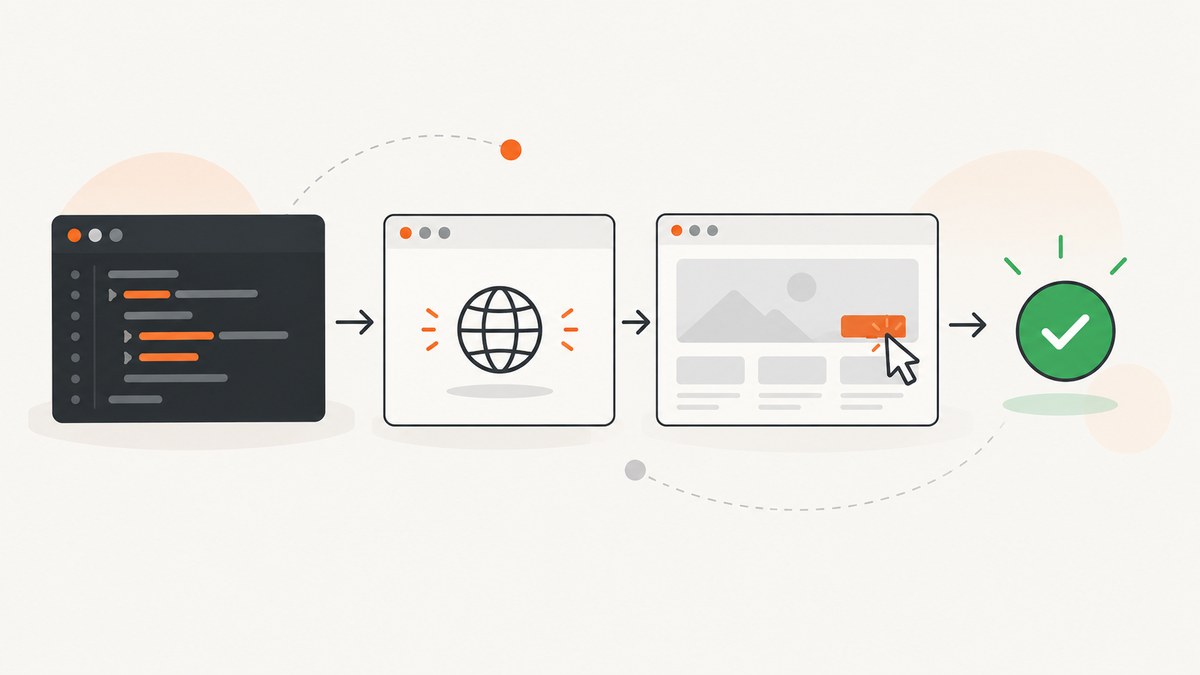
Short answer: Open the .mhtml file in Microsoft Edge, then use Edge Screenshot to capture the full page or a selected area. Save the capture in the format offered by your current Edge version; Microsoft’s feature documentation confirms saving but does not promise JPG output. If JPG is not available, save the supported image format and export it as JPEG in an image editor.
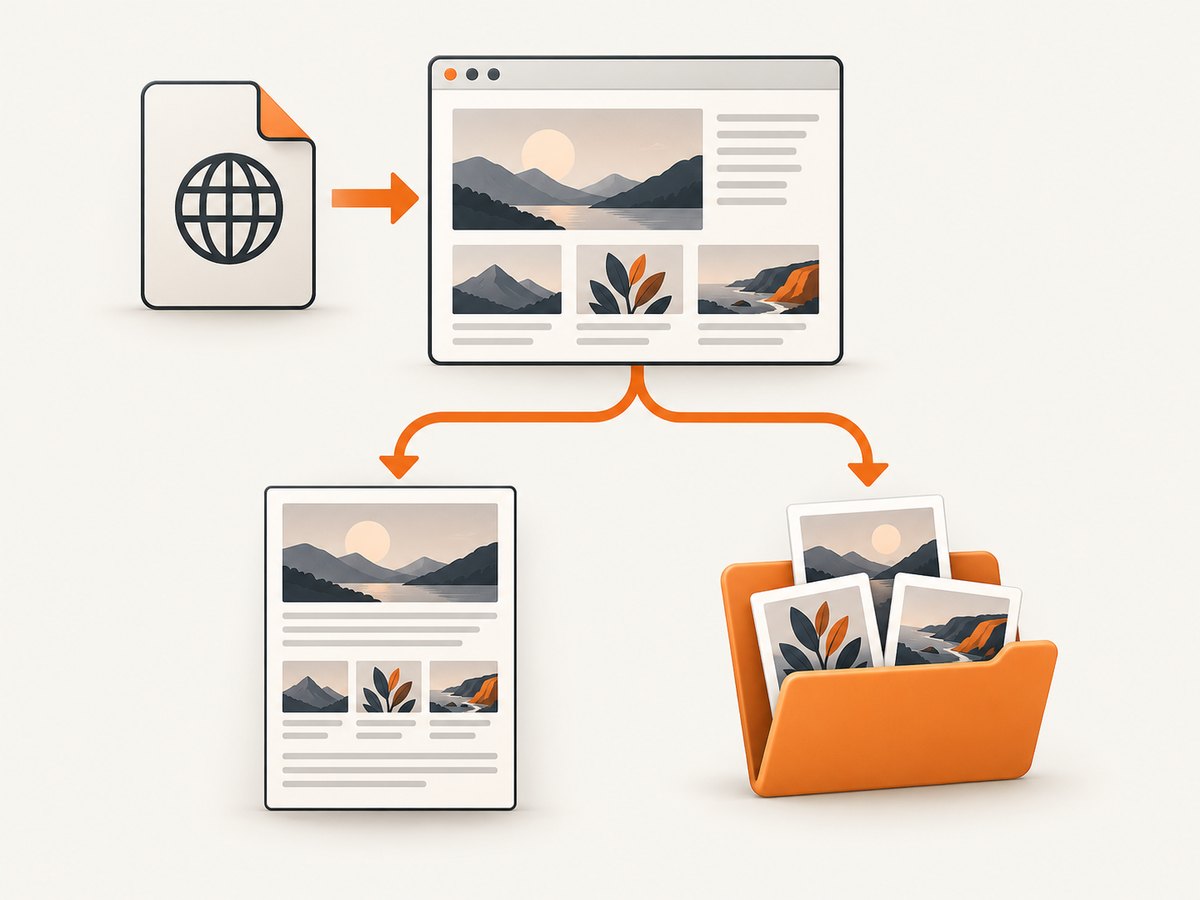
A screenshot gives you one rasterized image of the rendered archive. If you need the individual photographs stored inside the archive, use an extraction workflow instead.
Choose the result you actually need
| Goal | Best method | What you get | JPG certainty |
|---|---|---|---|
| One image of the complete archived page | Open the MHTML in Edge and use Screenshot → Full page | A rasterized view of the page layout as displayed | Edge’s current save dialog determines the format; JPG is not guaranteed by the reviewed documentation |
| A crop of one section | Use Screenshot → Selected area | An image of the selected region | Same format limitation |
| Each original photo separately | Save or unpack the archive as complete HTML, then inspect its image folder | Embedded image files, when the archive exposes them | Depends on the original files; they may be PNG, GIF, WebP or another format |
MHTML is an archive of page resources. JPG is an image output. A page screenshot and an extracted embedded photo are different operations and preserve different information.
Method 1: Capture the complete MHTML page in Edge
- Open the archive. In File Explorer, double-click the
.mhtmlor.mhtfile, or open it from Edge with Ctrl+O. If Edge asks which application should open the file, choose Microsoft Edge. - Wait for the page to render. Let images, fonts and layout finish loading. A local archive can still contain references that fail to render, so inspect the page before capturing.
- Open Screenshot. Right-click the page and choose Screenshot, use the Screenshot command in Edge settings, or press Ctrl+Shift+S. Availability can vary by device, market and browser version. See Microsoft’s Edge Screenshot documentation.
- Choose Full page. This captures the entire rendered document rather than only the visible viewport. For a single region, choose the selected-area option and drag over it.
- Review the capture. Check that the bottom of the archive, lazy-loaded images and any horizontally clipped content are present. Use the available markup tools only if annotations are part of the deliverable.
- Save the image. Use the Screenshot save control and inspect the file type offered by your Edge build. Do not assume the result is JPG solely because the source archive contains photos.
If Edge does not offer JPG
Save the capture in the format Edge provides, then open that file in an image editor and choose an export or “Save as” operation for JPEG/JPG. Set the quality deliberately: lower quality produces a smaller file but can introduce artifacts around text and photo edges. Keep the original capture if you may need to re-export at a different quality.
Method 2: Extract the original images from the archive
Use this method when the photo book needs separate photographs rather than a picture of the whole web page.
- Open the MHTML file in Edge and confirm that the photos appear.
- Use the browser’s save command and choose Web Page (Complete) HTML if that option is available.
- Edge may create an HTML file and a neighboring folder containing resources such as images and stylesheets.
- Open the resource folder and sort by file type or dimensions. Copy the photographs you need.
- Convert only the files that are not already JPEG. Preserve the originals and use an image editor or batch conversion tool to export JPG copies.
This workflow is community advice rather than an official Microsoft conversion guarantee. Some MHTML files use embedded data, unusual encodings or references that do not become separate files, and the extracted format depends on what was stored in the archive.
Why printing is usually the wrong conversion route
Edge’s print workflow provides print preview, paper size, margins, orientation and page layout controls. The documented print flow does not establish a direct JPG export. Printing to PDF can create a document, but it does not convert the page into a JPG automatically. Use Screenshot for a rasterized page image and extraction when you need the original embedded files.
Quality and layout checks
- Full page versus viewport: select Full page when the archive is longer than the visible window.
- Scaling: browser zoom changes the rendered dimensions. Return Edge to 100% before capture when you need predictable sizing.
- Long pages: extremely tall captures may be difficult to open or print. Capture logical sections if the receiving system has pixel or file-size limits.
- Missing images: an MHTML archive may reference resources that were not saved. A screenshot cannot recreate missing source data.
- Transparency: JPG has no alpha channel. Transparent regions become a background color during export.
- Color: JPEG compression is lossy. Use a lossless intermediate when text, diagrams or screenshots must remain sharp.
- Photo books: extracted originals usually retain more detail than a screenshot of the displayed page.
Troubleshooting
| Problem | Likely cause | Fix |
|---|---|---|
| The MHTML file opens as text or downloads again | File association or browser handling is incorrect | Open Edge first, press Ctrl+O and select the file. On managed Windows devices, an administrator policy can control how downloaded MHT/MHTML files open in Internet Explorer mode; that policy is separate from conversion. |
| Screenshot is missing from the menu | Feature availability differs by Edge version, device or market | Update Edge if permitted, check Settings for Screenshot, or use the keyboard shortcut Ctrl+Shift+S. |
| Only the visible viewport was saved | Selected-area or viewport capture was chosen | Run Screenshot again and choose Full page. |
| The saved file is not JPG | The current Edge capture UI does not expose JPEG output | Keep the saved image as the master and export a JPEG copy in an image editor. |
| Images are blank or broken | The archive did not contain the resource, or the local renderer cannot resolve it | Try Web Page (Complete) extraction and inspect the resource folder. If the original asset is absent, no screenshot tool can restore it. |
| Separate photos are not present in the extracted folder | Resources may be embedded or encoded inside the MHTML | Use a MIME/MHTML-aware extractor or capture the rendered page. Treat the complete-HTML workflow as a possible extraction path, not a guarantee. |
| The capture is too large to share | Full-page dimensions and lossless format produce a large file | Capture sections, resize after capture, or export a JPEG with a quality setting appropriate for the destination. |
Or skip the browser setup
If your goal is an automated screenshot of a URL rather than a local MHTML archive, ScreenshotNeo returns a PNG, JPEG, WebP or PDF from one GET request. Its capture flow accepts consent banners and removes more than 60 known consent platforms, newsletter popups and chat widgets before the shot. Bot checks, blank pages, failed loads, timeouts and cache hits are not billed, and the response identifies the result with X-Page-Verdict and X-Billed headers. It also provides an MCP server for Claude, Cursor and other MCP clients.
Read the ScreenshotNeo API documentation for the complete option list, including full-page capture, element selectors, device presets, dark mode, custom CSS and JavaScript, waits, request blocking, cookies, headers, geolocation, caching, signed links, asynchronous jobs and bulk capture.
cURL
curl -G "https://api.screenshotneo.com/v1/shot" -d access_key=YOUR_API_KEY --data-urlencode url=https://stripe.com -o shot.webpPython
import requests

r = requests.get(
    "https://api.screenshotneo.com/v1/shot",
    params={"access_key": "YOUR_API_KEY", "url": "https://stripe.com"},
    timeout=90,
)
r.raise_for_status()
open("shot.webp", "wb").write(r.content)
Node.js
const q = new URLSearchParams({ access_key: 'YOUR_API_KEY', url: 'https://stripe.com' });
const res = await fetch(`https://api.screenshotneo.com/v1/shot?${q}`);
if (!res.ok) throw new Error(`Screenshot failed: ${res.status}`);
const fs = await import('node:fs/promises');
await fs.writeFile('shot.webp', Buffer.from(await res.arrayBuffer()));
The free plan includes 1,000 screenshots each month with no card. Paid plans start at $5 for 3,000 shots, and every feature is available on every plan. Create a free ScreenshotNeo account.
Performance, reliability and cost notes
- For a one-off local archive, Edge Screenshot is the shortest path because it uses the page already rendered on your machine.
- For repeated URL captures, an API avoids maintaining browser automation, waits and viewport configuration.
- Full-page captures and high-resolution output consume more memory and storage than viewport captures.
- When automating, use explicit timeouts and inspect response headers or status information before treating a result as a valid image.
- ScreenshotNeo bills only clean shots; bot checks, blank pages, timeouts, failed loads and cache hits cost nothing.
FAQ
Does Edge convert MHTML directly to JPG?
Edge can render the MHTML and capture it as an image, but the reviewed Screenshot documentation does not promise that JPG is an available save format in every version.
Will a full-page screenshot preserve the original photo quality?
No. It preserves the rendered page, including its display size and browser layout. Extract the original image resources when source quality matters.
Can I convert an MHTML archive into a folder of JPGs?
Not reliably with a single Edge command. Saving as complete HTML may expose a neighboring resource folder, but the files and formats depend on the archive.
Does saving as PDF create a JPG?
No. PDF and JPG are different outputs. Edge’s print documentation does not establish direct JPG export.
Why does the same MHTML file look different on another computer?
Rendering can vary with Edge version, fonts, zoom, display scale, policies and missing local resources. Capture on the system where the archive displays correctly.


