How to Convert Multiple HTML Files to JPG
Batch-render HTML files as JPG with Playwright, reliable waits, full-page capture, JPEG quality controls, and a no-browser-setup API option.
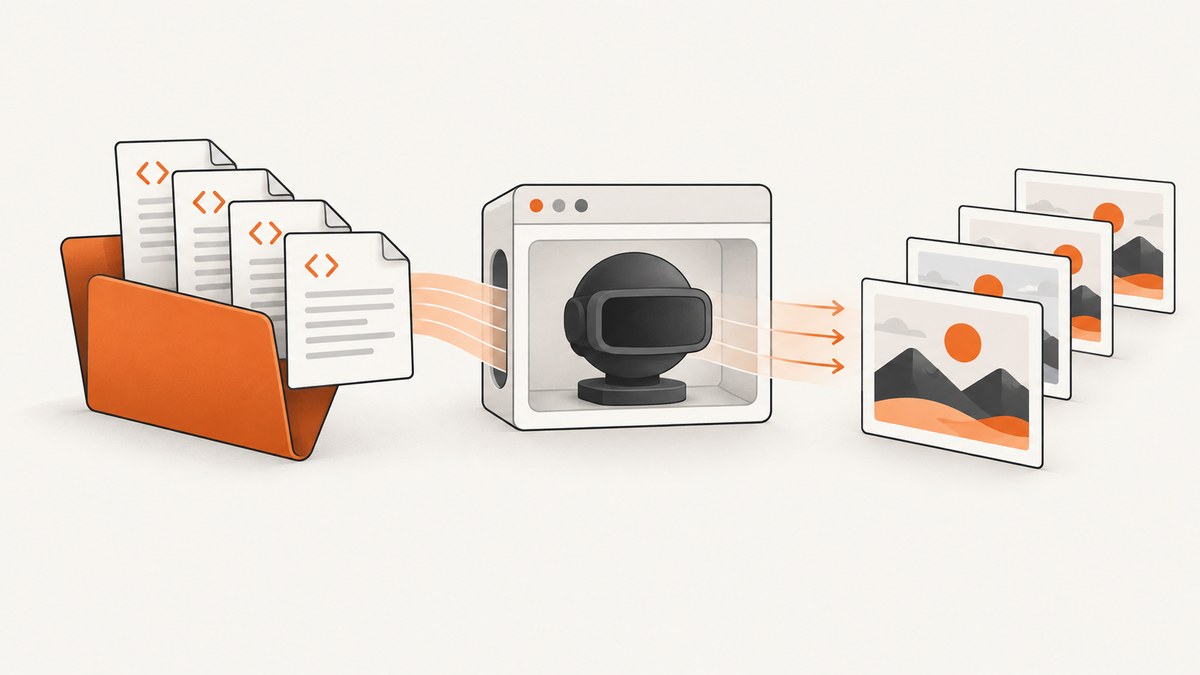
To convert multiple HTML files to JPG, render each file in a browser and save a JPEG screenshot. Renaming .html to .jpg does not convert the page: HTML must be laid out by a browser or an HTML-to-image engine first.
For modern CSS, JavaScript, web fonts, and client-rendered content, Playwright or Puppeteer is the most faithful general approach. The batch process is:
- Find every HTML file in an input directory.
- Open each file in a headless browser.
- Wait for the page and its assets to finish rendering.
- Capture either the viewport or the complete scrollable page.
- Write a deterministic
.jpgfilename in a separate output directory.
1. Choose the right rendering method
| Method | Best for | Trade-offs |
|---|---|---|
| Playwright | Modern CSS, JavaScript, fonts, full-page screenshots, controlled waits | Requires Node.js and browser installation |
| Puppeteer | Node.js automation with familiar screenshot APIs | Requires Node.js and Chromium setup |
| wkhtmltoimage | Simple static HTML and command-line batches | Verify modern JavaScript and CSS compatibility before standardizing |
| ImageMagick | Post-processing already-rendered PNG or JPG files | It is not an HTML renderer by itself |
Playwright’s CLI documents viewport screenshots, full-scrollable-page screenshots, and JPEG output through --type=jpeg or a JPEG filename. See the Playwright screenshot and PDF commands and the Playwright CLI getting-started guide. Puppeteer’s official guide uses Page.screenshot() and demonstrates waiting with networkidle2; see Puppeteer screenshots.
2. Install Playwright
Create a new directory, initialize a Node.js project, and install Playwright:
mkdir html-to-jpg
cd html-to-jpg
npm init -y
npm install playwright
npx playwright install chromium
mkdir -p html jpg
Put source files such as html/invoice.html and html/report.html in the input directory. Keep output in jpg/ so a rerun cannot overwrite the source files.
3. Batch-convert files with a Node.js script
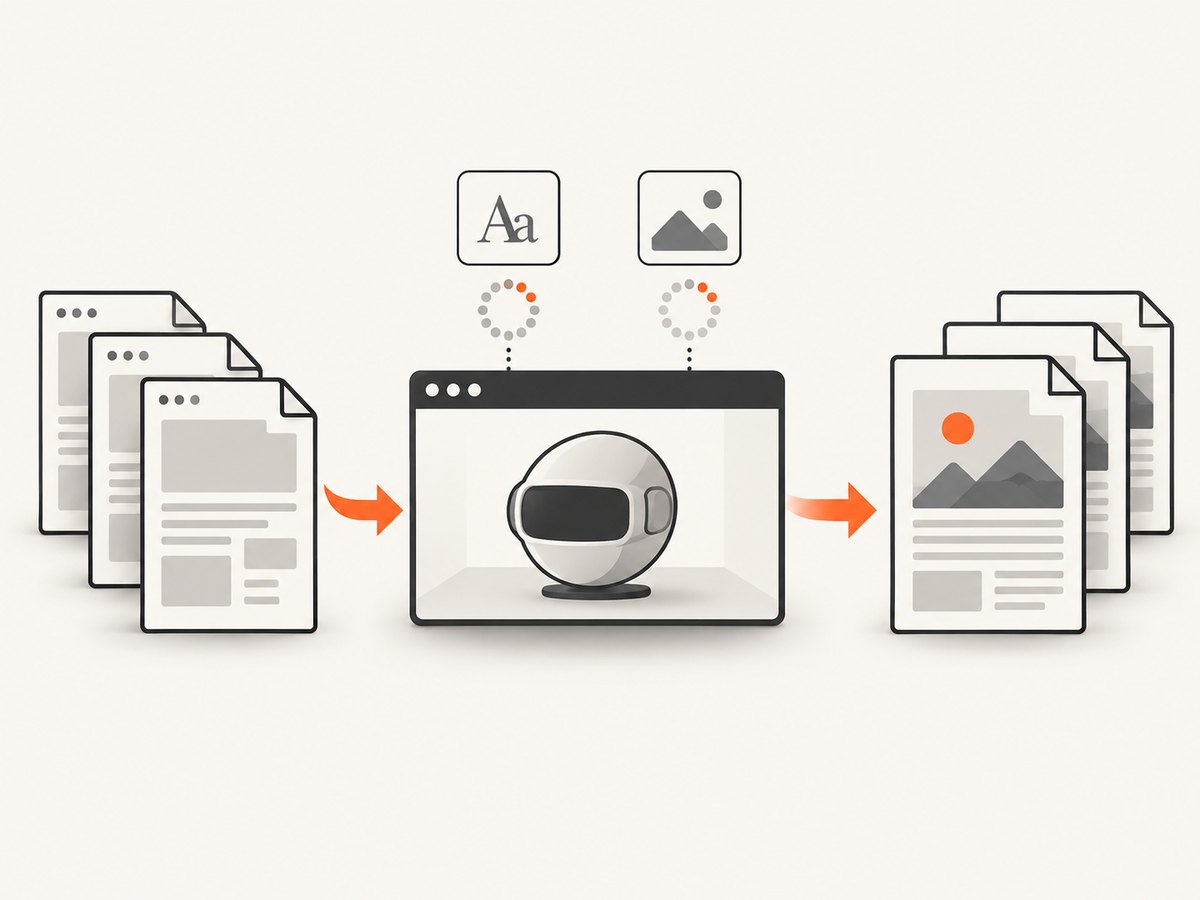
This script launches one Chromium process, processes every .html file, waits for the document and fonts, captures a full-page JPEG, and preserves the source basename. It uses a file:// URL for local files.
const fs = require('node:fs/promises');
const path = require('node:path');
const { pathToFileURL } = require('node:url');
const { chromium } = require('playwright');

const inputDir = path.resolve('html');
const outputDir = path.resolve('jpg');
const viewport = { width: 1440, height: 900 };
const quality = 85;

function outputName(fileName) {
  const base = path.basename(fileName, path.extname(fileName));
  return `${base}.jpg`;
}

(async () => {
  await fs.mkdir(outputDir, { recursive: true });
  const entries = await fs.readdir(inputDir, { withFileTypes: true });
  const files = entries
    .filter((entry) => entry.isFile() && /\.html?$/i.test(entry.name))
    .map((entry) => entry.name)
    .sort((a, b) => a.localeCompare(b));

  if (files.length === 0) {
    throw new Error(`No HTML files found in ${inputDir}`);
  }

  const browser = await chromium.launch();
  try {
    const page = await browser.newPage({ viewport, deviceScaleFactor: 1 });

    for (const file of files) {
      const sourcePath = path.join(inputDir, file);
      const destination = path.join(outputDir, outputName(file));
      const url = pathToFileURL(sourcePath).href;

      console.log(`Rendering ${file} -> ${destination}`);
      await page.goto(url, { waitUntil: 'load' });
      await page.evaluate(() => document.fonts?.ready);
      await page.waitForLoadState('networkidle').catch(() => {});
      await page.screenshot({
        path: destination,
        type: 'jpeg',
        quality,
        fullPage: true
      });
    }
  } finally {
    await browser.close();
  }
})();
Run it with:
node convert-html-to-jpg.jsfullPage: true captures the complete scrollable document. For a fixed preview, change it to false. Set the viewport before capture so every output has a predictable width.
Handle duplicate basenames
If files can appear in subdirectories, a basename-only name can collide. Walk the directory tree and either reproduce the directory structure under jpg/ or add a stable prefix. Do not use timestamps when reproducibility matters.
4. Use the Playwright CLI for a quick shell batch
For a small set of files, a shell loop is enough. Use absolute paths in the file:// URL and quote every variable so spaces in filenames are safe.
mkdir -p jpg
for f in html/*.html; do
  [ -e "$f" ] || continue
  base=$(basename "$f" .html)
  absolute=$(realpath "$f")
  playwright-cli open "file://$absolute"
  playwright-cli screenshot --full-page --filename="jpg/$base.jpeg"
done
The exact CLI workflow can vary with the installed Playwright CLI version. If you need per-file waits, error handling, retries, or concurrency limits, use the Node.js script instead.
5. Convert with Python and Playwright
Python users can automate the same browser flow with the Playwright package:
python -m pip install playwright
playwright install chromium
from pathlib import Path
from playwright.sync_api import sync_playwright
input_dir = Path("html")
output_dir = Path("jpg")
output_dir.mkdir(parents=True, exist_ok=True)
with sync_playwright() as p:
browser = p.chromium.launch()
page = browser.new_page(viewport={"width": 1440, "height": 900})
for source in sorted(input_dir.glob("*.html")):
destination = output_dir / f"{source.stem}.jpg"
page.goto(source.resolve().as_uri(), wait_until="load")
page.wait_for_timeout(300)
page.screenshot(path=str(destination), type="jpeg", quality=85, full_page=True)
print(f"Rendered {source} -> {destination}")
browser.close()Replace the fixed delay with a selector wait when the page has a known readiness element:
page.locator("[data-render-complete='true']").wait_for(state="visible")6. Make local HTML render correctly
file:// pages work for many documents, but local assets can behave differently from a served website. Relative images, ES modules, fetch requests, and origin checks may require HTTP. Serve the folder locally:
python -m http.server 8000 --directory htmlThen navigate to http://127.0.0.1:8000/page.html. This gives the files an origin and more closely matches production browser behavior. Make sure any remote fonts, images, or scripts are reachable from the machine doing the conversion.
7. Control page size, capture area, and JPEG quality
Viewport versus full page
- Viewport capture: Use when every JPG is a fixed-size card, preview, or screenshot of the first screen.
- Full-page capture: Use for reports, invoices, articles, and documents where the entire scrollable page belongs in one image.
Very long pages can produce extremely tall JPEGs. Set a deliberate width, split the document into sections, or use a maximum output dimension in a post-processing step. Check how your downstream viewer handles tall images.
JPEG quality and transparency
JPEG is lossy and does not preserve transparency. A quality around 80–90 is a practical starting point, but inspect text and fine lines in representative outputs. If pixel-perfect text or transparent backgrounds matter, keep PNG as the master and generate JPEG derivatives for delivery.
# ImageMagick post-processing after rendering PNG files
magick 'rendered/*.png' -quality 85 'jpg/page-%03d.jpg'
ImageMagick supports filename globbing and numbered output references; its command-line processing documentation explains these rules and JPEG’s single-frame behavior.
8. Alternative: wkhtmltoimage for simple pages
The wkhtmltoimage command-line utility can render a URL or local HTML file directly to JPG:
mkdir -p jpg
for f in html/*.html; do
  [ -e "$f" ] || continue
  base=$(basename "$f" .html)
  wkhtmltoimage --quality 85 "$f" "jpg/$base.jpg"
done
This can be convenient for static documents. Verify pages that depend on current JavaScript, modern CSS, web fonts, or complex browser APIs before adopting it for a large batch. The project’s examples and options are in the wkhtmltoimages README.
9. Wait for dynamic content deliberately
A screenshot taken after the initial HTML response can miss client-rendered data, images, and fonts. Pick a readiness condition that matches the page:
waitUntil: 'load'waits for the load event.networkidlecan help when the page finishes with a short quiet period.- A selector wait is best when your own page exposes a reliable “ready” element.
- A short delay is a fallback for animations or third-party widgets with no readiness signal.
Disable animations when deterministic output matters:
await page.addStyleTag({
  content: `*, *::before, *::after {
    animation: none !important;
    transition: none !important;
    caret-color: transparent !important;
  }`
});
For lazy-loaded images, scroll or use a full-page capture that triggers loading, then verify that image requests completed before saving.
10. Common errors and fixes
| Error or symptom | Likely cause | Fix |
|---|---|---|
| Blank or partly blank JPG | Capture occurred before JavaScript or fonts finished | Wait for a readiness selector, fonts, and network activity; add a targeted delay |
| Images show broken icons | Relative paths or remote assets are unavailable | Use correct absolute paths, serve the folder over HTTP, and check network access |
ES modules or fetch fail under file:// |
No suitable origin | Run python -m http.server and capture the HTTP URL |
| Output is only the first screen | Viewport mode was selected | Set fullPage: true or use the CLI’s --full-page |
| Text looks blurry | JPEG compression or a low device scale factor | Raise quality, keep PNG as a master, or use a higher device scale factor |
| Very tall or oversized files | Long document or large viewport | Reduce width, split pages, or resize after rendering |
| Browser executable not found | Chromium was not installed for Playwright | Run npx playwright install chromium or playwright install chromium |
| Batch stops on one bad file | Unhandled navigation or screenshot exception | Wrap each file in try/catch, log failures, and continue |
| Different output on every run | Animations, clocks, ads, or changing remote data | Freeze animations, mock time where appropriate, and block nondeterministic resources |
11. Reliability and performance practices
- Reuse one browser: Launch Chromium once and reuse a page or context. Browser startup for every file adds avoidable overhead.
- Limit concurrency: A few pages in parallel can improve throughput, but too many increase memory use and cause resource contention.
- Retry transient failures: Retry navigation timeouts and temporary network errors with a bounded count. Do not blindly retry deterministic parse errors.
- Record results: Log source, destination, duration, dimensions, and error text. A manifest makes partial reruns easy.
- Use stable inputs: Pin browser versions in CI, freeze animations, and avoid live ad or analytics content when reproducibility matters.
- Check output: Validate that each expected JPG exists and has a nonzero size before publishing it.
For large batches, process files in chunks and close pages that are no longer needed. Keep the input and output directories separate so an interrupted run can resume without destroying source material.
12. Or skip the browser setup
ScreenshotNeo provides a website screenshot API and MCP server. Send one GET request with a URL and receive a JPG, PNG, WebP, or PDF. The API can also capture full pages, wait for selectors or network idle, use custom CSS and JavaScript, set a viewport or device preset, and capture an element by CSS selector. See the ScreenshotNeo API documentation for parameter details.

For a public HTML page, the simplest call is:
curl -G "https://api.screenshotneo.com/v1/shot" -d access_key=YOUR_API_KEY --data-urlencode url=https://stripe.com -o shot.webpPython:
import requests
r = requests.get("https://api.screenshotneo.com/v1/shot", params={"access_key": "YOUR_API_KEY", "url": "https://stripe.com"}, timeout=90)
open("shot.webp", "wb").write(r.content)
Node.js:
const q = new URLSearchParams({ access_key: 'YOUR_API_KEY', url: 'https://stripe.com' });
const res = await fetch(`https://api.screenshotneo.com/v1/shot?${q}`);
ScreenshotNeo accepts and removes cookie or consent banners, newsletter popups, and chat widgets before capture; each step can be turned off. Bot checks or CAPTCHAs, blank pages, timeouts, failed loads, and cache hits are not billed, and response headers identify the page verdict and billing result. Its MCP server includes take_screenshot, get_page_info, and capture_pdf tools for Claude, Cursor, and other MCP clients. The free plan includes 1,000 screenshots per month with no card; paid plans start at $5 for 3,000 shots.
Sign up for ScreenshotNeo and start with the free monthly allowance.
13. Cost and format checklist
- Decide whether the deliverable is a viewport preview or a complete document.
- Choose a fixed viewport width and JPEG quality.
- Wait for fonts, images, and client-side rendering.
- Use deterministic names and a separate output directory.
- Keep PNG masters when text fidelity or transparency matters.
- Measure output dimensions and file sizes before sending the batch downstream.
- For hosted pages or recurring jobs, compare browser maintenance with an API workflow.
FAQ
Can I convert HTML to JPG without opening a browser?
A renderer is still required. Tools such as wkhtmltoimage provide a command-line interface, but they render the page through an engine. A plain file rename cannot perform the conversion.
Should I use PNG or JPG for text-heavy HTML?
Use PNG when lossless text and transparency matter. Use JPG when smaller files are more important and a little compression is acceptable.
Why does a local HTML file differ from its hosted version?
Local file:// pages have different origin and security behavior. Relative assets, modules, and fetch calls may need a local HTTP server to behave as expected.
How do I capture just one component?
With Playwright, locate the element and call its screenshot method, for example page.locator('.invoice').screenshot({ path: 'invoice.jpg', type: 'jpeg' }). Hosted APIs such as ScreenshotNeo can also accept a CSS selector for element capture.
How do I make a batch rerunnable?
Sort the input list, derive output names from normalized relative paths, write to a separate directory, and record successes and failures in a manifest. Then rerun only missing or failed outputs.


