How to Convert Multiple Webpages to PDF Online
Convert a few URLs, linked site sections, or recurring batches into PDFs with browser tools, Acrobat, APIs, and ScreenshotNeo.
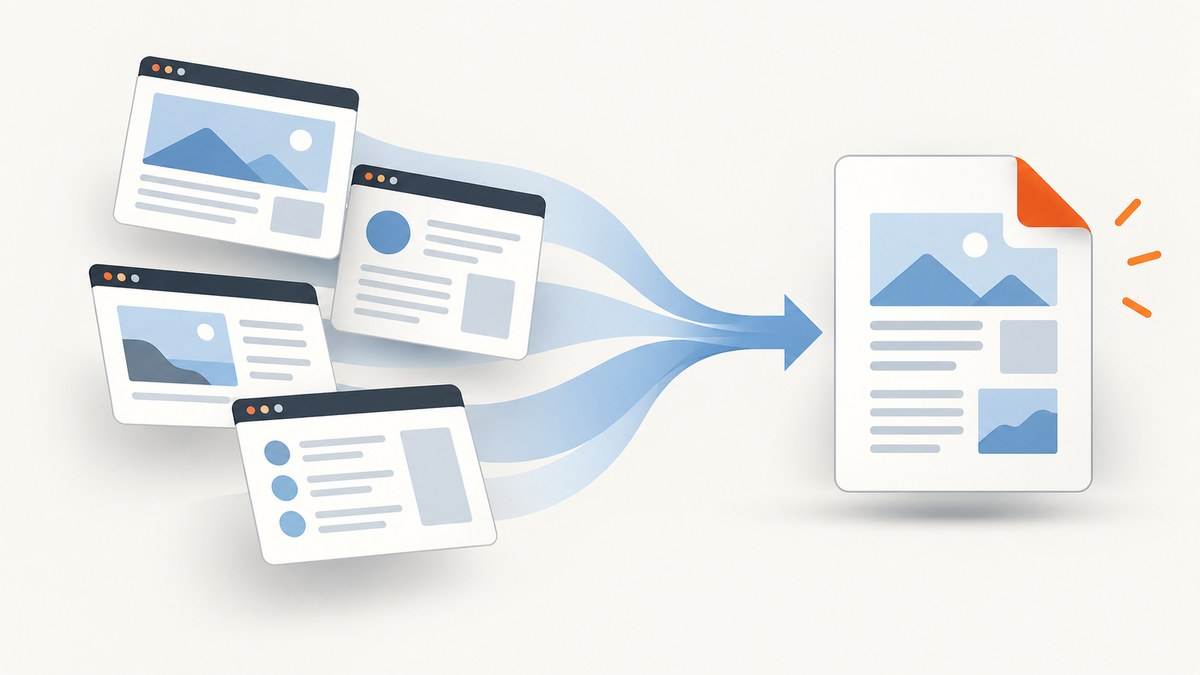
To convert multiple webpages to one PDF online, choose the workflow that matches the job: print a few unrelated URLs from your browser, use Acrobat to combine pages or crawl linked sections, or automate recurring batches with a PDF API. Pages that require login, client-side rendering, paywalls, or anti-bot checks may need a browser session or a site-specific workflow.
Choose the right method
| Use case | Best starting point | What you control |
|---|---|---|
| Two or three unrelated pages | Browser Print / Save as PDF | Page range, paper, orientation, margins, headers and footers |
| Several pages that must become one file | Acrobat web-page conversion | Combining pages and PDF output settings |
| A section of a site or an entire site | Acrobat desktop multi-level capture | Link depth, same-path and same-server scope |
| Scheduled or high-volume conversion | PDF Services API or a capture API | Retries, queues, storage, naming and post-processing |
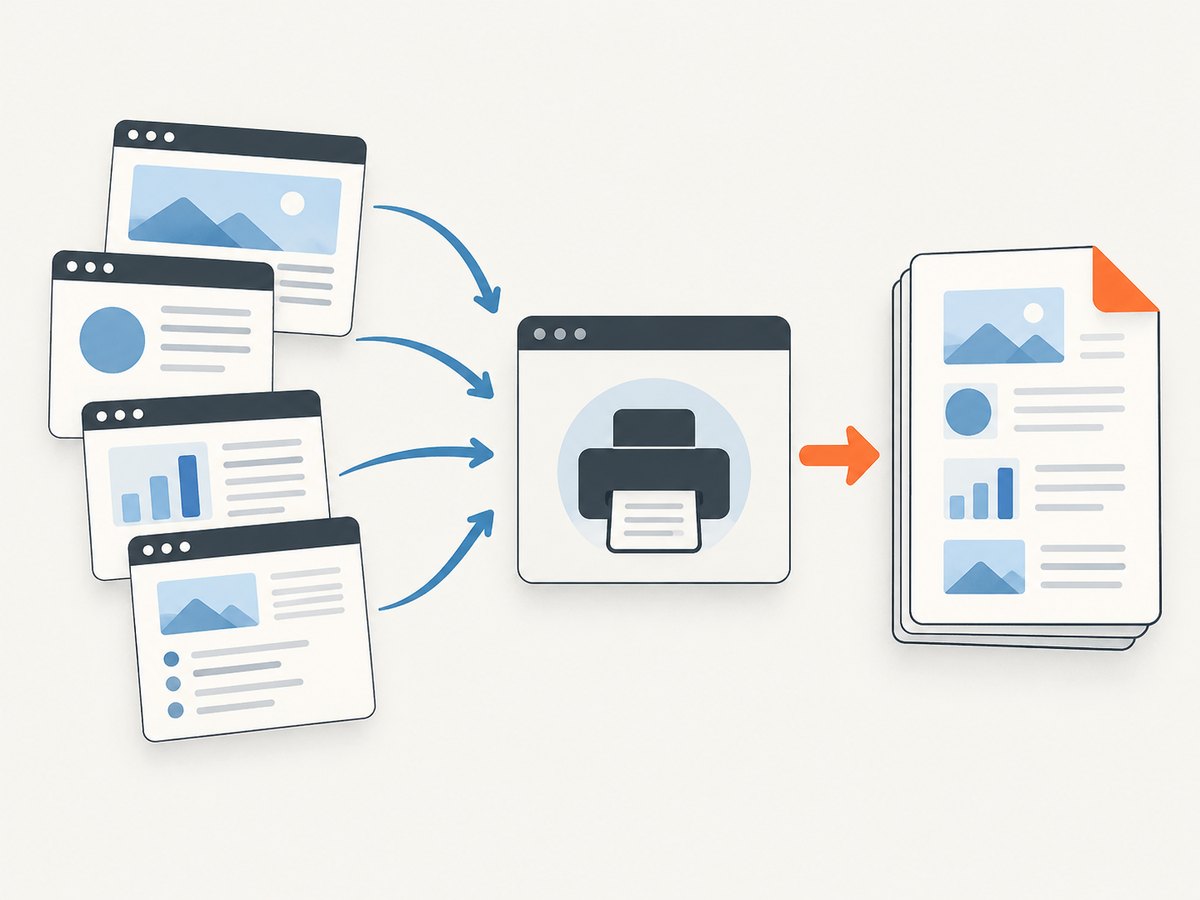
Method 1: Print a few webpages from your browser
This is the simplest online method when you already know the URLs and do not need automatic link discovery. It creates one PDF per webpage; merge the files afterward if you need one document.
- Open the first URL in Microsoft Edge (or another browser with a PDF printer).
- Open Print from the browser menu, the page context menu, or Ctrl+P on Windows / Command+P on macOS.
- Choose the browser’s “Save as PDF” or “Microsoft Print to PDF” destination.
- Set paper size, orientation, margins, scale, background graphics, headers and footers, and page range.
- Save the file with a numbered name such as
01-overview.pdf. - Repeat for every URL, then merge the PDFs in the order you want.
Make browser PDFs more consistent
- Wait until images, charts and client-rendered text are visible before printing.
- Use Reader mode only when you want a simplified article; it can remove navigation or interactive content.
- Enable background graphics when color blocks or diagrams are part of the document.
- Remove headers and footers when the browser adds URL and date lines that you do not want.
- Check the print preview for clipped tables, wide code blocks and blank pages.
Method 2: Combine webpages with Acrobat browser tools
Adobe Acrobat’s browser workflow can convert an HTML page to PDF and combine multiple webpages into one PDF. Open each page in a supported browser, use the Acrobat PDF toolbar, choose Convert to PDF, then provide a filename and save. If you need a single document, use Acrobat’s combine workflow after converting the pages.
- Install or enable the Acrobat browser extension.
- Open the webpage you want to capture.
- Select Convert to PDF in the Acrobat toolbar.
- Save the converted page.
- Repeat for the remaining pages.
- Open Acrobat’s combine tool, add the PDFs, reorder them, and create the combined file.
This approach is useful when the pages are unrelated but the final deliverable must be one file. Review the result for pages that load content only after scrolling or interaction.
Method 3: Capture linked sections or an entire site with Acrobat desktop
Acrobat desktop can start from one URL and follow links. Choose Create and Web page, enter a URL or HTML file, and enable Capture multiple levels. Then choose the number of levels or Get entire site.
Use Stay on same path to keep the crawl under the starting URL. Use Stay on same server to exclude external domains. Advanced settings control conversion behavior, and additional pages can be queued while a job runs.
“To specify the number of levels on the website to convert, select the Capture multiple levels checkbox and then select one of the following options.”
Set crawl boundaries before starting
- Start with one level when you are unsure how the site’s navigation is structured.
- Use same-path restrictions for a documentation section or blog directory.
- Use same-server restrictions when pages link to third-party sites that should not enter the PDF.
- Estimate the number of pages before selecting an entire site; navigation, tag pages and search results can expand the job quickly.
- Open the output and remove duplicate navigation pages or irrelevant linked assets.
Method 4: Automate recurring jobs with a PDF API
For scheduled reports, product catalogs, archives or application pipelines, use an API instead of manually opening every URL. Adobe PDF Services documents PDF creation from static and dynamic HTML and URL inputs, plus combining multiple documents into one PDF. Check the current developer documentation for authentication, implementation details and pricing before building a production job.
A robust automation pipeline usually looks like this:
- Store the source URLs and a stable output order.
- Fetch or render each URL.
- Wait for client-side content to finish loading.
- Convert each page to PDF.
- Combine the resulting documents.
- Validate page count, file size and a few representative pages.
- Store the PDF with a versioned name and record failures for retry.
Or skip the browser setup
ScreenshotNeo is a website capture API and MCP server. It can produce PDF output as well as PNG, JPEG and WebP captures, and its PDF features include paper size, margins, landscape mode and page ranges. For AI-assisted workflows, its MCP tools include capture_pdf, take_screenshot and get_page_info.
Use the API for a URL at a time, then combine the returned PDFs in your own pipeline when you need one document. The request pattern is documented at ScreenshotNeo’s API documentation.
cURL
curl -G "https://api.screenshotneo.com/v1/shot" -d access_key=YOUR_API_KEY --data-urlencode url=https://stripe.com -o shot.webpPython
import requests

r = requests.get(
    "https://api.screenshotneo.com/v1/shot",
    params={"access_key": "YOUR_API_KEY", "url": "https://stripe.com"},
    timeout=90,
)
r.raise_for_status()
open("shot.webp", "wb").write(r.content)
Node.js
const q = new URLSearchParams({ access_key: 'YOUR_API_KEY', url: 'https://stripe.com' });
const res = await fetch(`https://api.screenshotneo.com/v1/shot?${q}`);
if (!res.ok) throw new Error(`HTTP ${res.status}`);
const data = Buffer.from(await res.arrayBuffer());
require('node:fs').writeFileSync('shot.webp', data);
For a PDF response, use the PDF option described in the current documentation or use the MCP server’s capture_pdf tool. Keep the URL list and output order in your own code so the final merge is deterministic.
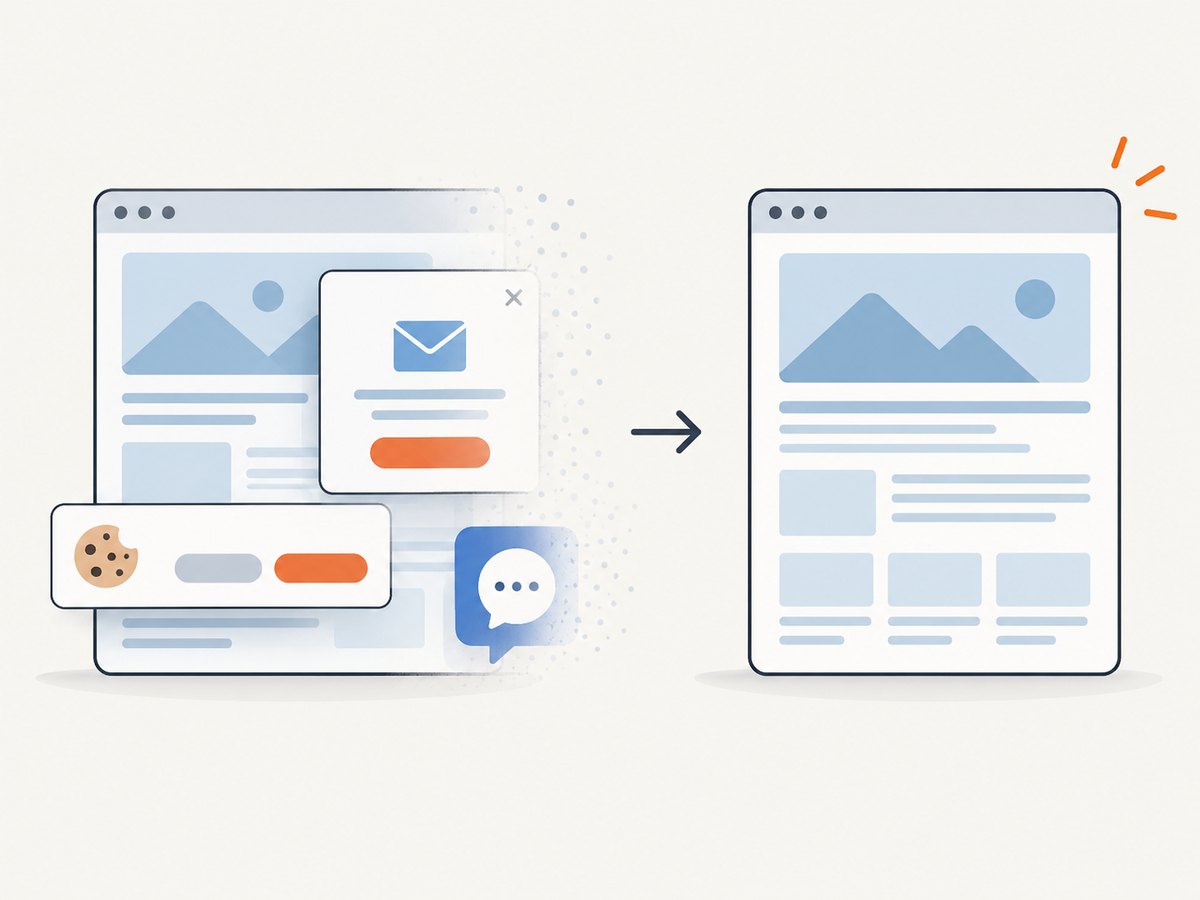
- Cookie banners, newsletter popups and chat widgets are accepted or removed before capture; each cleanup step can be turned off.
- Bot checks, CAPTCHAs, blank pages, timeouts, failed loads and cache hits cost nothing. Responses identify the result with
X-Page-VerdictandX-Billedheaders. - Custom CSS and JavaScript, waits, network-idle detection, headers, cookies, user agents, authorization, timezone and geolocation help with dynamic pages.
- Block ads, trackers, selected requests or resource types when they should not enter the document.
- Use bulk capture for up to 100 URLs per call, asynchronous jobs with signed webhooks for long batches, caching with a chosen TTL, and signed links when a PDF or capture must be embedded publicly.
ScreenshotNeo has 1,000 free shots per month with no card. Paid plans start at $5 for 3,000 shots; every feature is included on every plan. Create a free ScreenshotNeo account.
Handling pages that do not print cleanly
Client-side rendering
If the initial HTML is only a shell, wait for a meaningful selector or network idle before capture. Browser printing is often easiest for a page that requires a logged-in session or a user action.
Lazy-loaded images
Scroll through the page before printing, or use a capture workflow that loads lazy images during full-page capture. Confirm that charts and image placeholders are present in the PDF.
Authentication and private pages
Do not place credentials in a public URL. Use an authenticated browser session or a service that accepts custom headers and cookies. Remove sensitive files after the job completes.
Paywalls and anti-bot checks
A converter cannot legitimately bypass access controls. Use the site’s permitted export, a logged-in browser session, or ask the owner for an approved integration.
Very wide or very long pages
Choose landscape orientation for wide tables. For long pages, split by page range or section and combine the resulting PDFs so memory use and review remain manageable.
Quality checklist before sharing the PDF
- Every requested URL appears once and in the intended order.
- Titles, headings and page breaks are readable.
- Images, charts, fonts and code blocks are not clipped.
- Links work when the workflow preserves them.
- Headers, footers and background colors match the intended output.
- No login screen, cookie dialog, popup or blank page was captured.
- The file opens in at least two PDF viewers.
- The output name includes a date or version when the job is repeatable.
Troubleshooting
| Symptom | Likely cause | Fix |
|---|---|---|
| Only the first page is in the PDF | Print range or crawl depth is limited | Set the correct page range, increase Acrobat capture levels, or add each URL explicitly. |
| Blank body with a visible header | JavaScript content has not rendered | Wait for a selector or network idle, then capture again. |
| Images are missing | Lazy loading, blocked resources or print backgrounds disabled | Scroll first, allow images, enable background graphics, or configure resource blocking. |
| External pages appear unexpectedly | The crawler followed off-site links | Enable same-server and same-path limits. |
| Text overlaps or is cut off | Responsive layout or paper width mismatch | Use landscape, adjust scale and margins, or capture the relevant section separately. |
| Conversion times out | Slow assets, infinite loading or a very large crawl | Reduce scope, set a bounded page list, wait for a specific selector and retry failed URLs. |
| Private content is missing | No authenticated session was supplied | Use a logged-in browser or pass approved headers and cookies securely. |
| A capture is not billed when expected | The response was a cache hit or a failed/blank/bot-blocked result | Inspect X-Page-Verdict and X-Billed; fix the page or request rather than assuming a valid PDF exists. |
Performance, reliability and cost
Conversion time depends on page count, scripts, images, network conditions and crawl scope. There is no reliable universal speed or file-size benchmark; measure your own URLs and keep a sample output for regression checks.
- Bound the work: explicit URL lists are more predictable than an entire-site crawl.
- Parallelize carefully: process independent URLs concurrently, but limit concurrency to avoid rate limits and memory spikes.
- Retry selectively: retry transient network failures, not permanent 404s or authorization errors.
- Cache stable pages: use a chosen TTL when content does not change frequently.
- Track outcomes: record URL, status, page verdict, byte size and final PDF checksum.
- Control cost: browser printing has no API usage charge, while API cost depends on the provider’s current plan and what it counts. ScreenshotNeo bills only clean shots; failed loads, blank pages, bot checks, timeouts and cache hits are not billed.
FAQ
Can I turn an entire website into one PDF?
Yes, but expect a large and constantly changing document. Use Acrobat’s entire-site option or an explicit crawl, set same-path or same-server limits, and review the resulting page list.
How do I keep webpages in a specific order?
Maintain an ordered URL list and name intermediate files with numeric prefixes before combining them.
Will links remain clickable?
That depends on the converter and its settings. Test representative links in the final PDF instead of assuming they were preserved.
What is the best option for a weekly report?
Use an API pipeline with a fixed URL list, retries, validation and storage. Browser printing is better for occasional manual work.
How do I convert pages behind a login?
Use an authenticated browser session or an approved API integration that accepts the required cookies or headers. Do not expose credentials in URLs.


