How to Convert an Offline Web Page to PDF
Convert a local or saved web page into a PDF with browser print tools, mobile instructions, layout fixes, and an automated ScreenshotNeo option.
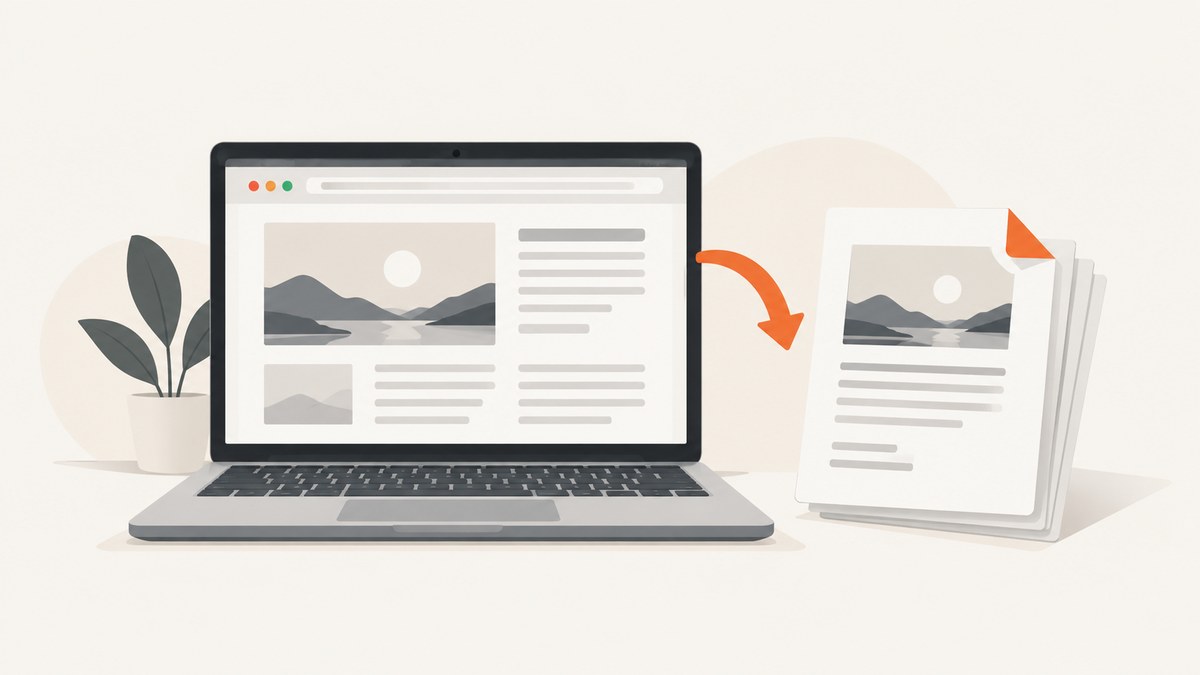
To convert an offline web page to PDF, open the saved HTML page in a browser, open the browser’s Print or Share > Print command, choose a PDF destination such as Save to PDF, review the preview, and save the file. A saved webpage and a PDF are different outputs: the first remains browser-openable HTML with related files, while the second is a fixed-layout document.
If the page is stored on your device, open the local .html file first. The exact file-opening step depends on your operating system and browser. Once the page is visible, use the browser instructions below.
1. Decide which output you need
| Goal | Use | Result |
|---|---|---|
| Read the page later in a browser | Save page as… | HTML plus assets, usually in a folder or archive |
| Send, archive, or print a fixed document | Print > Save to PDF | A PDF file with paginated content |
| Preserve interactive behavior | Keep the offline HTML copy | PDF export does not preserve every script, animation, form, or dynamically loaded feature |
Chrome’s computer help distinguishes saving a page for later browser viewing from Print preview’s Save to PDF destination. Use the latter when you specifically need a PDF.
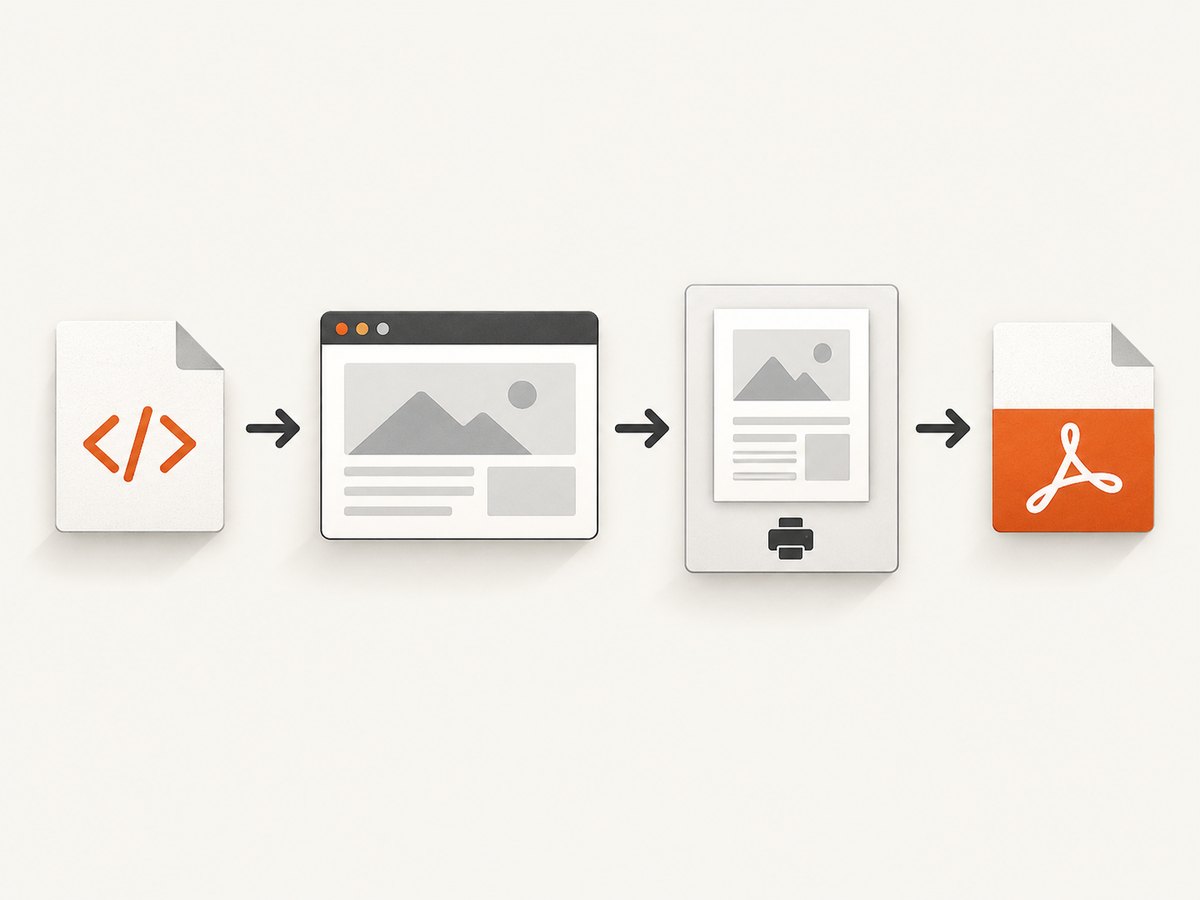
2. Desktop Firefox
- Open the offline HTML file or webpage in Firefox.
- Open the application menu and select Print….
- In the print preview, set Destination to Save to PDF.
- Choose the page range, orientation, paper size, scale, margins, headers and footers, and whether to print backgrounds.
- If Firefox offers Simplified format, compare it with the original preview. It can remove navigation and other page furniture, but it is not available for every page.
- Select Print, choose a filename and folder, and save.
Preview before saving. Mozilla Support notes that webpages can be configured to look different on paper than on screen, so a correct-looking browser view does not guarantee a correct PDF.
3. Android Chrome
- Open the saved page or webpage in Chrome.
- Tap More, then Share, then Print.
- Choose Save as PDF as the printer or destination.
- Select the paper size and other available settings.
- Tap the save or print control, choose a location, and confirm.
If the file is offline, open it from your Files app or Downloads folder first. If Chrome cannot display the file, move it to local storage and open it with a browser that has file access.
4. Android Firefox
- Open the page in Firefox for Android.
- Tap the three-dot menu, then tap the Share icon.
- Choose Save as PDF.
- Tap Download. The PDF is saved in the Downloads folder.
5. iPhone Safari
- Open the page in Safari.
- Open the Page Menu and choose Share. Depending on the tab layout, the Share button may be visible directly.
- Tap Markup, then tap Done.
- Choose Save File To, name the PDF, select a folder, and tap Save.
These labels can move between iOS releases and Safari tab layouts. If you do not see Page Menu, use the visible Share button.
6. Prepare an offline page before exporting
Open the correct file
An offline copy may contain an HTML file and a separate assets folder. Open the HTML file rather than an image or text fragment. If the page uses relative links, keep the assets folder beside the HTML file.
Check that content is present
Scroll through the page before printing. Images that were lazy-loaded while online may not exist in the offline copy. Embedded video, maps, comments, and other network-dependent components may appear blank.
Remove temporary controls
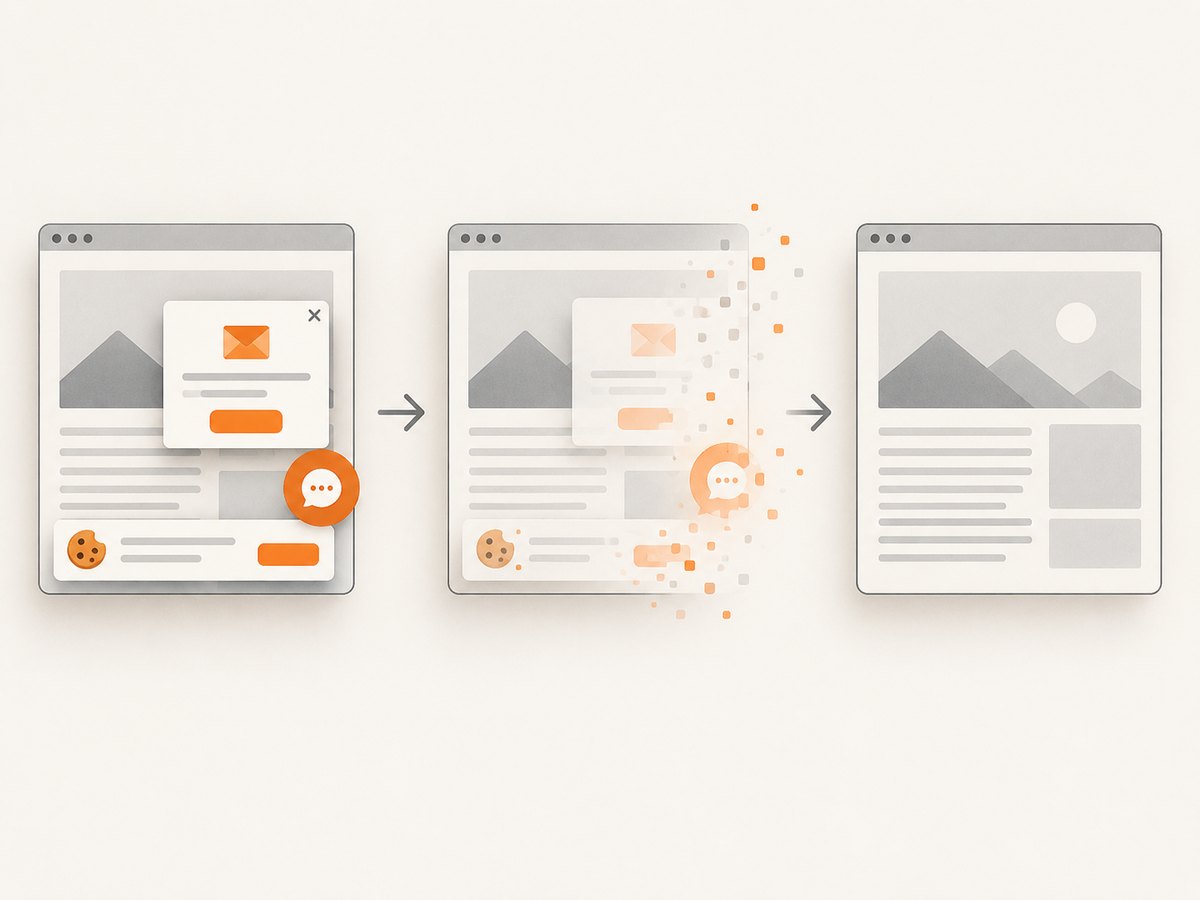
Close cookie notices, menus, selection highlights, and dialogs before opening print preview. Use a simplified print format when the browser offers one.
Choose layout settings deliberately
| Setting | When to change it |
|---|---|
| Orientation | Use landscape for wide tables, dashboards, and code blocks. |
| Scale | Reduce scale when headings or columns are clipped; increase it when text is unreadably small. |
| Margins | Reduce margins for dense reports, but leave enough space for binding or annotations. |
| Backgrounds | Enable them when color is part of the meaning; disable them to reduce ink and file size. |
| Headers and footers | Disable them for a clean document; enable them when page numbers or the source URL matter. |
| Page range | Export only the useful sections when the offline page contains navigation or appendices. |
7. Troubleshooting
The PDF is clipped or has awkward page breaks
Cause: the page’s print styles, width, or large elements do not fit the selected paper size. Fix: inspect print preview, try landscape orientation, adjust scale and margins, choose a larger paper size, and export a smaller page range.
The PDF looks different from the browser page
Cause: websites and browsers apply print-specific CSS. Fix: compare the original and simplified previews, enable background printing when needed, and accept that a print layout may intentionally differ from the screen layout.
Images or sections are missing
Cause: the offline copy did not include lazy-loaded assets, or the page still depends on a network request. Fix: reopen the page while online and wait for all content to load before saving an offline copy; then export that complete copy.
Links do not work in the PDF
Cause: the browser or source page did not embed usable link annotations, or the destination was only available through JavaScript. Fix: keep the original offline HTML alongside the PDF when link behavior matters.
The page will not open from local storage
Cause: the file is incomplete, the browser lacks permission, or the page expects a web server rather than a file: URL. Fix: verify that the HTML file and asset folder were copied together, grant the browser file-access permission, or serve the folder through a local development server.
The mobile menu has no Print option
Cause: the command is nested under Share, or the browser version uses different labels. Fix: use Share > Print on Android, or Share > Markup on iPhone Safari.
8. A repeatable desktop checklist
- Open the actual offline HTML file.
- Confirm that all required images and sections are visible.
- Close overlays and expand content that must appear.
- Open Print preview.
- Choose Save to PDF.
- Set paper size, orientation, scale, margins, backgrounds, headers and footers.
- Check every page for clipping and unwanted blank pages.
- Save the PDF with a descriptive filename.
- Open the saved PDF once to verify it.
9. Or skip the browser setup
If the source page is reachable by URL, ScreenshotNeo can capture it through one API request. It also supports PDF capture and PDF settings such as paper size, margins, landscape mode, and page ranges; see the ScreenshotNeo documentation for the PDF option and complete parameter list.
curl -G "https://api.screenshotneo.com/v1/shot" \
  -d access_key=YOUR_API_KEY \
  --data-urlencode url=https://stripe.com \
  -o shot.pdf
import requests
r = requests.get(
"https://api.screenshotneo.com/v1/shot",
params={"access_key": "YOUR_API_KEY", "url": "https://stripe.com"},
timeout=90,
)
r.raise_for_status()
open("shot.pdf", "wb").write(r.content)const q = new URLSearchParams({
access_key: 'YOUR_API_KEY',
url: 'https://stripe.com'
});
const res = await fetch(`https://api.screenshotneo.com/v1/shot?${q}`);
if (!res.ok) throw new Error(`HTTP ${res.status}`);
const data = Buffer.from(await res.arrayBuffer());
await import('node:fs/promises').then(fs => fs.writeFile('shot.pdf', data));For a local-only file, the browser workflow remains the direct option because the API request needs a URL it can reach. For a public or staged URL, ScreenshotNeo removes cookie and consent banners, newsletter popups, and chat widgets before capture. Bot checks, blank pages, timeouts, failed loads, and cache hits are not billed, and the response identifies the page verdict and billing status with X-Page-Verdict and X-Billed headers. Its MCP server lets Claude, Cursor, and other MCP clients use take_screenshot, get_page_info, and capture_pdf.
The Free plan includes 1,000 screenshots per month with no card required. Paid plans start at $5 for 3,000 shots; every feature is included on every plan. Create a free ScreenshotNeo account.
10. Performance, reliability, and cost considerations
- Browser export: costs nothing beyond the device and browser, but quality depends on the offline copy, print CSS, and available memory.
- Large pages: reduce the page range, remove unnecessary backgrounds, or use a smaller scale when previewing is slow or produces oversized files.
- Dynamic content: export only after content has loaded. A PDF records the rendered state at capture time.
- Automated capture: use waits for a selector, a delay, or network idle when a page needs time to render. ScreenshotNeo also supports caching with a chosen TTL, blocking ads or resource types, custom headers and cookies, and bulk capture of up to 100 URLs per call.
- Billing: ScreenshotNeo bills only clean shots. Failed loads and cache hits are not billed, and the response headers show the result.
11. FAQ
Is saving a webpage the same as converting it to PDF?
No. Save page as… creates browser-readable HTML and assets. Print to PDF creates a fixed document.
Can I convert a page without a printer?
Yes. A physical printer is optional; choose Save to PDF or the equivalent PDF destination.
Will a PDF preserve videos and interactive widgets?
No guarantee. PDF export captures a rendered document, while interactive behavior belongs to the original page.
What should I keep for long-term preservation?
Keep both the PDF and the offline HTML folder when you need a fixed reference plus working links or scripts.
Why should I inspect the preview?
Print styles can change layout, hide elements, add page breaks, or remove backgrounds. Preview reveals those changes before the file is saved.


