How to Convert Open Graph Images Between Formats
Convert an Open Graph image with ImageMagick or a hosted service, then verify the file, metadata, and social preview before publishing.
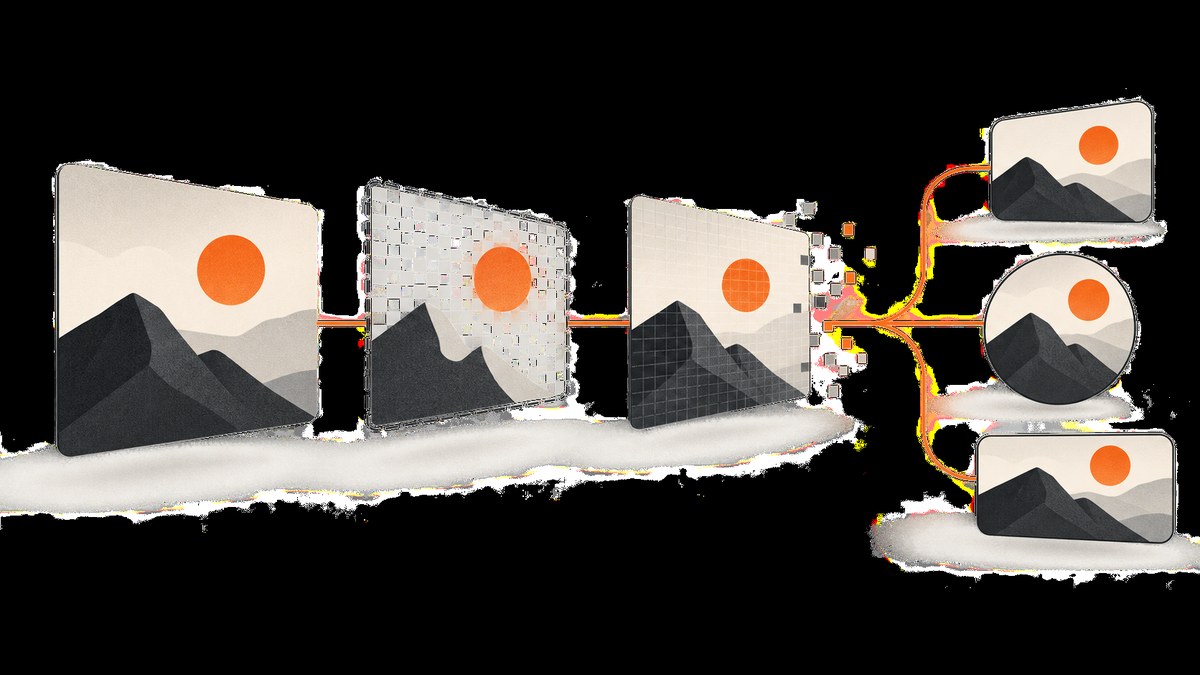
To convert an Open Graph image, convert the source file with an image utility such as ImageMagick or use a hosted image transformation service, then inspect the actual output and check the preview on the platform where you plan to share the page. Changing .png to .jpg in a filename does not convert the image encoding.
After conversion, publish the output at a stable URL and point og:image to it. If you provide Open Graph image type or dimensions, make them match the published file. Then check the target platform’s preview: Open Graph defines the metadata fields, but does not guarantee that every crawler accepts every image format.
This guide covers a local conversion workflow, a hosted alternative, metadata updates, verification, common errors, performance and cost considerations, and a way to capture the published page for inspection.
1. Choose a format based on the image’s needs
Start with the reason for changing formats. The right output depends on whether you need transparency, compatibility with a particular destination, a smaller delivered file, or a standard format for an existing site pipeline. There is no one format the Open Graph Protocol guarantees will work on every platform.
| Need | What to consider |
|---|---|
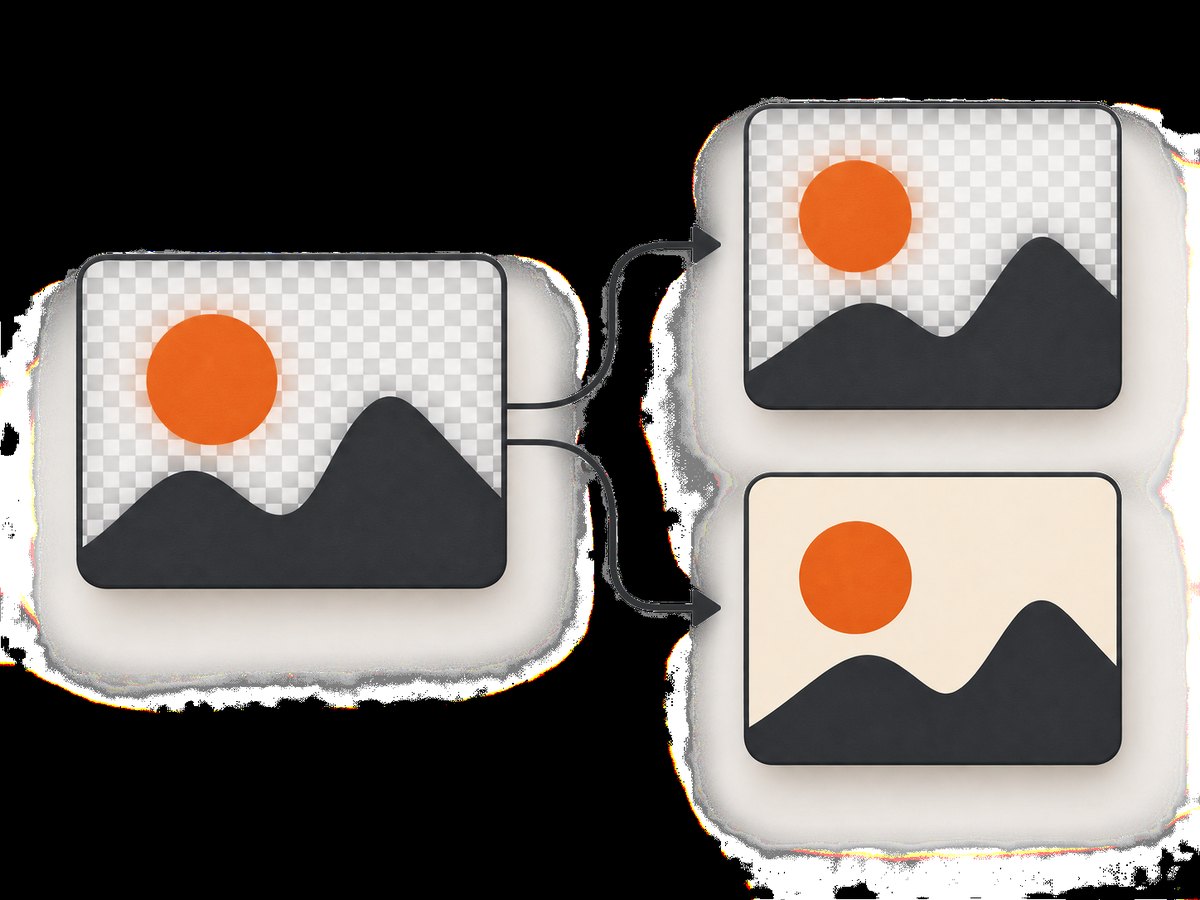
| Preserve transparent areas | JPEG does not retain transparency. Choose a format that supports it and inspect the converted result. |
| Use a standalone converted file | Convert locally, then publish the output as a separate file at a stable URL. |
| Transform images as they are delivered | A hosted service can return a transformed delivery URL. Confirm whether you need a persistent converted source file or just transformed delivery. |
| Meet a platform’s specific requirements | Check that platform’s current documentation and preview tool. The protocol alone does not establish a universal compatibility matrix. |
PNG, JPEG, WebP, and AVIF are among the formats listed in ImageMagick’s format documentation, but available formats depend on the installed build and its delegates. Check your local installation if a conversion is unavailable. ImageMagick’s format reference describes supported formats.
2. Convert a file locally with ImageMagick
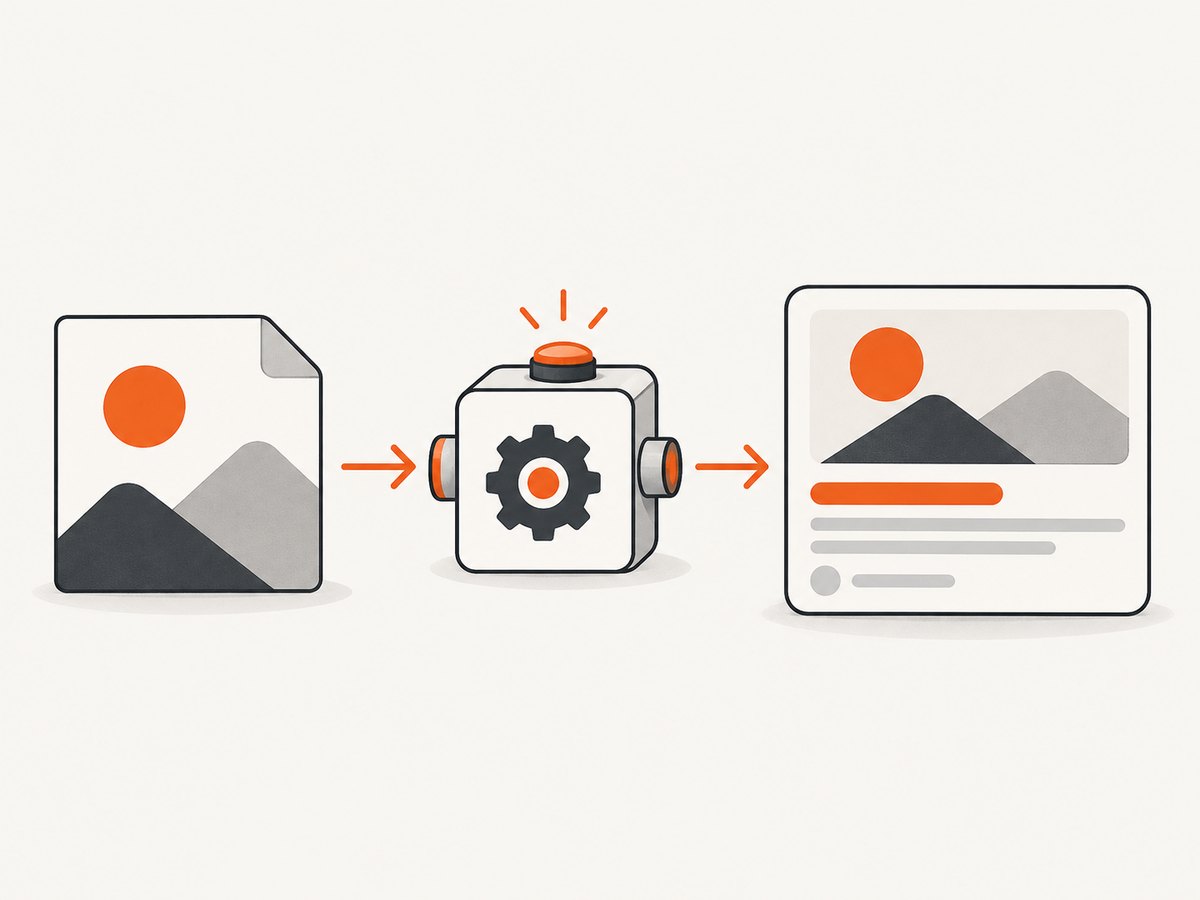
For a one-off conversion, the shortest command is usually enough. Install ImageMagick using the method for your operating system, then run a command in the directory containing the source image.
Convert PNG to JPEG
magick input.png output.jpgJPEG cannot retain transparency. If the source contains transparent pixels, select an output format that supports transparency, or deliberately flatten the image against a background before making a JPEG. Inspect the result rather than assuming how transparent areas were handled.
Convert JPEG to PNG
magick input.jpg output.pngThis creates a PNG-encoded output. It does not restore detail lost when the original was saved as JPEG, and converting a photographic image to PNG may produce a larger file. Conversion changes the encoding; it cannot recover source information that is no longer present.
Convert to WebP or AVIF
magick input.png output.webp
magick input.png output.avif
These commands work only if the ImageMagick build has support for the requested format. If a command fails, inspect the installed formats before troubleshooting the input image. ImageMagick documents magick identify -verbose image.jpg as a way to inspect file properties. See its format documentation for format support details.
Inspect the output
magick identify -verbose output.jpgReview the reported format and pixel dimensions. The extension is a useful label, not proof of the file’s actual encoding. For automated publishing, consider making this inspection part of the build or deployment process so incorrect output is caught before metadata points to it.
3. Use a hosted transformation when that fits your pipeline
A hosted service is useful when the site already delivers images through an image pipeline or needs format conversion at request time. Cloudinary documents specifying the target format through a delivery URL extension or a format transformation parameter. Its f_auto behavior can select an output such as WebP, AVIF, JPEG XL, or JPEG based on the requesting browser and account setup. Check the service’s current documentation and configuration for your account before relying on a particular result. Cloudinary’s image format support documentation describes its conversion and delivery behavior.
A transformed delivery URL and a permanent converted source file are different outcomes. A URL transformation can serve a variation while leaving the original asset untouched. If you need a file committed to a repository, uploaded to another host, or available independently of the transformation service, create and store a standalone output instead.
| Approach | Good fit | Dependencies | Output |
|---|---|---|---|
| Local ImageMagick | One-off conversion, build scripts, or workflows needing a standalone file | Installed ImageMagick build with the relevant format support | A converted file you can inspect and publish |
| Hosted transformation | Repeated delivery transformations or a site-wide image pipeline | Service setup, account configuration, and its delivery URL rules | A transformed image delivered by the service; persistence depends on your workflow |
The available documentation establishes these mechanisms, not a universal cost or performance comparison. Compare the operational requirements for your own site: where the original lives, whether outputs must be stored, and how you will verify what the service returns.
4. Update Open Graph metadata to match the published image
The Open Graph Protocol defines og:image as an image URL representing the object. It supports optional structured properties for the image: MIME type, width, height, and alt text. The protocol documentation says a page that specifies og:image should also specify og:image:alt. Read the Open Graph Protocol documentation.
For example, if you converted an image to JPEG and published it at https://example.com/social/card.jpg, update the image URL and the properties to describe that actual file:
<meta property="og:image" content="https://example.com/social/card.jpg">
<meta property="og:image:type" content="image/jpeg">
<meta property="og:image:width" content="1200">
<meta property="og:image:height" content="630">
<meta property="og:image:alt" content="A blue paper plane crossing a pale sky">
The example dimensions are illustrative. Replace them with the dimensions reported for your output; do not copy them unless they are correct. Likewise, the MIME type must agree with the encoding actually served. A URL ending in .jpg does not by itself prove that the server returns JPEG bytes or the correct content type.
If you use a transformed delivery URL, make sure og:image points to the URL that serves the intended variant. Where the output format is selected dynamically, avoid declaring one fixed MIME type unless it accurately describes what that URL returns to the crawler. Check how the service handles crawler requests and response headers.
5. Verify the file and the actual social preview
- Keep the original. Work from the original asset where possible so you can reconvert if the output is unsuitable.
- Choose the target format. Base the choice on transparency, delivery requirements, and the destination platform’s current guidance.
- Convert the image. Use a local command or hosted transformation, and note whether you created a file or only a transformed URL.
- Inspect the output. Check the detected format and pixel dimensions. Open it or render it in a browser to check for unexpected transparency, color, or cropping changes.
- Publish at a stable, accessible URL. Confirm the URL returns the image to a crawler without requiring a login or browser session.
- Update page metadata. Set
og:imageto that URL. If present, make MIME type and dimensions accurate and keep alt text descriptive. - Check the destination preview. Use the target platform’s current preview or debugging tool and inspect the rendered card. If it shows an old image, consider whether the platform has cached a prior fetch and follow that platform’s current refresh procedure.
A successful local conversion proves that an image tool produced an output; it does not prove that a social crawler can retrieve or render it. The protocol describes metadata, not each platform’s accepted formats. Test on the actual destination when compatibility matters.
6. Capture the published page for visual inspection
A social preview debugger checks a platform’s interpretation of metadata. A browser screenshot is useful for a different check: seeing whether your published page loads, whether its image is visible in context, and whether an update appears after deployment. For that, use a browser automation setup or a screenshot API.
Or skip the browser setup with ScreenshotNeo, a website screenshot API and MCP server from Yorker Media. One GET request returns an image or PDF; the example below captures a page as WebP. See the ScreenshotNeo API documentation for request options.
curl -G "https://api.screenshotneo.com/v1/shot" \
  -d access_key=YOUR_API_KEY \
  --data-urlencode url=https://example.com/article \
  -o page.webp
import requests
r = requests.get(
"https://api.screenshotneo.com/v1/shot",
params={"access_key": "YOUR_API_KEY", "url": "https://example.com/article"},
timeout=90,
)
open("page.webp", "wb").write(r.content)const q = new URLSearchParams({
access_key: 'YOUR_API_KEY',
url: 'https://example.com/article'
});
const res = await fetch(`https://api.screenshotneo.com/v1/shot?${q}`);
if (!res.ok) throw new Error(`Screenshot request failed: ${res.status}`);
await Bun.write('page.webp', res);Replace the example page URL with your published page and provide an API key. The Node.js example uses Bun’s Bun.write to save the response; in Node.js, save the response body with your preferred file-writing method.
ScreenshotNeo accepts cookie or consent banners as a visitor and removes more than 60 known consent platforms, newsletter popups, and chat widgets before capture; each step can be turned off. Only clean shots are billed: bot checks or CAPTCHAs, blank pages, timeouts, failed loads, and cache hits cost nothing. Responses indicate the page verdict and billing status in X-Page-Verdict and X-Billed headers. Its MCP server provides take_screenshot, get_page_info, and capture_pdf for Claude, Cursor, and other MCP clients.
The free plan includes 1,000 screenshots a month with no card. Paid plans start at $5 for 3,000 screenshots; every feature is on every plan. Sign up for 1,000 free screenshots a month, with no card required.
7. Troubleshooting conversion and preview problems
| Symptom | Likely cause | Fix |
|---|---|---|
| “No encode delegate” or format unavailable | The installed ImageMagick build lacks support for the requested output format. | Check the installed formats and delegates; use a build with that support or choose a format it provides. |
| The output has the wrong format despite its extension | A rename changed the filename, not the encoded image. | Run a real conversion and inspect the result with magick identify -verbose. |
| Transparent areas turned into a solid background | The destination format, such as JPEG, cannot retain transparency. | Choose a transparency-supporting format or intentionally flatten against the desired background before conversion. |
| The preview image is missing | The image URL may be inaccessible to the crawler, incorrect, or pointing to an unpublished path. | Open the URL without an authenticated session, confirm it serves the image, and check the page’s og:image value. |
| Preview shows the old image | The platform may have retained a cached fetch. | Check the live metadata and use the destination platform’s current preview or cache refresh mechanism. |
| Preview is cropped or appears different | The destination may render the image differently, or the converted file may have changed dimensions or transparency. | Inspect the actual output and rendered card, then adjust the source artwork or dimensions to the destination’s current requirements. |
| The image loads but declared metadata is wrong | MIME type or dimensions were copied from the source rather than updated for the output. | Inspect the published file and align optional structured values with the served image. |
8. Performance, reliability, and cost considerations
Local conversion adds an image-processing step wherever the command runs. For a one-off task, that may be a manual command; for a publishing pipeline, it can run during asset preparation or deployment. The relevant reliability check is that conversion succeeded and the output passed format and dimension inspection before the page metadata was published.
Hosted transformations can fit repeated delivery needs because the service can provide variants through URLs, including automatic format selection in supported configurations. That introduces service configuration and delivery behavior into the path. Keep a known-good source asset, verify the returned output, and decide whether the workflow also needs a permanent file.
The supplied documentation does not establish a general speed, file-size, or cost advantage for either approach. Measure your own assets and delivery setup if those factors determine the choice. Avoid assuming that changing to a newer format always produces a smaller image or that every crawler will accept the result.
9. Frequently asked questions
Can I convert an Open Graph image just by changing its extension?
No. The extension is part of the filename. Use an image tool or transformation service to encode a new file, then inspect the output format.
Will converting the image break my social preview?
It can if the published URL, served type, dimensions, or destination support do not line up. The protocol does not promise acceptance of every encoding by every crawler, so verify the target preview.
Does the Open Graph Protocol require og:image:type?
The dossier documents type, width, height, and alt text as optional structured properties. It specifically says pages specifying og:image should specify og:image:alt.
Should I use PNG or JPEG?
Choose based on the image and destination. JPEG cannot retain transparency; also check the destination platform’s current requirements rather than assuming one format works everywhere.
Can Cloudinary make a permanent converted copy?
The documented delivery transformations can serve converted formats through a URL. Whether your workflow stores a separate permanent file depends on how you configure and use the service.


