How to Convert Mac Pages Documents to PDF
Export any Pages document to a shareable PDF on Mac, with the right quality, comments, accessibility, password and save-location settings.
To convert a Pages document to PDF on a Mac, open it in Pages, choose File > Export To > PDF, select your options, choose a save location, and click Export. Pages creates a separate PDF copy; editing that PDF does not change the original Pages file.
This guide explains every setting in the export dialog, how to find the resulting file, what to check before sharing it, and how to troubleshoot common problems.
Convert a Pages document to PDF
- Open the document in the Pages app.
- In the macOS menu bar, choose File > Export To > PDF.
- Choose an Image Quality setting.
- Decide whether to include Smart Annotations or comments.
- If your document contains large tables, open Advanced Options and decide whether to enable accessibility tags.
- Click Next or Save, depending on your Pages version.
- Enter a file name and choose the destination from the Where menu.
- Click Export. Pages adds the
.pdfextension automatically.
Apple documents the same workflow in its Pages export guide. Menu labels can vary slightly between Pages and macOS versions.
Choose the right PDF export settings
Image quality and file size
Higher image quality generally produces a larger PDF. Choose the highest setting when photographs, diagrams or print quality matter. Choose a lower setting when the file must fit an email attachment limit or upload limit, then open the exported PDF and inspect its images at the size readers will use.
| Priority | Suggested choice | What to check |
|---|---|---|
| Print or detailed graphics | Higher image quality | Readable images and acceptable file size |
| Email or web upload | Lower image quality if necessary | Images remain legible after compression |
| Mostly text | Any setting that meets your size limit | Fonts, spacing and page breaks |
Comments and Smart Annotations
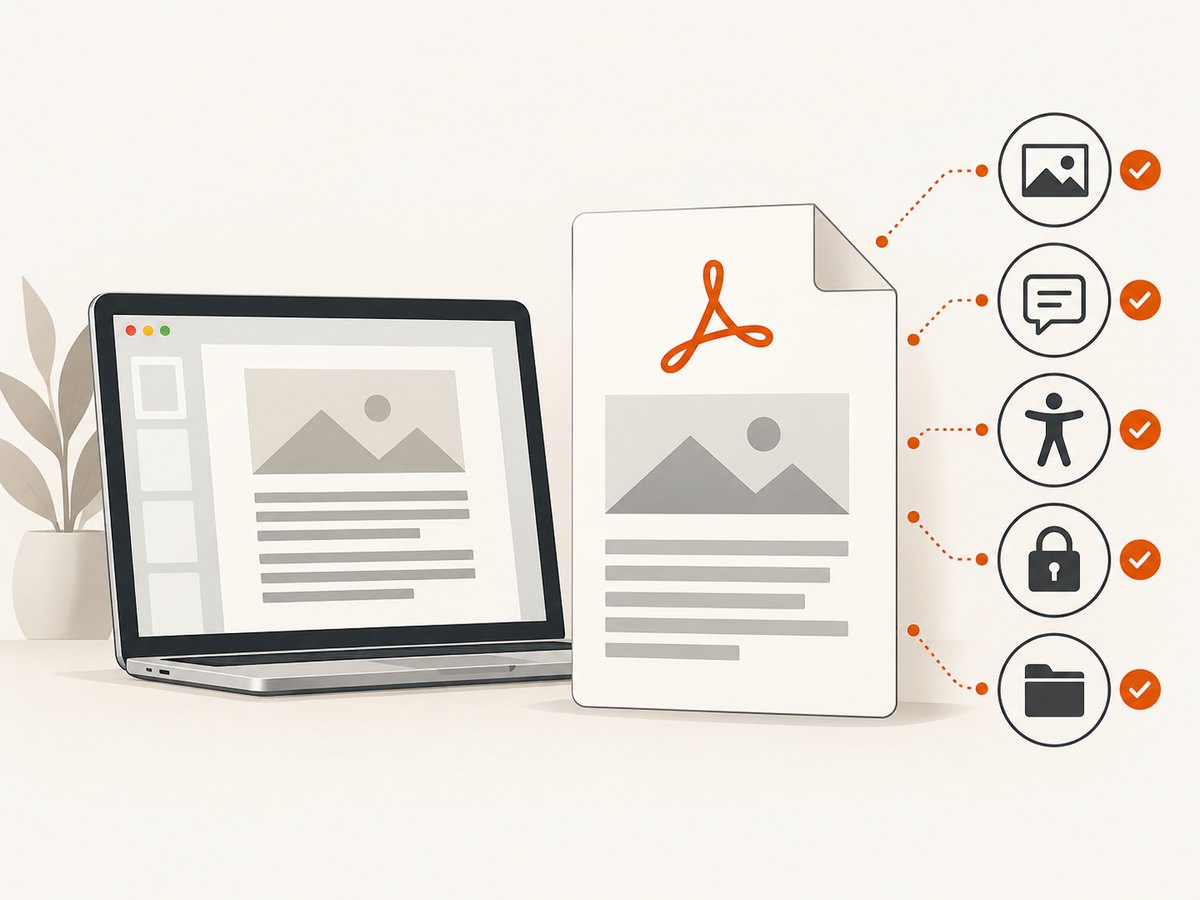
Use the corresponding checkbox if comments or Smart Annotations should appear in the PDF. Leave it unchecked for a clean final copy. These controls are separate from accessibility descriptions; Apple says VoiceOver descriptions are exported automatically.
Accessibility tags for large tables
For documents with large tables, open Advanced Options and look for the accessibility-tags setting. Enable it when the PDF will be consumed with assistive technology or when table structure needs to be preserved. Do not assume this option is enabled automatically.
Document passwords
If the original Pages document has a password, that password applies to exported PDF copies by default. Review the password controls during export if you need to change or remove it before sharing the PDF. Verify the result by opening the PDF in Preview or another PDF reader.
Save the PDF where you can find it
The export dialog includes a Where menu. Select a known folder such as Documents, Desktop or a project folder before clicking Export. If you cannot find the file afterward:
- Search in Finder for the exact name you entered.
- Search for files ending in
.pdfand sort by Date Modified. - Check the folder selected in the export dialog.
- Confirm that Pages appended the
.pdfextension.
Exporting does not rename the original Pages document or convert it in place. It creates a copy, so later edits to the PDF do not affect the source file.
Alternative export route: Share
Some Pages and macOS versions expose an alternate route: choose Share > Export and Send, then select PDF. The exact labels can differ by installed version. If you do not see that command, use File > Export To > PDF.
Check the exported PDF before sharing
- Open the PDF and skim every page.
- Check that page breaks did not split headings, tables or images awkwardly.
- Zoom into photographs, charts and small text.
- Confirm comments and annotations are either present or absent as intended.
- Test the password if one was applied.
- Check the file size against the destination’s limit.
- For an accessible document, verify that table content and reading order make sense with your PDF reader’s accessibility tools.
- Confirm that the original
.pagesfile is still available as the editable source.
Troubleshooting
The PDF is too large
Cause: the selected image quality is high or the document contains many large images. Fix: export again with a lower image-quality setting, then inspect the images and text before sending it.
Images look blurry
Cause: a lower image-quality setting reduced image detail. Fix: export again with a higher setting. A larger file is the expected trade-off.
Comments are missing
Cause: the comments or Smart Annotations option was not selected. Fix: repeat the export and enable the relevant checkbox.
The table is difficult to use with assistive technology
Cause: accessibility tags were not enabled in Advanced Options. Fix: export again with the accessibility-tags setting enabled, then review the resulting PDF.
The PDF asks for a password
Cause: the source Pages document was password-protected and the password carried over by default. Fix: use the export flow to change or remove the password when appropriate, and never share a sensitive document without checking its protection settings.
The exported file is in the wrong folder
Cause: the Where menu pointed to another destination. Fix: export again and select the intended folder before clicking Export. Finder search by file name or modification date can locate the existing copy.
The menu item is named differently
Cause: Pages and macOS versions use slightly different labels. Fix: try Share > Export and Send, or check Pages > About Pages and use the current Pages User Guide for that version.
Pages and macOS version notes
Apple’s current Mac user guide covers Pages 15.3 and states that Pages 15.3 requires macOS 15.6 or later. Check your installed version with Pages > About Pages. Version changes can move menu labels and export controls, so confirm the interface on the Mac performing the conversion. See Apple’s Pages User Guide for Mac.
Performance, reliability and file handling
- Performance: Export time depends mainly on document size and embedded media. Large image-heavy documents take longer and produce larger files.
- Reliability: Exporting through Pages preserves the source file and gives you an opportunity to inspect the resulting copy before distribution.
- Repeatability: Keep the original Pages document and record the chosen image-quality, annotation and password settings if the PDF must be regenerated later.
- Cost: The built-in export workflow does not require a separate converter for this task.
Or skip the browser setup
ScreenshotNeo is for capturing web pages as images or PDFs, not for converting a local .pages file. If your actual goal is a rendered PDF of a public web page, its API can do that with one request. See the ScreenshotNeo documentation for the available parameters.
curl -G "https://api.screenshotneo.com/v1/shot" -d access_key=YOUR_API_KEY --data-urlencode url=https://stripe.com -o shot.webpimport requests
r = requests.get("https://api.screenshotneo.com/v1/shot", params={"access_key": "YOUR_API_KEY", "url": "https://stripe.com"}, timeout=90)
open("shot.webp", "wb").write(r.content)const q = new URLSearchParams({ access_key: 'YOUR_API_KEY', url: 'https://stripe.com' });
const res = await fetch(`https://api.screenshotneo.com/v1/shot?${q}`);Before capture, ScreenshotNeo accepts cookie and consent banners and removes more than 60 known consent platforms, newsletter popups and chat widgets; each step can be turned off. Bot checks, blank pages, failed loads, timeouts and cache hits are not billed, and the response identifies the result with X-Page-Verdict and X-Billed headers. Its MCP server provides take_screenshot, get_page_info and capture_pdf tools for Claude, Cursor and other MCP clients.
A free plan includes 1,000 screenshots per month with no card. Paid plans start at $5 for 3,000 shots, and every feature is available on every plan. Create a free ScreenshotNeo account.
FAQ
Can I just rename a .pages file to .pdf?
No. Use Pages’ export command so the document is rendered as a PDF with the correct structure and settings.
Will exporting delete or change my Pages document?
No. The PDF is a separate copy, and edits to it do not change the original Pages file.
Can I export only selected pages?
The standard Pages PDF export creates a copy of the document. If you need a subset, export first and then use a PDF app such as Preview to extract or delete pages.
Why did my PDF become larger after export?
Higher image quality increases file size, especially when the Pages document contains photographs or other large graphics.
Where can I check which Pages version I have?
Open Pages and choose Pages > About Pages.


