How to Convert Pasted HTML to PNG
Render pasted HTML in a real browser and save a reliable PNG with Playwright, or capture an existing element with html2canvas.
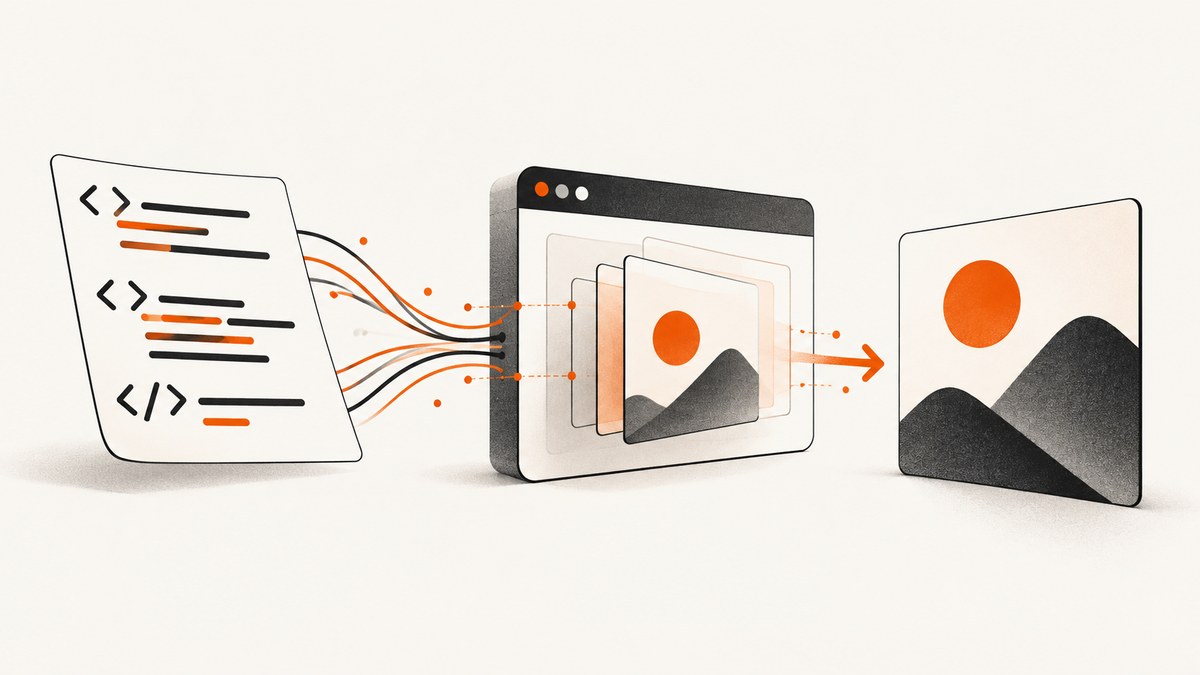
To convert pasted HTML to PNG with browser-accurate rendering, load the string into a Playwright page with page.setContent(html), then save page.screenshot({ type: 'png' }). Use fullPage: true when the entire document should be included. If the HTML is already rendered in a browser and you only need one element, html2canvas(element) can create a PNG in the page, but it reconstructs the image from DOM and CSS rather than capturing browser pixels.
This guide covers both methods, resource loading, dimensions, scale, cross-origin limitations, large documents, troubleshooting, and a hosted option for production workflows.
1. Choose the right conversion method
| Need | Recommended method | Reason |
|---|---|---|
| Highest visual fidelity, server-side jobs, complex CSS | Playwright | Captures the rendered output of a real browser. |
| An element already visible in your web app | html2canvas | Runs directly in the current page and can export a canvas. |
| Repeated production screenshots without browser infrastructure | ScreenshotNeo | A hosted screenshot API with cleanup, PNG output, and automation controls. |
Playwright’s Page API accepts an HTML string with setContent and supports PNG screenshots. html2canvas documents that it builds an image from DOM information, so its result may differ from the browser’s actual pixels.
2. Convert pasted HTML with Playwright
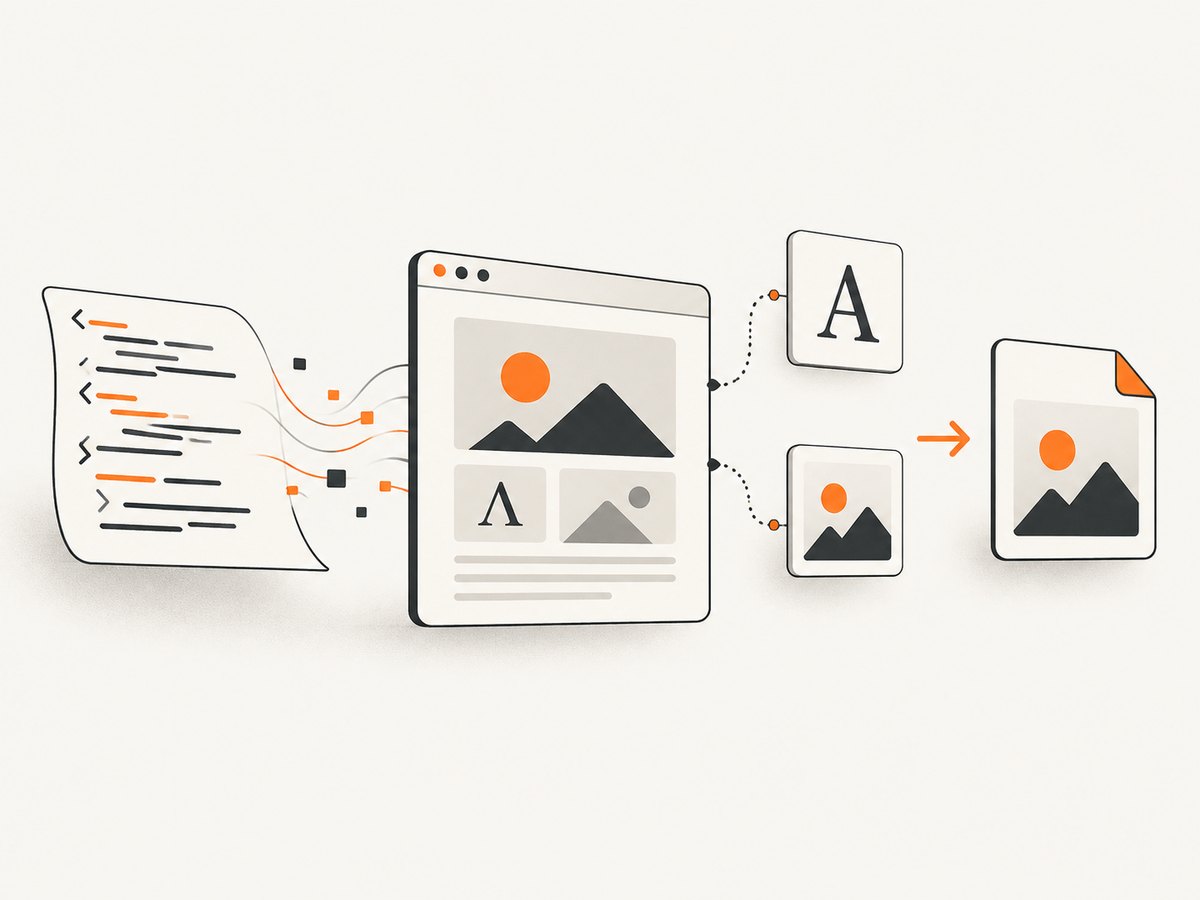
Playwright is the dependable default when the pasted markup must look like it does in Chromium. It works in Node.js and can render a complete HTML document, including embedded styles, scripts, fonts, and images that are available to the browser.
Install Playwright
npm init -y
npm install playwright
npx playwright install chromium
Minimal runnable Node.js example
const { chromium } = require('playwright');

(async () => {
  const html = `
    <!doctype html>
    <html>
      <head>
        <meta charset="utf-8">
        <style>
          * { box-sizing: border-box; }
          body { margin: 0; padding: 32px; font: 16px/1.5 system-ui, sans-serif; background: #f5f7fb; }
          .card { max-width: 720px; margin: auto; padding: 32px; border-radius: 16px; background: white; box-shadow: 0 8px 30px rgba(0,0,0,.08); }
          h1 { margin-top: 0; color: #172033; }
        </style>
      </head>
      <body>
        <main class="card">
          <h1>Rendered HTML</h1>
          <p>This text becomes pixels in output.png.</p>
        </main>
      </body>
    </html>`;

  const browser = await chromium.launch();
  const page = await browser.newPage({
    viewport: { width: 1200, height: 800 },
    deviceScaleFactor: 1
  });

  await page.setContent(html, { waitUntil: 'load' });
  await page.screenshot({
    path: 'output.png',
    type: 'png',
    fullPage: true
  });

  await browser.close();
})();
The screenshot is written to output.png. A viewport screenshot captures only the current viewport; fullPage: true expands the capture to the document’s scrollable height.
Wait for fonts, images, and application state
waitUntil: 'load' waits for the page load event, but it cannot know when every application-specific component is ready. For deterministic output, wait for a selector, a known readiness attribute, or all images and fonts that your markup needs.
await page.setContent(html, { waitUntil: 'load' });
await page.waitForSelector('[data-rendered="true"]');
await page.evaluate(async () => {
  await document.fonts.ready;
  await Promise.all(Array.from(document.images).map(img => {
    if (img.complete) return Promise.resolve();
    return new Promise(resolve => {
      img.addEventListener('load', resolve, { once: true });
      img.addEventListener('error', resolve, { once: true });
    });
  }));
});
await page.screenshot({ path: 'output.png', type: 'png', fullPage: true });
A fixed delay can help with an animation or third-party widget, but an explicit readiness condition is usually more reliable. Disable animations in the pasted CSS when you need repeatable output:
await page.addStyleTag({
  content: `*, *::before, *::after {
    animation: none !important;
    transition: none !important;
    caret-color: transparent !important;
  }`
});
Control dimensions and pixel density
The viewport uses CSS pixels. With deviceScaleFactor: 1, one CSS pixel becomes one output pixel. A factor of 2 creates a higher-density PNG with approximately twice the width and height in pixels, which also increases memory and file size.
const page = await browser.newPage({
  viewport: { width: 1440, height: 900 },
  deviceScaleFactor: 2
});
Use fullPage: false for a fixed viewport, or set a deliberate clip rectangle when only part of the document is needed:
await page.screenshot({
  path: 'region.png',
  type: 'png',
  clip: { x: 40, y: 80, width: 900, height: 500 }
});
Capture one element
When the pasted HTML contains a known component, locate it and capture its bounding box. Playwright also supports an element screenshot directly:
const card = page.locator('.card');
await card.screenshot({ path: 'card.png', type: 'png' });
External CSS, images, and scripts
Inline CSS travels with the string. Linked stylesheets, remote images, web fonts, and scripts must be reachable from the machine running Chromium. Check URLs, DNS, authentication, and certificate errors. If the markup depends on a local asset, use an absolute file: URL only when your environment permits it, or embed the asset as a data URL.
For untrusted pasted HTML, isolate the browser process and avoid granting unnecessary access to local files or credentials. Do not pass secrets into markup that a user can edit.
3. Convert an already rendered element with html2canvas
html2canvas is useful when the HTML is already on screen and the user expects a download button in the browser. Install it or load it from your existing front-end bundle, then pass the target element.
import html2canvas from 'html2canvas';

const element = document.querySelector('#capture');
const canvas = await html2canvas(element);
const link = document.createElement('a');
link.download = 'output.png';
link.href = canvas.toDataURL('image/png');
link.click();
The examples in the html2canvas documentation also show cropping with x, y, width, and height, and increasing output density with scale:
const canvas = await html2canvas(element, {
  scale: 2,
  x: 0,
  y: 0,
  width: element.scrollWidth,
  height: element.scrollHeight,
  backgroundColor: '#ffffff'
});
html2canvas does not take a photograph of the browser surface. It traverses DOM and style information and implements selected CSS properties. Unsupported effects, browser-native controls, cross-origin content, and complex layout can differ from what the user sees. Its FAQ also explains why it is not a Node.js server-side solution: Node does not provide the browser APIs the library needs.
4. Handle cross-origin assets
Cross-origin images are a frequent reason that a PNG has empty regions. The browser may require the image server to send suitable CORS headers. html2canvas can use a proxy when configured, but neither html2canvas nor Playwright can make an inaccessible cross-origin iframe readable.
- Use absolute, reachable image URLs.
- Configure the image server’s CORS policy when you control it.
- Prefer same-origin assets for client-side html2canvas captures.
- For third-party iframes, capture the frame’s own page separately when you have permission and access.
For Playwright, a resource that fails to load is still absent from the browser render. Inspect failed requests and console messages while debugging:
page.on('requestfailed', request => {
  console.error('Request failed:', request.url(), request.failure());
});
page.on('console', message => console.log('Browser:', message.text()));
5. Large pages, long documents, and memory
Very tall screenshots can exceed canvas or image dimensions supported by a particular browser and device. html2canvas documents that oversized canvases may be blank or partially rendered and that limits vary by platform. Reduce the capture area, lower the scale, or split a long document into sections.
For Playwright, split a long report by sections when a single full-page bitmap becomes too large:
const sections = await page.locator('[data-section]').all();
for (let i = 0; i < sections.length; i++) {
  await sections[i].screenshot({ path: `section-${i + 1}.png`, type: 'png' });
}
PNG is lossless and ideal for text, diagrams, and UI screenshots, but it can be larger than JPEG or WebP. If your downstream system accepts another format, choose it there; keep PNG when exact edges and transparency matter.
6. Troubleshooting checklist
The page looks unstyled
Cause: stylesheets did not load, or the HTML string omitted the CSS. Fix: inline critical CSS, verify external URLs from the capture machine, and wait for the stylesheet-dependent element before taking the screenshot.
Images are missing
Cause: broken URLs, delayed loading, CORS restrictions, or a lazy-loading threshold. Fix: verify each URL, wait for image completion, scroll to trigger lazy images, and configure CORS or a permitted proxy for client-side captures.
An iframe is blank
Cause: a cross-origin frame cannot be read by html2canvas. Fix: keep content same-origin, capture the frame separately, or use a workflow where the frame is accessible to the browser session.
The PNG is clipped
Cause: a viewport screenshot was used when a document screenshot was required, or the element’s scroll dimensions were ignored. Fix: use fullPage: true in Playwright; for html2canvas, pass the intended width and height and confirm the element’s overflow behavior.
The output is blank or partly drawn
Cause: the canvas or bitmap is too large for the browser or device. Fix: lower scale or deviceScaleFactor, reduce dimensions, and capture in sections.
The output is blurry
Cause: a one-to-one CSS scale is being enlarged later. Fix: capture at a suitable device scale, then account for the larger file and memory cost.
Fonts differ from the editor
Cause: the font is unavailable, blocked, or captured before it finishes loading. Fix: package the font or use a reachable stylesheet, await document.fonts.ready, and keep the browser version consistent for repeatable jobs.
7. Or skip the browser setup
If your pasted HTML is published at a reachable URL, ScreenshotNeo can turn that rendered page into a PNG without maintaining Playwright or Chromium infrastructure. It accepts the URL in one GET request, and its API documentation lists controls for full-page capture, CSS selectors, custom CSS and JavaScript, waiting for selectors or network idle, device presets, viewport and retina scale, cookies, headers, user agents, geolocation, dark mode, transparent backgrounds, resizing, caching, and more.
curl -G "https://api.screenshotneo.com/v1/shot" \
  -d access_key=YOUR_API_KEY \
  --data-urlencode url=https://example.com/rendered-html \
  -o pasted-html.png
import requests
r = requests.get(
"https://api.screenshotneo.com/v1/shot",
params={"access_key": "YOUR_API_KEY", "url": "https://example.com/rendered-html"},
timeout=90,
)
r.raise_for_status()
open("pasted-html.png", "wb").write(r.content)const q = new URLSearchParams({
access_key: 'YOUR_API_KEY',
url: 'https://example.com/rendered-html'
});
const res = await fetch(`https://api.screenshotneo.com/v1/shot?${q}`);
if (!res.ok) throw new Error(`Screenshot failed: ${res.status}`);
const image = Buffer.from(await res.arrayBuffer());
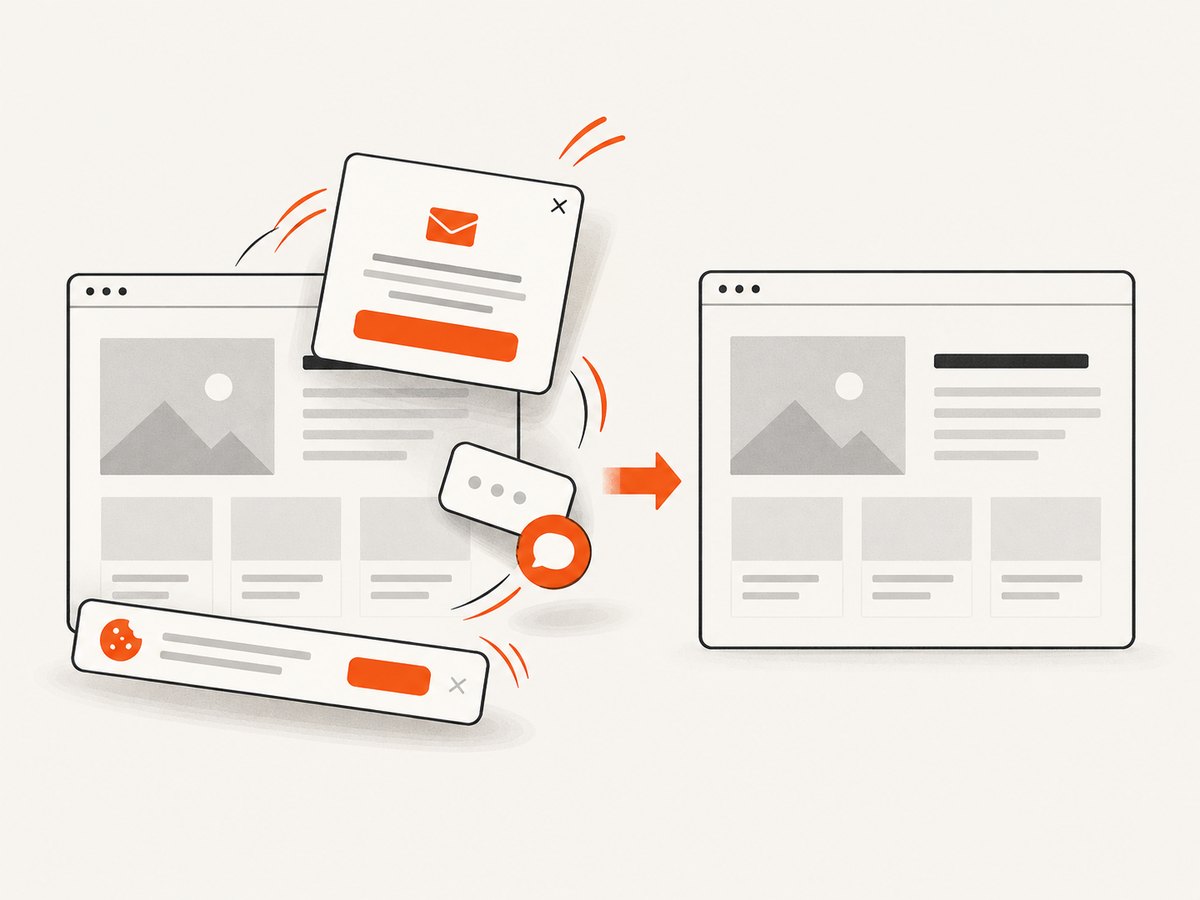
require('fs').writeFileSync('pasted-html.png', image);ScreenshotNeo removes cookie and consent banners, newsletter popups, and chat widgets before the capture. Bot checks, blank pages, timeouts, failed loads, and cache hits are not billed, and the response identifies the result with X-Page-Verdict and X-Billed headers. Its MCP server provides take_screenshot, get_page_info, and capture_pdf tools for Claude, Cursor, and other MCP clients. The free plan includes 1,000 shots per month without a card; paid plans start at $5 for 3,000 shots. Create a free ScreenshotNeo account.
8. Performance, reliability, and cost decisions
- Reuse browsers: for Playwright workers, keep one Chromium process and create isolated pages per job instead of launching a new browser for every image.
- Keep output bounded: use an intentional viewport, element capture, or sectioning to control memory.
- Wait for signals: selector and font readiness checks avoid both premature captures and unnecessarily long fixed delays.
- Cache stable inputs: identical HTML and assets can be cached in your application when the content has not changed.
- Track failures: record browser errors, response status, output dimensions, and the input revision so a bad image can be reproduced.
- Choose PNG deliberately: it preserves text edges and transparency, while larger files increase storage and transfer time.
9. FAQ
Can I convert an HTML string without saving an .html file?
Yes. Playwright’s page.setContent(html) renders the string directly in memory before the screenshot.
Is html2canvas a true screenshot?
No. It reconstructs an image from DOM and CSS information, so browser fidelity depends on the properties it supports.
Should I use full-page capture for a fixed-size card?
No. Capture the card element or use a clip rectangle so surrounding document space is excluded.
Why does higher scale make the file much larger?
Scale increases output pixels in both dimensions. A two-times scale can require roughly four times as many pixels before compression.
Can either method capture a protected third-party page?
Only when the browser session can load it and the content is accessible under its security rules. Authentication, CORS, iframe policy, and bot checks still apply.


