How to Convert a PDF to HTML for Browser Display
Choose between exporting a PDF to editable HTML and embedding it in a browser. Compare Acrobat, Adobe PDF Embed API, and PDF.js, with setup and validation guidance.
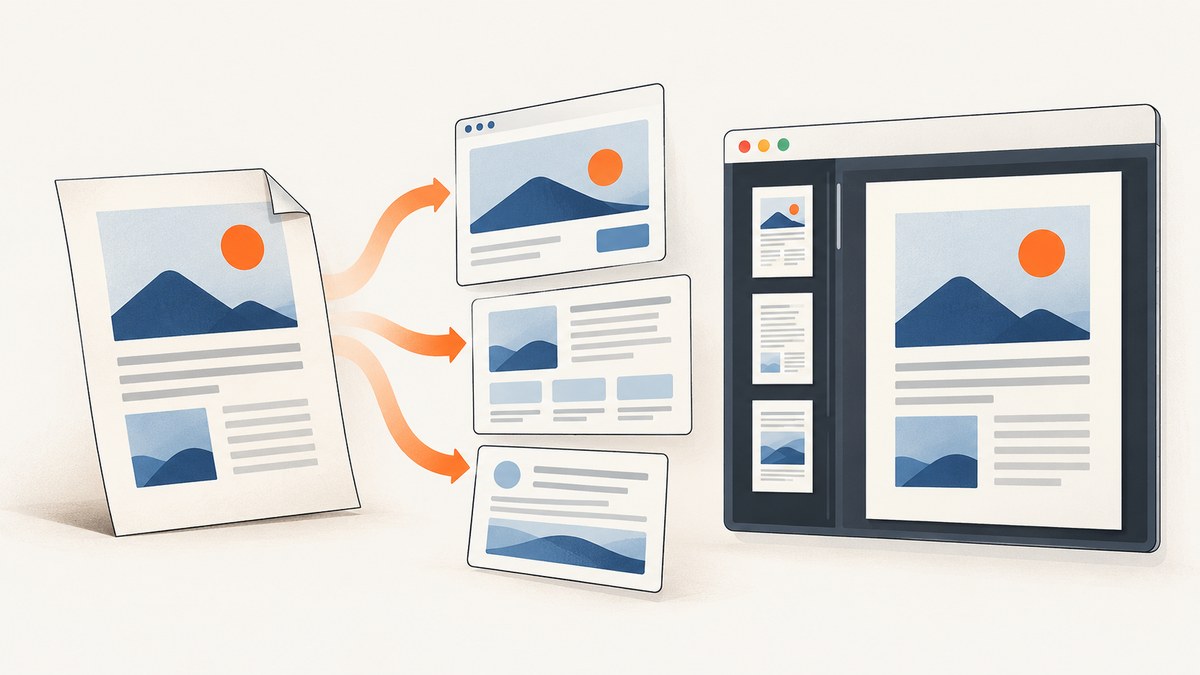
To convert a PDF to HTML, export its contents into HTML files with a tool such as Acrobat. If your goal is only to embed a PDF in HTML so visitors can read the original document in a browser, use a PDF viewer such as Adobe PDF Embed API or PDF.js instead. An embedded viewer still displays a PDF; it does not turn the document into ordinary, editable HTML.
That distinction determines the right workflow. Exported HTML can be edited and integrated into a site, but its structure and appearance need checking. A viewer preserves the source PDF and offers browser display without rebuilding the document as a web page.
1. Decide what the browser needs to show
| Need | Choose | What the browser gets |
|---|---|---|
| Web content you can edit, style, and integrate | Export PDF to HTML | One HTML file or several linked files, potentially with separate image assets |
| The original document, paginated and intact | Embed or render the PDF | A viewer that displays the PDF inside a page or browser window |
Inspect the PDF before choosing. If text can be selected, it may be available to export directly. If pages are scans, they are images; optical character recognition (OCR) may be needed to recognize text. Also note complex columns, tables, figures, links, headers, and footers. These are places where reading order or layout may need closer review.
Do not assume either route will reproduce the source perfectly or make it accessible by itself. Compare the result with the PDF, then check keyboard access, headings, link names, contrast, and reading order in the target browser.
2. Export PDF content to HTML with Acrobat
Acrobat provides a PDF-to-HTML export workflow. Interface labels can change between versions, but Adobe’s documented sequence is:
- Open the PDF in Acrobat.
- Choose Convert, then Other format, and choose HTML.
- Select Convert to HTML.
- Choose where to save the output and save it.
See Adobe’s Acrobat PDF-to-HTML export instructions for the current interface and settings.
Choose an output shape
Acrobat’s export settings include a single HTML file or multiple linked files. A single file can be convenient for a compact document. Multiple files can suit a document that should be split into pages or sections. Depending on the chosen settings, the output may include a folder of image assets or other linked files. Keep those files together with the HTML when you move or deploy it.
Review settings for navigation based on document structure, image inclusion, and text recognition. The best choice depends on the source and how people will use the result. For a long document, useful navigation may matter more than having one file. For a scanned PDF, text recognition can be necessary, but recognized text still requires checking against the original.
Check the exported files
- Open the resulting HTML in the browser you intend to support.
- Check that all expected text and page sections appear.
- Check images, tables, links, and their order against the PDF.
- Follow links and confirm that related files and images load from their deployed locations.
- Check the page at the viewport sizes your site supports.
Export is a starting point, not a promise of pixel-perfect layout or clean semantic HTML for every PDF. Plan to edit the HTML if it needs to fit your site’s structure or design.
3. Handle scanned PDFs and OCR carefully
A scan usually contains page images instead of selectable text. OCR attempts to recognize characters in those images so they can become text. Adobe recommends OCR before conversion when the PDF has scanned text; its PDF-to-HTML guidance describes this distinction.
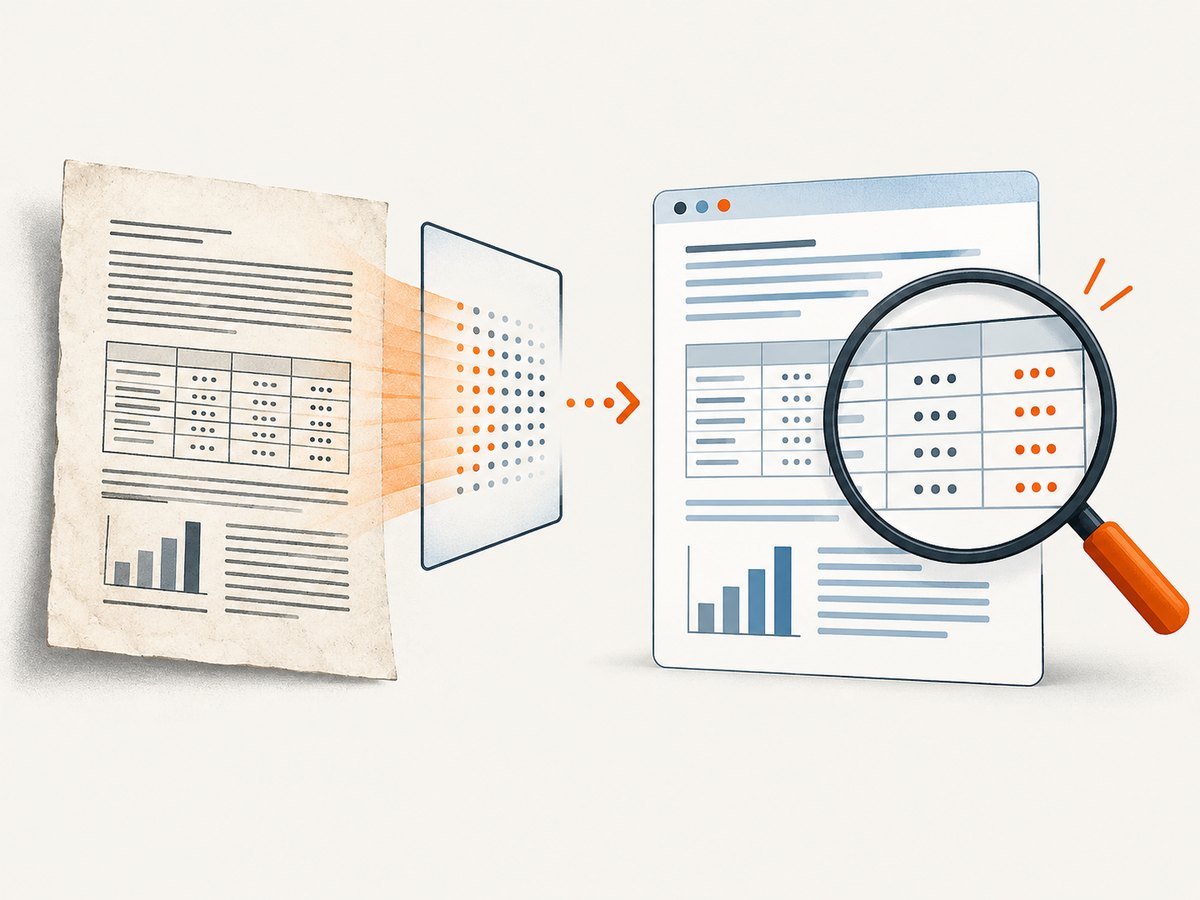
OCR can misread names, numbers, punctuation, columns, and tables. Language-specific characters can also be vulnerable to recognition errors. Check the resulting text against the source page, especially where a mistake would change meaning, such as prices, dates, measurements, or instructions. Verify reading order as well: text that looks visually close to the scan may be emitted in an order that is confusing when read linearly or with assistive technology.
If you cannot select or search text in the source, treat that as a signal to inspect OCR output closely. Do not treat successful recognition as proof that the document is complete or correct.
4. Embed the original PDF with Adobe PDF Embed API
Use Adobe PDF Embed API when the requirement is browser display while retaining the PDF as the document. Adobe documents full-window, sized-container, inline, and lightbox display modes, along with callbacks and annotation features. The API runs in a sandboxed HTML iframe; review Adobe’s current PDF Embed API documentation and security and privacy notes for implementation details, permissions, and current terms. Adobe describes the API as free to use; verify its current availability and terms before adopting it.
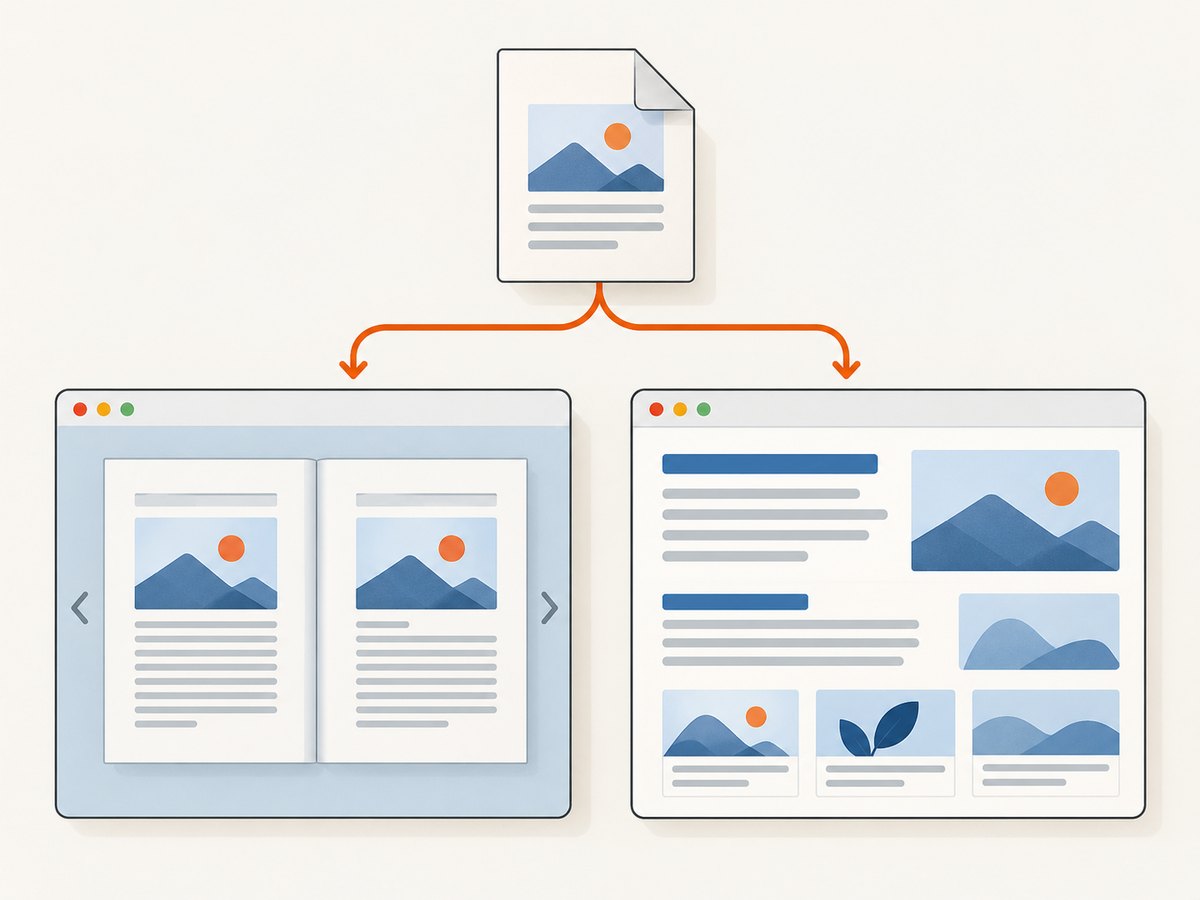
The integration depends on Adobe’s current SDK setup and configuration. Follow the official quick-start for the required client configuration, then select a display mode that fits the page: a sized container for an in-page reader, a lightbox for an on-demand document, or full-window display for a reading-focused experience. Decide whether callbacks or annotation support belong in your use case.
Embedding avoids converting every page into site HTML, but visitors are still reading a PDF through a viewer. Check that the PDF is reachable in your deployed environment and that its permissions allow the intended processing and display. Test loading, navigation, and the chosen display mode in the browsers and devices you support.
5. Render a PDF in the browser with PDF.js
PDF.js is Mozilla’s JavaScript library for parsing and rendering PDFs in a browser. It can be used with its viewer or integrated into an application. It renders PDF pages for viewing; it does not convert the source into conventional semantic HTML content.
For a basic local test, install and serve the PDF.js example or viewer according to its official getting-started instructions, then open the PDF through the served viewer. The exact files and setup depend on the PDF.js distribution you choose, so use its current documentation rather than copying an assumed path or version into a production setup.
One important setup detail: PDF.js documents that its worker is not enabled for file:// URLs. Serve the viewer from a local development server or hosted web server instead of opening the HTML file directly from disk. For production, follow the current deployment guidance for the library and worker, and verify that both load successfully.
Choose PDF.js when you want a browser rendering layer that you can host and integrate. Compare the output with the PDF and test the viewer in your deployment environment; a local file preview does not prove the worker or document paths will work after hosting.
6. Validate output, accessibility, and deployment
Use this checklist whether you exported HTML or chose a viewer:
- Content: Compare all pages, text, numbers, links, figures, and tables with the source.
- Order: Check columns and page furniture for a sensible reading sequence.
- Layout: Inspect page breaks, spacing, image placement, and narrow viewports.
- Navigation: Try links, document navigation, and browser back behavior where relevant.
- Keyboard and assistive technology: Test headings, link names, keyboard operation, contrast, and screen-reader reading order.
- Deployment: Confirm that linked assets, viewer scripts, workers, and the PDF itself load from the deployed paths.
- Permissions: Check that document restrictions do not prevent the processing or display you intend.
Adobe documents checks for machine-verifiable PDF/UA and WCAG-related criteria in its PDF Services tools. Those checks can return items requiring manual review; they do not establish that HTML exported from a PDF is automatically accessible or compliant. See Adobe’s PDF Services documentation, and test the actual HTML or viewer experience separately.
7. Troubleshooting common problems
| Problem | Likely cause | What to do |
|---|---|---|
| Exported page has missing images | Image assets were saved separately or moved without their folder | Keep the exported asset folder with the HTML and check the relative paths after deployment. |
| Scanned PDF exports with little or no text | Pages are images and text recognition was not performed or did not recognize them | Run OCR, export again, and compare recognized text with the scan. |
| Words appear in the wrong order | Columns, tables, or page furniture confused extraction order | Inspect the reading sequence against the source and edit the HTML or choose a PDF viewer when preserving layout matters more. |
| PDF.js viewer fails from a local file | The worker is not enabled for file:// URLs |
Serve the viewer from a local development server or hosted web server, as PDF.js documents. |
| Viewer cannot load the document after deployment | PDF URL, worker, script, or asset paths differ in the hosted environment | Check browser developer tools for failed requests and correct the deployed paths and server configuration. |
| Embedded document is unavailable or restricted | Access or PDF permissions may limit processing or display | Review the document’s permissions and the chosen viewer’s current implementation and security documentation. |
| HTML looks right but is hard to navigate with a keyboard | Visual appearance does not guarantee useful structure or focus behavior | Check headings, links, contrast, keyboard use, and screen-reader reading order, then fix the HTML or use a more suitable presentation. |
8. Performance, reliability, and cost considerations
Exported HTML can be served as ordinary site files once you have checked its linked assets and structure. The work is front-loaded: inspect the source, choose export settings, repair problems, and validate the final pages. A viewer keeps the source as a PDF and adds a browser rendering or embedding layer, so test the document, viewer setup, network paths, and target devices in the real deployment.
Scanned documents add OCR and proofreading effort. Complex layouts add review and possible HTML editing. Do not estimate accuracy or conversion time from the file extension alone; the source PDF’s text, layout, and image quality affect the work required.
Costs and terms depend on the tool and current offering. Acrobat export is a product workflow; Adobe states its PDF Embed API is free to use, but verify current terms. PDF.js is a library you can host, which means your implementation and hosting setup are yours to maintain. No route removes the need to check correctness and accessibility.
9. Capture a browser screenshot of the result
After you publish the HTML page or PDF viewer, a screenshot can help you review the page at a chosen viewport. ScreenshotNeo is a website screenshot API and MCP server from Yorker Media. It captures a URL as PNG, JPEG, WebP, or PDF. This is useful for checking the rendered page visually; it does not convert the source PDF into HTML or replace keyboard and assistive-technology checks.
For a complete browser QA workflow, capture the deployed page and compare its layout at the relevant viewport. ScreenshotNeo supports full-page capture, device presets and custom viewports, and waiting for a selector, delay, or network idle. Its request parameters also accept the names used by other screenshot APIs, which can make switching easier.
10. Frequently asked questions
Does embedding a PDF convert it to HTML?
No. An embed places a PDF viewer in a webpage while the document remains a PDF. Exporting produces HTML files.
Can I convert a scanned PDF directly to useful HTML?
OCR may be needed to recognize text first. Review the result against the scan, including numbers, tables, and reading order.
Will exported HTML look exactly like the PDF?
Do not assume pixel-perfect output. Check the exported layout and content in the target browser and edit or choose a viewer if preserving the original appearance is essential.
Does PDF/UA or WCAG checking prove my exported HTML is accessible?
No. A check of a PDF’s machine-verifiable criteria does not establish that the resulting HTML or viewer experience is accessible. Test the output itself.
Can I test PDF.js by double-clicking the viewer file?
PDF.js documents that its worker is not enabled for file:// URLs. Use a local or hosted web server.
Or skip the browser setup
If you already have a deployed page to inspect, ScreenshotNeo can capture it with one GET request. This captures the browser-rendered page; it does not perform PDF-to-HTML conversion. See the ScreenshotNeo API documentation for request options.
curl -G "https://api.screenshotneo.com/v1/shot" -d access_key=YOUR_API_KEY --data-urlencode url=https://stripe.com -o shot.webpPython:
import requests
r = requests.get("https://api.screenshotneo.com/v1/shot", params={"access_key": "YOUR_API_KEY", "url": "https://stripe.com"}, timeout=90)
open("shot.webp", "wb").write(r.content)
Node.js:
const q = new URLSearchParams({ access_key: 'YOUR_API_KEY', url: 'https://stripe.com' });
const res = await fetch(`https://api.screenshotneo.com/v1/shot?${q}`);- Cookie banners, popups, and chat widgets are removed before the shot; each step can be turned off.
- Bot checks, blank pages, timeouts, failed loads, and cache hits cost nothing. Response headers report the page verdict and billing status.
- An MCP server gives AI agents tools to take screenshots, get page information, and capture PDFs.
- 1,000 screenshots a month are free with no card. Paid plans start at $5 for 3,000 shots; every feature is on every plan.
Create a free ScreenshotNeo account to get 1,000 screenshots a month with no card.


