How to Convert a PDF to an Image with PhantomJS
PhantomJS renders web pages to images but does not document PDF input. Learn the correct PDF rasterization workflow and safer alternatives.
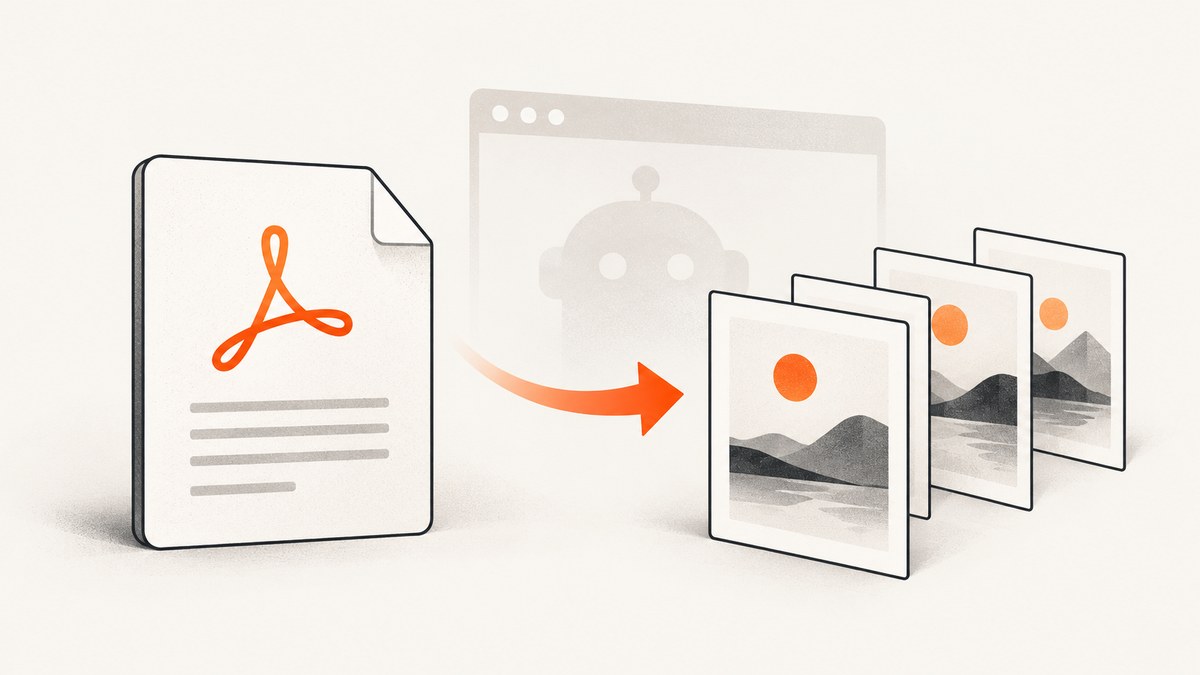
Short answer: PhantomJS documents rendering a loaded web page to an image with page.render(). Its API documentation does not document opening an existing PDF and rasterizing it. If you already have a PDF, use a PDF rasterizer such as Ghostscript. If your source is HTML or a URL that you want to turn into an image, PhantomJS can load the page and render it. This distinction prevents a common implementation mistake: treating a browser screenshot API as a PDF conversion library.
This guide covers both workflows, with runnable commands and scripts, output formats, resolution choices, multi-page handling, troubleshooting, performance, reliability, and cost considerations. For new systems, also consider a maintained browser or screenshot service; the PhantomJS project homepage states that development is suspended until further notice.
1. Decide what your input really is
| Input | Correct operation | Recommended tool |
|---|---|---|
An existing .pdf file |
Rasterize each PDF page | Ghostscript, or ImageMagick backed by Ghostscript |
| HTML, SVG, or a webpage URL | Render browser content to an image | PhantomJS page.open() and page.render() |
| Images embedded inside a PDF | Extract embedded image streams | pdfimages, rather than page rasterization |
Rasterization creates a new bitmap for the entire page. It can change text and vector graphics into pixels and does not preserve selectable text. Extraction attempts to recover image objects already embedded in the PDF and may produce different dimensions and formats.
2. Why PhantomJS is not a PDF-to-image converter
PhantomJS is a headless browser. The documented page.open() method loads a URL, while page.render() saves the rendered page as formats such as PNG, JPEG, BMP, or PPM. The screen-capture guide shows this browser-rendering use for web pages and SVG content.
The reviewed PhantomJS API does not describe opening an existing PDF as a source document for conversion. A PDF URL may download, display through a browser plug-in, or fail to load; none of those outcomes establishes reliable PDF rasterization. If a PDF is your starting file, use a PDF-aware renderer.
Also account for maintenance risk. The official project homepage says: “Important: PhantomJS development is suspended until further notice.” That does not prevent an existing controlled workflow from running, but it means new deployments should pin versions, test against your PDFs, and plan a migration path.
3. Convert an existing PDF with Ghostscript
Ghostscript documents this command for rendering every page as a 300-dpi PNG:
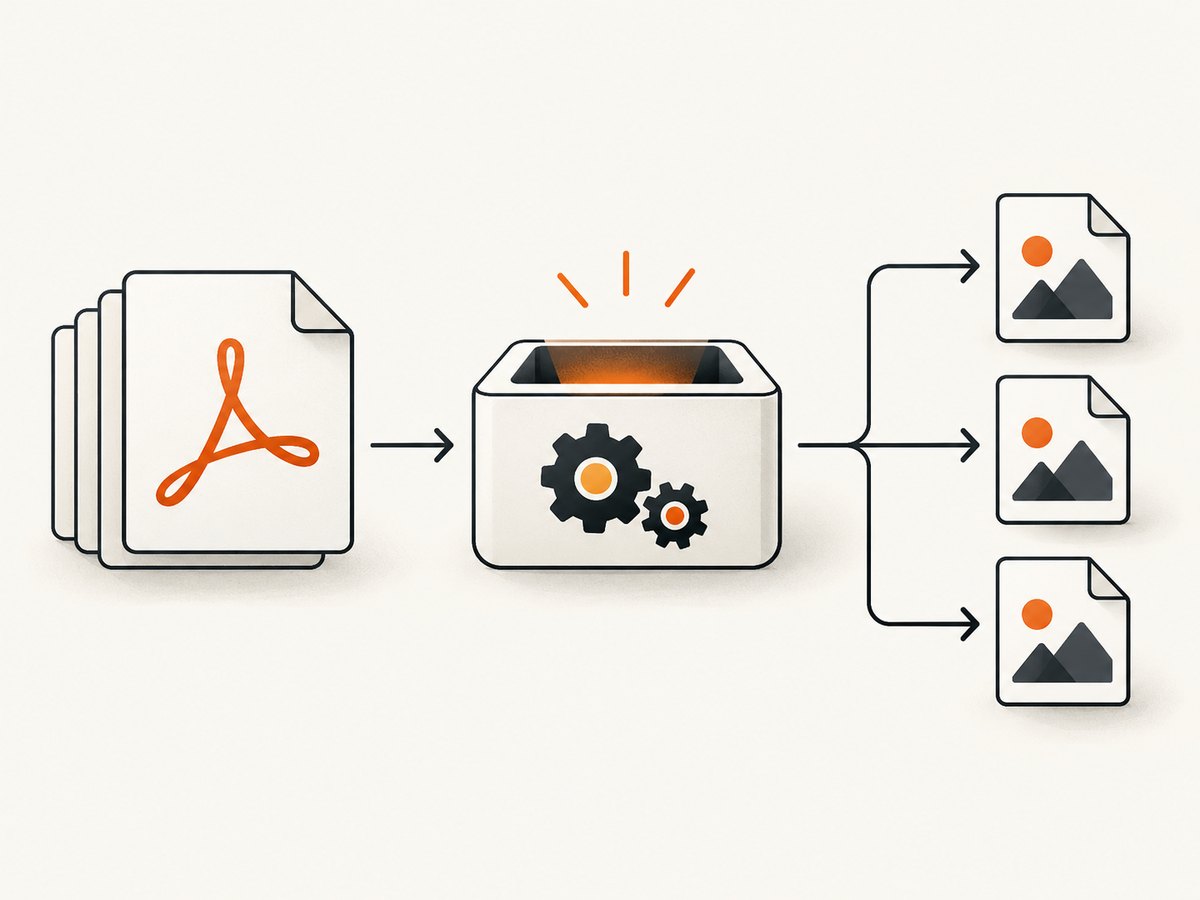
gs -sDEVICE=png16m -r300 -o page%d.png input.pdfThe %d token becomes the page number, so a three-page input produces files such as page1.png, page2.png, and page3.png. The png16m device creates full-color PNG output, and -r300 sets 300 dots per inch.
Install Ghostscript
- Debian or Ubuntu:
sudo apt-get install ghostscript - Fedora:
sudo dnf install ghostscript - macOS with Homebrew:
brew install ghostscript - Windows: install Ghostscript from its official distribution and run
gswin64c.exefrom a terminal.
Check the executable before running a batch job:
gs --versionOn Windows, use:
gswin64c.exe --versionChoose resolution deliberately
| Use case | Typical setting | Trade-off |
|---|---|---|
| Thumbnail or contact sheet | 72–120 dpi | Small files, less readable small text |
| Screen viewing and OCR | 150–200 dpi | Good balance for many documents |
| Print-oriented archive | 300 dpi | Sharper text, larger files and more memory |
| Fine line art or inspection | 600 dpi or higher | Very large images and slower processing |
Resolution is not a universal quality score. A PDF with vector text can render sharply at multiple settings; the practical limit may instead be the target display, OCR engine, storage budget, or memory available to your worker.
Limit pages and select an output format
Render only a page range when you do not need the entire document:
gs -sDEVICE=png16m -r200 -dFirstPage=3 -dLastPage=5 -o page%d.png input.pdfGhostscript provides multiple devices. For a JPEG sequence, use a JPEG device and quality settings supported by your installed version. Consult the Ghostscript device documentation for available devices and options rather than assuming every build supports the same name.
4. A repeatable shell workflow
Create an output directory, preserve the source filename, and fail the job if Ghostscript reports an error:
#!/usr/bin/env sh
set -eu

input="${1:?usage: ./pdf-pages.sh input.pdf output-dir}"
out="${2:?usage: ./pdf-pages.sh input.pdf output-dir}"

mkdir -p "$out"
gs -q -dSAFER -sDEVICE=png16m -r300 \
  -o "$out/page-%04d.png" "$input"

echo "Wrote raster pages to $out"
The zero-padded pattern keeps lexical file ordering correct when a document has more than nine pages. Keep the source PDF immutable and write results to a separate directory so retries do not mix stale and current output.
For untrusted PDFs, run conversion in a restricted worker or container, set CPU and memory limits, and use the safety flags recommended by your Ghostscript version. Do not expose a shell command that directly interpolates arbitrary user input; pass validated paths as arguments.
5. Render HTML with PhantomJS instead
Use PhantomJS when the source is a webpage or HTML document. This complete script opens a URL, waits for the load callback, and writes a PNG:
// capture.js
var system = require('system');
var webpage = require('webpage');

if (system.args.length < 3) {
  console.log('Usage: phantomjs capture.js URL output.png');
  phantom.exit(2);
}

var url = system.args[1];
var output = system.args[2];
var page = webpage.create();
page.viewportSize = { width: 1440, height: 900 };
page.settings.userAgent = 'PhantomJS screenshot worker';

page.open(url, function (status) {
  if (status !== 'success') {
    console.log('Could not load: ' + status);
    phantom.exit(1);
  }

  window.setTimeout(function () {
    page.render(output, { format: 'png', quality: 100 });
    console.log('Wrote ' + output);
    phantom.exit(0);
  }, 1000);
});
Run it with:
phantomjs capture.js https://example.com page.pngThe delay gives client-side code a chance to run, but it is only a fixed guess. For pages with asynchronous data, a stronger pattern is to have the page set a known flag or selector when rendering is complete, then poll that condition from PhantomJS. Always set a maximum wait time so a broken page cannot hold a worker forever.
PhantomJS options that affect output
- Viewport: set
page.viewportSizeto control responsive breakpoints. - Device scale: PhantomJS does not provide the same modern device emulation controls as current browsers; do not assume a retina setting exists.
- Page size: use
page.paperSizefor print-like output, but remember that this is still rendering HTML, not importing a PDF. - JavaScript: enable or disable page scripts according to the site and your security model.
- Resources: use
onResourceErrorandonResourceTimeoutcallbacks to record failed dependencies.
6. ImageMagick and PDF tools: when they fit
ImageMagick can act as a convenience wrapper, but its PDF input documentation says it relies on Ghostscript to rasterize PDF pages. Density controls the rendering resolution. For example:
magick -density 200 input.pdf -alpha remove -alpha off page.pngBecause PDF delegates to Ghostscript, policy files may reject PDF input for security reasons. If ImageMagick reports a policy error, inspect the installed policy configuration and use a restricted conversion service; do not broadly disable protections on a shared server.
If your requirement is to recover photographs or other image objects embedded in the PDF, use pdfimages:
pdfimages -all input.pdf extractedThis can preserve the original embedded image data, while page rasterization produces a composite image that includes text, vector shapes, and layout.
7. Troubleshooting
| Symptom | Likely cause | Fix |
|---|---|---|
PDF input is not a PDF file |
The path points to an HTML error page or incomplete download. | Check the file type, download status, and checksum before conversion. |
| Ghostscript command not found | Ghostscript is not installed or is absent from PATH. |
Install it, then verify with gs --version or gswin64c.exe --version. |
| Only one output image appears | The command used a fixed filename instead of a numbered pattern. | Use page%d.png or a zero-padded pattern. |
| Text is blurry | Output density is too low or the image is being enlarged later. | Raise -r, render at the final display size, and avoid repeated resampling. |
| Files are enormous | High DPI, full-color PNG, or transparent layers. | Lower density, choose JPEG for photographic pages, or post-process only when acceptable. |
| PhantomJS reports load failure | TLS, JavaScript, DNS, blocked resources, or unsupported browser features. | Log resource errors, test the URL in the same environment, and consider a maintained browser. |
| Blank PhantomJS screenshot | Capture occurred before client-side rendering completed. | Wait for a readiness selector or application flag with a hard timeout. |
| ImageMagick policy error | PDF operations are disabled by security policy. | Use Ghostscript directly or configure an isolated, reviewed policy. |
| Missing fonts | The worker does not have fonts used by the PDF or HTML. | Install licensed fonts, rebuild the font cache, and pin the worker image. |
8. Performance and reliability checklist
- Measure pages, DPI, color mode, and average output size using your own documents.
- Reuse a warm worker process where safe, but isolate jobs that may consume unbounded memory.
- Set execution, memory, and disk quotas. A large PDF at 600 dpi can create many gigabytes of intermediate data.
- Write to a temporary directory and atomically move completed files into place.
- Record the Ghostscript or PhantomJS version, input hash, DPI, device, page range, and exit code.
- Retry transient download failures, but do not blindly retry deterministic parse errors.
- Validate page counts and output dimensions before publishing results.
- Use checksums or content-addressed names to make retries idempotent.
Parallelizing pages can reduce wall-clock time, but it multiplies memory and disk pressure. Start with bounded concurrency and tune from production document sizes. For long-term maintenance, PhantomJS is a compatibility risk because its development is suspended; a current headless browser or a managed screenshot service may reduce operational work.
9. Or skip the browser setup
If your actual goal is to capture a webpage, ScreenshotNeo provides a single HTTP request that returns PNG, JPEG, WebP, or PDF. It is useful when the source is HTML rather than an existing local PDF, and it avoids maintaining a browser worker.

See the ScreenshotNeo API documentation for all options. A minimal request is:
curl -G "https://api.screenshotneo.com/v1/shot" -d access_key=YOUR_API_KEY --data-urlencode url=https://stripe.com -o shot.webpimport requests
r = requests.get("https://api.screenshotneo.com/v1/shot", params={"access_key": "YOUR_API_KEY", "url": "https://stripe.com"}, timeout=90)
open("shot.webp", "wb").write(r.content)const q = new URLSearchParams({ access_key: 'YOUR_API_KEY', url: 'https://stripe.com' });
const res = await fetch(`https://api.screenshotneo.com/v1/shot?${q}`);ScreenshotNeo can load lazy images, capture a CSS-selected element or a full page, emulate dark mode and device presets, set a viewport and retina scale, wait for a selector, delay, or network idle, run custom CSS and JavaScript, click an element, hide selectors, block ads or resource types, supply headers, cookies, user agents, authorization, timezone, and geolocation, resize images, cache with a chosen TTL, create signed image links, run async jobs with signed webhooks, capture up to 100 URLs per bulk call, and expose usage and OpenAPI endpoints. It also has PDF controls for paper size, margins, landscape mode, and page ranges.
Before capture, it accepts cookie or consent banners like a visitor and removes more than 60 known consent platforms, newsletter popups, and chat widgets; each step can be disabled. Only clean shots are billed. Bot checks or CAPTCHAs, blank pages, timeouts, failed loads, and cache hits cost nothing, and response headers identify the page verdict and billing status. An MCP server provides take_screenshot, get_page_info, and capture_pdf tools for Claude, Cursor, and other MCP clients.
The Free plan includes 1,000 shots per month with no card. Paid plans start at $5 for 3,000 shots; yearly billing gives two months free, and every feature is available on every plan. Create a free ScreenshotNeo account to get started.
10. FAQ
Can PhantomJS open a PDF URL directly?
It is not documented as a reliable PDF rasterization method. Download the PDF and pass it to a PDF renderer instead.
Does Ghostscript create one image or many?
A numbered output pattern creates one image per page. Use page limits when you need only a subset.
Should I use PNG or JPEG?
PNG is usually safer for text, diagrams, and line art. JPEG can be smaller for photographic pages but introduces lossy compression.
How do I preserve selectable text?
You cannot preserve selectable text in a raster image. Keep the original PDF or generate a separate text/OCR representation.
Is PhantomJS suitable for a new production system?
Its documented rendering API may work for a pinned legacy workflow, but the project is suspended. Evaluate a maintained browser or a managed service for new deployments.


