How to Convert PDF to HTML Online for Free
Convert a PDF to HTML online for free, or use Acrobat’s desktop export. Learn when OCR is needed, what to inspect, and how to protect sensitive files.
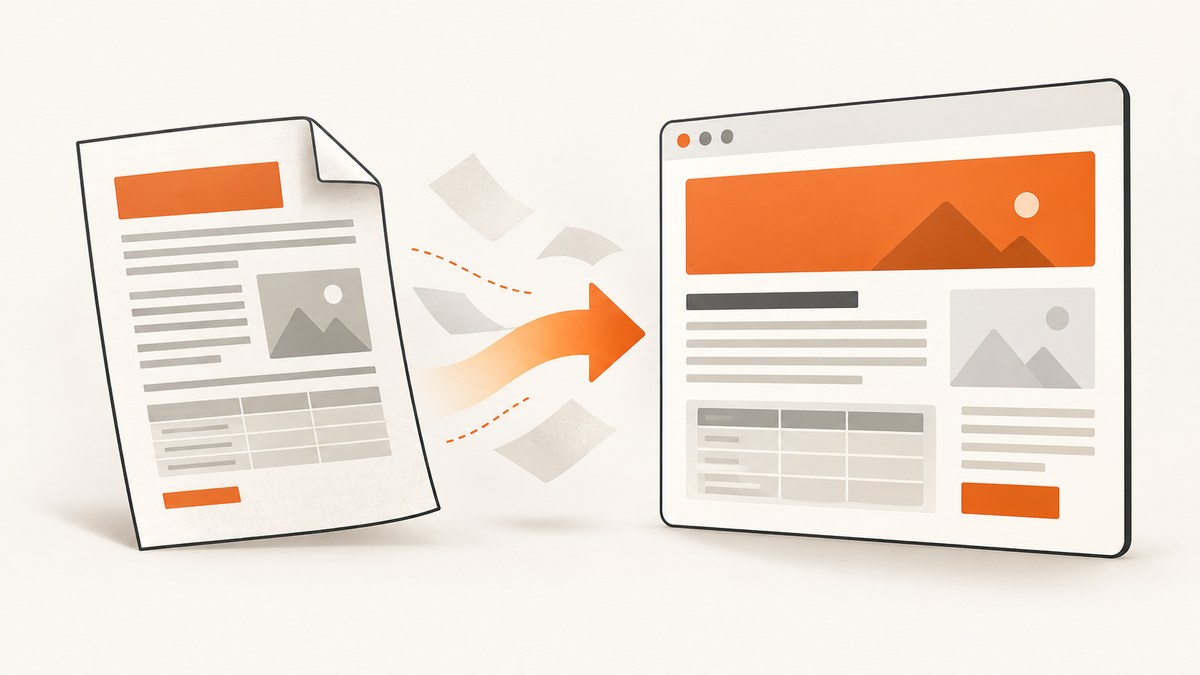
To convert a PDF to HTML online for free, use a browser-based converter such as CloudConvert: upload the PDF, select HTML as the output format, run the conversion, and download the result. For a desktop workflow, Adobe Acrobat documents an export path through Convert → Other format → HTML → Convert to HTML. If the PDF is scanned, run OCR first; then open the HTML in a browser and check the reading order, links, images, tables, and layout. The right choice depends on the file’s contents, the export controls you need, and the service’s current upload and free-use terms.
1. Choose an online converter or desktop export
PDF and HTML represent content differently. A PDF preserves a page-oriented layout; HTML describes browser content such as text, headings, images, and tables. Conversion therefore may reorganize the document. Do not assume the HTML will look exactly like the PDF or that every converter handles a particular file equally well. The available research does not establish a measured quality winner.
| Route | Useful when | Check before using |
|---|---|---|
| Browser-based converter, such as CloudConvert | You want to convert without installing desktop software. | Current file limits, account requirements, supported output, and privacy terms. |
| Adobe Acrobat desktop export | You have Acrobat and want its documented HTML export settings. | Which export controls are available in your installed version and whether OCR is needed. |
Adobe’s online converter is a separate route from its desktop instructions. Adobe describes limited free use and says uploaded files are handled on Adobe servers and deleted unless the user signs in to save them. Those statements are specific to Adobe’s online service and may change; they should not be treated as CloudConvert’s terms. Before uploading confidential, personal, or regulated information to any service, review that service’s current privacy and retention details and confirm that the upload is permitted.
2. Convert PDF to HTML in a browser
- Open CloudConvert’s PDF-to-HTML converter.
- Select the PDF from your device and confirm that HTML is the output format.
- Start the conversion and wait for the service to finish processing the file.
- Download the resulting HTML file or files.
- Open the result in a browser and inspect it before publishing or relying on it.
A converter may provide a single HTML file or an HTML file accompanied by assets such as images. Keep the downloaded files together if the result refers to separate resources. If the HTML loads without its images or styles, check that you have extracted the full download and preserved the directory structure.
Online interfaces change over time, so follow the converter’s current on-page controls. The research identifies CloudConvert as a browser-based PDF-to-HTML option, but does not establish its current limits, account rules, retention period, or output fidelity for every document.
3. Export PDF to HTML with Adobe Acrobat desktop
- Open the PDF in Adobe Acrobat.
- Select Convert.
- Choose Other format, then HTML.
- Select Convert to HTML.
- Choose the destination and filename, then save the exported result.
- If the export settings are available, review them before conversion and inspect the saved output in a browser.
Adobe documents settings that can affect the exported package and content: whether to create one HTML file or multiple linked files, whether to add navigation based on document structure, whether to include images, whether to remove headers and footers, and which text-recognition language to use. Choose based on how you plan to use the page. A single file can be convenient to move; linked files can separate content and assets. Navigation depends on the document structure, so review the generated result rather than assuming the PDF’s outline will transfer cleanly.
4. Handle scanned PDFs with OCR
A scanned PDF may contain page images rather than selectable text. Converting those page images directly can leave you with HTML that has no usable text, or with image content that is not searchable or accessible as text. Adobe’s guide recommends using Acrobat OCR before conversion when the document has scanned text. OCR attempts to recognize characters; it does not guarantee perfect transcription.
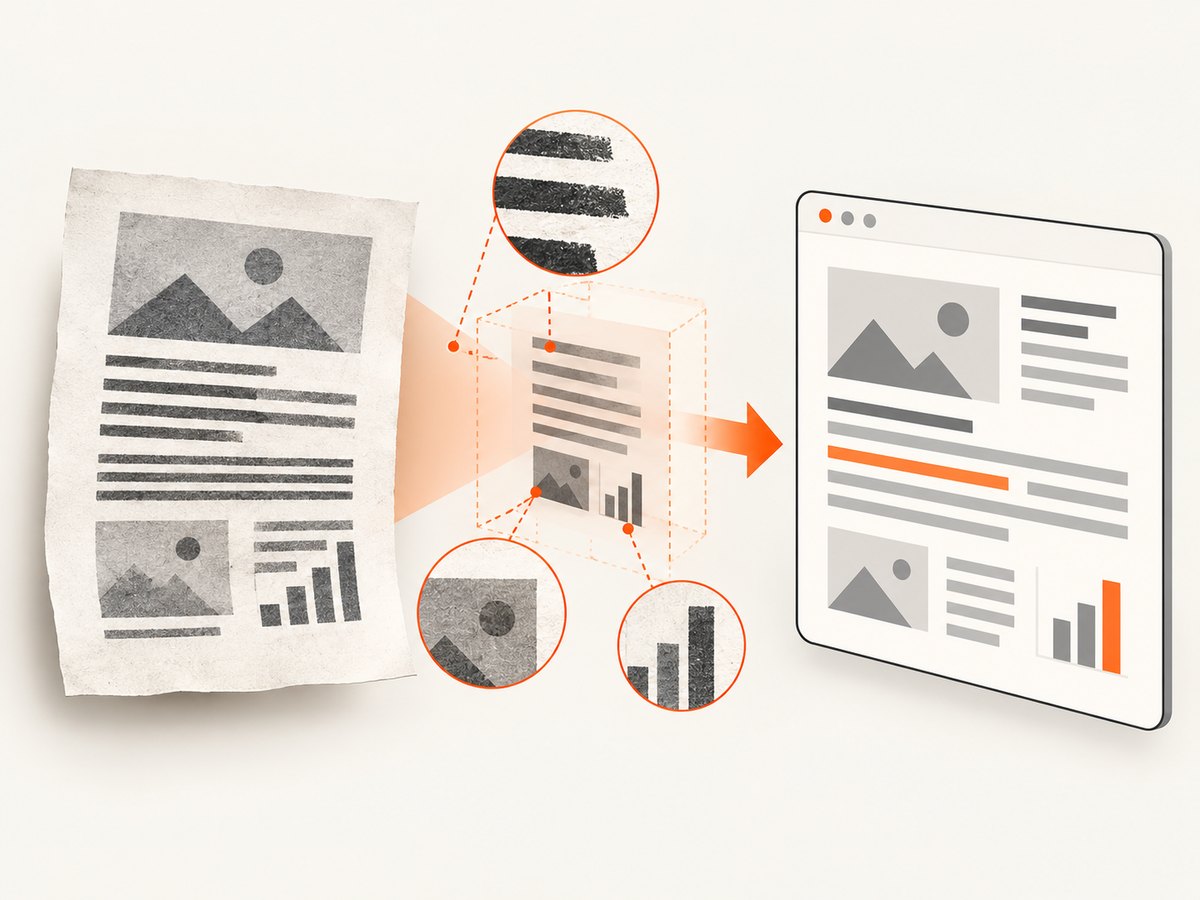
- Check whether you can select and copy text from several representative pages.
- If the content is only an image, run OCR using a tool appropriate for the document and language.
- Review recognized text, especially names, numbers, punctuation, columns, and low-resolution pages.
- Export the recognized document to HTML.
- Compare the HTML with the source pages for missing or misordered content.
Mixed documents can contain both born-digital text and scanned pages. Check several pages across the file instead of inferring that one selectable paragraph means every page has searchable text. Tables, multiple columns, handwriting, skewed scans, and unusual fonts deserve close inspection.
5. Validate the HTML before using it
Conversion is complete only when the output contains the content and structure you need. Open the HTML in a browser and use this checklist:
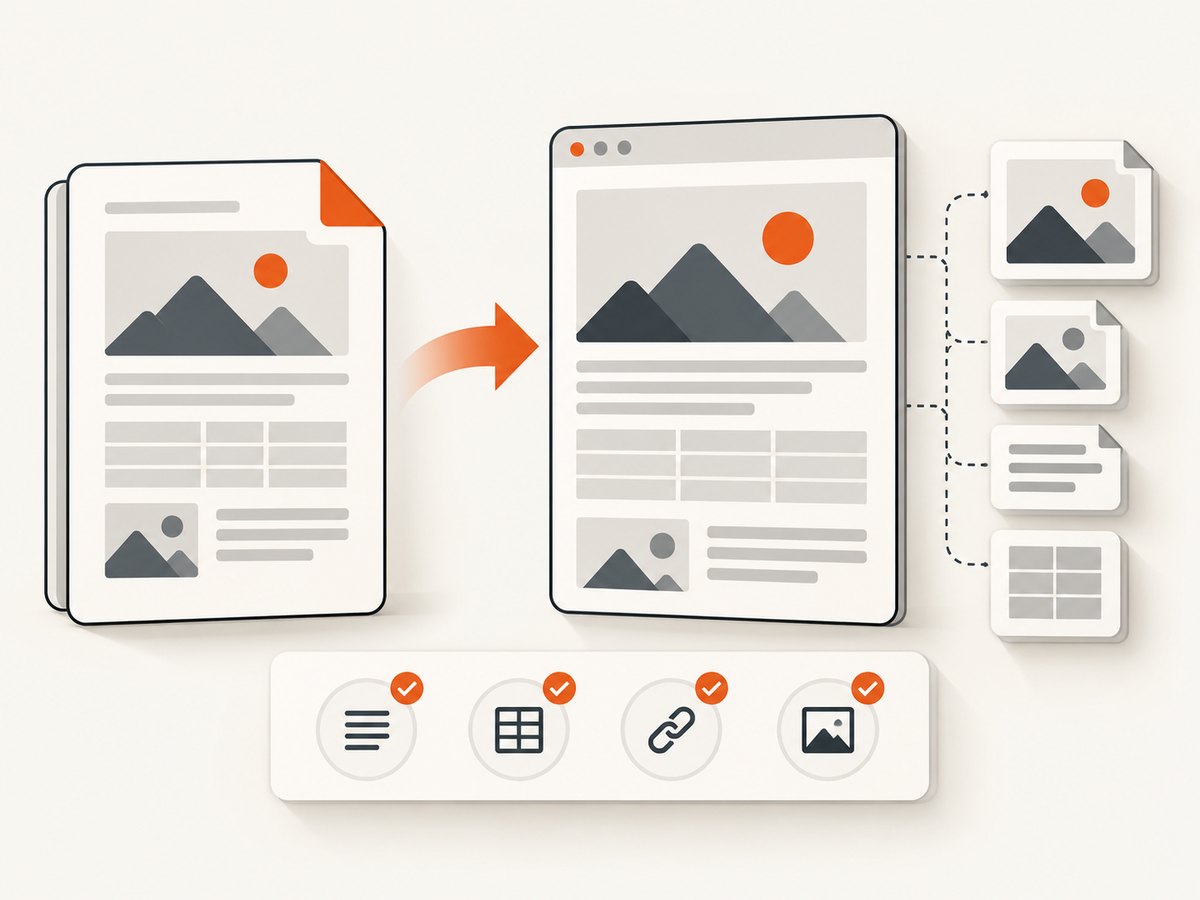
- Text: Is text present, readable, and in the expected order?
- Structure: Do headings, lists, and sections make sense when read from top to bottom?
- Links: Do internal and external links point to the intended destinations?
- Images: Are images present, legible, and loaded from the delivered files?
- Tables: Are rows and columns still associated correctly, including across page breaks?
- Headers and footers: Were repeating elements included or removed as intended?
- Navigation: If generated, do document links or navigation entries work?
- Accessibility: Can the content be selected and read in a logical sequence? Treat OCR and exported structure as items to verify.
- Packaging: Does the HTML still work after moving or extracting the downloaded files?
For a long document, spot-check the beginning, middle, and end, plus pages with dense tables, images, or unusual layouts. If this is for publication or downstream processing, review all important content rather than relying on a visual glance at the first page.
6. Troubleshooting common conversion problems
| Symptom | Likely cause | What to do |
|---|---|---|
| HTML contains no selectable text | The PDF is scanned or OCR was not applied. | Run OCR, check the language setting, and review the recognized text before exporting again. |
| Words or lines appear in the wrong order | Columns, tables, or positioned text do not map neatly to flowing HTML. | Inspect the structure and reading order; try the other route or adjust export settings, then validate the affected pages. |
| Images are missing | The export excluded images, or the HTML refers to separate files that were not kept with it. | Check the include-images setting and retain or extract the complete output package. |
| Repeated headers clutter the page | Headers and footers were included in the export. | Use the relevant export option to remove them if available, then check that meaningful page content was not removed. |
| Tables lose their layout | Page-oriented cells or merged columns were interpreted differently in HTML. | Inspect row and column associations; consider rebuilding especially important tables in HTML. |
| Conversion fails or takes too long | The file may be large, damaged, password-protected, or outside the service’s current limits. | Check the service’s current requirements, verify the PDF opens, and try a permitted smaller or unlocked copy where appropriate. |
| Online conversion is unavailable or asks for an account | Service availability, regional access, or free-use conditions may have changed. | Review current terms and try Acrobat desktop export if available. Do not assume a desktop workflow has the same free-use conditions as an online service. |
7. Performance, reliability, privacy, and cost
Processing time and output quality depend on the file and converter; the reviewed sources provide no controlled timing or fidelity comparison. Large files, image-heavy pages, and OCR can take longer than simple text documents. For repeat work, convert a representative sample first so you can discover layout problems before processing a batch.
For reliability, keep the original PDF, preserve the complete exported package, and verify that the HTML opens on the system where it will be used. If the HTML is part of a production workflow, record which settings and OCR language were used and check the result after any converter or software change.
“Free” can mean limited use, require an account, or apply only to a particular service route. Adobe states that its online conversion tools are free for limited use and that additional use or features may require an account or paid plan; its online file-handling statements also apply to that service only. Check current terms directly before uploading or depending on continued free access. The research does not establish equivalent terms for CloudConvert.
For confidential material, evaluate whether an online upload is appropriate under your organization’s policy. A browser workflow still sends the file to the chosen provider for processing. Desktop export may avoid that particular upload, but you should verify the software and storage environment you use.
8. Or skip the browser setup
If what you actually need is a screenshot of a web page as an image or PDF, ScreenshotNeo is a website screenshot API and MCP server. It does not convert an existing PDF into HTML; use the conversion steps above for that job. For a URL capture, one GET request returns an image or PDF. See the ScreenshotNeo API documentation.
curl -G "https://api.screenshotneo.com/v1/shot" -d access_key=YOUR_API_KEY --data-urlencode url=https://stripe.com -o shot.webpimport requests
r = requests.get(
"https://api.screenshotneo.com/v1/shot",
params={"access_key": "YOUR_API_KEY", "url": "https://stripe.com"},
timeout=90,
)
open("shot.webp", "wb").write(r.content)const q = new URLSearchParams({ access_key: 'YOUR_API_KEY', url: 'https://stripe.com' });
const res = await fetch(`https://api.screenshotneo.com/v1/shot?${q}`);ScreenshotNeo accepts cookie and consent banners before capture and removes more than 60 known consent platforms, newsletter popups, and chat widgets; each of those steps can be turned off. Bot checks, CAPTCHAs, blank pages, timeouts, failed loads, and cache hits cost nothing, and response headers report the page verdict and billing status. Its MCP server provides take_screenshot, get_page_info, and capture_pdf for Claude, Cursor, and other MCP clients. The free plan includes 1,000 shots per month with no card; paid plans start at $5 for 3,000 shots. All features are available on every plan.
Sign up free for 1,000 screenshots a month, with no card required.
9. Frequently asked questions
How do I convert a PDF to HTML for free?
Use a browser-based PDF-to-HTML converter such as CloudConvert, or use Adobe Acrobat desktop export if you have access. Confirm the current free-use conditions and inspect the HTML after conversion.
Can I convert a scanned PDF to HTML?
Yes, but scanned pages may need OCR first to produce searchable text. Review recognition errors and reading order after export.
Will the HTML look exactly like the PDF?
Not necessarily. PDF is page-oriented while HTML is browser content, and the researched sources do not provide a controlled comparison guaranteeing matching layout. Check the converted result against the pages that matter.
Does ScreenshotNeo convert PDFs to HTML?
No. ScreenshotNeo captures a webpage URL as an image or PDF. It is relevant when you need a web page screenshot, not when you need to convert an existing PDF into HTML.
Sources
- Adobe: How to convert PDF to HTML — desktop export workflow and settings.
- Adobe Acrobat online conversion — Adobe-specific online-use and file-handling details.
- CloudConvert PDF to HTML — browser-based conversion option.


