How to Convert PDF to HTML on Mac
Convert a PDF to usable HTML on a Mac with Acrobat, OCR settings, accessibility checks, troubleshooting, and practical alternatives.
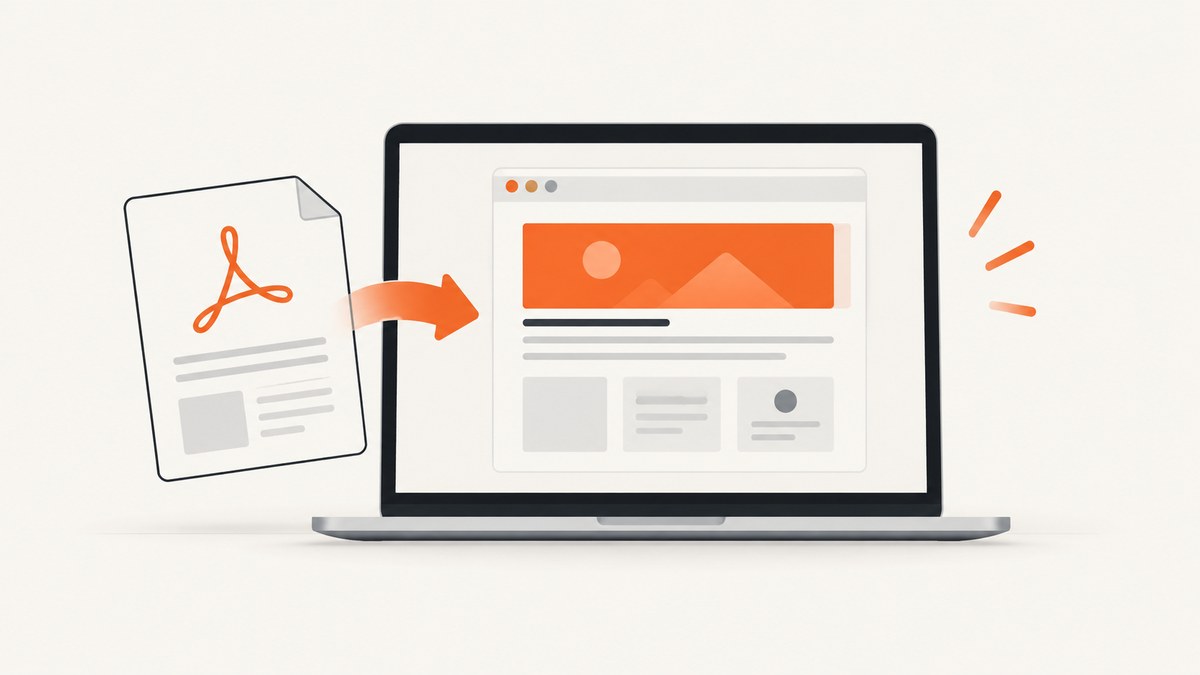
Direct answer: On a Mac, the most clearly documented desktop workflow is Adobe Acrobat. Open the PDF, choose Convert, select Other format, choose HTML, then select Convert to HTML, choose where to save the result, and save it. Before converting, open Settings if you need to choose one HTML file versus multiple linked files, control image handling, remove headers and footers, or configure text recognition for scanned pages. Adobe documents this workflow in its Acrobat PDF-to-HTML help page.
Conversion gives you a starting point for web content. Always inspect the generated HTML for reading order, headings, tables, links, images, and accessibility before publishing.
Convert a PDF to HTML in Acrobat on Mac
- Open the PDF in Acrobat.
- Select Convert in the Acrobat interface.
- Choose Other format.
- Select HTML from the format list.
- Choose Convert to HTML.
- Select a destination folder, enter a file name, and save.
The exact labels can vary with your installed Acrobat version. Follow the labels visible in your copy of Acrobat; the documented route is the sequence above.
Choose export settings before saving
Open Settings before the conversion when the default output is not suitable. Acrobat’s documented options include:
| Decision | Use it when | What to check afterward |
|---|---|---|
| One HTML file | You want a single file that is easy to move or open. | Images, styles, and links still render correctly when the file is moved. |
| Multiple linked files | You want assets separated into linked files or a page structure that is easier to manage. | Keep the HTML and asset folders together when publishing or sharing. |
| Include images | The PDF contains diagrams, screenshots, photos, or other visual content that belongs in the page. | Check image resolution, placement, captions, and alternative text. |
| Remove headers and footers | Running page furniture would be distracting or duplicated in the web page. | Make sure useful titles, page numbers, or legal notices were not removed accidentally. |
| Text recognition | The PDF contains scanned pages or text embedded in images. | Proofread names, numbers, columns, punctuation, and reading order. |
Scanned PDFs: enable OCR and proofread the result
A scanned PDF may contain page images rather than selectable characters. In that case, enable Acrobat’s text-recognition settings and select the language that matches the document. OCR can produce usable HTML, but the cited Adobe documentation does not promise perfect recognition, so treat the output as a draft.
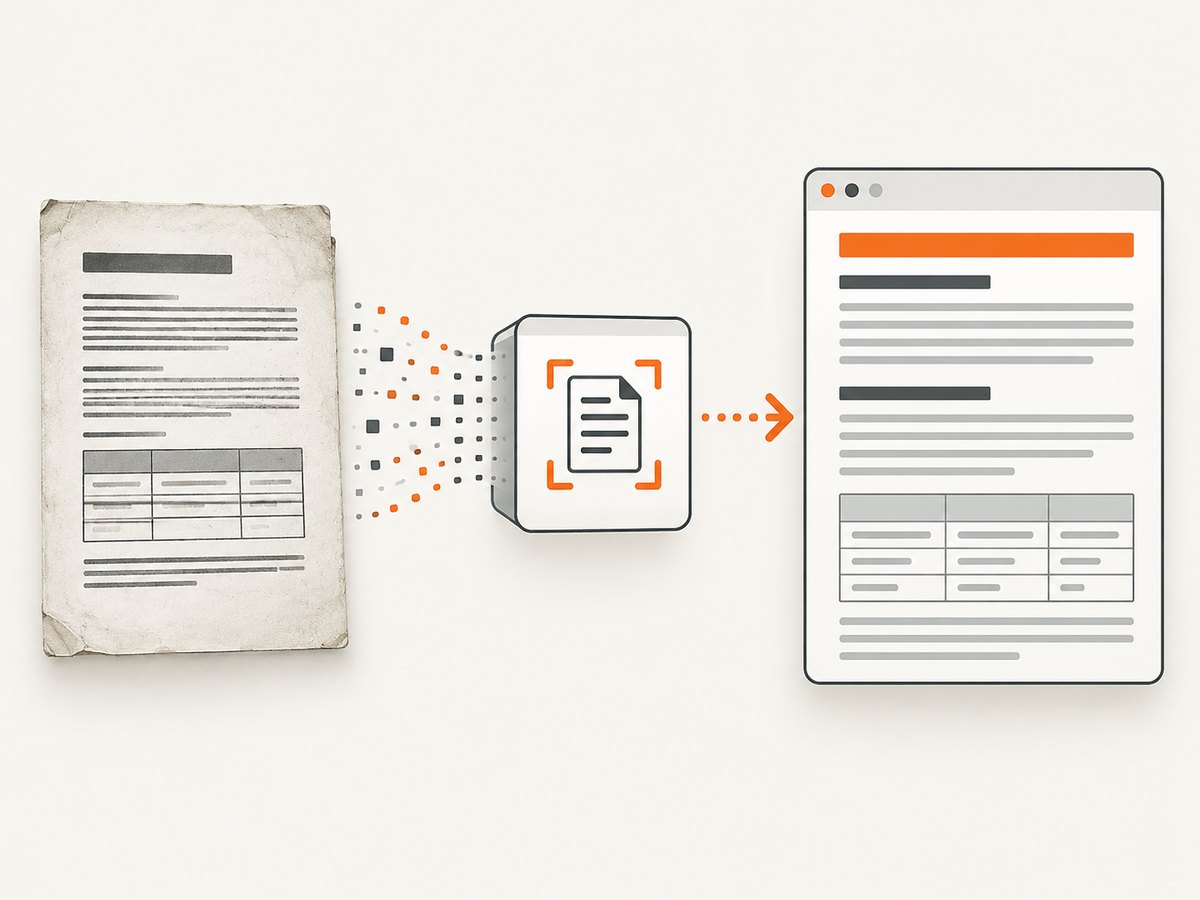
OCR review checklist
- Search for distinctive names, product numbers, dates, and totals that are easy for OCR to misread.
- Compare multi-column pages with the generated reading order.
- Check tables cell by cell, especially merged cells and decimal values.
- Inspect hyphenated words at line breaks.
- Confirm that headings were not flattened into ordinary paragraphs.
- Replace image-only text with real HTML text where practical.
Clean up the generated HTML
PDFs describe fixed visual pages. HTML describes content that must adapt to browsers, screen sizes, search engines, and assistive technology. A visually similar export can still have poor structure.
Content and structure
- Use one clear
<h1>and a logical<h2>/<h3>hierarchy. - Turn visual paragraphs into real paragraphs rather than positioned text fragments.
- Convert lists into
<ul>or<ol>elements. - Convert data tables into semantic
<table>markup with header cells. - Remove repeated page headers, footers, and page numbers when they are not content.
- Check links and repair URLs that were split across lines.
Images and media
- Open every extracted image and verify that it is not blurry, cropped, or duplicated.
- Add useful alternative text for meaningful images.
- Use an empty
altattribute for purely decorative images. - Compress large assets only after confirming that legibility is preserved.
Accessibility and reading order
Adobe’s accessibility guidance recommends checking tagging, reading order, and accessibility errors and repairing problems as needed. Apply that guidance to the resulting web page as well: test keyboard navigation, heading navigation, link names, table headers, image alternatives, focus order, and screen-reader reading order. Export alone does not make a page accessible. See Adobe’s accessibility guidance for Acrobat for the underlying concepts.
Validate the HTML on your Mac
- Open the output in Safari, Chrome, or Firefox.
- Resize the window and test a narrow viewport.
- Use the browser’s find function to confirm important text is searchable.
- Open every link and confirm that it points to the intended destination.
- Inspect the source or DOM to confirm that headings, lists, tables, and images use semantic elements.
- Run a keyboard-only pass with Tab, Shift+Tab, and Enter.
- Test with a screen reader if the page is public, instructional, or required to meet an accessibility target.
Choosing between one file and linked files
A single HTML file is convenient for a quick handoff, archival copy, or small document. Multiple linked files are easier to organize when the PDF contains many images or when you will edit the page as part of a larger site. The choice affects packaging and deployment more than the source PDF itself: a linked export must keep its asset paths intact.
Command-line and other technical routes
pdf2htmlEX is a command-line project that describes converting PDFs to HTML while retaining styling and selectable text. The available research does not verify current macOS installation steps, maintenance status, or compatibility, so treat it as a technical lead to investigate rather than a confirmed Mac recommendation. Check the repository’s current documentation before installing it or relying on it in automation.
Adobe’s PDF Services API overview lists several PDF operations and export formats, but the surfaced documentation does not establish PDF-to-HTML as a supported direction. Do not assume that an API advertised for PDF export can convert PDF directly to HTML.
Troubleshooting
| Symptom | Likely cause | Fix |
|---|---|---|
| HTML is unavailable in the format list | Your Acrobat edition, version, or current interface may differ. | Check the installed Acrobat version and follow the labels in its Convert menu. Do not assume every edition exposes identical controls. |
| The output contains no usable text | The PDF is image-only and text recognition was not enabled or did not recognize the page. | Enable text recognition, choose the correct language, export again, then proofread the OCR. |
| Columns appear in the wrong order | Visual placement in a PDF does not always encode logical reading order. | Reorder the content manually in HTML and test with keyboard navigation or a screen reader. |
| Tables are broken into positioned text | The PDF table has a visual layout without a semantic table structure. | Rebuild the table with HTML headers and cells; verify merged cells and row relationships. |
| Images are missing | Image export was disabled, or linked assets were moved without their folder. | Enable image inclusion and keep linked files with the generated HTML. |
| Headers and footers repeat throughout the page | Running page elements were treated as body content. | Use the option to remove headers and footers when appropriate, then inspect every page for accidental removal. |
| Text looks correct but is inaccessible | Visual fidelity does not guarantee semantic structure or correct reading order. | Add real headings, lists, table headers, link names, and image alternatives; perform keyboard and screen-reader checks. |
| Fonts or spacing change in the browser | PDF layout uses fixed positioning or fonts unavailable to the browser. | Prioritize readable structure over pixel matching, then revise CSS and replace problematic font dependencies. |
Performance, reliability, privacy, and cost considerations
Performance
Conversion time and output size depend on the PDF’s page count, embedded images, fonts, and OCR needs. Large image-heavy documents can create large HTML packages. Resize or compress images after checking legibility, and split very large documents into logical sections if your publishing workflow supports it.

Reliability
Keep the original PDF unchanged and save each conversion as a separate revision. For important documents, compare page counts, headings, tables, links, and key figures between the PDF and HTML before replacing the source. Recheck the output after moving it to its final hosting location because relative asset paths can break.
Privacy
The research cited here does not establish document-processing privacy terms for Acrobat, pdf2htmlEX, or an API. For confidential documents, review the current product and organization policy before uploading files to any third-party service.
Cost
The cited Adobe help page documents the workflow but does not establish which Acrobat plan or subscription is required. Check the current terms for your installed edition rather than assuming that every Acrobat license includes the same export controls.
Or skip the browser setup
If your actual goal is to capture a clean visual image or PDF of a web page after publishing the converted HTML, ScreenshotNeo provides a one-call screenshot API. It removes cookie and consent banners, newsletter popups, and chat widgets before capture; bot checks, blank pages, failed loads, timeouts, and cache hits are not billed; and each response identifies the result with X-Page-Verdict and X-Billed headers. Its MCP server provides take_screenshot, get_page_info, and capture_pdf tools for Claude, Cursor, and other MCP clients.
Read the ScreenshotNeo API documentation for the complete option list. This is a visual capture service, so it does not replace Acrobat’s PDF-to-HTML conversion when you need editable HTML source.
cURL
curl -G "https://api.screenshotneo.com/v1/shot" -d access_key=YOUR_API_KEY --data-urlencode url=https://example.com -o shot.webpPython
import requests
r = requests.get("https://api.screenshotneo.com/v1/shot", params={"access_key": "YOUR_API_KEY", "url": "https://example.com"}, timeout=90)
open("shot.webp", "wb").write(r.content)
Node.js
const q = new URLSearchParams({ access_key: 'YOUR_API_KEY', url: 'https://example.com' });
const res = await fetch(`https://api.screenshotneo.com/v1/shot?${q}`);
ScreenshotNeo includes full-page capture, element selection, device presets, custom viewports, retina scale, PDF options, custom CSS and JavaScript, waits, request blocking, headers, cookies, geolocation, caching, signed links, asynchronous jobs, bulk capture, and a usage API. The free plan includes 1,000 screenshots per month with no card; paid plans start at $5 for 3,000 shots. Sign up free for ScreenshotNeo.
FAQ
Can I convert a PDF to HTML without Acrobat?
Yes, other tools exist, but the research here only verifies Acrobat’s documented desktop workflow. pdf2htmlEX is a possible command-line lead; verify its current Mac support and maintenance before using it.
Will the HTML look exactly like the PDF?
Not necessarily. PDF uses fixed page geometry, while HTML reflows. Expect to adjust structure, CSS, images, and reading order.
Can OCR recover every word from a scan?
No accuracy guarantee is established by the cited documentation. Select the correct recognition language and proofread important text manually.
Is Acrobat PDF-to-HTML export automatically accessible?
No. Review headings, reading order, tables, links, image alternatives, keyboard behavior, and screen-reader output separately.
Should I use a screenshot API to make HTML?
No. A screenshot API creates an image or PDF representation of a web page. Use Acrobat or a verified conversion tool when you need HTML source that can be edited and published.


