How to Convert PDF to HTML With Open-Source Tools
Convert PDFs to faithful HTML with pdf2htmlEX, extract content with Poppler, and rebuild semantic pages with Pandoc.
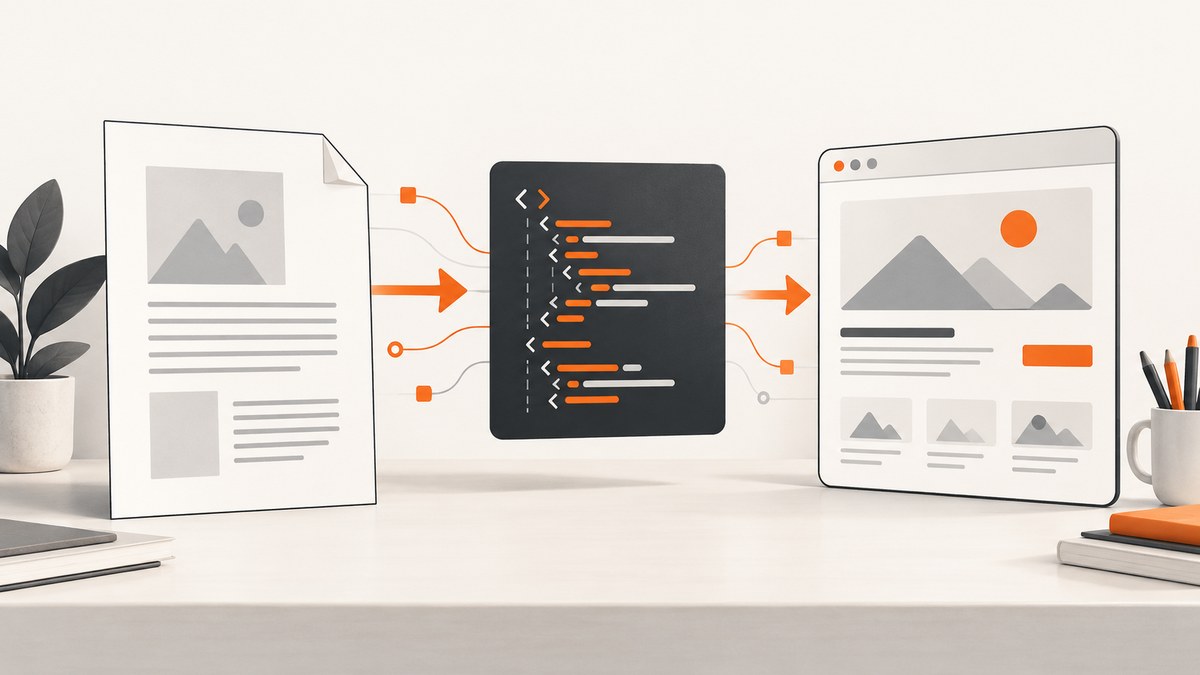
Short answer: use pdf2htmlEX when preserving the PDF’s visual layout is the priority, Poppler’s pdftohtml when extracting text and structure for processing, and Pandoc only after converting the PDF into an intermediate format. Pandoc does not convert PDF files directly to HTML.
The right tool depends on whether you need a visual copy of each page, machine-readable content, or clean responsive HTML that you will edit by hand.
Choose the right open-source workflow
| Goal | Recommended tool | What to expect |
|---|---|---|
| Keep page geometry, fonts and positioning | pdf2htmlEX | HTML and CSS that closely reproduce the PDF. Text may not reflow well on small screens. |
| Extract text, images or XML for processing | Poppler pdftohtml |
Command-line conversion with XML, image, zoom and layout switches. |
| Create clean, editable semantic HTML | Poppler or another extractor, then Pandoc | A two-step pipeline. You must inspect headings, reading order, tables and accessibility. |
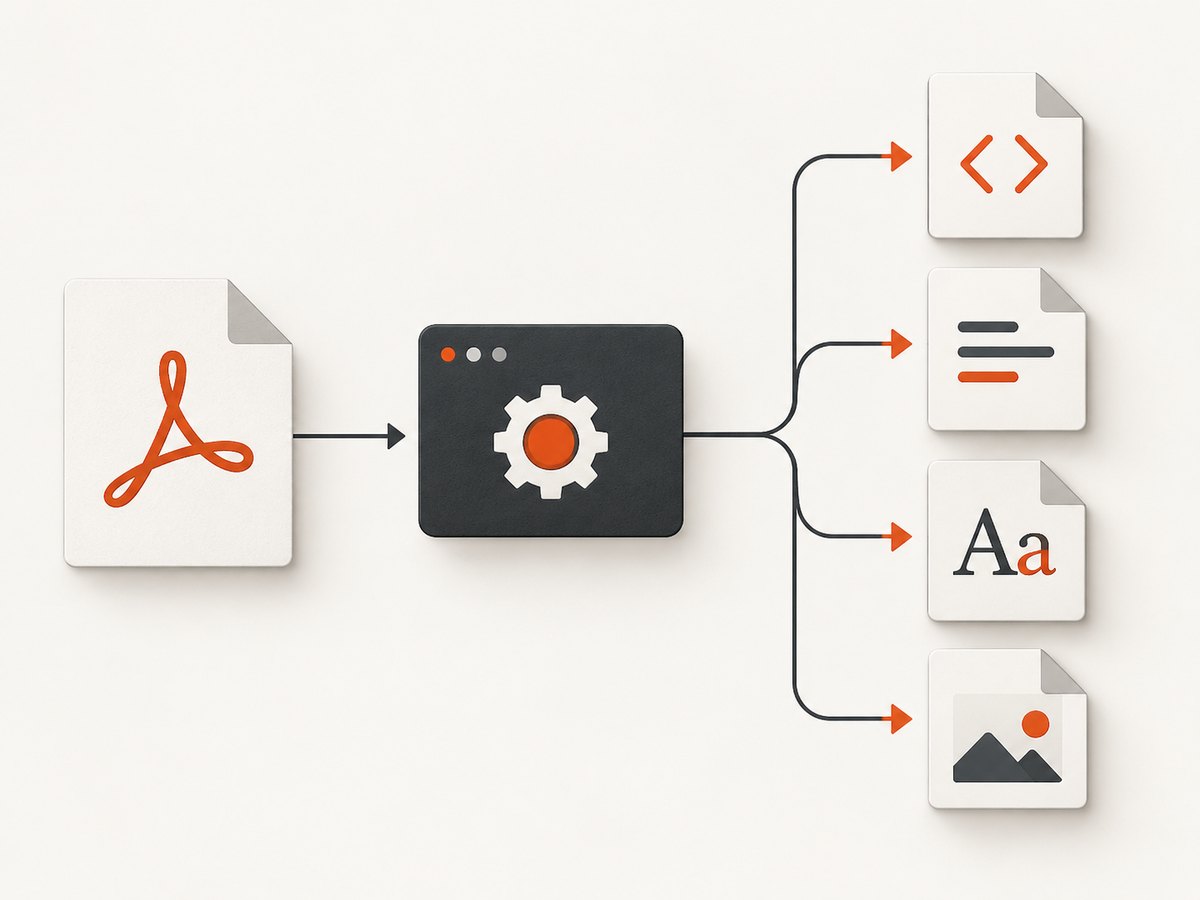
1. Convert a PDF with pdf2htmlEX
pdf2htmlEX is the layout-focused option. Its project describes native HTML text with precise font and location handling, links, outlines, images and SVG backgrounds. It can emit one HTML file or separate files for pages. See the official pdf2htmlEX project for installation packages and source instructions.
Install
Use the project’s AppImage, Docker image or a package for your operating system. A container keeps the converter and its rendering dependencies consistent between machines.
Basic conversion
pdf2htmlEX input.pdf output.htmlIf your installed build accepts only the input filename, run:
pdf2htmlEX input.pdfThis normally writes an HTML file alongside extracted assets. Keep the generated CSS, fonts and image files together when publishing or archiving the result.
Useful pdf2htmlEX decisions
- Single document or pages: choose one HTML document for continuous viewing, or page files when you need page-level loading and processing.
- Fonts: preserving embedded fonts improves visual fidelity but increases output size and may create licensing obligations.
- Responsive behavior: visually faithful text is usually positioned against the original page geometry. Plan to rewrite the markup if mobile reflow is required.
- Assets: deploy generated CSS, images, SVG backgrounds and font files together; missing assets cause blank areas or fallback fonts.
2. Extract content with Poppler’s pdftohtml
Poppler’s pdftohtml is better suited to extraction and automation. Its manual documents HTML, XML and PNG output plus switches for complex output, frames, zoom, image suppression and password-protected files. See the pdftohtml manual.
Basic command
pdftohtml input.pdf output.htmlCommon options
# Produce XML with positioned text objects
pdftohtml -xml input.pdf output.xml

# Avoid frames in the generated HTML
pdftohtml -noframes input.pdf output.html

# Keep complex page positioning
pdftohtml -c input.pdf output.html

# Suppress image extraction
pdftohtml -i input.pdf output.html

# Change rendering scale
pdftohtml -zoom 1.5 input.pdf output.html

# Supply a password for an encrypted PDF
pdftohtml -upw 'USER_PASSWORD' input.pdf output.html
Option names and defaults can vary by Poppler version. Check pdftohtml -h on the machine that runs your pipeline.
Use XML as an intermediate format
XML output exposes text with coordinates. That makes it useful for finding page regions, rebuilding headings and sending content into a database. It does not automatically infer a document’s semantic structure. You still need rules for headings, columns, tables and reading order.
3. Build semantic HTML with Pandoc after extraction
Pandoc is not a direct PDF converter. Its official FAQ says: “You can’t,” and recommends opening the PDF in Word or Google Docs and saving it to a format Pandoc can convert. Read the Pandoc FAQ.
Use Pandoc after you have produced Markdown, plain text or another supported intermediate format. The -s flag creates a standalone HTML document.
# Convert an edited Markdown intermediate to standalone HTML
pandoc extracted.md -f markdown -t html -s -o document.html
A practical pipeline is:
- Extract with
pdftotext,pdftohtml -xmlor an OCR tool when the PDF contains scanned pages. - Repair reading order, headings, lists and tables.
- Save the cleaned content as Markdown.
- Run Pandoc with a template, stylesheet and metadata.
pandoc cleaned.md \
  --from=markdown \
  --to=html \
  --standalone \
  --metadata title="Converted document" \
  --css=styles.css \
  --output=document.html
Preserve layout or make HTML reflowable?
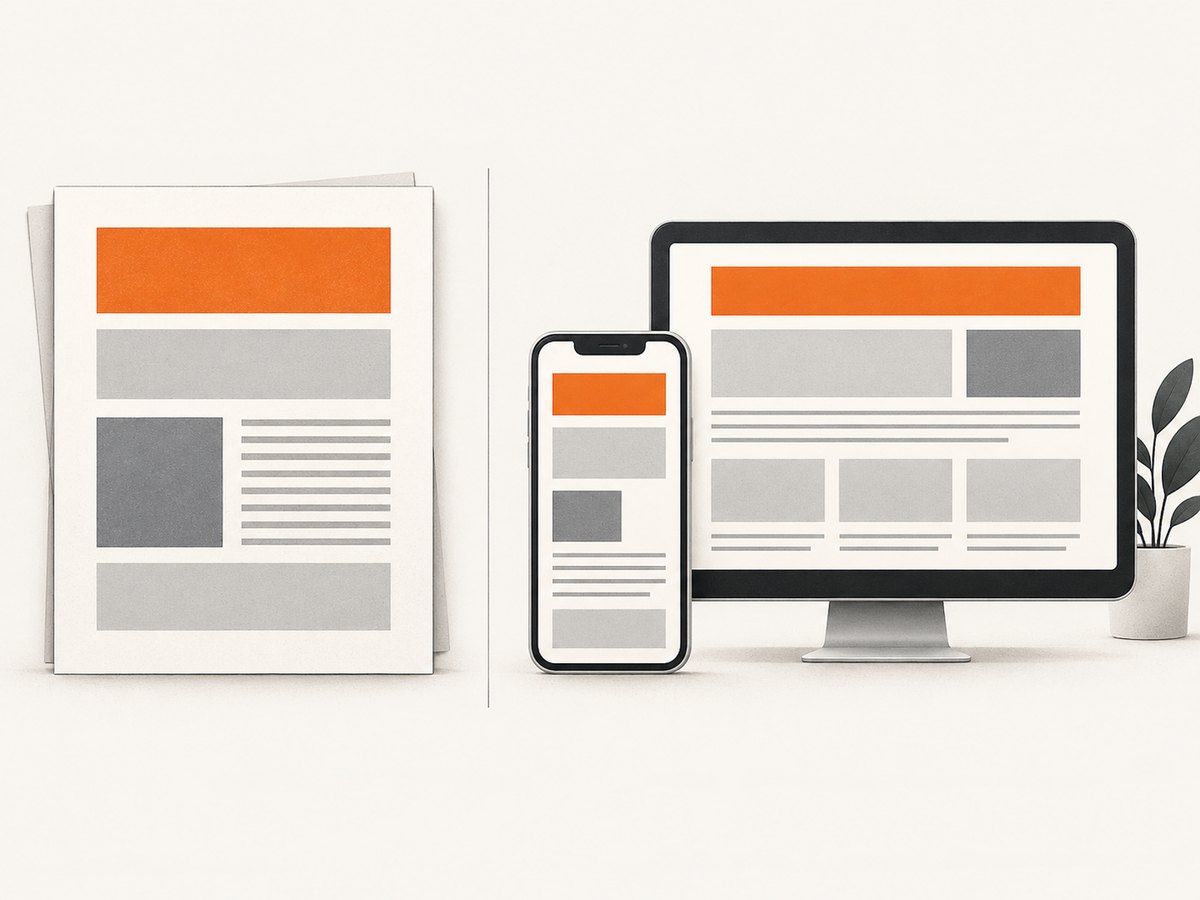
These goals conflict. pdf2htmlEX can preserve page coordinates, fonts and visual placement, but text positioned to match a printed page generally does not reflow naturally. A semantic rebuild can work better on phones and with assistive technology, but it requires manual or scripted reconstruction.
| Requirement | Best approach |
|---|---|
| Pixel-close archival copy | pdf2htmlEX; retain generated CSS and fonts. |
| Searchable text for indexing | Poppler HTML or XML, then normalize the text. |
| Responsive article | Extract, edit into Markdown or structured HTML, then style for the web. |
| Accessible headings and tables | Manual semantic cleanup; do not assume coordinates imply document structure. |
Handling scanned PDFs and OCR
A scanned PDF may contain only page images. HTML converters cannot recover text that is not present as a text layer. Run OCR first, review recognition errors, then convert the resulting searchable PDF or extracted text. Tables, multi-column pages, mathematical notation and unusual fonts need visual and semantic review after OCR.
Fonts, images and licensing
Generated HTML may include embedded or extracted fonts, images and SVG assets from the source PDF. The pdf2htmlEX documentation warns: “Font extraction, conversion or redistribution may be illegal, please check your local laws.” Review font licenses and the rights for every third-party asset before publishing a converted document.
Automation examples
Batch conversion with a shell loop
mkdir -p html
for pdf in pdfs/*.pdf; do
  name="${pdf##*/}"
  stem="${name%.pdf}"
  pdf2htmlEX "$pdf" "html/$stem.html"
done
Fail fast in a CI job
set -euo pipefail
input="${1:?PDF path required}"
output="${2:?HTML path required}"
test -s "$input"
pdftohtml -noframes "$input" "$output"
test -s "$output"
Troubleshooting
| Symptom | Likely cause | Fix |
|---|---|---|
| HTML is blank | The PDF is scanned, encrypted, malformed or failed to load assets. | Check the PDF with a viewer, run OCR for scans, provide the password, and inspect generated asset paths. |
| Text overlaps | Positioned output or unusual font metrics. | Try pdf2htmlEX for layout fidelity, verify fonts, or rebuild semantic HTML from extracted text. |
| Images are missing | Assets were not copied or image extraction was disabled. | Keep the output directory intact and remove -i when images are required. |
| Columns read in the wrong order | PDF stores drawing positions rather than logical reading order. | Use XML coordinates as input to a column-aware post-processor and review the result manually. |
| Output is huge | Embedded fonts, page images or duplicated CSS. | Subset fonts where permitted, optimize images, and compare page-level output with a single document. |
| HTML works locally but not when deployed | Relative asset paths, blocked fonts or incorrect MIME types. | Serve the complete asset tree, inspect browser network errors and set correct font, image and CSS MIME types. |
| Password error | The PDF is encrypted. | Use the converter’s user-password option when you are authorized to access the file. |
Performance, reliability and cost
- Performance: large embedded images and font extraction dominate output size and processing time. Measure representative PDFs rather than relying on page count alone.
- Reliability: pin converter versions, use a container for repeatable dependencies, preserve the original PDF, and validate that HTML and referenced assets exist.
- Security: treat PDFs as untrusted input. Run conversion in an isolated worker, limit CPU, memory and execution time, and avoid exposing generated files until validation finishes.
- Cost: the converters are open-source software, but servers, storage, OCR and review still consume resources. Cache conversions using a content hash when the source PDF is unchanged.
Or skip the browser setup
If your next step is simply getting a clean image or PDF of a web page, ScreenshotNeo provides a website screenshot API and MCP server. It removes cookie banners, newsletter popups and chat widgets before capture; bot checks, blank pages and failed loads are never billed; and AI agents can use its MCP tools.
See the ScreenshotNeo API documentation for all options. A direct request looks like this:
curl -G "https://api.screenshotneo.com/v1/shot" -d access_key=YOUR_API_KEY --data-urlencode url=https://stripe.com -o shot.webpimport requests
r = requests.get("https://api.screenshotneo.com/v1/shot", params={"access_key": "YOUR_API_KEY", "url": "https://stripe.com"}, timeout=90)
open("shot.webp", "wb").write(r.content)const q = new URLSearchParams({ access_key: 'YOUR_API_KEY', url: 'https://stripe.com' });
const res = await fetch(`https://api.screenshotneo.com/v1/shot?${q}`);ScreenshotNeo includes 1,000 screenshots a month free with no card; paid plans start at $5 for 3,000. Create a free ScreenshotNeo account.
FAQ
Can Pandoc convert a PDF directly to HTML?
No. Convert the PDF to a supported intermediate format first, then use Pandoc to produce standalone HTML.
Which tool preserves the original page appearance best?
Start with pdf2htmlEX. It is designed for precise text, font and location handling.
Which output should I use for data extraction?
Try Poppler’s XML mode when coordinates and text objects are useful to your parser.
Will converted HTML automatically be accessible?
No. Check heading hierarchy, reading order, table structure, contrast, keyboard navigation and alternative text yourself.
Can I publish extracted fonts?
Only after reviewing the font license and applicable law. The pdf2htmlEX project specifically flags font extraction and redistribution as a legal issue.


