How to Convert PDFs to PDF/A with Ghostscript When Annotations Cause Errors
Convert PDFs to PDF/A with Ghostscript, diagnose annotation errors, configure ICC profiles and compatibility policies, and verify what survives.
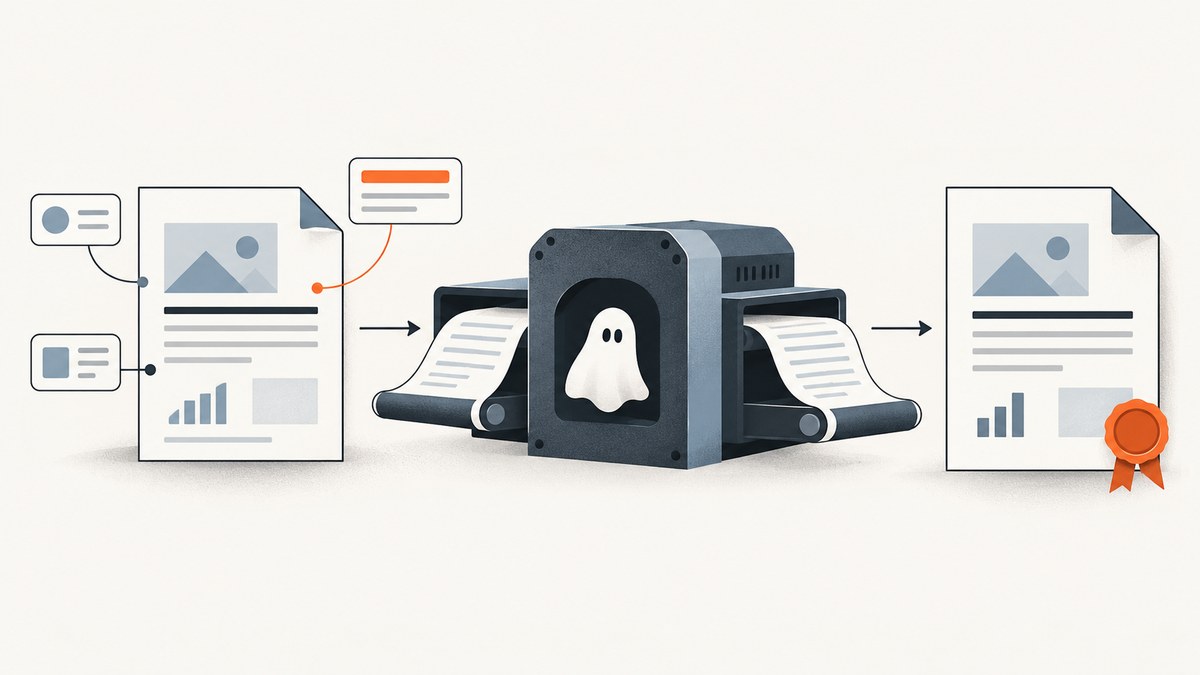
Short answer: Ghostscript converts a PDF to PDF/A with the pdfwrite device, a selected PDF/A level, a color-conversion strategy, and a PDF/A definition file that points to a valid ICC profile. Annotation errors are file- and version-dependent. Ghostscript may preserve some annotation types, draw others into page content, omit incompatible operations, or stop with an error, depending on your settings and PDFACompatibilityPolicy. A successful command does not prove that every annotation or interactive feature survived.
Use the exact Ghostscript version, command line, complete warnings, and source PDF when diagnosing a failure. The official documentation describes the conversion controls and annotation behavior, but it does not support a universal fix for every annotation error.
1. What PDF/A conversion changes
PDF/A is an archival profile. A conforming file needs requirements such as embedded fonts and characterized color spaces. Ghostscript’s pdfwrite device reconstructs a new PDF while attempting to preserve the visible result. The internal objects, metadata, comments, links, bookmarks, and annotation interactivity can differ from the source.
Ghostscript currently documents PDF/A-1, PDF/A-2, and PDF/A-3 at conformance level B. It does not create higher conformance levels when it cannot establish the source structure and semantics required for them. Choose the level required by your archive or receiving system rather than assuming a newer level is always better.
2. Prepare the PDF/A definition file and ICC profile
The definition file (commonly named PDFA_def.ps) supplies the PDF/A output intent. It must refer to an ICC profile that exists on the machine running Ghostscript. The profile path and the syntax in the definition file are platform-specific; use the sample file shipped with your Ghostscript installation or the current official documentation as the starting point.
Before running a conversion, check:
- The input file opens normally and is not encrypted without a usable password.
- The installed Ghostscript binary and documentation match the version you intend to support.
PDFA_def.psis readable and appears before the input PDF on the command line.- The ICC profile path in the definition file exists and is readable.
- Your chosen color strategy is supported by the selected PDF/A level.
Ghostscript’s current PDF/A guidance covers the definition-file format, ICC profile requirement, color strategies, and transparency handling: PDF/A in the Vector Devices documentation.
3. A baseline Ghostscript conversion
This example follows the documented pdfwrite workflow. Replace paths and choose the PDF/A level required by your process.
gs \
  -dPDFA=2 \
  -dBATCH \
  -dNOPAUSE \
  -sColorConversionStrategy=RGB \
  -sDEVICE=pdfwrite \
  -sOutputFile=out-a.pdf \
  PDFA_def.ps \
  input.pdf
On Windows, the executable may be named gswin64c.exe instead of gs. The documented sample uses -dPDFA=1; use 1, 2, or 3 according to your requirement. PDF/A-2 and PDF/A-3 permit transparency, for which Ghostscript documents -sBlendConversionStrategy=Simple or Managed when needed.
Make warnings visible
Capture standard output and standard error in your build logs. Do not ignore warnings about omitted operations, invalid profiles, fonts, transparency, or annotations.
gs -dPDFA=2 -dBATCH -dNOPAUSE \
  -sColorConversionStrategy=RGB \
  -sDEVICE=pdfwrite \
  -sOutputFile=out-a.pdf \
  PDFA_def.ps input.pdf 2>ghostscript-errors.log
4. Understand PDFACompatibilityPolicy
This setting determines what happens when Ghostscript encounters an operation it cannot emit in a conforming PDF/A file. The official behavior is:
| Value | Behavior | Use when |
|---|---|---|
0 (default) |
Ghostscript may include the incompatible feature, warn, and produce a file that is not conforming. | You are diagnosing a source file and need to see what triggered the warning. |
1 |
Ghostscript omits the incompatible operation and warns for each omission. | You accept documented content loss and will review every warning. |
2 |
Ghostscript aborts with an error when it encounters the incompatible operation. | Conformance is mandatory and silent loss is unacceptable. |
For a strict conversion, try policy 2 first:
gs -dPDFA=2 -dPDFACompatibilityPolicy=2 -dBATCH -dNOPAUSE \
  -sColorConversionStrategy=RGB \
  -sDEVICE=pdfwrite \
  -sOutputFile=out-a.pdf \
  PDFA_def.ps input.pdf
If it fails, read the first meaningful error and identify the operation or object that caused it. Policy 1 can produce a conforming result only by dropping incompatible content, so it is not a repair for a requirement that the annotation remain present.
5. How Ghostscript handles annotations
Annotation handling is not all-or-nothing. Current pdfwrite documentation says Ghostscript attempts to preserve most annotations from PDF input, while calling out Link and Widget annotations as notable exceptions. The result also depends on the annotation subtype, its appearance stream, the PDF/A level, and the Ghostscript version.
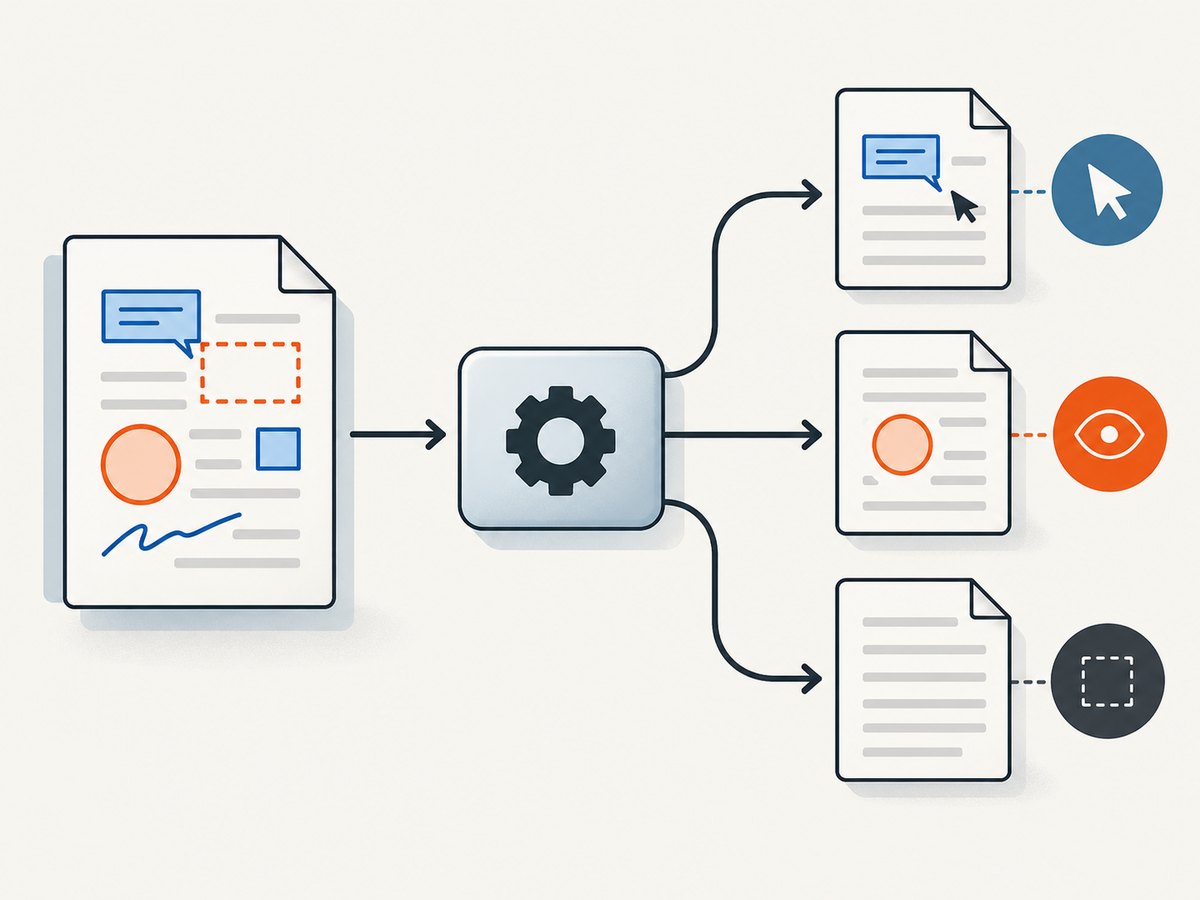
Ghostscript provides these controls:
| Option | Purpose |
|---|---|
-dPreserveAnnots=false |
Returns to older behavior in which annotations are inserted into page content instead of being preserved as annotation objects. |
PreserveAnnotTypes |
Controls which annotation types remain annotations. |
ShowAnnots |
Controls whether annotations are drawn into the output page content. |
ShowAnnotTypes |
Provides type-level control over which annotations are drawn. |
Use these options only after deciding what “preserved” means for your archive:
- Visual preservation: the annotation’s appearance is visible when the page is rendered.
- Interactive preservation: a reader can still click, edit, submit, or activate the annotation.
- Object preservation: the annotation remains a PDF annotation with its original properties.
Drawing an annotation into page content can retain its visible appearance while removing interactivity. Conversely, preserving an annotation object may still fail PDF/A requirements or leave an appearance different from the source. Ghostscript’s high-level-device documentation also warns that comments and other non-marking structures may not survive reconstruction. See the annotation controls and the high-level device overview.
Example: prioritize visible marks
If your archive only needs the annotation appearance on the page, test a conversion that draws annotations into page content:
gs -dPDFA=2 -dPDFACompatibilityPolicy=1 \
  -dPreserveAnnots=false \
  -dBATCH -dNOPAUSE \
  -sColorConversionStrategy=RGB \
  -sDEVICE=pdfwrite \
  -sOutputFile=visible-annotations.pdf \
  PDFA_def.ps input.pdf
Review every warning and compare rendered pages. This may remove links, form behavior, comments, or other interactive functions.
6. A repeatable diagnosis for “annotations cause errors”
- Record the environment. Run
gs --version(or the platform equivalent), save the complete command, and retain all output. - Clarify the requirement. Decide whether annotations must be visible, interactive, editable, or unchanged as objects.
- Run with policy 2. This exposes incompatible operations instead of silently producing a questionable file.
- Isolate the annotation subtype. Work on a copy and remove or recreate one class at a time, such as comments, links, widgets, stamps, or markup.
- Try the preservation controls deliberately. Test default preservation, drawing into page content, and type-level controls as separate experiments.
- Inspect both output and logs. Render affected pages, test required interactions, and check for omitted-operation warnings.
- Validate independently. Use a PDF/A conformance validator appropriate to your required profile, then compare the output with the original. A file containing PDF/A metadata is not necessarily conforming.
Ghostscript’s FAQ requests the full command line, original input, and Ghostscript version when reporting a problem: Ghostscript FAQ.
7. Common errors and fixes
| Symptom | Likely cause | Fix |
|---|---|---|
| “PDF/A definition file” or output-intent error | The definition file is missing, appears after the input, or points to an invalid ICC profile. | Use a valid PDFA_def.ps, put it before the input, and verify the profile path and permissions. |
| Output is created but fails validation | Policy 0 allowed an incompatible operation, or required fonts/color information are absent. | Use policy 2 to find the operation, correct the source or configuration, and validate independently. |
| Annotation disappears | The subtype is not preserved, the operation was omitted under policy 1, or the annotation was not drawn. | Inspect warnings; test PreserveAnnotTypes, ShowAnnotTypes, or -dPreserveAnnots=false based on the required result. |
| Annotation is visible but no longer clickable | It was flattened into page content. | Use this only when visual retention is sufficient. If interactivity is required, test preservation and confirm the target PDF/A profile permits it. |
| Form fields or links behave differently | Widget and Link annotations have special handling, and pdfwrite reconstructs the file. |
Test the exact subtype and Ghostscript version. Consider an object-level PDF editor when the original structure must remain intact. |
| Transparency warning or changed appearance | The selected PDF/A level or blend strategy does not match the source. | For a transparency-capable level, test -sBlendConversionStrategy=Simple or Managed; compare rendered pages. |
| Fonts or colors change | Fonts were not embedded or the color strategy/profile is unsuitable. | Check source font embedding, use a supported -sColorConversionStrategy, and verify the ICC output intent. |
| Conversion stops immediately | Policy 2 found an incompatible operation, or the input is damaged/encrypted. | Read the first error, confirm the input can be opened, and isolate the failing object on a copy. |
8. Choosing a policy for production
- Strict archival ingest: policy 2, fail the job on any incompatible operation, store logs, and require independent validation.
- Best-effort visual archive: policy 1 with an explicit review process for every omission and a documented decision to flatten annotations where necessary.
- Investigation: policy 0 can reveal what Ghostscript is attempting, but never label its output conforming without validation.
Keep the Ghostscript version pinned in automated pipelines. A change in version can alter annotation preservation, warnings, rendering, or metadata. Store the original PDF, command, definition file, ICC profile identifier, version, logs, and validation result together.
9. Performance, reliability, and cost considerations
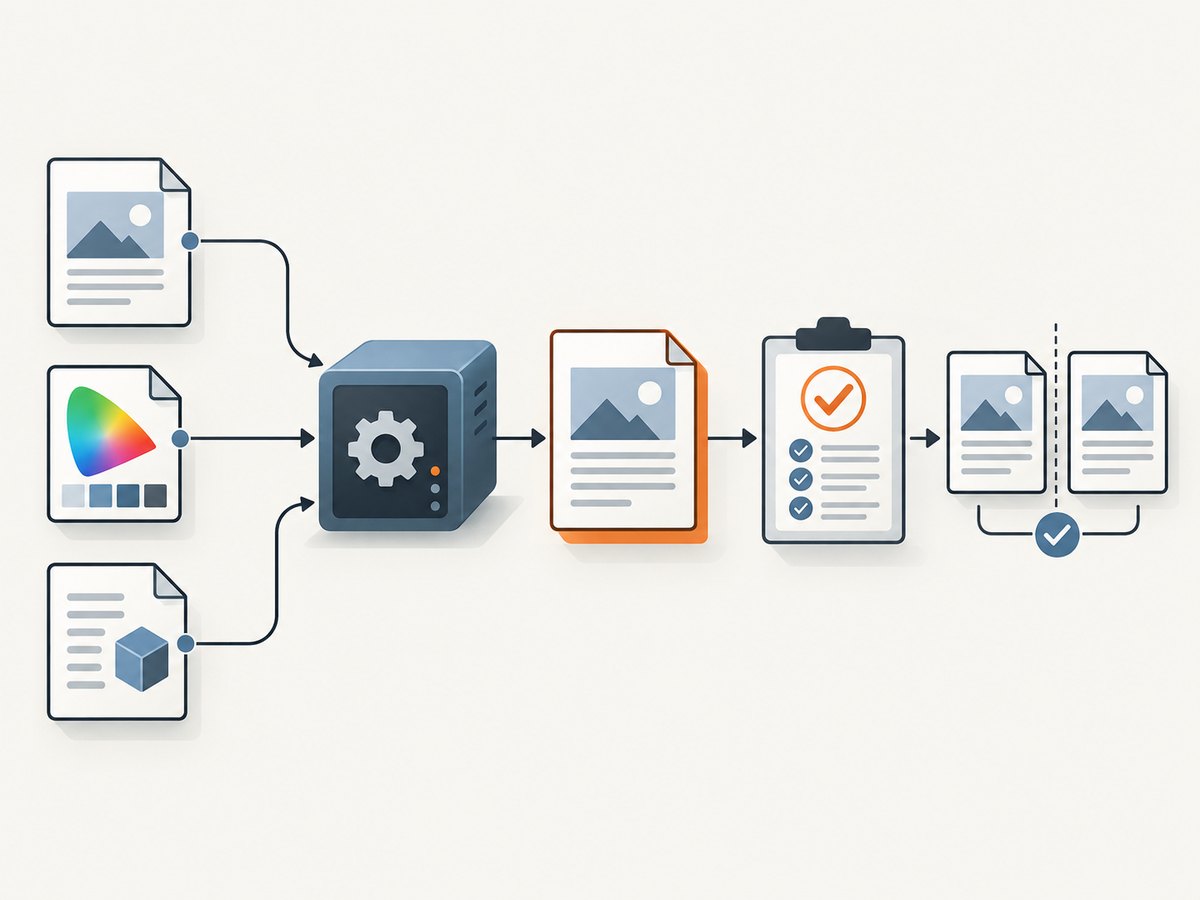
Ghostscript conversion is local processing: runtime and memory depend on page count, image resolution, transparency, fonts, and annotation complexity. For reliable batch jobs:
- Process one input to one output in an isolated working directory.
- Use
-dBATCHand-dNOPAUSEso unattended jobs terminate. - Capture exit status and stderr; a generated file alone is not success.
- Set an external timeout for malformed or unusually complex PDFs.
- Validate a representative sample and every file when the archive requires strict conformance.
- Compare rendered pages and required interactions, not only file size or metadata.
Ghostscript itself has no per-document API charge. Your operational costs are compute, storage, validation, review time, and any downstream editing needed when annotations or other structures cannot be retained.
10. When Ghostscript is the wrong preservation tool
If exact retention of original objects, comments, links, bookmarks, metadata, or annotation interactivity is mandatory, do not assume a conversion device can provide it. Ghostscript explains that pdfwrite creates a newly constructed file and suggests evaluating a tool designed for object-level modifications, naming MuPDF as an example. Check the exact operation and version before adopting any alternative.
11. Or skip the browser setup
ScreenshotNeo does not convert PDFs to PDF/A. It is useful when the next step is capturing a web page or rendered document preview for QA, evidence, or an archive workflow. One GET request returns a PNG, JPEG, WebP, or PDF. Cookie and consent banners, newsletter popups, and chat widgets are removed before the shot; bot checks, blank pages, failed loads, timeouts, and cache hits are not billed. Responses identify the result with X-Page-Verdict and X-Billed headers. An MCP server lets AI agents use take_screenshot, get_page_info, and capture_pdf.
See the ScreenshotNeo API documentation for request options.
curl -G "https://api.screenshotneo.com/v1/shot" -d access_key=YOUR_API_KEY --data-urlencode url=https://stripe.com -o shot.webpimport requests
r = requests.get("https://api.screenshotneo.com/v1/shot", params={"access_key": "YOUR_API_KEY", "url": "https://stripe.com"}, timeout=90)
open("shot.webp", "wb").write(r.content)const q = new URLSearchParams({ access_key: 'YOUR_API_KEY', url: 'https://stripe.com' });
const res = await fetch(`https://api.screenshotneo.com/v1/shot?${q}`);ScreenshotNeo has 1,000 screenshots a month free with no card; paid plans start at $5 for 3,000. Create a free ScreenshotNeo account.
12. FAQ
Does a successful Ghostscript exit guarantee PDF/A conformance?
No. Policy 0 can leave incompatible features in the output, and metadata alone is not proof. Run an independent validator and review warnings.
Should I always flatten annotations?
No. Flattening can preserve appearance while removing interactivity. Choose it only when the archive requires visible marks and not clickable or editable annotations.
Which PDF/A level should I choose?
Use the level required by the receiving archive. Ghostscript documents PDF/A-1, PDF/A-2, and PDF/A-3 at level B; the choice affects features such as transparency.
Why does the output look right but behave differently?
pdfwrite reconstructs the file. Visible page marks may survive while links, widgets, comments, bookmarks, metadata, or other non-page structures change or disappear.
What information is needed to diagnose my exact annotation error?
Provide the Ghostscript version, complete command, full warning/error output, a representative input PDF, and whether visual appearance or interactive behavior must be preserved.


