How to Convert a PNG Image to an HTML File
Learn how to place a PNG in HTML, reference it safely, or embed it as Base64 in one standalone file.
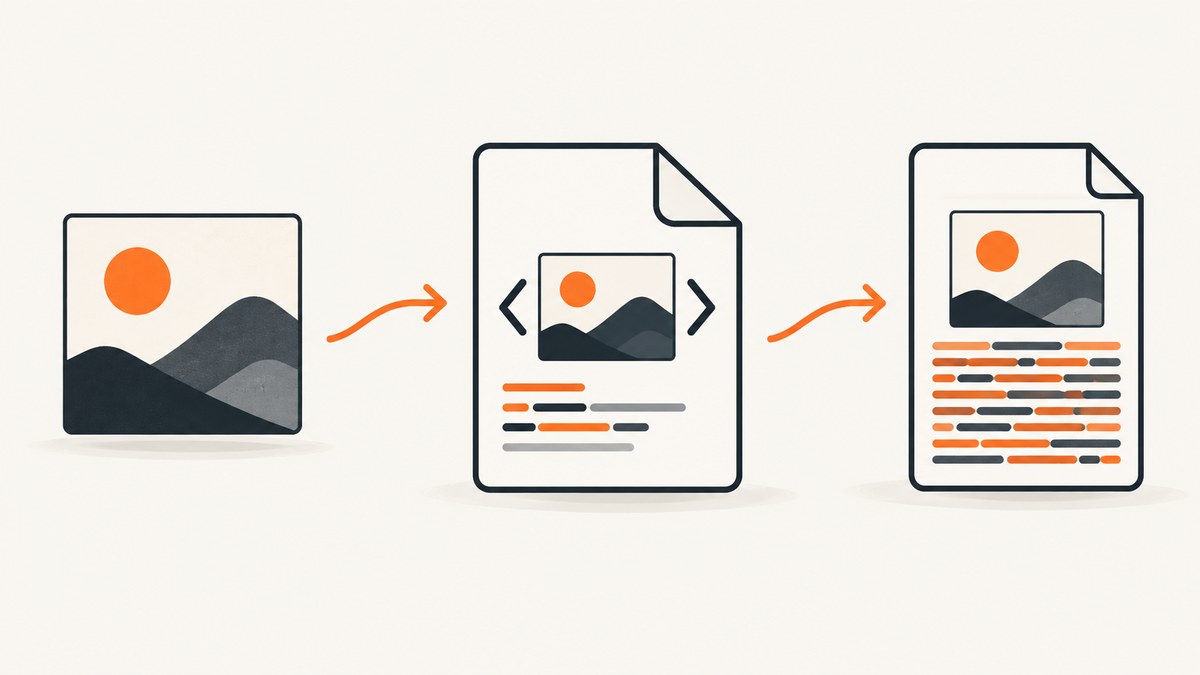
Short answer: You do not transform PNG pixels into HTML markup. HTML tells a browser how to display the PNG. In the usual approach, save an HTML file beside the PNG and point an <img> element at the file. If you need one portable HTML file, encode the PNG as Base64 and use a data:image/png;base64,... URL.
This guide covers both methods, complete examples, path handling, accessibility, validation, automation, troubleshooting, performance, and the cases where a PNG should remain a separate asset. It also explains why converting a raster image to SVG is a different task.
1. What “convert PNG to HTML” actually means
A PNG is a raster image: a binary file containing pixels, color information, and optional transparency. HTML is a document format that describes structure. An HTML document can display a PNG, but it does not recover the original design layers, vector paths, text objects, or semantic structure from those pixels.
The browser performs the work in two stages. It parses the HTML, finds the <img> element, then loads the resource identified by src. The image remains a PNG even when it is displayed inside a page. MDN documents the image element and recommends useful alternative text for informative images: the <img> reference.
There are two practical interpretations of the request:
- Put a PNG into an HTML page: keep
picture.pngas a separate file and reference it with a relative or absolute URL. - Make a standalone HTML file: Base64-encode the PNG bytes and place them in a data URL, so the HTML carries the image payload.
Choose the first method when the image will be replaced independently, served repeatedly, cached by a browser or CDN, or maintained by a team. Choose the second when a single file must be copied, attached, archived, or opened without a neighboring asset.
2. Method one: reference a separate PNG file
Create a directory containing an HTML document and the image:

project/
  index.html
  picture.png
Then use this complete document:
<!doctype html>
<html lang='en'>
<head>
  <meta charset='utf-8'>
  <meta name='viewport' content='width=device-width, initial-scale=1'>
  <title>PNG image in HTML</title>
</head>
<body>
  <main>
    <h1>Product diagram</h1>
    <img src='picture.png' alt='A diagram of the product workflow'>
  </main>
</body>
</html>
Open index.html in a browser. The relative URL picture.png is resolved from the directory containing the HTML file. If the image is in a subdirectory, include that path:
<img src='images/picture.png' alt='Product workflow diagram'>If the HTML file is inside a subdirectory and the image is one level above it, use ../picture.png. URL paths use forward slashes on every operating system, including Windows. File names and directory names are case-sensitive on many servers, so Picture.png and picture.png may be different resources.
Use meaningful alternative text
The alt attribute supplies a text alternative when the image cannot load and for people using screen readers. Describe the information the image communicates, not every decorative detail. For an informative chart, identify its subject and key message. For a purely decorative image, use an empty value: alt=''. Do not omit the attribute.
Control size without changing the source
Use CSS for presentation:
img {
  display: block;
  max-width: 100%;
  height: auto;
}
This keeps the image inside a narrow container while preserving its aspect ratio. The HTML width and height attributes can also reserve layout space and reduce layout shifts when you know the intrinsic dimensions:
<img src='picture.png' width='1600' height='900' alt='Product workflow diagram'>Do not stretch a PNG to a different aspect ratio unless distortion is intentional. A browser can scale pixels, but it cannot add detail that was not in the source.
3. Method two: embed the PNG as a Base64 data URL
A data URL has the form data:[media-type][;base64],encoded-data. For PNG, the media type is image/png and the Base64 marker is ;base64,. MDN describes this syntax in its data URL reference.
Start with a small example:
<!doctype html>
<html lang='en'>
<head>
  <meta charset='utf-8'>
  <title>Embedded PNG</title>
</head>
<body>
  <img src='data:image/png;base64,PASTE_BASE64_DATA_HERE' alt='Embedded product diagram'>
</body>
</html>
Replace the placeholder with the encoded bytes. Base64 is a text representation of binary data; it does not redraw, sharpen, vectorize, or otherwise improve the image. The resulting HTML becomes much longer because it contains the entire encoded payload.
Encode a PNG on the command line
On macOS or Linux, use the system Base64 utility:
base64 < picture.png | tr -d '\n' > picture.base64.txtOn some systems the command is:
base64 -w 0 picture.png > picture.base64.txtRead the generated text and place it after data:image/png;base64,. Keep the data on one logical line. Whitespace inserted into a data URL can cause decoding failures in some contexts.
Generate a complete standalone HTML file with Python
from base64 import b64encode
from pathlib import Path

png_bytes = Path('picture.png').read_bytes()
encoded = b64encode(png_bytes).decode('ascii')
html = f'''<!doctype html>
<html lang="en">
<head>
  <meta charset="utf-8">
  <title>Embedded PNG</title>
</head>
<body>
  <img src="data:image/png;base64,{encoded}" alt="Product workflow diagram">
</body>
</html>'''
Path('standalone.html').write_text(html, encoding='utf-8')
Run it from the directory containing picture.png. The script reads bytes rather than decoding the image, so transparency and all PNG metadata remain in the embedded payload.
Generate the file with Node.js
const fs = require('node:fs');

const encoded = fs.readFileSync('picture.png').toString('base64');
const html = `<!doctype html>
<html lang='en'>
<head><meta charset='utf-8'><title>Embedded PNG</title></head>
<body>
  <img src='data:image/png;base64,${encoded}' alt='Product workflow diagram'>
</body>
</html>`;
fs.writeFileSync('standalone.html', html, 'utf8');
4. Verify the media type and generated HTML
PNG files use the image/png media type. MDN’s image format guide lists PNG as a format suited to precise reproduction and transparency. Check the following before distributing the file:
- Open the HTML in at least one browser.
- Inspect the image element and confirm that
srcstarts withdata:image/png;base64,when using embedding. - Compare the displayed image with the original PNG for transparency, colors and dimensions.
- Check the browser console for malformed URL or decoding errors.
- Validate that the
alttext describes the image’s purpose. - Copy the standalone HTML to another directory or computer and open it again. It should work without the original PNG only when the data URL is complete.
For a separate-file page, use the browser’s network panel to see the requested path and HTTP status. A 404 usually means the relative path, spelling or capitalization is wrong.
5. Separate file versus Base64: a practical decision table
| Requirement | Separate PNG | Inline Base64 |
|---|---|---|
| One file to copy or email | Requires copying both files | Works as one HTML file |
| Easy image replacement | Replace the PNG without editing HTML | Regenerate the HTML |
| Readable source control diff | HTML remains short and reviewable | Large encoded line obscures changes |
| Browser or CDN caching | Image can be cached independently | Image is tied to each HTML document |
| Offline portability | Keep the asset beside the document | Works from the HTML alone |
| Image reuse on many pages | Natural reuse with one URL | Duplicates the payload in each page |
There is no universal file-size cutoff that makes one option correct. Consider how often the image changes, how many pages use it, whether the HTML is reviewed as text, and whether a single-file deliverable is mandatory.
6. Common edge cases
Spaces and special characters in file names
Rename assets to simple names such as product-diagram.png. If you retain spaces, URL-encode them or use a correctly quoted attribute, but simple names avoid deployment differences.
Transparent backgrounds
PNG transparency is preserved when displayed in HTML. A transparent image may appear different against a white page than against a dark page. Set an intentional background on the container when the result must be predictable.
Very large images
Embedding a large PNG makes the HTML unwieldy and can increase memory and parsing work. Keep large or frequently reused images as separate files unless portability requires one document. If the source is oversized, resize or recompress the PNG before embedding; Base64 encoding itself does not reduce its pixels.
Security and untrusted data
A PNG data URL is image content, but the surrounding HTML still needs normal security review. Escape any generated text, never concatenate untrusted values into HTML without encoding, and do not treat a file extension as proof that downloaded content is safe. When accepting uploads, validate the file type and size on the server.
PNG versus SVG
SVG is a vector format for artwork such as icons and diagrams. It is not required to display a PNG, and converting a raster PNG to SVG does not automatically recover editable vector paths or original text. Use SVG only when the source artwork is suitable for vector representation; otherwise keep the PNG. See MDN’s guide to including vector graphics in HTML.
7. Troubleshooting checklist
| Symptom | Likely cause | Fix |
|---|---|---|
| Broken image icon | Wrong relative path or file name | Resolve the path from the HTML file’s directory and check capitalization. |
| Image works locally but not after deployment | Case-sensitive server or missing asset | Upload the PNG, use forward slashes, and inspect the network request. |
| Base64 image does not render | Missing media type, comma, or truncated data | Use data:image/png;base64, exactly and regenerate from the original bytes. |
| HTML opens as a download | Incorrect server content type or file extension | Save with .html and configure the server to serve HTML as text/html. |
| Image is distorted | Width and height have a different aspect ratio | Set one dimension to auto or preserve the source ratio. |
| Transparent areas look black or white | Background differs from the editing application | Set the page or container background explicitly. |
| Screen reader gives no useful description | Missing or vague alt text |
Describe the image’s information, or use alt='' when decorative. |
| Generated HTML is enormous | Large PNG embedded repeatedly | Reference a separate file or resize the source before embedding. |
8. Automating PNG-to-HTML workflows
For a build pipeline, treat the PNG as an input asset and generate deterministic HTML. Read bytes in binary mode, encode with a standard Base64 library, and write UTF-8 HTML. Avoid line wrapping in the encoded value. Include a content hash in the output file name when you need reliable cache invalidation, while keeping the alt text in source configuration so it can be reviewed independently.
When generating many pages, a separate-file model usually produces smaller documents and lets the browser cache repeated images. When generating downloadable reports, invoices or test fixtures that must remain self-contained, inline data URLs remove the dependency on an asset directory.
9. Capturing a PNG from a web page before placing it in HTML
If your PNG is produced from a live website, first capture the page and then reference or embed the resulting file. A browser automation script can launch a headless browser, navigate to a URL, wait for content, and save a screenshot, but that introduces browser installation, rendering dependencies and cleanup work.

Or skip the browser setup
ScreenshotNeo is a website screenshot API and MCP server. One GET request returns a PNG, JPEG, WebP or PDF. Its clean-shot steps accept cookie and consent banners before capture and remove more than 60 known consent platforms, newsletter popups and chat widgets; each step can be turned off. Bot checks or CAPTCHAs, blank pages, timeouts, failed loads and cache hits cost nothing, and the response reports the result with X-Page-Verdict and X-Billed headers. See the ScreenshotNeo API documentation for parameters and response handling.
curl -G 'https://api.screenshotneo.com/v1/shot' -d access_key=YOUR_API_KEY --data-urlencode url=https://stripe.com -o shot.webpimport requests
r = requests.get('https://api.screenshotneo.com/v1/shot', params={'access_key': 'YOUR_API_KEY', 'url': 'https://stripe.com'}, timeout=90)
open('shot.webp', 'wb').write(r.content)const q = new URLSearchParams({ access_key: 'YOUR_API_KEY', url: 'https://stripe.com' });
const res = await fetch(`https://api.screenshotneo.com/v1/shot?${q}`);After downloading the image, use either the separate-file HTML method or the Base64 generator above. ScreenshotNeo also supports full-page capture with lazy images loaded, CSS element capture, dark mode, device presets, custom viewports, retina scale, custom CSS and JavaScript, clicks, selector or network-idle waits, blocked resources, headers, cookies, user agents, authorization, timezone, geolocation, transparent backgrounds, resizing, caching, signed links, asynchronous jobs, bulk capture of up to 100 URLs per call, usage reporting and an OpenAPI specification. Its MCP server provides take_screenshot, get_page_info and capture_pdf for Claude, Cursor and other MCP clients.
The Free plan includes 1,000 screenshots each month with no card. Paid plans start at $5 for 3,000 shots; yearly billing gives two months free, and every feature is included on every plan. Create a free ScreenshotNeo account to generate the PNGs your HTML pages need.
10. Performance, reliability and cost considerations
Separate images usually keep HTML parsing and source review simpler, while browser caching avoids downloading the same PNG for every page. Inline images remove an extra request and make offline transfer straightforward, but the encoded data enlarges each document and prevents independent caching. Measure the complete page and delivery pattern rather than assuming one approach is always faster.
For generated captures, wait for the page state you actually need. A selector wait is more deterministic than an arbitrary delay when a known element signals readiness; network-idle waits can help pages that load content through several requests. Block unnecessary ads, trackers or resource types when they are not part of the screenshot. Use caching when the source does not change frequently, and choose a TTL that matches your freshness requirement.
Reliability improves when you record the HTTP status and ScreenshotNeo verdict headers, retry transient network failures with backoff, and keep the original URL and capture parameters beside the generated asset. Do not retry indefinitely on a bot check or a consistently blank page; inspect the verdict and fix the page access or wait conditions.
11. FAQ
Does converting PNG to HTML change the image format?
No. The browser displays the PNG through HTML. With Base64, the bytes are encoded as text but remain PNG image data.
Can I edit the text inside a PNG after embedding it?
No. Text in a raster image is pixels. Edit the original source or recreate the artwork as HTML or SVG if editable text is required.
Can an HTML file contain more than one embedded PNG?
Yes. Add a separate data URL to each <img> element, but remember that every embedded payload increases the document size.
Will Base64 make my PNG smaller?
No. Base64 is an encoding for binary bytes and normally makes the textual representation longer. Resize or compress the PNG separately when size matters.
Is a data URL permanent?
The data is self-contained, so it does not depend on the original file path. It remains valid as long as the HTML is preserved without truncation or corruption.


