How to Convert a Power Apps Form to PDF
Convert a Power Apps form to PDF with the experimental PDF() function, Power Automate, Word templates, storage, email, troubleshooting, and alternatives.

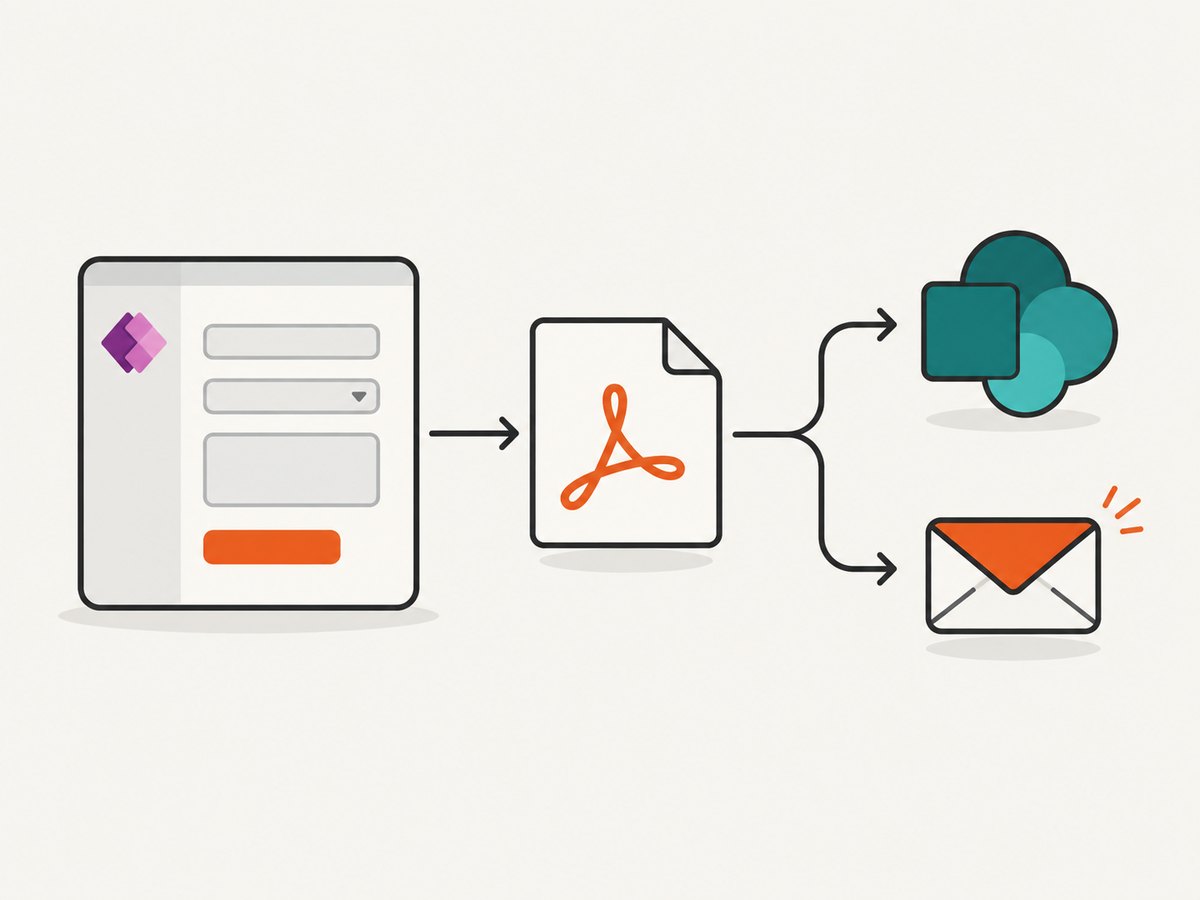
Short answer: In a Power Apps canvas app, enable the experimental PDF() function, then call PDF(YourScreen) or PDF(YourContainer) from a button’s OnSelect. The result is held in memory until you pass it to a Power Automate flow, SharePoint, Outlook, or another connector. For a document with a fixed report or invoice layout, populate a Word template in Power Automate instead.
Microsoft documents PDF() as an experimental feature that is disabled by default. It captures the currently visible screen or supported control, so it renders the app interface rather than exporting a record independently of the canvas layout. See Microsoft’s PDF function documentation before enabling it.
Choose the right conversion method
| Need | Recommended path | Why |
|---|---|---|
| A PDF that looks like the current app screen | Power Apps PDF() |
Captures a visible screen, container, or gallery. |
| Save the generated file | PDF() plus Power Automate |
A flow can create a SharePoint file or perform another action. |
| Email the PDF immediately | PDF() plus Outlook |
Pass the result as attachment content. |
| A formal report, invoice, or letter | Word template plus Power Automate | Fields and content controls define the document layout. |
| HTML or office-file conversion through a connector | PDF4me or Plumsail connector | Third-party options listed by Microsoft; verify current actions and terms. |
Method 1: Render a Power Apps screen with PDF()
1. Enable the experimental function
- Open the canvas app in Power Apps Studio.
- Open Settings, then Upcoming features, then Experimental.
- Turn on PDF function. Microsoft marks this feature experimental and off by default, so evaluate it carefully before using it in a production process.
2. Put the document content on a dedicated screen
Create a screen containing only the fields and controls that belong in the PDF. This makes the output predictable and prevents buttons, navigation, or preview controls from appearing in the file. If the screen is long, put the printable content in a container or gallery and target that control.
3. Add a button formula
Add a button and set its OnSelect property to:
Set(myPDF, PDF(SubmitInspectionScreen))Replace SubmitInspectionScreen with the name of your visible screen. To capture only a section, use a container or gallery:
Set(myPDF, PDF(PDFContainer))
Set(myPDF, PDF(InspectionGallery))
The return value is kept in memory. It is not automatically saved to SharePoint or downloaded to the user’s device.
4. Preview the result (optional)
Microsoft provides an experimental PDF viewer control. Bind its Document property to myPDF. The viewer itself can appear as a black shape when the whole screen is captured. Put the printable content in a separate container or gallery and call PDF(PDFContainer) so the viewer is outside the captured region.
5. Publish and run
Save and publish the app, open the published version, fill in the form, and select the export button. Confirm that the captured screen contains the expected values, images, and visible controls.
Save the PDF to SharePoint with Power Automate
Microsoft’s documented persistence pattern sends the generated PDF to a Power Apps (V2) flow and uses SharePoint’s Create file action.
Build the flow
- Create an instant cloud flow with the Power Apps (V2) trigger.
- Add a File input for the PDF bytes.
- Add a Text input for the filename.
- Add SharePoint Create file.
- Select the target site and document library.
- Map the trigger’s file name and file content to the SharePoint action.
Call the flow from Power Apps
Assume the flow is named SaveInspectionPdf and exposes file and filename inputs. A representative button formula is:
SaveInspectionPdf.Run(
    {
        file: {
            name: "inspection-" & Text(Now(), "yyyymmdd-hhmmss") & ".pdf",
            contentBytes: PDF(SubmitInspectionScreen)
        }
    }
)
The exact generated formula can vary after you add or rename flow inputs. Use the formula bar’s flow insertion to let Power Apps insert the correct argument shape, then pass PDF(SubmitInspectionScreen) as the file content.
Filename and path checklist
- End the name with
.pdf. - Remove characters that SharePoint does not allow in filenames.
- Include a record ID or timestamp to avoid collisions.
- Verify that the connection owner can create files in the selected library.
- Decide whether duplicate submissions should overwrite, fail, or receive a unique name.
Email the PDF with Outlook
The Office 365 Outlook connector can receive the PDF as attachment content. Configure the Send an email (V2) action with an attachment name such as inspection.pdf and attachment content from PDF(SubmitInspectionScreen). Keep the capture expression in the attachment’s ContentBytes field rather than converting it to a text string.
Set(
    sendResult,
    Office365Outlook.SendEmailV2(
        User().Email,
        "Inspection PDF",
        "Attached is the submitted inspection.",
        {
            Attachments: Table(
                {
                    Name: "inspection.pdf",
                    ContentBytes: PDF(SubmitInspectionScreen)
                }
            )
        }
    )
)
Connector signatures can differ by environment. If Power Apps inserts a different attachment record shape, keep the generated schema and replace only the content expression with PDF(SubmitInspectionScreen).
Method 2: Populate a Word template for a designed document
Use this route when the PDF should follow a controlled report, invoice, or letter layout instead of mirroring a canvas screen. Create a Word document with named content controls, store it in OneDrive for Business, SharePoint, or an Office 365 Group library, and use the Word Online (Business) connector’s Populate a Microsoft Word template action.
Template workflow
- Design the document in Word.
- Add content controls for each value the flow must fill.
- Store the template in a supported cloud location.
- Create a flow triggered by Power Apps, a data event, or another suitable trigger.
- Add Populate a Microsoft Word template.
- Map Power Apps fields or Dataverse/SharePoint values to the controls.
- Use later flow actions to save, send, or convert the generated document according to your environment.
The connector documents support for Plain Text, Combo Box, Drop-Down List, Image, and Repeating Section controls. It lists Rich Text, Building Block Gallery, Date Picker, Check Box, and legacy form controls as unsupported. The maximum input file size documented for both actions is 10 MB. Nested image content controllers and SharePoint On-Premises are also listed as unsupported. See the Word Online (Business) connector reference.
Screen PDF versus Word template
| Consideration | PDF() |
Word template |
|---|---|---|
| Feature status | Experimental and disabled by default. | Documented connector action. |
| Input | Currently visible screen or supported control. | Named fields and supported content controls. |
| Layout | Follows the canvas layout and visible state. | Starts from a Word document layout. |
| Best use | Receipts, inspection screens, and visual snapshots. | Formal reports, invoices, and letters. |
| Known constraints | Visible-screen scope; PDF viewer can appear in output. | Supported-control list and 10 MB input limit. |
Handling multiple pages, scrolling, and hidden controls
- Only visible content:
PDF()targets the currently visible screen or selected control. Do not assume it exports an entire data source or every record in a gallery. - Long forms: Build a print-only screen or container with a deliberate layout. Avoid relying on a user’s scroll position.
- Conditional fields: Test every state of
Visible, enabled controls, and validation messages. A hidden control is not useful document content. - Galleries: A gallery can be targeted, but verify how many items are rendered and whether the layout fits the page.
- Images: Confirm that image controls have loaded before calling
PDF(); use a separate export button after the form is complete.
Third-party connector options
Microsoft lists PDF4me actions for HTML-to-PDF, office-file conversion, and document generation from Word, HTML, or PDF templates. Some older generation actions are marked deprecated, so check the current action listing before designing a flow. Microsoft also lists a Plumsail Documents action for converting HTML to PDF. These are optional third-party services; verify availability, data handling, licensing, and current connector terms for your tenant.

References: PDF4me connector and Plumsail Documents connector.
Or skip the browser setup
If the source you need to turn into a PDF is a public web page rather than a rendered Power Apps canvas screen, ScreenshotNeo provides a website screenshot and PDF API. It accepts one GET request and can return a PDF. The API also supports custom CSS and JavaScript, selectors, waits, authentication headers, cookies, device settings, and PDF paper options.
See the ScreenshotNeo API documentation for the complete parameter list.
curl -G "https://api.screenshotneo.com/v1/shot" -d access_key=YOUR_API_KEY --data-urlencode url=https://stripe.com -o shot.webpimport requests
r = requests.get("https://api.screenshotneo.com/v1/shot", params={"access_key": "YOUR_API_KEY", "url": "https://stripe.com"}, timeout=90)
open("shot.webp", "wb").write(r.content)const q = new URLSearchParams({ access_key: 'YOUR_API_KEY', url: 'https://stripe.com' });
const res = await fetch(`https://api.screenshotneo.com/v1/shot?${q}`);- Cookie banners, newsletter popups, and chat widgets are removed before the shot.
- Bot checks, blank pages, failed loads, timeouts, and cache hits are not billed; response headers report the page verdict and billing result.
- An MCP server lets Claude, Cursor, and other MCP clients use
take_screenshot,get_page_info, andcapture_pdf. - The Free plan includes 1,000 screenshots each month with no card; paid plans start at $5 for 3,000 shots.
Create a free ScreenshotNeo account to try the API.
Troubleshooting
| Symptom | Likely cause | Fix |
|---|---|---|
PDF() is unknown |
The experimental feature is disabled. | Enable PDF function under Settings > Upcoming features > Experimental, then reopen the app. |
| The PDF is blank or incomplete | The target is not the intended visible screen or controls have not rendered. | Use the actual visible screen name, create a print-only container, and wait until values and images are populated before calling the function. |
| A black rectangle appears | The experimental PDF viewer is inside the captured screen. | Target a container or gallery that excludes the viewer. |
| The file is generated but not saved | PDF() returns an in-memory value only. |
Pass the result to a Power Apps (V2) flow and SharePoint Create file. |
| Flow run fails on SharePoint | Wrong site/library, invalid filename, or insufficient permissions. | Check the connection owner, destination, filename characters, and library permissions. |
| Email has no readable attachment | The PDF value was converted to text or mapped to the wrong field. | Map the binary result to attachment ContentBytes and keep a .pdf filename. |
| Word template fields do not appear | The control type is unsupported or the template is too large. | Use supported controls and keep the input file at or below 10 MB. |
| Word output has missing images | Nested image content controls are unsupported. | Use a supported image control at the appropriate level or redesign the template. |
Performance, reliability, and cost considerations
- Performance: Keep export screens simple, avoid unnecessary controls, and load data before invoking
PDF(). Large galleries and high-resolution images increase rendering work. - Reliability: Treat the native function as experimental. Add a visible error state, log flow failures, and give users a retry path. Confirm the file exists after a successful SharePoint response.
- Permissions: The app user and flow connection must be allowed to read the data and write to the target library or send email.
- Cost: Power Apps, Power Automate, SharePoint, Outlook, Word Online, and third-party connectors follow your organization’s licensing and usage terms. The Microsoft documentation cited here does not provide a universal per-PDF price.
- Data protection: Avoid placing secrets in app formulas. Review connector data residency and retention requirements before sending sensitive form data to a third-party service.
FAQ
Can I convert a Power Apps form without using Power Automate?
You can generate the PDF in memory with PDF(), but saving or emailing it requires an action connector or flow.
Does PDF() export the underlying record?
No. It renders a currently visible screen or supported control. It does not independently export a data record.
Is the Power Apps PDF function production-ready?
Microsoft labels it experimental and disables it by default. Validate it against your app and release process before depending on it.
When should I use a Word template?
Use a template when the output needs a stable document design assembled from named fields rather than a picture of the app screen.
What is the documented Word connector file limit?
Microsoft documents a maximum input file size of 10 MB for both Word Online (Business) actions discussed here.


