How to Convert a QR Code Image into a URL
Decode a saved QR image, validate its payload, and extract a safe URL on desktop, iPhone, Android, Python, JavaScript, or Node.js.

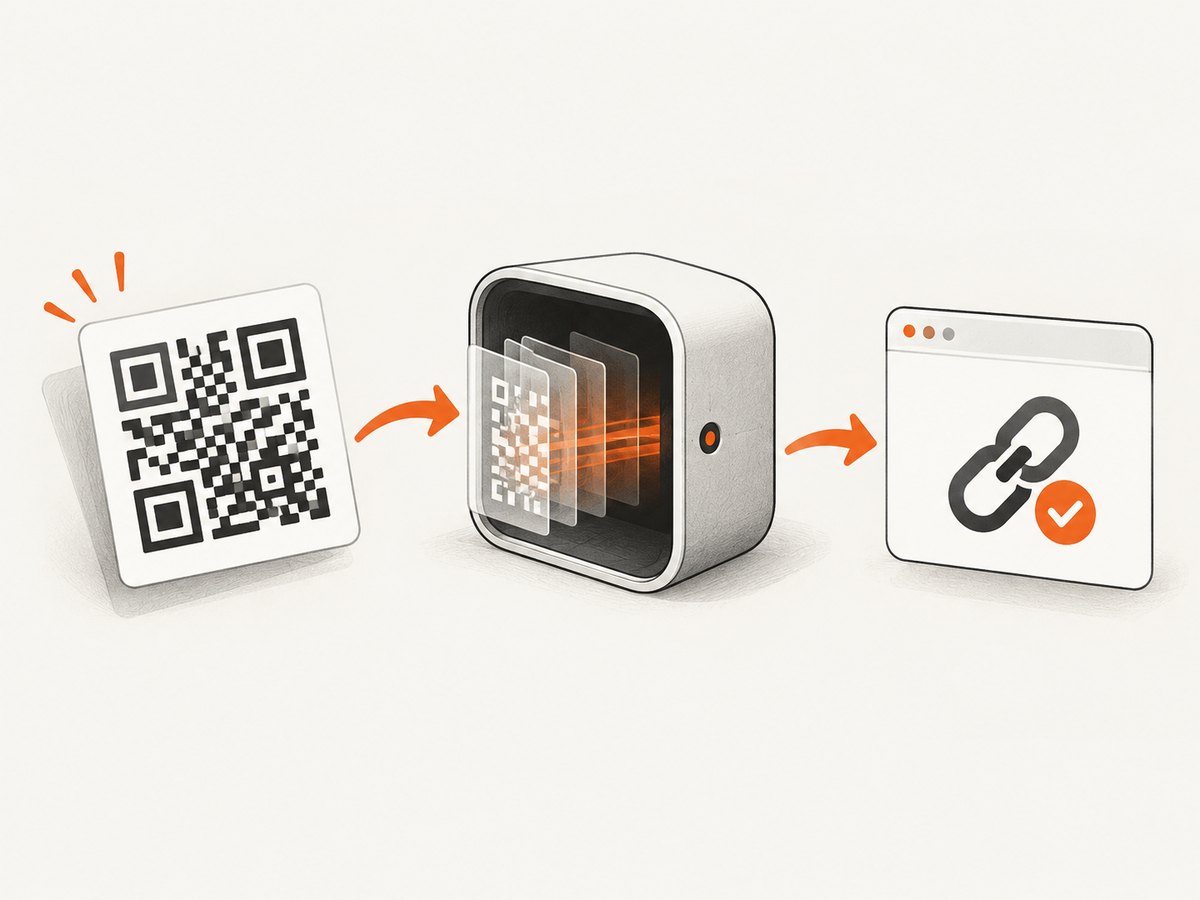
Direct answer: decode the saved QR image with a QR reader, inspect the returned payload, and use it as a URL only when it contains an expected scheme such as https://. A QR code stores data; it does not infer a destination that was never encoded. The result may instead be an email address, contact record, Wi-Fi configuration, payment payload, or ordinary text.
This guide shows how to scan a QR code from a screenshot or saved photo without a second phone, how to decode images in a browser, how to automate the process in Python and Node.js, how to validate links safely, and what to do when a decoder reports that no code was found.
1. What “convert a QR image into a URL” actually means
There are two separate operations:
- Decoding: reading the data encoded in the QR symbol.
- Validation: deciding whether that data is a URL you are willing to open.
ZXing describes the common case as encoding URL text such as https://google.com/m. A reader returns the encoded value; it does not guarantee that the value is reachable, safe, or even a URL. Keep the raw decoded text until you have checked it.
| Decoded value | Meaning | Next step |
|---|---|---|
https://example.com/path |
Web URL | Check the domain, then open or copy it. |
mailto:name@example.com |
Email action | Show it as an email address; do not force it into an HTTP URL. |
WIFI:T:WPA;S:Network;P:password;; |
Wi-Fi configuration | Parse as Wi-Fi data or preserve as text. |
| Plain words or an identifier | Arbitrary text | Return the text unchanged. |
2. Fastest method: upload the image to a browser decoder
For a one-off screenshot or photo, use ZXing Decoder Online. It supports an uploaded image file and an image URL, and QR Code is one of its supported formats.
- Save the screenshot or photo as PNG, JPEG, or WebP.
- Open ZXing Decoder Online.
- Upload the file, or provide its image URL.
- Run the decode operation.
- Read the returned text before clicking anything.
- If it starts with
https://(or another scheme you intentionally expect), verify the hostname and copy it into a new tab.
Do not upload confidential QR images to a third-party service unless your organization permits it. For private material, use the local workflows below.
3. Scan a saved QR image without a second phone
iPhone or iPad
Open the image in Photos. When recognition controls appear, tap the QR or Live Text action and inspect the payload. For a QR code displayed live on another screen, Apple’s Camera or Code Scanner can show the link. Apple’s instruction is: “Hold your device so that the QR code appears, then tap the link to open the content.” Treat the preview as data and check the domain before opening it.
Android
Open the image in your gallery and look for a Lens or QR action. Availability varies by manufacturer. If the gallery has no decoder, use a local barcode application or a development SDK. Google ML Kit’s Barcode Scanning API recognizes QR symbols and returns decoded data, including URL values.
Desktop screenshot
Use the browser upload workflow, or run a local script. You do not need to display the code on a second device: the decoder reads the pixels in the saved file.
4. Local Python decoder (complete example)
OpenCV includes a QR detector that works on local files and avoids uploading the image. Install it with:
python -m pip install opencv-pythonSave this as decode_qr.py:
import sys
from pathlib import Path
from urllib.parse import urlparse

import cv2


def classify(value: str) -> str:
    parsed = urlparse(value)
    if parsed.scheme in {"http", "https"} and parsed.netloc:
        return "url"
    return "other"


if len(sys.argv) != 2:
    raise SystemExit("Usage: python decode_qr.py path/to/qr-image.png")

path = Path(sys.argv[1])
image = cv2.imread(str(path))
if image is None:
    raise SystemExit(f"Could not read image: {path}")

reader = cv2.QRCodeDetector()
value, points, _ = reader.detectAndDecode(image)
if not value:
    raise SystemExit("No QR payload found. Try a tighter crop or a sharper original.")

kind = classify(value)
print(f"type: {kind}")
print(f"payload: {value}")

if kind == "url":
    print("Review the hostname before opening this URL.")
Run it with:
python decode_qr.py screenshot.pngThe script prints the raw payload and labels only HTTP and HTTPS values as URLs. It deliberately does not open the link automatically.
Multiple codes in one image
OpenCV’s single-code method may return one result or none when several symbols are present. Crop the image so one QR symbol remains, then run the script once per crop. A multi-code reader can be used when you need all results in one pass.
5. Browser JavaScript: decode an image locally
For a client-side tool, use a QR library such as jsQR. The following page reads a selected image into a canvas and decodes it in the browser. Pin the library version in your own application and review its license before shipping.
<!doctype html>
<meta charset="utf-8">
<title>Decode a QR image</title>
<input id="file" type="file" accept="image/*">
<pre id="result">Choose an image.</pre>
<script src="https://cdn.jsdelivr.net/npm/jsqr@1.4.0/dist/jsQR.js"></script>
<script>
const input = document.querySelector('#file');
const result = document.querySelector('#result');
input.addEventListener('change', () => {
  const file = input.files[0];
  if (!file) return;
  const image = new Image();
  image.onload = () => {
    const canvas = document.createElement('canvas');
    canvas.width = image.naturalWidth;
    canvas.height = image.naturalHeight;
    const ctx = canvas.getContext('2d', { willReadFrequently: true });
    ctx.drawImage(image, 0, 0);
    const pixels = ctx.getImageData(0, 0, canvas.width, canvas.height);
    const code = jsQR(pixels.data, pixels.width, pixels.height);
    result.textContent = code ? code.data : 'No QR payload found';
    URL.revokeObjectURL(image.src);
  };
  image.src = URL.createObjectURL(file);
});
</script>
For untrusted input, display the result as text and require an explicit click before navigation. Add an allowlist when your application should accept links only from known domains.
6. Node.js automation
A Node program can decode PNG files with pngjs and jsqr:
npm install jsqr pngjsconst fs = require('node:fs');
const { PNG } = require('pngjs');
const jsQR = require('jsqr');
const file = process.argv[2];
if (!file) throw new Error('Usage: node decode-qr.js image.png');
const png = PNG.sync.read(fs.readFileSync(file));
const result = jsQR(Uint8ClampedArray.from(png.data), png.width, png.height);
if (!result) throw new Error('No QR payload found');
console.log(result.data);
try {
const url = new URL(result.data);
if (url.protocol === 'http:' || url.protocol === 'https:') {
console.error(`Review hostname: ${url.hostname}`);
}
} catch {
console.error('Payload is not an absolute HTTP(S) URL.');
}
This example expects PNG input. Convert JPEG files first with an image library, or use a decoder that accepts JPEG directly.
7. URL validation and safe handling
Use a scheme check, not a string prefix alone. A value such as https://example.com is an absolute HTTPS URL; www.example.com is text that your application may choose to normalize, but it was not encoded with a scheme. Never silently prepend a domain or change the path.
- Show the complete decoded value before navigation.
- Inspect spelling, Unicode characters, subdomains, ports, and redirects.
- Be cautious with
javascript:,data:, and custom application schemes. - When storing results, preserve the original payload and a normalized URL separately.
- Apply an allowlist for workflows that accept only your own domains.
8. Image quality, geometry, and decoder options
A QR reader needs enough detail to locate the three finder squares and reconstruct the modules. Use the original image where possible. If the QR occupies a small part of a screenshot, crop tightly while keeping a margin around the symbol. Upscaling can help a detector, but smoothing can erase module edges.
| Problem | What to try |
|---|---|
| Blur or compression | Use the original photo or lossless screenshot; avoid repeated JPEG exports. |
| Glare or reflection | Retake the image at an angle with even lighting. |
| Too much surrounding content | Crop to one code and retain all finder squares plus a quiet border. |
| Rotated or skewed code | Use a perspective-corrected crop or a reader with detection support. |
| Several codes | Process one crop at a time or use a multi-code API. |
| Transparent or unusual background | Flatten onto a contrasting background before decoding. |
9. Troubleshooting decoder errors
“No code found”
The detector could not locate a valid symbol. Crop more tightly, keep the three finder squares visible, increase source resolution, and remove glare. If the QR is embedded in a web page, capture the original image instead of a scaled thumbnail.
Format or checksum error
ZXing exposes separate failure classes including NotFoundException, FormatException, and ChecksumException. A format error usually means the symbol structure is damaged or too distorted; a checksum error means the data does not pass its integrity check. Try another decoder and a higher-quality copy.
The result is not a URL
This is valid behavior. Preserve the returned text and classify it as email, contact, Wi-Fi, payment, application data, or unknown text. Do not manufacture an HTTP link.
The URL opens the wrong page
Compare the exact decoded string with the destination after redirects. QR codes often contain tracking parameters or short links. The reader reports what was encoded; it cannot determine the publisher’s intended destination.
10. Capture the QR image from a web page
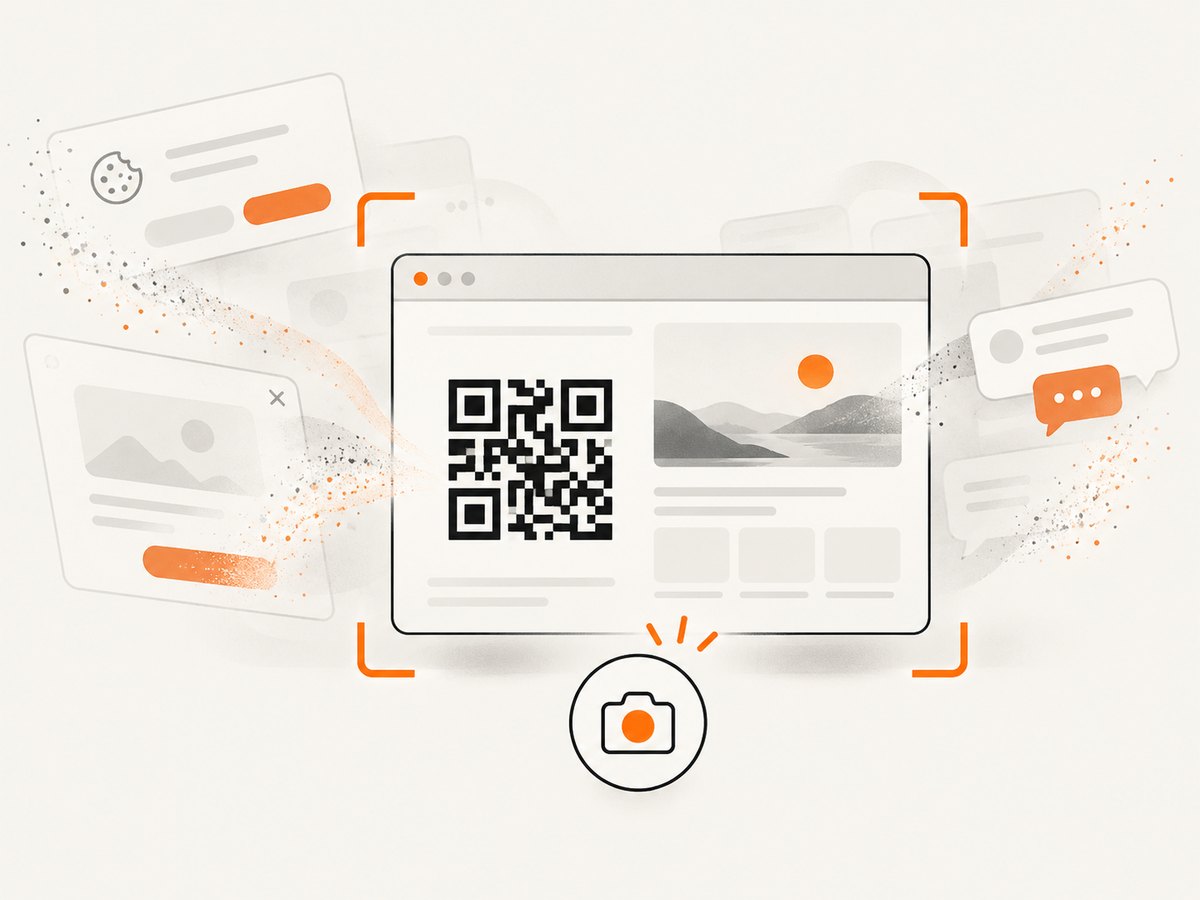
If the code is on a page you can access, save the image directly when possible. A screenshot is a fallback and may reduce resolution. For automated capture, choose a viewport large enough for the QR, wait for the image or a specific selector, and use a full-page capture only when the code is below the fold. Element capture reduces unrelated pixels and makes decoding easier.
11. Or skip the browser setup
When the QR code is on a web page, ScreenshotNeo can create the image through one request. Its cookie and consent handling removes more than 60 known consent platforms, newsletter popups, and chat widgets before capture. Bot checks, blank pages, timeouts, failed loads, and cache hits are not billed as clean shots, and the response identifies the result with X-Page-Verdict and X-Billed headers. An MCP server also lets Claude, Cursor, and other MCP clients call take_screenshot, get_page_info, and capture_pdf.
See the ScreenshotNeo API documentation for authentication and options. A basic capture is:
curl -G "https://api.screenshotneo.com/v1/shot" -d access_key=YOUR_API_KEY --data-urlencode url=https://stripe.com -o shot.webpimport requests
r = requests.get("https://api.screenshotneo.com/v1/shot", params={"access_key": "YOUR_API_KEY", "url": "https://stripe.com"}, timeout=90)
open("shot.webp", "wb").write(r.content)const q = new URLSearchParams({ access_key: 'YOUR_API_KEY', url: 'https://stripe.com' });
const res = await fetch(`https://api.screenshotneo.com/v1/shot?${q}`);Relevant capture controls include full-page screenshots with lazy images loaded, CSS-selector element capture, dark mode, device presets or custom viewports, retina scale, custom CSS and JavaScript, clicks, selector or network-idle waits, ad and tracker blocking, custom headers/cookies/user agent/Authorization, timezone and geolocation, transparent backgrounds, resizing, cache TTL, signed links, asynchronous jobs with signed webhooks, bulk capture for 100 URLs per call, and PDF output. These controls help you obtain a sharp, focused QR image before decoding it.
ScreenshotNeo includes 1,000 screenshots per month free with no card. Paid plans start at $5 for 3,000 shots; every feature is available on every plan. Create a free ScreenshotNeo account and use the returned image with the local decoder that fits your workflow.
12. Performance, reliability, and cost notes
- Local decoding: avoids image upload and recurring API cost, and is appropriate for private screenshots.
- Browser services: are convenient for occasional files but may be unsuitable for confidential images.
- Automation: crop and resize before decoding to reduce memory and processing time.
- Capture reliability: wait for the QR image itself, not merely page navigation; lazy-loaded content may otherwise be blank.
- Repeat work: cache the source image and decoded payload when the page has not changed. ScreenshotNeo lets you select a cache TTL.
- Batch jobs: use bulk capture when collecting many page images, then run decoding as a separate queue stage.
13. Checklist
- Save the highest-resolution image available.
- Crop to one QR code with a small quiet border.
- Decode and display the raw payload.
- Classify the payload instead of assuming it is a URL.
- Require
http:orhttps:when your workflow expects web links. - Check the hostname and suspicious schemes before opening.
- Retry with a sharper, glare-free source after failures.
- Keep private images local when policy requires it.
FAQ
Can I convert a QR image that is only in a screenshot?
Yes. Upload the screenshot to a decoder or pass the file to a local Python, browser JavaScript, or Node.js reader. A second phone is unnecessary.
Does every QR code contain a web link?
No. QR data can be an email address, contact, Wi-Fi configuration, payment value, application command, or arbitrary text.
Should I open the result immediately?
No. Read the raw value, verify the scheme and hostname, and then open it in a separate tab or approved application.
Why does a decoder fail on a code that looks clear?
Blur, glare, perspective, low resolution, missing quiet margin, or several overlapping codes can prevent detection. Use the original image, crop one code, and try another decoder.
Can I decode QR codes in a server-side pipeline?
Yes. OpenCV works well for local Python services, while Node.js can use image decoding plus a QR library. Keep decoding and URL policy as separate pipeline stages.