How to Attach a Screenshot on Test Failure in MSTest
Capture a UI screenshot before teardown, save it safely, and attach it to MSTest results with TestContext.AddResultFile.

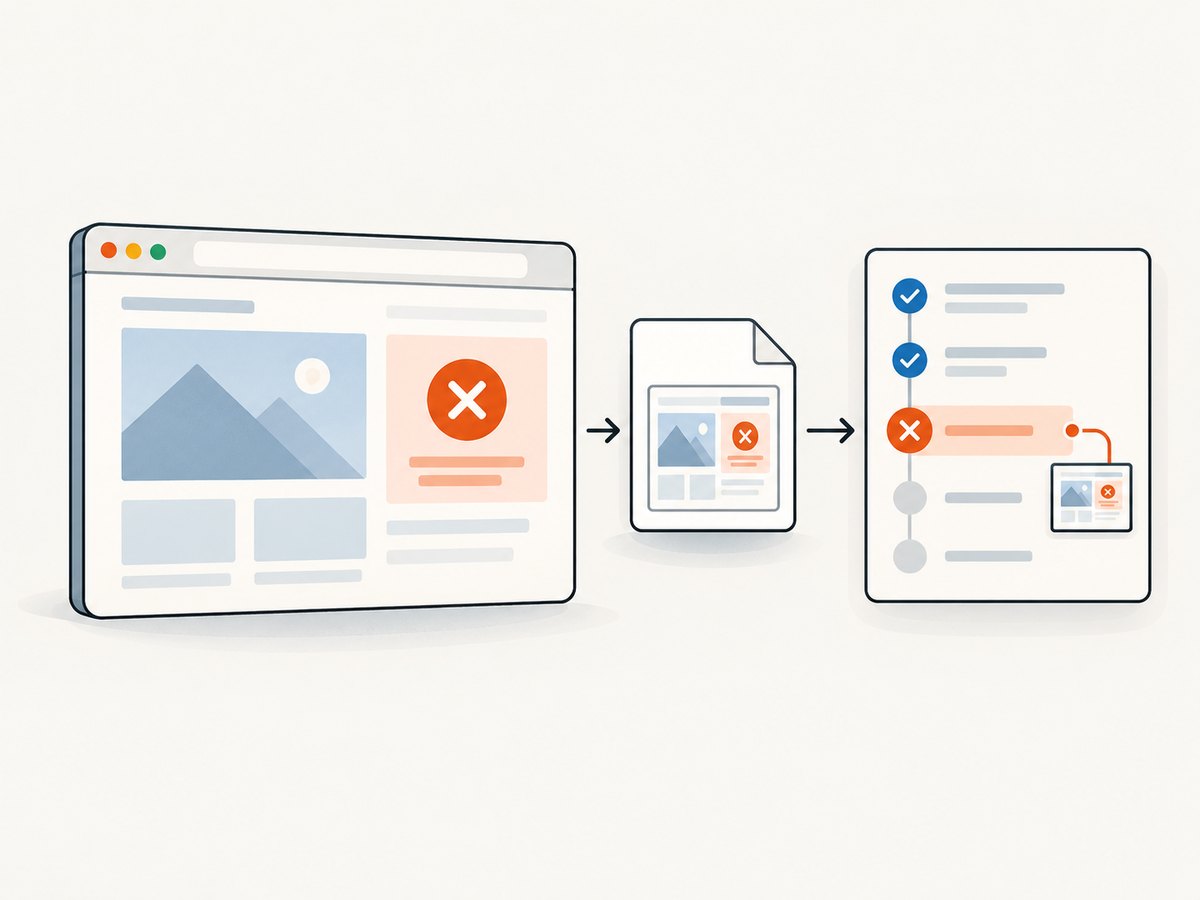
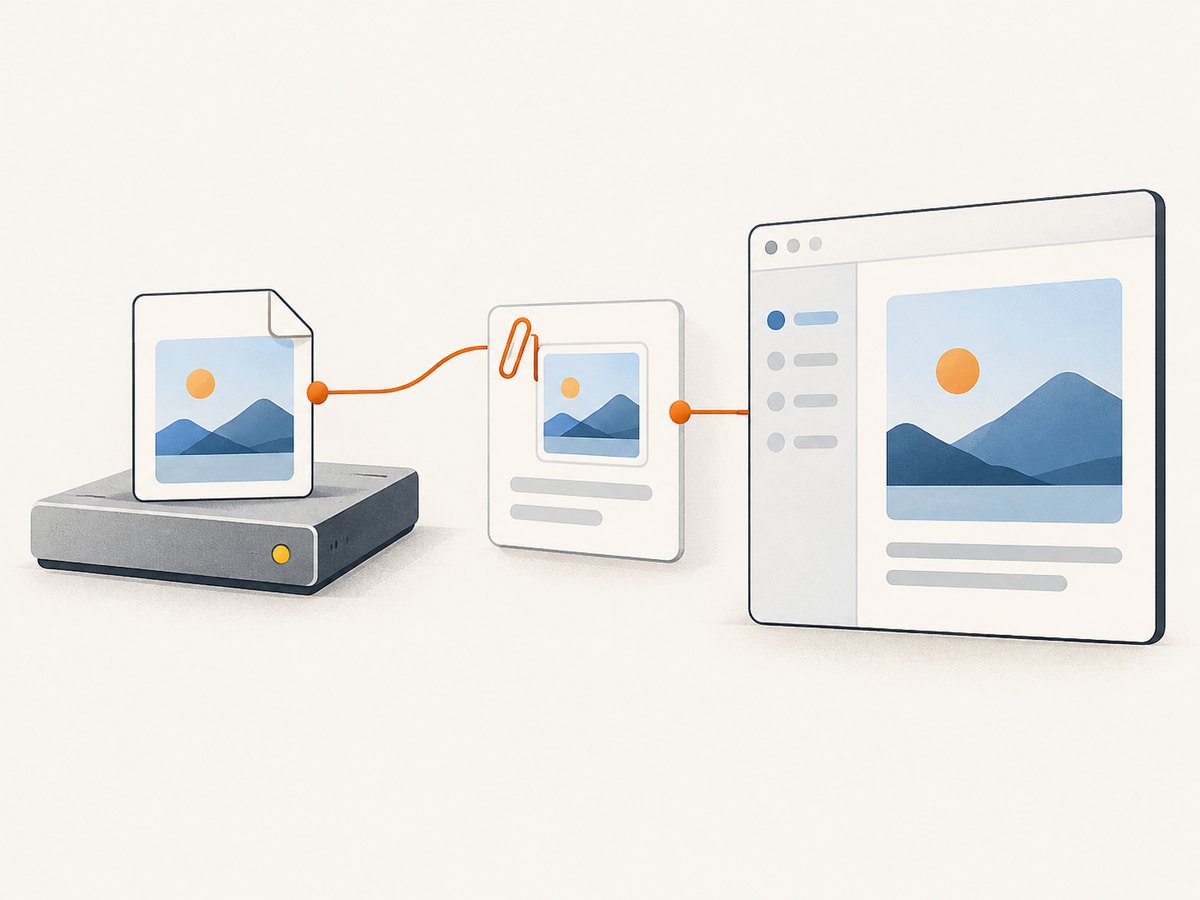
To attach a screenshot when an MSTest UI test fails, capture and save the image while the browser session is still open, then call TestContext.AddResultFile(screenshotPath). MSTest does not take the screenshot for you: your browser automation framework creates the image, and AddResultFile associates that existing file with the test result. Microsoft documents this method for adding generated files to test results. Microsoft Learn: MSTest TestContext.
The reliable sequence is: determine that the test failed, capture the live UI, write a unique file, register the file, and only then dispose the browser. The attachment API is stable in concept, but lifecycle hooks and report presentation depend on your MSTest version, adapter, test host, and CI runner. Verify the result in the environment where you publish tests.
1. Add screenshot capture to an MSTest UI test
The example below uses Selenium WebDriver with Chrome. It demonstrates the full flow: keep the driver available to cleanup, inspect TestContext.CurrentTestOutcome, capture only a failed test, write into the test run directory, and register the file. Install Selenium WebDriver and a compatible Chrome driver using your project’s normal package and driver management process. The Microsoft documentation establishes the MSTest attachment and lifecycle APIs; browser setup is specific to your project.
using System;
using System.IO;
using Microsoft.VisualStudio.TestTools.UnitTesting;
using OpenQA.Selenium;
using OpenQA.Selenium.Chrome;

[TestClass]
public class CheckoutUiTests
{
    public TestContext TestContext { get; set; } = null!;

    private IWebDriver? driver;

    [TestInitialize]
    public void SetUp()
    {
        driver = new ChromeDriver();
        driver.Navigate().GoToUrl("https://example.com/checkout");
    }

    [TestMethod]
    public void Checkout_shows_confirmation()
    {
        Assert.IsNotNull(driver);

        // Replace this assertion with the checks for your application.
        var heading = driver.FindElement(By.TagName("h1")).Text;
        Assert.AreEqual("Order confirmed", heading);
    }

    [TestCleanup]
    public void TearDown()
    {
        try
        {
            if (TestContext.CurrentTestOutcome != UnitTestOutcome.Passed &&
                driver is ITakesScreenshot screenshotDriver)
            {
                var directory = TestContext.TestRunDirectory;
                Directory.CreateDirectory(directory);

                var safeName = string.Join("_", TestContext.TestName
                    .Split(Path.GetInvalidFileNameChars(), StringSplitOptions.RemoveEmptyEntries));
                var fileName = $"{safeName}_{Guid.NewGuid():N}.png";
                var screenshotPath = Path.Combine(directory, fileName);

                screenshotDriver.GetScreenshot().SaveAsFile(screenshotPath);
                TestContext.AddResultFile(screenshotPath);
            }
        }
        finally
        {
            driver?.Quit();
            driver?.Dispose();
            driver = null;
        }
    }
}
Check the Selenium version used by your project for the exact SaveAsFile overload; that API can differ between package versions. If your driver returns screenshot bytes instead, write those bytes to screenshotPath before calling AddResultFile. The important MSTest contract is that the file exists when it is registered.
Why this cleanup pattern works
- Outcome is checked at test cleanup. The example captures for any non-passing outcome. If you want screenshots only for failed assertions and not inconclusive or skipped tests, compare against the specific outcome values your MSTest version exposes.
- Capture happens before driver shutdown. A screenshot request after
Quit()cannot reliably capture the page. - The filename is unique. A GUID prevents parallel tests or repeated test names from overwriting one another.
- The saved file is registered. A screenshot sitting on disk is not automatically part of the test result;
AddResultFileconnects it to the result.
Microsoft’s TestContext documentation shows generated files being written under TestRunDirectory and then registered. It also exposes result-directory information. Choose a directory appropriate for your runner, and avoid assuming a local path is automatically published by every CI system. TestContext members and examples.
2. Choose the capture point and output path
There are two common places to capture. Capturing inside the test body gives precise control over the moment being saved, but every assertion path must reach the capture code. Capturing in cleanup centralizes failure handling, but cleanup must run while the UI session remains alive. For a single browser per test, cleanup is usually easier to maintain. For workflows that close or navigate away from the page before a later assertion, capture at the point of failure or preserve the relevant page state.
| Decision | Practical choice | Watch for |
|---|---|---|
| When to capture | Test cleanup, before driver disposal | Project hooks or fixtures may dispose the driver earlier; confirm actual ordering. |
| Which outcomes | Capture failed tests, optionally other non-passing outcomes | Skipped and inconclusive cases may not have a useful browser state. |
| Where to save | A test-run or result directory exposed by TestContext | Runner cleanup may remove temporary files unless attachments are collected. |
| How to name files | Test name plus a unique suffix | Test names may contain invalid filename characters or repeat under parallel runs. |
| How to publish | Register with AddResultFile, then inspect the runner’s report |
Not all test adapters and viewers display attachments the same way. |
Use a property named TestContext on the MSTest class so the framework can provide the context. Its members include the current test outcome and useful test directories. The exact surface can vary with the MSTest package version, so check the API reference matching your package. MSTest TestContext API.
3. Capture in the test body when cleanup is too late
If your test framework wrapper closes the browser before the class cleanup runs, move capture closer to the assertion or use the wrapper’s teardown hook that runs before disposal. A helper keeps the save-and-register steps together:
private void SaveAndAttachScreenshot(ITakesScreenshot captureSource)
{
    var directory = TestContext.TestRunDirectory;
    Directory.CreateDirectory(directory);

    var fileName = $"{Guid.NewGuid():N}.png";
    var path = Path.Combine(directory, fileName);

    captureSource.GetScreenshot().SaveAsFile(path);
    TestContext.AddResultFile(path);
}

[TestMethod]
public void Page_has_expected_state()
{
    Assert.IsNotNull(driver);

    try
    {
        // Perform actions and assertions while the browser is open.
        Assert.AreEqual("Ready", driver.FindElement(By.Id("status")).Text);
    }
    catch
    {
        if (driver is ITakesScreenshot captureSource)
            SaveAndAttachScreenshot(captureSource);
        throw;
    }
}
This pattern captures when an exception escapes the test body and then rethrows it so MSTest still records the failure. It does not handle every way a test can be marked unsuccessful, and a screenshot helper failure can obscure the original exception. For broad suite coverage, prefer a lifecycle hook that can inspect the final outcome and handle attachment errors without replacing the test result.
4. Verify attachments in your runner
- Run one test that passes and one that fails intentionally in a non-production environment.
- Confirm the failed test created an image file under the selected result path.
- Confirm the test result lists the screenshot as an attachment.
- Publish results through the same adapter and CI task used by the real pipeline.
- Open the published result and verify that the attachment can be downloaded or viewed.
For Azure Pipelines, Microsoft’s UI testing guidance says screenshots need to be added as result files to appear in the Visual Studio test task report. This statement applies to that task and workflow; do not infer that every adapter, task, or CI provider presents files identically. Azure Pipelines UI testing considerations.
5. Troubleshooting
| Symptom | Likely cause | Fix |
|---|---|---|
| No screenshot file exists | The test cleanup did not run as expected, the driver was already closed, or the driver does not support screenshots. | Log the cleanup entry, inspect hook ordering, and check for ITakesScreenshot support. Capture before disposal. |
| File exists locally but is absent from results | The file was never registered, the wrong path was passed, or the runner did not collect result files. | Check File.Exists(path) immediately before AddResultFile; inspect the test result and publication configuration. |
AddResultFile throws |
The path may be invalid, inaccessible, or point to a file that has not yet been written. | Use an absolute path, ensure the directory exists, finish writing the file, and then register it. |
| Attachment is empty or unreadable | The capture was interrupted, the output format does not match the extension, or the browser returned invalid bytes. | Save using the screenshot API’s supported format and check file size before registration. |
| Parallel tests overwrite one another | They share a fixed filename. | Use a unique suffix or a per-test subdirectory. Include run and test identifiers where useful. |
| Screenshot shows the wrong page | The test navigated away, dismissed an overlay, or changed state before cleanup ran. | Capture at the point of failure, or preserve the failing view until cleanup completes. |
| Test failure becomes a cleanup error | Screenshot capture or registration threw while handling an earlier failure. | Catch and log attachment errors separately where your logging setup permits, then preserve the original test outcome. |
| Works locally but not in CI | Browser availability, headless configuration, file permissions, adapter behavior, or result publication differs. | Check the CI agent’s browser setup and writable paths, then verify attachments in its published report. |
6. Performance, reliability, and storage
Screenshot capture adds browser work and file I/O to test cleanup. Capturing only unsuccessful tests avoids generating attachments for every passing run. If diagnosing intermittent failures matters, consider an explicit diagnostic policy for selected tests, but account for the additional files and the storage and retention behavior of your runner.
Reliability depends on preserving the page until capture completes and registering only after the file is fully written. Keep screenshot handling narrow: a capture or attachment problem should not silently turn a passing test into a failure, or mask the assertion failure you are trying to diagnose. Decide whether an inability to attach is itself important enough to fail the test, and implement that policy deliberately.
Parallel execution needs isolated paths. Result directories and test names may repeat across runs, so unique names are a simple safeguard. Large or full-page images can increase artifact transfer and retention costs in CI; keep only the detail needed to investigate failures and apply the retention policy configured for your test results. There is no universal attachment-size limit established by the cited MSTest guidance, so check your runner’s current limits rather than assuming one.
Or skip the browser setup
If your goal is to save a website screenshot rather than attach the live state of the exact browser session used by the test, ScreenshotNeo can capture a URL with one API request. It is a website screenshot API and MCP server from Yorker Media; it does not replace the in-process capture needed to preserve authenticated or unsaved test state. See the ScreenshotNeo API documentation.
curl -G "https://api.screenshotneo.com/v1/shot" -d access_key=YOUR_API_KEY --data-urlencode url=https://stripe.com -o shot.webpimport requests
r = requests.get(
"https://api.screenshotneo.com/v1/shot",
params={"access_key": "YOUR_API_KEY", "url": "https://stripe.com"},
timeout=90,
)
open("shot.webp", "wb").write(r.content)const q = new URLSearchParams({ access_key: 'YOUR_API_KEY', url: 'https://stripe.com' });
const res = await fetch(`https://api.screenshotneo.com/v1/shot?${q}`);
if (!res.ok) throw new Error(`Screenshot request failed: ${res.status}`);
await Bun.write('shot.webp', res);Use the API when a URL capture fits the task. Cookie banners, popups, and chat widgets are removed before the shot; bot checks, blank pages, and failed loads are never billed. An MCP server lets AI agents take screenshots with Claude, Cursor, or another MCP client. The free plan includes 1,000 screenshots each month with no card; paid plans start at $5 for 3,000. Sign up for 1,000 free screenshots a month, with no card.
FAQ
Does AddResultFile take the screenshot?
No. Your browser automation code captures and saves the image. MSTest’s method registers that existing file with the result.
Can I attach screenshots from a non-browser UI test?
Yes, if your UI automation can save an image to a file. The attachment step is the same: pass the saved file path to TestContext.AddResultFile.
Will every CI report show the attachment?
Not necessarily. Confirm the behavior for your adapter and runner. Microsoft documents the requirement for the Azure Pipelines Visual Studio test task, but that does not establish identical behavior elsewhere.
Which MSTest version should I use?
Use the version already supported by your project and check its matching API reference for lifecycle and TestContext details. The API reference lists multiple package versions, and lifecycle behavior should be validated with your test host.


