How to Convert Raw HTML to PDF with Node.js
Render a raw HTML string to a production-ready PDF in Node.js with Puppeteer or Playwright, including CSS, fonts, assets, pagination, security, and troubleshooting.

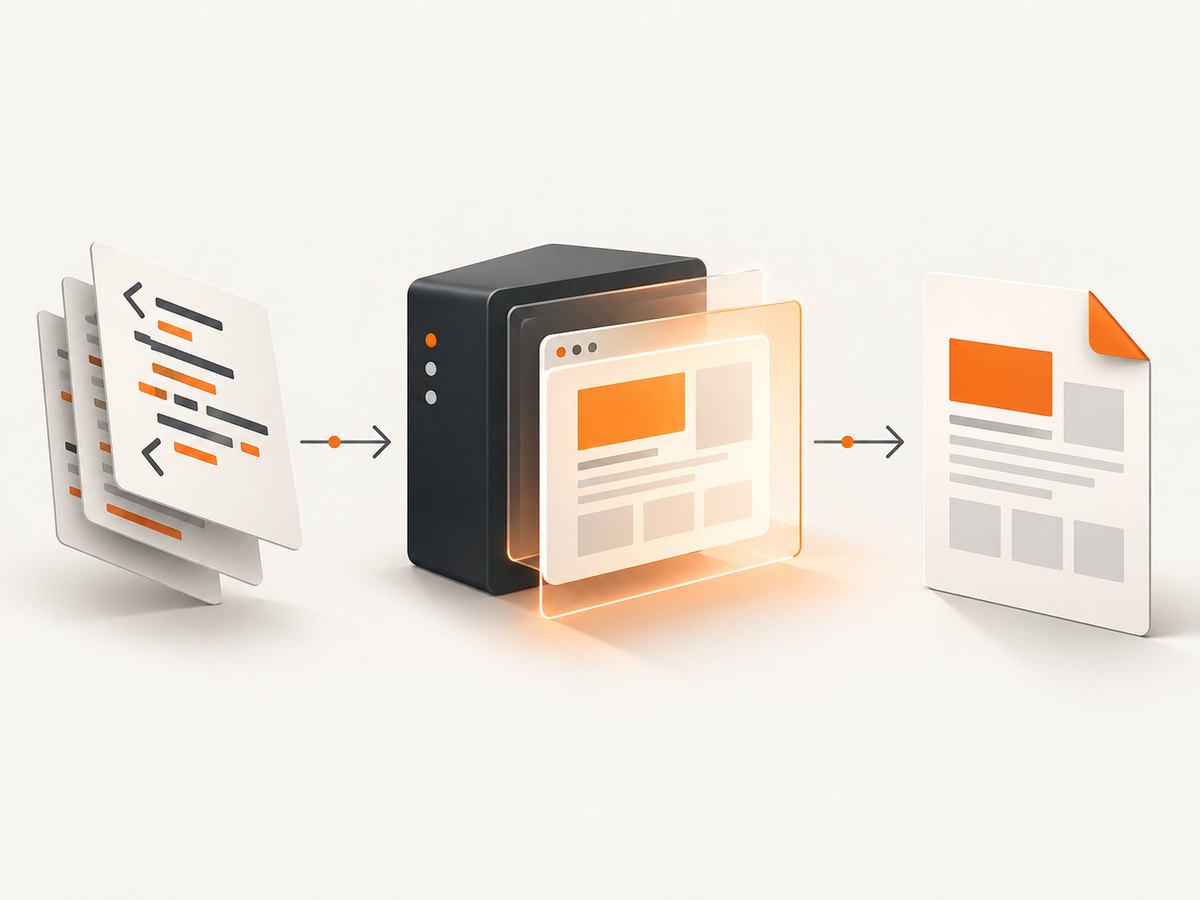
Use a headless Chromium browser when your HTML depends on CSS layout, web fonts, images, or JavaScript. In Node.js, the reliable sequence is: launch Chromium, create a page, call page.setContent(html), wait for assets, and call page.pdf(). The result is PDF bytes (or a file when you provide a path).
This guide builds that workflow with Puppeteer, shows the equivalent Playwright API, explains print CSS and pagination, and covers deployment, security, performance, and failure handling.
1. Install a Chromium renderer
npm install puppeteer
# or
npm install playwright
Puppeteer provides focused Chromium control and a direct PDF API. Playwright offers a broader browser automation API; its PDF export is Chromium-backed. Puppeteer’s PDF guide and the Playwright Page API document the supported options.
2. Complete Puppeteer example
import puppeteer from 'puppeteer';
import { writeFile } from 'node:fs/promises';

const html = `<!doctype html>
<html>
<head>
  <meta charset="utf-8">
  <style>
    @page { size: A4; margin: 18mm; }
    * { box-sizing: border-box; }
    body {
      margin: 0;
      color: #172033;
      font-family: Arial, sans-serif;
      font-size: 11pt;
      line-height: 1.45;
      -webkit-print-color-adjust: exact;
      print-color-adjust: exact;
    }
    h1 { margin: 0 0 8mm; font-size: 26pt; }
    h2 { margin: 10mm 0 4mm; font-size: 16pt; }
    .invoice { border: 1px solid #d7dce5; padding: 12mm; }
    .avoid-break { break-inside: avoid; page-break-inside: avoid; }
    table { width: 100%; border-collapse: collapse; }
    th, td { border-bottom: 1px solid #d7dce5; padding: 3mm 0; text-align: left; }
    thead { display: table-header-group; }
  </style>
</head>
<body>
  <article class="invoice">
    <h1>Invoice #1042</h1>
    <p>Prepared for Example customer</p>
    <table>
      <thead><tr><th>Item</th><th>Amount</th></tr></thead>
      <tbody>
        <tr><td>Design work</td><td>$800</td></tr>
        <tr><td>Hosting</td><td>$50</td></tr>
      </tbody>
    </table>
  </article>
</body>
</html>`;

const browser = await puppeteer.launch({
  // In many containers you may need: args: ['--no-sandbox']
});
try {
  const page = await browser.newPage();
  await page.setContent(html, { waitUntil: 'networkidle0' });
  await page.emulateMediaType('print');
  const pdf = await page.pdf({
    format: 'A4',
    printBackground: true,
    preferCSSPageSize: true,
  });
  await writeFile('invoice.pdf', pdf);
} finally {
  await browser.close();
}
page.pdf() uses the print CSS media type by default and returns a Uint8Array. Always close the browser in a finally block.
3. Return the PDF from an HTTP endpoint
import express from 'express';
import puppeteer from 'puppeteer';

const app = express();
app.use(express.json({ limit: '1mb' }));
const browserPromise = puppeteer.launch();

app.post('/pdf', async (req, res, next) => {
  const { html } = req.body;
  if (typeof html !== 'string' || html.length === 0) {
    return res.status(400).json({ error: 'html must be a non-empty string' });
  }
  const browser = await browserPromise;
  const page = await browser.newPage();
  try {
    await page.setContent(html, { waitUntil: 'networkidle0', timeout: 30000 });
    const pdf = await page.pdf({
      format: 'A4',
      printBackground: true,
      preferCSSPageSize: true,
    });
    res.type('application/pdf').send(Buffer.from(pdf));
  } catch (error) {
    next(error);
  } finally {
    await page.close();
  }
});

app.listen(3000);
Reuse a browser process, but create and close a fresh page for each job. For a queue or serverless worker, launch and close a browser per isolated job when process lifetime is short.
4. Playwright equivalent
import { chromium } from 'playwright';

const browser = await chromium.launch();
try {
  const page = await browser.newPage();
  await page.setContent(html, { waitUntil: 'networkidle' });
  await page.emulateMedia({ media: 'print' });
  const pdfBuffer = await page.pdf({
    format: 'A4',
    printBackground: true,
    preferCSSPageSize: true,
    path: 'invoice.pdf',
  });
} finally {
  await browser.close();
}
Playwright’s page.pdf() returns a Buffer. Use page.emulateMedia({ media: 'screen' }) when the screen stylesheet, rather than print CSS, is the desired design.
5. PDF options that control output
| Option | Use |
|---|---|
format |
Standard paper such as A4 or Letter. |
width, height |
Custom page dimensions; use CSS units such as mm or in. |
margin |
Top, right, bottom, and left printable margins. |
printBackground |
Include background colors and images. Set true for designed documents. |
preferCSSPageSize |
Honor the document’s @page size instead of scaling it to the selected format. |
scale |
Scale rendered content when you need to fit a layout; validate readability afterward. |
pageRanges |
Export selected pages, for example 1-3. |
path |
Write directly to a file. Omit it when you need the returned bytes. |
displayHeaderFooter |
Enable header and footer templates where supported. |
Header and footer templates do not evaluate script tags and cannot see the page’s styles. Put required styles directly in the template.
6. Prepare HTML, CSS, and assets
Wait for fonts and images
networkidle0 helps when assets are fetched over the network, but it is not a guarantee that every web font has finished applying. For deterministic output, inline critical CSS and images, preload fonts, or explicitly wait:
await page.setContent(html, { waitUntil: 'domcontentloaded' });
await page.evaluate(() => document.fonts.ready);
await page.waitForFunction(() => [...document.images].every(img => img.complete));
Print-specific CSS
Define paper size and margins in @page. Use break-before, break-after, and break-inside: avoid for sections that should stay together. Add -webkit-print-color-adjust: exact when brand colors must survive print color adjustment, then verify the result in the Chromium version you deploy.
Remote URLs and relative assets
A raw string has no useful website origin. Convert relative URLs to absolute URLs, inline assets, or set a base element such as <base href="https://example.com/">. Ensure the renderer can resolve DNS and access the asset host.
7. Security for untrusted HTML
- Sanitize user-controlled markup before rendering.
- Block navigation to internal addresses and cloud metadata endpoints.
- Restrict external requests with a request interception allowlist.
- Do not place API keys, cookies, or server secrets in page JavaScript.
- Set body-size, rendering-time, and concurrency limits.
- Run Chromium with the least privilege your deployment permits. Only add
--no-sandboxwhen your container isolation model explicitly requires it.
8. Troubleshooting
| Symptom | Likely cause | Fix |
|---|---|---|
| Blank or incomplete PDF | Rendering started before assets or client-side data arrived. | Use an appropriate waitUntil, await document.fonts.ready, wait for a selector, or add an explicit delay. |
| Colors disappear | Print media modifies colors or backgrounds are disabled. | Set printBackground: true and -webkit-print-color-adjust: exact. |
| Wrong paper size | Conflicting format and @page rules. |
Choose one source of truth and set preferCSSPageSize: true when CSS should win. |
| Images missing | Relative URLs, blocked requests, or failed certificates. | Use absolute or inline URLs, inspect request failures, and fix asset access. |
| Fonts fall back | Font request has not completed or is inaccessible. | Preload or inline the font and await document.fonts.ready. |
| Navigation timeout | Page keeps polling or a third-party request hangs. | Use a finite timeout, abort unnecessary requests, and avoid waiting for permanent connections. |
| Browser will not launch | Missing Chromium dependency or incompatible sandbox permissions. | Install the package’s browser dependencies, use a supported image, and review container sandbox settings. |
| Header/footer styling is wrong | Templates cannot access document styles or run scripts. | Inline all template CSS and use literal values. |
9. Performance, reliability, and cost
- Startup: launching Chromium is expensive. Keep one browser process alive and create pages per request when your worker is long-lived.
- Concurrency: cap simultaneous pages based on CPU and memory. Queue excess work instead of allowing an uncontrolled browser storm.
- Payloads: inline only small critical assets; large images and fonts increase memory and PDF time.
- Retries: retry transient asset or browser failures with a limit. Do not blindly retry malformed HTML or blocked destinations.
- Determinism: pin your Node and browser versions, fonts, locale, timezone, and input data when byte-level or visual consistency matters.
- Cost: self-hosted rendering consumes CPU, memory, storage, and maintenance time. A managed API can move browser operations out of your service and provide usage-based billing.
10. Or skip the browser setup
ScreenshotNeo can return a PDF from one GET request. Its capture pipeline accepts cookie and consent banners like a visitor, then removes more than 60 known consent platforms, newsletter popups, and chat widgets before capture; each step can be disabled. Bot checks, blank pages, timeouts, failed loads, and cache hits cost nothing, and the response identifies the verdict and billing status in X-Page-Verdict and X-Billed headers. It also provides an MCP server for Claude, Cursor, and other MCP clients.

See the ScreenshotNeo API documentation for all PDF parameters, including paper size, margins, landscape mode, page ranges, custom CSS and JavaScript, waits, headers, cookies, caching, and signed links.
# cURL
curl -G "https://api.screenshotneo.com/v1/shot" \
  -d access_key=YOUR_API_KEY \
  --data-urlencode url=https://stripe.com \
  -d format=pdf \
  -o page.pdf
# Python
import requests
r = requests.get(
"https://api.screenshotneo.com/v1/shot",
params={"access_key": "YOUR_API_KEY", "url": "https://stripe.com", "format": "pdf"},
timeout=90,
)
r.raise_for_status()
open("page.pdf", "wb").write(r.content)// Node.js
const q = new URLSearchParams({
access_key: 'YOUR_API_KEY',
url: 'https://stripe.com',
format: 'pdf',
});
const res = await fetch(`https://api.screenshotneo.com/v1/shot?${q}`);
if (!res.ok) throw new Error(`ScreenshotNeo returned ${res.status}`);
await Bun.write('page.pdf', res); // In Node.js, use: writeFile('page.pdf', Buffer.from(await res.arrayBuffer()))ScreenshotNeo includes 1,000 screenshots per month free with no card; paid plans start at $5 for 3,000. Create a free ScreenshotNeo account.
11. FAQ
Can I convert HTML without launching a browser?
Only if you use a direct-layout library such as PDFKit and build the document yourself. PDFKit is not a drop-in HTML/CSS renderer, so it does not reproduce browser layout automatically.
Should I use print or screen CSS?
Use print CSS for paper-oriented documents. Explicitly emulate screen media when the PDF must match the on-screen design.
Can JavaScript run before export?
Yes. Chromium executes page scripts, but your code must wait for the state those scripts produce before calling page.pdf().
How do I produce only selected pages?
Use the pageRanges PDF option, such as 1-2 or 4, after validating pagination.
How do I avoid leaking secrets to HTML?
Sanitize input, isolate the renderer, restrict outbound requests, and pass only the data the document needs.


