How to Convert React Code to PDF
Choose react-pdf for PDF-native documents or Puppeteer for pixel-close React pages, with runnable code, CSS, troubleshooting, and production guidance.

To convert React code to PDF, first decide what you are exporting:
- A PDF-native document: build a separate component with
@react-pdf/renderer. - The rendered React page: open the page in Chromium with Puppeteer and use print-to-PDF.
- A user-triggered download: provide a print stylesheet and call
window.print().
Use @react-pdf/renderer for invoices, reports, certificates, and forms where pagination and document layout are primary. Use Puppeteer when the PDF should match your existing HTML and CSS. Use browser printing when a person is present and the lowest infrastructure cost matters.
1. Choose the right architecture
| Requirement | Recommended approach | Reason |
|---|---|---|
| Invoice, certificate, report, generated form | @react-pdf/renderer |
PDF-specific primitives and explicit layout control |
| PDF should match an existing React route | Puppeteer/Chromium | Reuses the page’s HTML and CSS |
| Occasional export initiated by a user | window.print() |
No server or PDF library required |
| Large or unattended batches | Server-side Puppeteer or a worker | Controlled runtime and background execution |
2. Method one: build a PDF-native React document
@react-pdf/renderer provides React components such as Document, Page, View, and Text. Install the current v4 package with:
npm install @react-pdf/renderer --saveThese components are not regular DOM elements. Plan a PDF-specific component tree rather than expecting arbitrary browser CSS to render unchanged. See the official react-pdf quick start.
Browser download with PDFDownloadLink
import { Document, Page, Text, View, StyleSheet, PDFDownloadLink } from '@react-pdf/renderer';

const styles = StyleSheet.create({
  page: { padding: 40, fontSize: 12 },
  heading: { fontSize: 22, marginBottom: 16 },
  row: { flexDirection: 'row', justifyContent: 'space-between', marginBottom: 8 },
});

function InvoiceDocument({ invoice }) {
  return (
    <Document title={`Invoice ${invoice.number}`} author="Example App">
      <Page size="A4" style={styles.page}>
        <Text style={styles.heading}>Invoice {invoice.number}</Text>
        <Text>{invoice.customerName}</Text>
        {invoice.items.map((item) => (
          <View style={styles.row} key={item.id}>
            <Text>{item.description}</Text>
            <Text>{item.total}</Text>
          </View>
        ))}
        <Text>Total: {invoice.total}</Text>
      </Page>
    </Document>
  );
}

export function InvoiceDownload({ invoice }) {
  return (
    <PDFDownloadLink
      document={<InvoiceDocument invoice={invoice} />}
      fileName={`invoice-${invoice.number}.pdf`}
    >
      {({ loading }) => (loading ? 'Preparing PDF…' : 'Download PDF')}
    </PDFDownloadLink>
  );
}
Preview with PDFViewer
import { PDFViewer } from '@react-pdf/renderer';

export function InvoicePreview({ invoice }) {
  return (
    <PDFViewer width="100%" height="800">
      <InvoiceDocument invoice={invoice} />
    </PDFViewer>
  );
}
Server-side rendering
For email attachments, scheduled reports, or a Node service, render the same document on the server. The package supports ReactPDF.render() and ReactPDF.renderToStream().
import ReactPDF from '@react-pdf/renderer';
import { InvoiceDocument } from './InvoiceDocument.js';

await ReactPDF.render(
  <InvoiceDocument invoice={invoice} />,
  './out/invoice.pdf'
);

const stream = await ReactPDF.renderToStream(
  <InvoiceDocument invoice={invoice} />
);
PDF-native layout checklist
- Use
Pagefor page size and document boundaries. - Use
Viewfor groups and rows andTextfor text. - Define styles with
StyleSheet.createand test long strings. - Set document metadata such as title and author when useful.
- Check wrapping, repeated headers, table rows, links, text selection, and reading order.
- Do not assume browser-only elements, DOM measurements, or arbitrary CSS are supported.
3. Method two: print an existing React page with Puppeteer
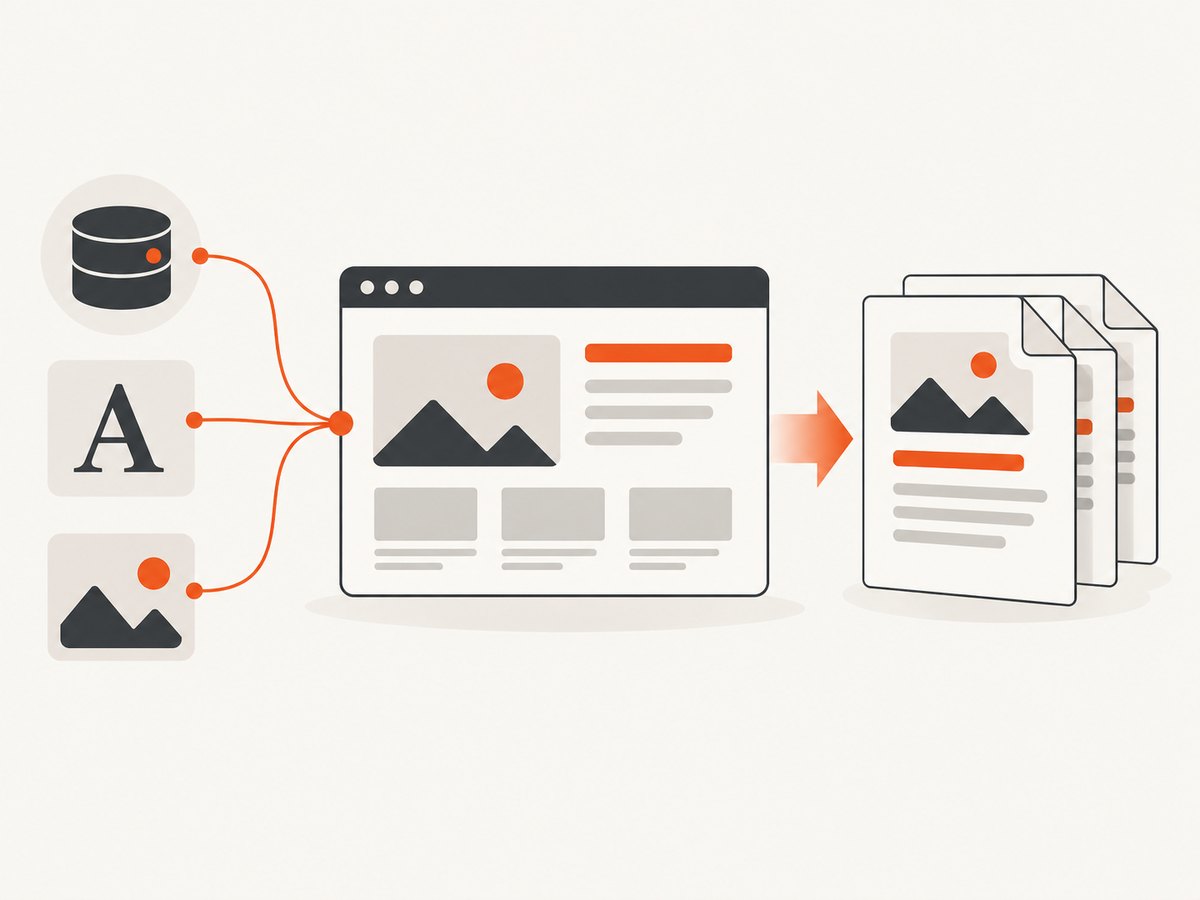
Puppeteer generates a PDF using Chromium’s print CSS media type. Its page.pdf() method returns a Promise<Uint8Array>. If the PDF should use screen styles, call page.emulateMediaType('screen') first. See the Puppeteer Page.pdf API.
Minimal Node.js implementation
import puppeteer from 'puppeteer';

const browser = await puppeteer.launch();
try {
  const page = await browser.newPage();
  await page.goto('https://example.com/invoice/123', {
    waitUntil: 'networkidle2',
  });
  await page.pdf({
    path: 'invoice.pdf',
    format: 'A4',
    printBackground: true,
  });
} finally {
  await browser.close();
}
Install Puppeteer with npm install puppeteer. In production, use a controlled Chromium runtime and close the browser in a finally block.
Wait for React data, images, and fonts
import puppeteer from 'puppeteer';

const browser = await puppeteer.launch();
try {
  const page = await browser.newPage();
  await page.goto('https://example.com/report', { waitUntil: 'networkidle2' });

  await page.waitForSelector('[data-pdf-ready="true"]');
  await page.evaluate(async () => {
    await document.fonts.ready;
    const images = Array.from(document.images);
    await Promise.all(images.map((image) => {
      if (image.complete) return Promise.resolve();
      return new Promise((resolve) => {
        image.addEventListener('load', resolve, { once: true });
        image.addEventListener('error', resolve, { once: true });
      });
    }));
  });

  await page.pdf({
    path: 'report.pdf',
    format: 'A4',
    printBackground: true,
    margin: { top: '18mm', right: '14mm', bottom: '18mm', left: '14mm' },
  });
} finally {
  await browser.close();
}
Puppeteer waits for fonts by default, but your React route still needs to finish loading its data and images. A deliberate readiness marker such as data-pdf-ready makes the handoff deterministic.
Use screen styles or print styles
await page.emulateMediaType('screen');
await page.pdf({ path: 'screen-styled.pdf', printBackground: true });
@page {
size: A4;
margin: 18mm 14mm;
}
@media print {
nav,
.toolbar,
.download-button {
display: none !important;
}
.page-break-before {
break-before: page;
}
.avoid-break {
break-inside: avoid;
}
a {
color: inherit;
text-decoration: none;
}
}Useful Puppeteer options
formatselects a standard paper format such as A4.pathwrites the PDF to disk.marginsets top, right, bottom, and left margins.printBackground: truepreserves background colors and images.landscape: truechanges orientation.displayHeaderFooter,headerTemplate, andfooterTemplateadd print headers and footers.pageRangeslimits output to selected pages.preferCSSPageSize: truelets an explicit@pagesize control the result.
4. Method three: let the user print the React page
For a small, interactive export, a print route plus the browser’s Save as PDF command is often enough.
export function PrintButton() {
  return <button onClick={() => window.print()}>Print or save as PDF</button>;
}
@media print {
.print-only { display: block; }
.screen-only,
button,
nav,
aside { display: none !important; }
}
.print-only { display: none; }This approach depends on browser print settings and is less suitable for unattended or batch generation.
5. Handling difficult React pages
Client-side routing
Use a dedicated route that can load directly. If the server does not rewrite application routes to your React entry point, Chromium may receive a 404 before React starts.
Authentication
For Puppeteer, authenticate in the browser context before visiting the export route. Keep credentials out of URLs and logs. Alternatively, expose a short-lived, authorized export route.
Lazy-loaded content
Scroll or trigger the same code path that loads content before creating the PDF. Wait for a readiness selector after all sections are present.
Tables and page breaks
Use print CSS such as break-inside: avoid for rows or cards, but inspect long rows because a browser may still split content when it cannot fit. Add explicit page breaks for sections that must start on a new page.
Colors and backgrounds
Print output can differ from screen output. Set printBackground: true in Puppeteer and verify brand colors on the generated file.
Fonts
Wait for document.fonts.ready. Confirm that the Chromium runtime can reach the font files and that the response uses the expected content type.
6. Performance and reliability
Browser rendering is resource-intensive. Reuse a browser process where safe, create a fresh page per job, and always close pages and browsers after failures. Set an upper bound on navigation and readiness waits so a broken third-party request cannot hold a worker forever.
For documents with 30 pages or more, react-pdf’s advanced documentation warns that rendering directly in the browser can occupy the main thread for a long time. Consider a web worker, server-side rendering, or a background job for large documents. Measure memory and generation time with realistic data.
- Load a deterministic export route.
- Wait for data, images, and fonts.
- Generate with explicit size, margins, backgrounds, and page-break rules.
- Validate the resulting bytes and store or stream the PDF.
- Retry transient navigation failures with a bounded retry count.
- Record the route, document identifier, generation duration, and failure reason.
7. Troubleshooting
| Symptom | Likely cause | Fix |
|---|---|---|
| Blank PDF | React route or data was not ready | Wait for a readiness selector after API data is rendered. |
| Missing images | Images are lazy-loaded or failed before capture | Wait for image completion and verify URLs from the capture environment. |
| Wrong fonts | Font requests failed or capture started too early | Wait for document.fonts.ready and check font loading responses. |
| Backgrounds disappear | Print backgrounds are disabled | Set printBackground: true. |
| Screen layout changes | Chromium uses print media styles | Call page.emulateMediaType('screen') or write intentional @media print rules. |
| Content is clipped | Fixed heights or overflow rules from the web layout | Remove fixed heights in print CSS and inspect each page. |
| Unexpected page breaks | Elements do not fit the remaining page area | Use break-before, break-after, and break-inside, then test long data. |
| Puppeteer hangs | Network requests never settle | Use explicit timeouts and a readiness marker instead of waiting indefinitely for network idle. |
| Browser crashes on large jobs | Too many pages or high memory use | Limit concurrency, split jobs, and move generation to a worker. |
| react-pdf does not render DOM markup | PDF-native components are required | Replace DOM elements with Document, Page, View, and Text. |
8. Test the PDF as an artifact
- Open every page at 100% and inspect clipping and blank pages.
- Test short and very long text.
- Test missing images and slow API responses.
- Check links, selectable text, reading order, and metadata.
- Compare portrait and landscape documents where both are supported.
- Run exports with the same fonts, locale, timezone, and data volume used in production.
9. Or skip the browser setup
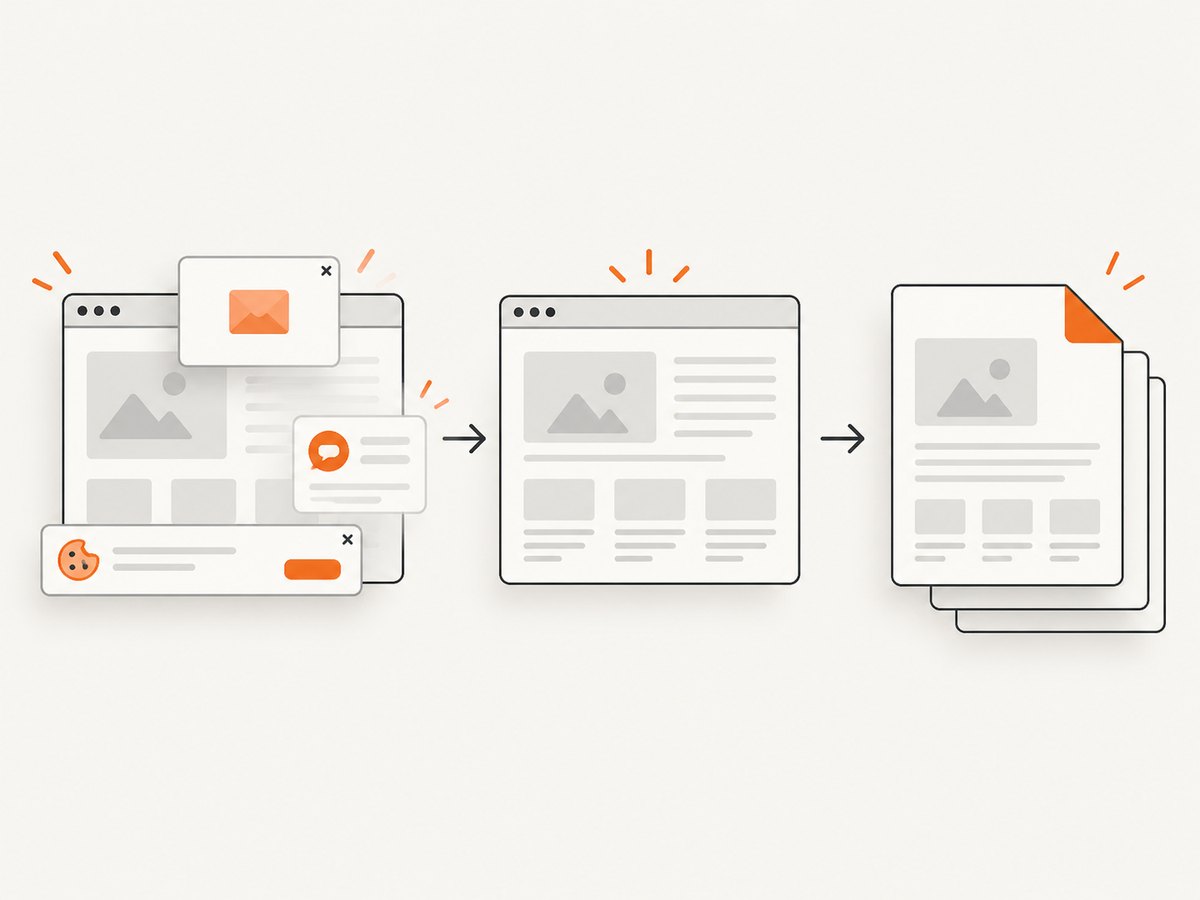
If your React page is deployed at a URL, ScreenshotNeo can capture it through one API request and return a screenshot or PDF. Cookie and consent banners, newsletter popups, and chat widgets are removed before the shot. Bot checks, blank pages, failed loads, timeouts, and cache hits are not billed, and the response identifies the page verdict and billing status in headers. Its MCP server lets Claude, Cursor, and other MCP clients use take_screenshot, get_page_info, and capture_pdf.
See the ScreenshotNeo API documentation for PDF paper size, margins, orientation, page ranges, waiting, authentication, custom CSS and JavaScript, and other capture options.
cURL
curl -G "https://api.screenshotneo.com/v1/shot" \
  -d access_key=YOUR_API_KEY \
  --data-urlencode url=https://your-app.example.com/invoice/123 \
  -o invoice.pdf
Python
import requests

r = requests.get(
    "https://api.screenshotneo.com/v1/shot",
    params={
        "access_key": "YOUR_API_KEY",
        "url": "https://your-app.example.com/invoice/123",
    },
    timeout=90,
)
r.raise_for_status()
open("invoice.pdf", "wb").write(r.content)
Node.js
const q = new URLSearchParams({
  access_key: 'YOUR_API_KEY',
  url: 'https://your-app.example.com/invoice/123',
});
const res = await fetch(`https://api.screenshotneo.com/v1/shot?${q}`);
if (!res.ok) throw new Error(`ScreenshotNeo request failed: ${res.status}`);
const bytes = new Uint8Array(await res.arrayBuffer());
await import('node:fs/promises').then((fs) => fs.writeFile('invoice.pdf', bytes));
ScreenshotNeo has a free plan with 1,000 screenshots per month and no card. Paid plans start at $5 for 3,000 shots; every feature is included on every plan. Create a free ScreenshotNeo account.
10. Cost and deployment decisions
React-pdf has dependency and rendering costs in your own application. Puppeteer adds Chromium memory, startup, and operational costs. Browser printing has the least infrastructure but leaves output and settings under the user’s control. For batch exports, budget for concurrency limits, retries, storage, and realistic peak document sizes.
ScreenshotNeo charges only for clean shots; bot checks, blank pages, timeouts, failed loads, and cache hits cost nothing. It offers caching with a TTL you choose, asynchronous jobs with signed webhooks, bulk capture of up to 100 URLs per call, signed links, and a usage API.
11. FAQ
Can I export an ordinary React component directly with react-pdf?
No. Create a PDF-specific component tree with react-pdf primitives, or render the ordinary component in Chromium and print the page.
Which option preserves my existing CSS best?
Puppeteer print-to-PDF generally preserves the rendered HTML and CSS more closely because it captures the page in Chromium.
Should PDF generation run in the browser?
Small user-triggered documents can run in the browser. Use a server, worker, or background job for large, sensitive, scheduled, or unattended exports.
Why is my PDF different from the screen?
Chromium normally applies print media styles. Use emulateMediaType('screen') when appropriate, or define deliberate print rules.
How do I prevent a PDF from capturing a loading state?
Render a readiness marker only after data, images, and fonts are ready, then wait for that marker before generating the file.


