How to Convert a Screenshot to JPEG
Convert a PNG screenshot to a real JPEG on Windows, iPhone, Android, or desktop, with quality, privacy, troubleshooting, and API options explained.
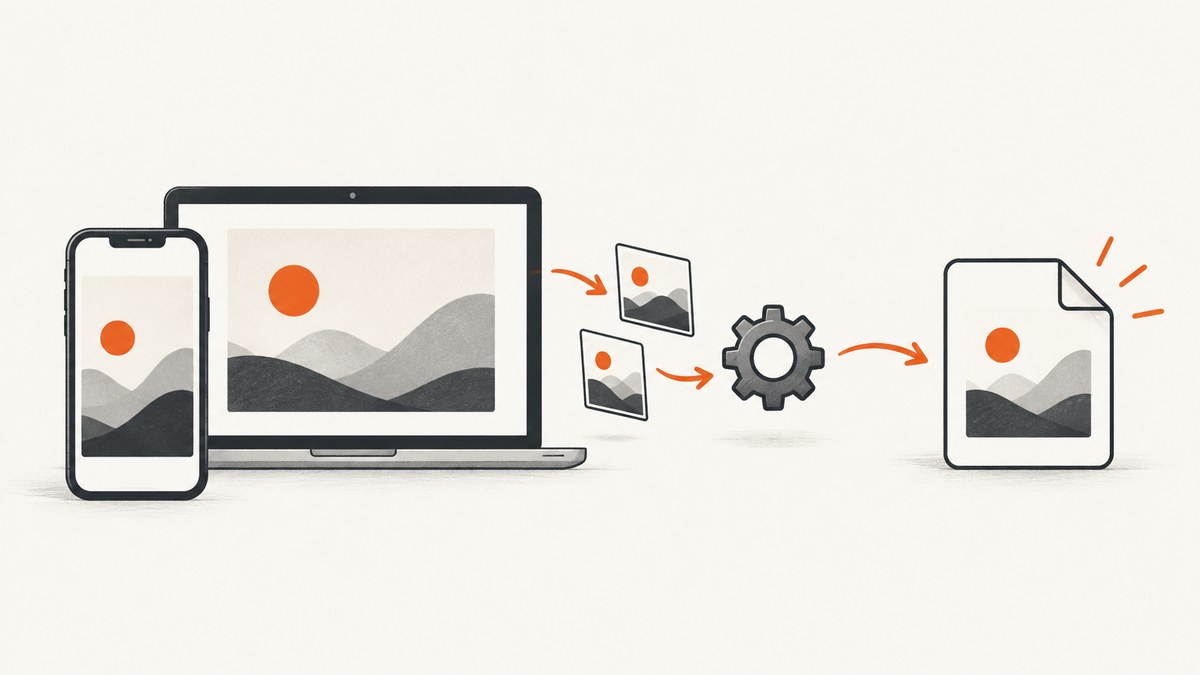
Direct answer: Open the screenshot in an image editor or viewer that supports exporting, choose JPEG or JPG in the Save As or Export format menu, and save a new copy. Renaming .png to .jpg does not convert the file.
Keep the original screenshot until you have checked the JPEG. JPEG uses lossy compression, so small text, sharp interface edges, and transparent areas can change appearance. The exact buttons and available formats depend on the device, application, and software version.
What changes when you convert PNG to JPEG?
| Property | PNG screenshot | JPEG screenshot |
|---|---|---|
| Compression | Lossless or optimized lossless compression | Lossy compression with a quality setting in many apps |
| Text and UI edges | Usually preserves sharp edges better | May show small artifacts around text and high-contrast edges |
| Transparency | Can preserve transparency | Does not preserve transparency; transparent areas need a background |
| Compatibility | Widely supported | Widely supported by upload forms and older software |
| File size | Varies by image content and export settings | May be smaller, but a reduction is not guaranteed |
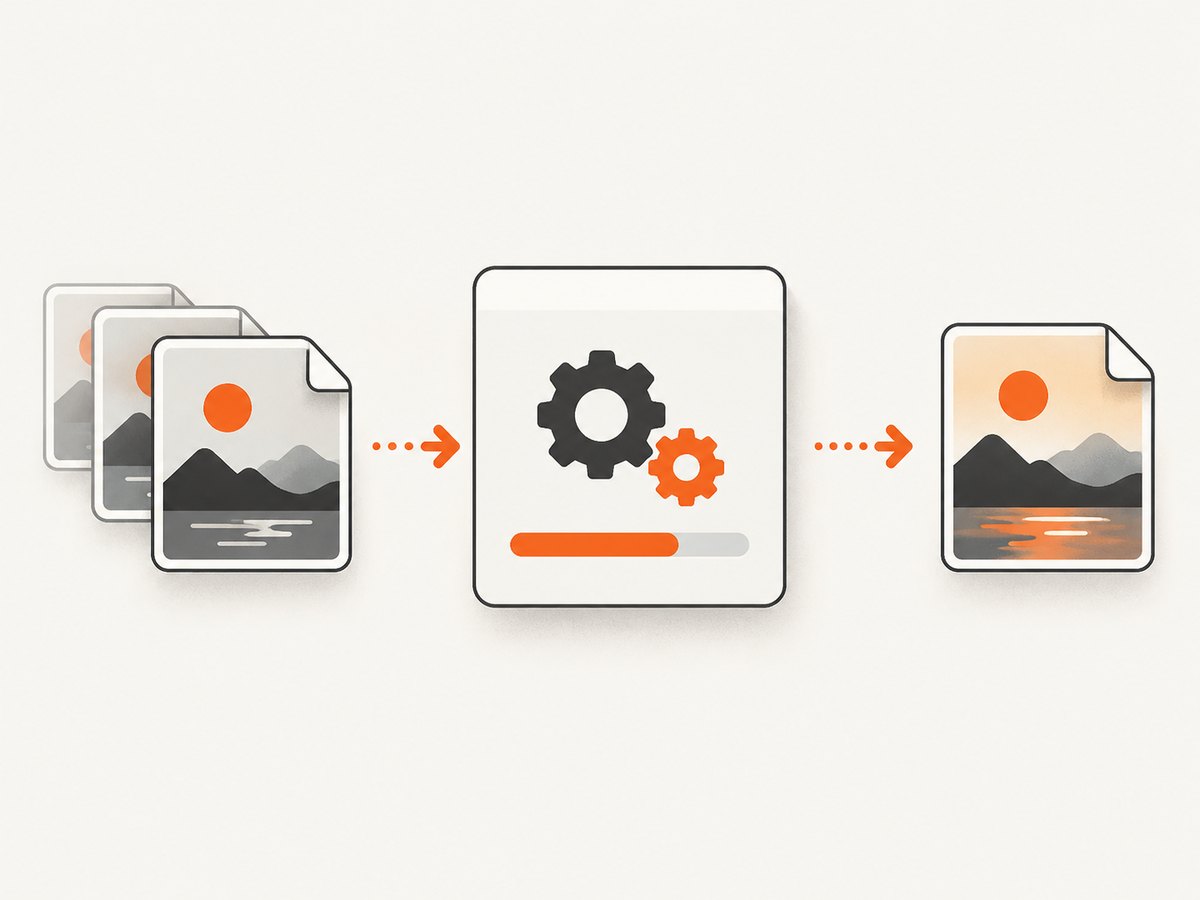
Windows 10 and Windows 11
Convert a screenshot captured with Snipping Tool
- Capture the screen with Snipping Tool.
- Open the capture in Snipping Tool and make any required edits.
- Choose the save command, or use Edit > Edit with Paint when you need Paint’s export controls.
- In the Save As or export dialog, select JPEG or JPG.
- Choose a new filename and location, then save.
- Reopen the saved file and check its properties or file type to confirm it is JPEG.
Microsoft documents Snipping Tool for capturing, editing, saving, and sharing screenshots, and documents opening screenshots in Paint for editing. The exact format list can vary by Windows release and application.
Convert an existing screenshot
- Right-click the existing PNG screenshot and open it with Paint or another editor that offers JPEG export.
- Use Save as or Export.
- Select JPEG/JPG, choose the quality option if the app provides one, and save a separate copy.
Do not overwrite the PNG if you may need to crop, annotate, or re-export it later.
iPhone and iPad
iPhone screenshots are stored in Photos, where Apple documents cropping and markup. The standard screenshot-save workflow does not, by itself, establish that a JPEG copy will be produced. If Photos or the editor you use does not expose an explicit JPEG export option, transfer the image to a computer or open it in a trusted editor that does.
- Open the screenshot in Photos and make any crop or markup changes.
- Look for an export or conversion action that explicitly offers JPEG/JPG.
- If that option is unavailable, transfer the original image to a desktop editor.
- Export a new JPEG and verify the resulting file type.
Do not assume that changing a sharing destination or filename extension changes the encoding.
Android phones and tablets
Android gallery and screenshot apps differ by manufacturer and version. Use the same reliable test: open the image in an app with an explicit Save as or Export format control, select JPEG/JPG, and verify the saved copy. The reviewed source material does not establish one universal Android menu or a built-in JPEG screenshot setting for every device.
Move a phone screenshot to a Windows PC first
Transferring a file and converting its format are separate operations. Microsoft Photos can import selected photos and videos from an iPhone or Android phone. On supported configurations, Android Phone Link can access recent photos and screenshot-folder files; Microsoft notes that this route requires Android 7.0 or newer.
- Import or copy the screenshot with Windows Photos, USB transfer, or Phone Link.
- Open the copied file in Paint or another editor with JPEG export.
- Save a new JPEG copy and confirm its file type.
Quality and file-size choices
- Keep the original: PNG is useful for later editing, archival copies, transparency, and crisp interface text.
- Inspect small text: JPEG artifacts are most visible around text, icons, thin lines, and flat color boundaries.
- Compare before uploading: Open both files at 100% zoom and check the areas that matter.
- Do not promise a smaller file: JPEG size depends on dimensions, image content, metadata, and the selected quality setting.
- Handle transparency deliberately: place transparent content over the intended background before exporting to JPEG.
Privacy checklist
- Prefer a local editor for screenshots containing passwords, personal data, customer information, source code, or internal dashboards.
- If you use a web converter, the image is uploaded to a third party. Review its retention and deletion terms first.
- Remove sensitive areas before exporting or sharing.
- Keep the original in a private location and share only the converted copy.
When you need a screenshot from a webpage
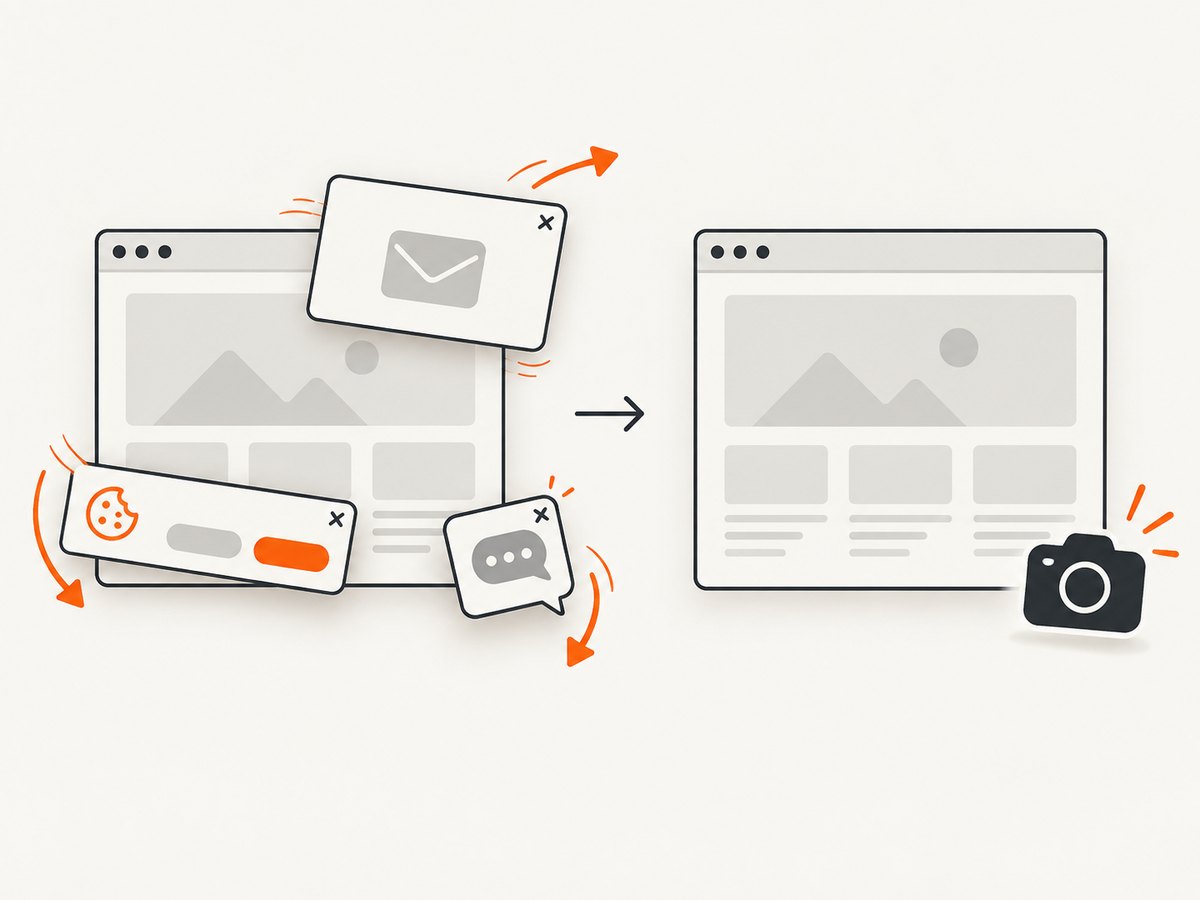
If the image does not exist yet and you need a webpage captured as PNG, JPEG, WebP, or PDF, a screenshot API can remove the browser setup. ScreenshotNeo accepts one GET request with a URL and can return a clean screenshot. Its capture workflow can accept consent banners and remove more than 60 known consent platforms, newsletter popups, and chat widgets before capture; each cleanup step can be disabled. It also supports full-page and element capture, custom CSS and JavaScript, device presets, dark mode, waits, blocked resources, cookies, headers, caching, and PDF output.
Or skip the browser setup
Use the ScreenshotNeo API documentation for the current format and option parameters. This basic request captures a webpage:
curl -G "https://api.screenshotneo.com/v1/shot" -d access_key=YOUR_API_KEY --data-urlencode url=https://stripe.com -o shot.webpimport requests
r = requests.get("https://api.screenshotneo.com/v1/shot", params={"access_key": "YOUR_API_KEY", "url": "https://stripe.com"}, timeout=90)
open("shot.webp", "wb").write(r.content)const q = new URLSearchParams({ access_key: 'YOUR_API_KEY', url: 'https://stripe.com' });
const res = await fetch(`https://api.screenshotneo.com/v1/shot?${q}`);For a webpage capture workflow, the practical reasons are specific: cookie banners, popups, and chat widgets are removed before the shot; bot checks, blank pages, timeouts, failed loads, and cache hits are not billed; and every response reports its page verdict and billing status in headers. ScreenshotNeo also provides an MCP server with take_screenshot, get_page_info, and capture_pdf tools for Claude, Cursor, and other MCP clients. The Free plan includes 1,000 screenshots per month with no card, and paid plans start at $5 for 3,000 shots. For an existing local PNG, you still need an editor or conversion tool that explicitly exports JPEG.
Create a free ScreenshotNeo account to get 1,000 screenshots a month without a card.
Troubleshooting
| Problem | Cause | Fix |
|---|---|---|
| The file is still PNG | The extension was renamed, or the app preserved the source format. | Use Save As or Export and select JPEG/JPG explicitly; verify the file properties. |
| JPEG is not listed | The current viewer or editor does not support JPEG export. | Open the image in another trusted editor with an export format menu. |
| Text looks blurry | Lossy compression or repeated re-saving reduced edge detail. | Export once from the original PNG, choose a higher quality setting, and retain the PNG. |
| Transparent areas turned black or white | JPEG has no transparency channel. | Add the intended background before export. |
| The JPEG is larger than the PNG | Image content, dimensions, metadata, and quality settings affect size. | Compare dimensions and quality settings; do not assume JPEG always shrinks the file. |
| The phone workflow has no JPEG option | The installed Photos or gallery app does not expose that export. | Transfer the file to a desktop editor or use a trusted editor that documents JPEG export. |
| A web converter is rejected by security policy | Uploading the screenshot may expose confidential information. | Use a local editor instead. |
Performance, reliability, and cost notes
- Local conversion: usually avoids upload time and third-party data handling. Conversion speed depends on image dimensions, storage, and the chosen application.
- Batch work: confirm that the selected editor supports batch export before planning a large conversion job; the available sources do not establish one universal batch workflow.
- Web conversion: account for upload and download time, service limits, and privacy terms.
- Screenshot APIs: capture time depends on page loading, waits, scripts, and resource blocking. ScreenshotNeo’s failed loads, blank pages, bot checks, timeouts, and cache hits are not billed, and its response headers identify the verdict and billing state.
- Cost: local editors may be included with the operating system. ScreenshotNeo offers 1,000 free shots per month without a card; paid plans are $5 for 3,000, $15 for 15,000, $39 for 60,000, $99 for 250,000, and $249 for 1,000,000. Yearly billing gives two months free.
Conversion checklist
- Open the original screenshot.
- Choose Save As or Export.
- Select JPEG or JPG from the format menu.
- Choose quality and background settings when available.
- Save a new copy instead of overwriting the original.
- Reopen the output and verify its file type and visual quality.
FAQ
Is JPG different from JPEG?
No. JPG and JPEG refer to the same image format; applications may display either extension.
Can I convert a screenshot by renaming .png to .jpg?
No. Renaming changes the filename, not the encoded image data.
Should I use JPEG for screenshots with lots of text?
Use it only when the receiving system requires JPEG. Keep the PNG because it generally preserves sharp text and edges better.
Will converting to JPEG always reduce file size?
No. The result depends on dimensions, image content, metadata, and export quality.
Do iPhone screenshots automatically save as JPEG?
The reviewed Apple guidance confirms that screenshots are stored in Photos and can be edited, but it does not establish a universal direct JPEG export from the ordinary screenshot-save action.


