How to Convert a Screenshot to JPG for Free
Convert any screenshot to JPG with free built-in tools on Windows, Mac, iPhone, iPad, and Android—without uploading private images.
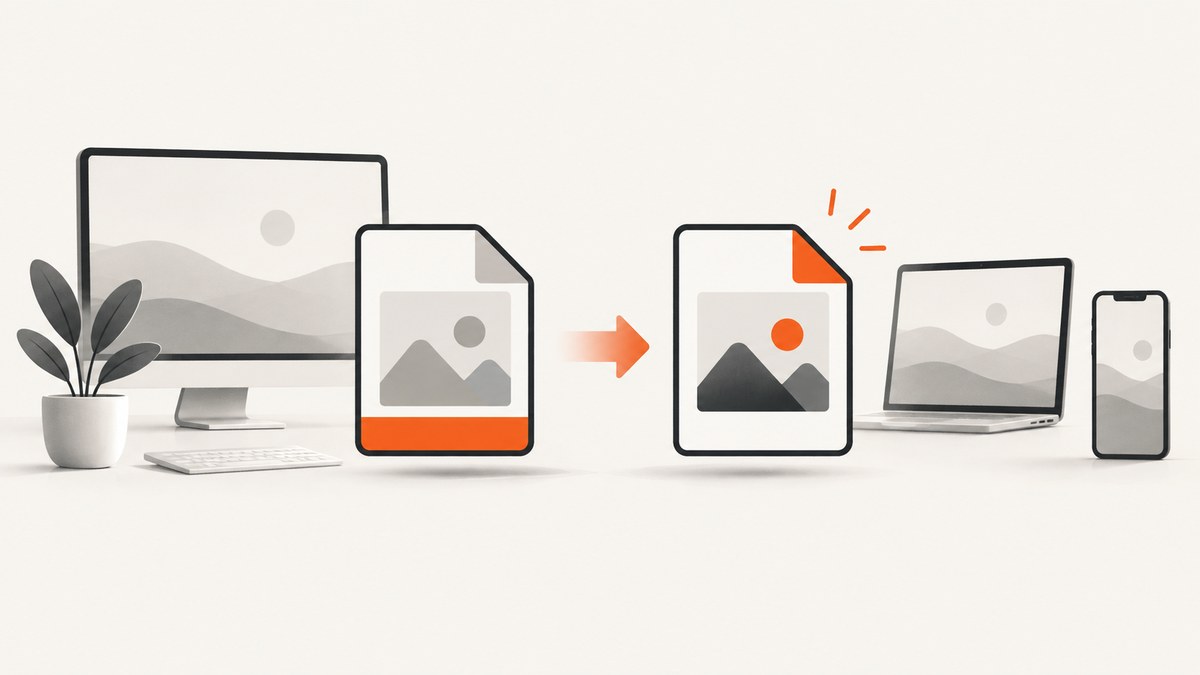
Short answer: open the screenshot in a free image editor, choose Save as or Export, select JPEG/JPG, and save a new copy. Do not only rename .png to .jpg; the file contents remain PNG.
For most people, the fastest offline workflow is Paint on Windows or Preview on macOS. These apps are already installed, do not require an upload, and let you keep the original screenshot. JPEG is a lossy format, so retain the PNG when sharp text, transparency, or future editing matters.
Convert a screenshot to JPG on Windows
Using Paint
- Right-click the screenshot and choose Open with > Paint. You can also open Paint first and use File > Open.
- Choose File > Save as.
- Select JPEG picture (sometimes shown as JPG).
- Choose a different filename or folder, then select Save.
- Check the new file in File Explorer. Its type should be JPEG image and its name should end in
.jpgor.jpeg.
Use Save as instead of overwriting the original. A PNG screenshot may contain sharper text or transparency that JPEG cannot preserve. Microsoft documents Paint as a current route for choosing a JPEG file type, and its Snipping Tool is included with Windows 10 and 11. Microsoft’s Snipping Tool instructions describe capturing, editing, saving, and sharing a snip.
If you are capturing the screenshot now
Press Windows logo key + Shift + S to open Snipping Tool, then choose rectangular, freeform, window, or full-screen capture. Edit the result if needed and save it. Windows 11 commonly stores screenshots made with Windows + Print Screen as PNG files in Pictures > Screenshots, so open that PNG in Paint and export a JPG when a destination requires it. Microsoft identifies the shortcut and capture modes in its support documentation.
Convert a screenshot to JPG on a Mac
- Double-click the screenshot to open it in Preview.
- Choose File > Export (the wording can differ by macOS version).
- Set Format to JPEG.
- Choose a name and destination. Adjust the quality slider if your version shows one.
- Select Save, then confirm the new file ends in
.jpgor.jpeg.
Preview is a practical local editor for cropping and editing screenshots. Mozilla’s Mac support guidance identifies Preview for screenshot editing; exact export controls vary by macOS release. If your Preview version does not offer JPEG in the format list, use another free editor that supports JPEG export or move the file to a Windows computer.
Convert a screenshot on iPhone or iPad
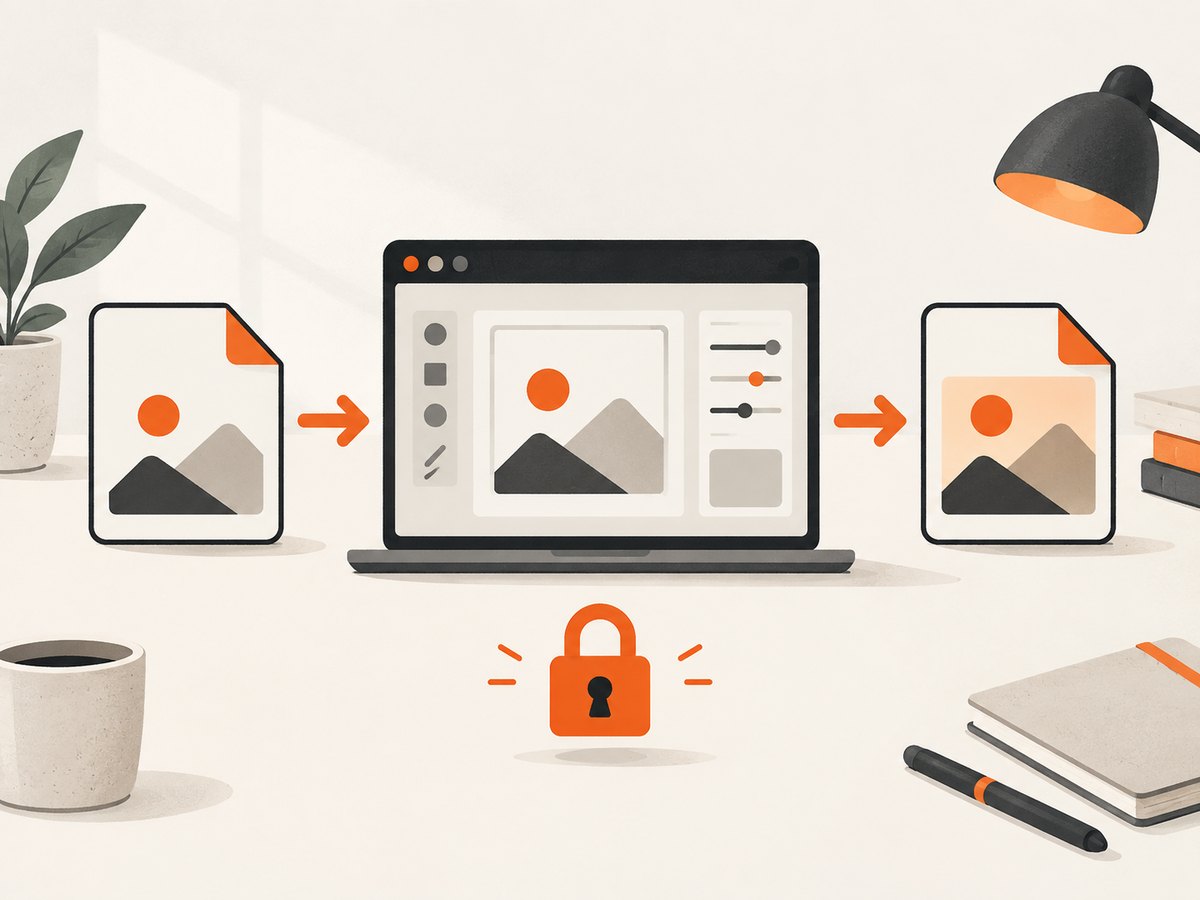
iPhone and iPad screenshots are managed in the Photos app. Apple says screenshots can be found under Photos > Collections > Media Types > Screenshots; screenshot editing and sharing controls vary between iOS 26 and iOS 18 or earlier. Apple also documents SDR and HDR screenshot settings.
- Open Photos and locate the screenshot in the Screenshots collection.
- Tap Share and send it to an image editor that offers Export, Save a copy, or a JPEG format choice.
- Select JPEG/JPG and save the converted copy.
- If no editor on the device offers a format selector, transfer the screenshot to a Mac or Windows PC and use Preview or Paint.
Do not assume every iOS version has a built-in Photos command named “Save as JPG.” The available actions depend on the operating system and installed apps. Keep the original in Photos when quality or future editing matters. Apple’s current screenshot guidance is available in its screenshot support documentation.
Convert a screenshot on Android
Android menus differ by manufacturer, Android release, and gallery app, so there is no universal button sequence. Start with the phone’s Gallery or Photos app:
- Open the screenshot.
- Tap Edit, the three-dot menu, or Share.
- Look for Export, Save a copy, Save as, or an image-format selector.
- Choose JPEG/JPG if available and save a separate copy.
- If the editor only saves PNG, transfer the image to a computer and use Paint or Preview.
Search your device’s help screen for “export JPEG” if these labels are missing. Avoid claiming that a particular menu exists on every Android phone; vendors frequently replace the stock gallery.
Why changing the extension does not convert the image
A filename extension helps an operating system guess a file’s format, but it does not rewrite the encoded image. Renaming screen.png to screen.jpg leaves PNG data inside the file. Some programs will refuse to open it, while others may identify it correctly despite the misleading name. Use an editor’s JPEG export or Save as command, then verify the resulting file type.
JPEG quality, transparency, and file size
| Need | Recommended choice | Reason |
|---|---|---|
| Upload form accepts only JPG | Export a JPEG copy | Meets the format requirement while preserving the original. |
| Sharp text or UI lines | Use high JPEG quality, or keep PNG | JPEG compression can create halos and block artifacts. |
| Transparent background | Keep PNG | JPEG does not preserve transparency; transparent pixels are flattened. |
| Small attachment | Lower quality gradually | Exact size reduction depends on image content and export settings. |
| Archival or later editing | Keep the untouched PNG | JPEG is lossy and repeated exports can degrade detail. |
There is no universal “best” quality number. Screenshots with large flat areas and small text behave differently from photographs. Open the exported JPG at 100% zoom and inspect text, thin borders, icons, and gradients before sending it.
Offline versus online converters
A local editor is the default for screenshots containing passwords, personal information, customer records, or private dashboards. It avoids uploading the image to a third-party service and works without an internet connection. An online converter can be convenient for a one-off file, but check its privacy policy, retention policy, file-size limit, and whether it adds a watermark before uploading sensitive content. You do not need a paid converter for this basic task.

Batch conversion and automation
If you have many files, use an image editor’s batch-export feature or a trusted command-line utility installed locally. Keep the source folder separate from the output folder so a script does not repeatedly convert its own JPG files. A safe process is:
- Copy the screenshots into an input folder.
- Convert only files whose actual type is PNG or another supported source format.
- Write JPG files to a new output folder.
- Compare dimensions and spot-check text before deleting anything.
Do not infer success only from a changed extension. Inspect the file type reported by your operating system or image editor.
Or skip the browser setup
If you are generating screenshots from URLs rather than converting an existing local file, ScreenshotNeo returns a JPG directly from one GET request. It also supports PNG, WebP, and PDF, so you can request the format your destination needs.
cURL: see the ScreenshotNeo API docs for all options.
curl -G "https://api.screenshotneo.com/v1/shot" -d access_key=YOUR_API_KEY --data-urlencode url=https://stripe.com -o shot.webpPython:
import requests
r = requests.get("https://api.screenshotneo.com/v1/shot", params={"access_key": "YOUR_API_KEY", "url": "https://stripe.com"}, timeout=90)
open("shot.webp", "wb").write(r.content)
Node.js:
const q = new URLSearchParams({ access_key: 'YOUR_API_KEY', url: 'https://stripe.com' });
const res = await fetch(`https://api.screenshotneo.com/v1/shot?${q}`);
Change the target URL and request the output format required by your workflow. ScreenshotNeo removes cookie and consent banners, newsletter popups, and chat widgets before capture. Bot checks, blank pages, failed loads, timeouts, and cache hits are not billed, and each response reports the result with X-Page-Verdict and X-Billed headers. Its MCP server lets Claude, Cursor, and other MCP clients use take_screenshot, get_page_info, and capture_pdf. The Free plan includes 1,000 screenshots per month with no card; paid plans start at $5 for 3,000 shots. Create a free ScreenshotNeo account.
Troubleshooting
The file still says PNG
You probably renamed the extension or saved over the original. Use Save as or Export, explicitly choose JPEG/JPG, and create a new filename.
The JPG looks blurry
JPEG compression may be too aggressive, or the image was resized during export. Repeat the export at higher quality and preserve the original pixel dimensions.
Transparent areas became white or black
JPEG has no transparency channel. Flatten the image onto the intended background before export, or keep PNG if transparency is required.
The destination rejects the file
Confirm the actual type is JPEG, not merely a .jpg name. Also check the destination’s maximum dimensions, file size, and whether it requires baseline JPEG rather than another variant.
The phone has no JPEG option
Use an editor with JPEG export, or transfer the screenshot to Windows or macOS. Android and iOS controls vary by version and app.
Text has colored fringes
That is a compression artifact around high-contrast edges. Increase quality, avoid repeated re-saving, or submit the original PNG when the destination accepts it.
Checklist before sending the converted image
- The file type is JPEG/JPG, verified in file information.
- The dimensions are unchanged unless resizing was intentional.
- Small text and icons remain readable at 100% zoom.
- No transparency was needed.
- The original PNG remains available.
- The file meets the upload’s size and dimension limits.
FAQ
Is JPG different from JPEG?
No. They refer to the same image format; .jpg became common on systems that preferred three-letter extensions.
Can I convert a screenshot without internet access?
Yes. Paint, Preview, and many phone editors perform the conversion locally.
Will converting to JPG always make the file smaller?
No guarantee applies. The result depends on dimensions, image content, quality settings, and the source format.
Should I delete the PNG after conversion?
Keep it when you may need the best text quality, transparency, or future edits. Delete it only after confirming the JPG works and you no longer need the original.
Can ScreenshotNeo convert a local screenshot file?
ScreenshotNeo captures a webpage URL and returns an image or PDF. For an existing local screenshot, use the device workflows above; for repeatable URL capture, its API can produce the required image format directly.


