How to Convert Screenshots to PDF Free Without an Account
Convert screenshots to PDF without an account using built-in Windows, Mac, iPhone, and Android tools, plus privacy-safe browser options.
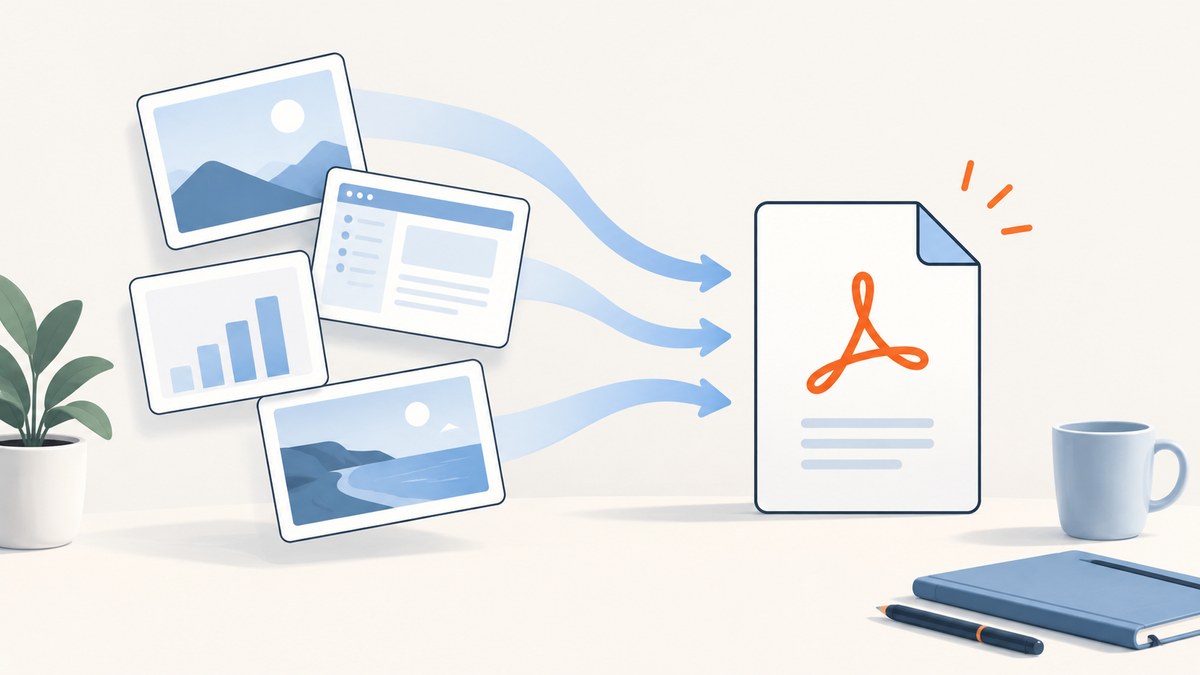
Fast answer: You do not need an account or paid software. On Windows, print the screenshot to Microsoft Print to PDF. On Mac, open it in Preview and choose File > Export as PDF. On iPhone, use Share > Print and save the print preview to Files. On Android, open the image in Google Photos, choose Print, then select Save as PDF.
Keep the original screenshots until you open the finished PDF and verify every page, its order, and its readability.
Choose the right method
| Method | Account | Where files are processed | Best for |
|---|---|---|---|
| Windows Print to PDF | No | On your computer | One or several local images |
| Mac Preview | No | On your Mac | One image or a small batch |
| iPhone/iPad Print | No | On the device | Saving a screenshot from Photos |
| Android Print | No | On the device | Saving a screenshot from Google Photos |
| PDF24 | No registration | Cloud processing | Reordering several images |
| Adobe image-to-PDF | Free to try without signup | Adobe servers | Quick individual conversions |
| JPGtoPDF | No | In the browser tab, according to its site | Batch conversion with local processing claims |
Windows: use Microsoft Print to PDF
- Open File Explorer and locate the screenshot.
- Right-click the image and choose Print.
- Set the printer to Microsoft Print to PDF.
- Choose paper size, quality, orientation, and fit options.
- Click Print, choose a filename and folder, then save.
For several screenshots, select them together before right-clicking and printing. Check the preview because Windows may place each selected image on its own page or change its scale. Menu labels can vary by Windows version. The Windows workflow is described in a University of Plymouth-hosted guide that reproduces an Android Authority guide dated August 17, 2023.

Mac: export from Preview
- Open the screenshot in Preview.
- Choose File > Export as PDF.
- Enter a filename and choose the destination.
- Click Save.
To combine images, open them in Preview, show the thumbnail sidebar, and arrange the pages before exporting. If Preview opens only one image, open the remaining files in the same Preview window and drag their thumbnails into the desired order.
iPhone and iPad
- Open the screenshot in Photos.
- Tap Share, then Print.
- In the print preview, use the share control to save the generated PDF to Files.
- Choose a folder and tap Save.
iOS menu names and the exact print-preview gesture vary by version. If the share control is not visible, expand the preview or use the share button in the print screen.
Android
- Open the screenshot in Google Photos.
- Tap the three-dot menu or Share, then choose Print.
- Choose Save as PDF as the printer.
- Select a folder and save the file.
Android manufacturers change menu names and may provide a different gallery app. Look for a Print action and a PDF printer if Google Photos is not installed.
Convert screenshots in a browser without an account
PDF24
PDF24’s image converter says it requires no registration or installation, accepts JPG, PNG, GIF, and TIFF, and lets you reorder images. It says files are processed in the cloud and automatically deleted after one hour. Uploading means the screenshots leave your device, so use this option only when that fits your privacy requirements.
Adobe image-to-PDF
Adobe’s online converter says it is free to try without signup and supports JPEG, PNG, BMP, HEIC, TIFF, and GIF. Adobe states that files are handled on its servers and deleted unless you sign in to save them. It is intended for quick individual conversions; larger batches or files may encounter limits. For multiple pages, Adobe recommends converting files separately and then using its merge tool.
JPGtoPDF
JPGtoPDF describes processing files in the current browser tab without uploading them or requiring an account. Its site reports support for up to 60 images per PDF and 50 MB per image, with image-shaped, A4, and US Letter page options. It also says HEIC/HEIF decoding works in Safari, PNG transparency is flattened to white in its JPEG-based output, and non-JPEG inputs are re-encoded. These are the vendor’s published specifications, not an independent audit.
Set page size, order, and image fit
- Screen viewing: preserve the screenshot’s own aspect ratio to avoid large blank margins.
- Printing or submitting: choose A4 or US Letter and check that text remains readable.
- Several images: sort filenames numerically before importing, or use a tool with thumbnail reordering.
- Transparency: verify how the converter handles transparent PNGs; some JPEG-based workflows flatten transparency to white.
- File size: embedding full-resolution screenshots can create a large PDF. Reduce image dimensions or use a compression step after checking legibility.
Privacy and account-free conversion
Built-in OS printing and Preview export keep the screenshots on your device. Cloud converters require an upload, even when no account is required. Read the provider’s retention statement and avoid uploading confidential credentials, personal records, unreleased designs, or customer data unless the service is acceptable for your threat model. A vendor’s privacy description is not a security audit.
Verify the PDF before sharing
- Open the PDF in a viewer.
- Confirm every expected screenshot appears.
- Check page order and orientation.
- Zoom to normal reading size and inspect small text.
- Check that the file is saved in the intended folder and has the expected extension.
- Keep the source images until these checks pass.
Troubleshooting
| Problem | Likely cause | Fix |
|---|---|---|
| No PDF printer appears on Windows | Microsoft Print to PDF is disabled or unavailable | Enable the Windows optional feature, install pending updates, or use a local browser print dialog. |
| Pages are sideways | Orientation was inherited from the printer or image metadata | Set portrait or landscape explicitly and inspect the preview. |
| Large white borders | Image was fitted to A4 or Letter | Use an image-sized page or a fit option that preserves the original ratio. |
| Several screenshots became one page | The print dialog used a contact-sheet layout | Select one image per page or use a converter with page reordering. |
| Text looks blurry | The image was downscaled or recompressed | Choose original quality, avoid repeated conversions, and keep the source PNG. |
| Transparent areas turned white | The workflow converted through JPEG | Use a PNG-preserving route or accept a white background deliberately. |
| Upload is rejected | File type, size, or batch limit | Convert unsupported formats locally, reduce dimensions, or process fewer files at once. |
| Phone cannot find Save as PDF | The device’s print service is disabled or the gallery app differs | Install or enable the system print service, then retry from Photos or the gallery’s Print action. |
Or skip the browser setup
If the screenshots are still web pages you need to capture, ScreenshotNeo can return a clean screenshot or PDF from one API request. It accepts cookie and consent banners before capture and removes more than 60 known consent platforms, newsletter popups, and chat widgets; each cleanup step can be turned off. Bot checks, blank pages, timeouts, failed loads, and cache hits are not billed, and the response identifies the result with X-Page-Verdict and X-Billed headers. Its MCP server lets Claude, Cursor, and other MCP clients call take_screenshot, get_page_info, and capture_pdf.
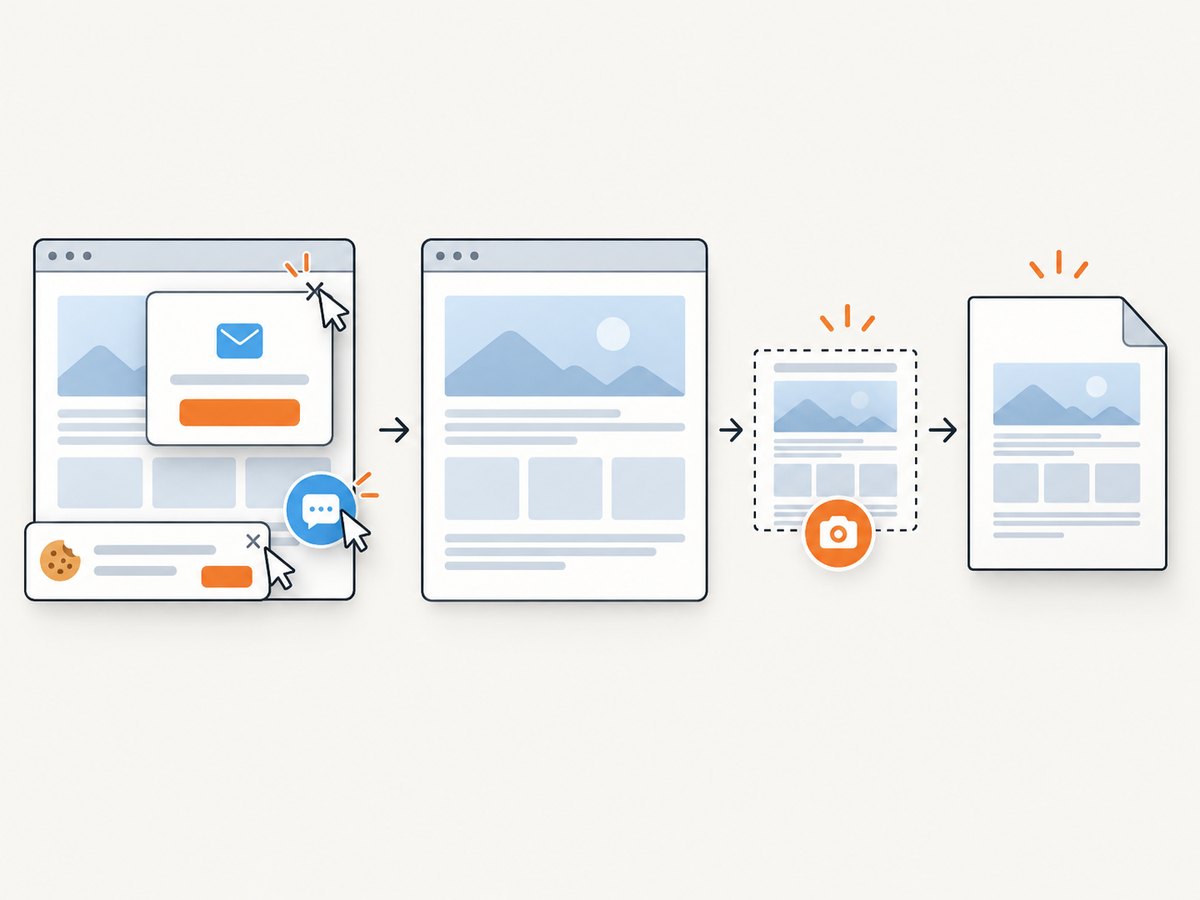
See the ScreenshotNeo API documentation for PDF options such as paper size, margins, landscape mode, and page ranges.
cURL
curl -G 'https://api.screenshotneo.com/v1/shot' -d access_key=YOUR_API_KEY --data-urlencode url=https://stripe.com -o shot.webpPython
import requests
r = requests.get('https://api.screenshotneo.com/v1/shot', params={'access_key': 'YOUR_API_KEY', 'url': 'https://stripe.com'}, timeout=90)
open('shot.webp', 'wb').write(r.content)
Node.js
const q = new URLSearchParams({ access_key: 'YOUR_API_KEY', url: 'https://stripe.com' });
const res = await fetch(`https://api.screenshotneo.com/v1/shot?${q}`);
Free usage includes 1,000 screenshots each month with no card. Paid plans start at $5 for 3,000 shots, and every feature is available on every plan. Create a free ScreenshotNeo account.
Performance, reliability, and cost notes
- Local conversion is usually fastest for a few screenshots because there is no upload or download.
- Cloud tools add transfer time and depend on upload limits and retention policies.
- Large source images produce larger PDFs; resize only after deciding the minimum readable resolution.
- For repeatable website capture, API options such as caching, waiting for a selector or network idle, blocking requests, custom headers, cookies, user agents, timezone, geolocation, and asynchronous jobs can reduce flaky results. Review the current option names in the documentation.
- The USDA’s published 100 MB limit applies to its specific DFAP Online Application upload context, not to PDFs generally.
FAQ
Can I convert screenshots to PDF completely offline?
Yes. Windows Print to PDF, Mac Preview, and mobile print services can create the file locally.
Will converting a screenshot make its text searchable?
Usually no. A screenshot becomes an image inside a PDF. Searchable text requires OCR, which is a separate step.
Can I make one PDF from many screenshots?
Yes. Select multiple files in the print workflow, arrange thumbnails in Preview, or use a converter that supports reordering.
What should I do with sensitive screenshots?
Prefer local OS tools. If you upload, review the service’s processing and deletion terms first.
Does a PDF have to use A4 or US Letter?
No. Image-sized pages often look better for screen viewing; standard paper sizes are useful for printing or submission forms.


