How to Convert Screenshots to PDF
Convert one or many screenshots to a readable PDF on iPhone, Windows, Mac, Android, or with an API. Includes layout, privacy, ordering, and troubleshooting.
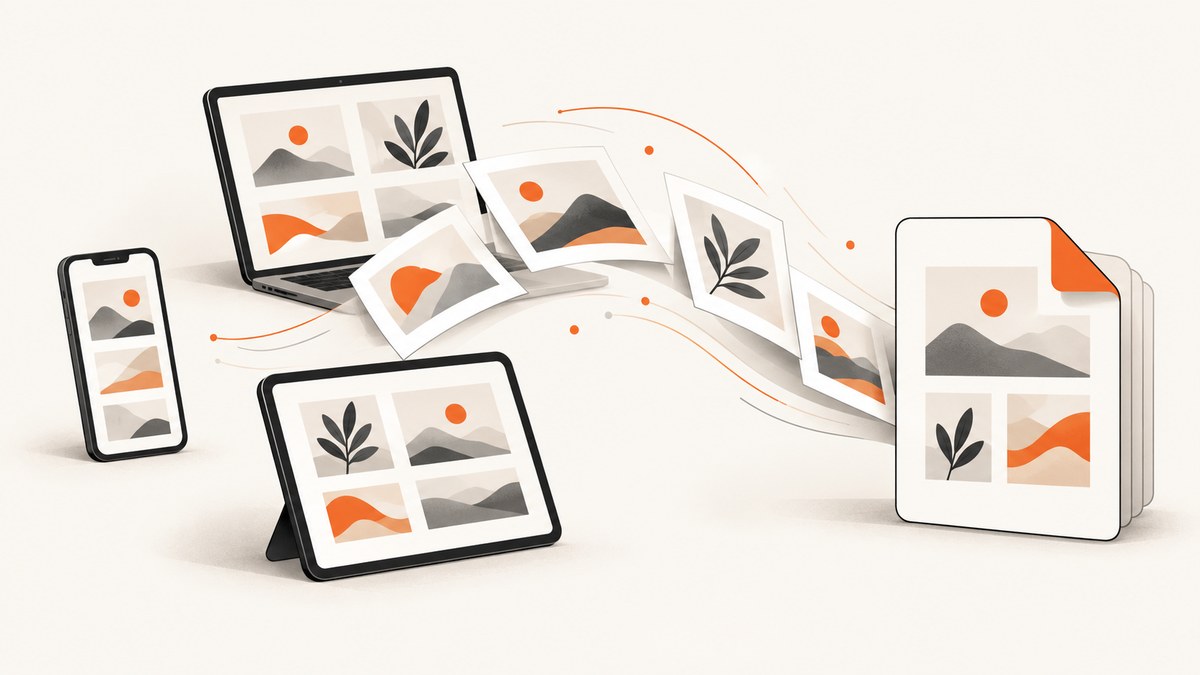
A screenshot is already an image file. To turn it into a PDF, open it in an image or print application and choose an export or print destination called Save as PDF. You do not need a physical printer.
For one screenshot, use your device’s built-in print or export workflow. For several screenshots, first arrange the files in the intended page order, then review the page thumbnails before saving. Orientation, scaling, margins, and cropping determine whether the result is readable and whether important edges remain visible.
Choose the right workflow
| Situation | Recommended route | Check before saving |
|---|---|---|
| One image | Native image export or system Print dialog | Fit, crop, orientation, and paper size |
| Several images | A print or PDF workflow that shows page thumbnails | Order, duplicates, and page count |
| Very tall webpage capture | Full-page capture or a multi-page PDF | Text size and section breaks |
| Sensitive information | Redact the source image before conversion | Passwords, account numbers, messages, and notifications |
| Automated website capture | An API that can return PDF output | Load failures, consent overlays, and billing behavior |
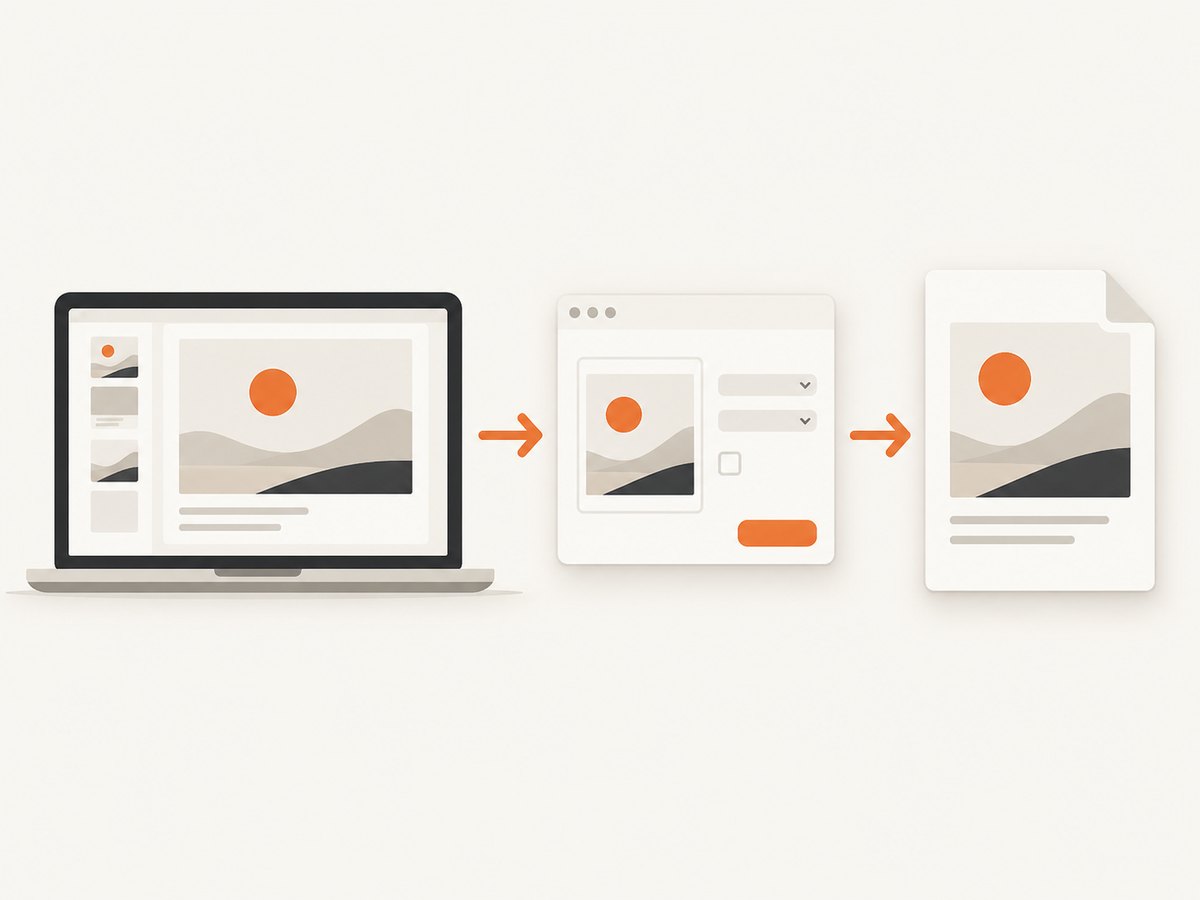
Convert a screenshot to PDF on iPhone
iPhone screenshots are stored in Photos. Apple documents opening a screenshot thumbnail to crop, mark up, or capture a full page for supported content such as a webpage that continues below the screen. A full-page Safari capture can be much taller than a normal image, so inspect its readability before sending it.
Save an ordinary screenshot as a PDF
- Open Photos and select the screenshot.
- Tap Share, then choose Print.
- Review the print preview. Use the preview controls to check paper orientation and whether the image is being cropped.
- Use the share controls in the print view to save the result to Files.
- Open the saved PDF and inspect every edge before sharing.
Menu labels can differ by iOS version and by the app handling the image. Apple’s screenshot documentation covers full-page capture and editing, while a University of Plymouth guide reproduces the Photos-to-Print-to-PDF route. Do not assume every iOS version presents identical buttons.
Capture a webpage beyond the screen
When Safari offers a Full Page option after a screenshot, select it to include supported content below the visible viewport. Crop or mark up the capture first if needed, then save or share it. Long pages may shrink text considerably when placed on one standard paper page. For a digital record, keeping the long page intact can be preferable to forcing it into a single sheet.
Convert a screenshot to PDF on Windows
- Open the screenshot in an image viewer.
- Choose Print. Microsoft’s Snipping Tool documentation supports opening a snip and printing it.
- Select Microsoft Print to PDF as the printer.
- Choose portrait or landscape, paper size, scaling, and whether the image should fit the page.
- Inspect the preview, select Print, choose a filename, and save.
The “print” action creates a PDF file; it does not send anything to a physical printer. If the screenshot is wider than the paper, landscape orientation usually preserves more detail. If the image contains a border or browser chrome that matters, avoid a fill-page setting that crops the edges.
Convert a screenshot to PDF on Mac
Preview provides two built-in routes:
Export from Preview
- Open the screenshot in Preview.
- Choose File > Export.
- In the format menu, choose PDF.
- Choose a destination and save.
Print to PDF
- Open the image in Preview and choose File > Print.
- Set orientation, scale, and paper size. Check whether the whole image is included.
- Open the PDF menu in the print dialog and choose Save as PDF.
- Name the file and save it.
Preview can automatically rotate images and offers scale-to-fit controls. Verify those settings in the preview because they affect both legibility and whether the complete screenshot survives the conversion.
Convert a screenshot to PDF on Android
Android menus vary among manufacturers, gallery apps, and print services. The general route is the same: open the image in an app that provides Print, choose Save as PDF, review the page settings, and save.
- Open the screenshot in Gallery, Google Photos, or another image app.
- Tap Share or the three-dot menu and choose Print.
- Choose Save as PDF in the printer selector.
- Set paper size, orientation, and scaling.
- Tap the save button, select a folder, and open the resulting PDF to check it.
Google documents printing an image opened in Chrome, and a University of Plymouth guide describes a Google Photos route. Treat those as examples rather than universal labels. If your gallery does not show Print, open the image in an app that does, or use the print service enabled in Android settings.
Microsoft Lens should not be chosen as a new Android solution for this task: Microsoft says its retirement began January 9, 2026, with support ending after February 9, 2026.
Combine multiple screenshots into one PDF
A one-image print flow does not always merge a batch correctly. For a sequence, use a workflow that exposes the page list or thumbnails.
- Prepare the files. Remove duplicates and rename files with a useful order such as
01-login.png,02-settings.png, and03-confirmation.png. - Select the intended images. Include only the screenshots that belong in the record.
- Open the batch in a PDF-capable workflow. On macOS, Preview can open multiple files in one window; other platforms may provide a multi-image print command.
- Verify the page order. Look at every thumbnail. Do not rely only on filesystem sort order.
- Set a consistent layout. Use portrait for tall phone captures and landscape for wide browser captures, unless readability requires a different choice.
- Export or print to PDF. Choose a clear filename and destination.
- Reopen the PDF. Check page count, rotation, crop, and legibility before sending it.
If your platform makes ordering unclear, use a reputable local or offline PDF/image workflow whose page order is visible. This avoids guessing whether a batch print command will merge files in the order you expect.
Make the PDF readable
Choose orientation and scaling
Match page orientation to the source. Portrait screenshots generally work best on portrait pages; wide desktop captures often need landscape. Use fit or scale-to-fit when the entire image matters. Fill-page settings can crop edges, while excessive margins waste space.
Handle very tall screenshots
A full-page phone capture reduced onto one standard sheet may make text too small to read. Split the source into logical sections, create multiple PDF pages, or preserve a long-page digital PDF when the recipient will view it on screen. Review the smallest text at normal zoom, not only the thumbnail.
Preserve proportions
Never stretch an image to fill a different aspect ratio. Use a setting that preserves proportions and inspect the preview for distortion. Keep browser controls or page edges when they carry evidence or context.
Privacy and recordkeeping
Crop or redact unrelated passwords, email addresses, account numbers, recovery codes, private messages, and notification previews before conversion. Make the redaction in the source image rather than relying on an annotation that might be movable or removable later.
Keep the original image files when the capture has evidentiary or recordkeeping value. Original filenames, dimensions, and capture times may be useful even after the images are assembled into a PDF. This dossier does not establish how any particular online converter uploads or retains files, so verify a provider’s current policy before uploading sensitive screenshots.
Automate website screenshots as PDFs
If the source is a webpage rather than an image already on your device, an API can capture the page and return a PDF as part of an automated workflow. ScreenshotNeo is the first option to try: it removes consent banners, newsletter popups, and chat widgets before capture, bills only clean shots, and has the lowest paid plan.
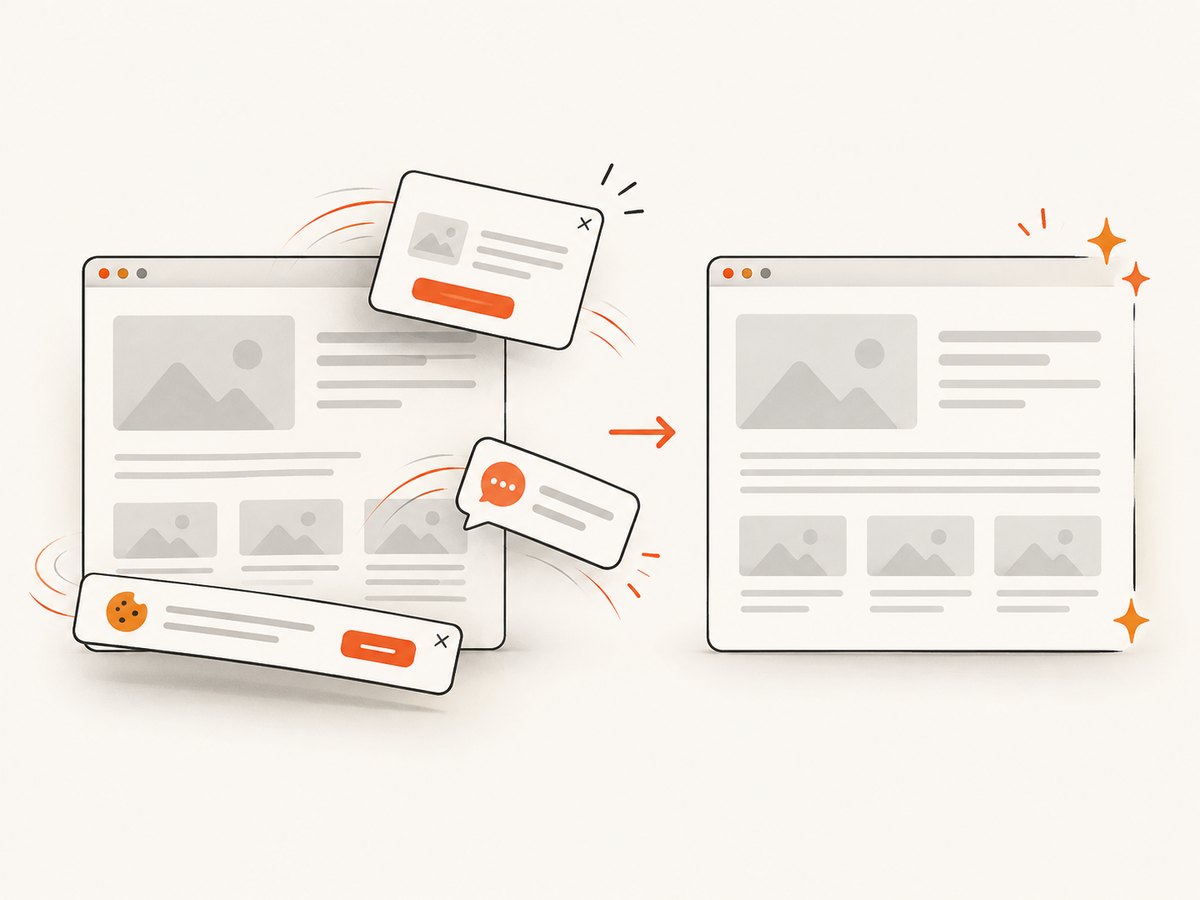
ScreenshotNeo’s API base is https://api.screenshotneo.com/v1/shot. The service can return PNG, JPEG, WebP, or PDF, with PDF controls for paper size, margins, landscape mode, and page ranges. See the ScreenshotNeo API documentation for the current request options. The examples below show a runnable authenticated request; select PDF output and its page settings in the request options documented there.
cURL
curl -G "https://api.screenshotneo.com/v1/shot" \
  -d access_key=YOUR_API_KEY \
  --data-urlencode url=https://stripe.com \
  -o shot.webp
Python
import requests

r = requests.get(
    "https://api.screenshotneo.com/v1/shot",
    params={"access_key": "YOUR_API_KEY", "url": "https://stripe.com"},
    timeout=90,
)
r.raise_for_status()
open("shot.webp", "wb").write(r.content)
Node.js
const q = new URLSearchParams({
  access_key: 'YOUR_API_KEY',
  url: 'https://stripe.com'
});
const res = await fetch(`https://api.screenshotneo.com/v1/shot?${q}`);
For a PDF workflow, save the response with a .pdf filename when the request specifies PDF output. Validate the response content type and status before handing the file to a downstream system.
Useful capture controls
- Capture the full page and load lazy images.
- Capture one element by CSS selector.
- Choose dark mode, a device preset, a custom viewport, or retina scale.
- Set paper size, margins, landscape mode, and page ranges for PDFs.
- Apply custom CSS or JavaScript, click an element, hide selectors, and wait for a selector, delay, or network idle.
- Block ads, trackers, requests, or resource types.
- Send custom headers, cookies, a user agent, or an Authorization header.
- Set timezone and geolocation, make the background transparent, resize images, or cache with a TTL you choose.
- Use signed links for public image tags, asynchronous jobs with signed webhooks, bulk capture for up to 100 URLs per call, the usage API, or the OpenAPI specification.
Or skip the browser setup
Use one ScreenshotNeo call when you need a webpage captured consistently for a PDF pipeline. Cookie banners, popups, and chat widgets are removed before the shot. Bot checks, blank pages, and failed loads are never billed, and the response identifies the result with X-Page-Verdict and X-Billed headers. Its MCP server lets AI agents take screenshots with Claude, Cursor, or another MCP client. The Free plan includes 1,000 screenshots a month with no card, and paid plans start at $5 for 3,000 shots.
Create a free ScreenshotNeo account and start with the 1,000-shot monthly allowance.
Troubleshooting
| Problem | Likely cause | Fix |
|---|---|---|
| The PDF is blank | The source image did not load, or the print preview is rendering an empty page. | Open the original image first, retry from an image viewer, and inspect the preview before saving. |
| Text is tiny | A tall or wide screenshot was forced onto one paper page. | Use landscape, split the image across pages, or keep a digital long-page PDF. |
| Edges are missing | Fill-page scaling or an oversized image cropped the source. | Choose fit or scale-to-fit and verify the preview margins. |
| Pages are out of order | The batch workflow used filesystem order or an unclear print selection. | Rename files numerically, use visible thumbnails, and reorder before export. |
| The image is stretched | The page and image aspect ratios differ. | Preserve proportions and avoid manual width-plus-height distortion. |
| Print is unavailable on Android | The gallery app or print service does not expose it. | Open the image in Google Photos, Chrome, or another app with a Print action, then choose Save as PDF. |
| An automated capture contains a consent banner | The browser captured before the banner was handled. | Use a capture service with consent handling, or wait for the page state before capture. |
| An API response is not a PDF | The request selected an image format or the response was an error. | Set PDF output in the documented options, check HTTP status and content type, and inspect response headers. |
Performance, reliability, and cost notes
Native conversion is usually the simplest choice for a few local screenshots because it avoids uploading files and has no service charge. The tradeoff is less automation and less control over batch ordering. For repeatable website capture, an API removes browser setup but introduces request timeouts, authentication, and response validation.
Large full-page captures take longer to render and can produce files that are harder to review. Wait for a meaningful page state, such as a selector or network idle, when the page loads content asynchronously. Use caching when the same URL can safely reuse a result, and use asynchronous jobs or bulk capture for larger batches.
ScreenshotNeo bills only clean shots. Bot checks, CAPTCHAs, blank pages, timeouts, failed loads, and cache hits cost nothing, and the X-Page-Verdict and X-Billed headers explain what happened. Plans include Free: 1,000 shots per month; Starter: $5 for 3,000; Growth: $15 for 15,000; Pro: $39 for 60,000; Scale: $99 for 250,000; and Business: $249 for 1,000,000. Yearly billing gives two months free, and every feature is available on every plan.
FAQ
Does converting a screenshot to PDF make its text searchable?
Not automatically. A normal image-to-PDF export usually places the image on a PDF page. Searchable text requires an OCR step, and this workflow does not promise OCR.
Can I convert screenshots without a printer?
Yes. Microsoft Print to PDF, macOS Save as PDF, and mobile print dialogs create a file destination instead of sending pages to physical hardware.
What is the best format for several screenshots?
Use a workflow with visible page thumbnails and explicit ordering. Review the final page list before exporting.
Should I delete the original screenshots?
Keep them when the record may matter. The originals preserve details such as dimensions, filenames, and capture times that the assembled PDF may not.
Can a webpage be captured directly as a PDF?
Yes. A website screenshot API such as ScreenshotNeo can return PDF output and provide controls for paper size, margins, orientation, and page ranges.


