How to Convert Screenshots to Text
Copy text from a screenshot with built-in OCR on iPhone, iPad, Mac, Windows, or Google Lens. Learn how to fix recognition issues and verify results.
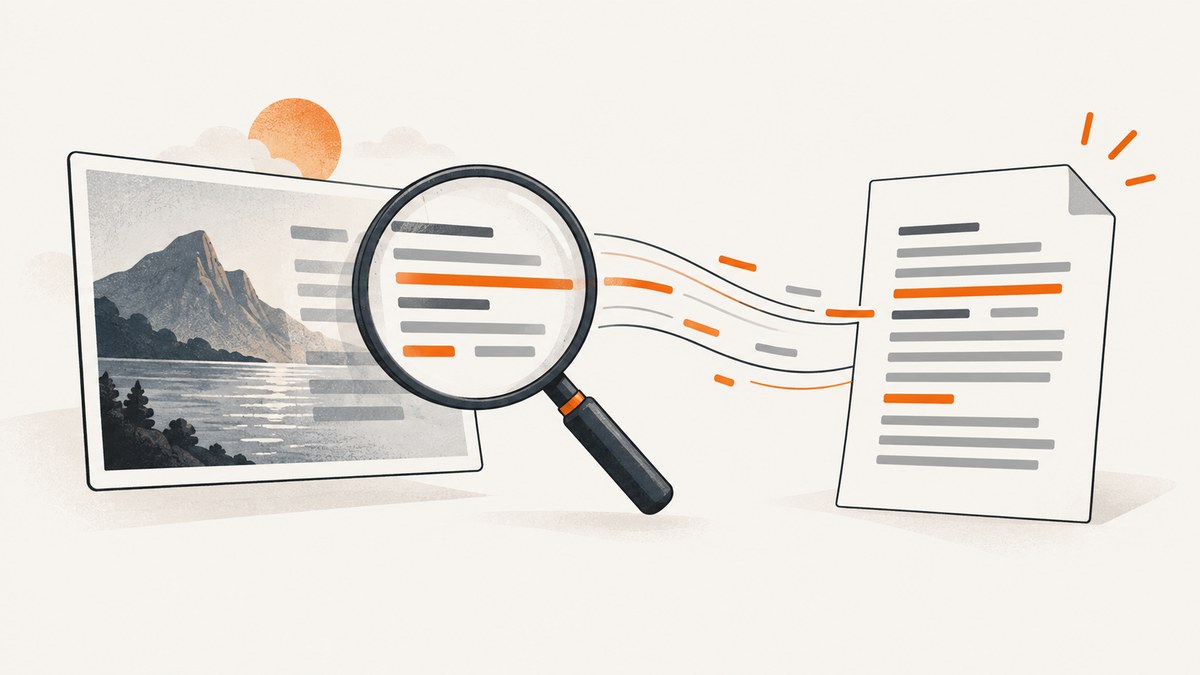
To convert a screenshot to text, open it in a device’s built-in text-recognition tool, select the recognized words, copy them, and paste them where you need them. On iPhone or iPad, use Live Text in Photos; on Mac, use Live Text in Photos; on Windows, use Text actions in Snipping Tool; and for a photo or supported webpage, use Google Lens. Then check names, numbers, punctuation, and line breaks against the screenshot.
This process is called optical character recognition (OCR): software identifies text in an image so you can select or reuse it. The steps below cover common devices, the cases where the controls may not appear, and how to get more dependable results.
1. Copy text from a screenshot on iPhone or iPad
- Open the screenshot in the Photos app.
- Touch and hold a word in the image. When selection handles appear, drag them to cover the text you need.
- Tap Copy, then paste into Notes, Messages, a document, or another app.
Apple says Live Text on iPhone requires an iPhone XS or XR or later with iOS 15 or later. Supported iPad models and requirements vary. Check Apple’s compatibility information if the text selection controls are missing. Live Text can also offer actions such as translating recognized text; which actions appear depends on the text and supported language or region. [Apple’s iPhone and iPad Live Text guide]
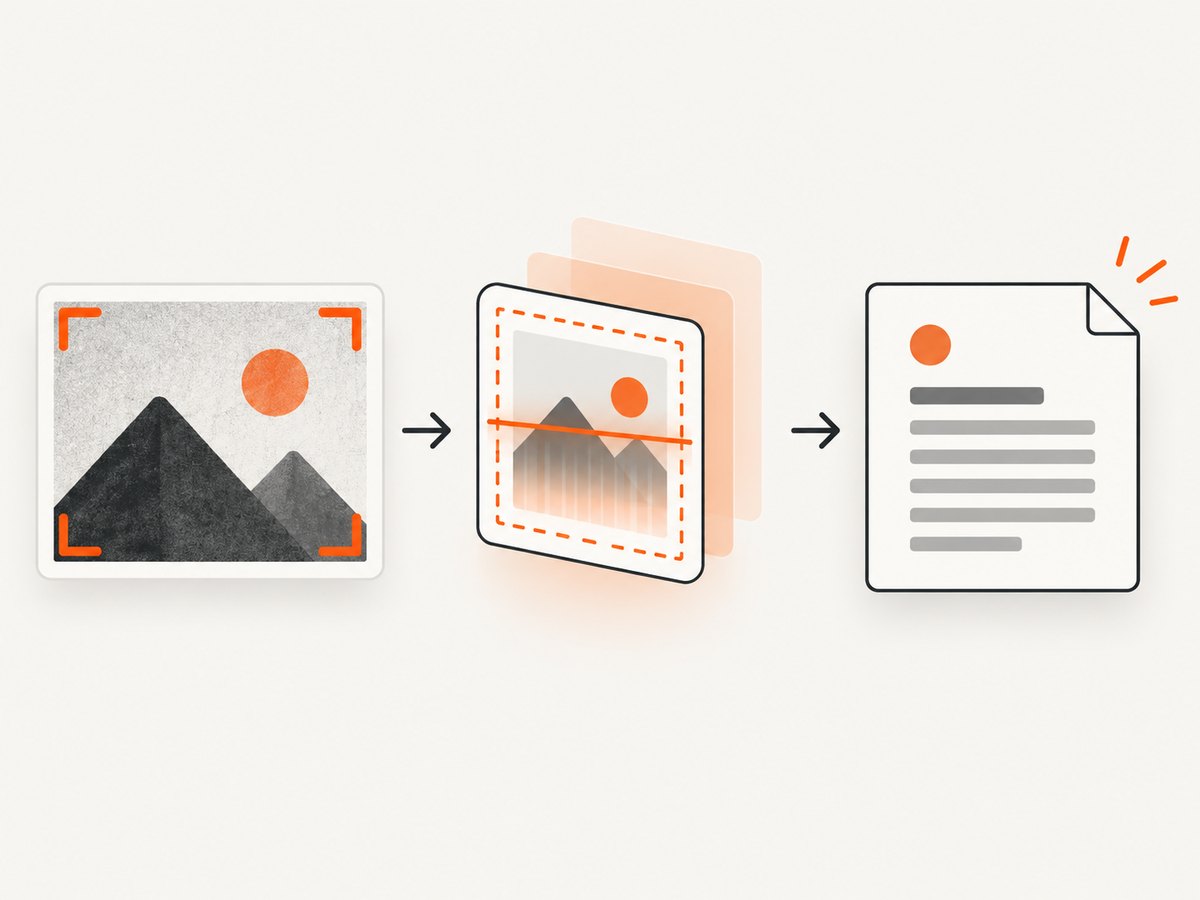
If Live Text does not appear
- Check that Live Text is enabled under Settings > General > Language & Region.
- Confirm the device and operating system meet Apple’s requirements.
- Try a clearer crop with the text upright and large enough to read.
- If the words are in a video, pause on a frame. Apple specifies iOS 16 or iPadOS 16 or later for Live Text in video.
2. Copy text from a screenshot on Mac
- Open the image in Photos.
- Move the pointer over the text. When the pointer indicates selectable text, select the words.
- Control-click the selection and choose Copy Text, or press Command-C.
- Paste the result into the destination app and proofread it.
Apple documents additional context-menu actions, including Look Up, Translate, web search, and sharing. Translation availability varies by language and region. If text cannot be selected, check that the image is open in a supported app and try a higher-resolution or tighter crop. [Apple’s Live Text guide for Photos on Mac]
3. Extract text on Windows with Snipping Tool
- Press Windows logo key + Shift + S and drag to capture the area containing the text.
- Open the snip in Snipping Tool.
- Select Text actions.
- Choose text and copy it, or select Copy all text to copy the recognized content.
Snipping Tool also documents a Quick redact action for email addresses and phone numbers. Microsoft says text recognition in this feature runs locally on the device. The available controls can vary with Windows version and app updates. See Microsoft’s Snipping Tool guide.
Start from an existing screenshot
If you already have an image file, open it in Snipping Tool if your version supports that workflow, then use Text actions. Otherwise, open the screenshot and capture the relevant region on screen with the shortcut above. Keep the original image open for checking the result.
4. Use Google Lens to copy text from an image
Google documents copying text from photos with Lens in the Google app on Android and iOS. Open or select the image in the app, choose Lens, select the text, and copy it to the clipboard. In desktop Chrome, Lens can also select content visible on a webpage. Exact entry points and controls vary by app version, device, and what you are selecting.
After copying, paste into your target app and inspect the result. Google’s instructions are in Google’s Lens tips. Do not assume every Lens workflow processes images in the same way; use the privacy information for the app and workflow you choose.
5. Choose the right OCR workflow
| Starting point | Try first | Useful consideration |
|---|---|---|
| Screenshot on iPhone or iPad | Photos with Live Text | Check device and OS compatibility if selection is unavailable. |
| Screenshot on Mac | Photos with Live Text | Control-click selected text to copy it. |
| New screen capture on Windows | Snipping Tool | Text actions can copy a selection or all recognized text; Microsoft says recognition runs locally. |
| Photo on Android or iOS | Google Lens in the Google app | Controls depend on app version and image workflow. |
| Text visible in desktop Chrome | Google Lens in Chrome | Useful when the starting point is webpage content rather than a saved screenshot. |
Choose based on where the image is, which device and OS you have, whether local processing matters to you, and whether you need an additional action such as translation or read-aloud. For screen-reader or spoken-output needs, check the accessibility options available in your device and app. Apple documents Speak Selection for Live Text; Microsoft Lens documentation describes read-aloud features, but its Android app is retired as described below.
6. Get cleaner OCR results
Recognition can confuse visually similar characters, omit punctuation, or flatten a layout. Treat copied text as a draft when accuracy matters: compare it with the image before using it in code, records, payments, legal documents, or published material.
- Use a sharp source. Prefer the original screenshot over a small preview or an image that has been repeatedly resized.
- Crop to the relevant passage. Removing unrelated content can make selection easier, but keep enough context to distinguish labels and values.
- Keep text upright and fully visible. Rotate or recapture slanted, cut-off, or overlapping text where possible.
- Preserve table context. For columns, capture the headings and associated values together. OCR may copy visible text without preserving the relationship between cells.
- Check characters that matter. Verify 0/O, 1/l/I, decimal points, minus signs, commas, capitalization, and URLs character by character.
- Review line breaks and reading order. Multi-column pages, code, and forms may paste in a different order from the visual layout.
There is no accuracy percentage to rely on here: the cited platform how-to pages do not provide a relevant shared OCR benchmark. Image quality, layout, language, and the recognition workflow all affect whether the copied result needs correction.
7. Avoid outdated OCR instructions
Older guides may tell Android users to install Microsoft Lens. Microsoft announced that retirement began on January 9, 2026, and support ended after February 9, 2026. Do not treat it as a current general Android recommendation. Use a currently supported device workflow such as Google Lens instead, and check the app publisher’s current support information before relying on any legacy instructions. [Microsoft Lens for Android retirement notice]
8. Troubleshooting
| Problem | Likely cause | What to do |
|---|---|---|
| No selectable text appears | Unsupported device or OS, feature disabled, or text too small or unclear | Check compatibility and settings; use the original image or recapture a sharp, close view. |
| Only part of a paragraph copies | Selection handles cover only part of the passage, or the app selected a separate text block | Adjust the handles, select one block at a time, and compare with the source. |
| Words are missing or characters are wrong | Low resolution, blur, unusual type, compression, or similar-looking characters | Use a clearer original, enlarge the relevant crop without replacing it with a blurry preview, and proofread important characters. |
| Columns or table values are scrambled | Recognition copied text in a reading order that does not match the layout | Capture one row or column at a time while retaining its labels, then reconstruct and verify the relationships. |
| Windows Text actions is missing | Different Snipping Tool or Windows version, or the image is not open in the expected capture workflow | Open the snip in Snipping Tool, update through your normal Windows update channel, and consult Microsoft’s current guide. |
| Lens controls differ from instructions | App version, device, region, or image entry point differs | Open the image through the Google app’s Lens flow and follow the controls shown on your device. |
| Pasted text loses formatting | OCR extracts words but may not reproduce the original page layout | Use the image as the layout reference and rebuild tables, indentation, or code formatting in the destination. |
9. Or skip the browser setup
If your goal is to capture a webpage before extracting text from the resulting image, ScreenshotNeo is a website screenshot API and MCP server. It returns a PNG, JPEG, WebP, or PDF from one GET request. Use OCR on the returned image with one of the device workflows above; ScreenshotNeo captures webpages and does not replace OCR.

See the ScreenshotNeo API documentation. This cURL example saves a webpage screenshot:
curl -G "https://api.screenshotneo.com/v1/shot" -d access_key=YOUR_API_KEY --data-urlencode url=https://stripe.com -o shot.webpPython:
import requests

r = requests.get(
    "https://api.screenshotneo.com/v1/shot",
    params={"access_key": "YOUR_API_KEY", "url": "https://stripe.com"},
    timeout=90,
)
open("shot.webp", "wb").write(r.content)
Node.js:
const q = new URLSearchParams({ access_key: 'YOUR_API_KEY', url: 'https://stripe.com' });
const res = await fetch(`https://api.screenshotneo.com/v1/shot?${q}`);
if (!res.ok) throw new Error(`Screenshot request failed: ${res.status}`);
const bytes = new Uint8Array(await res.arrayBuffer());
await import('node:fs/promises').then(fs => fs.writeFile('shot.webp', bytes));
ScreenshotNeo removes cookie banners, newsletter popups, and chat widgets before the shot. Bot checks, blank pages, and failed loads are never billed; the response indicates page verdict and billing status. Its MCP server lets AI agents take screenshots. The free plan includes 1,000 screenshots a month with no card; paid plans start at $5 for 3,000. Sign up free for 1,000 screenshots a month, no card required.
10. Frequently asked questions
Can I convert a screenshot to text without installing OCR software?
Often, yes. The workflows above use features in Photos, Snipping Tool, or the Google app, subject to device, operating-system, and app support.
Can OCR keep the screenshot’s exact formatting?
Do not count on it. Copying recognized words is different from preserving a screenshot’s columns, spacing, or visual design. Use the original image as a reference when rebuilding the layout.
Can I copy text from a screenshot of code?
Yes, where the device recognizes it, but verify every character and line break. A single changed quote, bracket, or indentation level can alter code.
Is Microsoft Lens still the recommended Android option?
No. Microsoft’s retirement notice says Android retirement began January 9, 2026, with support ending after February 9, 2026. Use a currently supported workflow instead.