How to Convert SVG Code to an Image
Convert SVG markup to PNG, JPEG, or WebP in the browser or with command-line tools. Get predictable dimensions, preserve transparency, and avoid common rendering errors.
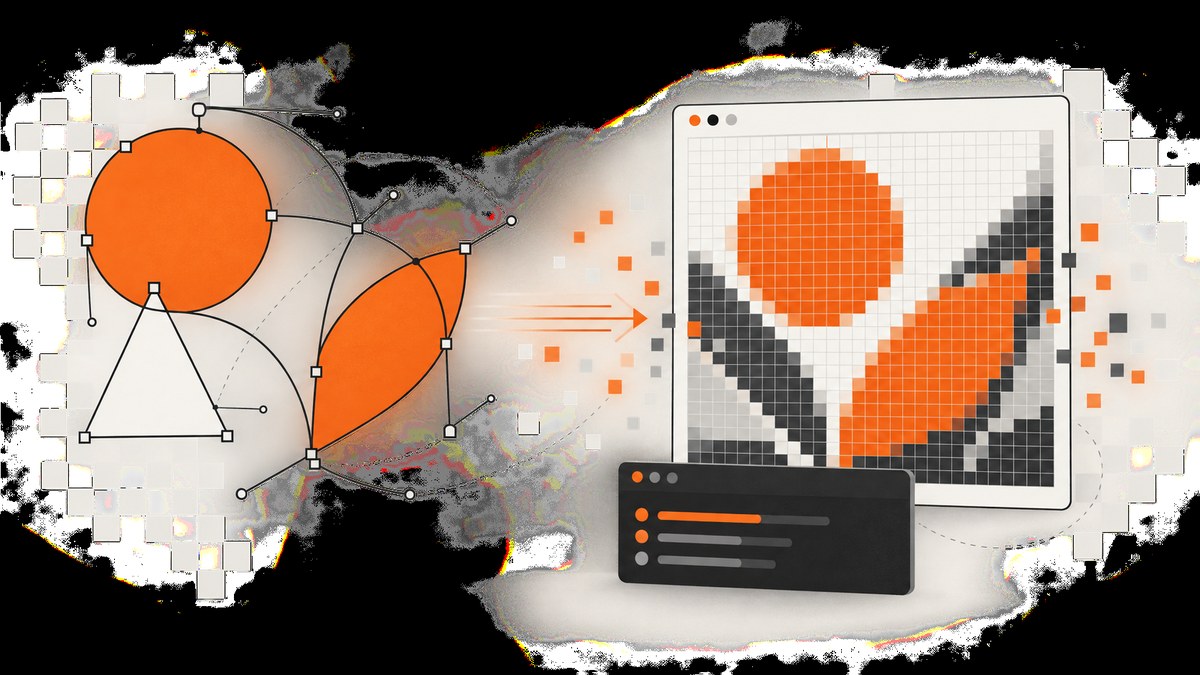
Direct answer: To convert SVG code into a PNG, load the SVG markup as an image, draw it onto an HTML canvas, and export the canvas with toBlob(). Set a clear pixel size on the SVG first. Use PNG when you need transparency or crisp line art; choose JPEG only when you need a lossy image with an opaque background. For local or batch conversion, use Inkscape, ImageMagick, or librsvg.
SVG is vector markup: its paths and shapes are rendered at a chosen width and height when rasterized. The same source can produce a small thumbnail or a large image, so output dimensions are part of the conversion. This guide covers browser conversion from an SVG string, file-based command-line workflows, sizing and format choices, failure cases, and a screenshot API option for converting an SVG rendered in a web page.
1. Choose a conversion path
| Need | Good fit | Consider |
|---|---|---|
| Convert generated markup in a web app and offer a download | Browser Canvas API | Cross-origin assets can taint the canvas; embed or configure assets carefully. |
| Convert local files with controlled dimensions | Inkscape | It exports PNG natively; use another tool for JPEG. |
| Resize, composite, or convert formats in an existing image pipeline | ImageMagick | Rendering depends on available SVG delegates and configuration. |
| Use a scriptable SVG renderer for static images | librsvg via rsvg-convert |
Check that the SVG features and external-resource behavior fit your project. |
For a browser-generated SVG string, Canvas is usually the shortest path. For repeatable offline conversion and batches, a command-line renderer makes dimensions and file handling easier to automate.
2. Convert an SVG string to PNG or JPEG in the browser
This complete example creates an SVG, rasterizes it to a canvas, and downloads a PNG. The SVG root has an explicit size and viewBox, which gives the renderer predictable intrinsic dimensions. MDN documents SVG use through Canvas, drawImage(), and the importance of explicit root dimensions for SVG images. MDN SVG guide · Canvas drawImage()

<button id="download">Download PNG</button>
<script>
const svg = `<svg xmlns="http://www.w3.org/2000/svg" width="800" height="450" viewBox="0 0 800 450">
  <rect width="800" height="450" fill="#172554"/>
  <circle cx="400" cy="225" r="120" fill="#38bdf8"/>
  <text x="40" y="90" fill="white" font-size="48">Hello SVG</text>
</svg>`;

function loadSvgImage(markup) {
  const blob = new Blob([markup], { type: "image/svg+xml;charset=utf-8" });
  const objectUrl = URL.createObjectURL(blob);
  const img = new Image();
  return new Promise((resolve, reject) => {
    img.onload = () => {
      URL.revokeObjectURL(objectUrl);
      resolve(img);
    };
    img.onerror = () => {
      URL.revokeObjectURL(objectUrl);
      reject(new Error("The SVG could not be decoded. Check its XML and resources."));
    };
    img.src = objectUrl;
  });
}

function canvasToBlob(canvas, type, quality) {
  return new Promise((resolve, reject) => {
    canvas.toBlob(blob => blob ? resolve(blob) : reject(new Error("Canvas export returned no Blob")), type, quality);
  });
}

async function convertSvg(markup, { width, height, type = "image/png", quality } = {}) {
  const img = await loadSvgImage(markup);
  const outputWidth = width || img.naturalWidth || 800;
  const outputHeight = height || img.naturalHeight || 450;
  const canvas = document.createElement("canvas");
  canvas.width = outputWidth;
  canvas.height = outputHeight;
  const ctx = canvas.getContext("2d");
  if (!ctx) throw new Error("Canvas 2D is unavailable");
  ctx.drawImage(img, 0, 0, outputWidth, outputHeight);
  return canvasToBlob(canvas, type, quality);
}

document.querySelector("#download").addEventListener("click", async () => {
  try {
    const blob = await convertSvg(svg, { width: 1600, height: 900, type: "image/png" });
    const downloadUrl = URL.createObjectURL(blob);
    const link = document.createElement("a");
    link.href = downloadUrl;
    link.download = "converted.png";
    link.click();
    setTimeout(() => URL.revokeObjectURL(downloadUrl), 0);
  } catch (error) {
    console.error(error);
    alert(error.message);
  }
});
</script>
The helper accepts a requested output size independently of the SVG’s intrinsic size. It scales the full SVG into those exact dimensions. If you want to preserve the source aspect ratio, compute one dimension from the other instead of passing two unrelated values.
Export JPEG or WebP
Change the MIME type and choose a quality between 0 and 1 for lossy formats. Canvas export supports PNG and commonly supports JPEG and WebP; PNG is required by the platform. If a browser does not support the requested type, export can fall back to PNG, so inspect the returned Blob type. JPEG has no transparency, so paint an opaque background before drawing:
const canvas = document.createElement("canvas");
canvas.width = 1600;
canvas.height = 900;
const ctx = canvas.getContext("2d");
ctx.fillStyle = "#ffffff";
ctx.fillRect(0, 0, canvas.width, canvas.height);
ctx.drawImage(svgImage, 0, 0, canvas.width, canvas.height);
const jpeg = await canvasToBlob(canvas, "image/jpeg", 0.9);
console.log(jpeg.type, jpeg.size);
For a small inline preview, canvas.toDataURL("image/png") returns a base64 data URL. For downloadable or larger results, prefer toBlob() and an object URL: a data URL is a large in-memory string. MDN describes the export behavior and format quality options in its Canvas toBlob() reference and Canvas toDataURL() reference.
3. Set dimensions, transparency, and SVG resources
Dimensions and scaling
- Set
widthandheight: SVGs without intrinsic dimensions can render at unexpected sizes. Define dimensions on the root element. - Use a
viewBox: it defines the coordinate rectangle the renderer maps into the output. A viewBox lets the same drawing scale cleanly to another pixel size. - Preserve aspect ratio: for a source ratio of
width / height, set output height toMath.round(outputWidth / ratio). If the requested ratio differs, the example’s four-argumentdrawImage()stretches the SVG. - Plan memory: a canvas stores pixels, and memory use grows with width × height. Avoid enormous dimensions in client browsers; cap user-provided sizes and handle allocation or export failures.
Transparency
A fresh canvas is transparent. Drawing an SVG with transparent areas onto it preserves them in PNG and usually WebP. JPEG cannot preserve transparency, so explicitly fill the canvas with the intended background color before drawing. Do not add a background rectangle to the SVG when you need transparent output.
Fonts, CSS, filters, and external assets
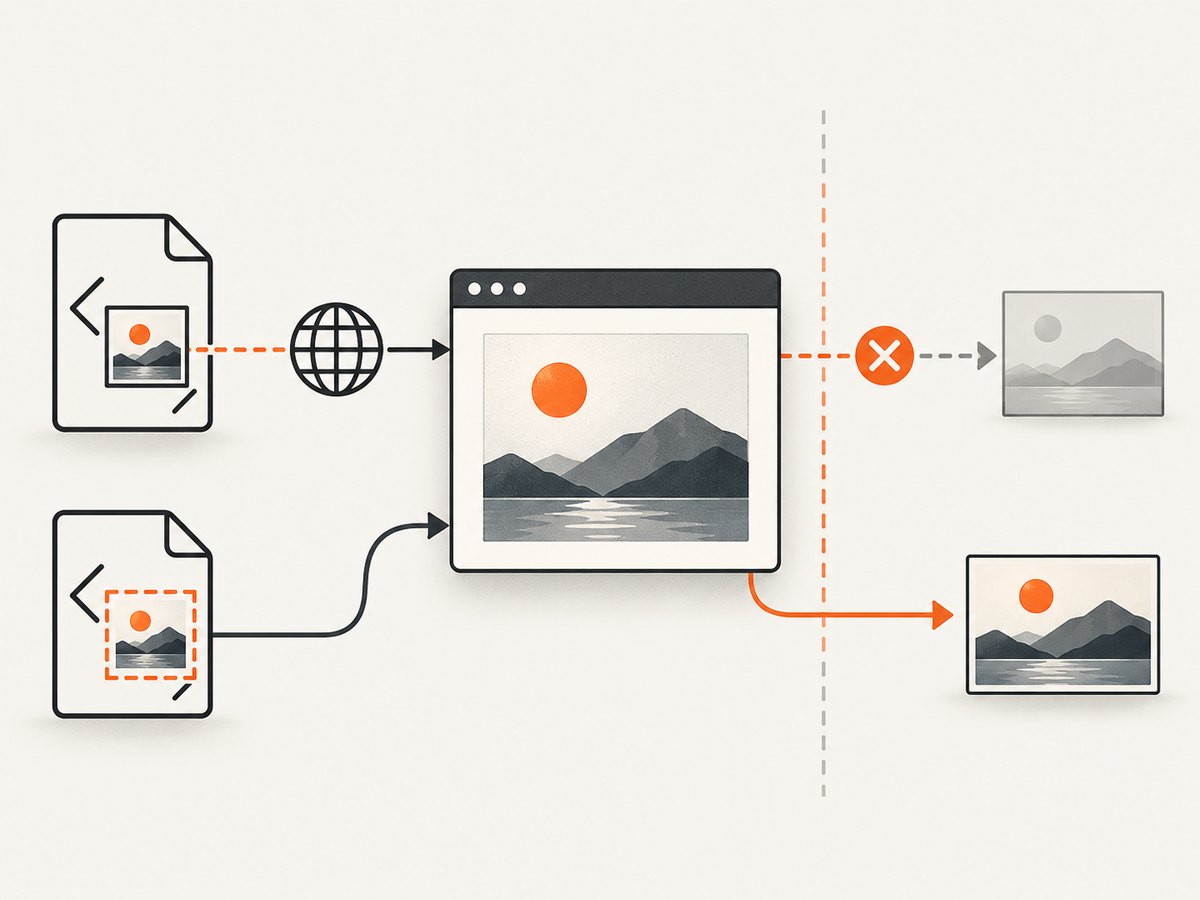
Browser rendering can vary with available fonts, SVG filters, CSS, and remote references. If the SVG depends on a web font or external stylesheet, wait until the needed resources are ready or embed styles and fonts where appropriate. SVG used as an image has restrictions: scripts are disabled and external images or stylesheets may not load. For consistent results, inline resources as data URLs when suitable and compare output in the browser and dimensions that matter to your application. MDN’s SVG guide discusses SVG as an image format and its resource behavior.
A canvas export can fail with a security error when it contains pixels from a cross-origin image whose server has not allowed access. Keep resources same-origin, embed them, or configure the remote server’s CORS response and load the image with the appropriate cross-origin setting before assigning its source. This is a browser security boundary; converting the final data URL or trying another export method does not remove it.
4. Convert files from the command line
Inkscape
Inkscape exports SVG to PNG. Run:
inkscape --export-type=png --export-filename=output.png input.svgFor a fixed pixel width, add an explicit export width:
inkscape --export-type=png --export-width=1600 --export-filename=output.png input.svgTo get JPEG, pipe Inkscape’s PNG output into ImageMagick:
inkscape --export-type=png --export-filename=- input.svg | magick -background white png:- output.jpgThe Inkscape documentation describes PNG export options and notes that JPEG export requires conversion through another tool. See the Inkscape command-line documentation and Inkscape FAQ.
ImageMagick
A basic conversion is:
magick input.svg output.pngSet output size explicitly when the pipeline needs stable dimensions, and select a background for JPEG:
magick -background none -density 192 input.svg -resize 1600x900 output.png
magick -background white -density 192 input.svg -resize 1600x900 output.jpg
ImageMagick documents a 96 dpi default for SVG rendering; density controls affect rasterization size, while resize controls the resulting dimensions. The actual renderer can be Inkscape, RSVG, or an internal renderer depending on what is installed. See ImageMagick format documentation. SVG parsing options that permit entity substitution, embedded SVG, or unusually large documents increase risk; relax parser guards only for trusted input.
librsvg / rsvg-convert
For a static PNG scaled to a target width:
rsvg-convert --format=png --width=1600 --output=output.png input.svgThe renderer keeps the aspect ratio when deriving the other dimension. Its reference also supports selecting a specific SVG object by ID and setting output format and dimensions. Data URLs and very large documents may be rejected by parser limits. Change limits only for SVGs you trust. See the rsvg-convert reference.
5. Batch conversion and automation
For a directory of files, shell expansion works when your renderer accepts one input and output at a time. This Bash loop converts each SVG to a same-named PNG with Inkscape:
mkdir -p out
for file in ./*.svg; do
  [ -e "$file" ] || continue
  name=${file##*/}
  name=${name%.svg}
  inkscape --export-type=png --export-width=1600 \
    --export-filename="out/${name}.png" "$file" || exit 1
done
Use a temporary output directory and check each process exit status before replacing production assets. For parallel batches, limit concurrent renderer processes: very large SVGs and high resolutions can consume substantial memory. Avoid using a shared fixed temporary filename when jobs run concurrently.
If a conversion runs in a server process, set timeouts and input-size limits, validate the result file and dimensions, and isolate untrusted SVG rendering. A malformed or pathological file should fail one job without halting the whole queue. Keep the original SVG so the raster output can be regenerated at a different size or format.
6. Or skip the browser setup
If the SVG is part of a webpage and you need an image of the rendered page or element, ScreenshotNeo is a website screenshot API and MCP server from Yorker Media. It captures a URL as PNG, JPEG, WebP, or PDF. It is useful when the output should reflect the browser-rendered page, including layout, CSS, and loaded content, rather than just the SVG markup. This does not replace direct SVG rasterization when you only need the vector asset itself.
One GET request captures the target page. See the ScreenshotNeo API documentation for request options.
curl -G "https://api.screenshotneo.com/v1/shot" \
  -d access_key=YOUR_API_KEY \
  --data-urlencode url=https://example.com/page-with-svg \
  -o page.webp
ScreenshotNeo accepts cookie and consent banners like a visitor and removes more than 60 known consent platforms, newsletter popups, and chat widgets before capture; each step can be turned off. Bot checks or CAPTCHAs, blank pages, timeouts, failed loads, and cache hits cost nothing, and response headers report the page verdict and billing status. Its MCP server provides take_screenshot, get_page_info, and capture_pdf for Claude, Cursor, and other MCP clients. The free plan includes 1,000 screenshots per month with no card; paid plans start at $5 for 3,000 shots. Sign up for 1,000 free screenshots a month, no card required.
7. Troubleshooting
| Symptom | Likely cause | Fix |
|---|---|---|
| Blank or zero-size output | Missing SVG dimensions, malformed markup, or image load not awaited | Add root width/height and viewBox; wait for the image load event and inspect decoding errors. |
| Canvas export throws a security error | Cross-origin image or other tainted resource | Use same-origin or embedded assets, or configure CORS at the asset server before drawing. |
| JPEG appears black or has an unexpected fill | Transparent SVG areas were flattened without a chosen background | Paint the canvas with the intended opaque color before drawImage(). |
| Text or filters differ from the preview | Font availability or renderer differences | Embed or ensure fonts are loaded, simplify unsupported effects, and render with the same engine used in production. |
| Requested JPEG/WebP produces PNG | Browser does not support the requested export type | Check blob.type; accept PNG fallback or convert with a supported server-side tool. |
| CLI output dimensions differ | Intrinsic size, DPI, or renderer defaults affect raster dimensions | Specify width/height or density explicitly and verify the chosen renderer and output dimensions. |
| Command rejects a large or embedded document | Renderer parser limits | Reduce or simplify input; relax guards only for trusted SVG sources. |
8. Performance, reliability, and cost
Browser conversion avoids a server round trip and fits interactive downloads, but canvas memory grows with pixel area. Convert at the actual target size rather than rasterizing a huge image and shrinking it afterward. Reuse a canvas for sequential jobs when appropriate, release object URLs after use, and avoid base64 data URLs for large images.
Command-line rendering is easier to repeat in a build or batch pipeline. Pin tool versions and installed fonts when reproducibility matters, because different rendering backends can produce different pixels. Validate exit codes, output format, dimensions, and file size. For untrusted uploads, enforce size and processing limits and keep parser protections enabled.
The browser APIs and open-source command-line tools described here do not charge per conversion, though your application still pays for compute, storage, and bandwidth. A hosted screenshot API is a separate choice for capturing rendered web pages. ScreenshotNeo publishes a free tier of 1,000 shots monthly and paid plans from $5 for 3,000; its billing headers distinguish clean shots and non-billable outcomes.
9. FAQ
Can I convert SVG markup without saving an intermediate file?
Yes. In a browser, create a Blob from the SVG string, load its object URL into an Image, draw it to canvas, and export a Blob.
Which format keeps a transparent background?
PNG is the safest default for transparency and sharp vector edges. WebP can also support transparency in browsers that export it.
Can conversion preserve infinite scalability?
No. PNG, JPEG, and WebP are raster formats with fixed pixel dimensions. Keep the SVG source if you need a scalable original.
Can I rasterize an SVG to PDF?
PDF workflows vary: some preserve vector content while others embed a raster image. Use a vector-capable document export when retaining paths matters; use a screenshot capture when the goal is a PDF of a rendered web page.


