How to Convert SVG HTML Code to JPG
Convert SVG files or inline HTML SVG to JPG with ImageMagick, Inkscape, browser canvas, and ScreenshotNeo, including sizing and troubleshooting.
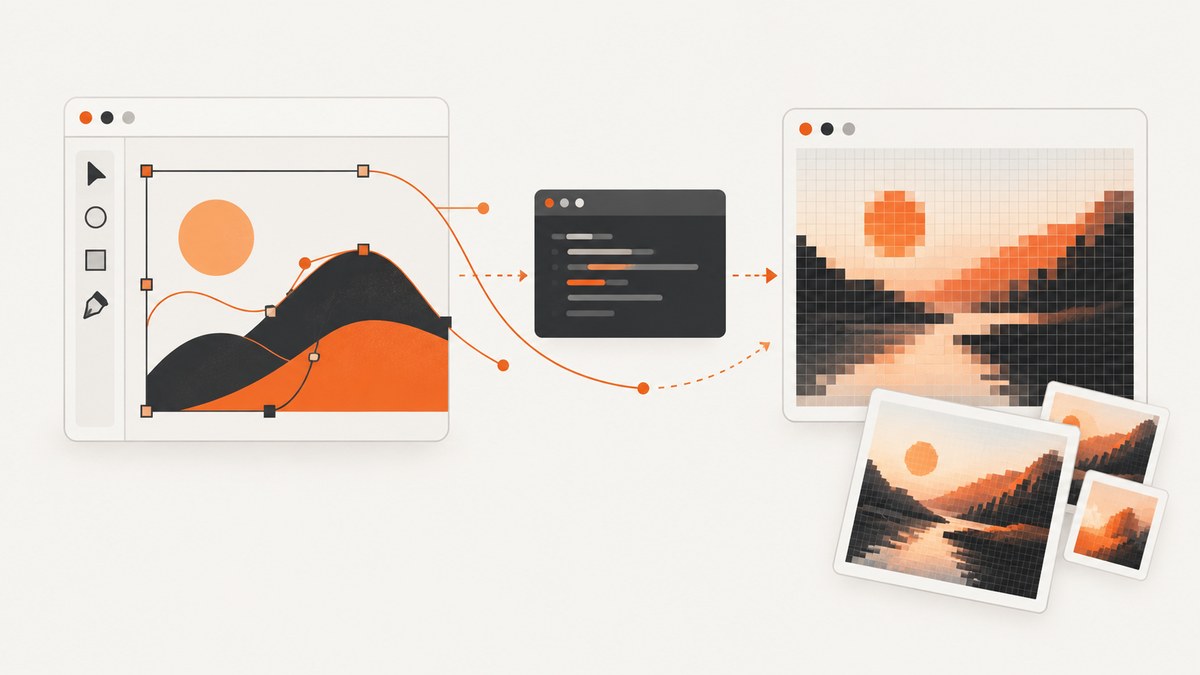
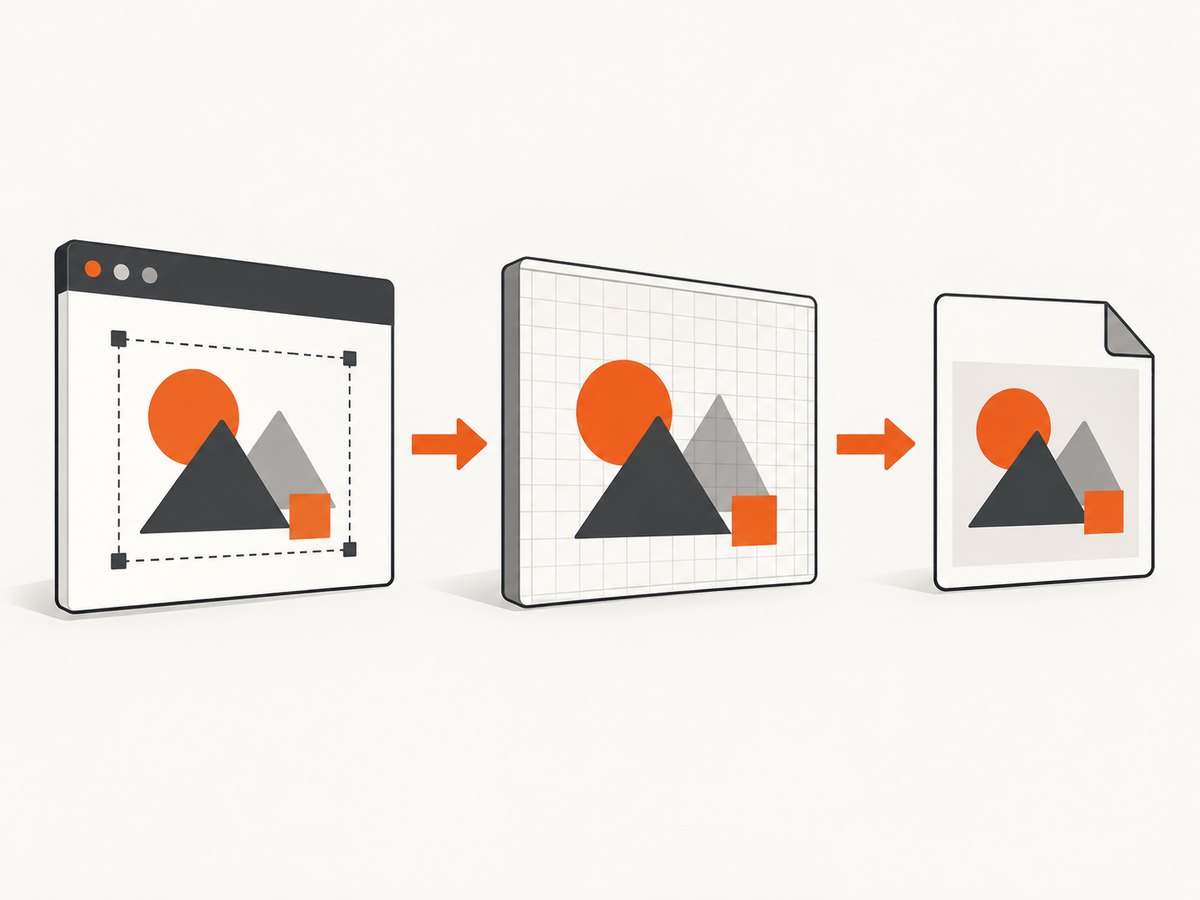
To convert SVG HTML code to JPG, render the SVG into pixels and then encode those pixels as JPEG. The right method depends on what you have: an .svg file, an inline <svg>...</svg> fragment inside HTML, or a complete HTML page that contains an SVG. SVG is vector markup and remains resolution-independent; JPG is a fixed-size raster image with lossy compression.
This guide covers command-line conversion with ImageMagick, the documented Inkscape-to-PNG pipeline, browser JavaScript with canvas.toBlob(), complete runnable examples in cURL, Python and Node.js, sizing and background choices, external assets, troubleshooting, and an API option when you need to capture rendered HTML without maintaining a browser stack.
1. Identify the input before choosing a converter
| Input | Use this approach | What is produced |
|---|---|---|
Standalone drawing.svg |
ImageMagick or Inkscape plus ImageMagick | JPG rasterized from the SVG document |
Inline <svg> in HTML |
Extract the SVG markup and render it in a browser canvas | JPG Blob or file from the rendered element |
| Full HTML page | Use a browser capture workflow or a screenshot API | JPG of the rendered page or selected element |
Do not pass an entire HTML document to an SVG file converter and expect the embedded graphic to be selected automatically. Isolate the SVG element or render the page in a browser. Also remember that conversion is one-way rasterization: the JPG cannot recover editable paths, layers or infinite scaling.
2. Convert an SVG file with ImageMagick
If your ImageMagick installation has an SVG renderer available, the shortest command is:
magick input.svg output.jpgImageMagick documents a 96 dpi default for SVG rendering. Depending on your installation, it may use Inkscape, RSVG or its internal MSVG renderer. Renderer choice can affect filters, fonts, linked assets and sizing behavior, so inspect the result rather than assuming every installation renders identically. The format documentation is available in the ImageMagick formats reference.
Set a predictable background
SVG often contains transparent areas. JPEG has no alpha channel, so choose a solid background before writing the file:
magick -background white -alpha remove -alpha off input.svg output.jpgUse a color that matches the destination. If you need transparency, keep PNG or WebP instead of JPG.
Control the output dimensions
Decide the target pixel dimensions from where the JPG will be used: an upload field, a document, a social card or a thumbnail. ImageMagick supports sizing controls, but behavior depends on the selected SVG renderer. In particular, ImageMagick notes that -size is ignored when its Inkscape renderer is used. Verify the dimensions after conversion:
magick input.svg -resize 1600x1600\> -background white -alpha remove -alpha off output.jpg
identify output.jpg
The \> geometry limits the image to 1600 pixels on its longest side without enlarging a smaller source. If exact dimensions matter, render at an explicit width and height with the renderer you control, then inspect the output using identify.
3. Use Inkscape when SVG fidelity matters
Inkscape’s documented bitmap export target is PNG. Its FAQ recommends converting that PNG with another application such as ImageMagick when JPEG is required. A pipeline that writes the PNG to standard output and feeds it to ImageMagick is:
inkscape --export-type=png --export-filename=- my_file.svg | magick - output.jpgYou can select the raster size at the Inkscape step. For example, exporting at a chosen width:
inkscape my_file.svg --export-type=png --export-width=1600 --export-filename=render.png
magick -background white -alpha remove -alpha off render.png output.jpg
Inkscape’s command-line options vary by release, so run inkscape --help on the machine performing the conversion. The relevant references are the Inkscape FAQ and its command-line documentation.
4. Convert inline SVG in a browser with Canvas
For SVG markup embedded in an HTML page, serialize the element, load it as an image, draw it to a canvas, then request a JPEG Blob. This is a complete browser example:
<svg id="logo" xmlns="http://www.w3.org/2000/svg" width="800" height="450" viewBox="0 0 800 450">
  <rect width="800" height="450" fill="#172033"/>
  <circle cx="220" cy="225" r="120" fill="#55d6be"/>
  <text x="400" y="245" fill="white" font-size="64">SVG</text>
</svg>
<script>
const svg = document.querySelector('#logo');
const width = 1600;
const height = 900;
const source = new XMLSerializer().serializeToString(svg);
const blob = new Blob([source], { type: 'image/svg+xml;charset=utf-8' });
const image = new Image();

image.onload = () => {
  const canvas = document.createElement('canvas');
  canvas.width = width;
  canvas.height = height;
  const context = canvas.getContext('2d');
  context.fillStyle = '#ffffff'; // JPEG has no transparency
  context.fillRect(0, 0, width, height);
  context.drawImage(image, 0, 0, width, height);

  canvas.toBlob((jpgBlob) => {
    if (!jpgBlob || jpgBlob.type !== 'image/jpeg') {
      throw new Error(`JPEG export failed; received ${jpgBlob?.type}`);
    }
    const link = document.createElement('a');
    link.href = URL.createObjectURL(jpgBlob);
    link.download = 'svg-converted.jpg';
    link.click();
    URL.revokeObjectURL(link.href);
  }, 'image/jpeg', 0.95);
};

image.onerror = () => console.error('The SVG could not be rendered');
image.src = URL.createObjectURL(blob);
</script>
The quality argument ranges from 0 to 1 for lossy formats; 0.95 is an example, not a universal best value. Preview the output at the actual display size and lower quality if file size matters. MDN documents HTMLCanvasElement.toBlob() and notes that unsupported types can fall back to PNG, which is why the example checks the returned MIME type.
Why use toBlob() instead of toDataURL()?
toDataURL() creates the entire encoded image as an in-memory string. For large images that can increase memory use and may exceed URL limits. toBlob() keeps the result as binary data and is the better default for downloads or uploads. See MDN’s toDataURL notes for the limitations.
5. Complete Node.js conversion example
Node.js does not provide a built-in SVG renderer or canvas. A practical server-side setup uses a browser-capable package such as Playwright, then exports the rendered SVG through a canvas or screenshot. If your requirement is specifically a JPG of an SVG element, this Playwright example renders a page and captures the element:
import { chromium } from 'playwright';

const browser = await chromium.launch();
const page = await browser.newPage({ viewport: { width: 1600, height: 900 } });
await page.setContent(`
  <svg id="art" xmlns="http://www.w3.org/2000/svg" width="800" height="450">
    <rect width="800" height="450" fill="white"/>
    <circle cx="220" cy="225" r="120" fill="royalblue"/>
  </svg>
`);
await page.locator('#art').screenshot({ path: 'output.jpg', type: 'jpeg', quality: 95 });
await browser.close();
Install Playwright with npm install playwright and install its browser binaries according to the package documentation. This method is useful when the SVG depends on browser fonts, CSS or JavaScript. It also means you must manage browser binaries, sandboxing, concurrency and timeouts.
6. cURL, Python and Node.js with ScreenshotNeo
If the source is a rendered HTML page and you do not want to maintain a browser setup, ScreenshotNeo can return a JPG, PNG, WebP or PDF from one GET request. Use the same approach for a page containing inline SVG, and configure the capture options when you need a specific element, viewport, device preset, retina scale, custom CSS or JavaScript. The ScreenshotNeo API documentation lists the available parameters.
cURL
curl -G "https://api.screenshotneo.com/v1/shot" \
  -d access_key=YOUR_API_KEY \
  --data-urlencode url=https://stripe.com \
  -d format=jpg \
  -o shot.jpg
Python
import requests

r = requests.get(
    "https://api.screenshotneo.com/v1/shot",
    params={
        "access_key": "YOUR_API_KEY",
        "url": "https://stripe.com",
        "format": "jpg",
    },
    timeout=90,
)
r.raise_for_status()
open("shot.jpg", "wb").write(r.content)
Node.js
const q = new URLSearchParams({
  access_key: 'YOUR_API_KEY',
  url: 'https://stripe.com',
  format: 'jpg'
});
const res = await fetch(`https://api.screenshotneo.com/v1/shot?${q}`);
if (!res.ok) throw new Error(`Screenshot failed: ${res.status}`);
const buffer = Buffer.from(await res.arrayBuffer());
await import('node:fs/promises').then(fs => fs.writeFile('shot.jpg', buffer));
ScreenshotNeo accepts 63 options, including full-page capture with lazy images loaded, CSS selector element capture, dark mode, any viewport, retina scale, custom CSS and JavaScript, click actions, selector or network-idle waits, blocked ads and resource types, custom headers and cookies, user agents, Authorization, timezone, geolocation, resizing, caching with a chosen TTL, signed links, asynchronous jobs with signed webhooks, bulk capture of up to 100 URLs per call, usage data and an OpenAPI specification. The parameter names used by other screenshot APIs also work, which can reduce migration work.
7. Or skip the browser setup
ScreenshotNeo handles the rendered page before returning the image: it accepts cookie or consent banners like a visitor and removes more than 60 known consent platforms, newsletter popups and chat widgets. Each cleanup step can be turned off. Bot checks, CAPTCHAs, blank pages, timeouts, failed loads and cache hits cost nothing, and the response reports the result through X-Page-Verdict and X-Billed headers. An MCP server provides take_screenshot, get_page_info and capture_pdf tools to Claude, Cursor and other MCP clients.

The Free plan includes 1,000 screenshots per month with no card. Paid plans start at $5 for 3,000 shots; yearly billing provides two months free, and every feature is included on every plan. Create a free ScreenshotNeo account.
8. Sizing, quality and fidelity checklist
- Choose dimensions first. A vector can render at any size, but the JPG cannot. Set width and height for the consuming system.
- Pick a background. JPEG cannot preserve transparency. Fill the canvas or use ImageMagick’s background and alpha options.
- Check fonts and linked assets. External fonts, images, filters and CSS may render differently across ImageMagick, Inkscape and browsers.
- Inspect the actual MIME type. Browser APIs may return PNG when JPEG is unsupported. Check the Blob type and open the resulting file.
- Balance quality and size. Increase JPEG quality for fine text or gradients; reduce it when transfer size is more important.
- Keep the SVG source. Store the original vector file so you can re-render later at a different size or background.
9. Troubleshooting common conversion errors
| Symptom | Likely cause | Fix |
|---|---|---|
magick: no decode delegate |
ImageMagick lacks an SVG delegate. | Install a build with Inkscape or RSVG support, or use the Inkscape-to-PNG pipeline. |
| Output is blank | Unsupported SVG feature, missing external asset, or a page that was never rendered. | Open the SVG in a browser, check network and font dependencies, then use Inkscape or browser capture. |
| Transparent areas become black | JPEG has no alpha channel and the renderer selected a default background. | Set an explicit white or other solid background before encoding. |
| Canvas export throws a security error | Cross-origin content made the canvas non-origin-clean. | Serve assets with suitable CORS headers, inline them, or render on a controlled server. |
| Requested JPEG is actually PNG | The browser did not support the requested output type. | Check blob.type; treat fallback as failure or accept PNG deliberately. |
| Text looks different | Fonts are unavailable or substituted. | Install/embed the required fonts and compare the output in the same renderer used in production. |
| Dimensions differ between machines | Renderer defaults and DPI settings differ. | Set explicit dimensions, record the renderer version, and verify with identify. |
| Full HTML is cropped | Only an element or viewport was captured. | Use full-page capture or set the viewport and page height explicitly. |
10. Performance, reliability and cost considerations
For occasional local conversions, ImageMagick is the smallest workflow. Inkscape adds a separate render step but gives you a predictable SVG-focused application. Browser rendering handles HTML, CSS, web fonts and JavaScript but introduces browser startup time, memory use and operational maintenance. For batches, reuse a browser process, limit concurrency, avoid unnecessarily large pixel dimensions and write binary output directly to disk or object storage.
For production capture, wait for the condition your page actually needs: a selector, a fixed delay or network idle. Block analytics, ads and unneeded resource types when they are not part of the visual result. Cache stable URLs with a TTL. If a capture can fail transiently, use bounded retries and record the response status and page verdict. With ScreenshotNeo, cache hits and failed loads are not billed, and response headers identify whether a clean shot was billed.
11. FAQ
Can I rename an SVG file to JPG?
No. Renaming changes the extension, not the file encoding. Render the SVG and encode the pixels as JPEG.
Will JPG preserve SVG animation?
No. A JPG is a single raster frame. Choose the frame timing before capture if the SVG is animated.
Should I use PNG instead?
Use PNG when you need transparency, sharp uncompressed text or lossless graphics. Use JPG when a JPEG-only destination or smaller photographic-style output is required.
Can ImageMagick convert an HTML page directly?
The documented ImageMagick command applies to SVG input. A complete HTML page needs a browser renderer or screenshot service first.
How do I convert many URLs containing SVG?
Automate a browser or API workflow, limit concurrency, set a consistent viewport and retain the source URL and output dimensions in your job record. ScreenshotNeo supports bulk capture for up to 100 URLs per call.


