How to Convert SVG and HTML to PNG Online
Convert SVG files or HTML pages to PNG in your browser or with code. Choose the right method for privacy, image quality, and automation.
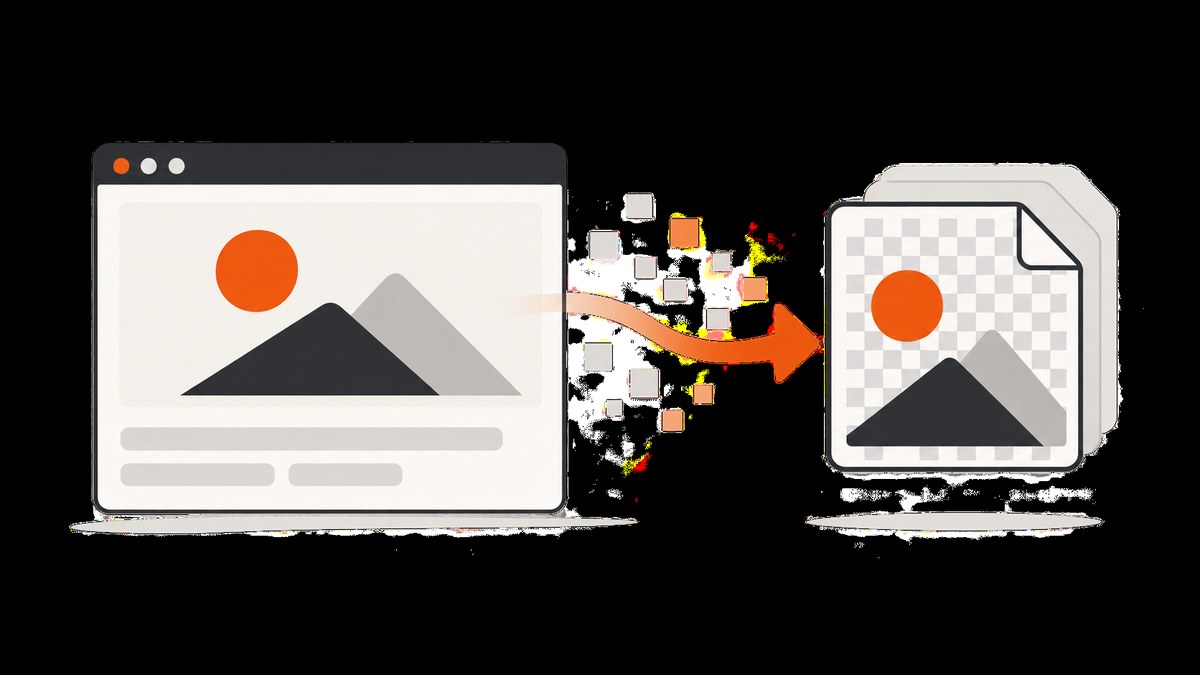
To convert an SVG to PNG online, use a browser-based SVG converter: paste or select the SVG, choose the output width or scale, enable transparency if needed, then download the PNG. To turn HTML into PNG, capture an element with html2canvas in the browser, or use a hosted screenshot API for a URL or repeatable automated jobs.
The main choice is where rendering happens. A browser converter can keep an SVG file on your device. A browser DOM capture works with content already loaded in a page, but cross-origin images can fail. A hosted screenshot service can load a URL or HTML file, which is useful for automation but sends the input to that service.
1. Choose the right conversion method
| Method | Best for | Input | Key constraint |
|---|---|---|---|
| Browser SVG converter | One-off SVG export with local processing | SVG markup or file | You choose raster dimensions; verify transparency and external assets |
| html2canvas | Capturing an element in a page you control | Live DOM | Browser content policies apply; cross-origin resources can taint the canvas |
| Hosted screenshot API | URL capture, scheduled tasks, or repeatable automation | URL or HTML, depending on service | Requires network access and sending the page or file to a service |
For a private, one-off SVG, a browser tool such as the W3Schools SVG to PNG converter draws the SVG on an HTML canvas in the browser. For HTML already open in your app, client-side capture avoids creating a separate browser-rendering service. For a public URL or recurring job, a hosted screenshot API is usually easier to automate. CloudConvert documents a capture-website operation for URL screenshots and PNG/JPG output, as well as conversion jobs for files.
2. Convert SVG to PNG online
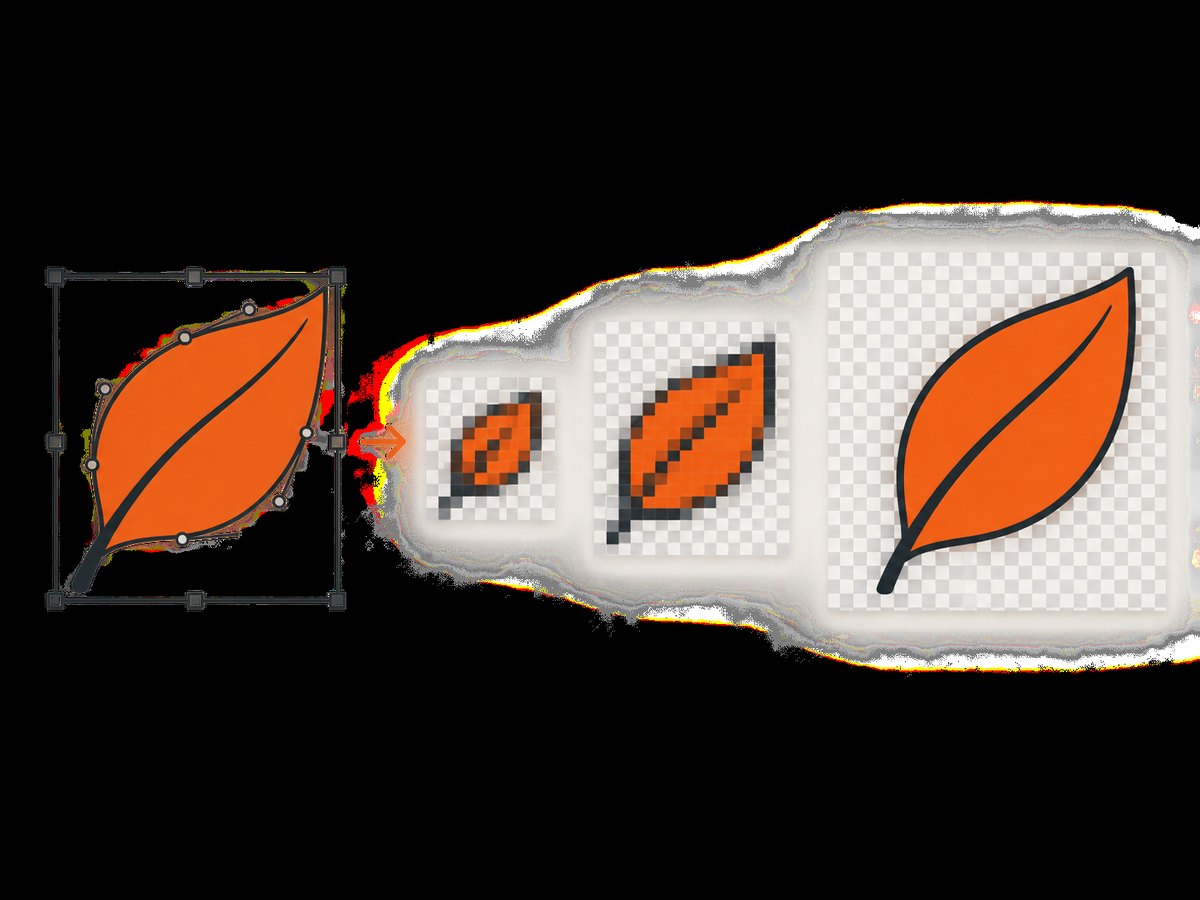
SVG stores vector instructions and can be rendered at different sizes. PNG stores a fixed grid of pixels. That means output width and height determine how sharp the raster image looks at its eventual display size.
- Open an SVG-to-PNG browser converter.
- Paste the SVG markup or select the
.svgfile. - Set the desired width or scale. Use the intended display dimensions, or larger dimensions if the image will be shown at higher pixel density.
- Enable transparency when the destination should show through the background.
- Convert, download the PNG, and inspect its edges and background at the actual display size.
The W3Schools tool states that its canvas conversion happens entirely in the browser, so the selected file does not leave the device. That makes this approach appropriate when local handling matters. This statement applies to that tool; check the privacy behavior of any other online converter before uploading sensitive artwork.
Choosing dimensions and transparency
If the SVG has a defined viewBox or dimensions, preserve its aspect ratio when choosing the PNG width and height. For example, doubling both dimensions creates four times as many pixels. It can look sharper when scaled down, but also produces a larger file. If the converter offers only width or scale, check that it does not distort the original aspect ratio.
Transparency is an alpha channel in the PNG. Use it for logos and icons that must sit on different backgrounds. If the converter has a background color option, choose an opaque color only when that is what the destination requires. Check the result against both a light and dark background; a white rectangle can be easy to miss on a white preview canvas.
SVG edge cases
- External images or fonts: an SVG may refer to remote assets. If the converter cannot fetch them, those elements may be absent. Embed or otherwise make required assets available to the renderer.
- Filters and advanced SVG features: rendering support can vary. Inspect gradients, masks, filters, and clipping paths in the downloaded raster rather than assuming the preview and export match.
- Very large output: huge width and height values create large pixel buffers and files. Increase dimensions only as much as the intended use needs.
- Unexpected blank output: confirm the markup is valid SVG and includes the intended visible content in its viewBox. Try opening the SVG directly in a browser before converting.
3. Convert HTML to PNG in the browser with html2canvas
html2canvas renders a selected DOM element into a canvas in the current page. The project’s example then converts the canvas to a PNG data URL and triggers a download. This is useful for a component, receipt, chart, or card that already exists in your app.
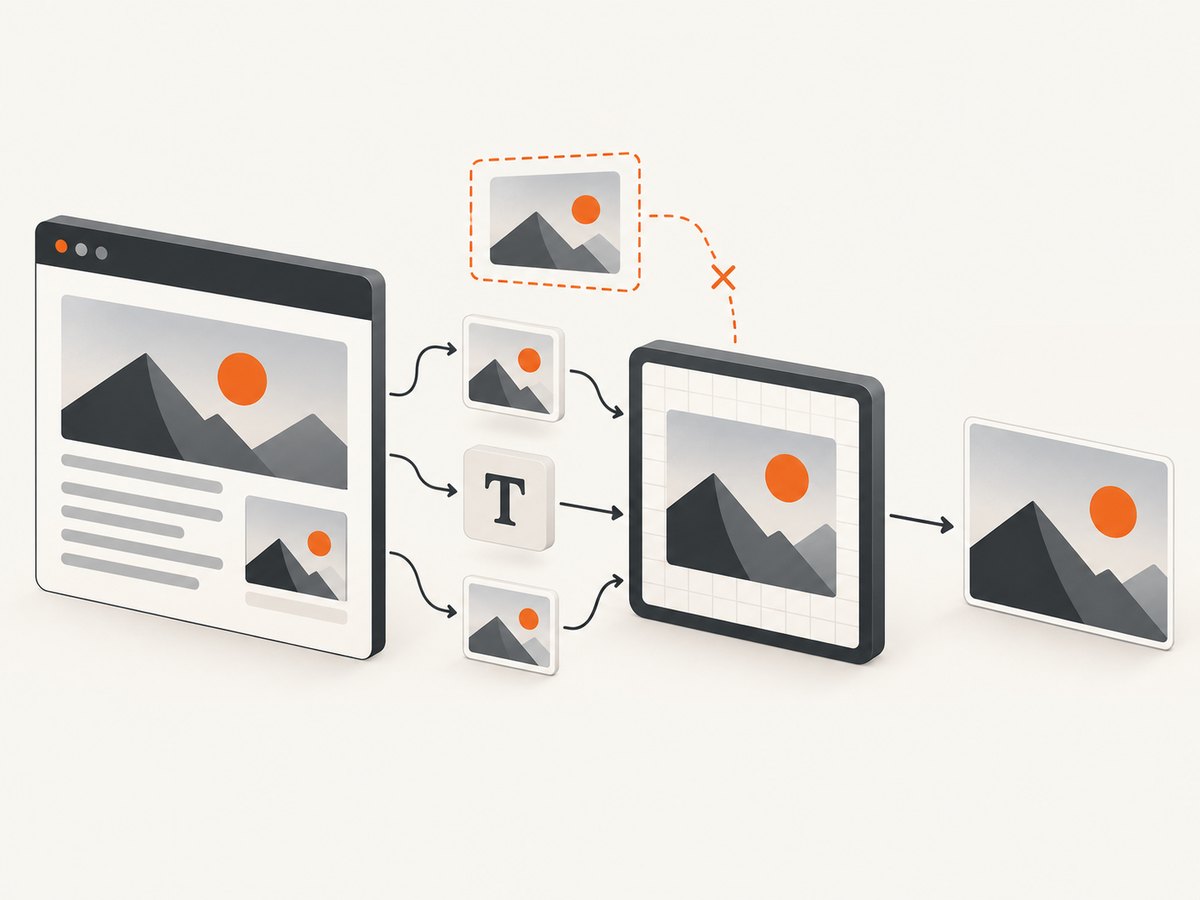
Install the library in your frontend project using the package manager and setup documented by the html2canvas getting started guide. Add an element with a stable selector, then run this code after the page content is ready:
import html2canvas from 'html2canvas';

async function downloadPng() {
  const target = document.querySelector('#capture');
  if (!target) throw new Error('Could not find #capture');

  const canvas = await html2canvas(target);
  const link = document.createElement('a');
  link.download = 'screenshot.png';
  link.href = canvas.toDataURL('image/png');
  link.click();
}

document.querySelector('#download').addEventListener('click', () => {
  downloadPng().catch(console.error);
});
For a minimal page, the target might be <section id="capture">...</section> and the button <button id="download">Download PNG</button>. Keep the target selector specific so the capture does not accidentally include controls or unrelated page content.
Control size and page readiness
Capture only after the target has its final content and styles. If images are loaded asynchronously, wait for them before calling the renderer. If a web font has not finished loading, the canvas can show fallback typography; where supported by the page, await document.fonts.ready before capture. The resulting canvas dimensions derive from the selected element and the library’s options. Consult the html2canvas configuration reference for options such as scaling and background behavior, and verify the final pixel dimensions in the output.
Do not treat this as a general-purpose browser screenshot. html2canvas reconstructs the page from DOM and style information. The output can differ from the browser’s native rendering for unsupported styles, and it cannot capture content that is outside the current page’s accessible DOM, such as many cross-origin iframe contents.
Cross-origin images and canvas security
The project documentation warns that html2canvas cannot circumvent browser content policy restrictions. A cross-origin image can taint a canvas, preventing export through toDataURL. If you control the image host, configure CORS to allow the page’s origin and use the library’s CORS option as documented. If you control a backend, a proxy can fetch the resource and provide it in a way the capture page is allowed to use. Do not proxy arbitrary user-supplied URLs without access controls: that can create a server-side request risk.
4. Capture an HTML URL with a hosted screenshot API
Use a hosted renderer when the source is a URL, the capture must run outside a user’s browser, or you need repeatable automation. A service loads the page in its rendering environment and returns an image. This is distinct from html2canvas, which captures a DOM element in the current browser session. CloudConvert documents website capture jobs and file conversion operations; consult its current API documentation for the task schema, authentication, and supported options before integrating.
For a one-off manual job, a hosted conversion site can be convenient. For production, prefer an API call with explicit output format, dimensions, and timeout, then store or process the returned PNG. Review the provider’s handling of uploaded files and URLs before sending private or authenticated content.
cURL example with ScreenshotNeo
For a URL you can access, ScreenshotNeo returns an image from a single GET request. Replace the API key and target URL; the example saves the response as a WebP file, so request PNG using the format option if you need a PNG. See the ScreenshotNeo API documentation for the supported parameter names and options.
curl -G "https://api.screenshotneo.com/v1/shot" \
  -d access_key=YOUR_API_KEY \
  --data-urlencode url=https://example.com \
  -d format=png \
  -o screenshot.png
Do not put a production API key in client-side code that runs in a public browser. Call the API from a server you control, or use the documented signed-link approach for public image tags.
Python example
import requests

response = requests.get(
    "https://api.screenshotneo.com/v1/shot",
    params={
        "access_key": "YOUR_API_KEY",
        "url": "https://example.com",
        "format": "png",
    },
    timeout=90,
)
response.raise_for_status()
with open("screenshot.png", "wb") as image_file:
    image_file.write(response.content)
For batch scripts, check the response status before writing the body to a file. Consider recording response headers and the URL for failed items, while redacting credentials and sensitive query parameters.
Node.js example
const q = new URLSearchParams({
  access_key: 'YOUR_API_KEY',
  url: 'https://example.com',
  format: 'png',
});
const res = await fetch(`https://api.screenshotneo.com/v1/shot?${q}`);
if (!res.ok) throw new Error(`Screenshot request failed: ${res.status}`);
const bytes = Buffer.from(await res.arrayBuffer());
await import('node:fs/promises').then(fs => fs.writeFile('screenshot.png', bytes));
Run this in a Node.js environment that supports fetch, or use your project’s HTTP client. Keep the access key in an environment variable in a deployed application rather than committing it to source control.
5. Or skip the browser setup
ScreenshotNeo is a website screenshot API and MCP server for developers. A URL is enough for a basic PNG capture:
curl -G "https://api.screenshotneo.com/v1/shot" \
  -d access_key=YOUR_API_KEY \
  --data-urlencode url=https://stripe.com \
  -d format=png \
  -o shot.png
Cookie banners are accepted and removed before the shot, along with known newsletter popups and chat widgets; each cleanup step can be turned off. Bot checks, blank pages, timeouts, failed loads, and cache hits are not billed, and the response identifies the page verdict and billing status in X-Page-Verdict and X-Billed headers. Its MCP server gives AI agents tools to take screenshots, get page information, and capture PDFs. The free plan includes 1,000 screenshots a month with no card; paid plans start at $5 for 3,000 shots. Details and options are in the API docs. Sign up for 1,000 free screenshots a month, with no card.
6. Pick dimensions and capture options
For any method, decide the output size before capture. A raster image cannot retain SVG’s resolution independence. Match the PNG pixel dimensions to how it will be displayed, accounting for high-density screens when needed. For HTML screenshots, distinguish viewport capture from full-page capture: a viewport captures what fits in the browser window, while a full-page mode captures the entire document and can trigger lazy-loaded content as it scrolls.
Screenshot services commonly expose controls for viewport width and height, output format, device scale, full-page mode, and wait behavior. ScreenshotNeo’s available controls also include element capture by CSS selector, dark mode, device presets, retina scale, custom CSS and JavaScript, click-before-capture, hiding selectors, waits for a selector/delay/network idle, request and resource blocking, headers, cookies, user agent, authorization, timezone, geolocation, transparent backgrounds, resizing, caching with a chosen TTL, async jobs with signed webhooks, bulk capture up to 100 URLs per call, and PDF settings. Parameter names used by other screenshot APIs also work. Check the docs for exact parameter values and combinations; do not assume every renderer interprets a setting identically.
Use only the controls relevant to the page. For a reliable capture, set an explicit viewport, wait for the specific content you need, and avoid an unnecessarily long network-idle wait on pages with analytics or long polling. Blocked resources can speed up rendering, but blocking a stylesheet, font, or image that matters changes the result.
7. Troubleshooting missing or incorrect content
| Symptom | Likely cause | Fix |
|---|---|---|
| PNG has a white box instead of transparency | Opaque canvas or converter background | Enable alpha/transparent background and inspect the exported PNG on a contrasting background |
| Image is blurry | Output pixel dimensions are too small for display size | Increase SVG export width/scale or screenshot viewport/device scale while preserving aspect ratio |
| Cross-origin image missing or export throws | CORS restriction tainted the canvas | Configure image-host CORS, use an allowed proxy you control, or use a hosted renderer with access to the URL |
| Wrong font or line wrapping | Font has not loaded or is inaccessible | Wait for font readiness, confirm the font URL can be fetched, and allow enough layout width |
| Images are absent in a hosted capture | Lazy loading, delayed scripts, authentication, or blocked network request | Wait for a target selector or suitable delay, provide authorized cookies/headers securely, and check resource blocking |
| Screenshot cuts off content | Viewport capture used instead of full-page capture, or target element was too small | Enable full-page capture or target the correct element; inspect the page’s actual document dimensions |
| Blank page or incomplete content | Navigation failure, bot check, script error, or capture started too early | Open the URL normally, verify it is publicly reachable, and wait for a stable page marker |
| Output file is not a PNG | Request asked for another format or an error body was saved as an image | Set PNG explicitly, check HTTP status and response content type, and avoid saving failed responses as images |
When the screenshot differs from what you see manually, reduce the problem to a reproducible page and viewport. Check the page without extensions, confirm assets load, then add waits or authentication deliberately. For html2canvas, browser security boundaries are expected behavior; retrying without addressing CORS will not make a forbidden image exportable.
8. Performance, reliability, and cost
Client-side SVG conversion avoids a server round trip and can keep the source file local, but work and memory use happen on the user’s device. Large raster dimensions increase both memory and output size. html2canvas also runs on the client and depends on the current DOM, styles, and accessible resources; it is a poor fit for unattended capture across many URLs.
Hosted rendering adds network latency and a service dependency, but centralizes browser setup and supports repeatable jobs. Use explicit timeouts, bounded retries for transient network failures, and a queue for large workloads. Retrying every error immediately can amplify load, and a page that consistently blocks automation will not become reliable through retries alone. Cache stable pages when appropriate, and avoid unnecessary full-page captures when a viewport or single element is enough.
Compare cost by successful, useful output rather than request count alone. ScreenshotNeo states that only clean shots are billed; bot checks/CAPTCHAs, blank pages, timeouts, failed loads, and cache hits cost nothing, with billing state included in response headers. Its plans are Free for 1,000 shots/month, Starter $5 for 3,000, Growth $15 for 15,000, Pro $39 for 60,000, Scale $99 for 250,000, and Business $249 for 1,000,000; yearly billing gives two months free and all features are on every plan. Confirm current pricing and plan details on the product site before budgeting. For any provider, include storage, bandwidth, retries, and operational time in the total cost of a production workflow.
9. Frequently asked questions
Can I convert SVG to PNG without uploading the file?
Yes. A browser converter that renders the SVG locally can do this; the W3Schools converter says its drawing happens entirely in the browser. Verify the specific tool’s privacy statement before using it for sensitive artwork.
Can HTML be converted to PNG without a server?
Yes, if the HTML is already rendered in a browser page. A client-side library such as html2canvas can render a selected DOM element to canvas, subject to browser security and rendering limitations.
Why is my HTML screenshot different from the browser?
Capture timing, fonts, external assets, iframes, unsupported CSS, and the rendering method can all affect the image. Test the exact page and wait for its required content before capture.
Should I use PNG or WebP?
Use PNG when the consuming workflow requires PNG or when lossless output and transparency support are desired. If file size matters and the destination supports it, compare a modern image format against your visual requirements.
Can a screenshot API render a local HTML file?
Capabilities differ by service. Some accept HTML files or markup; others capture accessible URLs. Check the API documentation and avoid exposing private files through a public URL just to make them capturable.


