How to Convert SVG in HTML to PNG
Convert an SVG into a downloadable PNG with browser JavaScript. Set output dimensions, handle loading and CORS, and fix common export failures.

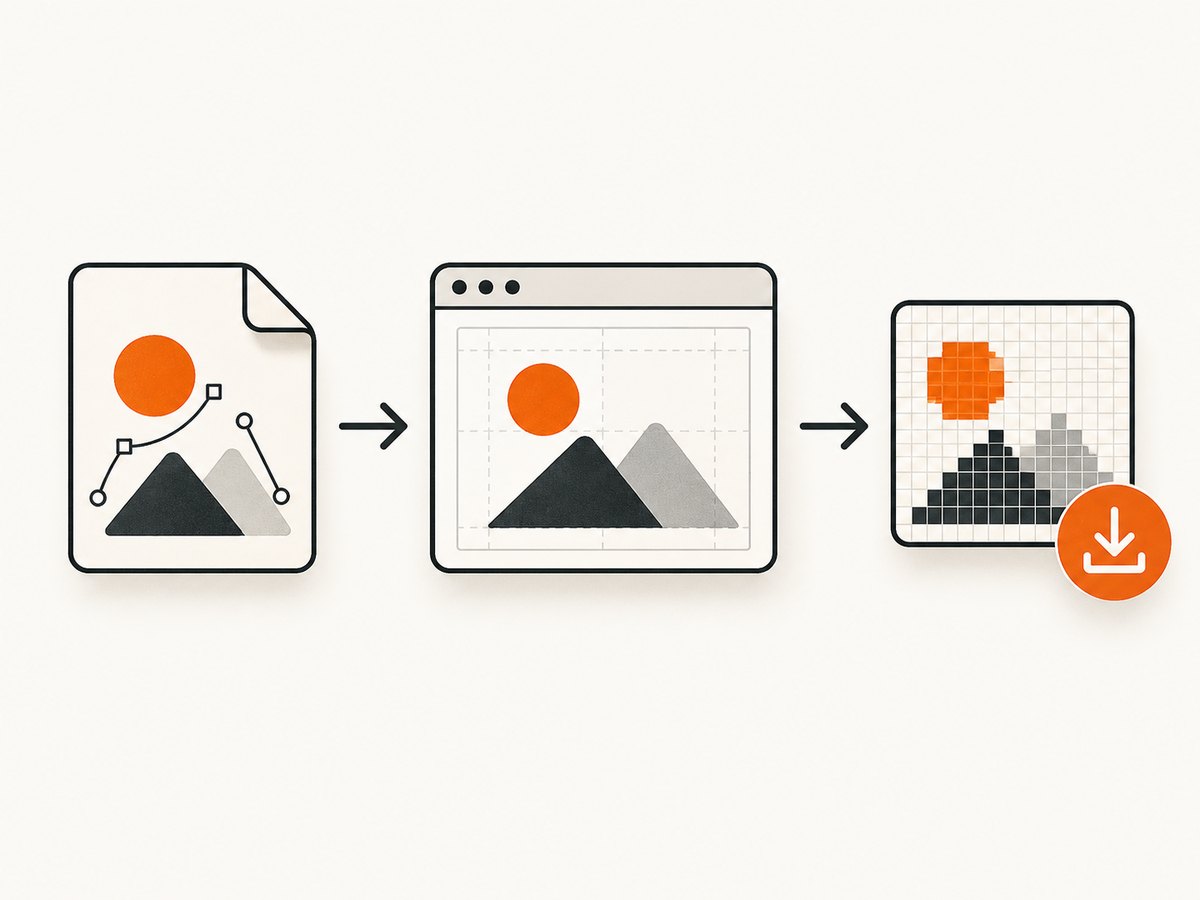
To convert an SVG in HTML to PNG, load the SVG as an image, draw it onto a canvas at the pixel dimensions you want, then encode the canvas with toBlob(). Wait for the image to finish loading before drawing it, preserve its aspect ratio, and ensure every image embedded in the SVG is same-origin or CORS-enabled. The resulting PNG can be downloaded from a Blob URL.
This guide covers SVG files by URL, inline SVG markup, downloads, dimensions, transparency, CORS, and batch conversion. It also includes a command-line route for local build pipelines. MDN documents SVG in image and canvas contexts, plus the Canvas API used to rasterize and export it. MDN: SVG as an image
1. Convert an SVG URL to a downloadable PNG
This example runs in a browser page. It loads an SVG, waits for decoding, paints it onto a canvas, creates a PNG Blob, and clicks a temporary download link. Choose output dimensions explicitly; the canvas dimensions determine the raster image size.
<button id="convert">Convert SVG to PNG</button>
<script>
async function svgToPngBlob(svgUrl, width, height) {
  const image = new Image();
  image.src = svgUrl;
  await image.decode();

  const canvas = document.createElement("canvas");
  canvas.width = width;
  canvas.height = height;
  const context = canvas.getContext("2d");
  if (!context) throw new Error("Could not create a 2D canvas context");
  context.drawImage(image, 0, 0, width, height);

  return new Promise((resolve, reject) => {
    canvas.toBlob((blob) => {
      if (blob) resolve(blob);
      else reject(new Error("PNG encoding failed"));
    }, "image/png");
  });
}

document.querySelector("#convert").addEventListener("click", async () => {
  try {
    const blob = await svgToPngBlob("/assets/diagram.svg", 1200, 800);
    const objectUrl = URL.createObjectURL(blob);
    const link = document.createElement("a");
    link.href = objectUrl;
    link.download = "diagram.png";
    link.click();
    setTimeout(() => URL.revokeObjectURL(objectUrl), 1000);
  } catch (error) {
    console.error("SVG to PNG conversion failed:", error);
  }
});
</script>
Replace /assets/diagram.svg with the SVG location and set 1200 and 800 to your desired output pixel size. The SVG must be reachable by the page. For same-origin URLs, a relative path is convenient. For a cross-origin URL, the remote server must allow the request and, when the canvas is to be exported, the image must be served with appropriate CORS permission.
MDN describes toBlob() as creating a Blob that represents the image contained in the canvas. PNG is a required canvas export format. The Blob is binary data, suitable for a download or upload; it avoids building a potentially large encoded string in JavaScript memory. MDN: HTMLCanvasElement.toBlob()
2. Choose dimensions and preserve the SVG proportions
The canvas has a width and height in bitmap pixels. The call drawImage(image, 0, 0, width, height) scales the complete SVG into that rectangle. If the rectangle has a different ratio from the SVG artwork, it stretches. Calculate the second dimension from the first to avoid distortion.
function fitHeight(sourceWidth, sourceHeight, targetWidth) {
  return Math.round(targetWidth * sourceHeight / sourceWidth);
}

const width = 1600;
const height = fitHeight(800, 500, width); // 1000
SVGs express their drawing coordinates with a viewBox; their root width and height provide intrinsic dimensions for image use. Include both when possible:
<svg xmlns="http://www.w3.org/2000/svg"
     width="800" height="500" viewBox="0 0 800 500">
  <rect width="800" height="500" fill="white"/>
  <circle cx="400" cy="250" r="150" fill="tomato"/>
</svg>
For an SVG that only has a viewBox, add width and height to the source or prepare a modified SVG with the desired intrinsic dimensions before loading. Do not rely on CSS layout dimensions elsewhere on the page to set the exported PNG size: the canvas bitmap size is controlled by canvas.width and canvas.height. MDN’s canvas image tutorial specifically calls out waiting for the image and setting root SVG dimensions for this workflow. MDN: Using images in a canvas
High-resolution output
For a sharper image on a high-density display, multiply both dimensions by a scale factor. For example, a 400 by 250 CSS-sized graphic rendered at scale 2 needs an 800 by 500 canvas. Scale both axes by the same factor and draw at the resulting pixel size. Large canvases use more memory and take longer to encode, so use the smallest dimensions that meet the output requirement.
Transparent background
A newly created canvas is transparent until painted. If the SVG has transparent regions, they remain transparent in a PNG. To force a solid background, paint it before drawing the SVG:
context.fillStyle = "#ffffff";
context.fillRect(0, 0, width, height);
context.drawImage(image, 0, 0, width, height);
3. Convert inline SVG markup
If the SVG already exists in the HTML document, serialize that element as XML, wrap it in a Blob, and load it as an image. Set dimensions in the SVG markup so the browser knows its intrinsic size. This approach is useful for exporting a generated icon or diagram that is already in the DOM.
async function inlineSvgToPngBlob(svgElement, width, height) {
  const clone = svgElement.cloneNode(true);
  clone.setAttribute("xmlns", "http://www.w3.org/2000/svg");
  clone.setAttribute("width", String(width));
  clone.setAttribute("height", String(height));

  const svgText = new XMLSerializer().serializeToString(clone);
  const svgBlob = new Blob([svgText], {
    type: "image/svg+xml;charset=utf-8"
  });
  const svgUrl = URL.createObjectURL(svgBlob);

  try {
    const pngBlob = await svgToPngBlob(svgUrl, width, height);
    return pngBlob;
  } finally {
    URL.revokeObjectURL(svgUrl);
  }
}

const svgElement = document.querySelector("#chart svg");
const png = await inlineSvgToPngBlob(svgElement, 1200, 800);
The function uses svgToPngBlob() from the first example. If the inline SVG depends on CSS classes, stylesheets, or inherited styles from the surrounding page, serializing only the SVG element may omit those styles. Add the needed presentation attributes or inline the required styles before serialization. Check computed styles when the exported result differs from the on-page appearance.
4. Download, display, or encode the PNG
Once you have a Blob, use an object URL for a download or image preview. Revoke each object URL when it is no longer needed so the browser can release its associated memory.
function downloadBlob(blob, filename) {
  const url = URL.createObjectURL(blob);
  const link = document.createElement("a");
  link.href = url;
  link.download = filename;
  link.click();
  setTimeout(() => URL.revokeObjectURL(url), 1000);
}

const pngBlob = await svgToPngBlob("/assets/logo.svg", 512, 512);
downloadBlob(pngBlob, "logo.png");
For a preview, assign the object URL to an image’s src, then revoke it when the preview is replaced or removed. If an API specifically needs a data URI, use canvas.toDataURL("image/png"); it returns a base64-encoded string. Data URIs are convenient for small payloads but can use substantially more memory than Blob data. MDN documents both toBlob() and toDataURL(). MDN: toDataURL()
5. CORS, SVG resources, and export security
The most common export failure is a tainted canvas. If the SVG or an image it contains was loaded from another origin without valid CORS permission, the browser prevents reading or serializing the canvas. Calling toBlob() or toDataURL() can throw a SecurityError. Setting crossOrigin on the image only requests a CORS-enabled load; the remote server must also send an appropriate access-control response header. MDN: CORS enabled images
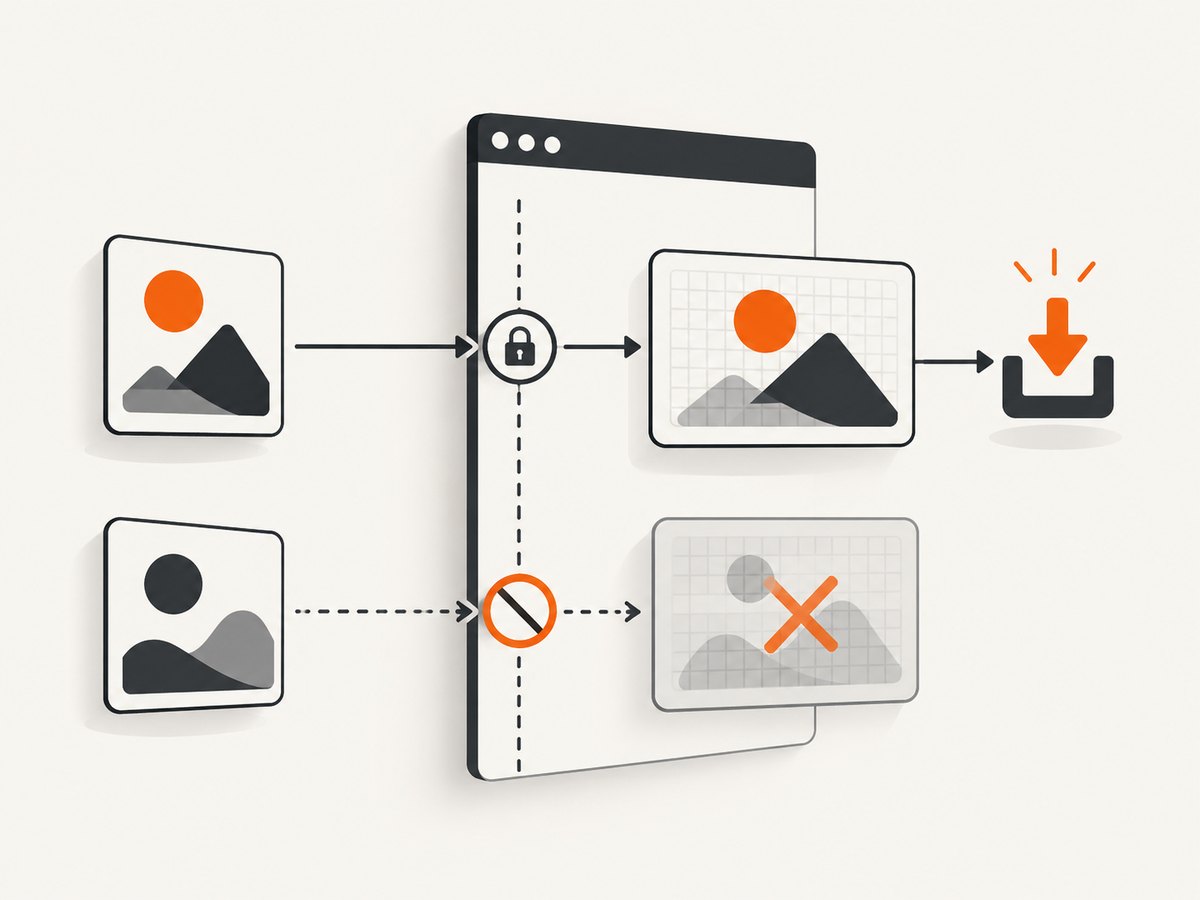
For a cross-origin SVG, set the property before src, and make sure the server permits your page’s origin:
const image = new Image();
image.crossOrigin = "anonymous";
image.src = "https://assets.example.com/diagram.svg";
await image.decode();
SVG used as an image also has resource-loading limits. External images and other referenced resources may not load in this context unless they are inlined as data URLs. For a predictable export, prefer self-contained SVGs, inline required assets, and confirm that fonts and other dependencies are available before rasterizing. MDN: SVG resource restrictions
6. Convert SVG files locally or in a batch
If conversion belongs in a local authoring workflow or build pipeline, Inkscape provides a command-line exporter. For a local file, a basic command is:
inkscape --export-type="png" my_file.svgInkscape also documents batch processing and exporting selected SVG object IDs. CLI flags can vary by version, so check the manual for the installed version before putting a command into a pipeline. The browser canvas method is useful when the page’s JavaScript must generate a PNG for the visitor; a local CLI is appropriate when source files are available to a build or desktop process. Inkscape command-line manual
7. Troubleshooting common conversion errors
| Symptom | Likely cause | Fix |
|---|---|---|
SecurityError during toBlob() or toDataURL() |
The canvas contains cross-origin pixels without CORS approval. | Serve the SVG and its embedded images with appropriate CORS headers, set image.crossOrigin = "anonymous" before src, or use same-origin and inline assets. |
| Blank or missing output | The draw happened before the image loaded, the URL is wrong, or SVG dependencies did not load. | Await image.decode() or the load event; check the request in browser developer tools and make the SVG self-contained. |
| Image is stretched | The canvas aspect ratio differs from the SVG’s. | Calculate output height or width from the source ratio and scale both dimensions equally. |
| SVG does not render as expected | Root SVG dimensions are missing, or the serialized inline SVG lost CSS inherited from the page. | Set root width and height; inline the styles or add presentation attributes needed by the standalone SVG. |
toBlob() callback receives null |
PNG encoding did not produce a Blob. | Reject this result, reduce excessive canvas dimensions, and retry with a valid supported canvas size. |
| PNG has an unexpected white or colored background | The SVG or conversion code paints a background. | Remove the background paint for transparency, or deliberately fill the canvas with the chosen background before drawing. |
| Missing fonts or embedded images | The SVG refers to external resources that are unavailable or blocked in image context. | Inline those resources as data URLs where suitable or make them accessible and CORS-enabled; verify font availability before conversion. |
| Inkscape rejects an option | The installed version uses different CLI options. | Consult the manual corresponding to the installed version and check its supported export flags. |
8. Performance, reliability, and cost considerations
Browser conversion does not require a separate image service: the browser performs rendering and PNG encoding. For a single asset, this keeps the workflow simple. For repeated conversions, reuse the same page and avoid repeatedly fetching an unchanged SVG. Process a modest number at a time; many large canvases can consume significant browser memory. Choose dimensions based on the actual destination, and release object URLs after use.
Reliability depends on the source being available, fully decoded, and self-contained enough to render in an SVG image context. Handle rejected decode promises, failed network requests, absent canvas contexts, and null Blob results in application code. For consistent results across users, control the SVG assets, fonts, and dimensions rather than depending on arbitrary third-party content.
The Canvas API itself has no per-image service charge. Inkscape is an option for local or automated file conversion. If the task is to capture a web page as an image rather than convert an SVG asset, a screenshot API can perform a different job: it captures rendered pages. ScreenshotNeo is a website screenshot API and MCP server; it does not replace the SVG-to-canvas code when you need to rasterize a specific SVG element in your own page.
Or skip the browser setup
If your goal is a screenshot of a web page, ScreenshotNeo can return an image from one request. See the ScreenshotNeo API documentation for options and formats.
curl -G "https://api.screenshotneo.com/v1/shot" \
  -d access_key=YOUR_API_KEY \
  --data-urlencode url=https://stripe.com \
  -o shot.webp
ScreenshotNeo removes cookie banners, newsletter popups, and chat widgets before capture. Bot checks, blank pages, failed loads, timeouts, and cache hits are never billed, and the response identifies the page verdict and billing status in headers. Its MCP server provides screenshot tools for Claude, Cursor, and other MCP clients. The free plan includes 1,000 screenshots per month with no card; paid plans start at $5 for 3,000 shots. Every feature is on every plan.
Create a free ScreenshotNeo account for 1,000 screenshots a month with no card.
FAQ
Can I convert an SVG without uploading it to a server?
Yes. Load a local or same-origin SVG in the browser and draw it to a canvas. For an inline SVG, serialize the element into an SVG Blob first. Cross-origin assets still need CORS permission for export.
Should I use toBlob() or toDataURL()?
Use toBlob() for downloads, uploads, and larger output because it gives you binary data. Use toDataURL() when an encoded string is specifically needed, such as a small inline image.
Can the output be a JPEG?
The canvas can request other formats, but this guide targets PNG, which preserves transparency. A JPEG has no transparency, so decide on a background before using a format without alpha.
Can I convert an SVG shown with CSS on the page?
Yes, but CSS that comes from the surrounding document may not accompany a serialized SVG element. Inline the needed styles or use the original SVG source with its styles included.
Is this the same as taking a screenshot of a website?
No. Canvas conversion rasterizes an SVG graphic. A website screenshot captures a rendered page; use a browser screenshot workflow or a screenshot service for that separate task.


