How to Convert SVGs with Images in Safari
Safari can display SVGs, but dependable PNG conversion requires an export workflow. Learn the Safari, Inkscape, canvas, and API options.
Short answer: Safari can render an SVG, but its documented Save Image action downloads the image resource served by a webpage; it is not a general SVG-to-PNG or SVG-to-JPEG converter. For a repeatable file conversion with control over dimensions and export area, open the SVG in Inkscape and export a PNG:
inkscape --export-type=png --export-filename=output.png input.svgSafari is still useful when you need to inspect how the SVG renders or capture the displayed result. The correct workflow depends on whether you need the original SVG resource, a screenshot of Safari’s rendering, or a deliberately sized raster export.
1. Choose the right conversion method
| Goal | Best method | What you get |
|---|---|---|
| Download the SVG exactly as served | Safari’s Save Image action | The webpage image resource, usually still SVG |
| Export a dependable PNG with chosen dimensions | Inkscape | A raster file with controlled area and size |
| Capture exactly what Safari displays | Web Inspector capture or a browser screenshot | A visual snapshot of the rendered page or element |
| Convert inside your own web app | SVG plus HTMLCanvasElement.toDataURL() |
PNG, or JPEG in Safari, generated by code |
2. Save an SVG from Safari
Use this route when you only need the image file that a webpage exposes.
- Open the page containing the SVG in Safari.
- Control-click the image.
- Choose the available Safari image-saving command.
- Inspect the downloaded file’s extension and contents. If it is an SVG, Safari has saved the source image rather than transcoding it.
Apple documents that some images, including certain CSS background images, cannot be saved this way. The save command also does not promise conversion to PNG or JPEG. If the graphic is a background, an inline SVG, or generated by script, use the export or capture methods below.
3. Convert the SVG to PNG with Inkscape
Inkscape provides a documented command-line export workflow and is the most practical choice for repeatable conversion.
Install and verify Inkscape
Install Inkscape for your operating system, then verify that the command is available:
inkscape --versionExport the complete SVG
inkscape --export-type=png --export-filename=output.png input.svgThe command writes output.png. Open the PNG after export and check that all images, clipping paths, transparency, and edges look correct.
Set output dimensions
Use Inkscape’s PNG export controls when the output must have a specific width, height, or export area. The useful choices are usually:
- Page: exports the document page.
- Drawing: fits the export to all visible artwork.
- Selection: exports only a selected object or group.
- Custom area: lets you specify the exact export rectangle.
Set the pixel width or height after choosing the area. If you set only one dimension, preserve the aspect ratio unless the destination explicitly requires stretching.
Export an object by ID
For batch work, give an SVG object an ID and export that object from the command line. Inkscape’s command-line documentation includes object-ID export examples; use the syntax supported by the Inkscape version installed on your machine.
Batch conversion
Run the same command for each file in a shell loop:
for f in ./svg/*.svg; do
  name=$(basename "$f" .svg)
  inkscape --export-type=png --export-filename="./png/$name.png" "$f"
done
Create the destination directory first:
mkdir -p ./png4. SVGs that contain images
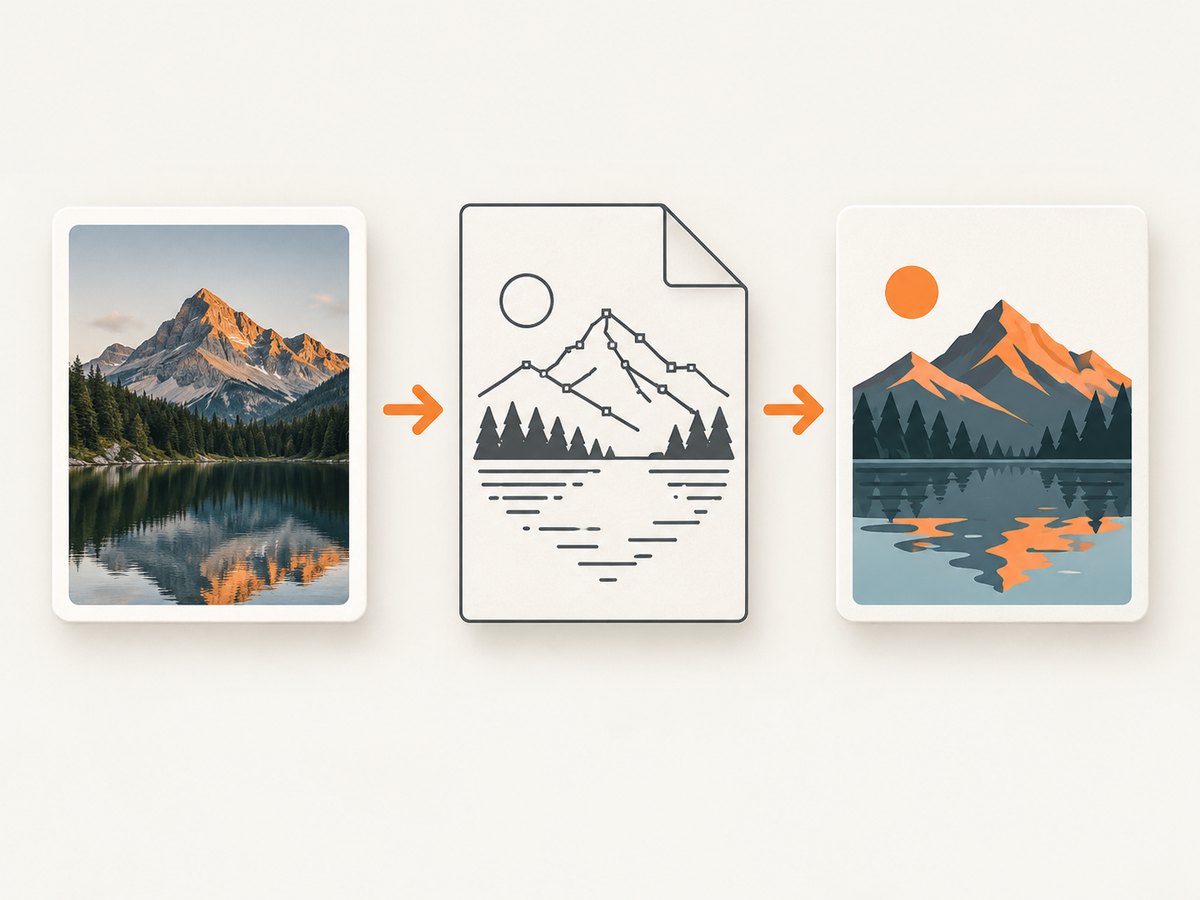
An SVG can combine vector paths with raster images. The SVG <image> element can reference PNG, JPEG, and other SVG resources. Images may be embedded directly in the file or linked by URL or filesystem path.
Embedded images
An embedded image is stored inside the SVG, commonly as a data URL. It travels with the file, so a converter does not need a second asset lookup. The file can become considerably larger, however.
Linked images
A linked image remains outside the SVG. Keep that file available at the same relative path, or make the URL reachable to the exporting application. A browser may display a linked image successfully while a command-line export fails because the working directory, permissions, network access, or URL differs.
Raster quality
Converting an SVG does not vectorize a raster image inside it. Enlarging a small embedded JPEG or PNG can make it blurry. Export at the final required pixel size, and use a higher-resolution source image when the composition will be displayed large.
5. Capture Safari’s rendered appearance
Sometimes the goal is not a source conversion. You may need a picture of the exact way Safari lays out the SVG with fonts, CSS, scripts, and external images.
- Enable Safari’s Develop menu in Safari settings if it is not visible.
- Choose Develop > Show Web Inspector, or use Inspect Element from the page context menu.
- Select the element containing the SVG.
- Use the capture option available in your Safari version, if present.
Inspector capture is a visual workaround and should not be treated as a guaranteed SVG-to-PNG conversion command. It can include surrounding layout, device-pixel scaling, or browser UI choices. For a controlled file, use Inkscape.
6. Convert SVG data in a web page with canvas
For developers building a conversion page, load the SVG into an image, draw it on a canvas, and request an output data URL. PNG is required by the HTML specification, and Safari also supports JPEG for this method.
<input id='file' type='file' accept='.svg,image/svg+xml'>
<button id='convert'>Convert</button>
<a id='download' download='converted.png'>Download PNG</a>
<script>
const fileInput = document.querySelector('#file');
const button = document.querySelector('#convert');
const link = document.querySelector('#download');

button.addEventListener('click', () => {
  const file = fileInput.files[0];
  if (!file) return;

  const reader = new FileReader();
  reader.onload = () => {
    const image = new Image();
    image.onload = () => {
      const scale = 2;
      const canvas = document.createElement('canvas');
      canvas.width = image.naturalWidth * scale;
      canvas.height = image.naturalHeight * scale;
      const context = canvas.getContext('2d');
      context.scale(scale, scale);
      context.drawImage(image, 0, 0);
      link.href = canvas.toDataURL('image/png');
      link.hidden = false;
    };
    image.onerror = () => alert('The SVG could not be rendered.');
    image.src = reader.result;
  };
  reader.readAsDataURL(file);
});
</script>
This example handles a local SVG. External images, fonts, or other cross-origin resources can make the canvas tainted; after that, reading pixels with toDataURL() may fail. Use same-origin resources, appropriate CORS headers, or embed the assets before drawing.
7. Handle external resources, fonts, and transparency
- Missing image: verify the linked path or URL from the converter’s working directory and embed the image if portability matters.
- Remote image blocked: check network access and CORS. A browser session may have cookies or permissions that a command-line process does not.
- Missing web font: wait for fonts before capture, or convert text to paths when the design must be self-contained.
- Unexpected white background: PNG can preserve transparency; JPEG cannot. Set a background deliberately when the destination requires one.
- Clipped artwork: export the page, drawing, or selection area that contains the complete composition and inspect viewBox and clipping paths.
- Blurry result: increase output pixel dimensions or replace a low-resolution embedded raster source.
8. Troubleshooting
| Symptom | Likely cause | Fix |
|---|---|---|
| Safari downloads an SVG instead of PNG | Save Image preserves the served resource | Use Inkscape export or canvas conversion |
| Images disappear in Inkscape | Linked files cannot be resolved | Restore relative paths, use absolute accessible URLs, or embed the images |
| Canvas throws a security error | A cross-origin image tainted the canvas | Use same-origin assets, configure CORS, or embed the image data |
| Output is cropped | Wrong export area or SVG viewBox | Choose Page or Drawing, then set the intended dimensions |
| Transparent areas become black or white | Viewer or format applies a background | Use PNG and inspect it in a transparency-aware editor; choose a background explicitly for JPEG |
| Text changes between Safari and Inkscape | Different fonts or font-loading timing | Install the required font, wait for web fonts, or convert critical text to paths |
| Export hangs on a remote SVG | External resource, script, or network request does not finish | Download dependencies locally, disable unnecessary scripts, and retry with a bounded workflow |
9. Performance, reliability, and cost
Performance
Large embedded images increase parsing and memory use. Exporting at a very large pixel size multiplies canvas memory and PNG encoding time. For batch jobs, keep source files local, reuse a predictable export area, and avoid opening a full browser when Inkscape can perform the conversion directly.
Reliability
Before shipping an exported file, compare the PNG with the SVG at 100% zoom. Check every linked image, transparency, font, filter, mask, and clipping path. Keep the source SVG and its dependencies together so a later export uses the same inputs.
Cost
Safari and Inkscape do not charge per conversion. A hosted browser or screenshot service can add usage cost, especially when it loads remote pages and waits for resources. Cache stable inputs where appropriate and avoid repeatedly rendering identical assets.
10. Or skip the browser setup
If you need a screenshot of a rendered SVG or its containing page rather than a source-level PNG export, ScreenshotNeo provides a single GET request. See the ScreenshotNeo API documentation for the full option set.

curl -G "https://api.screenshotneo.com/v1/shot" -d access_key=YOUR_API_KEY --data-urlencode url=https://example.com/graphic.svg -o shot.webpimport requests
r = requests.get("https://api.screenshotneo.com/v1/shot", params={"access_key": "YOUR_API_KEY", "url": "https://example.com/graphic.svg"}, timeout=90)
open("shot.webp", "wb").write(r.content)const q = new URLSearchParams({ access_key: 'YOUR_API_KEY', url: 'https://example.com/graphic.svg' });
const res = await fetch(`https://api.screenshotneo.com/v1/shot?${q}`);ScreenshotNeo removes cookie banners, newsletter popups, and chat widgets before the shot. Bot checks, blank pages, failed loads, timeouts, and cache hits are not billed, and the response identifies the page verdict and billing status in X-Page-Verdict and X-Billed headers. Its MCP server lets Claude, Cursor, and other MCP clients use take_screenshot, get_page_info, and capture_pdf. The Free plan includes 1,000 screenshots each month with no card; paid plans start at $5 for 3,000 shots. Create a free ScreenshotNeo account.
11. FAQ
Can Safari convert an SVG directly to JPEG?
Safari’s documented image-saving action does not promise transcoding. Use Inkscape, canvas, or a screenshot workflow, then encode the result as JPEG.
Why does an SVG with an embedded PNG still look blurry?
The embedded PNG remains raster data. If it is enlarged beyond its native pixels, no SVG conversion can restore missing detail.
Should I embed images before sharing an SVG?
Embedding improves portability because the renderer does not need separate files or network access. It also increases file size, so choose based on how the SVG will be distributed.
Is a browser screenshot the same as a file conversion?
No. A screenshot records rendered pixels, while Inkscape exports the SVG artwork into a chosen raster area. Use a screenshot when browser layout matters and an exporter when dimensions and source artwork matter.
What should I check before publishing the PNG?
Confirm the pixel dimensions, transparency, image placement, fonts, clipping, filters, and the appearance at 100% zoom. Also verify that no linked resource was silently omitted.


