How to Convert an SVG File to JPG with Chrome
Chrome can print an SVG to PDF, but JPG conversion needs an SVG-aware extension or another raster workflow. Here are the safest steps and checks.
Short answer: Chrome does not document a built-in command that exports an SVG directly to JPG. Chrome’s native print workflow can save an opened SVG page or file as a PDF, but a JPG requires an SVG-capable extension or another image-conversion workflow. Do not rename a PDF file to .jpg; that changes only the filename, not the file format.
1. Decide whether you need JPG or PDF
Use Chrome’s built-in print workflow when a PDF is acceptable. Google’s instructions are to open the page, image or file, open Print (Ctrl+P on Windows/Linux or Command+P on macOS), and choose Save as PDF as the destination. See Google Chrome’s print instructions.
This route produces a PDF, not a raster JPG. Choose JPG only when the receiving service specifically requires a JPEG image, such as an upload field that rejects PDF files.
2. Convert the SVG to JPG with a Chrome extension
- Open the Chrome Web Store.
- Look for an extension whose current listing explicitly says it exports SVG to JPEG/JPG. The surfaced listings named SVG Converter and SVG Export make that claim.
- Before installing, read the current listing, requested permissions, publisher details and instructions. Store descriptions and availability can change, and these extensions were not independently tested for this guide.
- Open the extension’s documented workflow for your source. A local
.svgfile and an SVG embedded in a web page may use different commands. Follow the listing’s current steps instead of assuming a particular context-menu name. - Choose JPEG/JPG as the output when the extension offers a format menu, then save the result.
- Open the JPG in Chrome or another image viewer and inspect it at the size where you will use it.
The Save Image As Type listing describes right-click format choices including JPG, but its listing excerpt does not establish that it converts a locally opened SVG. Treat it as a format-saving aid, not confirmed SVG conversion software.
3. Check the converted image
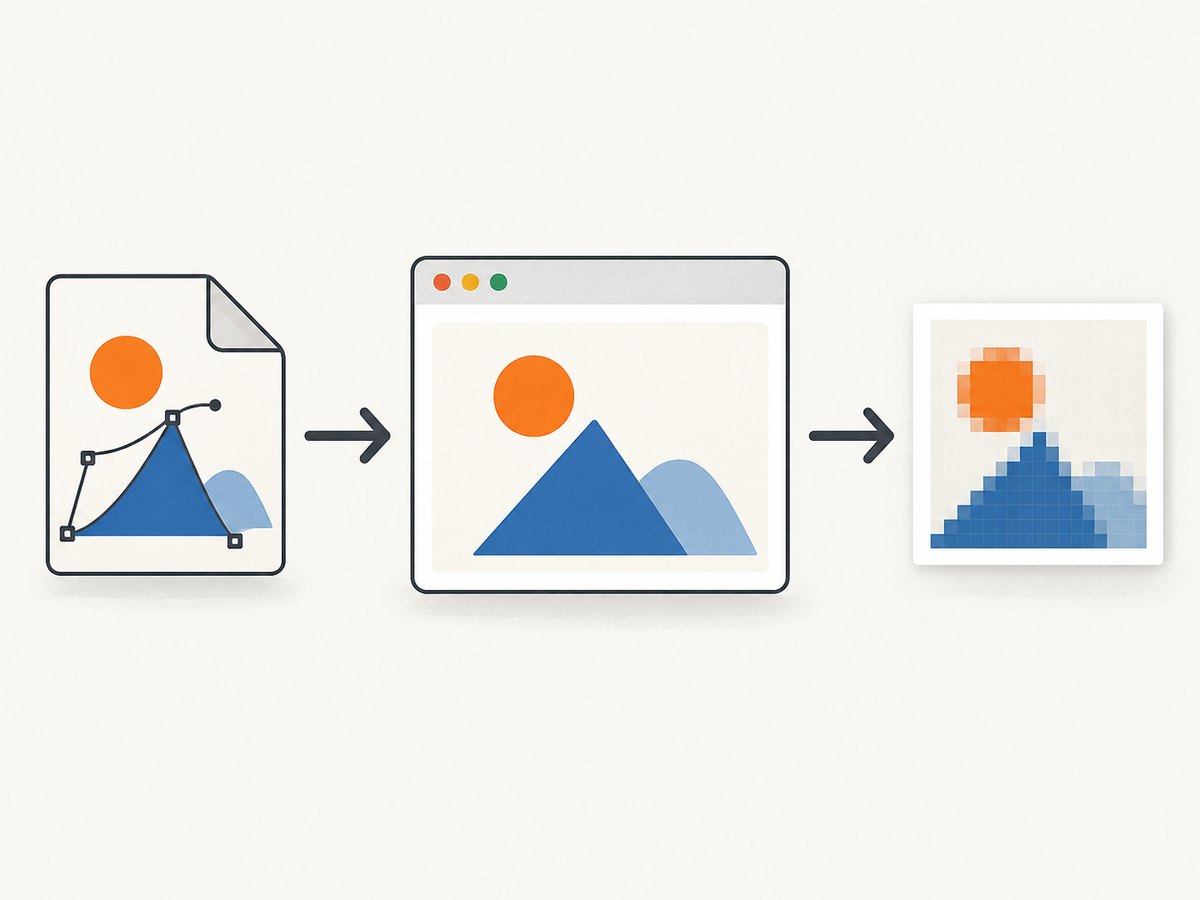
SVG is vector artwork; JPG is a pixel image. Conversion therefore creates a raster image at a particular width and height. Check these items before uploading or publishing:
- Dimensions: confirm the pixel width and height match the destination’s requirements.
- Crop: make sure the complete artwork is visible and no viewBox content was clipped.
- Background: JPG does not preserve transparency. A transparent SVG may receive a solid background during conversion; verify that it is the intended color.
- Fonts: check text for substitutions or missing glyphs if the SVG references fonts that are not installed or embedded.
- Linked assets: inspect images, patterns and external resources. An SVG that depends on inaccessible URLs may render incompletely.
- Quality: zoom in on fine lines and small type. If the extension exposes a size or quality setting, choose dimensions large enough for the final use and inspect the result after saving.
4. What Chrome can and cannot do natively
| Route | Output | Native Chrome? | What to verify |
|---|---|---|---|
| Print > Save as PDF | Yes | Page size, margins and artwork placement | |
| SVG Converter or SVG Export extension | JPG/JPEG, according to the listing | No, extension required | Current permissions, instructions, dimensions, background and fidelity |
| Save Image As Type | Can offer JPG for supported images | No, extension required | The listing does not confirm local SVG conversion |
Chrome’s print path and compositor screenshots are different output paths; a Chromium developer discussion explains that PDF printing uses printing functionality rather than screenshot capture. That historical discussion does not document a PDF-to-JPG procedure. See the Chromium headless-dev discussion.
5. Troubleshooting
The result is a PDF, not a JPG
Cause: Chrome’s documented print destination is Save as PDF. Fix: use an extension whose current listing explicitly supports SVG-to-JPEG export, or use a separate image-conversion tool. Renaming the extension does not convert the bytes.
The extension does not show a command for a local SVG
Cause: the extension may support images inside web pages but not file URLs, or its current interface may differ. Fix: read the current store instructions and permission requirements. Do not assume that a right-click command shown for a web image applies to a locally opened SVG.
The JPG has a white or unexpected background
Cause: JPG has no alpha channel, while SVG can be transparent. Fix: set or add the intended background in the conversion workflow, then reopen the JPG and check it against the destination design.
Text, icons or images are missing
Cause: unavailable fonts, blocked external resources or unsupported SVG features. Fix: open the SVG directly in Chrome first, confirm it renders completely, and prefer embedded fonts and resources where your authoring workflow allows them. Recheck the exported JPG at 100% size.
The output looks blurry
Cause: the artwork was rasterized at too few pixels for its display size. Fix: increase the conversion dimensions if the extension provides that control, and avoid enlarging the JPG after conversion.
The extension is unavailable or its behavior changed
Cause: Chrome Web Store listings and extension interfaces are volatile. Fix: recheck the listing, publisher and permissions, or use the documented PDF route when PDF is acceptable. No independent test establishes a universal menu sequence or output fidelity for the listings above.
6. Automate a browser-rendered SVG capture
If the SVG is published at a reachable URL and you need a rendered image rather than the original vector file, a screenshot API can automate the browser step. This captures the rendered page; it does not preserve SVG editability. For a practical option, ScreenshotNeo returns PNG, JPEG or WebP screenshots (or a PDF) from one GET request. Its API can also handle full-page capture, custom CSS and JavaScript, waiting, headers, cookies, device settings and other capture controls.
7. Or skip the browser setup
Point ScreenshotNeo at the publicly reachable SVG page or URL and save the returned image. See the ScreenshotNeo API documentation for capture options and response details.

cURL
curl -G "https://api.screenshotneo.com/v1/shot" -d access_key=YOUR_API_KEY --data-urlencode url=https://example.com/art.svg -o shot.webpPython
import requests
r = requests.get("https://api.screenshotneo.com/v1/shot", params={"access_key": "YOUR_API_KEY", "url": "https://example.com/art.svg"}, timeout=90)
open("shot.webp", "wb").write(r.content)
Node.js
const q = new URLSearchParams({ access_key: 'YOUR_API_KEY', url: 'https://example.com/art.svg' });
const res = await fetch(`https://api.screenshotneo.com/v1/shot?${q}`);
ScreenshotNeo removes cookie and consent banners, newsletter popups and chat widgets before capture, with each cleanup step configurable. Bot checks, blank pages, timeouts, failed loads and cache hits are not billed; response headers identify the page verdict and whether the shot was billed. An MCP server provides take_screenshot, get_page_info and capture_pdf tools for Claude, Cursor and other MCP clients. The free plan includes 1,000 screenshots per month without a card; paid plans start at $5 for 3,000 shots. Create a free ScreenshotNeo account.
8. Performance, reliability and cost notes
- Local extension: conversion runs in your browser, so speed depends on the SVG, extension and computer. Large artwork, external resources and web fonts can delay rendering.
- Print to PDF: is useful for documents and print sharing, but adds a PDF-to-image step if the recipient requires JPG.
- Automated capture: use an explicit wait when the page loads assets asynchronously. Cache repeated captures when the source has not changed, and inspect response status and image bytes before storing the result.
- Billing: ScreenshotNeo bills only clean shots; failed loads, bot checks, blank pages, timeouts and cache hits are free. Choose the plan based on successful captures and use its usage API to monitor consumption.
FAQ
Can I convert an SVG to JPG with Chrome without installing anything?
Chrome alone documents printing to PDF, not direct SVG-to-JPG export. A JPG workflow therefore needs an SVG-capable extension or another converter.
Is JPG better than PNG for an SVG?
It depends on the destination. JPG is widely accepted and usually smaller for photographic content, while PNG preserves transparency and sharp edges better for many illustrations and interface assets.
Will converting to JPG keep the SVG editable?
No. JPG contains pixels. Keep the original SVG when you may need to edit colors, paths, text or dimensions later.
Can ScreenshotNeo capture a private local file?
The API captures a URL it can reach. A local file:// path is not a public web URL; publish the asset behind an accessible URL or use the local Chrome workflow.


