How to Convert SVG and Web Graphics Programmatically
Convert SVGs to PNG, WebP, JPEG, or PDF with Node.js and command-line tools. Choose a renderer, preserve transparency, and avoid common security and fidelity problems.
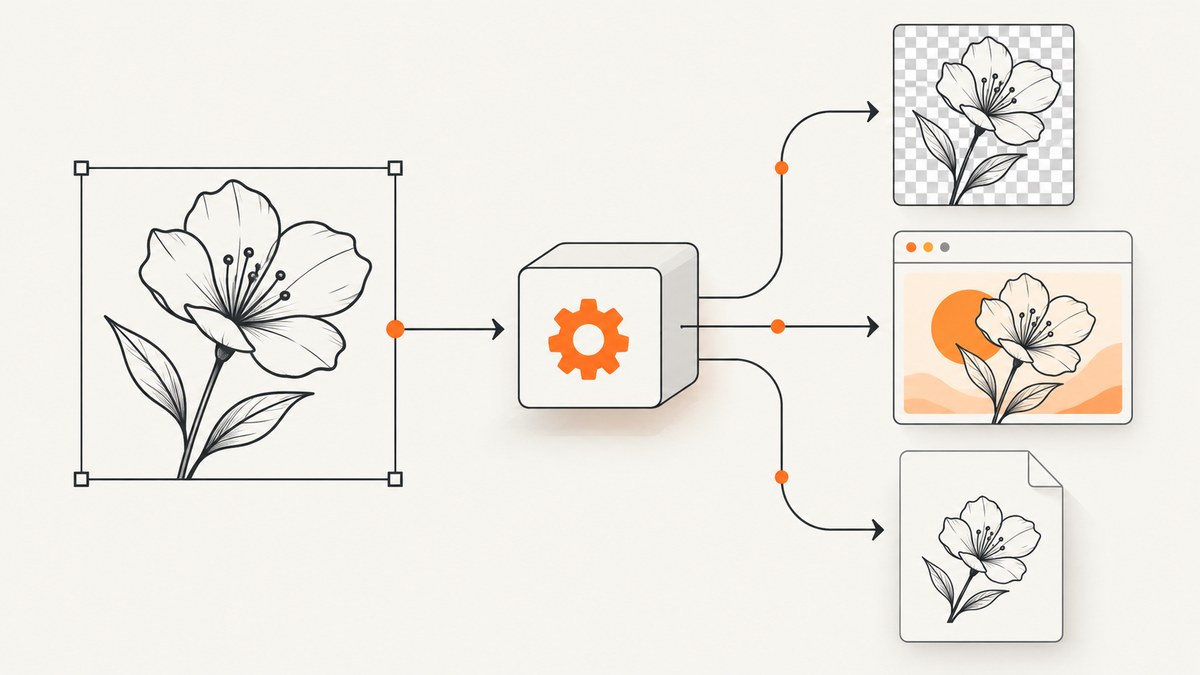
To convert SVG programmatically, first choose a renderer that interprets the SVG, then encode its rendered result as the format you need. Use sharp for an in-process Node.js workflow, rsvg-convert for predictable command-line or native rendering, Inkscape when its export features or rendering compatibility matter, and ImageMagick when you need a flexible batch and format-routing layer. For a PDF that should remain scalable, export as PDF instead of rasterizing first.
The right choice depends on SVG features, output format, dimensions, transparency, and whether inputs are trusted. SVG is XML that can reference external resources and contain complex content, so a production conversion service should also set explicit resource, size, and runtime limits.
1. Choose the conversion path
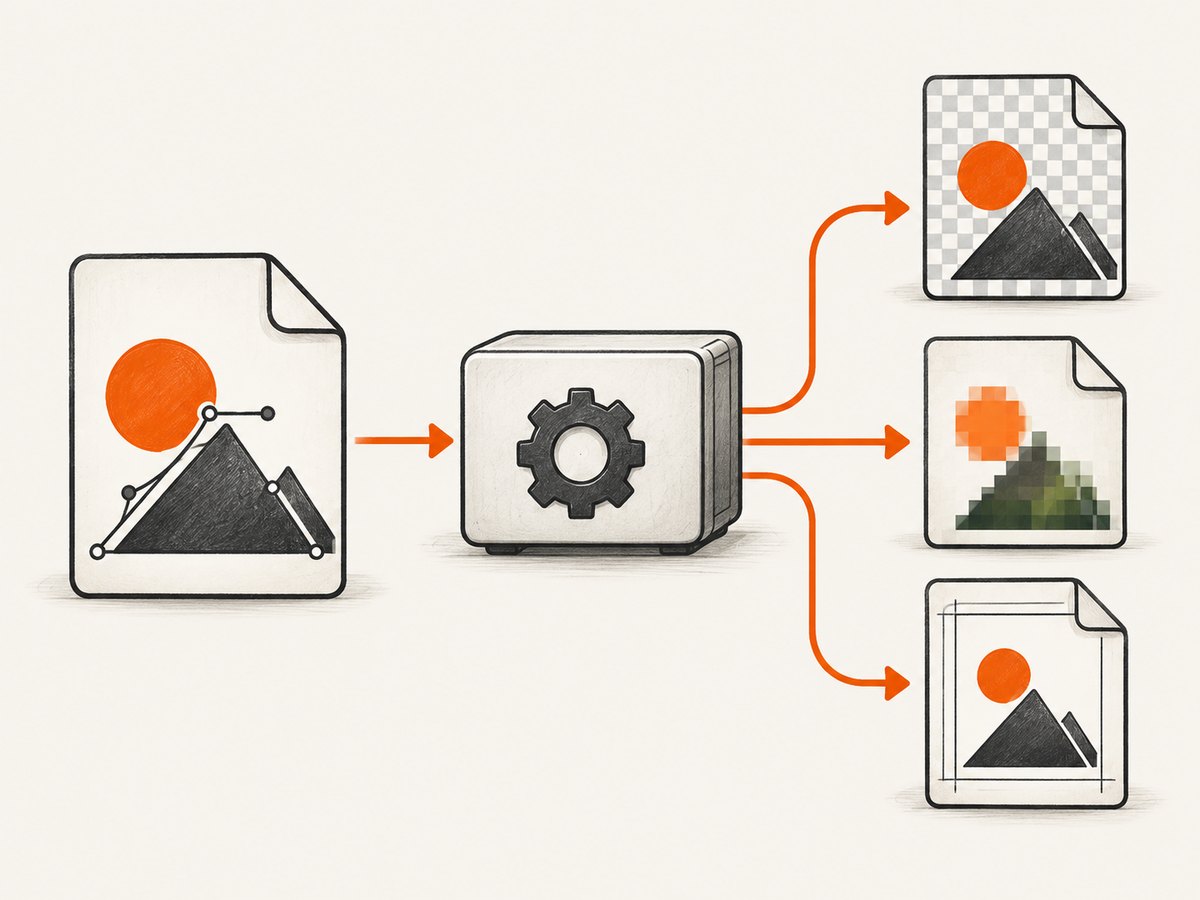
SVG conversion is a render-then-encode operation: an SVG renderer interprets the document, and an encoder writes pixels or another document format. The output can differ across renderers, particularly for CSS, filters, fonts, masks, and external references. Select a renderer before tuning output quality.
| Tool | Good fit | Formats and controls | Considerations |
|---|---|---|---|
sharp |
Node.js services and scripts that need buffers or files | PNG, JPEG, WebP, AVIF, TIFF, GIF, and raw pixels; resize and encoder settings | SVG input defaults to PNG if no output format is selected. It is backed by native image processing dependencies. |
rsvg-convert |
Consistent CLI rendering with explicit geometry or page output | PNG, PDF, PS, EPS, SVG; width, height, DPI, zoom, background, stylesheet, and object ID | Default DPI is 96 and default background is none. librsvg does not support animation, interactivity, or scripting. |
| Inkscape | SVG export workflows that need Inkscape behavior, selected objects, or batch actions | PNG and PDF export, object selection, backgrounds, stdin input, and actions | Use the same installed version and fonts in development and production when output consistency matters. |
| ImageMagick | Batch conversion and routing between image formats | PNG, JPEG, WebP and other ImageMagick formats; resize and density controls | It delegates SVG rendering to Inkscape when available, otherwise RSVG, and falls back to its internal renderer. |
Prefer PNG or WebP when alpha transparency is needed; JPEG has no alpha channel, so choose a background color before encoding. Prefer PDF/SVG output when users need scalable or editable artwork. Browser-based rendering may be needed for content that relies on script, animation, or interactive behavior.
2. Convert SVG with Node.js and sharp
Install sharp in a Node.js project with npm install sharp. This example reads a local SVG, constrains its output width while preserving its aspect ratio, and writes both PNG and WebP:
import sharp from 'sharp';

await sharp('input.svg')
  .resize({ width: 1200, fit: 'contain' })
  .png({ compressionLevel: 9 })
  .toFile('output.png');

await sharp('input.svg')
  .resize({ width: 1200, fit: 'contain' })
  .webp({ quality: 82 })
  .toFile('output.webp');
Save this as an ES module (for example, convert.mjs) and run node convert.mjs. The SVG’s intrinsic dimensions or viewBox inform its aspect ratio. With only a width specified and fit: 'contain', sharp fits the rendered image within that width while retaining proportions. If the SVG has no usable dimensions or viewBox, add dimensions to the SVG or define the intended output width and height explicitly.
For a buffer instead of a file, use const png = await sharp(svgBuffer).png().toBuffer();. SVG strings can be converted to buffers with Buffer.from(svgText). In an HTTP service, validate the input size and SVG content before passing it to the renderer. Uint8Array output removes metadata by default; preserve metadata deliberately only when the workflow requires it.
Choose encoder settings for the use case. PNG is lossless and supports alpha; a higher compression level can reduce file size at the cost of more encoding work. WebP quality controls lossy output size and fidelity. JPEG is useful for photographic content but requires an opaque background. The sharp output API supports JPEG, PNG, WebP, AVIF, TIFF, GIF, and raw pixel data. sharp output API documentation and its constructor documentation cover format and input options.
3. Convert with rsvg-convert
Install librsvg using the package method for your operating system, then confirm rsvg-convert is on the path. Exporting to PNG with a fixed width and preserved aspect ratio:
rsvg-convert --format=png --width=1600 --keep-aspect-ratio \
  --output=artwork.png artwork.svg
Export directly to PDF when you want page or vector output rather than pixels:
rsvg-convert --format=pdf --output=artwork.pdf artwork.svgUseful controls include --height, --dpi-x, --dpi-y, --zoom, --background-color, --stylesheet, and --export-id. DPI and zoom affect raster output dimensions; specify these deliberately instead of relying on a default if physical size or pixel dimensions matter. The default DPI is 96. The default background is none, so raster output can remain transparent.
For PDF, PS, or EPS containing referenced PNG/JPEG images, --keep-image-data retains their original compressed image data. Disabling it can produce larger files. Check the installed version’s help output because package versions may expose options differently. See the rsvg-convert reference.
4. Use Inkscape for export and object selection
Inkscape provides CLI export controls, including actions for exporting objects by XML ID. It can also read SVG content from standard input. For example:
cat input.svg | inkscape --pipe --export-filename=output.pdf
inkscape --export-type=png --export-filename=output.png input.svg
inkscape --without-gui --actions="export-id:logo; export-id-only; export-filename=logo.png; export-do" input.svg
The first command streams an SVG into PDF export; the second writes a PNG; the third exports the object with ID logo. The input SVG must define that XML ID. Inkscape can also export a PNG to a pipe for conversion by ImageMagick when JPEG output is needed. For batch jobs, use its action and export options to make the selected object, output path, and background explicit. Refer to the Inkscape command-line documentation for available actions and options.
5. Use ImageMagick for format routing and batches
ImageMagick can read SVG, render it through an available delegate, and encode the requested image format. The renderer selection matters: by default it uses Inkscape if it is in the execution path, otherwise RSVG; if neither delegate is available, it uses its internal MSVG renderer.
magick -background none -density 144 input.svg -resize '1600x1600>' output.png
magick -background white input.svg output.jpg
magick -background none input.svg output.webp
For a batch of files with matching names, shell expansion can pass multiple inputs to a script that chooses explicit output names. ImageMagick also supports sequential output names such as image-%d.jpg and piping through -. Avoid assuming that a wildcard command will preserve each source’s desired filename or settings; make the mapping explicit for production batches.
Its default density is 96 DPI. Use -density before the input filename when you need a different SVG rasterization resolution. Use -background none to preserve transparency, or set a solid background for JPEG. Specify output format through the extension or an explicit format prefix. ImageMagick’s SVG behavior and security controls are documented in its format documentation and security policy documentation.
6. Preserve dimensions, transparency, and visual fidelity
Dimensions and aspect ratio
SVGs can specify width and height, only a viewBox, or neither. A viewBox defines the coordinate system and proportions; output pixel dimensions still depend on the renderer and requested geometry or DPI. Specify width and height together when an exact canvas is required. If proportions differ from the source, choose whether to contain, crop, or distort rather than letting a tool choose implicitly.
Transparency and background
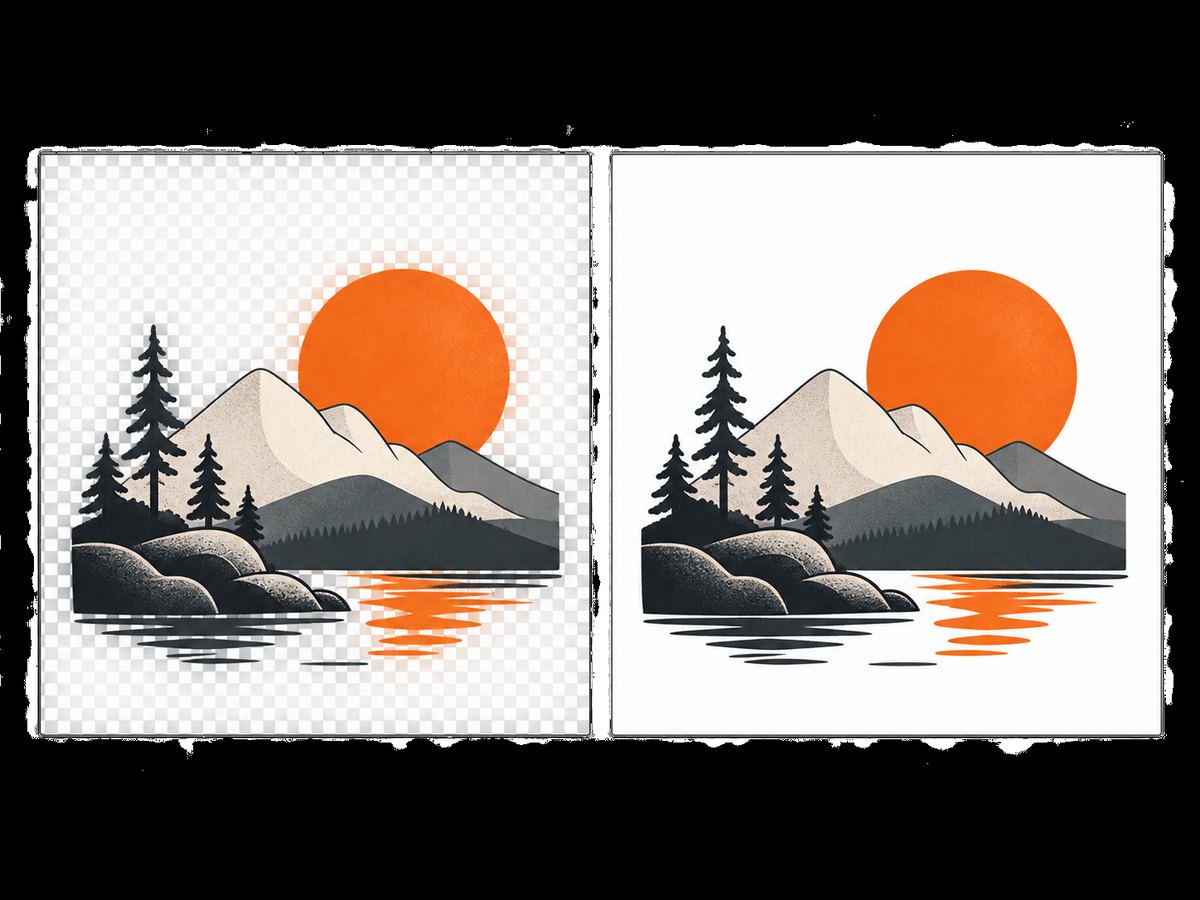
Transparent backgrounds are useful for logos and overlays. Keep alpha in PNG or WebP, and check the output in a viewer that displays transparency rather than a white canvas. JPEG cannot represent alpha: render against a chosen color such as white. rsvg-convert’s default is no background, while ImageMagick expects you to use -background none to request SVG transparency.
Fonts, CSS, filters, and external resources
Fonts unavailable in the conversion environment may be substituted, changing glyph shapes, line wrapping, or layout. Install the required fonts or convert critical text to paths when licensing and editability permit. CSS, filters, masks, and external images may render differently across engines. librsvg is a static renderer and does not support animation, interactivity, or scripting. For SVGs that depend on those behaviors, choose a browser or animation-aware rendering pipeline.
Decide whether external images, fonts, and stylesheets are permitted. Network-loaded resources introduce nondeterminism and can expose a conversion worker to untrusted destinations. A robust pipeline either blocks external access or uses a controlled asset allowlist and base path.
7. Handle SVG safely in production
Treat uploaded SVG as untrusted XML. Do not enable entity substitution, huge-document parsing, embedded SVG handling, or unlimited parser limits for untrusted input. ImageMagick documents some of these as trust-gated capabilities. Constrain input bytes, referenced-resource locations, CPU time, memory, output dimensions, and output file size. Run conversion in an isolated worker with a timeout and a restricted filesystem/network policy.
Build a representative fixture set before choosing a production renderer. Include viewBox-only files, explicit width and height, nested transforms, fallback fonts, CSS classes, gradients, masks, filters, embedded raster images, external references, and very large dimensions. Compare pixel dimensions, alpha, aspect ratio, text wrapping, color, and output size using the exact renderer and version deployed. Documentation establishes tool capabilities and defaults; it does not guarantee identical output across renderers.
Or skip the browser setup
If the source is a web page containing SVG or other web graphics, you can capture its rendered appearance directly instead of installing a browser and building a rendering pipeline. ScreenshotNeo is a website screenshot API and MCP server. A single request returns an image or PDF; see the API documentation for request options.
curl -G "https://api.screenshotneo.com/v1/shot" -d access_key=YOUR_API_KEY --data-urlencode url=https://stripe.com -o shot.webpimport requests
r = requests.get("https://api.screenshotneo.com/v1/shot", params={"access_key": "YOUR_API_KEY", "url": "https://stripe.com"}, timeout=90)
open("shot.webp", "wb").write(r.content)const q = new URLSearchParams({ access_key: 'YOUR_API_KEY', url: 'https://stripe.com' });
const res = await fetch(`https://api.screenshotneo.com/v1/shot?${q}`);ScreenshotNeo accepts cookie and consent banners before capture and removes 60+ known consent platforms, newsletter popups, and chat widgets; each step can be turned off. Bot checks/CAPTCHAs, blank pages, timeouts, failed loads, and cache hits cost nothing, and response headers report the page verdict and billing status. Its MCP server provides take_screenshot, get_page_info, and capture_pdf for Claude, Cursor, and other MCP clients. The free plan includes 1,000 shots per month with no card; paid plans start at $5 for 3,000 shots, and every feature is on every plan. Sign up for 1,000 free screenshots a month, with no card required.
8. Troubleshooting common conversion problems
| Symptom | Likely cause | Fix |
|---|---|---|
| Output is unexpectedly small or blurry | Default DPI or output geometry is lower than intended | Set width/height or density explicitly, then inspect actual pixel dimensions. |
| Background is white or black instead of transparent | Background default or destination format does not support alpha | Use PNG/WebP with a transparent background option; choose an explicit matte for JPEG. |
| Text wraps or glyphs differ | Required font is missing or substituted | Install the font in the worker image, use a controlled font set, or convert text to paths where appropriate. |
| Filters or CSS look different | Renderer support or behavior differs | Test with the production renderer; consider Inkscape or a browser engine if fidelity requires it. |
| External image or stylesheet is absent | Resource path cannot be resolved or access is blocked | Use embedded/controlled resources, set a base path where supported, and define an explicit network policy. |
| Animated or script-generated content is static or missing | Static SVG rendering does not execute animation or scripts | Use a browser or animation-aware pipeline that intentionally supports the source behavior. |
| Conversion fails on a large or complex upload | Parser limits, memory, or execution time were exceeded | Reject oversized input, cap dimensions and runtime, isolate the job, and return a clear per-file error. |
| ImageMagick output changes after deployment | A different delegate or renderer version is installed | Pin the worker environment and verify which delegate handles SVG on that host. |
9. Performance, reliability, and cost
For repeated conversions in Node.js, an in-process library avoids launching a command-line process per file, while CLI tools can be easier to isolate and operate as workers. Actual throughput depends on SVG complexity, filters, dimensions, fonts, hardware, and concurrency; measure with representative inputs rather than extrapolating from a tiny icon. Cache output using a key that includes the input content, renderer/version, output format, dimensions, background, and relevant options.
Large output dimensions and filter-heavy artwork consume more memory and CPU. Bound concurrency so a burst of expensive inputs cannot exhaust the worker. For reliable batch work, track each file separately, retry only transient failures, and make output writes atomic so an interrupted conversion does not leave a truncated file. Record renderer version and options alongside generated assets for reproducibility.
CLI and library tools have no per-request API charge, but operating costs include compute, storage, dependency maintenance, and engineering time. A hosted capture API trades browser infrastructure work for per-plan usage limits; review its current plan and request options before choosing it for a workload. ScreenshotNeo’s listed plans are 1,000 free monthly shots without a card, then $5 for 3,000, $15 for 15,000, $39 for 60,000, $99 for 250,000, and $249 for 1,000,000; yearly billing gives two months free.
10. Frequently asked questions
Can I convert SVG to PDF without rasterizing it?
Yes. Use a renderer with PDF export, such as rsvg-convert --format=pdf or Inkscape’s PDF export. Embedded raster assets remain raster content, but vector paths and text need not be flattened to a single bitmap.
Which format should I choose for a web graphic?
Use PNG for lossless output and broad alpha support, WebP for a compact web image when supported by your consumers, and JPEG for opaque photographic output. Keep SVG when the consumer can use vector markup directly and you need scalable artwork.
Why does my converted file have different dimensions than the SVG?
SVG dimensions may be expressed in physical units or only as a viewBox. Renderer DPI and explicit output geometry determine pixel size. Set the intended width and height or DPI, and verify the result’s pixel dimensions.
Can I batch convert files?
Yes. Use a shell or job queue to process files independently with sharp, rsvg-convert, Inkscape, or ImageMagick. Keep input-to-output naming explicit, cap concurrency, and record failures per file so one malformed SVG does not obscure the rest.


